Clear Unused Images Plus
approvedby puhhh
Fork of oz-clear-unused-images for clearing unused images from vaults. - This plugin has not been manually reviewed by Obsidian staff.
Clear Unused Images Plus





Clear Unused Images Plus is an Obsidian plugin for finding and deleting images that are no longer referenced in your vault. It scans markdown notes, supported frontmatter references, canvas files, and attachment links, then compares those references against image files in the vault.
Use it when attachments accumulate over time and you want cleanup to follow Obsidian's own deletion behavior instead of bypassing your vault settings.
This project is a maintained fork of oz-clear-unused-images. The current fork is maintained by Aleksei B. The original plugin author is Ozan.
See CHANGELOG.md for release history.
Screenshots
Features
- Finds unused images in Obsidian vaults
- Supports markdown links, wikilinks, canvas-linked files, and supported frontmatter image references
- Searchable plugin settings in Obsidian 1.13.0 and newer
- Deletes files and folders through Obsidian-configured trash
- Mandatory review before broader attachment cleanup, with optional cleanup logs
- Separate folder rules for treating image-containing folders as atomic units during manual image cleanup
- Configurable suffix, parent path, and regular expression rules for treating folder-based attachments as atomic cleanup units
- Optional cleanup once after vault load
- Optional recurring cleanup every configured number of minutes
- Optional empty-folder cleanup after deleted images leave folders empty
- Optional review bypass for manual image-folder cleanup, with review enabled by default
- Excluded folder paths with optional subfolder matching
- Excluded file extensions to always keep certain file types (e.g. unlinked PDFs)
- Separate commands for unused images, broader unused attachments, and empty folders
Installation
Requirements: Obsidian 1.8.10 or newer.
- Open Obsidian Settings.
- Go to Community plugins.
- Install
Clear Unused Images Plus. - Activate the plugin from Community Plugins.
- Configure Obsidian's file deletion preference before running cleanup.
Quick Start
- Set Obsidian's file deletion preference to system trash or local
.trash. - Run
Clear unused imagesfrom the Command Palette. - Review the cleanup log after deletion completes.
- Add excluded folders if the plugin reports files you want to keep outside normal note references.
Usage
Deleted files and folders follow Obsidian's own file deletion preference:
- If Obsidian is configured to use system trash, cleanup moves files to system trash.
- If Obsidian is configured to use local trash, cleanup moves files to
.trashinside the vault.
The plugin provides three cleanup commands:
Clear unused imageschecks only image files. It is limited to jpg, jpeg, png, gif, svg, bmp, and webp. When image folder rules are configured, a manual run also reviews matching image-containing folders as atomic units.Clear unused attachmentschecks all non-note attachments in the vault, not just images. This can include PDFs, audio, video, archives, and other non-markdown files. When attachment folder rules are configured, it also reviews each selected folder and its descendants as one atomic attachment unit.Clear unused foldersremoves empty folders recursively, starting with the deepest folders first. It follows Obsidian's file deletion preference and keeps folders under excluded folder paths.
Use Clear unused images for routine image cleanup. Use Clear unused attachments more carefully because it has a wider scope: it can move any unreferenced non-note attachment, or every descendant of an approved matching attachment folder, to trash. The attachment cleanup flow always shows a review modal before deletion. Use Clear unused folders after file cleanup if you want to remove empty folder structure left behind, or enable Clear empty folders after image cleanup to do that automatically.
You can run cleanup from the ribbon icon or from the Command Palette with Ctrl/Cmd + P.


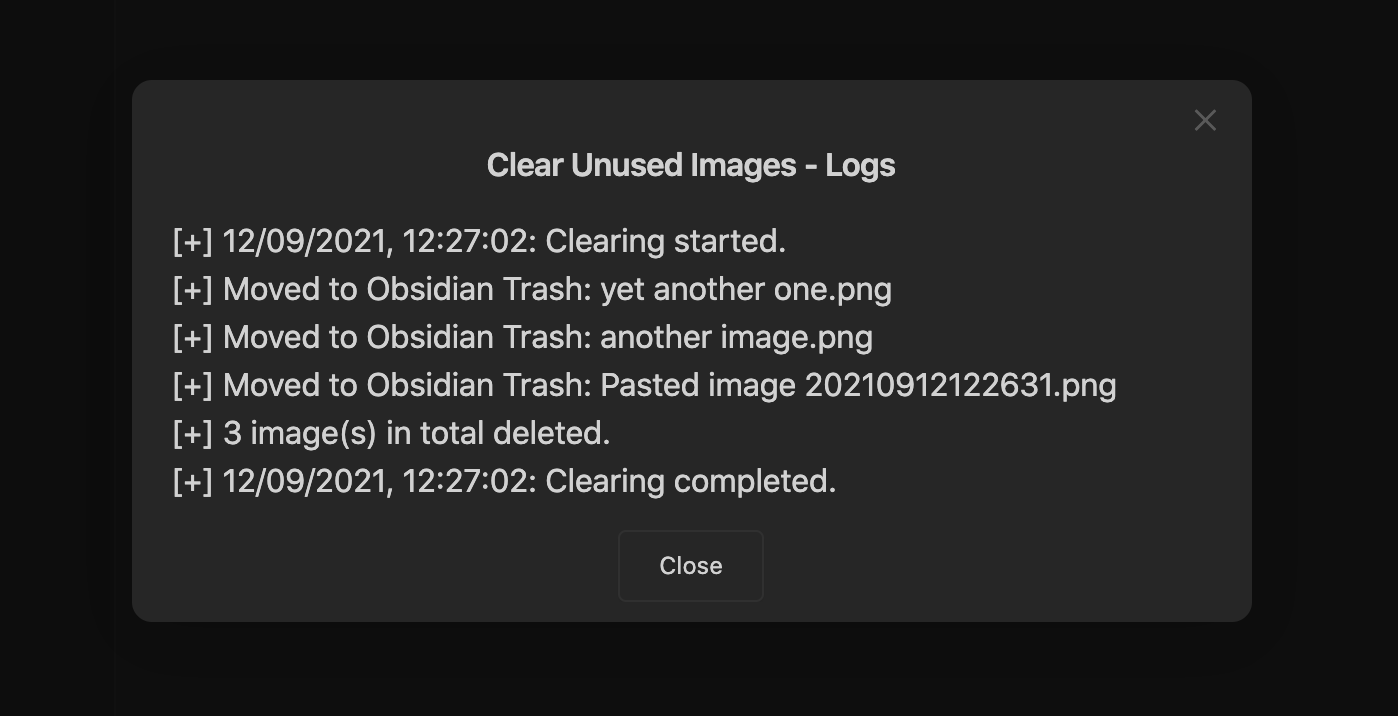
If Delete Logs is enabled, the plugin shows a modal with information about deleted files:
If all images are still used, the plugin reports that nothing was deleted:

Image Folders
Use Image folder rules to treat selected folders and everything inside them as atomic image units during manual Clear unused images. The rule syntax is the same as Attachment folder rules: case-insensitive suffixes, case-sensitive parent paths, exact-name recursive parents, and anchored case-sensitive regular expressions.
For example, the parent path rule attachments selects each immediate child folder under attachments, but not the parent itself or deeper folders separately. A matching folder is considered only when it contains at least one jpg, jpeg, png, gif, svg, bmp, or webp descendant.
- Image folder rules apply only to manual
Clear unused images. Vault-load and periodic cleanup never plan or delete matching folders. - By default, a manual run with configured image folder rules opens the review modal before deleting any unused image or selected folder.
Review image folder cleanupcan disable that preview for manual image cleanup. When it is off, loose unused images, whole matching folders (including Markdown and non-image descendants), and eligible empty direct parents may move to Obsidian-configured trash without confirmation.Clear unused attachmentsstill always requires review, and automatic cleanup still ignores image folder rules.- The review shows every descendant that would move to trash, including Markdown files, non-image files, and nested folders. Protected folders appear with the reason they were kept.
- Any reference from outside the selected folder to any descendant keeps the whole folder out of trash. The folder is listed as protected only when it also contains at least one file that nothing in the vault references; a folder whose every file is referenced is treated as used and shows no protected notice. References between descendants inside the same folder do not protect it.
- Excluded folder intersections, excluded file extensions, reference-scan failures, and invalid rules protect or stop cleanup using the same safeguards as attachment folder cleanup.
- Immediately before deleting each selected folder, the plugin rescans and verifies its rules, references, exclusions, type, and complete descendant fingerprint. A changed folder is kept and must be processed again.
- Descendants of a selected or protected atomic folder are not also deleted individually during that cleanup run.
- If every child selected by a parent path, recursive parent rule, or regular expression is removed and their direct parent becomes empty, that parent may also be moved to trash when it was included in the cleanup plan and
Clear empty folders after image cleanupis enabled. When that setting is off, the selected folders are removed but their parents stay. Cleanup never cascades to higher ancestors.
Attachment Folders
Use Attachment folder rules to treat a selected folder and everything inside it as one atomic attachment during manual Clear unused attachments. Separate rules with commas or put one rule on each line.
| Rule | Behavior |
|---|---|
.html | Legacy suffix rule. Selects folders whose names end with .html. Suffix matching is case insensitive. |
Attachments | Parent path rule. Selects the immediate child folders of the vault-relative Attachments path. Matching is case sensitive. It does not select Attachments itself or deeper descendants. |
**/attachments | Recursive parent rule. Selects the immediate child folders under every folder whose exact path segment is attachments, whether it is at the vault root or nested. Matching is case sensitive and does not match Attachments, attachments-old, or my attachments. |
/^Attachments\/[^/]+$/ | Regular expression rule. Tests the expression, case sensitively, against each folder's full vault-relative path. This example selects only immediate children of Attachments. |
- This setting applies only to manual
Clear unused attachments. It does not affectClear unused images, vault-load cleanup, periodic cleanup, orClear unused folders. - The review modal shows each outermost selected folder and its descendants as one folder item, together with the rule that selected it. Continuing moves the whole folder, including any Markdown files inside it, to Obsidian-configured trash.
- A reference from outside the folder to any descendant always keeps a selected folder out of trash. The folder is listed as protected only when it also contains at least one file that nothing in the vault references; a folder whose every file is referenced is treated as used and shows no protected notice. Excluded folder intersections and excluded file extensions always protect the folder. References between descendants inside the same folder do not protect it.
- If the reference scan cannot finish, the plugin keeps the folder.
- An invalid rule stops attachment cleanup before anything is moved to trash. Regular expressions must be anchored with
^and$. For predictable linear matching, the supported subset allows literals, escapes, character classes, and at most one+,*, or?quantified character class per path segment. Groups, alternation, wildcards, lookarounds, flags, backreferences, and bounded quantifiers are rejected. - Before deleting each reviewed folder, the plugin rescans references and exclusions and verifies that the rules and reviewed descendants have not changed. If the folder changed or became protected, cleanup skips it and asks you to run the command again.
- After folders selected by a parent path, recursive parent rule, or regular expression are deleted, their reviewed direct parent may also be removed if it became empty. The parent is rechecked immediately before deletion and is kept if any file or folder remains, if an exclusion applies, or if a reviewed child was skipped or failed. Empty-parent cleanup never continues to higher ancestors. Legacy suffix rules do not remove their parent folders automatically.
You can configure up to 50 rules, with a maximum of 256 characters each. Legacy suffixes remain limited to 64 characters. Parent paths must be vault relative and cannot contain empty, . or .. segments or backslashes. A recursive parent rule must be **/ followed by exactly one literal folder name.
Recursive parent rules were introduced after 1.9.0. In 1.9.0 and earlier, **/attachments was treated as a literal parent path; the recursive interpretation now selects that literal location plus immediate children under every other exact attachments folder segment. Legacy standalone **, multi-segment **/... values, and wildcard-like names are now rejected fail-closed instead of being treated as literal paths. Every newly selected folder still goes through the normal review and deletion safeguards.
Automatic Cleanup
Enable Clean Images On Vault Load to run image cleanup once after the vault layout is ready:

- The startup cleanup only runs the image cleanup flow, not
Clear unused attachments. - Startup cleanup ignores
Image folder rules; it continues deleting only individual unused images. - If you enable the setting while Obsidian is already open, the change takes effect on the next vault load.
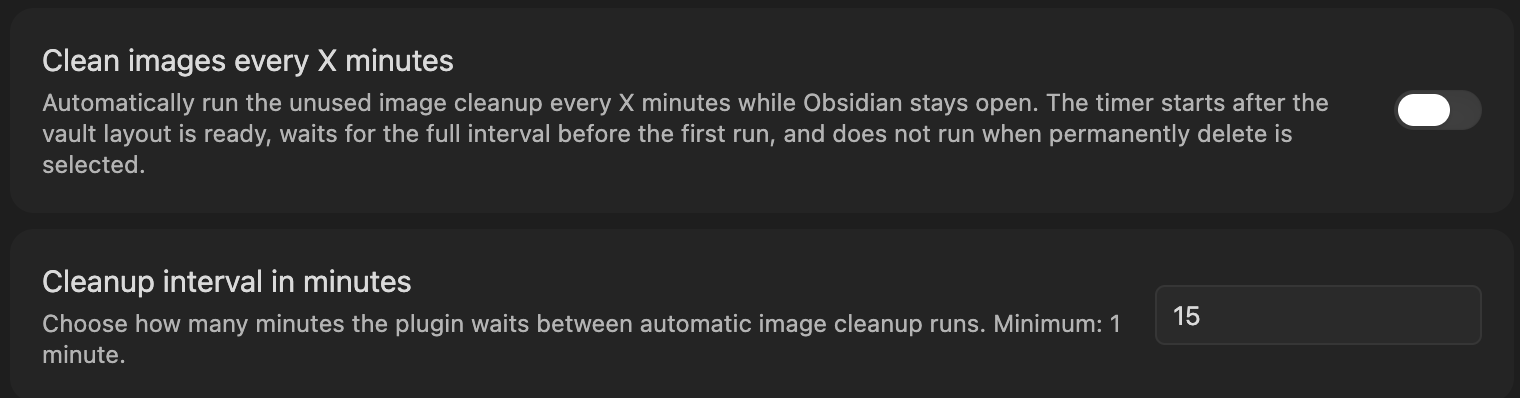
Enable Clean Images Every X Minutes to run recurring image cleanup while Obsidian stays open:
- The first periodic cleanup waits the full configured interval.
- Periodic cleanup ignores
Image folder rules; it continues deleting only individual unused images. - If both automatic modes are enabled, the vault-load cleanup runs once and periodic cleanup starts later on its normal interval.
- Changing the toggle or interval updates the scheduler for the current session.
Enable Clear empty folders after image cleanup to remove folders that become empty after unused image cleanup deletes images:

- This setting applies to
Clear unused images,Clean Images On Vault Load, andClean Images Every X Minutes. - It does not change
Clear unused attachments. - It only removes folders that directly contained images deleted by that cleanup run.
- During manual
Clear unused imageswith image folder rules, it also controls whether an eligible direct parent folder is removed after its selected folders are deleted and it becomes empty.
Excluded Folders
Use excluded folders to prevent cleanup from deleting files under specific vault paths. Separate multiple folders with commas and provide full paths inside the vault.

Turn on Exclude subfolders if the excluded paths should protect every child folder too:

Excluded File Extensions
Use Excluded file extensions to keep specific file types regardless of whether they are linked from any note. Separate extensions with commas; matching is case insensitive and a leading dot is optional (pdf, .mp4 both work). This is handy when you store files in the vault but never attach them — for example PDFs opened with Obsidian's PDF viewer.
Development
npm ci
npm run dev
npm test
npm run build
npm ciinstalls the locked dependency set used by CI and release builds.npm installis fine when you intentionally update dependencies.npm run devbuilds in watch mode.npm testruns the Vitest suite.npm run buildcreates the productionmain.jsbundle.- After
npm run build, refresh the installed vault copy before manual testing:
cp main.js .obsidian/plugins/clear-unused-images-plus/main.js
cp styles.css .obsidian/plugins/clear-unused-images-plus/styles.css
- To verify the installed copy is current, compare the files directly:
git diff --no-index -- main.js .obsidian/plugins/clear-unused-images-plus/main.js
git diff --no-index -- styles.css .obsidian/plugins/clear-unused-images-plus/styles.css
No output means the local Obsidian plugin copy is in sync.
Release
GitHub Releases are published by GitHub Actions when a version tag is pushed.
- Update
package.json,package-lock.json,manifest.json,versions.json, andCHANGELOG.md. - Run
npm run lint,npm test, andnpm run build. - Copy
main.jsandstyles.cssinto.obsidian/plugins/clear-unused-images-plus/for manual Obsidian verification. - Commit the release changes, open a pull request into
main, and merge it. - Create and push a version tag from
main:
git tag -s -m "X.Y.Z" X.Y.Z HEAD
git push origin main
git push origin X.Y.Z
The release workflow verifies that the tag version matches package.json, manifest.json, and versions.json, runs the release audit, rebuilds main.js, creates GitHub artifact attestations, and uploads manifest.json, main.js, and styles.css as release assets. Obsidian requires the GitHub release tag to match manifest.json exactly, so use 1.0.0, not v1.0.0.
Project Structure
src/main.ts- Obsidian plugin entry pointsrc/util.ts- vault scanning and cleanup orchestrationsrc/linkDetector.ts- markdown and wikilink reference detectionsrc/referenceUtils.ts- pure reference and path helperssrc/attachmentFolders.ts- atomic attachment-folder planning, safety checks, and deletion revalidationsrc/folderCleanup.ts- empty-folder cleanup behaviortests/- regression coverage for cleanup, references, settings, and schedulingdocs/assets/- screenshot assets used in this READMEstyles.css- plugin stylesmain.js- built plugin bundle
Testing
Tests use vitest, with jsdom available through per-file @vitest-environment jsdom comments when DOM coverage is needed. The most important coverage is around markdown links, wikilinks, frontmatter references, canvas parsing, excluded folders, delete failure handling, and startup or periodic cleanup scheduling. Run npm run lint and npm test before publishing changes.
When fixing safety bugs, add a focused regression first, verify it fails, then fix the implementation. For deletion or exclusion bugs, cover both helper behavior and cleanup-flow results.
Notes
- The plugin targets Obsidian vault cleanup and does not require a separate backend.
main.jsis generated; do not edit it by hand.- The local development copy in
.obsidian/plugins/clear-unused-images-plus/is for testing only and is not part of the Git repository. - Manual Obsidian checks should include markdown links, wikilinks, frontmatter image references, canvas-linked files, excluded folders, and Obsidian-configured trash.
For plugin developers
Search results and similarity scores are powered by semantic analysis of your plugin's README. If your plugin isn't appearing for searches you'd expect, try updating your README to clearly describe your plugin's purpose, features, and use cases.