Flashcard Genius
approvedby Tom Maus
Open Markdown flashcard decks from your vault in a dedicated study view. - This plugin has not been manually reviewed by Obsidian staff.
Flashcard Genius for Obsidian 🧞♂️
Flashcard Genius is an offline-first Obsidian plugin for browsing, studying, and analysing Markdown flashcards. Every card remains a normal Markdown table in your vault. Nothing has to be imported into a separate database or uploaded to a service.
Flashcard Genius is an independent community plugin and is not affiliated with or endorsed by Obsidian.
✨ Why use it?
- See an entire deck at once instead of one card at a time.
- Choose your own order and keep working around a difficult card.
- Organise cards into topic blocks with
##headings. - Edit the source Markdown and see the changes reflected in the plugin immediately.
- Keep your notes, cards, and ratings under your control in the vault.
- Use it offline: Flashcard Genius does not initiate network requests.
🖼️ Screenshots
Library
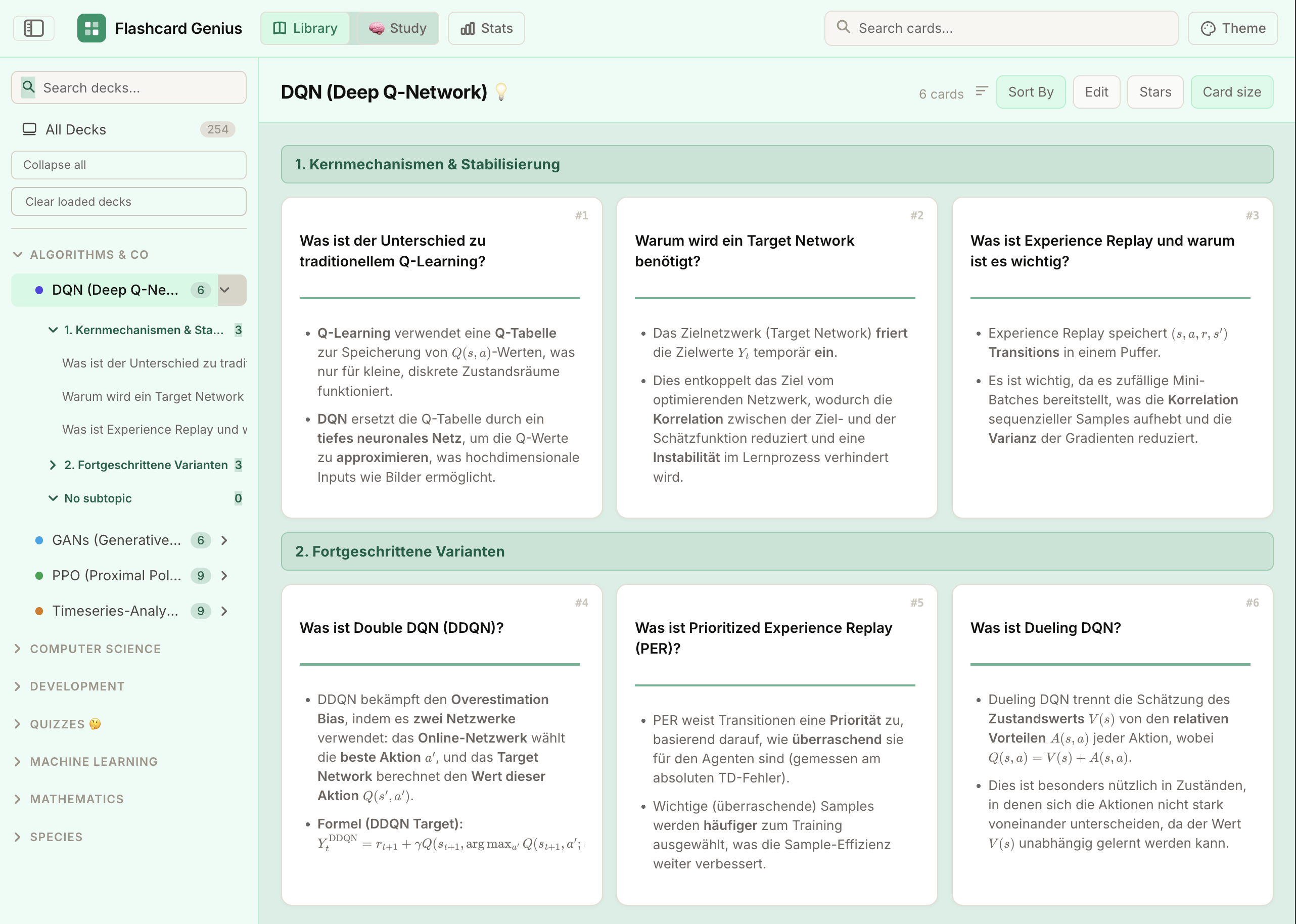
The Library shows all cards in a deck, grouped by topic. Enable Edit to reveal the source buttons and jump directly to the selected card in Obsidian's Markdown editor.
Study mode
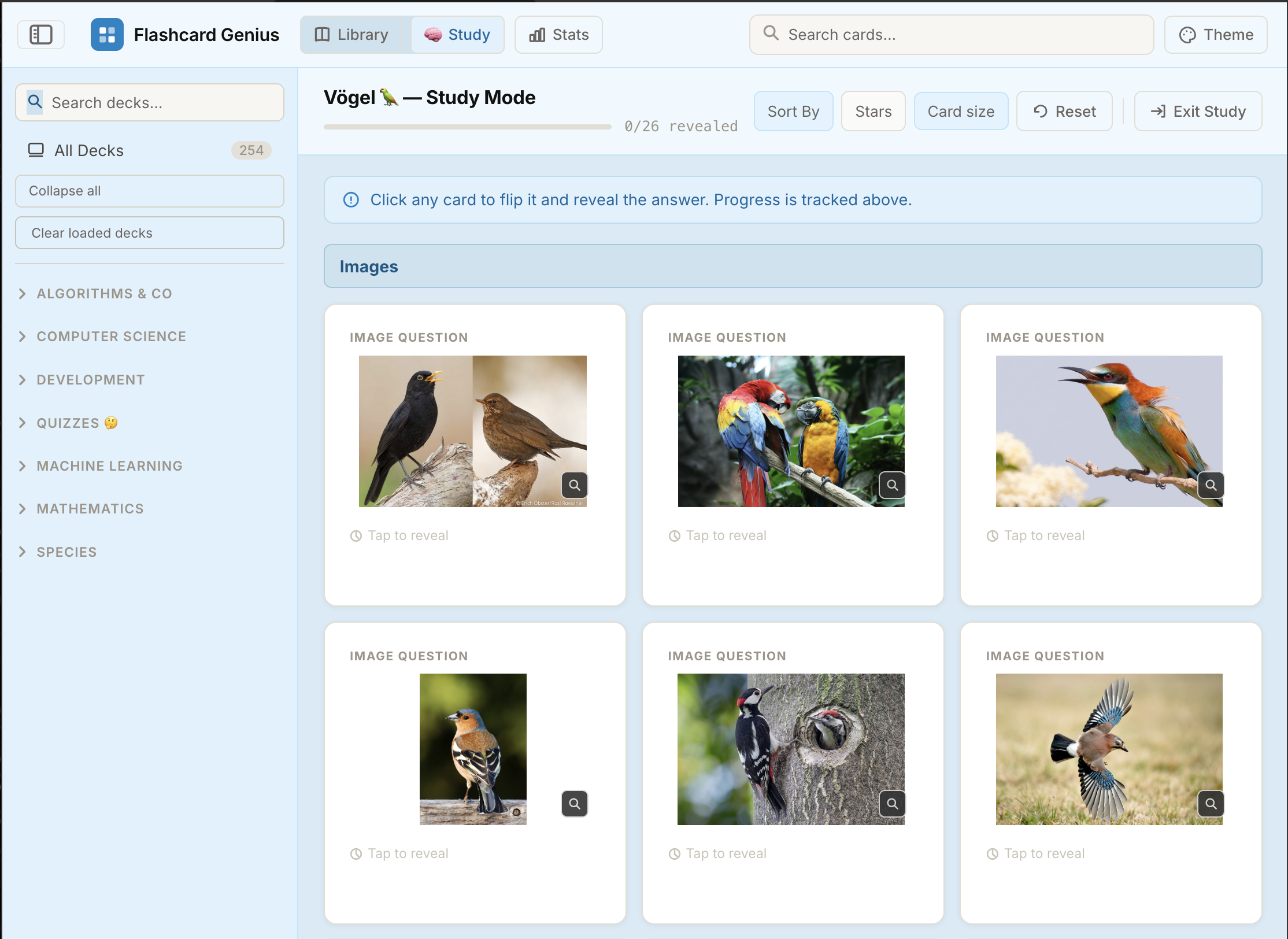
Study mode shows the question first. Click a card to reveal its answer. Image decks display the image on the front and the image title with a mirrored, subdued image on the back.
Markdown source format
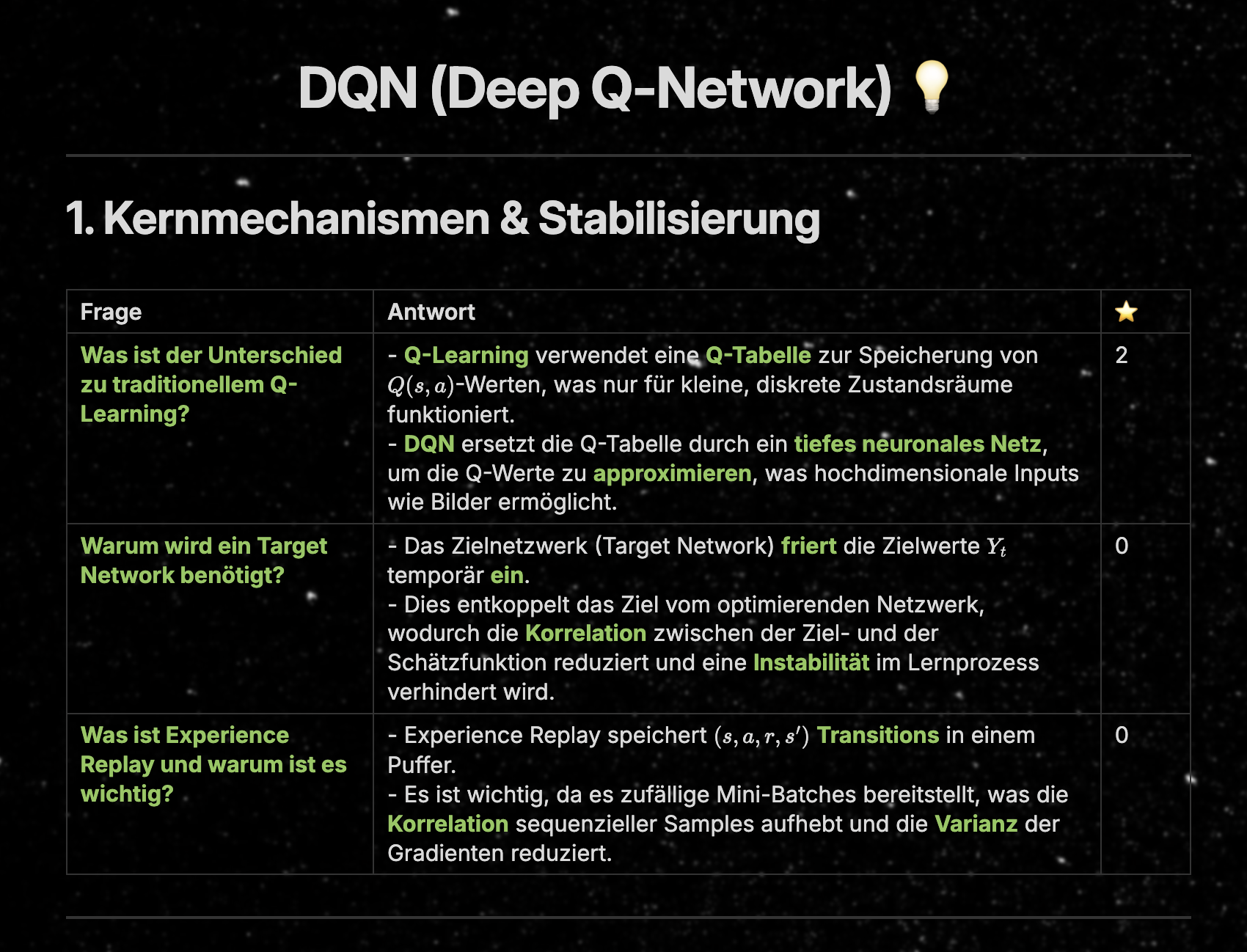
Cards are authored as Markdown tables. The example below is the basis of the shown rendered version in the first reference image above.
📥 Manual Installation
Download and install the plugin directly in Obsidian, or follow these steps:
-
Build the plugin locally (see Development).
-
Copy
dist/main.js,dist/manifest.json, anddist/styles.cssinto:<your-vault>/.obsidian/plugins/flashcard-genius/ -
Reload Obsidian.
-
Enable Flashcard Genius under Settings → Community plugins.
The plugin opens as a normal Obsidian tab. You can also install the same three files from a verified plugin release when one is available.
🗂️ Loading decks and images
Flashcard Genius adds Open in Flashcard Genius to the Obsidian file-menu.
- Right-click one Markdown file to load one deck.
- Right-click a folder to load all valid Markdown decks below it.
- Repeat the action on additional files or folders to append multiple decks to the same tab.
- Right-click a folder containing only supported image files (
png,jpg,jpeg,gif,webp,svg,avif, orbmp) to create an image quiz.
For an image quiz, use the image filename as the card name, the filename becomes the question shown on the answer side. Keep the image-quiz folder free of Markdown files and unrelated assets; folders containing Markdown are treated as Markdown-deck folders instead. Folder names determine the generated deck grouping.
You can also use the command palette command Open current note in Flashcard Genius or configure a default folder in the plugin settings.
📝 Markdown deck format
Each deck needs an H1 title, optional H2 topic headings, and one or more tables with Question and Answer columns. An optional final ⭐ column stores difficulty from 0 to 5.
# Neural Networks 💡

## Foundations

| Question | Answer | ⭐ |
| --- | --- | --- |
| What is a target network? | A periodically updated network used to stabilise training. | 2 |
| What does `Q(s, a)` represent? | The expected value of taking action `a` in state `s`. | 0 |

## Advanced topics

| Question | Answer | ⭐ |
| --- | --- | --- |
| What is experience replay? | A buffer that stores transitions for later training. | 3 |
Use normal Markdown in both cells: paragraphs, lists, emphasis, links, images, and mathematical notation rendered by Obsidian's Markdown renderer. Escape a literal pipe inside a cell as \|. Use <br> when you need a deliberate line break inside one table cell.
🧭 The three main views
Library
Library is the source-aware overview of your loaded files. It renders every card, keeps topic groups visible, and lets you choose the order in which you work.
When Edit is enabled, the edit control opens the corresponding Markdown file at the selected card in Obsidian's editor. Changes made in the editor are picked up from the vault and reflected in the cards automatically. For text cards, difficulty stars can be assigned in the Library; the rating is written back to the matching ⭐ cell in the Markdown table.
Image-deck cards do not support editing or stars in the plugin controls because they are generated directly from image files.
Study mode
Study mode presents the front/question first. Click the card to flip it and reveal the answer. The toolbar lets you choose the number of cards per row and card height. The layout also adapts automatically to the available window width, including narrow iPhone and iPad layouts.
Stats mode
Stats shows how many cards each deck contains at every difficulty level. Select a deck or difficulty slice to filter the card list, read the matching questions and answers, and start a study session with the filtered set.
🎨 Themes and responsive layout
Choose from the available colour themes in the top bar. The interface adapts its card grid, sidebar, and controls to the available width. Obsidian's interface, text, and monospace font variables are used so the plugin follows your vault's typography.
🔒 Offline and privacy
Flashcard Genius works locally inside your Obsidian vault.
Flashcard Genius does not initiate network requests and does not transmit
notes, flashcards, settings, or usage data to external services.

The plugin does not use telemetry, analytics, remote fonts, update checks,
advertising, or external APIs.
Markdown files and local image assets are read through Obsidian's Vault APIs. Settings are stored through Obsidian's plugin data storage. The plugin does not require an account or API key. Documentation links in this README are ordinary links; if you open one manually, Obsidian or your operating system may handle it.
🛠️ Development
Requirements: Node.js 20.19 or newer and npm.
npm ci
npm run build
The production build creates dist/main.js, dist/manifest.json, and dist/styles.css.
Available checks:
npm run typecheck
npm test
npm audit
📄 License
Flashcard Genius is licensed under the MIT License. Third-party notices are listed in THIRD_PARTY_NOTICES.md.
For plugin developers
Search results and similarity scores are powered by semantic analysis of your plugin's README. If your plugin isn't appearing for searches you'd expect, try updating your README to clearly describe your plugin's purpose, features, and use cases.