by 天堂鸟
Compact countdown and stopwatch timers pinned above your notes, with Markdown time logs and built-in task time tracking.
FluxTimer
English · 中文
Compact countdown and stopwatch timers pinned to the top of the active note, with Markdown time logs and a built-in task time tracker. Desktop only.
Screenshots
| Stopwatch | Countdown with presets |
|---|---|
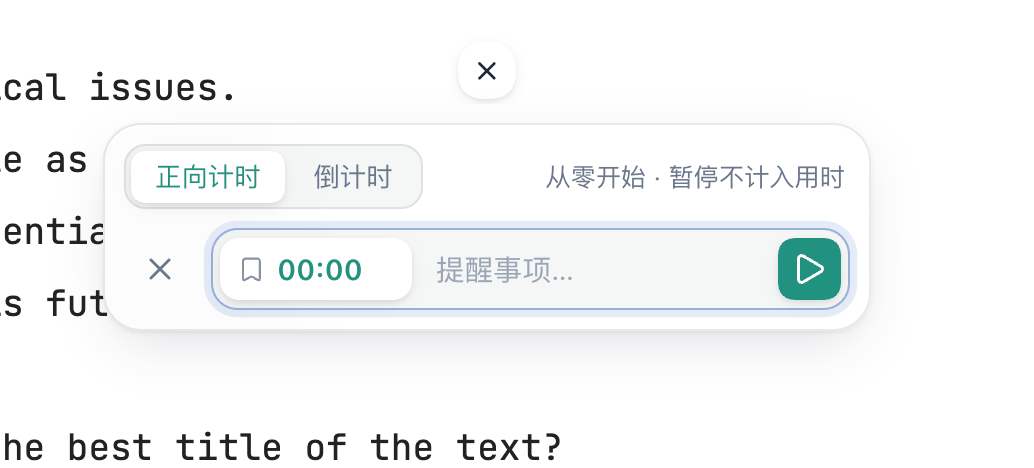 | 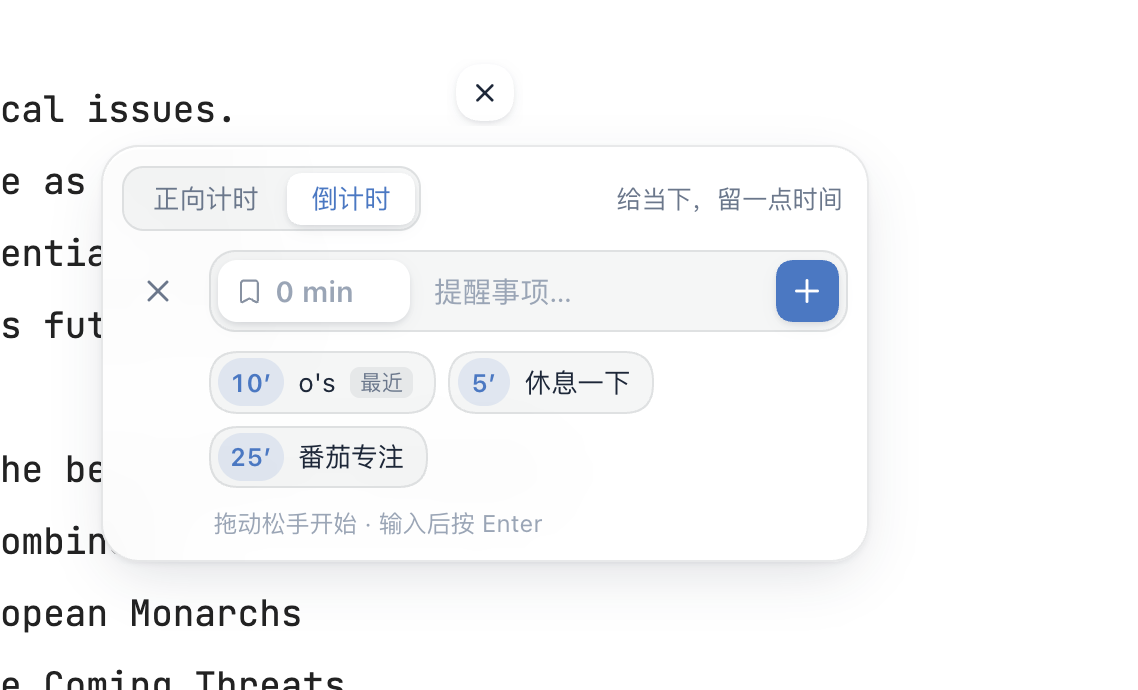 |
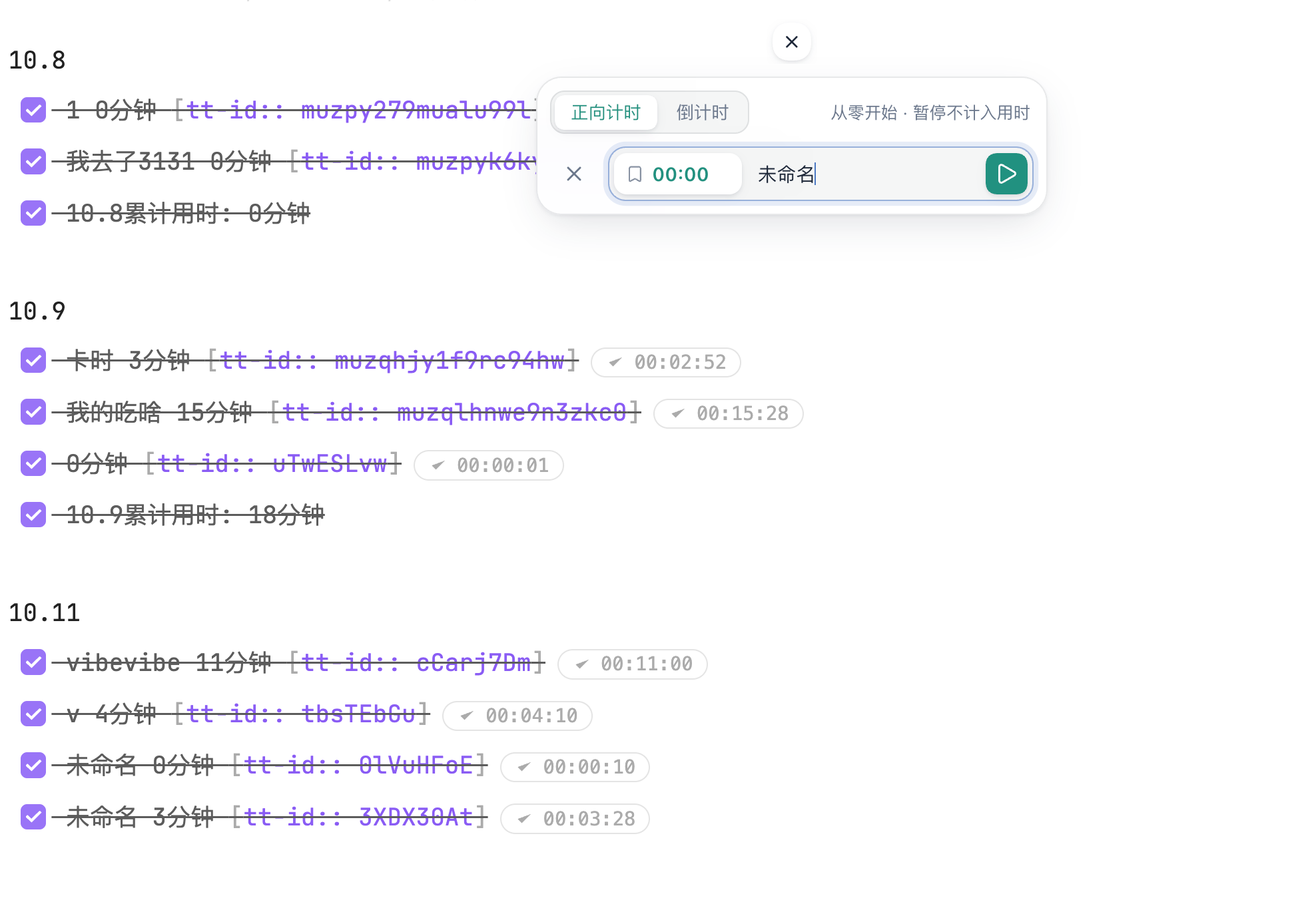
Finished timers are logged to a Markdown note, grouped by date with a daily total:
Features
-
Countdowns and stopwatches shown as small rings at the top center of the note. Several countdowns can run at once; stopwatches share a single task tracker.
-
Quick input: type minutes or
mm:ss(e.g.25,00:30) and press Enter, or pick a preset. Presets are configurable (e.g.Short break=5, Focus=25, up to 6). -
Details panel: click a ring for large remaining/elapsed time, a progress bar and the expected end time. Countdowns can be extended by +1 / +5 minutes or restarted.
-
Finish reminders: a glass-style card when a countdown ends (+1 / +5 / +30 min, restart), an optional sound, and an optional system notification when Obsidian is in the background.
-
Status bar shows the next countdown to finish; click it to open that timer.
-
Markdown time log: named timers are written to a log note as tasks, grouped by date with a daily total:
9.20 - [x] Math review 250分钟 - [x] 9.20累计用时: 250分钟 -
Task time tracking (bundled Task Time Tracker 0.0.31, MIT): play/stop buttons on task lines, history editing, projects and clients, a statistics dashboard, and CSV / Toggl / Clockify export.
-
Horizontal or vertical layout, adjustable size (20–48 px), and light/dark theme support.
-
Interface in English or Chinese, following Obsidian's language by default.
-
Commands for adding timers, pausing/resuming the latest timer, dismissing reminders, switching layout and opening the log or statistics. No default hotkeys.
Usage
- Click + at the top of a note and choose stopwatch or countdown.
- Give it a name if you want it logged, then start it.
- Click a ring to pause, resume, extend or finish it. Right-click + to switch layout or open history and statistics.
Files and privacy
- On first load, FluxTimer creates
提示事项.mdin the vault root as the default log note. Existing files are never overwritten, and you can pick any other note in settings. Only timers with a name are logged. - Settings and running timers are stored in the plugin's
data.json. Tracker history is stored intracker-data.jsonin the plugin folder. - If the standalone Task Time Tracker plugin has data, it is copied (with a backup) on first load. If that plugin is still enabled, FluxTimer asks you to disable it to avoid double tracking. FluxTimer never disables other plugins itself.
- FluxTimer makes no network requests and does not read or write files outside your vault.
Installation
From Obsidian: Settings → Community plugins → Browse, search for “FluxTimer”.
Manual: download main.js, manifest.json and styles.css from the latest release into <vault>/.obsidian/plugins/fluxtimer/, then enable the plugin.
Development
main.js is generated. Edit main.source.js, i18n.cjs or tracker-bridge.cjs, then:
node build.cjs
node --check main.js
node tests/timer.cjs
node tests/logfile-race.cjs
node tests/browser.cjs   # requires playwright
To release, bump version in manifest.json and versions.json, then push a tag with the same version (for example 4.3.0). GitHub Actions builds the plugin and creates a draft release with main.js, manifest.json and styles.css.
License
MIT © jarrycf. The bundled Task Time Tracker in vendor/ is MIT licensed by Mythanar. See vendor/NOTICE.md.
For plugin developers
Search results and similarity scores are powered by semantic analysis of your plugin's README. If your plugin isn't appearing for searches you'd expect, try updating your README to clearly describe your plugin's purpose, features, and use cases.