Gantt Calendar
approvedby Sugar
A powerful visual task management plugin. Visualize and manage tasks created by the Tasks plugin, supporting both emoji and Dataview task formats. Support Feishu Task syncing. - This plugin has not been manually reviewed by Obsidian staff.
Obsidian Gantt Calendar
A powerful visual task management plugin for Obsidian.
Multi-View Calendar — Task / Year / Month / Week / Day / Gantt — six views with seamless switching
Festival Display — Solar festivals, lunar festivals, and 24 solar terms
Data Visualization — Task heatmap, daily task counts, 8 gradient palettes
Smart Task Management — Global filter, priority tags, 6 date fields, time precision (HH:mm), smart write-back with line drift protection
Timeline Canvas — Continuous minute-positioned timeline in Week/Day/Sidebar views: click-to-create, edge resize (15-min snap), WYSIWYG drag with landing preview
Mobile Ready — Long-press menus as bottom sheets, touch drag, swipe paging, responsive layouts
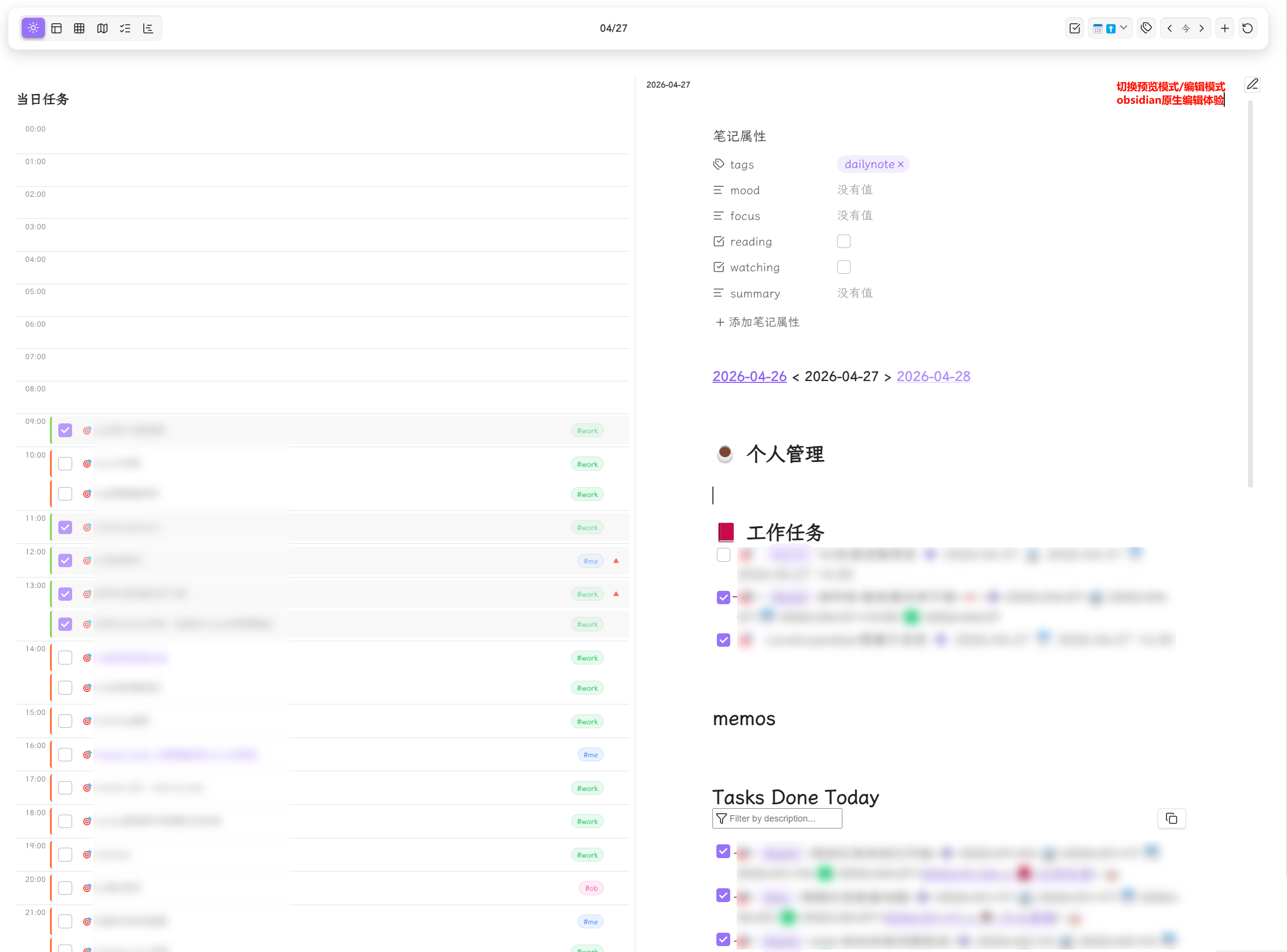
Daily Note Integration — Embedded editor with edit/preview mode toggle
Sidebar View — Task search, filter & sort + daily timeline
Highly Customizable — Festival colors, heatmap palettes, task display count, and more
Dual Format — Full support for Tasks plugin (emoji) and Dataview plugin (inline field) formats
Recurring Tasks — daily/weekly/monthly/yearly repeat with virtual instances shown across all views (Year/Month/Week/Day/Task/Gantt)
Feishu Sync — Bidirectional task sync with Feishu (Lark) via OAuth 2.0
Screenshots
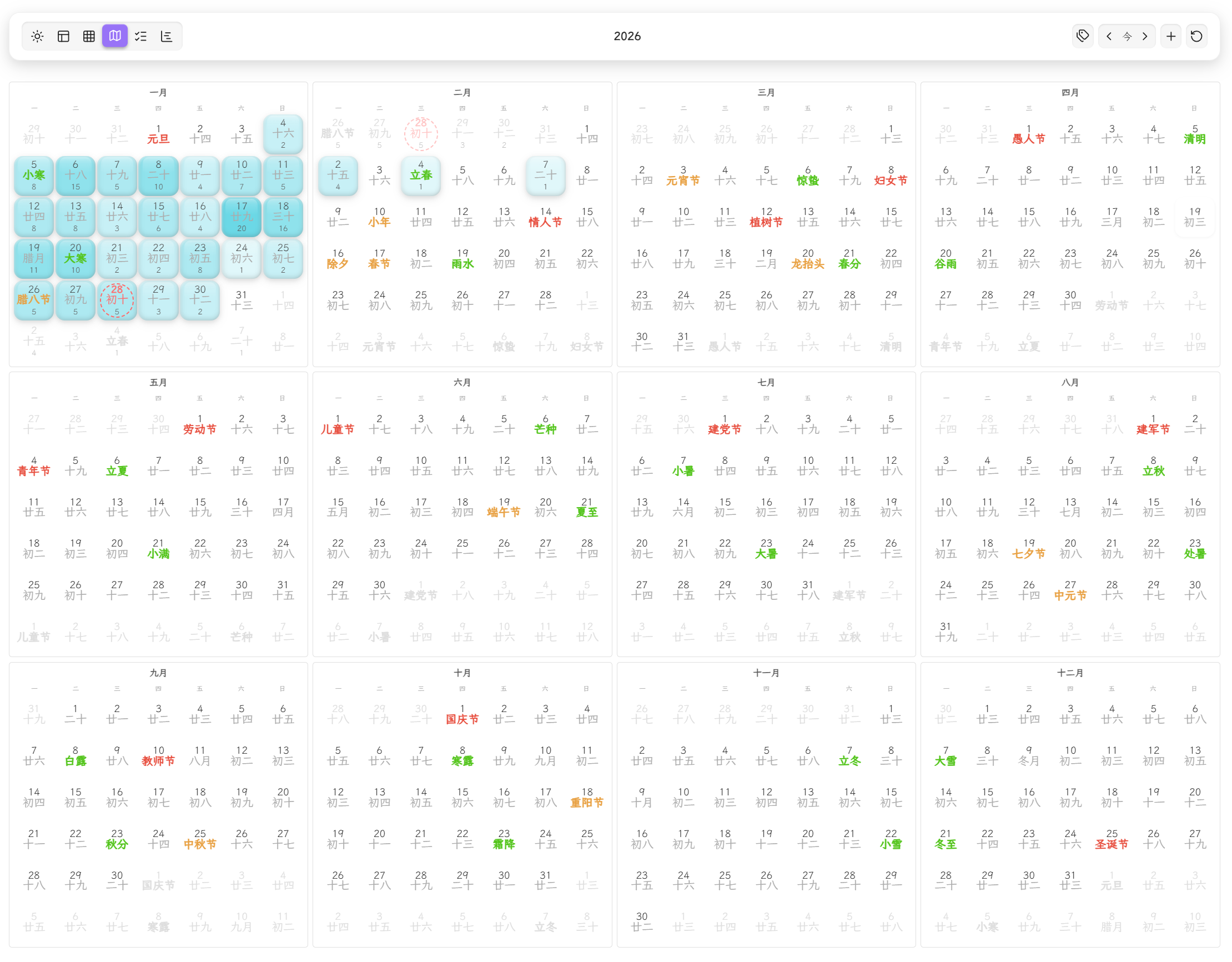
Year View
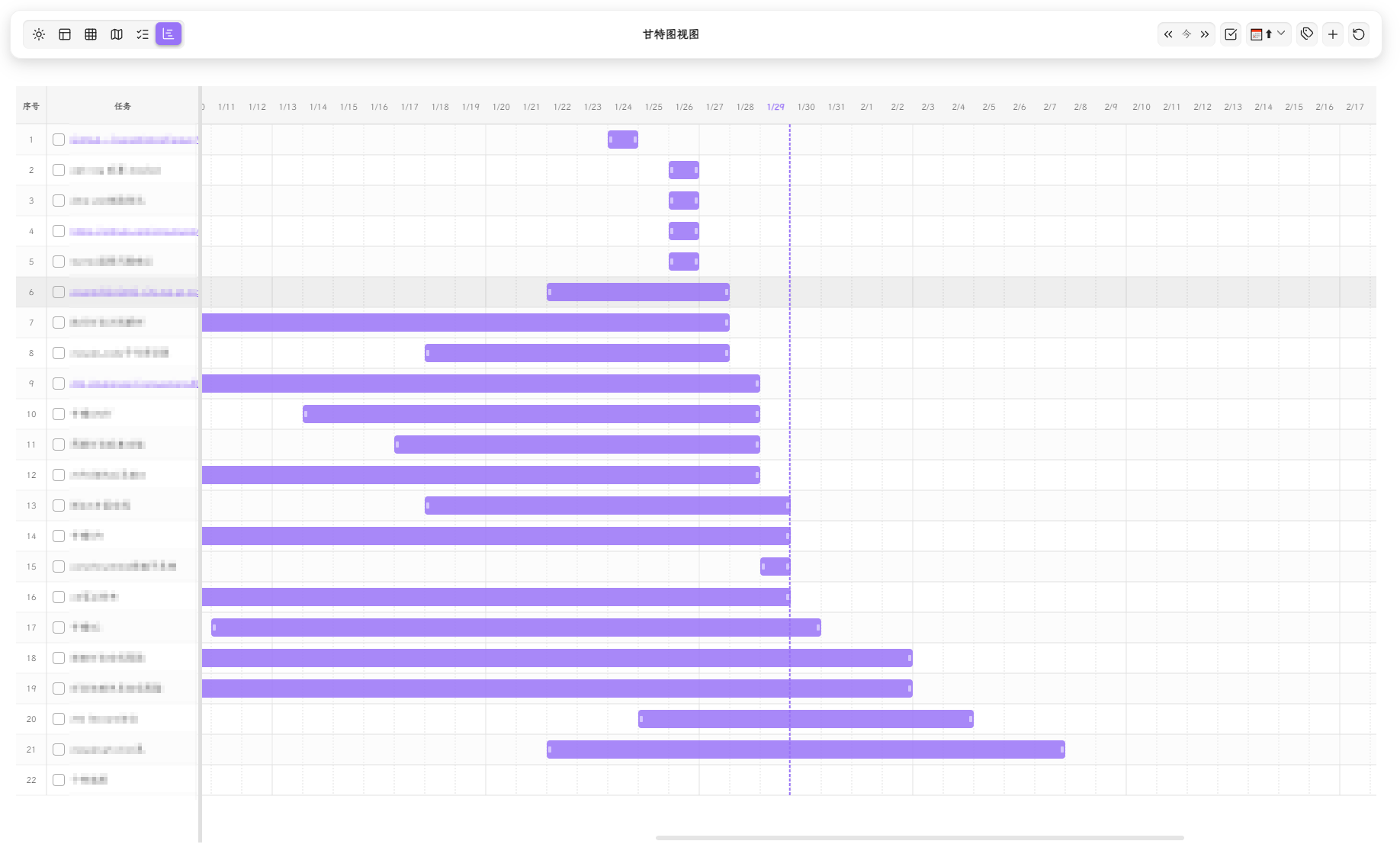
Gantt View
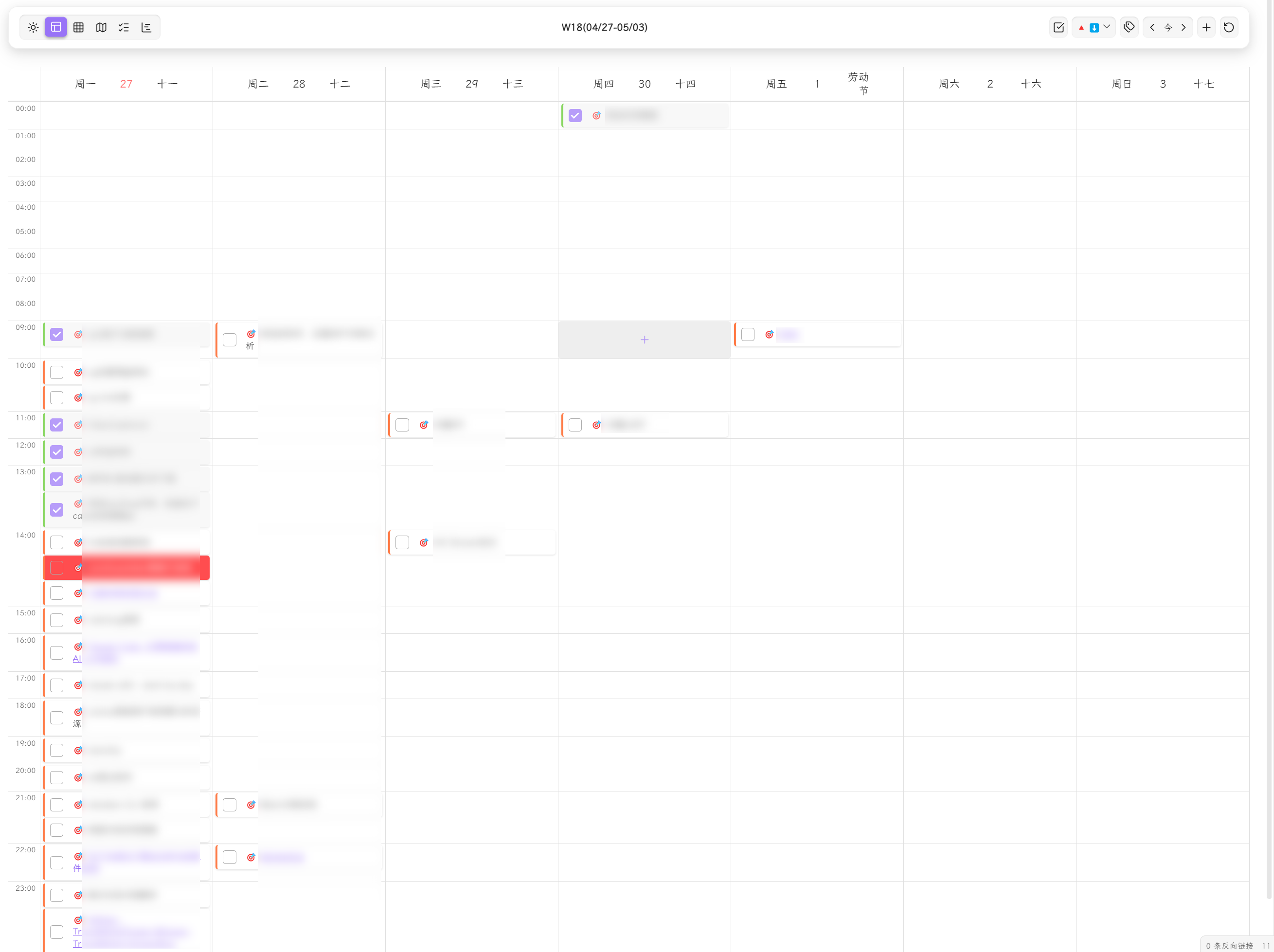
Week Timeline View
Sidebar View (Task List + Daily Timeline)
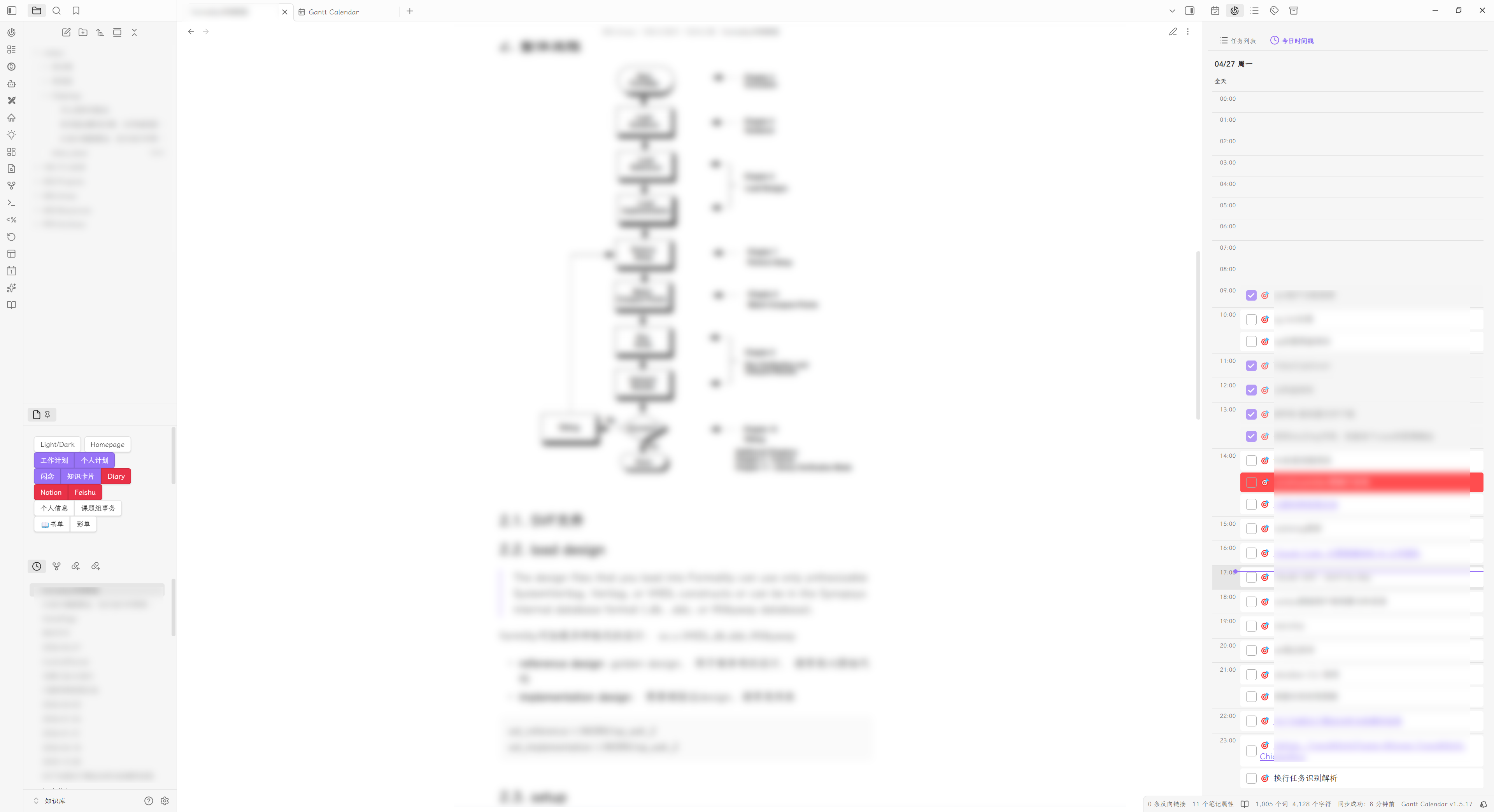
Day View with Embedded Editor
Installation
Via BRAT
- Install and enable the community plugin BRAT
- Run the command
BRAT: Add a beta plugin for testing - Enter the repository URL:
https://github.com/sustcsugar/obsidian-gantt-calendar
Manual
- Download the latest Release
- Extract and copy the folder to
<your-vault>/.obsidian/plugins/ - Restart Obsidian and enable the plugin in Settings
Quick Start
Open the View
- Click the sidebar icon to open the main calendar view
- Use the view switcher in the toolbar to switch between views
Create Tasks
Use the Add Task button in the toolbar, or manually write tasks in any Markdown file:
- [ ] 🎯 Complete project documentation 📅 2025-12-20
Refresh the plugin and the task will appear in the calendar and task list.
Features
Layout
The plugin uses a toolbar + content area layout:
- Toolbar Left — View switcher (6 views)
- Toolbar Center — Current date range / title
- Toolbar Right — Functional buttons (navigation, sort, filter, add task, etc.)
Task Formats
Tasks Plugin Format (Emoji)
- [ ] 🎯 Complete project documentation ⏫ ➕ 2025-01-10 📅 2025-01-15
| Emoji | Meaning | Emoji | Meaning |
|---|---|---|---|
🎯 | Global filter marker | 🔺 | Highest priority |
⏫ | High priority | 🔼 | Medium priority |
🔽 | Low priority | ⏬ | Lowest priority |
➕ | Created date | 🛫 | Start date |
⏳ | Scheduled date | 📅 | Due date |
✅ | Completion date | ❌ | Cancelled date |
🔁 | Recurring task | - | - |
Dataview Plugin Format (Inline Fields)
- [ ] 🎯 Complete project documentation [priority:: high] [created:: 2025-01-10] [due:: 2025-01-15]
| Field | Meaning | Field | Meaning |
|---|---|---|---|
priority:: | Priority | created:: | Created date |
start:: | Start date | scheduled:: | Scheduled date |
due:: | Due date | completion:: | Completion date |
cancelled:: | Cancelled date | repeat:: | Recurrence rule |
Time Precision
- Date:
YYYY-MM-DD(e.g.,2026-04-27) - Time:
YYYY-MM-DD HH:mm(e.g.,2026-04-27 14:00) - Tasks with time automatically display in timeline layout
Recurring Task Syntax
🔁 every day              # Every day
🔁 every 3 days           # Every 3 days
🔁 every week on Monday   # Every Monday
🔁 every month on 15      # Every month on the 15th
🔁 every year on 01-01    # Every year on Jan 1
🔁 every weekday          # Every weekday
🔁 when done              # Restart after completion
Year View
- Year Overview — 12 month cards showing full-year task distribution
- Task Heatmap — 5-level color gradient for task density
- 8 palette options: blue / green / red / purple / orange / cyan / pink / yellow
- 3D heatmap effect (off / slight / prominent)
- Responsive Layout — Auto-switches between 4×3 / 3×4 / 2×6 / 1×12 grids
- Task Count — Optional per-day task total display
- Lunar Calendar — Chinese lunar dates in month cards
- Click Navigation — Click a date to switch to Day View
Month View
- Monthly Calendar — Standard month grid layout with daily tasks
- Week Numbers — ISO week numbers shown in the first column
- Task Display Limit — Configurable per-day task count (1–10) with "+N more" overflow
- Task Popup — Click a date to view all tasks for that day
- Festival Display — Solar/lunar/solar-term festivals with distinct colors
- Drag & Drop — Drag task cards between days to reschedule
- Recurring Tasks — Virtual instances for repeating tasks
- Week Start — Configurable Monday or Sunday start
Week View
- Continuous Time Canvas — Always-on 24-hour timeline (no more list/timeline mode switching); task blocks positioned by the minute (1h = 50px), hour + half-hour grid lines
- Smart Task Blocks — Blocks sized by actual duration:
- Single-time tasks render as 1-hour point blocks anchored by field role (start-field → forward
[t, t+60), due-field → backward[t-60, t)) - Same-day intervals render at true size; overnight intervals (<24h) span columns with continuation arrows
- Multi-day tasks (≥24h) move to the all-day row as spanning bars with time annotations (
"22:00 → 18:00") - Text wraps to multiple lines within block bounds (block is master, text is servant)
- Single-time tasks render as 1-hour point blocks anchored by field role (start-field → forward
- All-Day Row — Date-only tasks + ≥24h spanning bars, unlimited lane rows with
+Ncollapse beyond 3 - Click-to-Create — Click any empty canvas spot to create a task at that time (15-min snap); drag vertically to pre-select a range
- Edge Resize — Drag block top/bottom edges to adjust start/end (15-min snap, Alt = 5-min fine-tune); resizing a point task upgrades it to an interval
- WYSIWYG Drag & Drop — Landing anchored to block edges (not cursor) with drop preview; dropping a point task writes both start & end
- Overlap Lanes — Up to 3 side-by-side columns; 4th+ stacks with shadow
- Mobile — 3-day sliding window with horizontal swipe
- Today Highlight — Current day emphasized; current time indicator line
- Lunar Info — Lunar dates and festivals in day headers
Day View
- Continuous Time Canvas — Same timeline semantics as Week View (minute-positioned blocks, edge resize, click-to-create, drop preview, multi-line text)
- All-Day Section — Date-only tasks + ≥24h spanning bars with time annotations; drop here to convert to all-day
- Drag & Drop — Block-edge-anchored with landing preview; point tasks upgrade to intervals on drop
- Current Time Indicator — Red line at the current time
- Daily Note Integration
- Embedded full editor (WorkspaceSplit mode)
- Edit / Preview mode toggle
- Auto-loads daily note for the selected date
- Supports Obsidian core daily notes, Periodic Notes plugin, and custom paths
- Resizable Split — Draggable divider between task and note panes (horizontal or vertical layout)
- Lunar Info Bar — Lunar date, festivals, and solar terms
Task View
- Task List — Centralized display of all tasks
- Date Range Filter — All / Today / This Week / This Month / Custom range
- Time Field Selector — Filter by any of 6 date fields
- Multi-dimensional Filtering — Status, priority, and tags (AND/OR/NOT operators)
- Sorting — 7 sort fields with asc/desc toggle
- Persistent State — Filter and sort settings persist across refreshes
- Recurring Tasks — Virtual instances for repeating tasks are expanded and sorted by date
Gantt View
- Interactive Gantt Bars — Custom SVG rendering engine
- Drag entire bar to shift dates
- Drag endpoints to adjust start/end dates
- Drag to change progress percentage
- Click to open task edit modal
- Navigation — Jump to today / scroll left / scroll right
- Incremental Refresh — Fingerprint-based diff (O(1) events) + immediate drag-write-back (no delay)
- Tag & Status Filtering — Filter gantt bars by tags and status
- Configurable Fields — Choose which date fields map to gantt start/end
- Time-Aligned — Day-granularity grid aligned with calendar view semantics; touch-friendly handles (22px hit area); bar-end time annotations
Sidebar View
Two-tab sidebar for quick task access:
Task List Tab
- Keyword search (debounced)
- Multi-dimensional filters: status, priority, tags (OR/AND), date range
- Sort by: priority / due date / start date
- Click task to navigate to source file
Daily Timeline Tab
- 24-hour timeline for today's timed tasks
- All-day task section
- Current time indicator line
- Drag & drop to adjust time
- Quick create on empty slots
Context Menu
Right-click any task for:
- Edit Task — Full edit modal (description, priority, dates, repeat, tags)
- Create Note — Generate a wiki-linked note from the task (same name or alias)
- Set Priority — 6 levels: highest / high / medium / normal / low / lowest
- Set Status — Custom statuses (important, question)
- Postpone — Delay 1/3/7 days (from due date or from today)
- Cancel / Restore — Toggle cancelled state
- Delete — Remove task from markdown file
Feishu (Lark) Sync
- Bidirectional Sync — Push local tasks to Feishu and pull Feishu tasks to Obsidian
- OAuth 2.0 — Secure authentication with automatic token refresh
- Push Filters — Filter by file paths, completion status, and date
- Conflict Resolution — Multiple strategies: local-wins, remote-wins, newest-wins, manual
- Auto Sync — Configurable automatic sync interval
- Sync Result Modal — Detailed per-task sync results with statistics
Roadmap
Task Parsing
- Tasks and Dataview dual-format parsing
- Global filter markers
- Task tags
- Task description
- 6 priority levels
- 6 date fields with time precision (HH:mm)
- Recurring task recognition and display
- Recurring task virtual instances across all views (Year/Month/Week/Day/Task/Gantt)
- Smart write-back (line drift protection, file-level locking, mixed-format preservation)
- Nested tag recognition
- Multi-line task recognition
- Sub-task recognition
- Task dependency relationships
Views
- Day View with Daily Note integration (embedded editor)
- Day View timeline layout
- Week View dual mode (list + timeline)
- Week/Month View drag & drop
- Year View heatmap and task count
- Task View (multi-dimensional filter + date range + recurring task virtual instances)
- Gantt View (drag + incremental refresh + navigation + recurring task virtual instances)
- Sidebar View (task list + daily timeline)
Toolbar
- View switcher
- Tag / status / priority filtering
- Date navigation buttons
- Time field selector
- Add task button
Interactions
- Task cards (description, tags, priority)
- Context menu (edit, create note, priority, status, postpone, cancel, delete)
- Hover tooltips
- Quick create on empty time slots
Future Plans (v2.0.0)
- Third-party calendar subscription (Feishu Calendar, Outlook Calendar)
- Microsoft To Do sync
- Google / Apple Calendar via CalDAV
Contributing
Issues and Pull Requests are welcome!
License
Found a bug or have a suggestion? Open an Issue
Enjoying the plugin? Give it a ⭐!
For plugin developers
Search results and similarity scores are powered by semantic analysis of your plugin's README. If your plugin isn't appearing for searches you'd expect, try updating your README to clearly describe your plugin's purpose, features, and use cases.