Google Calendar Agenda
approvedby Luke
Query Google Calendar from a code block and render upcoming events as an agenda, list, or table. - This plugin has not been manually reviewed by Obsidian staff.
Google Calendar Agenda
An Obsidian plugin that reads your Google Calendars and renders upcoming events from a fenced code block, in the same spirit as the Tasks plugin — the query lives in the note, so different notes can show different slices of your calendar.
```gcal-events
from: today
period: 7d
view: agenda
show: attendees
```
…renders as:

Connect as many Google accounts as you like — personal and work side by side, or filtered apart per block.
Requires Obsidian 1.13.0 or later. Signing in needs the desktop app, because the OAuth flow uses a local loopback listener; once an account is connected, reading calendars works on mobile too.
Features
- Flexible date ranges —
today,sow,eom,+3d,2026-09-01, or a period like2w - Agenda, list and table views, grouped by date, calendar or account
- Unlimited Google accounts via OAuth, filterable per block
- Filter by calendar, account, all-day, declined, or a Google full-text search
- Hide noisy events by exact title, wildcard (
Start of *) or regular expression - Choose which fields each block shows — time, location, attendees, description, RSVP and more
- Create meeting notes from any event, with Templater and QuickAdd support
- Per-block auto-refresh intervals
- Simple YAML in a
gcal-eventscode block, on any page - Read-only access through your own Google Cloud client — no third-party server, no telemetry
- Works on mobile once an account is connected on desktop
What this plugin accesses
- A Google account is required. Without one the plugin does nothing.
- Network use. It talks to
accounts.google.comandoauth2.googleapis.comto sign in and refresh tokens, and towww.googleapis.com/calendar/v3to read calendars and events. Nothing else. No request is made until you connect an account. - Scope.
calendar.readonlyonly — the plugin cannot create, edit or delete anything in your calendar. - No telemetry. Nothing is collected, and no data is sent anywhere except Google.
- Credentials. Your OAuth client ID, client secret and refresh tokens are stored unencrypted in
this plugin's
data.jsoninside your vault, which is how Obsidian plugins persist settings. Anyone with access to your vault — including a synced copy or a backup — can read them. Treat the vault accordingly, and revoke access at myaccount.google.com/permissions if it is ever exposed. - File writes. Only when you use the meeting-note feature, and only inside your vault, in the folder you configure.
- File listing. The plugin lists the markdown files in your vault to build an index of which note
belongs to which event, read from an
event-idproperty. It reads that one property and the file path — never the body of a file it did not create. This is what lets the meeting-note link keep working after you rename or move a note. - Clipboard. Written to only when you click a Copy action — Copy title, Copy location, or Copy link in the sign-in dialog. The plugin never reads your clipboard.
- Verifying a release. Release assets carry GitHub build provenance attestations, so you can
confirm they were built from this repository:
gh attestation verify main.js --repo lukewowo/obsidian-gcal.
Setup
The plugin talks to Google with your own OAuth client, so nothing is proxied through a third party and your calendar data never leaves your machine.
- Open the Google Cloud console and create a project (or reuse one).
- APIs & Services → Library → enable the Google Calendar API.
- APIs & Services → OAuth consent screen → configure it. Pick External, fill in the required fields, and add yourself under Test users. It can stay in Testing; you do not need Google to verify the app for personal use.
- APIs & Services → Credentials → Create credentials → OAuth client ID → application type
Desktop app. Desktop clients accept any
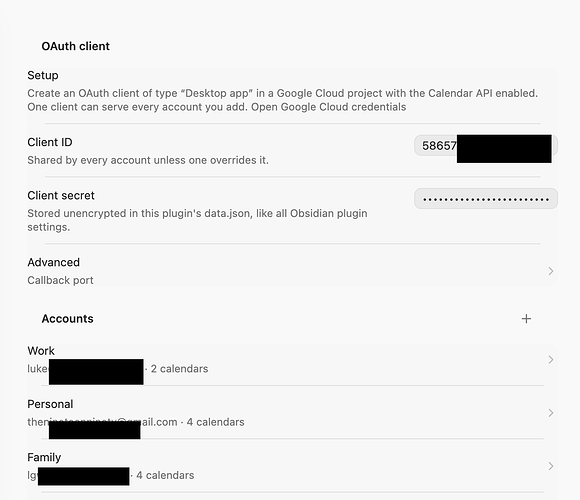
http://127.0.0.1:<port>redirect, so there is no redirect URI to register. - Copy the Client ID and Client secret into the plugin settings in Obsidian, under OAuth client.
- Click Add account. Your browser opens Google's consent screen; approve it and the tab will tell you it is done.
- Click Reload list under Calendars and enable the calendars you want blocks to use by default.
The plugin requests calendar.readonly only — it can never modify your calendar. Tokens are stored
in the plugin's data.json inside your vault, so treat that vault as you would any credential store.
Testing-mode refresh tokens expire after 7 days. If you want to avoid reconnecting weekly, publish the consent screen (OAuth consent screen → Publish app). For a
calendar.readonlyscope on a personal account this needs no review.
Multiple accounts
Click Add account again for each additional Google account. One OAuth client serves all of them — you do not need a Cloud project per account. Each account gets its own refresh token, and one account failing to refresh never blanks the others: the working accounts still render and the failure appears as an inline warning.
Accounts are identified by their primary calendar address, so reconnecting the same Google account
updates it in place rather than creating a duplicate. Rename an account with the text field beside
it — that label is what accounts: and account/calendar match against.
If a Workspace admin blocks outside apps, expand Use a separate OAuth client for this account and give that one account credentials from a Cloud project inside the organisation. Accounts without an override use the shared client.
Only add accounts you own or are authorised to access — consent is granted per Google account, and each one's owner has to approve it at the consent screen.
Block options
All options are key: value lines parsed as YAML. Everything is optional — an empty block uses your
configured defaults.
Time range
| Option | Default | Notes |
|---|---|---|
from | today | Start of the range. |
to | — | End of the range, inclusive of the named day. |
period | 7d (setting) | Length of the range from from. Ignored when to is set. |
Date expressions accept:
- Keywords —
now,today,tomorrow,yesterday,sow,eow,som,eom,soy,eoy(start/end of week, month, year) - ISO dates —
2026-08-14,2026-08-14T09:30 - Offsets, alone or appended —
+3d,-1w,today+2w,sow-1w,eom+1d
Units are min, h, d, w, m (months), y. Note m means months in period and from/to,
but minutes in refresh, where a month-long interval would be meaningless. Write min when you mean
minutes in a date expression.
from: sow          # this week
to: eow
from: today        # the next fortnight
period: 2w
from: 2026-09-01   # a specific month
to: 2026-09-30
Hiding noisy events
Recurring “EOD”, “Start of Day” and similar blocks clutter an agenda. List the titles you never want
to see in Settings → Hidden events, one per line, or per block with hide-titles. Three forms:
| Pattern | Matches |
|---|---|
EOD | that title exactly, ignoring case — not “Prep for EOD” |
Start of * | anything beginning “Start of ” |
*EOD* | anything containing “EOD” |
| `/^(EOD | SOD)$/` |
* matches any run of characters and ? matches exactly one. Everything else is literal, so
Standup (daily) and C++ match themselves rather than being read as regex.
```gcal-events
period: 7d
hide-titles:
  - EOD
  - Start of *
  - "*lunch*"
```
A block's list adds to the one in settings rather than replacing it.
Choosing events
| Option | Default | Notes |
|---|---|---|
accounts | all | Account labels or addresses, e.g. work or alex@example.com. |
exclude-accounts | — | Accounts to drop. |
calendars | settings | Names or IDs. Names match case-insensitively, then by substring, so rota finds "Clinic rota". Use account/calendar to scope to one account. |
exclude | — | Calendars to drop from the selection. |
search | — | Google's full-text search across title, description, location and guests. |
title-match | — | Keep events whose title matches. Plain text is case-insensitive; /regex/flags also works. |
title-exclude | — | Drop events whose title matches. |
hide-titles | settings | List of title patterns to hide. Adds to the list in settings. |
all-day | include | include, exclude, or only. |
declined | hide (setting) | show to include events you declined. |
cancelled | hide | show to include cancelled events. |
limit | — | Maximum number of events. |
Presentation
| Option | Default | Notes |
|---|---|---|
view | agenda (setting) | agenda, list, or table. |
group | date for agenda, else none | date, calendar, account, or none. |
fields | per view | Replaces the default field set. |
show | — | Adds fields to the default set. |
hide | — | Removes fields. |
columns | same as fields | Table column order. |
heading-format | settings | Moment format for date group headings. |
date-format | settings | Moment format for the date field in list and table views. |
time-format | settings | 24h or 12h. |
description-length | 200 | Characters before the description is truncated. 0 hides it. |
empty | No events in this period. | Text shown when nothing matches. |
refresh | 0 (setting) | Auto-refresh interval — 90, 30s, 5m, 1h. 0 disables; anything above is held to a 30 second minimum. |
refresh-button | true | Set false to hide the footer. |
meeting-note | false (setting) | Show the Create/Open meeting note link. |
note-type | settings | Which note type to create. Implies meeting-note: true. |
note-folder | settings | Folder override for notes made from this block. Implies meeting-note: true. |
Fields: date, day, time, start, end, duration, title, calendar, account,
location, description, attendees, organizer, status, response, link, note.
Aliases: meet/url → link, guests/people → attendees, where → location,
notes/desc → description, cal → calendar, who → account, rsvp → response,
length → duration, meeting-note → note.
Defaults per view — agenda: time, title, location, link; list and table: date, time, title.
Examples
Today at a glance, in a daily note template
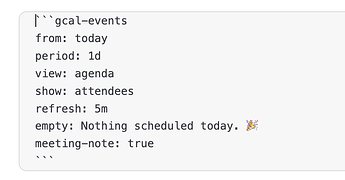
```gcal-events
from: today
to: today
show: attendees
empty: Nothing scheduled. 🎉
```
Next five work meetings, excluding all-day blocks
```gcal-events
calendars: work
period: 14d
all-day: exclude
limit: 5
view: list
```
This month's deadlines as a table
```gcal-events
from: som
to: eom
view: table
title-match: /deadline|due|review/i
columns: date, time, title, calendar
```
A live sidebar agenda that refreshes every five minutes
```gcal-events
period: 3d
refresh: 5m
group: date
hide: link
```
Everything grouped by calendar rather than by day
```gcal-events
period: 7d
group: calendar
```
Work only, with the account shown on each event
```gcal-events
accounts: work
period: 5d
show: account
```
Both accounts side by side, split into sections
```gcal-events
period: 3d
group: account
view: list
```
Personal life, with work filtered out
```gcal-events
exclude-accounts: work
period: 1m
all-day: only
```
Disambiguating a calendar name that exists in both accounts
```gcal-events
calendars: work/Alex Rivera, personal/Household
period: 7d
```
Meeting notes
Each event can offer a Create meeting note link, which becomes Open meeting note once the note exists. It is also always in the right-click menu, whether or not the link is shown.
Turn the link on globally in Settings → Meeting notes → Show the note link by default, or per block:
```gcal-events
from: today
to: today
meeting-note: true
```
Notes are linked to their event by an event-id frontmatter key, so the plugin still finds the note
after you rename or move it.
Where notes go
Default folder and Default filename set the global behaviour; both accept placeholders, so
Meetings/{{date:YYYY}}/{{date:MM}} and {{date:YYYY-MM-DD}} {{title}} both work. A block can
override the folder with note-folder:, and a note type can override both.
Precedence for the folder: note-folder on the block → the note type's folder → the default folder.
Note types
A note type bundles a template, a folder, a filename format and a creation mode. Add as many as
you like in settings, then pick one per block with note-type: 1:1. With none configured, a built-in
body is used, so the feature works before you set anything up.
Template files and QuickAdd choices are offered as dropdowns rather than paths you have to type — the plugin reads QuickAdd's configured choices, and lists templates from whichever template folders Templater, QuickAdd or the core Templates plugin are pointed at. The template path stays editable, so a template kept outside those folders still works.
There are three modes:
| Mode | What happens |
|---|---|
| Built-in | The plugin creates the note from your template file, filling in {{placeholders}}. If Templater is installed it then runs <% %> commands over the result. This is the recommended mode for Templater users — you get both syntaxes. |
| Templater | Hands off to Templater's create new note from template. Templater owns the processing, so {{placeholders}} are not filled in — see below. |
| QuickAdd | Runs a named QuickAdd choice with the event data passed in as variables. QuickAdd owns folder, filename and template. |
Placeholders
Usable in templates, filenames and folders:
{{title}} {{id}} {{date}} {{time}} {{start}} {{end}} {{start-iso}} {{end-iso}}
{{duration}} {{calendar}} {{account}} {{location}} {{description}} {{organizer}}
{{attendees}} {{attendees-list}} {{link}} {{meet}}
{{date}}, {{start}} and {{end}} take a moment format: {{date:dddd D MMMM}}, {{start:HH:mm}}.
Anything the plugin does not recognise is left exactly as it is, so Templater's <% %> and
QuickAdd's {{VALUE:…}} pass through untouched.
Using Templater
Set the note type to Built-in, point it at your template, and leave Run Templater on new notes on. Your template can then mix both:
---
event-title: {{title}}
event-start: {{start-iso}}
attendees: [{{attendees}}]
---
# {{title}}

Created <% tp.date.now("YYYY-MM-DD HH:mm") %> by <% tp.user.me() %>

{{attendees-list}}
If you use the Templater mode instead, Templater renders the template before the plugin can
touch it, so {{placeholders}} will not be filled in. Reach the event from the template itself:
<% app.plugins.plugins["google-calendar-agenda"].notes.lastEvent.title %>
Using QuickAdd
Set the note type to QuickAdd and pick from the dropdown — it is populated from QuickAdd's own
choices, so there is no name to retype. Choices inside a Multi are listed as Parent / Child, and
Multi choices themselves are not offered, since they are folders rather than something to run.
If two choices share a name they are both flagged, because QuickAdd resolves by name and cannot tell
them apart either. Use the refresh button after adding a choice in QuickAdd.
Every placeholder above arrives as a QuickAdd variable, reached with {{VALUE:name}}:
# {{VALUE:title}}

**When:** {{VALUE:date}} {{VALUE:time}}
**Where:** {{VALUE:location}}
**Guests:** {{VALUE:attendees}}
[Calendar]({{VALUE:link}})
QuickAdd controls the filename and folder, so note-folder and the type's own folder are ignored in
this mode. Add event-id: {{VALUE:id}} to your QuickAdd template's frontmatter if you want the link
to flip to Open meeting note afterwards — the plugin cannot stamp it for you here.
Behaviour worth knowing
- Clicking an event opens it in Google Calendar. Right-clicking offers the meeting-note actions (including every configured note type), Join call, Copy title and Copy location.
- Caching. Responses are reused for 5 minutes by default (configurable). The refresh button on each block and the Refresh calendar data command both clear the cache immediately.
- Recurring events are expanded into individual occurrences by Google, so a weekly standup shows once per day it occurs.
- All-day events are shown on every day they cover, sorted above timed events.
- Declined events are hidden by default; tentative ones render in italics.
- Unknown options and unknown field names produce an inline warning rather than failing the block, so a typo never blanks your agenda.
- A bare calendar name matches across every account. With "Alex Rivera" in both your personal
and work accounts,
calendars: Alex Riverareturns both and warns that it was ambiguous. Writework/Alex Riverato pick one. A name containing a slash still works — if the part before the slash matches no account, the whole string is treated as a calendar name. - Partial failures degrade gracefully. If one account's token has expired, its calendars are skipped with an inline warning and the rest still render. Only a total failure surfaces as an error.
- The two date formats address different things.
heading-formatstyles the date group headings;date-formatstyles thedatefield in list and table rows. Setting one where it cannot apply —date-formatin a plain agenda, say — produces an inline warning rather than doing nothing quietly. In an agenda the date line is suppressed under a date heading, since it would be redundant, butshow: datewithgroup: calendarorgroup: nonedoes display it.
Commands
| Command | What it does |
|---|---|
| Add a Google account | Starts the OAuth flow for another account. |
| Refresh calendar data | Clears the cache and re-renders every visible block. |
| Insert calendar block | Drops a starter block at the cursor. |
Development
npm install
npm run dev     # watch build
npm run build   # typecheck + minified build
npm test        # date and query-parser suite
./install.sh <vault>   # copy the build into a vault
npm run dev writes main.js in place. After ./install.sh, use Reload app without saving in
Obsidian to pick up changes.
tests/spec.ts covers src/dates.ts and src/query.ts — the parts with real logic and no Obsidian
dependency. tests/obsidian-shim.ts stands in for the obsidian module so they run under node.
The OAuth flow, API client and renderer need a live Obsidian window and are not covered.
Support
This plugin is free and open source, and every feature is available to everyone — nothing is held back behind a payment. If it saves you time and you'd like to say thanks, buy me a coffee. Entirely optional.
Licence
MIT
For plugin developers
Search results and similarity scores are powered by semantic analysis of your plugin's README. If your plugin isn't appearing for searches you'd expect, try updating your README to clearly describe your plugin's purpose, features, and use cases.