Sync Google Calendar
approvedby dexin-qi
Synchronize events from Google Calendar and manage them like tasks.
Obsidian x Google Calendar Plugin
An Obsidian plugin that synchronizes google events from the calendar and manages them like tasks.


Note:
- Please be aware that this plugin relies on the Dataview plugin to list tasks within a specific date range. Please make sure you have the Dataview plugin installed before using this plugin.
- Our task format is borrowed from tasks, but we do not support recurring tasks at the moment.
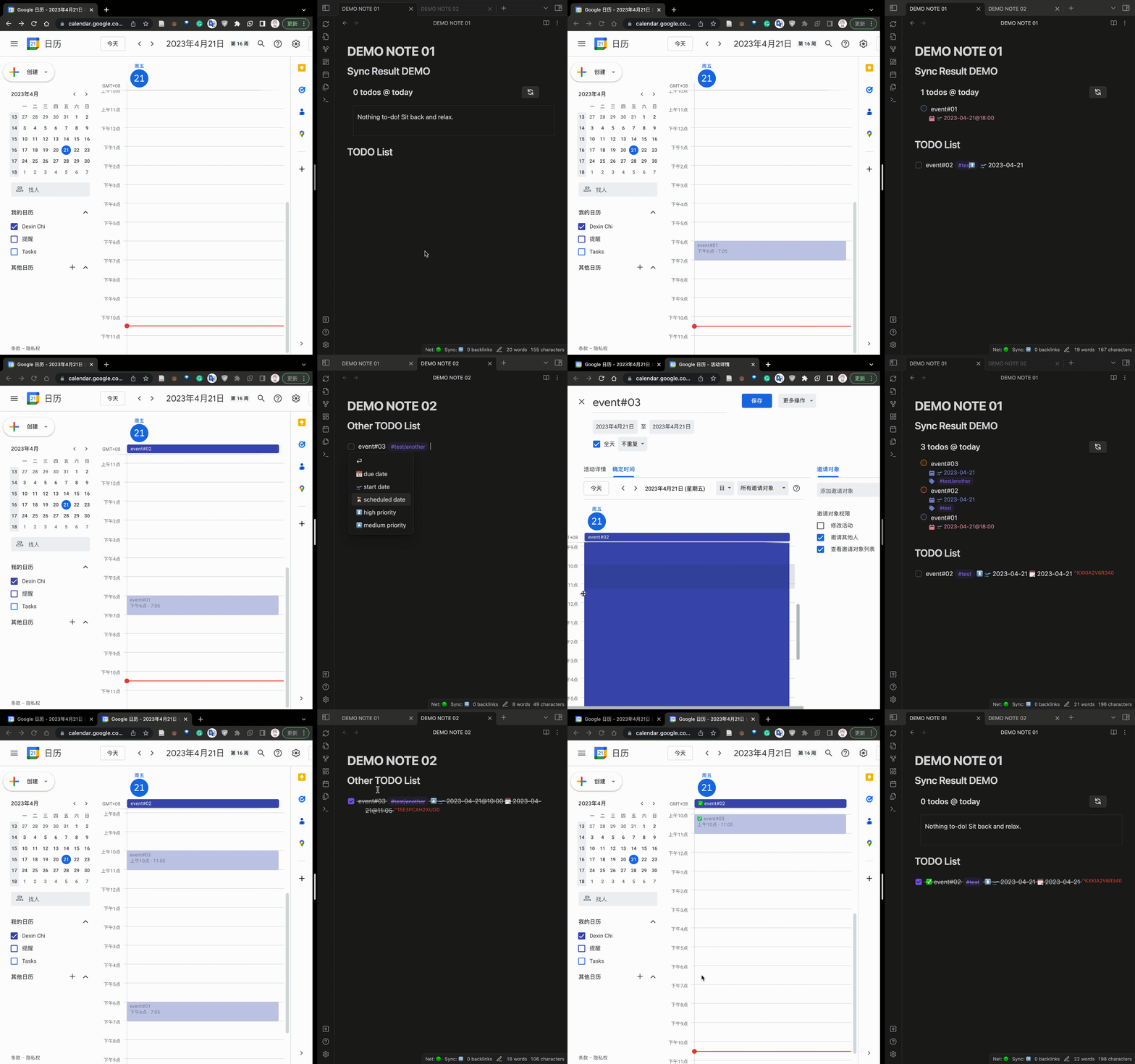
- To sync tasks from Obsidian to the calendar, you need to attach a start time element to the task (i.e. 🛫 YYYY-MM-DD), then click the sync icon or call the
Sync with Calendarcommand. - Our task synchronization is centered around calendar events, which means that after syncing tasks from Obsidian to the calendar, modifications to tasks in Obsidian will not be synced to the calendar. To further modify the schedule, you need to modify it directly in the calendar. The changes made in the calendar will be automatically synced back to Obsidian later.
- This plugin is still in early alpha and is subject to change at any time!
Installation & Usage
First of All
- You need a Google Calendar credentials file. You can apply for it yourself:
- Refer create project guide to create a Google Cloud Project
- Refer enable apis guide to enable your Google Calendar's API.
- Configure OA Screen
- Prepare to get your OA credentials
- Select "Desktop Application"
- Input a name for this OA Application.
- Download the OAClient credentials file.
- Place the credentials file in
VaultFolder/.obsidian/calendar.sync.credentials.json
Manually installing the plugin
- Download
main.js,styles.css,manifest.jsonfrom the release page. - Copy the downloaded files to
VaultFolder/.obsidian/plugins/your-plugin-id/.
Note: You can also compile this plugin yourself:
- Clone this repo.
- Run
npm ioryarnto install dependencies. - Run
npm run devto start compilation in watch mode.
From Obsidian Community Plugins Broswer (Not Avaliable for now.)
Install the plugin through the Obsidian's community plugins browser.Enable the plugin in Obsidian.
Use this Plugin
- Place a code block like the following in any note:
```sync-calendar name: "{numberTodos} todos @ Apr. 21" timeMin: "2023-04-21" timeMax: "2023-04-22" ``` - Swap to preview mode and the plugin should replace this code block with the materialized result.
If you are synchronizing your vault, I recommend explicitly ignoring the
VaultFolder/.obsidian/calendar.sync.token.jsonfile for security reasons, if possible.
Inputs
| Name | Type | Description | Default |
|---|---|---|---|
name | string | The title for the query. You can use the {numberTodos} template which will be replaced by the number of todos returned by the query. | {numberTodos} todos in calendar |
timeMin | string | A string that conforms to moment.js, the minimum time (including timeMin) for events. | One week before the current time |
timeMax | string | A string that conforms to moment.js, the maximum time (excluding timeMax) for events. | null |
refreshInterval | number | The auto-refresh interval in seconds. Set to -1 to disable auto-refresh. | 10 |
Note: timeMin and timeMax will be parsed by moment.js. Ideally, Any string that satisfies moment.js can be parsed, for example:
- "2023-04-21"
- "2023-04-21 16:00"
- "2023-04-21T08:00:00.000Z"
Note: About fetching interval: For example, if there is an event whose time span is "2023-04-21 14:00" - "2023-04-21 16:00", if you do not want this event to be displayed during crawling, you should specify timeMin: "2023-04-21 16:00".
Note: sort, filter,group are features which will be released in next version. Welcome to contribute!
Command
Currently, only one command is supported, which is used to manually trigger the synchronization of tasks from Obsidian to Calendar.
Sync with Calendar:
This command will fetch tasks with a startDate (i.e. 🛫 YYYY-MM-DD) in Obsidian.
Thanks to
The brilliant plugins:
This plugin has borrowed a lot of valuable experience from the above plugins.
And I would also like to thank Wang Jiayu for accompanying me through the conception, design, and development of this plugin.
Support
Have you found the obsidian-sync-calendar plugin helpful and want to support it? I accept donations that will go towards future development efforts. I generally do not accept payment for bug bounties/feature requests, as financial incentives add stress/expectations which I want to avoid for a hobby project!

For plugin developers
Search results and similarity scores are powered by semantic analysis of your plugin's README. If your plugin isn't appearing for searches you'd expect, try updating your README to clearly describe your plugin's purpose, features, and use cases.