Google Contacts
approvedby aleksejs1
Synchronize your Google Contacts with separate contact-notes
🧩 Google Contacts Sync
Synchronize your Google contacts directly into Obsidian!
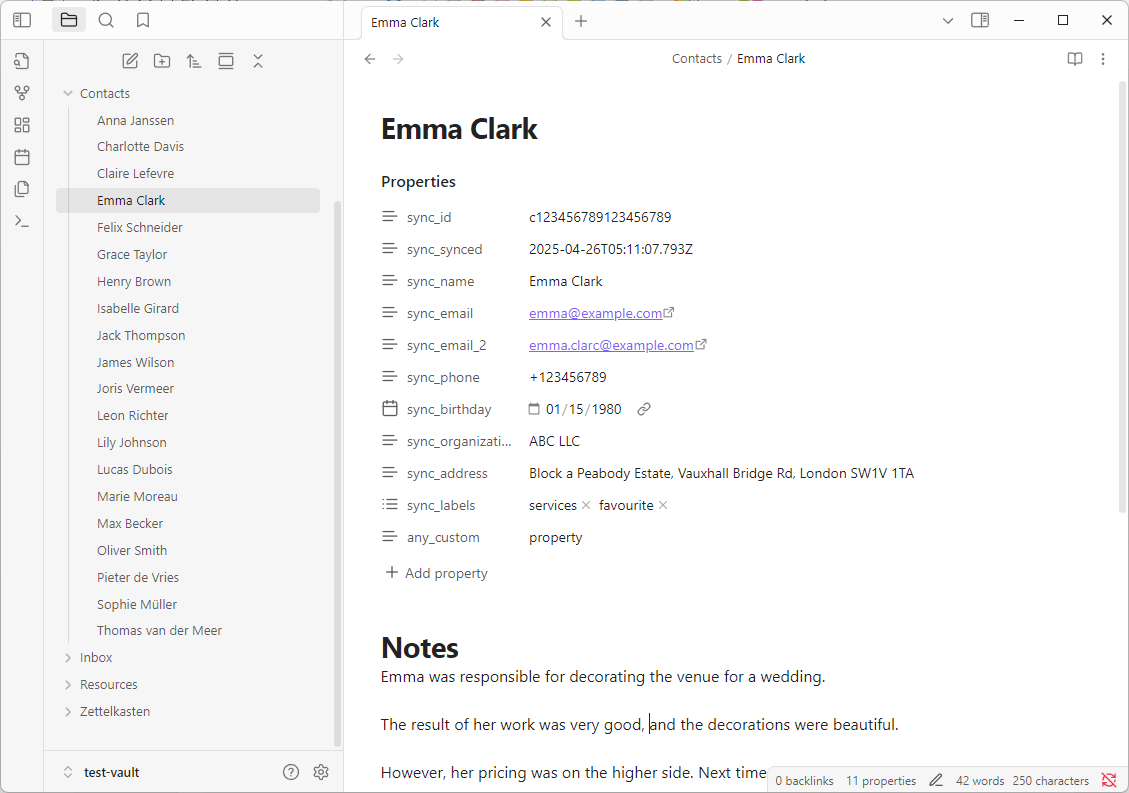
Each contact becomes a separate note with YAML frontmatter for metadata and free-form text for your notes.
⚙️ Features
-
🔄 Synchronize Google contacts into your Obsidian vault
-
🔍 Audit contacts to find local notes that no longer exist in Google Contacts
-
🗂 Configurable folder for storing contact notes
-
✏️ Customizable note template (under the metadata block)
-
🏷 Filter by Google contact label (e.g. only sync contacts tagged with
obsidian) -
📛 Filename prefix support (e.g.
p Ivan Ivanov.md) -
🏷️ Customizable naming strategy for filenames as last name first (e.g.
p Ivanov Ivan.md) -
🧩 Multiple naming strategies for frontmatter keys:
- Default: Customizable prefix (e.g.,
s_name,s_email_2). - VCF (vCard): Fully compatible with the VCF Contacts plugin.
- Array: Stores multiple values (emails, phones, etc.) as a single array field in the frontmatter.
- Default: Customizable prefix (e.g.,
-
📇 Supports multiple names, emails, phone numbers, birthdays, addresses, organizations, job titles, department, labels, relations
-
🏷️ Option to sync Relations as Obsidian links (e.g.
[[Jane Doe|Jane Doe (spouse)]])
📸 Screenshots
📦 Installing into Obsidian
-
Open your Obsidian vault
-
Go to Settings → Community plugins
-
Turn Safe mode → OFF
-
Click Browse and search for
Google Contacts -
Click Install, then Enable the plugin
🔐 Google Authorization
-
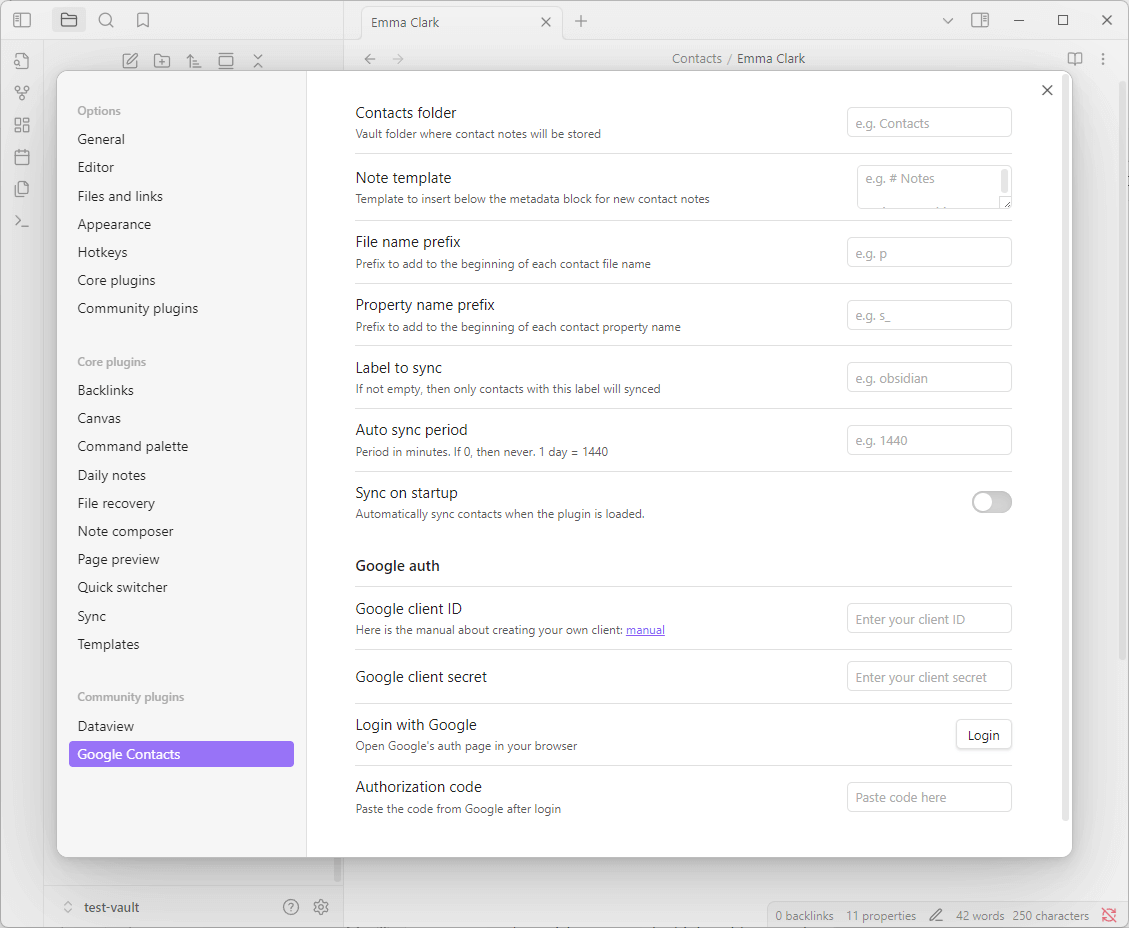
Go to the plugin settings inside Obsidian.
-
Fill in:
-
Client ID
-
Client Secret (see instructions below for how to obtain these)
-
Click the "Login to Google" button.
-
Follow the link, log in with your Google account, and copy the authorization code.
-
Paste the code into the prompt in Obsidian. The plugin will automatically save the access and refresh tokens.
🚀 How to Use
-
Open the command palette (Ctrl+P or Cmd+P)
-
Run the command: Google Contacts: Sync
-
Run the command: Google Contacts: Audit Contacts
🔁 Sync Algorithm
-
Only notes within the specified folder are used for syncing contacts.
-
Each contact is matched using its
idstored in the YAML frontmatter. -
If a contact already exists (by
id), the plugin updates only the frontmatter. Existing user-defined frontmatter properties and free-text content below the frontmatter are preserved and never overwritten. -
There's an option to change the note title if a contact's name changes. Links in notes will automatically update if this option is enabled in the settings.
-
How field names are generated depends on the selected Naming Strategy:
Default Strategy
The plugin appends a number starting from 2 for additional pieces of information:
phone: +123456789
phone_2: +987654321
You can also define a prefix for the property names. For example, if the prefix is sync_, the properties will be stored as:
sync_id: CONTACT_ID
sync_name: Full Name
sync_email: email@example.com
sync_phone: +123456789
sync_synced: 2025-04-19T12:34:56.789Z
VCF (vCard) Strategy
Designed for full compatibility with the VCF Contacts plugin. It uses standard vCard field names and indexed notation for multiple values:
FN: Full Name
TEL: +123456789
TEL[2]: +987654321
EMAIL: email@example.com
ADR.CITY: New York
CATEGORIES: Friends, Work
[!IMPORTANT] To ensure strict vCard compatibility, the following settings are ignored when the VCF strategy is active:
- Property name prefix (keys always use standard vCard names).
- Organization as link (organizations stored as plain text).
- Relations as link (relations stored as plain text).
- Track last sync time (no
syncedfield added).
- If no matching file exists, a new note is created with the following structure:
---
id: CONTACT_ID
name: Full Name
email: email@example.com
phone: +123456789
synced: 2025-04-19T12:34:56.789Z
---

# Notes

You can write anything here — this section is safe.
-
The
synceddate uses UTC (Coordinated Universal Time) to ensure correct synchronization across time zones. This option is disabled by default to improve performance and avoid touching hundreds of contact notes with each synchronization. -
The plugin only updates properties related to the contact (such as
name,email,phone, etc.). Any custom properties created by the user will remain untouched. -
If auto-syncing fails (e.g., due to a lack of internet connection), the next attempt will only occur during the next scheduled auto-sync. No retries will be attempted in between.
-
If a sync label is configured, only contacts with that label will be synchronized. Contacts without the specified label will be ignored during the sync process.
🔍 Contact Audit
The plugin provides a command to audit your local contact notes against your Google Contacts.
- Goal: Identify contact notes in your vault that do not exist (or no longer match the sync label) in Google Contacts.
- How to run: Open command palette and search for
Google Contacts: Audit Contacts. - Output: Generates a report file
Contact Audit Report.mdin your vault root.- If functioning correctly, it will list "No orphaned contacts found".
- If orphans are found, it lists the files and their contact IDs so you can decide whether to delete or keep them.
🔐 How to Get a Google Client ID and Secret
To sync your contacts, you’ll need a valid Google Access Token that grants access to the People API. Follow the steps below to obtain the Client ID and Client Secret, and to configure your account so you can retrieve the necessary Authorization Code for the Obsidian plugin.
1. Set up Google Cloud
Go to Google Cloud Platform
Create a new project (or select an existing one)
2. Enable People API
Navigate to: API & Services → Library
Search for Google People API
Click Enable
3. Configure the OAuth Consent Screen
Navigate to: API & Services → OAuth consent screen
Navigate to: Audience tab
If prompted, click Get started
Fill in the required App information (App name, User support email)
Set the User Type to External (you do not need to publish the app)
Complete the contact information and click Finish
4. Add Your Account as a Test User
Navigate to: Audience tab again
Go to the Test users section (under the "OAuth user cap")
Click "+ Add users" and enter the exact Google email address you will use to log in from within Obsidian
5. Create OAuth 2.0 Credentials
Go to: API & Services → Credentials
Click "+ Create Credentials" and select "OAuth client ID" from the list
For Application type, select: Desktop App, and give it a name
Copy your Client ID and Client Secret and insert them into the plugin's options
6. Get the Authorization Code
In the Obsidian plugin, log in with the registered Test User email via the "Login" button
After confirming the dialog to grant the plugin permissions, a final screen will display the Authorization Code you need to copy and paste back into the plugin
🔧 Build Instructions
To build the plugin:
-
Clone or download the repository
-
Install dependencies:
npm install -
Build the plugin using Rollup:
npm run build
📦 Installing your build into Obsidian
-
Open your Obsidian vault
-
Go to .obsidian/plugins/ and create a folder, e.g. google-contacts-sync
-
Copy the following files into that folder:
google-contacts-sync/
├── main.js
└── manifest.json
- In Obsidian:
-
Go to Settings → Community Plugins
-
Enable Safe Mode → OFF
-
Click "Load community plugins"
-
Enable google-contacts-sync
For plugin developers
Search results and similarity scores are powered by semantic analysis of your plugin's README. If your plugin isn't appearing for searches you'd expect, try updating your README to clearly describe your plugin's purpose, features, and use cases.