Google Selection Translate
approvedby JunweiHu0
Select text in any note and instantly see its Google translation in a side panel. - This plugin has not been manually reviewed by Obsidian staff.
Google Selection Translate
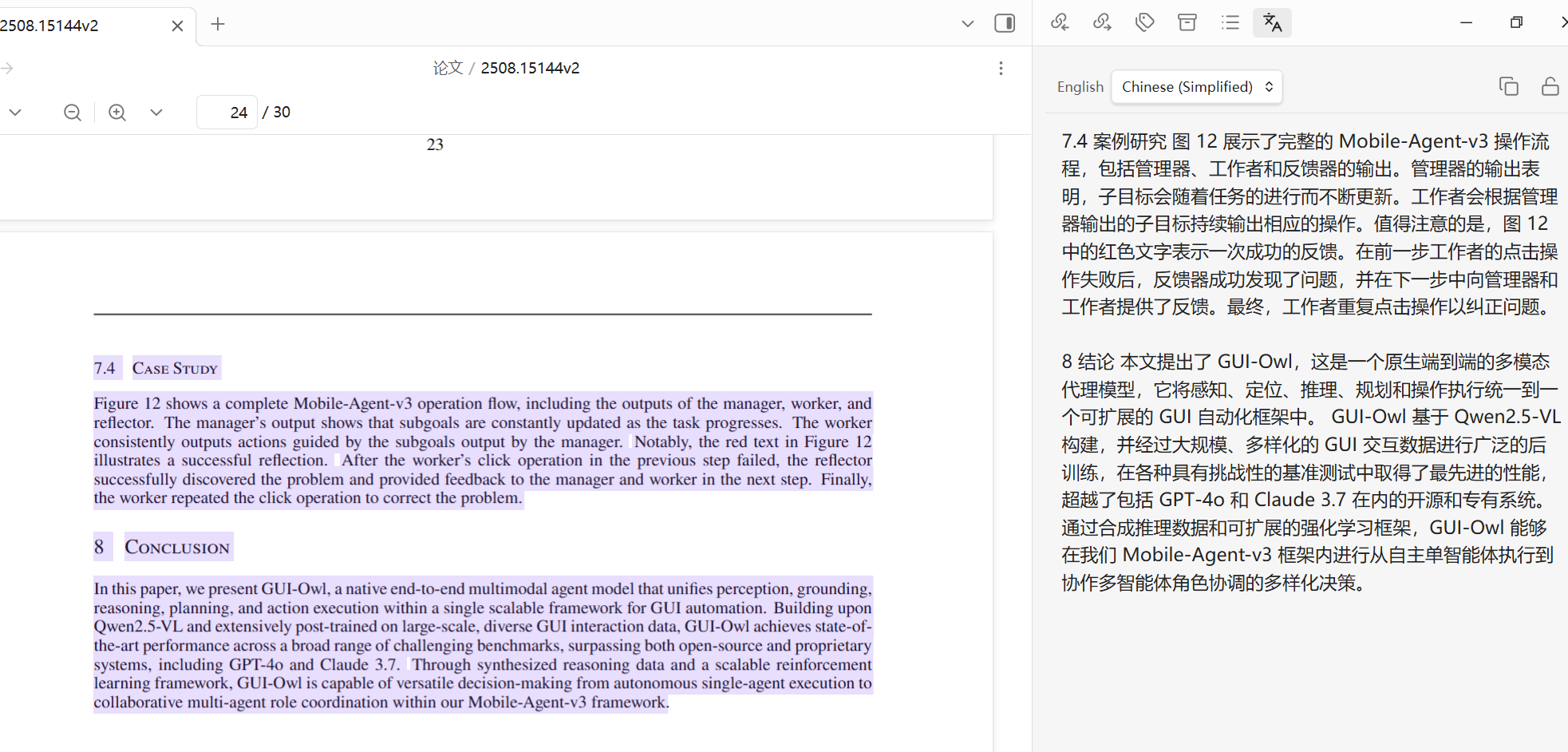
Select text in any note and instantly read its Google translation in a side panel — no buttons, no copy-paste.
在笔记中选中文本,右侧栏即时显示 Google 翻译 —— 无需按钮,无需复制粘贴。
Demo / 演示
If the video above does not play inline, click here to watch it · 若上方视频无法直接播放,点此查看
English
Why this plugin
Most translation plugins make you open a panel, paste text into an input box, and click a button — then the result appears below the input. But the original text is already in your note. This plugin removes all of that friction:
Select text → the translation appears in the side panel. That's it.
The original text stays where it belongs (in your note on the left), and the panel shows only the translation.
Features
- Select-to-translate — selecting text in any note automatically triggers translation (debounced to save API quota).
- Read-only side panel — shows only the translation; detected source language and target language are displayed in a compact header.
- Smart line-break merging — fixes the broken line breaks that PDFs and academic papers leave behind, so a paragraph is translated as one block instead of many fragments. Genuine paragraph breaks are preserved.
- Lock button — freeze the current translation so a new selection won't overwrite it while you read or copy.
- One-click copy of the translation.
- Translation cache — repeat selections and target-language switches are served from a local cache instead of re-spending API quota. Optionally persisted across restarts.
- API key tester — verify your Google API key connectivity from the settings tab without spending translation quota.
- Works in edit, live-preview, and reading modes.
Installation
Manual install (from a release)
- Download
main.js,manifest.json, andstyles.cssfrom the Releases page. - Create a folder
google-selection-translateinside your vault's.obsidian/plugins/directory. - Copy the three files into that folder.
- Reload Obsidian, then enable Google Selection Translate in Settings → Community plugins.
Build from source
git clone https://github.com/JunweiHu0/obsidian-google-translate.git
cd obsidian-google-translate
npm install
npm run build      # produces main.js
Then copy main.js, manifest.json, and styles.css into your vault plugin folder as above.
Setup
- Get a Google Cloud Translation API key (Google Cloud Console → enable the Cloud Translation API → create an API key).
- Open Settings → Google Selection Translate and paste the key.
- Click Test to verify the connection.
- Choose your source language (or leave it on Detect language) and target language.
Configure with Claude (optional)
This repo ships a Claude Code skill, configure-google-translate.
In a Claude Code session at the repo root, run /configure-google-translate and answer the prompts —
it collects your API key and language preferences, optionally validates the key, and writes the
plugin's data.json into your vault for you.
Settings
| Setting | Description |
|---|---|
| Google API key | Your Cloud Translation API key. A Test button checks connectivity without consuming translation quota. |
| Source language | Language of the text you select. Detect language lets Google decide. |
| Target language | Language the translation is shown in. |
| Translate on selection | Automatically translate as soon as you select text. Turn off to translate only via the command/hotkey. |
| Merge hard line breaks | Join the line breaks that wrap paragraphs in PDFs/papers so a paragraph is translated as one block. |
| Selection delay (ms) | How long to wait after a selection settles before translating. |
| Cache translations | Reuse previously translated text/language pairs instead of calling the API again. |
| Persist cache across restarts | Keep the cache in the vault's plugin data so it survives reloading Obsidian (off by default). A Clear button empties it. |
How line-break merging works
Text copied from papers separates both wrapped lines and paragraphs with a single newline, so a newline is ambiguous. The plugin classifies each one heuristically: a newline becomes a paragraph break when the previous line ends a sentence and is noticeably shorter than the column width (or the next line starts a list/heading); otherwise it is treated as a soft wrap and joined. Hyphenated wraps (transla-\ntion) are stitched back together.
Acknowledgements
The Google Cloud Translation request logic and the HTTP error-code messages are adapted from obsidian-translate by Fevol, licensed under MIT. This project is a minimal, focused reimagining of the select-to-translate workflow.
License
中文
为什么做这个插件
大多数翻译插件的流程是:打开面板 → 把文本粘进输入框 → 点击翻译按钮 → 在下方看到结果。可原文明明就在你的笔记里。这个插件去掉了所有多余步骤:
选中文本 → 译文直接出现在右侧栏。就这么简单。
原文留在它该在的地方(左侧笔记里),右侧面板只显示译文。
功能特性
- 选中即翻译 —— 在任意笔记中选中文本会自动触发翻译(带去抖,节省 API 配额)。
- 只读侧边面板 —— 只显示译文;顶部紧凑栏展示检测到的源语言与目标语言。
- 智能合并硬换行 —— 修复 PDF 和学术论文里残留的错误换行,让一个段落作为整体翻译,而不是被拆成很多碎片;真正的段落分隔会被保留。
- 锁定按钮 —— 冻结当前译文,阅读或复制时不会被新的选区覆盖。
- 一键复制译文。
- 翻译缓存 —— 重复选中相同文本、或来回切换目标语言时,直接命中本地缓存,不再消耗 API 配额;可选在重启后仍然保留。
- API Key 连通性测试 —— 在设置页验证 Google API Key 是否可用,且不消耗翻译配额。
- 支持编辑、实时预览、阅读三种模式。
安装
手动安装(从 Release)
- 从 Releases 页面下载
main.js、manifest.json、styles.css。 - 在你的 vault 的
.obsidian/plugins/目录下新建文件夹google-selection-translate。 - 把这三个文件拷进该文件夹。
- 重新加载 Obsidian,在 设置 → 第三方插件 中启用 Google Selection Translate。
从源码构建
git clone https://github.com/JunweiHu0/obsidian-google-translate.git
cd obsidian-google-translate
npm install
npm run build      # 生成 main.js
然后按上面的方式把 main.js、manifest.json、styles.css 拷到 vault 插件目录。
配置
- 获取 Google Cloud Translation API Key(Google Cloud 控制台 → 启用 Cloud Translation API → 创建 API 密钥)。
- 打开 设置 → Google Selection Translate,粘贴密钥。
- 点击 Test 验证连接。
- 选择源语言(或保持自动检测)和目标语言。
用 Claude 一键配置(可选)
本仓库内置了一个 Claude Code 技能 configure-google-translate。
在仓库根目录的 Claude Code 会话里运行 /configure-google-translate,按提示回答即可 —— 它会收集你的
API Key 与语言偏好,(可选)校验密钥,并把插件的 data.json 直接写入你的 vault。
设置项
| 设置 | 说明 |
|---|---|
| Google API key | 你的 Cloud Translation API 密钥。Test 按钮可检测连通性,且不消耗翻译配额。 |
| Source language | 你选中文本的语言。Detect language 让 Google 自动判断。 |
| Target language | 译文显示的语言。 |
| Translate on selection | 选中文本即自动翻译。关闭后仅通过命令/快捷键触发。 |
| Merge hard line breaks | 合并 PDF/论文里折行的换行,让一个段落作为整体翻译。 |
| Selection delay (ms) | 选区稳定后等待多久再翻译。 |
| Cache translations | 复用已翻译过的文本/语言组合,不再重复调用 API。 |
| Persist cache across restarts | 把缓存写进 vault 的插件数据,重启 Obsidian 后仍然保留(默认关闭)。设置里有 Clear 按钮可清空。 |
合并换行的原理
从论文复制的文本里,折行和段落分隔都用单个换行符,因此换行存在歧义。插件用启发式逐个判定:当前一行以句末标点结尾且明显短于列宽(或下一行是列表/标题开头)时,该换行视为段落分隔;否则视为折行并合并。连字符断词(transla-\ntion)会被还原拼接。
致谢
Google Cloud Translation 的请求逻辑与 HTTP 错误码提示改编自 Fevol 的 obsidian-translate(MIT 许可)。本项目是对"选中即翻译"工作流的一次极简、专注的重新实现。
许可证
For plugin developers
Search results and similarity scores are powered by semantic analysis of your plugin's README. If your plugin isn't appearing for searches you'd expect, try updating your README to clearly describe your plugin's purpose, features, and use cases.