Granola Meetings Simple Sync
approvedby philfreo
Sync your Granola meeting notes, summaries, and transcripts to your vault in a simple way using the official Granola MCP API. Customizable by template. Supports auto-linking of attendee Person notes. - This plugin has not been manually reviewed by Obsidian staff.
Obsidian Plugin: Granola Meetings Simple Sync
Sync your Granola meeting notes to Obsidian.
This plugin uses Granola's official MCP API to sync meeting notes, AI summaries, and transcripts into your vault. One-time OAuth setup, then fully automatic.
Features
- Official API: Uses Granola's MCP API with OAuth authentication
- Multiple accounts: Connect more than one Granola account and sync them all into the same vault
- Auto-sync: Automatically sync meetings at configurable intervals (1m to 12h)
- Template-based: Customize output format with your own template
- Smart deduplication: Tracks meetings by ID to avoid duplicates
- Preserve edits: Option to skip existing notes so your local changes aren't overwritten
- Attendee linking: Automatically link attendees to existing notes by email
- Transcripts: Optionally include full meeting transcripts
There are other (1, 2) Granola plugins for Obsidian, but I found their implementation lacking for my needs. They either had unnecessary complexity or didn't support features like bringing in private notes, linking to attendee Person notes, or customizing the note template/frontmatter. This plugin fits my workflow better.
Installation
Install from the Obsidian Directory (recommended)
Click "Add to Obsidian" from https://community.obsidian.md/plugins/granola-meetings-simple-sync
Install via BRAT
- Install the BRAT plugin from Obsidian's community plugins
- In BRAT settings, click Add Beta plugin
- Enter
philfreo/obsidian-granola-plugin - Enable the plugin in Settings → Community plugins
BRAT will automatically keep the plugin updated.
Manual Installation
- Create a folder
<vault>/.obsidian/plugins/granola-meetings-simple-sync/ - Download
main.jsandmanifest.jsonfrom the latest release into that folder - Reload Obsidian, then enable the plugin in Settings → Community plugins
Setup
- Open plugin settings
- Click Connect to Granola — this opens your browser for OAuth authentication
- Authorize the plugin in your browser
- You'll be redirected back to Obsidian automatically
- Meetings will start syncing!
To sync more than one Granola account, click Add Granola account in settings and repeat the OAuth flow. All connected accounts sync into the same folder, deduplicated by meeting ID.
Settings
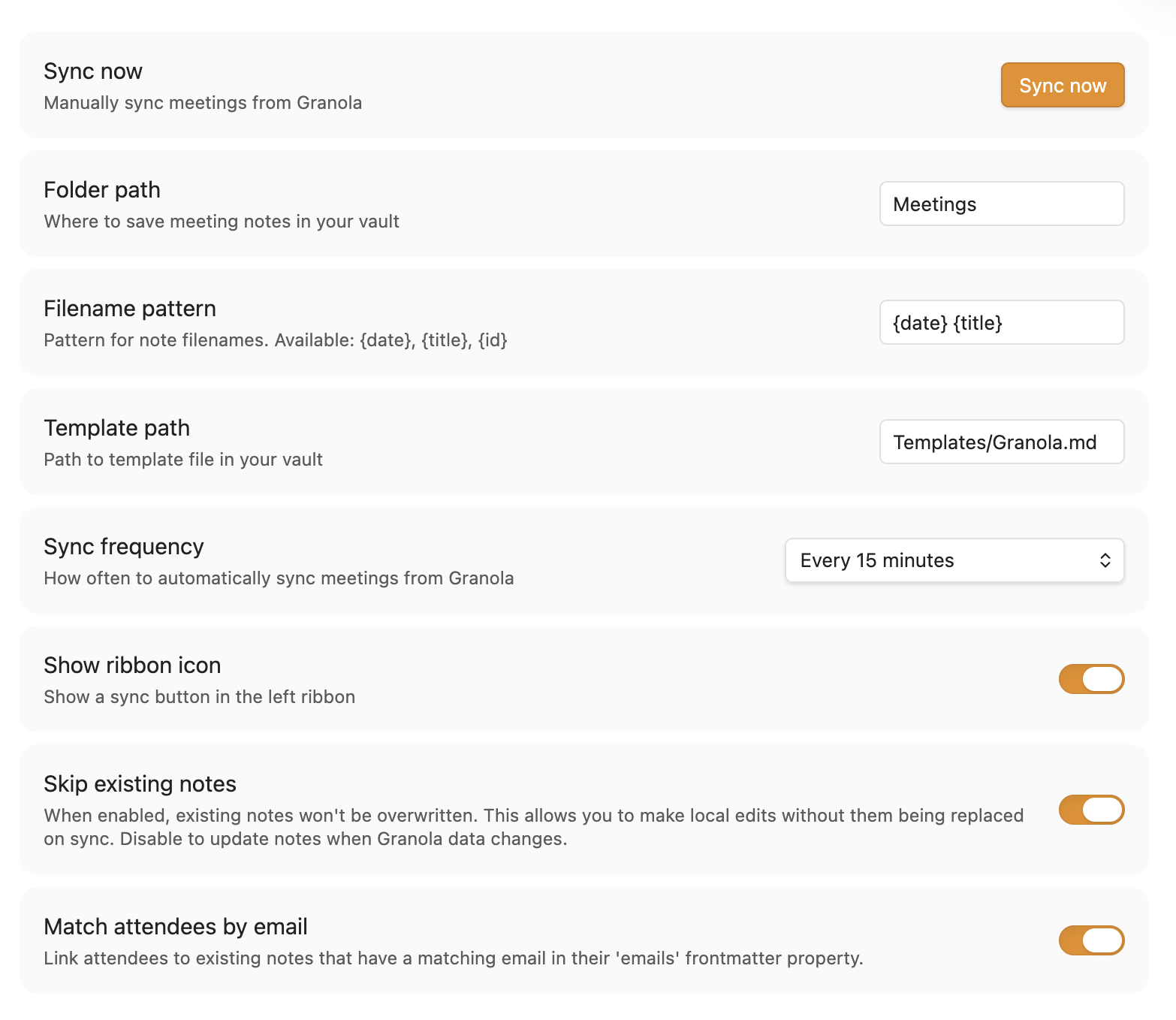
| Setting | Default | Description |
|---|---|---|
| Time range | Last 30 days | How far back to look for meetings |
| Sync frequency | Every 15 minutes | How often to sync. Options: Manual only, On startup, 1m, 15m, 30m, 60m, 12h |
| Only my meetings | On | Sync only meetings you recorded or were listed as a participant in, including notes shared with you. Turn off to also sync every workspace-visible meeting |
| Sync transcripts | Off | Include full meeting transcripts (1 extra API call per meeting) |
| Folder path | Meetings | Where to save meeting notes. Takes date tokens, so Meetings/{date:YYYY/MM} files each meeting under its own month |
| Filename pattern | {date} {title} | Pattern for filenames. Supports {date}, {date:YYYY-MM-DD}, {title}, {id} |
| Template path | Templates/Granola.md | Path to your template file |
| Show ribbon icon | On | Show a sync button in the left sidebar |
| Skip existing notes | On | Don't overwrite notes you've edited. Existing notes are matched by granola_id anywhere in your vault, not just the sync folder, so notes you've moved aren't duplicated |
| Exclude yourself from attendees | On | Leave your own Granola account out of the attendee list |
| Match attendees by email | On | Link attendees to notes with matching email in frontmatter |
Usage
- Sync meetings: By default your meetings will be synced every 15 minutes. This setting is customizable, and you can also trigger a sync by clicking the ribbon icon, using the command palette ("Granola Meetings Simple Sync: Sync meetings"), or clicking "Sync now" in settings.
Template Variables
Create a template file to customize how your meeting notes look. Use these variables:
Core
{{granola_id}}- Unique meeting ID{{granola_title}}- Meeting title{{granola_date}}- Date (YYYY-MM-DD){{granola_url}}- Link to meeting on Granola web{{granola_start_time}}- Start time (e.g., "3:00 PM")
Content
{{granola_private_notes}}- Your notes from the meeting{{granola_enhanced_notes}}- AI-generated content (Summary, Action Items, etc.){{granola_transcript}}- Full transcript (requires "Sync transcripts" enabled)
Attendees
{{granola_attendees}}- Comma-separated names{{granola_attendees_linked}}- With Obsidian links:[[John]], [[Jane]]{{granola_attendees_list}}- YAML list format{{granola_attendees_linked_list}}- YAML list with links
Conditional Blocks
Use {{#variable}}...{{/variable}} to only render content when a variable is non-empty:
{{#granola_transcript}}
## Transcript

{{granola_transcript}}
{{/granola_transcript}}
Default Template
The plugin writes this default template when you first enable it, and again at sync time if no template exists at the configured path:
---
granola_id: {{granola_id}}
granola_url: {{granola_url}}
title: "{{granola_title}}"
date: {{granola_date}}
attendees:
{{granola_attendees_linked_list}}
tags:
  - meeting
  - granola
---
{{#granola_private_notes}}## Notes

{{granola_private_notes}}
{{/granola_private_notes}}
{{#granola_enhanced_notes}}## Summary

{{granola_enhanced_notes}}
{{/granola_enhanced_notes}}
{{#granola_transcript}}

## Transcript

{{granola_transcript}}
{{/granola_transcript}}
Requirements
- Desktop only: This plugin requires Node.js APIs available only in Obsidian's desktop app
- Granola account: You'll be prompted to authenticate via OAuth on first use
Development
npm install
npm run dev        # Build (watch mode)
npm run build      # Build (production)
npm run lint       # ESLint
npm run typecheck  # tsc --noEmit
npm test           # Run unit tests (Vitest) once
npm run test:watch # Run unit tests in watch mode
npm run package    # Build + copy main.js/manifest.json/versions.json into release/
Testing in a real vault
Unit tests cover the parser and template logic, but to exercise the plugin inside Obsidian:
- Copy
.env.exampleto.envand setOBSIDIAN_PLUGINSto thepluginsfolder of the vault you want to test against, e.g.:OBSIDIAN_PLUGINS="$HOME/path/to/YourVault/.obsidian/plugins" - Run
npm run deploy-local. This builds the plugin and copies it into$OBSIDIAN_PLUGINS/granola-meetings-simple-sync/, preserving any existingdata.json(your settings/auth) so you don't have to reconnect each time. - In Obsidian, reload (or toggle the plugin off/on) to pick up the new build.
Releasing
Releases are automated by .github/workflows/release.yml: pushing a tag of the form X.Y.Z builds the plugin and creates a GitHub release with main.js and manifest.json attached. BRAT and manual installs pull from that release.
To cut a release:
- Bump the version:
npm version patch(orminor/major). This runsversion-bump.mjs, which updatesmanifest.jsonandversions.json, and stages them in the version commit. - Push the commit and the tag:
git push && git push --tags. - The Release workflow runs on the tag and publishes the GitHub release.
Per Obsidian's guidelines, tags must not use a v prefix (use 1.0.0, not v1.0.0) — npm version already creates tags without the prefix here, and the workflow only triggers on [0-9]+.[0-9]+.[0-9]+ tags.
License
MIT
For plugin developers
Search results and similarity scores are powered by semantic analysis of your plugin's README. If your plugin isn't appearing for searches you'd expect, try updating your README to clearly describe your plugin's purpose, features, and use cases.