Meetily Sync
approvedby Sahil Maheshwari
Sync summaries and transcripts from your local Meetily meeting recorder into your vault. Fully on-device, no cloud. - This plugin has not been manually reviewed by Obsidian staff.
Meetily Sync
Sync your Meetily meeting summaries and transcripts into Obsidian as clean, linked Markdown. Fully on-device: no cloud service, no API keys, no meeting bots.



Getting started
Meetily Sync connects two tools you run locally. Set them up in this order.
1. Meetily — record and transcribe meetings on-device
Meetily is a free, open-source meeting assistant that captures your system audio, transcribes it locally (Whisper / Parakeet), and generates an AI summary. Audio never leaves your computer.
- Install Meetily for macOS or Windows from meetily.ai.
- Grant microphone and system-audio permissions so it can hear everyone on the call, not just you.
- Record a meeting and let Meetily generate its summary. Meetings are saved to a local database on your machine.
- Optional: turn on speaker diarization in Meetily's transcription settings so transcripts carry named speakers.
2. Obsidian — where your notes live
Install Obsidian and open the vault you want your meeting notes to land in.
3. Meetily Sync — this plugin
Install it (see Install), choose a folder, and click Sync now.
What it solves
Meetily records and summarizes your meetings locally, but that content stays inside the Meetily app. Moving it into your notes means copy-pasting, and nothing ties it back to the rest of your knowledge base.
Meetily Sync closes that gap. It reads Meetily's local database directly and writes every meeting into your vault as Markdown — a summary note and a transcript note per meeting, organized by date and cross-linked. Your meetings become first-class notes you can search, link, tag, and build on, and they never leave your machine.
What it writes
With the default settings, each meeting produces two notes:
notes/meetily/2026/08/18/Weekly Team Sync-summary.md
notes/meetily/2026/08/18/Weekly Team Sync-transcript.md
- Summary note — the AI summary Meetily generated (decisions, action items, key points).
- Transcript note — the full transcript as speaker blocks.
- Both carry YAML frontmatter (
meetily_id,title,created/updated,source: meetily) and link to each other, so they behave like a connected pair in your graph.
Syncing is idempotent: meetings you have already exported are skipped, so you can sync as often as you like.
Install
From Obsidian (recommended): open Settings → Community plugins → Browse, search for Meetily Sync, install, and enable it.
Manually from a release:
- Download
main.js,manifest.json, andstyles.cssfrom the latest release. - Copy all three into
<your vault>/.obsidian/plugins/meetily-sync/. - In Obsidian, open Settings → Community plugins → Reload, then enable Meetily Sync.
Usage
- Click the sync ribbon icon (circular arrows), or
- Run the command Meetily Sync: Sync Meetily meetings now, or
- Open the plugin settings and press Sync now.
New meetings are written to your output folder. Enable Sync on startup or Auto-sync on a timer in settings to keep it hands-off.
Settings
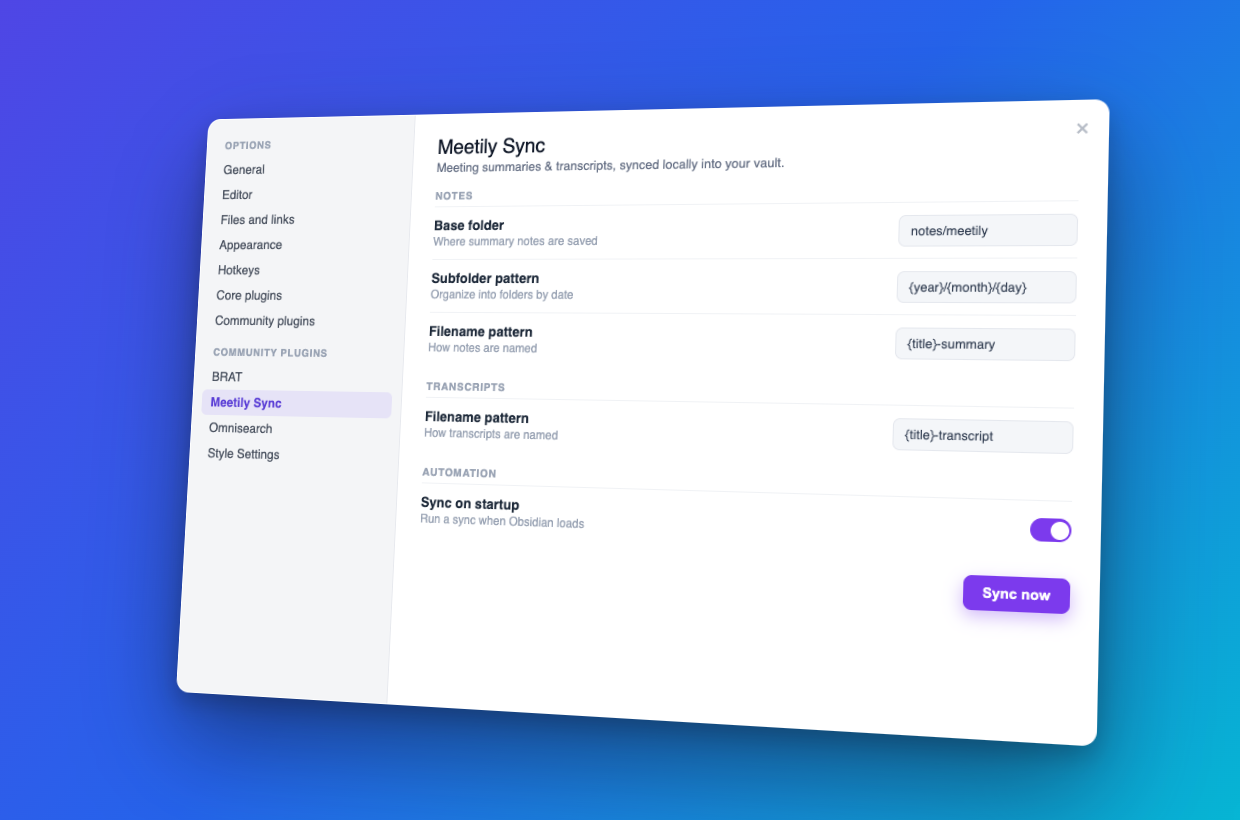
Note locations are built from a base folder + subfolder pattern + filename pattern, so you can put notes wherever you like. Summaries and transcripts can share a folder or live in separate ones.
Notes and Transcripts each have:
| Setting | Notes default | Transcripts default |
|---|---|---|
| Base folder | notes/meetily | notes/meetily |
| Subfolder pattern | {year}/{month}/{day} | {year}/{month}/{day} |
| Filename pattern | {title}-summary | {title}-transcript |
Pattern variables: {title}, {date}, {time}, {year}, {month}, {day}, {quarter}. Leave a subfolder pattern blank for a flat folder.
Content: export summary / export transcript / include frontmatter / default speaker label / overwrite existing.
Automation: sync on startup / auto-sync on a timer + interval / Sync now button.
Advanced → Meetily database location: the path to Meetily's meeting_minutes.sqlite. This is auto-detected for your operating system — leave it blank unless you installed Meetily in a custom location:
- macOS
~/Library/Application Support/com.meetily.ai/meeting_minutes.sqlite - Windows
%APPDATA%\com.meetily.ai\meeting_minutes.sqlite - Linux
~/.config/com.meetily.ai/meeting_minutes.sqlite
How it works
The plugin opens Meetily's SQLite database with sql.js (SQLite compiled to WebAssembly), so there are no native modules to build or trust. The WebAssembly binary is embedded in the plugin, so there is nothing extra to place on disk. It loads the database as an in-memory snapshot — Meetily's file is only ever read, never modified — and maps the meetings, transcripts, and summary_processes tables into Markdown.
Meetily runs its database in WAL (write-ahead log) mode, which means a meeting can be committed to a side file before it is folded into the main database. Meetily Sync merges those committed pages when it reads, so a meeting you recorded moments ago appears right away, even while Meetily is still open.
Filesystem and network use
Meetily Sync is transparent about what it touches:
- Network: none. The plugin makes no network requests — no API calls, telemetry, analytics, or third-party services. It has no network code paths at all.
- Files read outside the vault (read-only): exactly two — Meetily's
meeting_minutes.sqliteand its-walsidecar (see paths under Settings). They are read via Node'sfsand never written, deleted, or modified. You can override the location in Advanced → Meetily database location. - Files written: only Markdown notes inside your vault, in the folders you configure, through Obsidian's Vault API.
- Background activity: none unless you opt in. Sync on startup runs one sync after Obsidian loads; Auto-sync on a timer uses
setIntervalat the interval you choose. Both are off by default and can be turned off at any time.
Because it reads a local file, the plugin is marked isDesktopOnly and does not run on mobile.
Limitations
- Desktop only. It reads a local file, so it does not run on Obsidian mobile.
- Speaker labels. Meetily only fills in speaker names when diarization is enabled. Without it, transcript lines use the default label; turn on diarization in Meetily and future syncs carry real speakers.
Packaging (install into your own vault)
To install a build by hand:
npm run build— producesmain.js(with the SQLite WebAssembly embedded).- Create
<vault>/.obsidian/plugins/meetily-sync/. - Copy in
main.js,manifest.json, andstyles.css. - In Obsidian: Settings → Community plugins → Reload, then enable Meetily Sync.
DEST="/path/to/YourVault/.obsidian/plugins/meetily-sync"
mkdir -p "$DEST"
cp main.js manifest.json styles.css "$DEST"/
Releasing
Releases are automated by .github/workflows/release.yml: pushing a tag builds the plugin, attaches main.js, manifest.json, and styles.css to a GitHub Release, and records build-provenance attestations for those assets.
npm version patch        # bumps manifest.json + versions.json
git push && git push --tags
The tag must equal the version in manifest.json (no v prefix), which npm version guarantees.
Publishing to the Obsidian community store
Meetily Sync is listed in the Obsidian community store. New plugins are submitted through the plugin portal at community.obsidian.md (sign in, link the GitHub account, and add the repository); the older pull-request flow against obsidian-releases has been retired. Once a plugin is listed, every later GitHub Release is picked up automatically, and Obsidian runs an automated scorecard scan on each release.
Development
npm install      # installs deps and fetches sql.js
npm run dev       # watch build -> main.js (+ copies sql-wasm.wasm)
npm run lint      # eslint-plugin-obsidianmd rules
npm test          # jest unit tests
npm run build     # lint + type-check + production bundle
For live testing, symlink the repo into a scratch vault and reload Obsidian after each build:
ln -s "$(pwd)" "/path/to/TestVault/.obsidian/plugins/meetily-sync"
See CONTRIBUTING.md for more.
Support
If Meetily Sync saves you time, you can support development here:

License
For plugin developers
Search results and similarity scores are powered by semantic analysis of your plugin's README. If your plugin isn't appearing for searches you'd expect, try updating your README to clearly describe your plugin's purpose, features, and use cases.