Harpoon
approvedby rodrez
Use shortcuts to manage and navigate your top four frequently-used files.
Obsidian Harpoon Plugin
An Obsidian plugin to manage and quickly navigate to your favorite files. This is a port of Harpoon (github.com/theprimeagen/harpoon) plugin for Obsidian.
If you find value in this plugin, I'd greatly appreciate it if you could show your support by giving a star to this repository. Alternatively, if you're feeling generous, you can also treat me to a coffee using the link below. Your contribution means a lot and helps in further development. Thank you!

Installation
Note: This assumes that you're already familiar with installing Obsidian plugins.
- Download the Harpoon Plugin
- Install it in your Obsidian vault as you would with any other plugin.
Inital Setup
I recommend for you to use your favorite keybindings to add/navigate files. After installation, the plugin will create a default configuration file named harpoon-config.json in your vault.
Usage
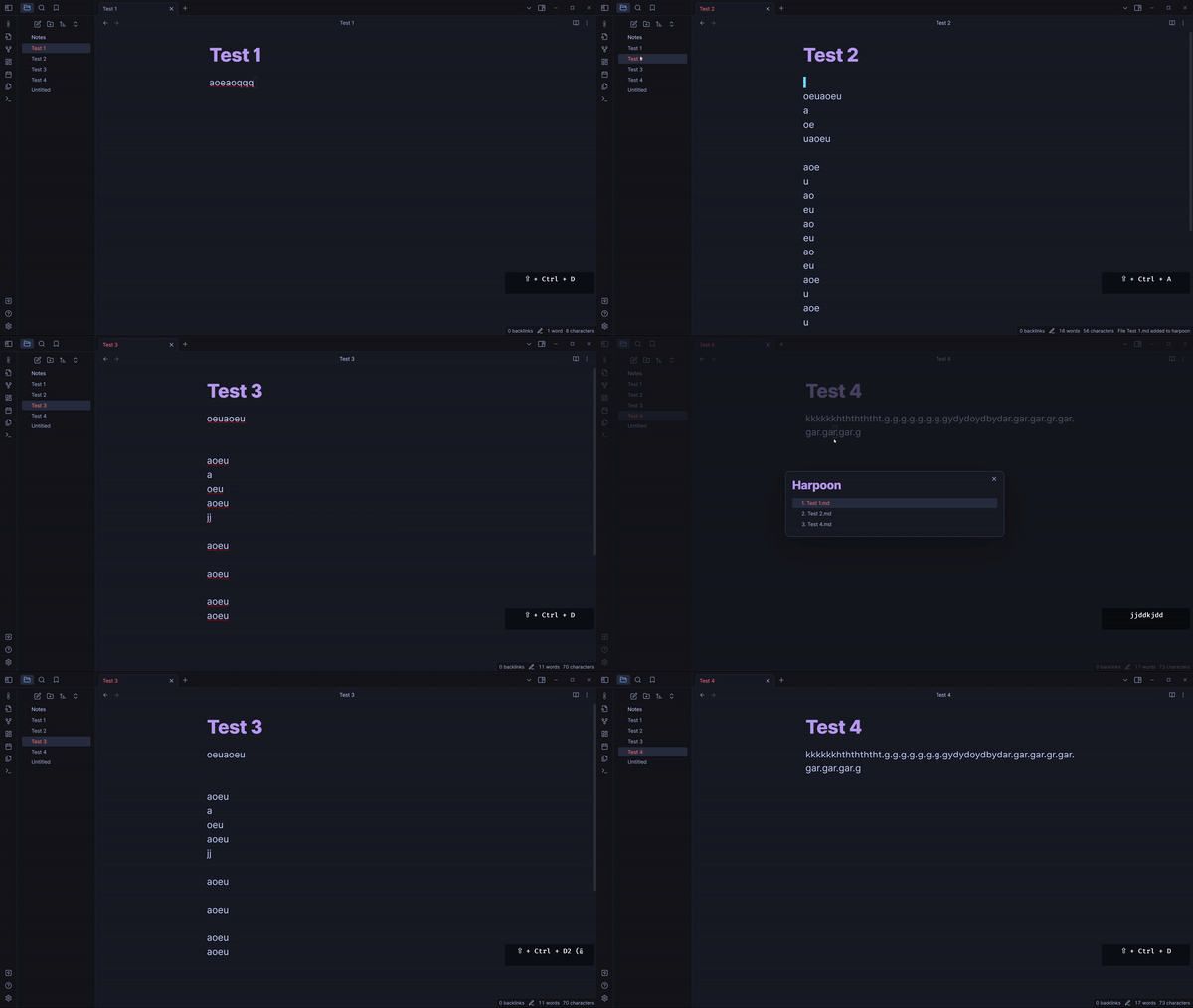
- Open File List: This command opens a modal that lists the files you've hooked with Harpoon.
- Add File to List: Add the currently active file to the Harpoon list. Note: There's a limit of 4 files that can be added.
- Go To File: You can use one of the Go To File x commands (where x is a number from 1 to 4) to quickly jump to one of your hooked files.
Keyboard Shortcuts
Ctrl + Shift + D: Opens the modal.
While the Harpoon modal is open:
Ctrl + Shift + D: Close the modal.
Enter: Choose the file corresponding to the currently highlighted index.
dd: Quickly press twice to remove a file from the list.
p: Insert the last removed file just after the currently highlighted file.
Shift + p: Insert the last removed file just before the currently highlighted file
ArrowDown or J: Navigate downwards in the list. ArrowUp or K: Navigate upwards in the list.
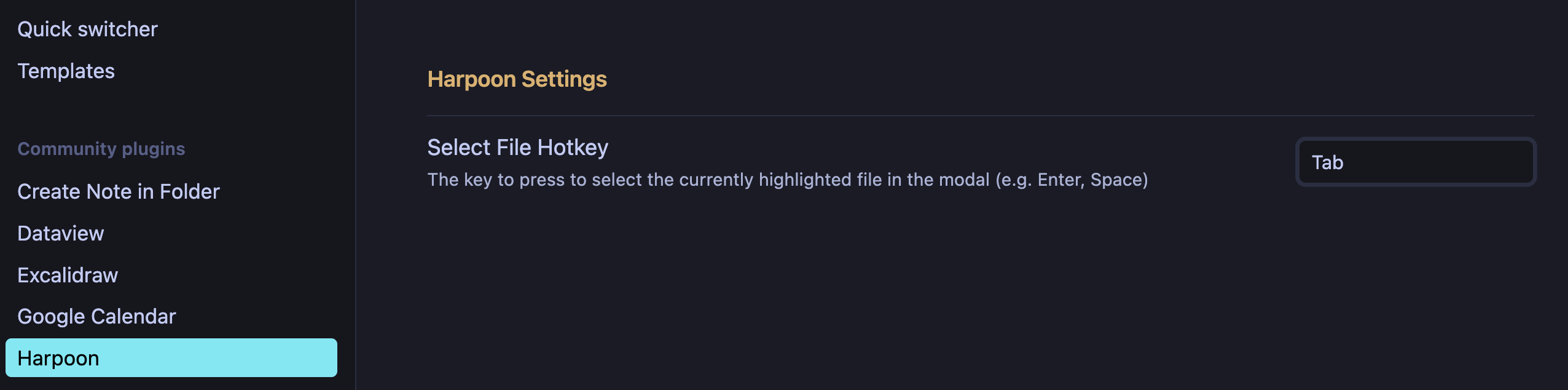
Note: You can change the keybindings in the plugin settings for selectFileHotkey. Instead of Enter, you can use any keybinding you want.
Tips
- Make sure not to manually delete the harpoon-config.json unless you're sure about it. It holds the configuration and list of hooked files for the plugin.
- The plugin is designed for quick navigation, so make use of keyboard shortcuts for efficient usage.
Todos
- Add scroll to pos (includes on initial load/refresh)
- Add adjustable keybindings for Harpoon Modal? (maybe)
For plugin developers
Search results and similarity scores are powered by semantic analysis of your plugin's README. If your plugin isn't appearing for searches you'd expect, try updating your README to clearly describe your plugin's purpose, features, and use cases.