Header Enhancer
approvedby hobeedzc
Level up your headers, customize your notes. Header Enhancer makes your notes header better and more useful.
Obsidian Header Enhancer
A powerful Obsidian plugin that enhances markdown headers with automatic numbering, intelligent backlink management, and custom fonts.
Current Version: 0.6.0
✨ Features
🔢 Smart Auto Numbering
Automatically adds hierarchical numbering (1.1, 1.2, 2.1) with real-time updates.
- Global & per-document control with master switch
- Auto header level detection and configurable separators (
.,-,/,,) - Flexible start levels (H1-H6) and YAML frontmatter override
- Bulk operations across entire vault with confirmation dialogs
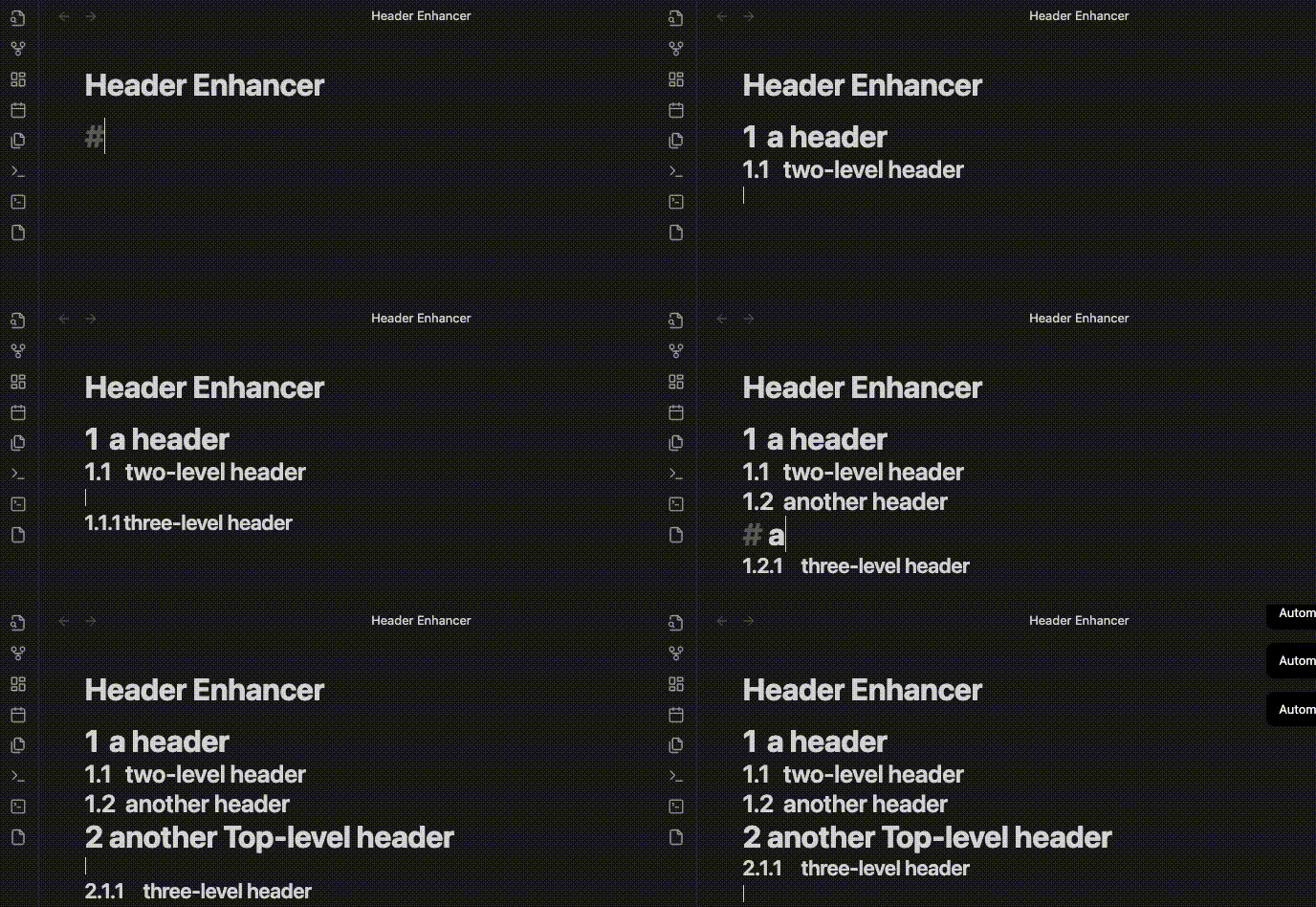
🔗 Intelligent Backlink Management
Automatically updates [[file#header]] links when headers change, with batch processing and bidirectional support.
🎨 Font Customization
Separate font family and size controls for headers and document titles, with live preview and organized font categories.
📝 YAML Configuration
Per-file control using frontmatter with smart defaults:
---
header-auto-numbering: ["state on", "start-level h2", "end-level h6", "start-at 1", "separator ."]
---
New in v0.5.0: YAML mode now supports default settings - no need to add YAML to every file!
🚀 Installation
From Community Plugins (Recommended)
- Open Settings → Community plugins → Browse
- Search "Header Enhancer" → Install → Enable
Manual Installation
- Download latest release
- Extract to
<vault>/.obsidian/plugins/header-enhancer/ - Reload Obsidian
⚙️ Usage Guide
Quick Start
-
Enable the Plugin
- After installation, find "Header Enhancer" in settings
- Turn on "Enable Auto Numbering Function" master switch
-
Start Using
- Press
Enteron a header line (e.g.,## Header) - Plugin automatically adds numbering (e.g.,
## 1. Header) - Sub-headers get hierarchical numbers (1.1, 1.1.1, etc.)
- Press
Dual-Level Control System
Global Control (Entire Vault)
- Location: Settings → Header Enhancer → "Enable Auto Numbering Function"
- Purpose: Controls auto-numbering functionality for entire vault
- Status: When disabled, auto-numbering unavailable for all documents
Document Control (Individual File)
- Method 1: Click header icon 📝 in left sidebar (ribbon)
- Method 2: Command palette (
Ctrl/Cmd+P) → "Toggle Document Auto Numbering" - Requirement: Global switch must be enabled first
- Status: Bottom status bar shows current document state
Settings Explained
Numbering Configuration
- Start Level: Which header level to begin numbering (e.g., start from H2, skip H1)
- End Level: Which header level to stop numbering
- Auto Detection: Automatically detect header levels in document
- Separator: Number separator, supports
.(1.1),-(1-1),/(1/1),,(1,1) - Start Number: First header number (default: 1)
Font Customization
- Header Fonts: Control Markdown headers (#, ##, ###) font family/size
- Title Fonts: Control document title font family/size
- Organized font categories (Serif, Sans-Serif, Monospace, etc.)
- Live preview in settings panel
Backlinks
- Enable "Update Backlinks" to auto-update links when adding/removing numbers
- Supports
[[file#header]]format link maintenance
Per-File YAML Configuration
🆕 New in v0.5.0: YAML mode now has smart defaults!
How it works:
- Choose "YAML Controlled" mode in settings
- Set default configuration (start level, end level, start number, separator)
- All files automatically use default settings - no manual YAML needed
- Only add YAML for files that need special numbering
For files needing custom rules:
---
header-auto-numbering: ["state on", "start-level h2", "end-level h6", "start-at 1", "separator ."]
---
Parameters:
state on/off: Enable/disable numbering for this filestart-level h1-h6: Starting header level (replaces oldfirst-level)end-level h1-h6: Ending header level (replaces oldmax)start-at N: Starting numberseparator ./-/,/: Separator character
Quick Commands:
Apply Custom YAML Configuration: Insert template with your default settingsReset Auto Numbering YAML: Reset to default valuesRemove Auto Numbering YAML: Remove YAML configuration
Note: Old format (first-level, max) still works but is deprecated and will be removed in future versions.
Common Commands
| Command | Access | Description |
|---|---|---|
| Toggle Global Auto Numbering | Command palette | Enable/disable numbering for entire vault |
| Toggle Document Auto Numbering | Ribbon icon / Command palette | Control current document numbering |
| Apply Custom YAML Configuration | Command palette | Insert YAML template with your default settings (v0.5.0) |
| Reset Auto Numbering YAML | Command palette | Reset existing YAML to default values |
| Remove Auto Numbering YAML | Command palette | Remove YAML configuration from file |
Usage Tips
Daily Usage
- ✅ Press
Enteron header line to auto-add/update numbering - ✅ After editing a header or changing its level, move the cursor to another line to refresh numbering
- ✅ Click ribbon icon to quickly toggle current document numbering
Bulk Operations
- ⚠️ Always backup vault before bulk operations
- 💡 Bulk apply shows confirmation dialog with scope options
- 💡 Bulk remove supports safe rollback mechanism
Special Scenarios
- 📝 Daily notes: Global on, disable individual files with YAML
- 📚 Knowledge management: Use different separators for different doc types
- 🎯 Project docs: Start from H2, preserve H1 as document title
🐛 Known Issues
- Default separator uses tab character (
\t)
Report bugs at GitHub Issues
📊 Changelog
v0.6.0 (Current)
Community Scorecard Improvements
- Replaced unsafe settings UI HTML rendering with Obsidian DOM APIs
- Moved runtime-injected styles into
styles.css - Added reproducible dependency locking and pinned package versions
- Updated compatibility metadata for Obsidian 1.8.7+
v0.5.2
Bug Fixes
- Fixed manual/YAML header level ranges not being fully respected
- Fixed deleting or replacing selected heading text with Backspace or direct typing
- Fixed indented code fences causing later header numbering issues
v0.5.1
Bug Fixes and Improvements
- Fixed Enter key behavior for automatic header numbering
- Fixed YAML state synchronization with document toggle button
- Improved overall stability and user experience
v0.5.0
Major YAML Mode Improvements
- 🎯 Smart defaults for YAML mode - no need to add YAML to every file
- 📝 New unified YAML format:
start-levelandend-level(more intuitive) - ✨ Separate default configuration for YAML mode
- 🔧 New command: "Apply Custom YAML Configuration" with user defaults
- ⚠️ Old format (
first-level,max) deprecated but still supported - 🗑️ Removed duplicate "Add Auto Numbering YAML" command
v0.4.1
- Fixed headers with spaces support (English & Chinese)
- Improved regex pattern matching for special cases
v0.4.0
- Global & document-level dual control system
- Auto header level detection
- Enhanced i18n and status indicators
Full changelog: doc/changelog.md
💖 Support

Made with ❤️ by Hobee Liu
Contributions welcome! See GitHub for details.
For plugin developers
Search results and similarity scores are powered by semantic analysis of your plugin's README. If your plugin isn't appearing for searches you'd expect, try updating your README to clearly describe your plugin's purpose, features, and use cases.