by OLanO
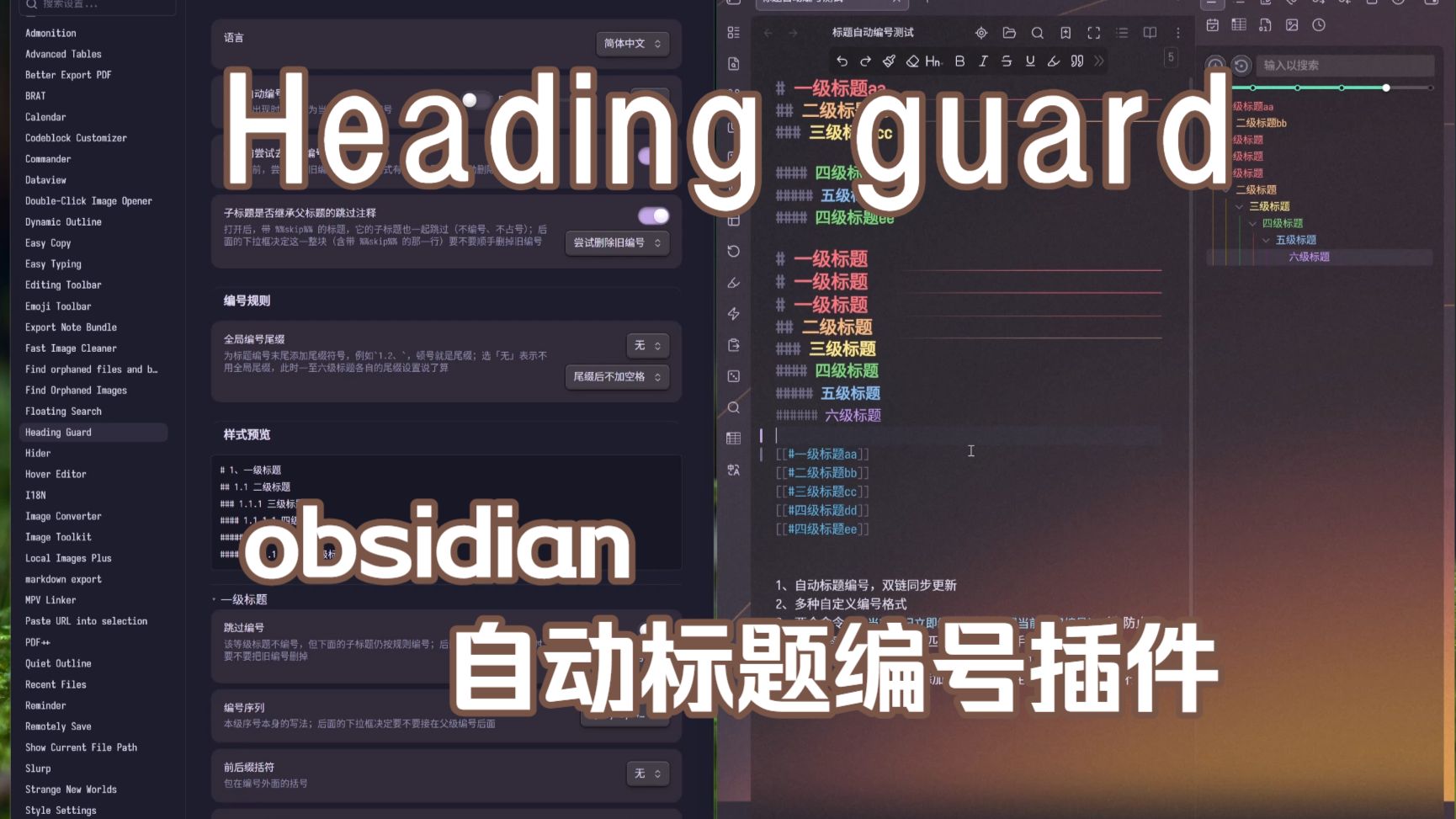
Auto-number Markdown headings with per-level rules: brackets, level separators and suffixes. Keeps [[note#heading]] links pointing at the right heading when numbers change.
Heading Guard
English | 简体中文
An Obsidian plugin that numbers the headings in your notes level by level (H1–H6) with rules you define, and keeps [[note#heading]] links in sync whenever a heading's number changes.
Fully offline: no network requests, no telemetry, and no access to files outside your vault.
Features
- Per-level rules for all six heading levels: number sequence (Arabic, Roman in either case, Chinese numerals…), brackets, level separator, and suffix;
- Toggle
Don't number this levelfor a level you want left alone — the level still exists, and its sub-headings are numbered as usual; - Skip a single heading by putting
%%skip%%on the line below it; use%%skips%%to skip it together with everything under it; - Per-note style via frontmatter:
heading-guard: on/heading-guard: 方案A/heading-guard: on|方案A; - When a parent heading is missing, or levels skip a number, sub-headings are numbered by level by default — or you can make them shift up one level instead;
- Save your current rules as a named style, then switch between styles with one click;
- Only writes after you have changed a heading — notes that didn't change are never rewritten.
A convenient companion for renaming headings: https://github.com/PlayerMiller109/obsidian-keep-headings
Installation
Community plugins (recommended): Settings → Community plugins → Browse → search for Heading Guard → Install → Enable.
Manual installation:
- Download
manifest.json,main.jsandstyles.css; - Create the folder
.obsidian/plugins/heading-guard/inside your vault and put the three files in it; - Restart Obsidian → Settings → Community plugins → enable Heading Guard.
Try a newer build with BRAT: install and enable BRAT, then use Add Beta plugin in its settings with nnq7/obsidian-heading-guard.
Commands
Search in Ctrl+P | What it does |
|---|---|
| Number the current note now | Numbers the note immediately; when run manually it first shows a before/after comparison, and only writes after you confirm |
| Reset heading numbers in the current note | Removes the numbers from the headings and keeps the text. Some formats aren't recognized and need to be fixed by hand |
Settings
- Enable auto numbering: the master switch, off by default. Both commands keep working while it's off.
- Try to strip the old number before numbering: removes an existing number from a heading when possible (only a few formats are supported; anything unrecognized is left as is).
- Where auto numbering applies:
All notes/Only opted-in notes. The latter only numbers notes that haveheading-guard: on(oron|style name) in their frontmatter; the two commands ignore this setting. - Scan interval: seconds between fallback checks, 5–60.
- Excluded folders: one folder path per line (relative to the vault root). Notes inside them are not auto-numbered.
- Style preview: live preview of the current rules; when "Staircase numbering" is selected it shows the two numbering modes side by side.
- Saved heading styles: store the current per-level rules as a named style, then apply, switch or delete styles with one click.
- Numbering when parent levels are missing: when a parent heading is missing or skipped by
%%skip%%, sub-headings either fill in the missing level (for example1.1) or shift up one level. - Each heading level: sequence, brackets, level separator, suffix, and whether that level is numbered at all.
The interface language follows Obsidian's own language setting (Settings → About → Language): Simplified Chinese, Traditional Chinese, and English for everything else.
Skipping headings and per-note styles
Skip a heading: %%skip%% / %%skips%%
Put the skip comment on the line right below the heading (putting it on the heading's own line does nothing):
# Heading
%%skip%%
| Marker | Effect |
|---|---|
%%skip%% | Skips this heading only |
%%skips%% | Skips this heading and every sub-heading below it |
- A skipped heading stays as it is: no number is added, and an existing number is not changed;
- When a parent heading is skipped, its sub-headings follow the "Numbering when parent levels are missing" setting (fill in the level by default, for example
1.1); - The marker only has to appear somewhere on that line, so it can sit next to other text (for example
%%skip%% to be numbered later).
Give one note its own style: frontmatter
Add a heading-guard property to the note's frontmatter. Three forms:
heading-guard: on— turn auto numbering on for this note, using the rules from the plugin settings;heading-guard: 方案A— use the saved style named方案Afor this note, but do not turn auto numbering on;heading-guard: on|方案A— turn auto numbering on and use the saved style方案A.
The style name must match one you have saved. With the scope set to
Only opted-in notes, onlyonoron|方案Aturns auto numbering on — a bare style name does not.
Data and privacy
- No network: no requests of any kind, no update checks, no usage reporting;
- No telemetry: nothing about your usage is recorded or uploaded;
- No access outside the vault: the plugin only reads and writes Markdown files in the current vault, plus its own
data.jsoninside the plugin folder; - No account and no payment: every feature is free to use.
FAQ
Numbering doesn't happen. Check that Enable auto numbering is on. If the scope is Only opted-in notes, the note's frontmatter must contain heading-guard: on.
Why was a heading not numbered? Three possibilities: the note is inside an excluded folder, the line below that heading contains %%skip%% / %%skips%%, or that level has Don't number this level turned on.
Where does %%skip%% go? On the line right below the heading. On the heading's own line it does nothing.
I renamed a heading but the links didn't change. Skipped or unnumbered headings are not rewritten; if syncing fails, you'll see a "cannot sync links" notice and the headings are left unchanged.
I changed Obsidian's language but the plugin UI didn't change. The plugin follows Obsidian's language; after switching, Obsidian asks you to reload, and the plugin picks up the new language then.
Changelog
See Releases.
License
MIT © nnq7
Tutorial
Video walkthrough (Chinese): https://www.bilibili.com/video/BV1BVau6TE4H
For plugin developers
Search results and similarity scores are powered by semantic analysis of your plugin's README. If your plugin isn't appearing for searches you'd expect, try updating your README to clearly describe your plugin's purpose, features, and use cases.