by siulved54
Numbers your headings as an outline (1, 1.1, 1.2) and renumbers them when sections move. Links to a renumbered heading, in the note and across the vault, are rewritten so they keep working.
Section Numbering


Outline numbers for your headings — 1., 1.1., 1.2. — that stay right
when you move sections around, without breaking the links that point at
them. Show the numbers on screen and leave your notes untouched, or write
them into the text; add a table of contents that keeps itself up to date.
## 1. Introduction
### 1.1. Scope
### 1.2. Terms
## 2. Method
### 2.1. Setup
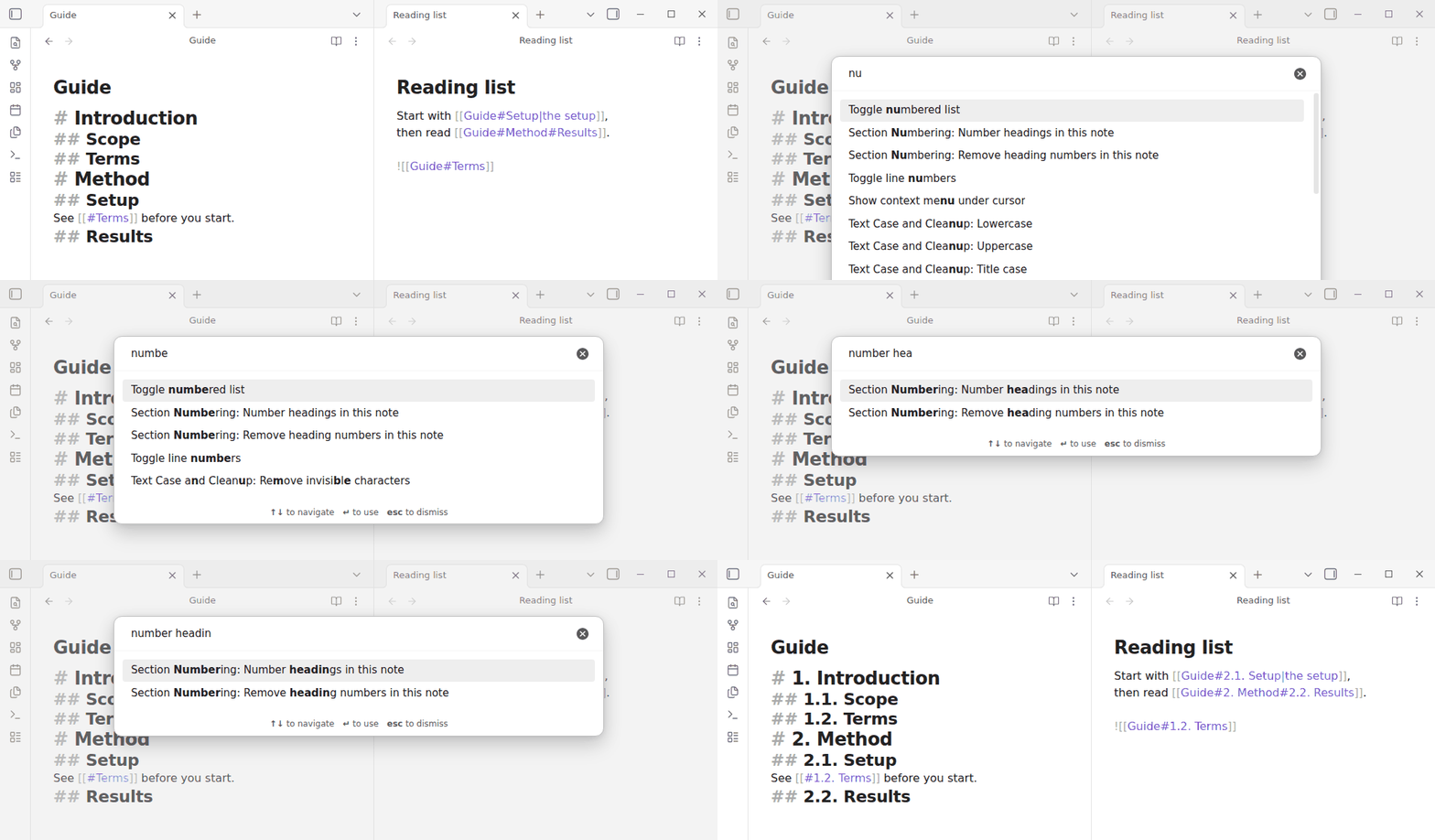
Show numbers without changing the note
Turn on Show numbers without changing notes in the settings, or run Show
or hide heading numbers, and every note gets its numbers drawn in front of
its headings, in the editor and in reading view. The text stays ## Method;
nothing is written, so there is nothing to renumber when you move a section,
and no link can break. Add or move a heading and the numbers follow as you
type.
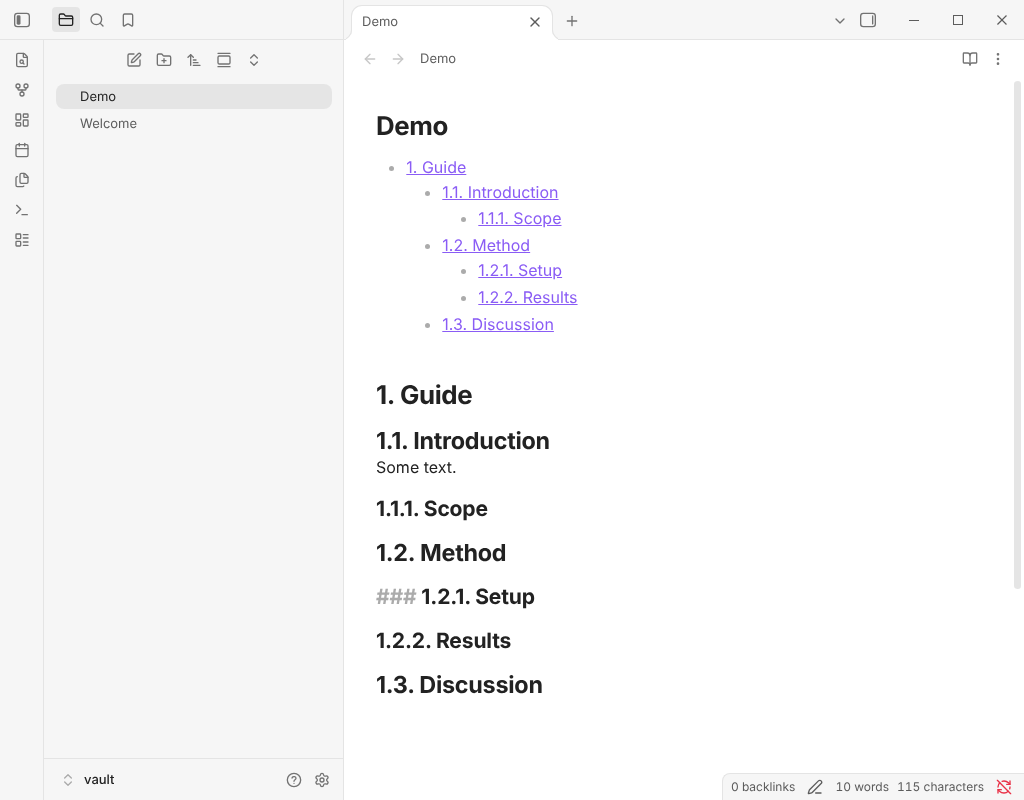
The numbers follow the same settings as written ones, and a note's number headings property, ^skipped headings included. A note whose headings already
have written numbers is left as it is, so a number never shows twice, and
number headings: off turns them off for a note.
The core Outline sidebar shows the same numbers in front of each heading, so
you see them where you navigate too, and they follow your edits there as well.
Turn off Show numbers in the Outline to keep the Outline plain. Headings
the plugin does not number, such as ^skipped ones or headings underlined
with ===, appear in the Outline as they always did.
Shown numbers are not part of the text, so they are not in exports, copies or other apps. Copy this note with heading numbers puts the note on the clipboard with the numbers written in, for pasting elsewhere; the note itself is not changed. To keep the numbers in the file, use Number headings in this note instead.
Live table of contents
Insert live table of contents adds this block:
```section-contents
```
It is drawn as a list of links to the note's headings, numbered like the headings, and drawn again whenever they change: nothing to update by hand, and nothing written into the note but the block. Click an entry to go to the heading. Two options can go inside the block, one per line:
depth: 2lists only the first two numbered levels;numbers: offlists the headings without shown numbers.
Why links matter here
A link to a heading names the heading by its text: [[Guide#Setup]]. The
moment a number is added, that heading is called 2.1. Setup, and every link
to it quietly stops going anywhere. Renumber after moving a section and it
happens again.
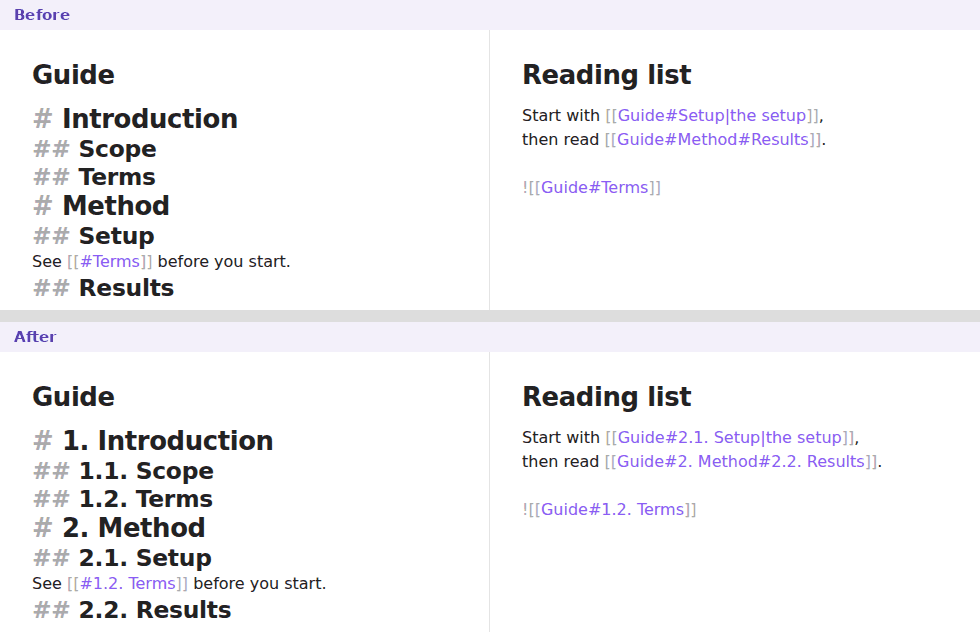
Section Numbering rewrites those links as part of the renumbering:
- wikilinks and embeds,
[[Guide#Setup|alias]]and![[Guide#Setup]], keeping the alias; - Markdown links,
[text](Guide.md#Setup), encoded or in angle brackets; - nested heading paths,
[[Guide#Method#Setup]]; - wikilinks inside properties;
- links within the note itself and, unless you switch it off, in every other note that links to it.
Links inside code, fenced or inline, are text about links and are left alone.
Block references (#^id) are not headings and are never touched.
Commands
| Command | What it does |
|---|---|
| Number headings in this note | Numbers every heading in range, or renumbers it if it is already numbered. |
| Remove heading numbers in this note | Takes the numbers off again. |
| Insert or update table of contents | Inserts a list of links to the headings at the cursor, or brings the existing one up to date. |
| Show or hide heading numbers (without changing notes) | Turns the shown numbers on or off. |
| Insert live table of contents | Adds a table of contents block that keeps itself up to date. |
| Copy this note with heading numbers | Copies the note with the numbers written in, leaving the note as it is. |
| Save numbering settings to this note's properties | Writes the plugin's current settings into the note's number headings property, so the note keeps numbering this way whatever the settings become. |
None has a hotkey by default; assign one in Settings → Hotkeys.
In the note you are editing, the headings and the links change in one edit, so a single undo puts everything back. Links in other notes are changed on disk, and undo in this note does not reach them — number again, or remove the numbers, to change them back.
Table of contents
Insert or update table of contents writes a Contents line carrying the
block id ^toc, followed by a list of links to every heading in the numbered
range, indented by level:
**Contents** ^toc
- [[#1. Introduction|1. Introduction]]
	- [[#1.1. Scope|1.1. Scope]]
- [[#2. Method|2. Method]]
From then on, numbering, renumbering or removing the numbers rewrites the list
in the same edit, so its links never go stale. The list goes after whichever
line ends with ^toc: rename the label, or make it a heading such as
## Contents ^toc, and it still works.
Settings
| Setting | Default | |
|---|---|---|
| Show numbers without changing notes | Off | Draws the numbers in front of headings without writing them. See Show numbers without changing the note. |
| Show numbers in the Outline | On | While numbers are shown without changing notes, the Outline sidebar shows them too. It has no effect otherwise. |
| First numbered level | Automatic | The level that gets a single number. Automatic uses the shallowest heading in each note. Shallower headings stay unnumbered and restart the count, so with level 2 each # chapter numbers its sections from 1. |
| Last numbered level | Heading 6 | Deeper headings are left as they are. |
| Top-level numbers | 1, 2, 3 | Or A, B, C; a, b, c; I, II, III; i, ii, iii; or Chinese numerals 一, 二, 三 (十, 十一, 二十一, 一百 ...). |
| Lower-level numbers | 1, 2, 3 | The same choice for every level below. |
| Separator | 1.2. Heading | Also ), :, —, - or none. |
| Top-level template | {n} | Text around the number of top-level headings. See Text around the number. |
| Lower-level template | {n} | The same for every level below. |
| Skip anchor | ^skipped | A heading whose line ends with this block id is left unnumbered. See Skipping headings. Empty turns it off. |
| Follow Number Headings properties | On | A note's number headings property overrides the settings above for that note. See Coming from Number Headings. |
| Update links in other notes | On | Links within the note are always updated. |
Text around the number
A template says what is written around the number, with {n} standing for it.
Set Top-level template to Chapter {n}. and the other levels to {n}:
# Chapter 1. Guide
## 1.1. Intro
## 1.2. Method
# Chapter 2. Next
Text after {n} takes the place of the separator (Chapter {n}., 第{n}章,
{n} —); a template that ends in {n} (Chapter {n}) keeps the separator.
For lower levels {n} is the whole number, so Section {n} gives Section 1.2.
With Chinese numerals, 第{n}章 gives 第一章 Guide.
The plugin reads the text it wrote, so numbering again never stacks a second
Chapter 1. in front of the first, and Remove heading numbers takes the
template text off as well. When you change a template, the next Number
headings replaces the old text, because the plugin remembers the templates it
has written. Shown numbers, the table of contents, Copy this note with heading
numbers and the links to renumbered headings all use the text with the number.
A note can set its own in its properties:
number headings: template-level-1 "Chapter {n}.", template-level-other "{n}", 1.1.
(A note that has the property but no template gets plain numbers.) Headings
written by hand, such as ## Chapter two, are left as they are; only text
that matches a template and a number is replaced. The default template {n}
changes nothing.
Skipping headings
End a heading's line with the skip anchor and it is not numbered, takes no number, and stays out of the table of contents:
# Guide
## Preface ^skipped
## Setup
numbers as # 1. Guide, ## Preface ^skipped, ## 1.1. Setup. The anchor is
a block id, so it needs a space before it. Numbering a heading that already
had a number removes it once the anchor is there, and numbering again never
puts one back; the anchor itself is never touched. Links to a skipped heading
are left as they are.
As in Number Headings, a skipped heading is ignored altogether, as if the line
were not a heading. Its subheadings are still numbered, and carry on from the
nearest numbered heading above it, not from the skipped one. Mark each of
them to leave a whole section unnumbered. A skipped heading never decides
where numbering starts, so a skipped # Title above numbered ## sections
does not make them 0.1, 0.2.
The anchor is ^skipped by default, the example Number Headings uses.
Change it in the settings, or per note with skip ^name in the number headings property (skip none turns it off for the note).
Saving the settings to a note
Save numbering settings to this note's properties writes the plugin's
settings as a number headings property, for example
number headings: first-level auto, max 6, skip ^skipped, start-at 1, 1.1.
An existing contents ^id part is kept; the rest is replaced. first-level auto is our own spelling for "the shallowest heading"; Number Headings
ignores it. The property only applies while Follow Number Headings
properties is on.
Why the default separator is a dot
To renumber, the plugin has to recognise a number it wrote earlier. With a
separator that is unambiguous: ## 2024 in review has no dot after the year,
so it becomes ## 1. 2024 in review and keeps its year. With no separator,
a heading that starts with a number cannot be told apart from a numbered one,
and the year would be replaced. Dotted numbers with no separator, such as
1.2 Scope, are recognised whatever the separator, but only in a note where
every heading is numbered: in a note that is not, ## 2.0 migration is a
version, not a number, and keeps it. A changelog whose every heading is a
version, newest first, as in ## 2.0.1, ## 2.0.0, ## 1.9.0, keeps its
versions too: numbers that go down, with three parts on a top-level heading,
are not an outline.
Details
- A level that is skipped counts as zero, the way Pandoc numbers it: a
###straight under a#is1.0.1.. - Headings inside frontmatter, code blocks and
%%comments are not headings and are never numbered. Setext headings (text underlined with===) are not numbered either. - Empty headings are skipped and take no number.
- The table of contents leaves out the heading that carries its own anchor (
## Contents ^toc) as well as skipped headings. - When two headings share a name, a link to that name went to the first of them, and it still does after numbering.
Coming from Number Headings
Notes numbered by the original Number Headings plugin are picked up and
renumbered in place. Its default writes top-level numbers with no separator
(1 Introduction), so set Separator to none and your notes renumber
exactly as they look now. To move to another separator, run Remove heading
numbers in this note while it is still none, then change it and number again.
While the separator is none, a heading that starts with a number, such as a
year, is read as numbered.
Notes that carry Number Headings' own settings in their properties keep them. With Follow Number Headings properties on (the default), a note whose front matter says, for example,
number headings: auto, first-level 2, max 3, start-at 3, A.1
is numbered from heading 2 down to heading 3, starting at C, with numbers
after the first written 1, 2, 3. The style may end in a separator (1.1.,
1.1), 1.1:, 1.1 —, 1.1 -); without one there is none, as Number
Headings writes it. _.1.1 starts numbering one level lower.
number headings: off leaves the note alone. contents ^toc (any block id)
says where the table of contents goes, as Number Headings reads it, so an
existing one is kept up to date. skip ^id is honoured. auto is accepted and ignored.
The styles also take a, i and 一 (lowercase letters, lowercase Roman and
Chinese numerals), and template-level-1 / template-level-other set the
text around the number; those are additions that Number Headings ignores.
Writing numbers into the text as you type is not included: rewriting links in other notes on every keystroke is not something a plugin should do behind your back. Shown numbers give you numbers that follow every edit without that.
Installing
From Obsidian: Settings → Community plugins → Browse, search for Section
Numbering. Or copy main.js and manifest.json from the latest release into
<vault>/.obsidian/plugins/section-numbering/.
Privacy
No network access, no telemetry. The plugin reads and writes only the notes that link to the one you are numbering.
Developing
npm install
npm test        # the numbering and link engine, under plain Node
npm run lint
npm run build
Everything under src/ is free of Obsidian imports and fully unit tested;
main.ts is the only file that talks to the app.
More plugins by Siulved54
| Plugin | What it does | Source |
|---|---|---|
| Shared Blocks | Write a block of text once and reuse it in any note. Edit the source and every reference re-renders live. | shared-blocks |
| Text Case and Cleanup | Change case, make camelCase or slugs, sort lines and remove duplicates, and repair text pasted out of a PDF, without touching code or URLs. | text-format |
| Typography as You Type | Curly quotes, dashes and ellipses as you type, kept out of code and maths, with Backspace to take one back. | smart-typography-plugin |
| Spreadsheet to Table | Paste cells from Excel or Google Sheets as a Markdown table with a real header, insert CSV files, and copy tables back out. | spreadsheet-to-table |
| Hybrid Line Numbers | Relative and hybrid line numbers for Vim-style jumps, where a folded section counts as one line. | hybrid-line-numbers |
| List Item Callouts | Colour a single list item as a callout by starting it with a character such as &, ! or ?. | list-item-callouts |
| Folder Counts | See how many notes or files each folder holds, right in the file explorer, with a vault total and folder exclusions. | folder-counts |
| Note Reading Time | Reading time of the current note or your selection in the status bar, optionally saved to a property. | note-reading-time |
| Task Rollover | Roll unfinished tasks from your last daily note into today's when it is created, with a real undo. | task-rollover |
| Zoom Into Section | Zoom into a heading or list item to see only it and its contents, with a breadcrumb bar to climb back out. | zoom-into-section |
| Link Title on Paste | Paste a web address and get a Markdown link with the page's title, fetched in the background and undone in one step. | link-title-on-paste |
| Update Radar | Checks your installed community plugins for updates in the background, shows what changed, and flags the ones that look abandoned. | community-update-checker |
| Dataview to Bases | Convert Dataview queries into Bases blocks, and see which queries in your vault can be converted. | dataview-to-bases |
| Line Editing Commands | Duplicate, join, sort and reverse lines, insert blank lines and jump to a line number, with multi-cursor support. | line-editing-commands |
| Note Mover Rules | Move notes into folders by ordered rules on tags, properties, titles and paths, with a preview before any bulk move. | note-mover-rules |
| Tab History | Keeps each tab's back and forward history across restarts, and adds commands to move, maximize and close tabs. | tab-history |
| URL Cards | Shows web addresses as cards with title, description and image, and reads existing cardlink blocks. | url-cards |
| Vim Config | Loads a vimrc-style file from your vault so your key mappings and editor commands are ready when vim mode starts. | vim-config |
| Task Archive | Moves completed tasks, with their sub-items, into an archive section or note. | task-archive |
| Revisit Later | Link the current note into a future daily note, with a date typed in plain English, so it comes back when you want to review it. | revisit-later |
| Explorer Colors Plus | Color files and folders in the file explorer, with a palette, cascading to children, and import from File Color. | explorer-colors-plus |
| Book Lookup | Create book notes from Open Library or Google Books, with cover images, ISBN search and Book Search compatible templates. | book-lookup |
| Web Search Menu | Search the web for selected text or the note title from the right-click menu, with engines you define. | web-search-menu |
All of them are in the community directory: Settings -> Community plugins -> Browse, then search for the name.
License
MIT
For plugin developers
Search results and similarity scores are powered by semantic analysis of your plugin's README. If your plugin isn't appearing for searches you'd expect, try updating your README to clearly describe your plugin's purpose, features, and use cases.