by TIM_MIT
Indent content by heading level, draw vertical guide lines for each level, and make heading sizes easier to tell apart.
Heading Indent Guides
See the structure of long notes at a glance. Content under each heading is indented by its level, a vertical guide line runs down every level, and heading sizes are easier to tell apart.
| Without the plugin | With Heading Indent Guides |
|---|---|
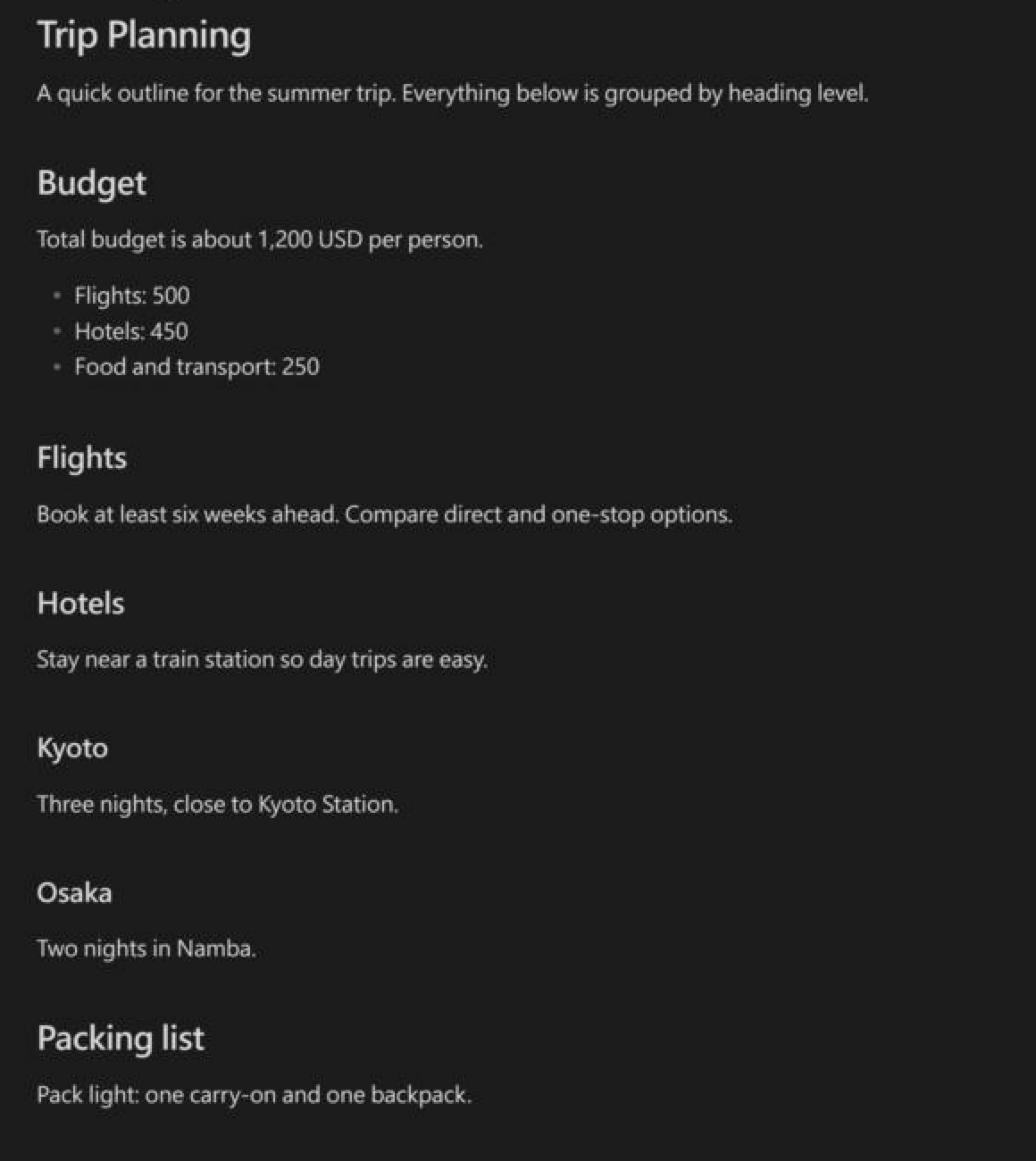 | 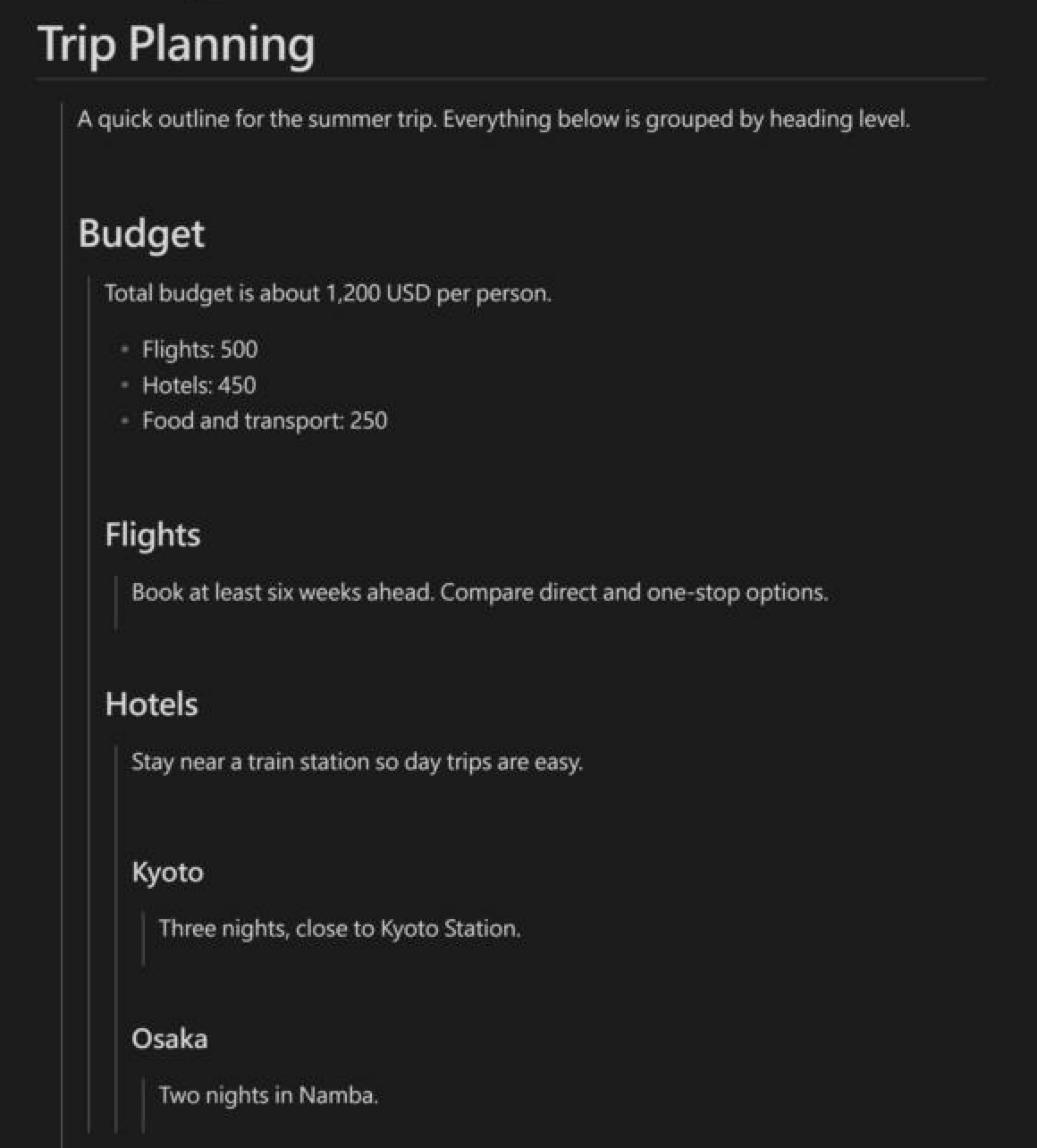 |
Features
- Indent by heading level: text, lists, code blocks, tables, and callouts move right to match the heading they belong to.
- Vertical guide lines: one thin line for each level, so you can see where a section starts and ends.
- Clearer headings: larger size and weight differences between H1–H6, and an underline under H1.
- Works in Live Preview, Source mode, Reading view, and PDF export, on desktop and mobile.
Installation
- Open Settings → Community plugins and turn off Restricted mode if it is on.
- Select Browse, search for Heading Indent Guides, then Install and Enable.
If you also use Heading Level Indent, turn it off so content is not indented twice.
Settings
| Setting | What it does |
|---|---|
| Settings language | Language of the settings page. Auto follows your Obsidian interface language. |
| Vertical guide lines | Show or hide the guide lines. |
| Clearer headings | Turn the larger heading sizes, weights, and H1 underline on or off. |
| Treat the highest heading as H1 | If a note only uses ## and below, ## becomes the first level, so nothing is indented by an extra step. |
| Indent per level | How far (in px) content under H1–H6 moves to the right. The guide lines follow automatically. |
The settings page is available in English, 繁體中文, 简体中文, 日本語, 한국어, Español, Français, Deutsch, Português (Brasil), and Русский. Other interface languages show English.
To turn indentation off for a single note, add this to its frontmatter:
---
heading-indent: false
---
Customizing the guide lines
Create a CSS snippet (Settings → Appearance → CSS snippets) so your changes are kept when the plugin updates:
body.hli-guides {
  --hli-color: var(--text-muted);  /* line color */
  --hli-w: 2px;                    /* line width */
  --hli-gap: 12px;                 /* distance between the line and the text */
}
中文說明
讓長筆記的層級一眼看清楚:標題底下的內容依層級往右縮排,每一層左邊有一條垂直參考線,各級標題的大小、粗細差異也更明顯。即時預覽、原始碼模式、閱讀模式和 PDF 匯出都有效果,電腦版和手機版都能用。
安裝:設定 → 第三方外掛 → 瀏覽 → 搜尋 Heading Indent Guides → 安裝 → 啟用。如果有裝 Heading Level Indent,請先關掉,不然會重複縮排。
設定:可以開關垂直參考線、開關加大標題差異、選擇是否把筆記中最大的標題當成 H1,以及調整 H1~H6 底下內容的縮排距離,參考線會自動跟著移動。設定頁面支援 10 種語言,預設跟著 Obsidian 的介面語言,也可以在「設定頁面語言」自己選。
單篇筆記關閉縮排:在 frontmatter 加上 heading-indent: false。
自訂參考線:到「設定 → 外觀 → CSS 片段」新增一個片段,貼上上面「Customizing the guide lines」的 CSS 再修改數值。不要直接改外掛的 styles.css,外掛更新時會被覆蓋。
License
For plugin developers
Search results and similarity scores are powered by semantic analysis of your plugin's README. If your plugin isn't appearing for searches you'd expect, try updating your README to clearly describe your plugin's purpose, features, and use cases.