Heading Linker and Refactor
approvedby wilmtang
Copy a markdown link to a heading with configurable path and hierarchy. - This plugin has not been manually reviewed by Obsidian staff.
Heading Linker and Refactor





Copy reliable markdown links to headings, find references, and rename headings across your vault.
Why this plugin?
Obsidian's native heading links can break when headings are renamed, and finding every reference can be tedious.
Heading Linker and Refactor adds these tools to the editor context menu.
Features
- Copy heading links: Right-click a heading to copy a markdown link. For duplicate headings in the same file, the plugin inserts a stable target. Obsidian block IDs (for example,
^heading-id) are the default; HTML anchors are available for web and export compatibility. - Rename headings: Rename a heading and update matching wiki, markdown, and HTML links in the current file, folder, or entire vault. Display aliases that match the old heading name are updated too.
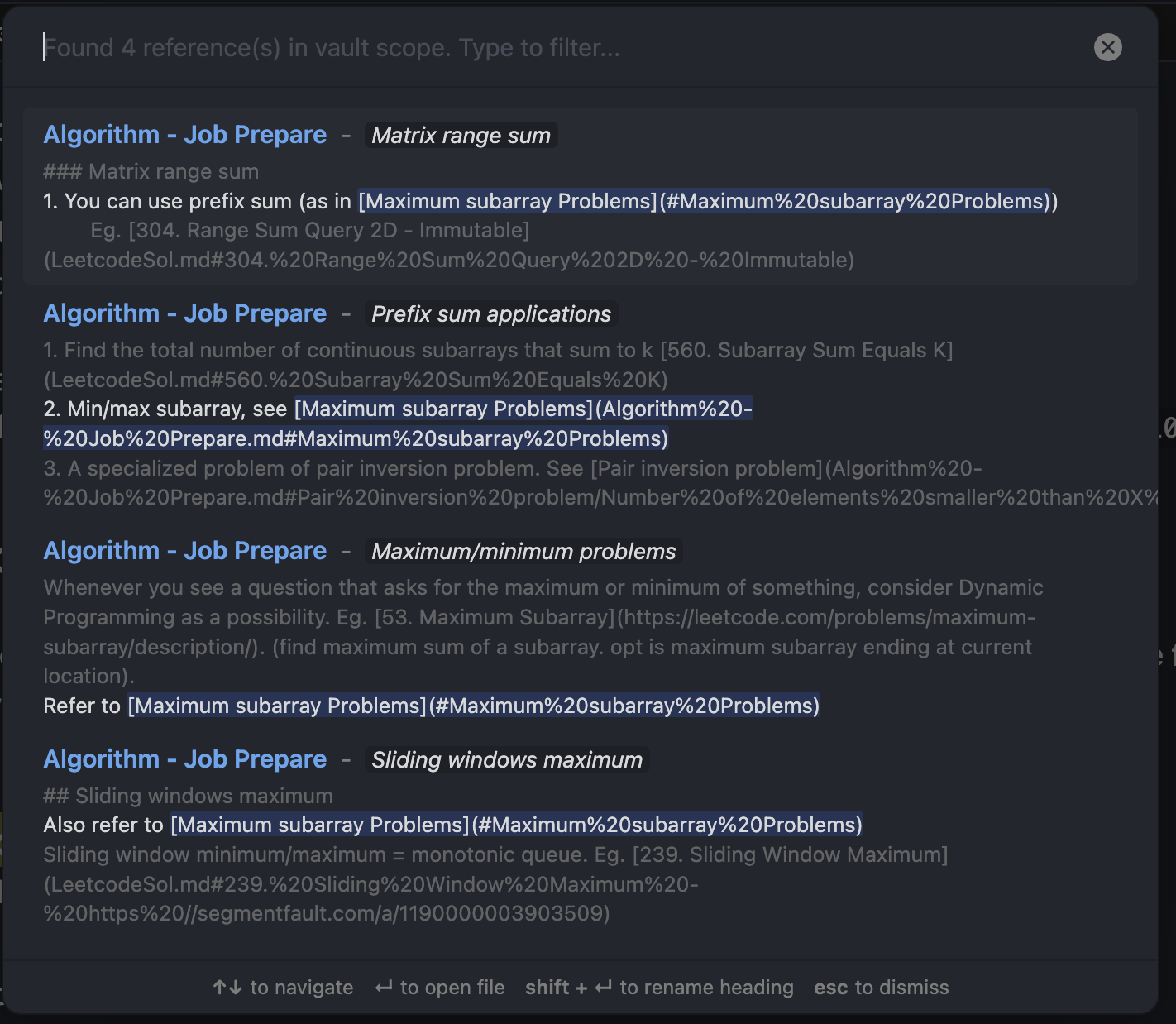
- Find references: Find references to a heading, view each match in context, and jump to its source.
- Rename from search: Press
Shift + Enterin the Find References modal to rename the heading and its references. - Settings: Choose relative or full vault link paths and set the default rename scope.
- Keyboard shortcuts: Assign shortcuts for Copy, Rename, and Find References. They run only when the cursor is on a heading line.
See it in action
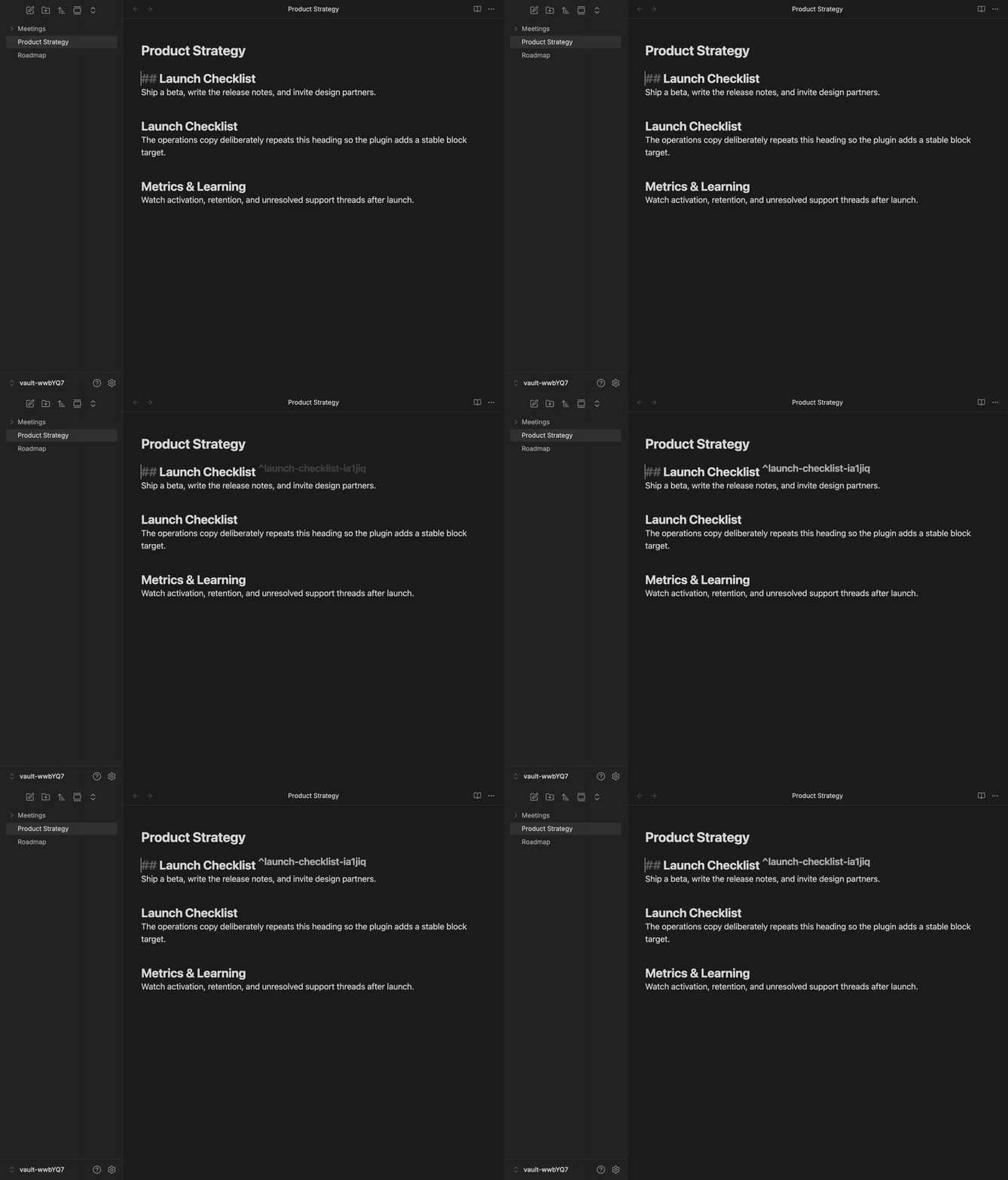
Copy resilient links, even for duplicate headings
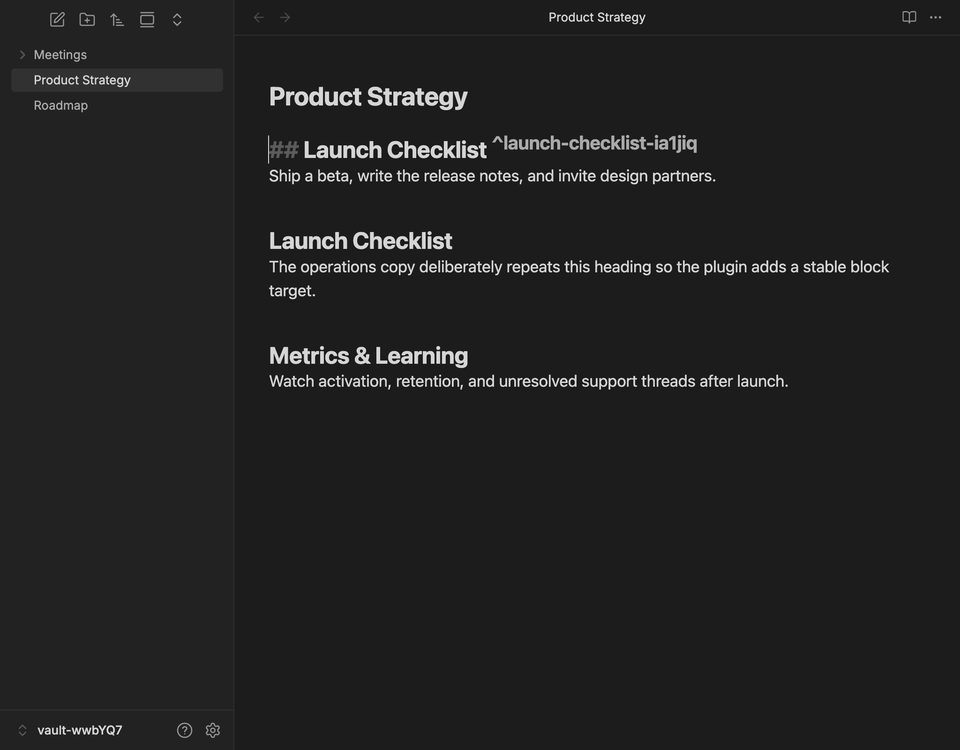
When a heading name appears more than once in the same note, the plugin automatically adds a stable block target and copies a link that will keep working after nearby text changes.
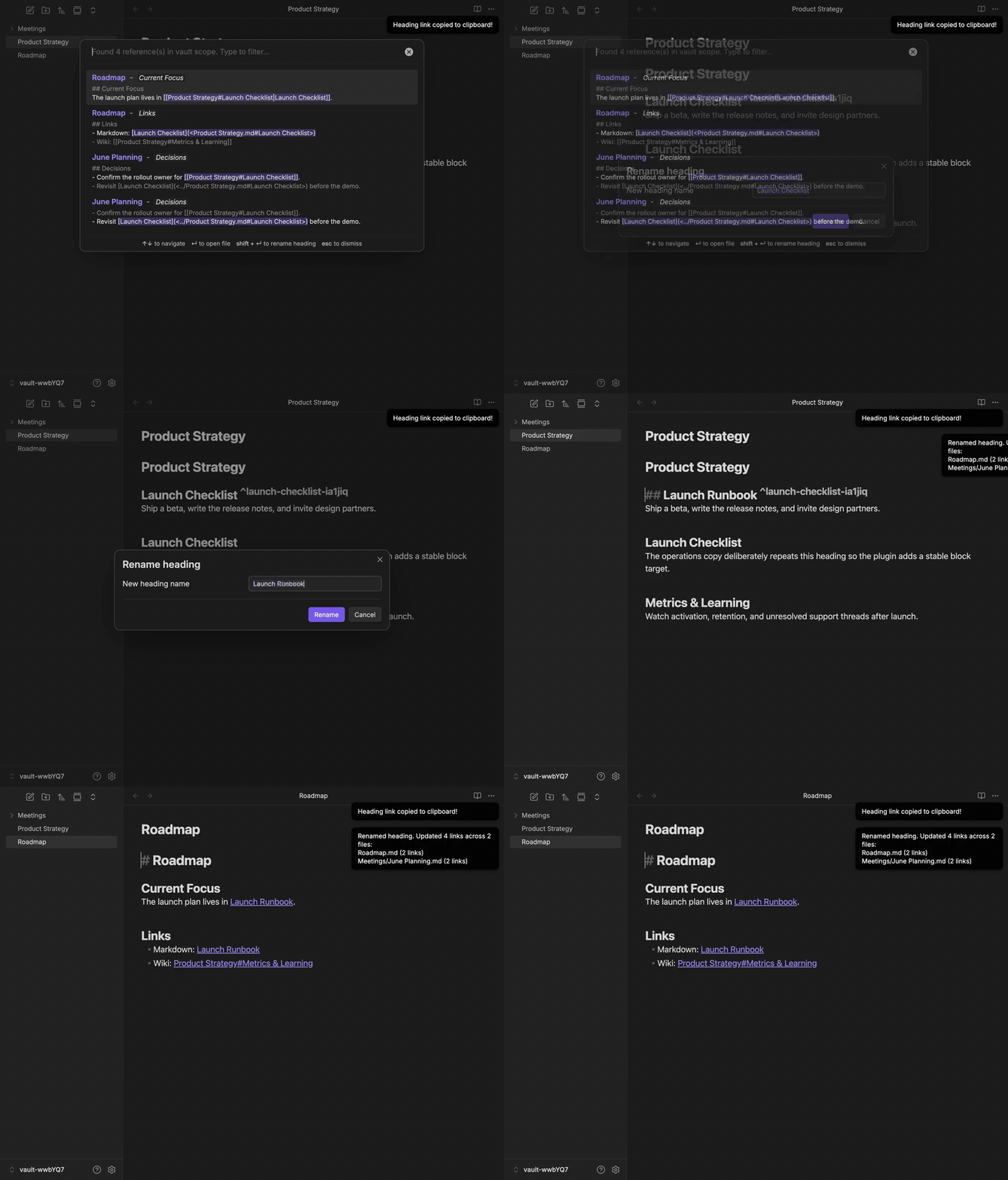
Find references and rename safely across the vault
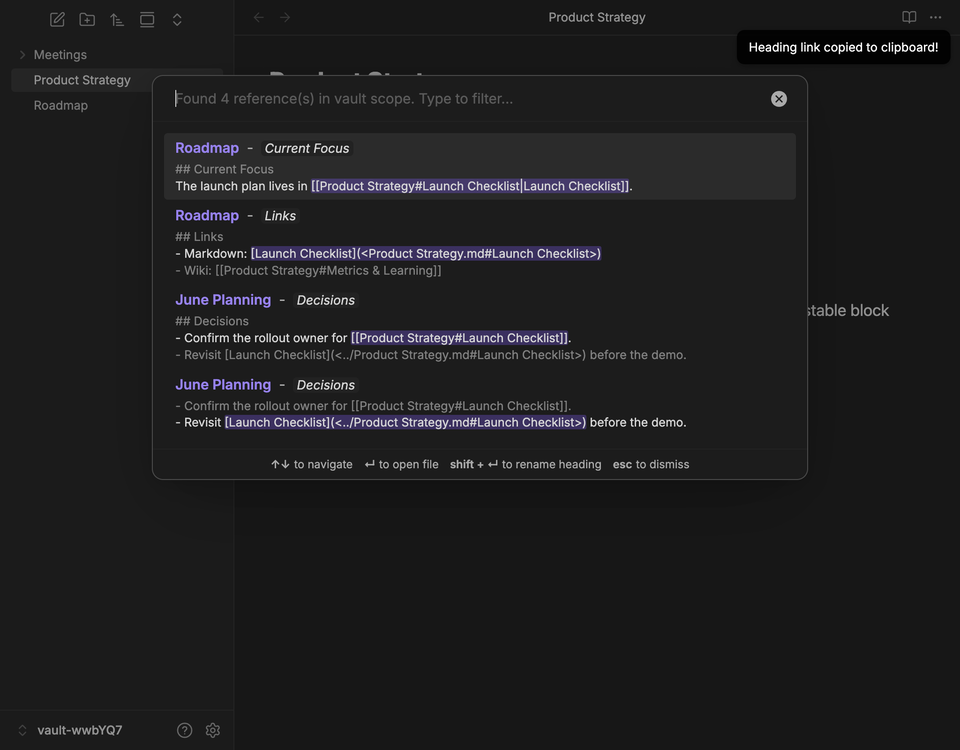
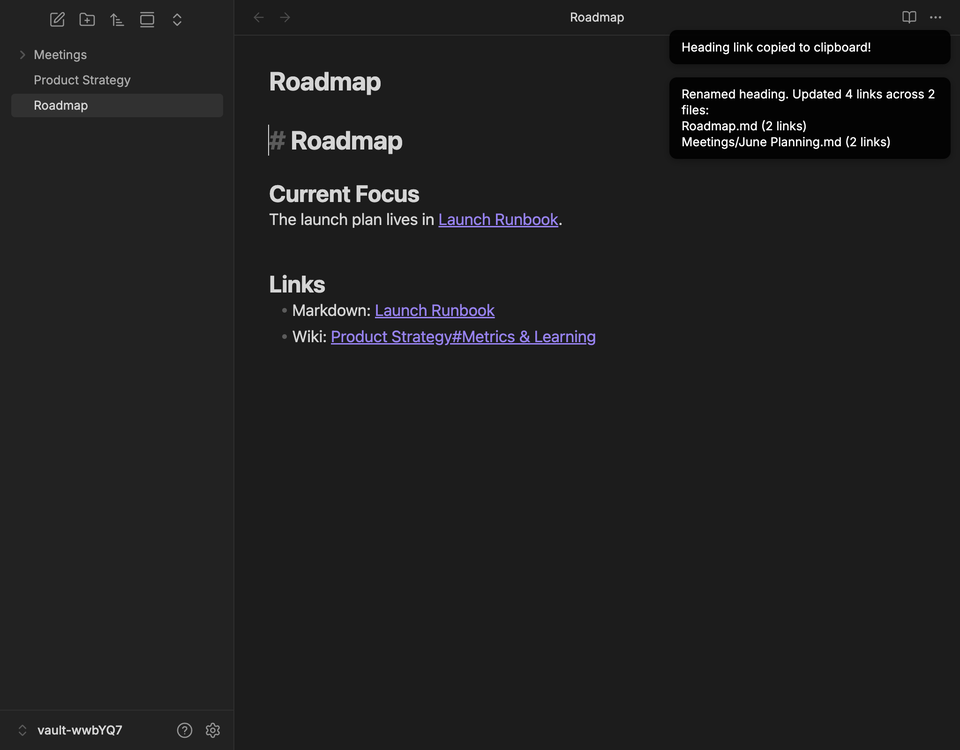
Search every note that points at a heading, jump through the matches, then rename the heading and update wiki links, markdown links, and matching aliases in one pass.
How to use
- Open any markdown file in Obsidian.
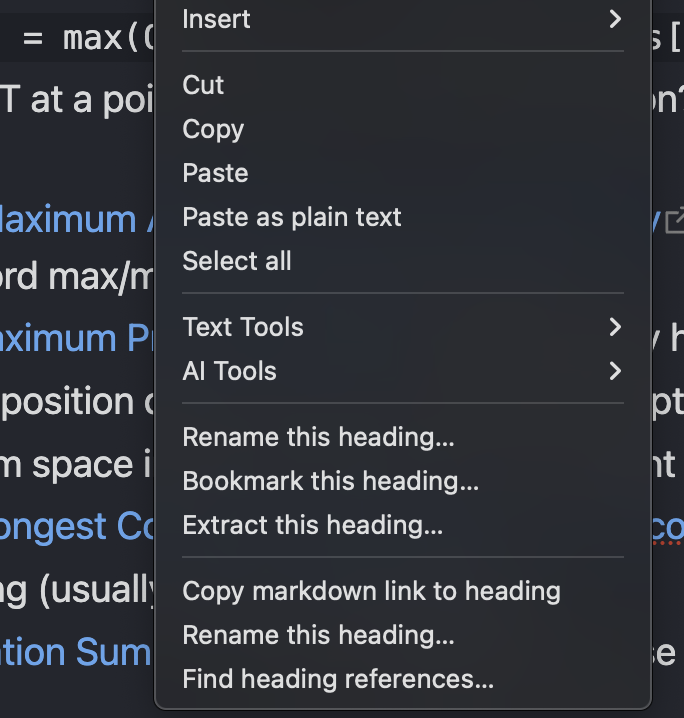
- Right-click on any heading in the editor to open the context menu.
-
Choose one of the new options:
-
Copy markdown link to heading: Copies a reliable markdown link to your clipboard.
-
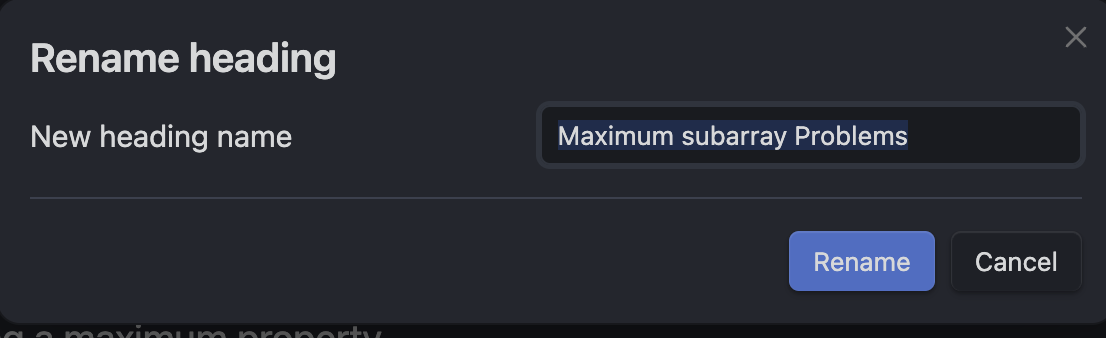
Rename this heading...: Opens a modal to safely rename the heading across your entire vault.
- Find heading references...: Shows each reference in context and lets you jump to its source.
-
Workflow screenshots
|
|
| Stable targets Duplicate headings get reliable link anchors automatically. | Reference search Matches show file names, surrounding context, and highlighted links. |
| |
| Vault-wide rename After a rename, linked notes are updated with the new heading destination and matching display text. | |
Link Generation and Reference Matching
Generated markdown links
When you copy a link to a unique heading, the plugin uses the visible heading text as the Obsidian heading fragment and wraps the markdown destination in angle brackets. This is standard markdown syntax for link destinations that contain spaces or parentheses, and it lets Obsidian resolve the raw heading text directly.
For example, this heading:
## $O(n \cdot 2^n)$ solution
copies as:
[$O(n \cdot 2^n)$ solution](<./Algorithms.md#$O(n \cdot 2^n)$ solution>)
The path portion follows the Link Path Format setting:
- Basename mode uses
./FileName.md. - Full vault path mode uses the full vault path, such as
folder/FileName.md.
The Copied link text setting customizes the label between the brackets. Use
{heading} for the copied heading, {parent} for its nearest parent heading,
and {h1} through {h6} for headings in its current outline branch. For
example, {h1} - {heading} copies a nested heading as:
[Project name - Installation](<./Note.md#Installation>)
The default is {heading}. If the format requests context that does not exist,
such as {parent} on a level 1 heading, the whole label falls back to the
copied heading text. This avoids duplicated text and dangling separators.
If multiple headings in the same file have the same visible text, the plugin inserts or reuses a stable target marker instead of linking to the ambiguous heading text. By default it uses an Obsidian block ID:
## Duplicate heading ^duplicate-heading-a1b2c3
[Duplicate heading](<./Note.md#^duplicate-heading-a1b2c3>)
If the duplicate target format is set to HTML anchors, it uses an anchor ID instead:
## Duplicate heading <a id="duplicate-heading-a1b2c3"></a>
[Duplicate heading](<./Note.md#duplicate-heading-a1b2c3>)
Special characters in headings
Headings often contain characters that are meaningful to markdown or wikilink syntax. Generated links escape them so the link stays valid and remains findable and renamable later:
- Brackets
[and]are escaped in the link label (for example, the headingA [x]copies as[A \[x\]](<./Note.md#A [x]>)). - Angle brackets
<and>are escaped inside the wrapped destination (for example,#A \< B \> C). - Backslashes are escaped in the label.
These links round-trip correctly: Find heading references... and Rename this heading... detect them and update both the destination and a display label that matches the old heading name.
[!NOTE] When renaming a heading, the new name cannot contain
|,], or line breaks. Obsidian wikilinks ([[Note#Heading|alias]]) have no way to escape these characters, so the rename modal rejects such names with a notice rather than writing a broken link. You can still rename a heading that already contains them to a safe name.
Finding heading references
When you choose Find heading references..., the plugin scans markdown files in the selected scope and matches the heading by visible text and by any stable target IDs on the heading line.
For heading-text links, it recognizes Obsidian wikilinks:
[[Algorithms#$O(n \cdot 2^n)$ solution]]
[[Algorithms#$O(n \cdot 2^n)$ solution|custom label]]
It also recognizes markdown links with raw wrapped destinations, percent-encoded destinations, and space-only encoded destinations:
[$O(n \cdot 2^n)$ solution](<Algorithms.md#$O(n \cdot 2^n)$ solution>)
[$O(n \cdot 2^n)$ solution](Algorithms.md#%24O%28n%20%5Ccdot%202%5En%29%24%20solution)
[$O(n \cdot 2^n)$ solution](Algorithms.md#$O(n%20\cdot%202^n)$%20solution)
For stable duplicate-heading targets, it recognizes wiki, markdown, and HTML links that point to either #id or #^id, depending on the target format:
[[Note#^duplicate-heading-a1b2c3]]
[Duplicate heading](<Note.md#^duplicate-heading-a1b2c3>)
<a href="Note.md#duplicate-heading-a1b2c3">Duplicate heading</a>
Configuration and hotkeys
Keyboard Shortcuts (Hotkeys)
By default, the plugin registers commands without default keyboard shortcuts so they don't conflict with your existing setup. You can assign your own custom shortcuts in Obsidian:
- Open Obsidian Settings and navigate to Hotkeys.
- Search for
Heading Linker and Refactor. - Click the blank button next to a command to record a key combination for:
Copy Markdown LinkRename this HeadingFind Heading ReferencesConvert Heading Link Target Format
[!NOTE] To prevent accidental triggers, these keyboard shortcuts are context-sensitive. They will only trigger when your cursor is positioned directly on a heading line. If you press the shortcut while the cursor is anywhere else in the document, the command will silently do nothing.
Settings Tab
Navigate to Settings > Heading Linker and Refactor to customize the default behavior:
- Link Path Format: Choose whether generated links use the target file basename (
./filename.md) or full vault path (folder/filename.md). - Copied link text: Customize the link label with
{heading},{parent}, and{h1}through{h6}. - Duplicate Heading Target Format: Choose whether duplicate headings use Obsidian block IDs (
^id) or HTML anchors (<a id="...">). - Rename Scope: Set the default search scope when renaming a heading (search and replace in the Entire vault, Current folder only, or Current file only).
[!NOTE] Obsidian block IDs are the default because Obsidian's internal note links jump to headings or block references, not arbitrary HTML
idattributes. A link likeNote.md#my-html-idmay work after the note is rendered on the web, but it will not reliably jump to<a id="my-html-id"></a>inside Obsidian. Use HTML anchors only when exported or web-rendered Markdown compatibility matters more than Obsidian-native navigation.
Installation
From Obsidian Community Plugins
Install Heading Linker and Refactor from the Obsidian marketplace, or search for it under Settings > Community plugins > Browse in Obsidian.
Manual Installation
- Download the latest release (
main.js,manifest.json, andstyles.css) from the Releases page. - Create a folder named
obsidian-heading-linkerin your vault's.obsidian/plugins/directory. - Place the downloaded files in that folder.
- Restart Obsidian, go to Settings > Community Plugins, disable "Safe Mode", and enable Heading Linker and Refactor.
Development
To build the plugin locally:
npm install
npm run build
Useful scripts
npm run dev: Rebuildsmain.jswhenevermain.tschanges.npm run build: Bundles the plugin entrypoint intomain.js.npm test: Runs focused unit tests for link detection and rewrite behavior.npm run test:integration: Runs workflow tests against fake Obsidian app, vault, file, and editor services.npm run test:e2e: Launches a sandboxed desktop Obsidian instance through WebdriverIO and tests the packaged plugin in a real vault.npm run check:versions: Verifiesmanifest.jsonandpackage.jsonuse the same version, and thatversions.jsonmaps that version to the manifest'sminAppVersion.npm run typecheck: Runs TypeScript validation without emitting files.npm run typecheck:e2e: Runs TypeScript validation for the WebdriverIO Obsidian e2e config and specs.npm run lint:obsidian: Runs the local Obsidian release linter checks.npm run check:release: Runs version consistency, typecheck, Obsidian linting, unit tests, and build; use this before creating a GitHub release or uploading a new version to the Obsidian store.
Release automation
GitHub Actions runs npm run check:release, npm run typecheck:e2e, and xvfb-run -a npm run test:e2e on every branch push. This catches version drift, TypeScript, Obsidian linter, unit test, build, and real Obsidian/WebdriverIO problems before anything is published.
The release process uses manifest.json as the source of truth. When the version field changes on the default branch, the workflow:
- Runs the Obsidian release checks.
- Creates and pushes a matching git tag if one does not already exist.
- Creates a GitHub release named after the manifest version with
main.js,manifest.json,versions.json, andstyles.css.
If the workflow cannot compare the current manifest version with the previous commit, it skips release creation instead of guessing. Bump manifest.json again on the default branch to start a release.
For plugin developers
Search results and similarity scores are powered by semantic analysis of your plugin's README. If your plugin isn't appearing for searches you'd expect, try updating your README to clearly describe your plugin's purpose, features, and use cases.