Heading Linker
unlistedby max-fluff
Highlights words in any inflected form and turns them into links to matching headings anywhere in your vault.

Heading Linker


Finds words in your notes and turns them into links to matching headings inside files you nominate as glossaries — in any word form (declensions, plurals), not just exact spellings. Keep a Guide.md with a ## Projectile heading, and every "projectile", "projectiles" or other form elsewhere gets highlighted and can become [[Guide#Projectile|projectiles]]: a real link that opens the file at that heading, with the note's own wording kept as the visible text.
Links headings as terms — it won't treat a whole note as one. If you want words to link to whole notes, that's what this plugin leaves out, and its sibling Glossary Linker does exactly that, on the same matching engine. The two are made to work together.
Available in the Obsidian community catalog: community.obsidian.md/plugins/heading-linker.
The plugin ships as main.js, manifest.json and styles.css. Eight language modules are baked into main.js, so morphology works the moment you install it. main.js is built from src/ with esbuild (see Development).
Contents
- What it does
- Sources and scope
- Morphology and languages
- Commands
- Settings
- Skipped contexts
- Performance
- Public API
- Licenses & credits
- Development
- Installation
- Compatibility
- Related plugins
What it does
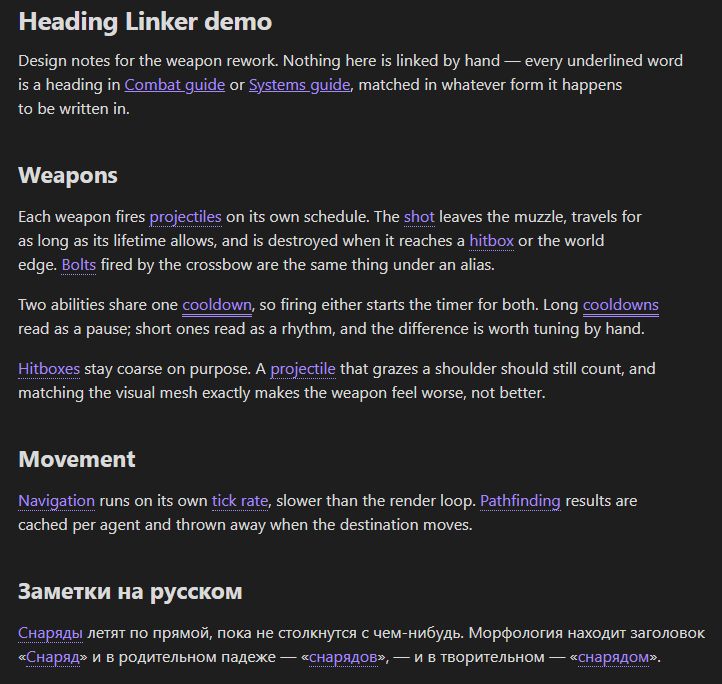
Highlight headings in any word form
Words that match a heading are underlined in Reading view and in the editor (Live Preview / Source). Matching follows word forms through a stemmer, so "spawns", "spawning" and "spawn" all find a Spawn heading, and Russian "рой", "роя", "рои" all find Рой — not just the exact spelling. Editor highlighting can run live, on save, or off.
Compared with virtual-link plugins such as Virtual Linker and FakeLink, the two differences are that Heading Linker matches inflected forms (they match literal text) and that it can turn matches into real links, not only show an overlay.
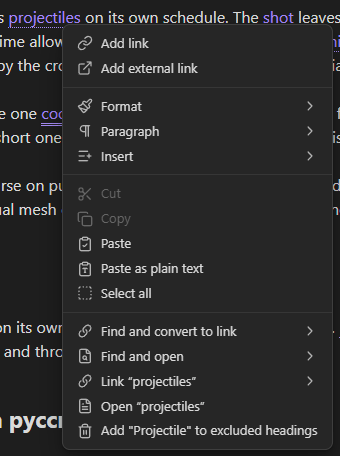
Turn headings into real links
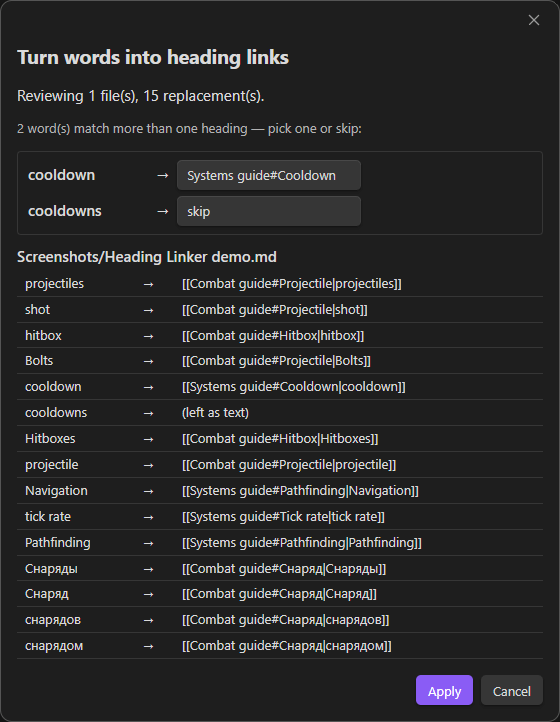
The highlight is a live overlay that changes nothing on disk — but you can materialize it: turn matches into actual [[File#Heading|word]] wikilinks, for the current note, a selection, or every note in scope. A preview lists every replacement first; nothing is written until you apply, and a note edited since the preview is skipped. Materialized links are ordinary wikilinks, so they get native hover-preview and click, and count in the graph and backlinks.
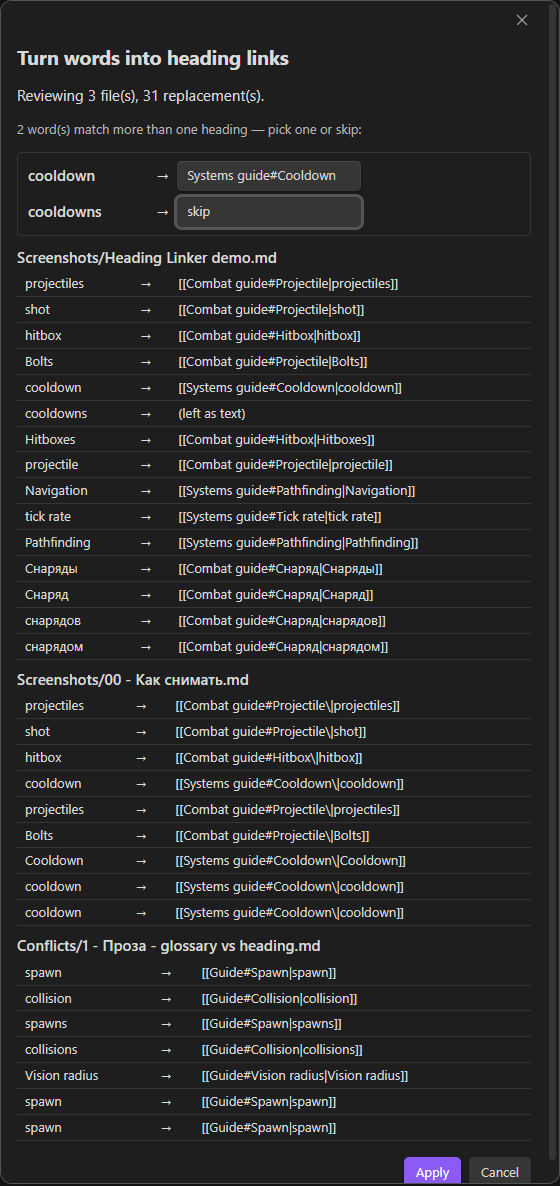
Run it across the vault and the preview groups the replacements by file:
Unlink
The reverse of materialize: replace heading links with their plain text again, for the current note, a selection, or all notes — also with a preview. Right-clicking a single heading link offers Unlink this link.
Aliases
A heading can carry extra wordings — abbreviations or synonyms the stemmer won't reach — in an Obsidian comment right under it:
## Central nervous system
%% alias: CNS, brain and spinal cord %%
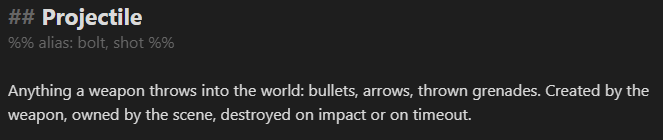
Now "CNS" and "brain and spinal cord" link to that heading too, in any word form, and appear in the autocomplete. Comments are invisible in Reading view, so the note stays clean; use alias: or aliases:, comma-separated. Reading them is cheap — see Performance — and the Heading aliases setting turns it off entirely if you don't use them.
Suggest links as you type (optional)
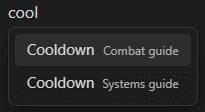
With Suggest links while typing on, typing a word that is (a form of) a heading or an alias offers to complete it into a link. Off by default.
Ambiguous headings
The same heading text in two different files is two different terms. When a word could point at either, the highlight is marked as ambiguous and asks which one you meant — on hover, on click, and in the materialize preview (one choice per word, applied everywhere).
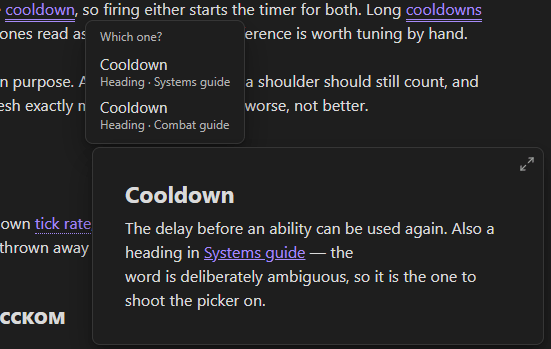
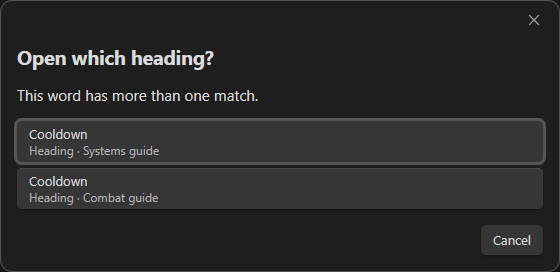
Since the rows would otherwise read as the same heading twice, each carries a second line showing where it sits — its file and the headings that enclose it, as a breadcrumb like Guide › Combat › Spawn, so two same-named headings are told apart by their place, not only by their file. A row you reached through an alias rather than the heading's own text says so too, which answers the "why is this even on the list" question when the wording you clicked doesn't appear in the heading at all. The same breadcrumb shows in the autocomplete popup.
Sources and scope
Two separate questions, two separate settings:
- Sources — where headings are collected from: the whole vault, or chosen files and folders. An Ignored sources list drops files or folders that should never contribute headings, even in whole-vault mode.
- Scope — where links are made: the whole vault, or chosen folders, with an Always excluded list. A single note can also opt out with a
heading-linker: falsefrontmatter property.
Both lists are editable from the settings tab, the file explorer's right-click menu, and the command palette (acting on the active note).
Morphology and languages
Matching reduces each word to a stem so different forms of the same word collapse together. Eight languages are built in — English, Russian, Ukrainian, German, Spanish, French, Latin and Greek — and you choose which are active and in what priority order. On first run the plugin enables English plus your Obsidian interface language, if a module exists for it.
The stemmer handles the regular forms; the irregular plurals sit in three tables — classical (cacti → cactus, indices → index), native (mice → mouse, children → child) and -f/-ves (wolves → wolf, lives → life). The tables apply to a compound's last word too, so grandchildren → grandchild and salespeople → salesperson. Greek -sis nouns are too many to list, so they follow a rule instead: prognoses → prognosis, neurogeneses → neurogenesis. An invariant plural like moose needs nothing.
The other languages get the same treatment where a stemmer cannot help. Russian has a rule for the fleeting vowel (песок/песка, отец/отца) and a table for the plurals that grow or replace the stem (имя/имена, мать/матери, человек/люди); Ukrainian has the same table (людина/люди, ім'я/імена); French carries the closed -ail/-aux group and œil/yeux. German needs none of it — its umlaut plurals (Maus/Mäuse, Buch/Bücher) already fall out of the stemmer. Latin and Greek stay off by default and are aimed at scholarly notes quoting classical terms; the latinised plurals an English note actually uses are already in English.
Enable only the languages your vault actually uses: since same-script languages combine, leaving German on in an English-only vault can occasionally over-stem a word. The Match mode setting also offers a lighter ending-strip or an exact (case-insensitive) mode instead of the full stemmer.
Commands (command palette, Ctrl+P)
| Command | What it does |
|---|---|
| Link headings: this note / selection / all notes | Turn matches into links, with a preview. |
| Unlink headings: this note / selection / all notes | Revert heading links to plain text, with a preview. |
| Rebuild heading index | Re-scan the glossary files for headings and aliases. |
| Find heading links that no longer land | Write a note listing every link that names a heading its source file no longer has. |
Plus per-note toggles that mirror the explorer menu, each shown only when it applies: Add / Remove this note … heading sources, Ignore / Stop ignoring this note as a heading source, Never link in this note / Stop always-excluding, Include this note in scope / Remove from scope.
Settings
Sources
| Setting | Default | Description |
|---|---|---|
| Where headings come from | Selected files and folders | collect headings from the whole vault, or only from the files and folders you list |
| Ignored sources | — | files and folders whose headings are never indexed, even inside a chosen source |
| Heading levels | H1–H6 | which levels become terms |
| Read alias comments | on | pick up %% alias: … %% lines under a heading as extra wordings for it |
| Follow heading renames | Offer it | rename a heading in a source file and the links pointing at it are retargeted — offered, opened straight into the preview, or ignored |
Scope
| Setting | Default | Description |
|---|---|---|
| Where to link | The whole vault | link everywhere, or only inside chosen folders |
| Always-excluded folders | — | never link here, whatever the scope says |
Matching
| Setting | Default | Description |
|---|---|---|
| Match mode | Stemmer | how an inflected word is matched: Stemmer reduces words to a root (recommended); Ending strip only chops common endings; Exact needs the exact spelling |
| Minimum heading length | 2 | ignore headings and aliases shorter than this, so single letters don't match everywhere |
| Smart case for acronyms | on | a heading written mostly in capitals ("IT", "NASA") only matches text spelled the same way, so it leaves the ordinary word alone. Decided per form: an acronym alias stays case-sensitive even when its heading is an everyday word |
| Languages | English + interface language | per-language toggle; reorder with ↑↓ to set priority when same-script languages overlap |
| Link first occurrence only | off | link only the first occurrence of each heading per page |
| Excluded headings | — | heading texts that never become terms |
| Excluded words | — | written words that never become a link, even where they match a heading. A line stops that spelling alone; specifically* stops every form behind it. The heading keeps linking either way, so "specifically" can be silenced without losing "specification" |
Highlighting
| Setting | Default | Description |
|---|---|---|
| Highlight in Reading view | on | draw the highlight in rendered notes |
| Highlight in the editor | Live | Live, On save, or Off |
| Skip headings | on | don't link inside a note's own headings |
| Status bar count | on | show how many headings the open note matches |
| Count existing links too | on | include headings you have already linked in that count |
Autocomplete
| Setting | Default | Description |
|---|---|---|
| Suggest links while typing | off | offer a link to a matching heading as you type in an in-scope note |
| Minimum typed length | 3 | how many characters to type before suggestions appear |
| Skip after characters | @#$^ | stay quiet when the word follows one of these, so tags, math and other plugins' autocompletes keep their slot |
| Insert plain text | off | pick a suggestion and get the word alone instead of a link — the completion without the brackets |
Context menu — a toggle per group of right-click items: turn into link, open, exclude, unlink, and collect aliases from existing links.
Maintenance — the priority order (below) and rebuilding the index on demand.
Priority among linker plugins
Install more than one linker and they will sometimes claim the same word or the same link. It goes to whichever sits highest in Settings → Maintenance → Priority among linker plugins, and the loser stands aside — no double highlight, one entry in the right-click menu, one merged list of suggestions while you type.
The list appears only when another linker is installed. Each plugin moves itself, so reordering may take a move from more than one settings tab; every arrangement is reachable that way.
How a highlight looks is exposed through Style Settings if you have it, under a Heading Linker section. Left at default, a highlight follows your theme's link color with a dotted underline.
| Section | What you can set |
|---|---|
| Links | colour and underline (style, thickness, offset), the same again for hover, Follow the link colour (a hue of your own, kept in step with the colour your theme gives links there), a marker-pen background with its corner radius, font weight, italic, and Show highlight only on hover — a highlighted word reads as plain text until you point at it |
| Ambiguous terms | the double underline (style, thickness), a colour that tells a collision apart, a symbol beside the word, and how wide the list of headings grows on hover |
| Autocomplete | hide the note column in suggestions |
Every colour picker opens on the colour actually in use and follows your theme until you pick one; every option is a plain CSS variable or a class on body, so a snippet in .obsidian/snippets/ does just as well:
- Links —
--heading-link-color,--heading-link-color-hover,--heading-hue-shift,--heading-hue,--heading-underline-style,--heading-underline-style-hover,--heading-underline-width,--heading-underline-offset,--heading-link-background,--heading-link-background-hover,--heading-link-radius,--heading-link-weight;body.heading-hue-turned,body.heading-hue-fixed,body.heading-link-italic,body.heading-quiet - Ambiguous terms —
--heading-ambiguous-underline-style,--heading-ambiguous-underline-width,--heading-ambiguous-color,--heading-ambiguous-symbol,--heading-choices-width;body.heading-mark-after - Autocomplete —
body.heading-hide-suggestion-path
Follow the link colour derives a highlight from the link colour of the note it sits in — the one your theme paints there, including a colour a cssclass gives a single note — and either turns its hue by Hue shift or replaces it with Hue. Lightness and saturation stay the theme's, so the highlight keeps its relationship to your links when the theme, the accent colour or the note changes. It needs an Obsidian installer new enough for relative colours; without them the colours above are used.
To mark collisions, set Ambiguous-term colour, or type anything into Ambiguous-term symbol — a character or an emoji, shown before the word unless you turn on Put the symbol after the word.
Skipped contexts
Words are never linked (and suggestions never fire) inside code blocks (``` and ~~~), inline code, frontmatter, %% comments, existing [[...]] and [..](..) links, or URLs; a note's own headings are skipped too unless you turn that off. When a link is written into a Markdown table cell, the alias pipe is escaped so the row isn't broken. Headings that contain |, #, [, ] or ^ are not indexed, because those characters can't sit inside a [[File#Heading]] target. When the same heading text repeats inside one file only the first is indexed — [[File#Heading]] can't say which one it means — and a rebuild says how many were dropped (the details go to the console).
Performance
Rebuilding the index never reads file bodies — it works from Obsidian's metadata cache. Alias comments are the one thing that needs the body; they are read once per file, cached, and re-read only when that file changes, so a rebuild triggered by a settings change costs nothing extra. In whole-vault sourcing you can turn alias reading off completely. The per-keystroke check that suppresses suggestions in code, links and comments tests only the cursor position, not the whole document.
The usage and candidate scans behind the public API are cached per note: a second call only re-reads notes whose file changed, and the cache drops itself whenever the heading index is rebuilt, so counts never lag the headings.
Public API
The plugin exposes a small read-only API at app.plugins.plugins['heading-linker'].api, so other plugins and DataviewJS can read the heading index:
| Method | Returns |
|---|---|
getTerms() | every indexed heading: { linktext, label, fileBase, path, aliases } (linktext is the File#Heading a link resolves against) |
resolveTerm(name) | the heading a label or alias (case-insensitive) belongs to, or null |
keysFor(word) / lemmaFor(word) | the morphology keys / base form of a word, the same engine the matcher uses |
findMatches(text) | heading matches in arbitrary text (protected spans skipped) |
getUsageReport(opts?) | async; per heading, how many times it is used across in-scope notes and in which files — headings with count: 0 are unused. Counts plain-text mentions; pass { includeLinks: true } to also count existing [[File#Heading]] links, { wholeVault: true } to scan every note |
collectCandidates() | async; frequent in-scope words that are not yet a heading: { lemma, display, count, docFreq }, ordered by how many notes they appear in |
onChange(cb) | subscribe to index rebuilds; returns an unsubscribe function |
An "unused headings" list in DataviewJS, for example:
const api = app.plugins.plugins['heading-linker'].api;
const report = await api.getUsageReport({ includeLinks: true });
dv.list(report.filter((r) => r.count === 0).map((r) => r.linktext));
Licenses & credits
Most bundled language modules port well-known, permissively-licensed stemming algorithms (uk.js and el.js are the plugin's own, under its MIT license). All are free for commercial and non-commercial use; the only obligation is keeping the attribution notices, which are already in each file's header.
| Module | Algorithm | License | Reference |
|---|---|---|---|
ru.js | Snowball Russian stemmer (Porter framework), plus fleeting-vowel and irregular-plural rules of the plugin's own | BSD (© 2001–2006 M. Porter & R. Boulton) | snowballstem.org · license |
uk.js | Light suffix stemmer with vowel alternation | MIT (this plugin) | — |
en.js | Porter stemmer (M. F. Porter, 1980), plus irregular-plural tables of the plugin's own | Free use for the stemmer, MIT for the tables | tartarus.org |
es.js | Apache Lucene SpanishLightStemmer (UniNE, J. Savoy) | Apache License 2.0 | source |
de.js | Apache Lucene GermanLightStemmer (UniNE, J. Savoy) | Apache License 2.0 | source |
fr.js | Apache Lucene FrenchLightStemmer (UniNE, J. Savoy), plus an irregular-plural table of the plugin's own | Apache License 2.0, MIT for the table | source |
la.js | Schinke Latin stemmer (Schinke, Greengrass, Robertson & Willett, 1996) | Own implementation, MIT (this plugin) | snowballstem.org |
el.js | Light suffix stemmer with polytonic diacritic folding | MIT (this plugin) | — |
The es/de/fr stemmers were translated to JavaScript and adapted to this plugin's module interface; per the Apache License the source files note that they are modified ports. Apache 2.0 full text: https://www.apache.org/licenses/LICENSE-2.0. Heading Linker itself is released under the MIT license — see LICENSE.
Development
The core is written as small CommonJS modules in src/ and bundled into main.js by esbuild. The language modules live in the shared submodule, under src/shared/morphology/languages/, and are bundled in through src/shared/morphology/builtin-languages.js; adding a language means contributing a module there and rebuilding (see languages/README.md). Nothing is loaded or executed at runtime.
Generic code shared with the sibling linker plugins lives in src/shared/, a git submodule of obsidian-linker-shared. Clone with --recurse-submodules so the build can find it:
git clone --recurse-submodules https://github.com/max-fluff/obsidian-heading-linker
npm install      # once, installs esbuild
npm run build    # bundle src/ -> main.js
In an existing clone without the submodule, run git submodule update --init first.
src/ layout:
main.js— thePluginclass: lifecycle, commands, menus, scope and sources, link writing, alias parsing, small helpers; applies the mixins below.constants.js— default settings.matcher.js— the heading index and matching engine (keysFor,tokenizeForm,rebuildIndex,findMatches, protected ranges).highlight.js— Reading-view DOM highlighting and the CM6 editor extension.materialize.js— turning matches into links and reverting them, plus the link context menu.modals.js— the materialize/unlink preview dialogs and the choose-heading dialog.settings-tab.js— the settings UI.vault-suggest.js— vault path autocomplete for the source/scope lists (feature-detected).heading-suggest.js— the editor autocomplete (EditorSuggest, feature-detected).shared/— git submodule shared with the sibling plugins: markdown helpers, the i18n engine, the folder-list settings editor, andmorphology/(the language modules, their contract andvalidateLanguage()).locales/— interface strings (English and Russian), fed to the shared i18n engine.
main.js is generated; edit src/ and rebuild rather than editing it directly. node_modules/, package-lock.json and esbuild.local.mjs are git-ignored.
Installation
From Obsidian (recommended). Open Settings → Community plugins → Browse, search for Heading Linker, then Install and Enable. You can also open its catalog page directly: community.obsidian.md/plugins/heading-linker.
Manually. Download main.js, manifest.json and styles.css from the latest release into <vault>/.obsidian/plugins/heading-linker/, then enable the plugin in Settings → Community plugins.
Beta builds via BRAT. Add the repository max-fluff/obsidian-heading-linker to test unreleased changes before they reach the catalog.
Once installed, set your glossary files (or switch to whole-vault sourcing) under Settings → Heading Linker → Heading sources.
Compatibility
Requires Obsidian 1.4.0 or newer, and works on both desktop and mobile — it reads headings from Obsidian's metadata cache, not the filesystem. Interface in English and Russian, following Obsidian's language.
Nothing below is required, but the plugin cooperates with them if you have them:
- Style Settings — a UI for everything the plugin draws: highlight color and underline, the marker-pen background, and how ambiguous headings are told apart.
- Page Preview (core plugin) — provides the hover preview on heading links; the plugin registers as its own Heading Linker source you can toggle independently.
Related plugins
Also by the author — the rest of the linker family. Two of them highlight words already in your notes and link them; two autocomplete a name into a deep-link that lands on the exact spot.
Glossary Linker — highlights glossary terms in any word form, turns them into real links, and learns new aliases from links you've already made. This plugin is its file-based counterpart: a heading as a term instead of a whole note. Works on desktop and mobile.
Code Linker — autocompletes references to your source code and inserts a deep-link that opens the file at the exact line in your editor (VS Code, JetBrains, …). Desktop-only.
Reference Linker — autocompletes links to external documents (PDF, Office, images) and inserts a deep-link that opens them at the right page in an external viewer. Desktop-only.
License
MIT, see LICENSE. Bundled third-party notices are in THIRD_PARTY_NOTICES.md.
For plugin developers
Search results and similarity scores are powered by semantic analysis of your plugin's README. If your plugin isn't appearing for searches you'd expect, try updating your README to clearly describe your plugin's purpose, features, and use cases.