HN Reader
approvedby Anton Liberant
Browse top Hacker News stories and save them to your reading list - This plugin has not been manually reviewed by Obsidian staff.
HN Reader for Obsidian
Browse Hacker News top stories directly inside Obsidian. Save interesting links to your reading list with one click.
Website: https://hn.jsdev.space/plugins/obsidian/
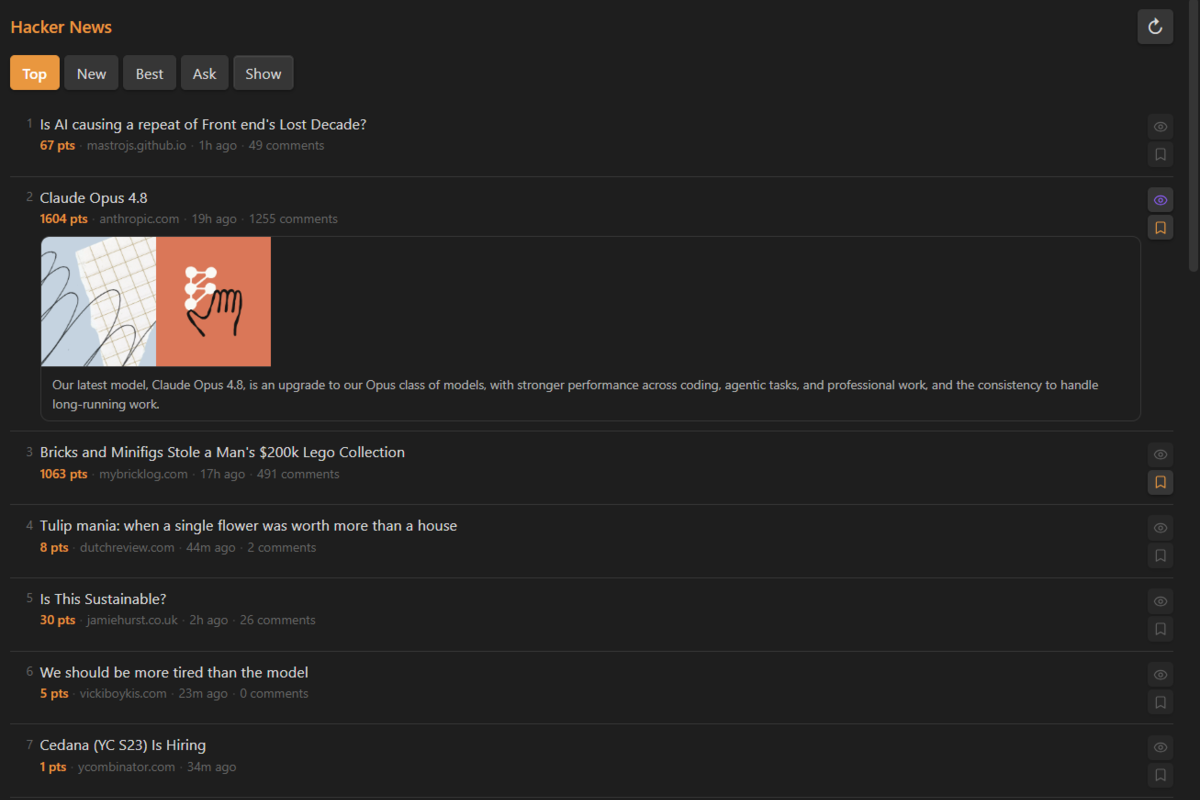
Features
- Browse Top, New, Best, Ask HN, Show HN, Jobs feeds
- Open as a sidebar panel or a new tab
- Save stories to a reading list note with one click
- Optional site favicons next to story titles
- Daily notes mode — creates a new file per day with YAML frontmatter
- Tags — automatically append tags to every saved story
- Configurable number of stories (10 / 20 / 30 / 50)
- Respects Obsidian's light and dark themes
Installation
Community plugin
HN Reader is available in the Obsidian community plugin directory:
https://community.obsidian.md/plugins/hn-reader
- Open Settings → Community plugins in Obsidian.
- Disable Restricted mode if needed.
- Click Browse, search for HN Reader, then install and enable it.
Manual installation
You can also install a release manually.
-
Download the latest release from the Releases page:
main.jsmanifest.jsonstyles.css
-
In your vault, create the folder:
<your-vault>/.obsidian/plugins/hn-reader/ -
Copy the three downloaded files into that folder.
-
In Obsidian go to Settings → Community plugins, disable Restricted mode, then find HN Reader in the list and enable it.
BRAT
BRAT is a plugin that lets you install and auto-update plugins that are not yet in the official list.
- Install BRAT from the Obsidian community plugin list.
- Open Settings → BRAT → Add Beta Plugin.
- Paste this URL:
https://github.com/anliberant/hn-obsidian-plugin - Click Add Plugin — BRAT will install it automatically.
Settings
| Setting | Description |
|---|---|
| Display mode | Open in sidebar panel or new tab |
| Default feed | Feed shown when plugin opens (Top / New / Best / Ask / Show / Jobs) |
| Stories per page | How many stories to load: 10, 20, 30, or 50 |
| Show site favicons | Toggle small favicons next to story titles |
| Save mode | Single file or a new daily note per day |
| File path | Path to the reading list note (single file mode) |
| Daily notes folder | Folder for daily HN notes, named YYYY-MM-DD-hn.md |
| Add tags | Toggle to append tags to every saved story |
| Tags | Space-separated tags, e.g. #hn #reading |
Usage
- Click the HN icon in the left ribbon to open the reader
- Use Ctrl+P →
Open HN Readerto open via command palette - Switch feeds with the Top / New / Best / Ask / Show / Jobs buttons
- Click 🔖 next to any story to save it to your reading list
- Click ↻ to refresh stories
Release notes
1.0.1
- Added the Jobs feed.
- Added optional site favicons next to story titles.
Reading List format
Single file mode:
# HN Reading List

- [ ] [Story title](https://example.com) | 312 pts | [HN](https://news.ycombinator.com/item?id=...) | 2026-05-28
Daily note mode (HN/2026-05-28-hn.md):
---
date: 2026-05-28
tags: [hn, reading]
---

# HN Reading List 2026-05-28

- [ ] [Story title](https://example.com) | 312 pts | [HN](https://news.ycombinator.com/item?id=...) | 2026-05-28 #hn #reading
License
MIT
For plugin developers
Search results and similarity scores are powered by semantic analysis of your plugin's README. If your plugin isn't appearing for searches you'd expect, try updating your README to clearly describe your plugin's purpose, features, and use cases.