by theluckystrike
Stop heading folds at horizontal rules so the next section stays visible.
Fold Stop
Stop heading folds at horizontal rules so the next section stays visible.
Fold Stop keeps the section after a divider visible when you fold its heading. It uses Obsidian's editor fold controls in Live Preview and Source mode. Folding changes the view, not the saved note text.
Features
Fold stops at the first top-level horizontal rule
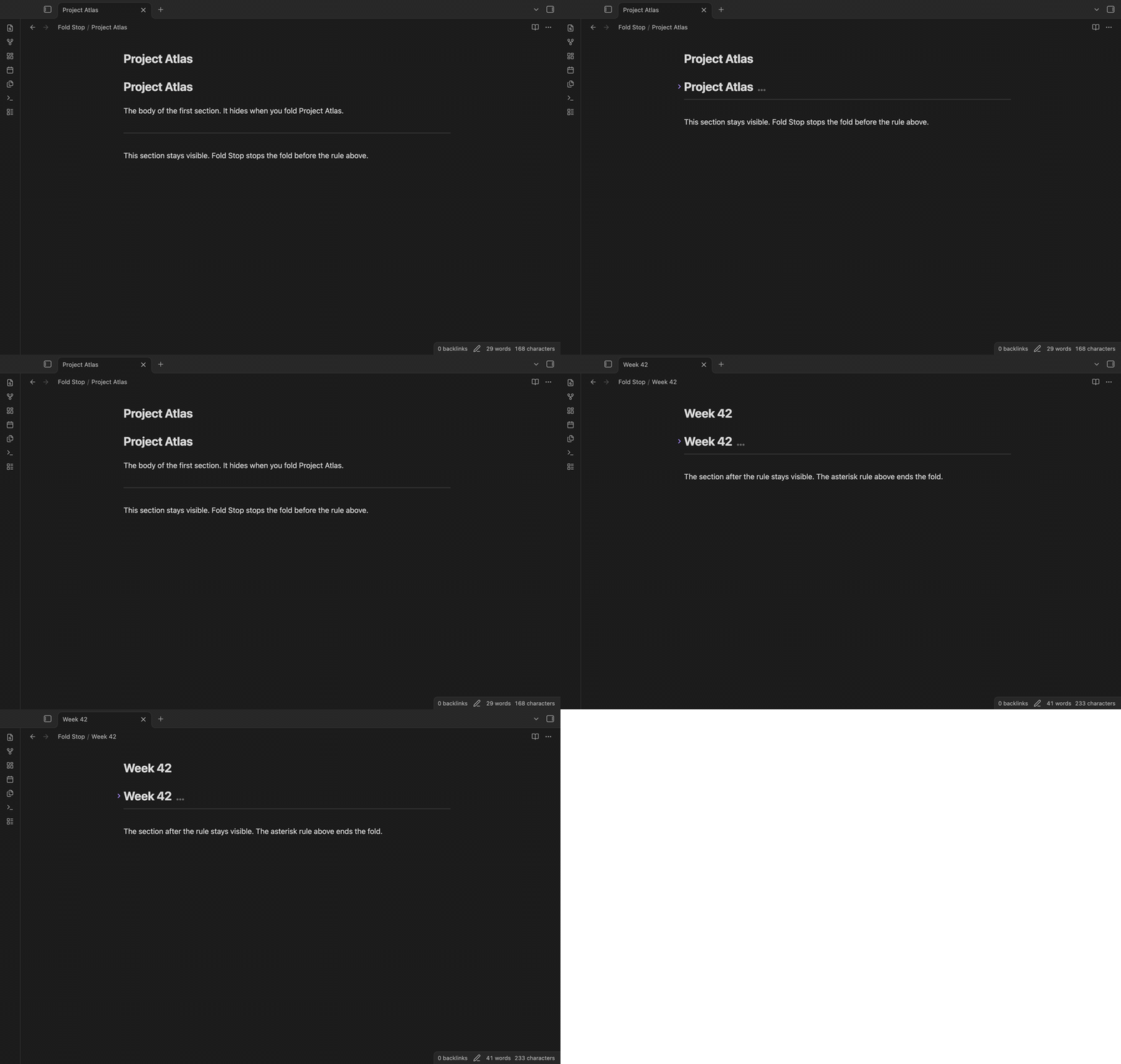
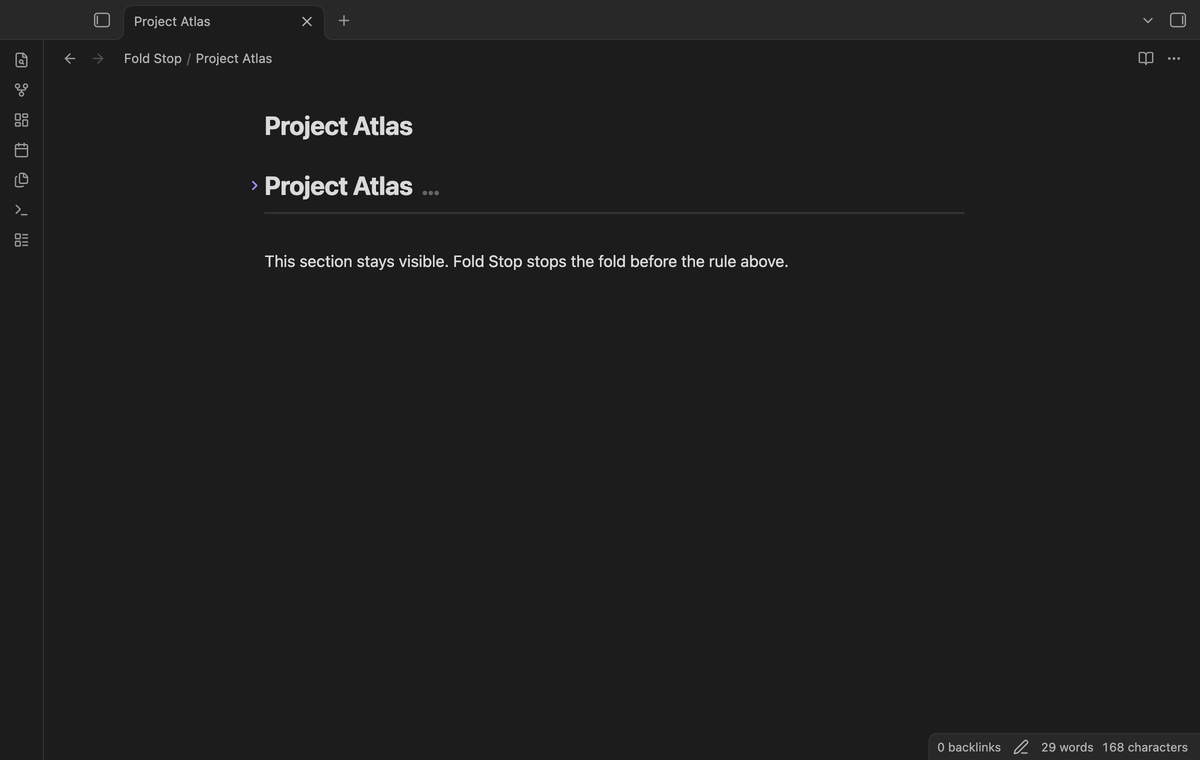
With a heading, body, blank line, ---, and tail, folding the heading hides the body. The rule and tail stay visible.
Child headings fold with their parent
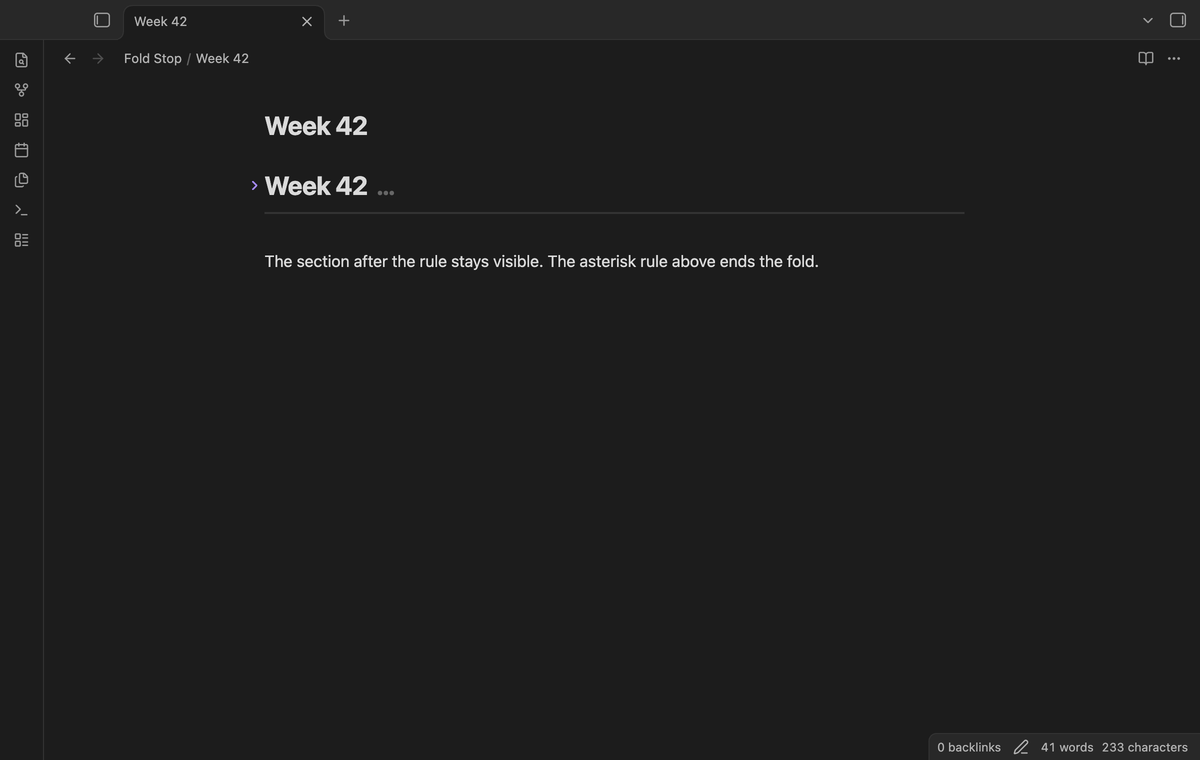
Child headings fold with their parent down to the rule. For example, folding # A hides a later ## Child and its body. The rule and the tail stay visible. A next heading of equal or higher level ends the fold first. A Setext heading can also end a fold by its level.
Rule-like text inside code and frontmatter is ignored
Fold Stop reads the structure of the note first. Three kinds of rule-like text do not end a fold:
- A
---line inside a fenced code block. The fence starts with three backticks or tildes and ends at a closing fence. - A
---line in indented code (four or more spaces after a blank line). - The
---delimiters of YAML frontmatter at the start of a note.
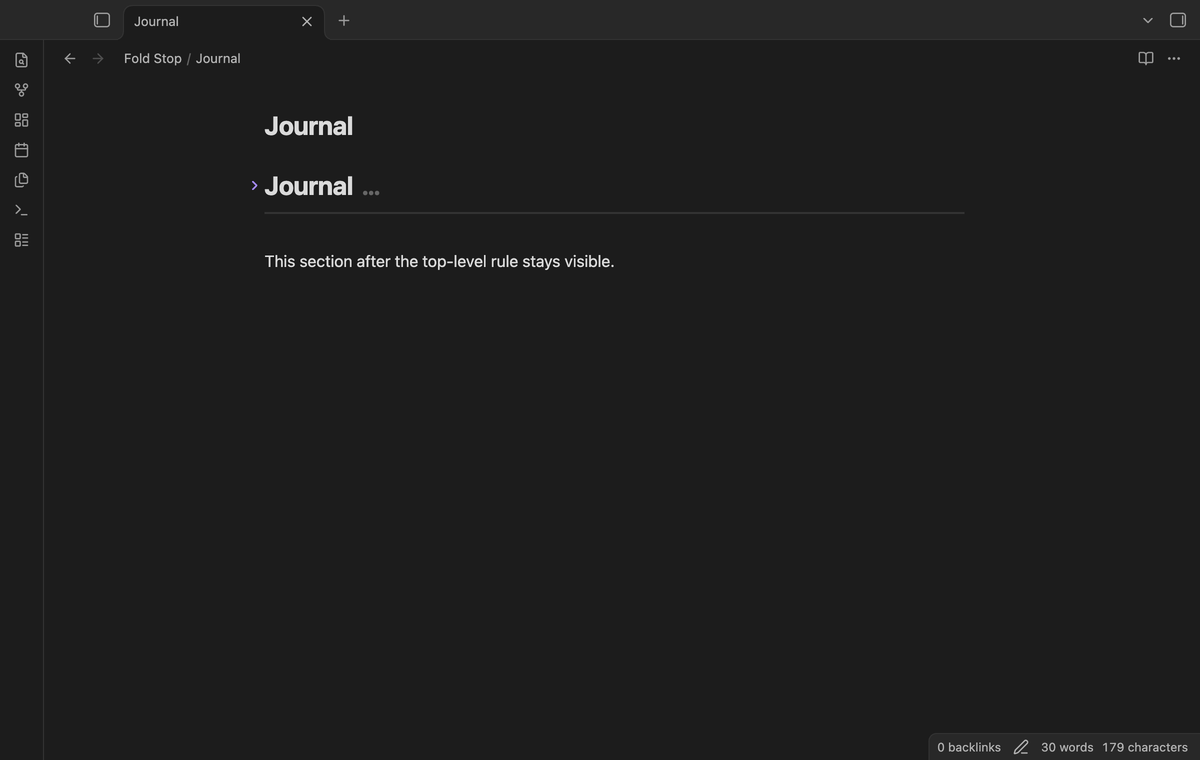
A Setext heading underline is part of that heading, not a rule. A later top-level rule can still end the parent fold. Rules inside list items, quotes, and callouts are outside the top-level scope.
Vault toggle and restore command
A single setting sets the default folding rule for the vault. Pro folder rules and note properties can override this default. With that default off and no Pro override, Obsidian uses normal folding. Changes to rules expand stored folds so the next fold uses the new rule. The command Restore normal folding in this note unfolds the active note and lets Obsidian fold it the normal way from then on. This choice lasts until settings change or the plugin reloads. The command changes no note text.
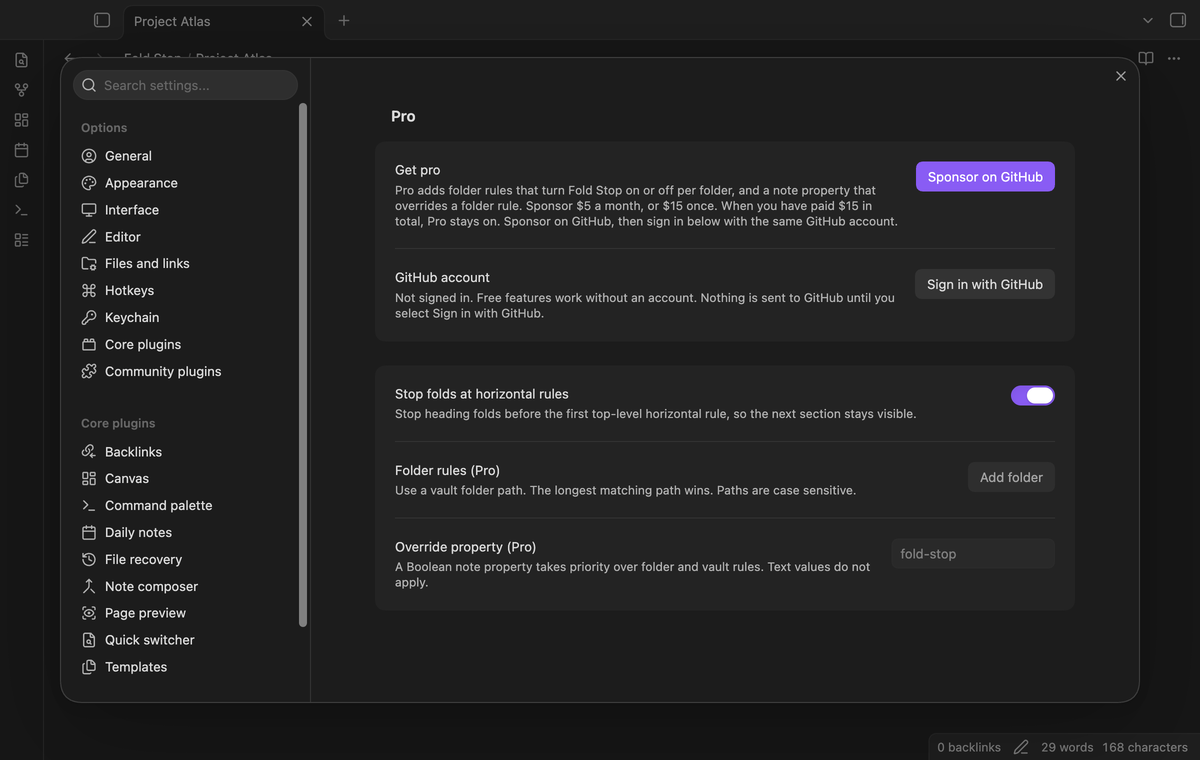
Folder rules (Pro)
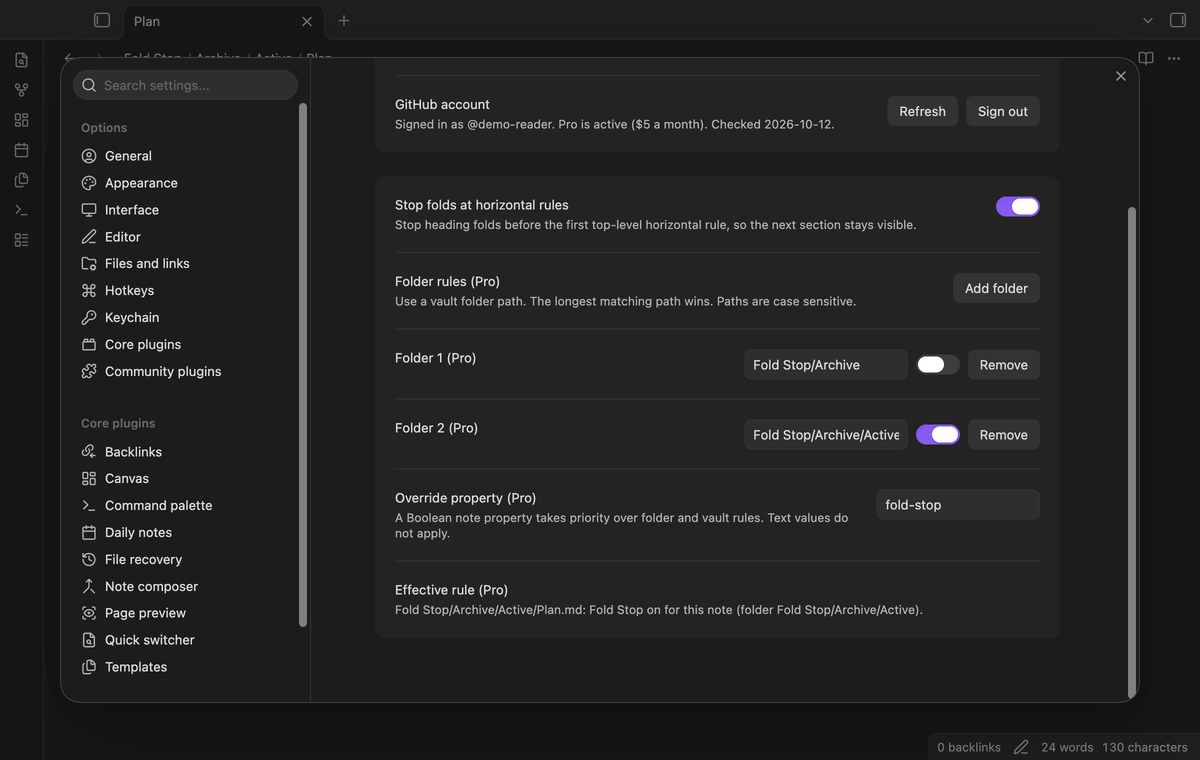 Pro saves folder rules. Each rule names a folder and says whether Fold Stop is active there. When more than one rule matches, the longest folder path wins: a rule for `Archive` off and one for `Archive/Active` on means notes in `Archive/Active` use Fold Stop and the rest of `Archive` uses normal folding.
Note override property (Pro)
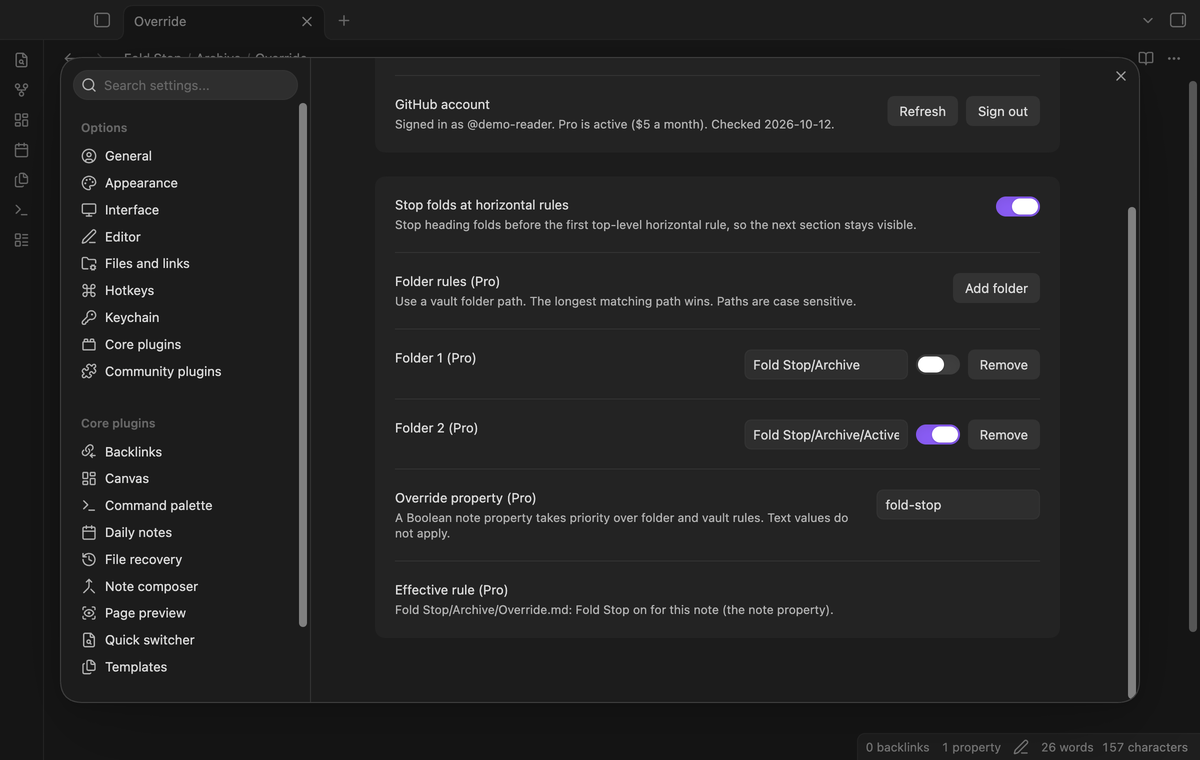 Pro lets one Boolean note property override the folder rule. The default property name is `fold-stop`; you can change it in settings. A note with `fold-stop: true` uses Fold Stop even when a folder rule turns it off; `fold-stop: false` gives normal folding. The settings panel shows the rule that the active note uses now, and where it comes from.
Install
After Fold Stop is listed in the community directory, open Settings, then Community plugins, then Browse, and search for "Fold Stop". Select Install, then Enable.
After a release is available, download main.js, manifest.json and styles.css from the latest release. Put the three files in <vault>/.obsidian/plugins/hr-fold-stop/. Restart Obsidian or reload the list of community plugins, then turn on Fold Stop.
Fold Stop needs Obsidian 1.13.4 or later. The plugin saves folding settings in the vault configuration folder. Sponsorship state uses device local storage, as described below.
Usage
- Open a note with a heading and a
---line later in the note. - Select the fold arrow next to the heading, or put the cursor in the heading and run
Toggle fold on the current linefrom the command palette. - The body of the heading hides. The rule and the text after it stay visible.
- Select the fold arrow again to unfold.
To go back to normal folding in one note, run Restore normal folding in this note from the command palette. Change the default vault rule in Settings, then Fold Stop.
Settings
| Setting | Default | What it does |
|---|---|---|
| Stop folds at horizontal rules | On | The default rule before Pro overrides. |
| Folder rules (Pro) | Empty | Folder paths with Fold Stop on or off. The longest matching path decides. |
| Override property (Pro) | fold-stop | A Boolean note property that overrides the folder rule. |
| Effective rule panel (Pro) | Shown | Shows the rule that the active note uses and its source. |
The vault toggle is free. The folder rules, the override property, and the effective rule panel need Pro. Select Add folder, enter a path relative to the vault root, then use the toggle for that row. Use Remove to delete the rule. Folder paths are case sensitive. Signing out leaves the saved rules in place but stops their use.
FAQ
Does Fold Stop change my notes?
No. The plugin reads the note text and controls folding in the editor. It writes nothing to your notes.
Which rules end a fold?
Use three or more matching -, *, or _ marks, with optional spaces between them. The parser must read the line as a top-level thematic rule. The code, frontmatter, Setext, list, and quote limits above apply.
What happens with two rules in one section?
The fold stops at the first one. The text between the two rules stays visible.
Can editing expand a fold?
Edits inside hidden text can expand a fold through the normal editor behavior. Fold again to use the current boundary.
What did you not test?
- Fold behavior with nested callouts and quotes that contain rules. Unit tests cover the scanner, but no screenshot test covers a callout with a rule inside.
- Linux and Windows app runs, and custom themes.
- The mobile app. The plugin uses no desktop-only API, but the automated tests run on desktop only.
- Pro folder rules against a real GitHub sponsorship. The tests mock the GitHub answer.
- Competition with other folding plugins. Two plugins that control folding may fight for the fold ranges.
Payment, account and network
The core features are free. Pro features need a GitHub Sponsors sponsorship of theluckystrike: $5 a month or more, or $15 once. A total payment of $15 meets the payment requirement for Pro without further payment. Sign-in and the checks below still apply. Your notes stay readable and editable with or without Pro.
GitHub handles the payment. Sponsor at https://github.com/sponsors/theluckystrike. You need no account for the free features. Pro needs the GitHub account that sponsors.
Until you select "Sign in with GitHub" in the settings, Fold Stop makes no network requests. Sign in uses the GitHub device flow. Fold Stop sends its public client ID and the scope read:user to https://github.com/login/device/code and shows you a code. While you enter the code at https://github.com/login/device, it asks https://github.com/login/oauth/access_token every few seconds to check the sign-in status. The scope permits profile reads only. GitHub needs this access to show the sponsorship tier. It grants no repository scope and no write access.
After sign in, Fold Stop sends one query to https://api.github.com/graphql. It checks if the signed-in account sponsors theluckystrike. It asks for the tier and the total payment to theluckystrike. The plugin reuses a successful check for 7 days. Failed checks can retry after 6 hours. Select Refresh to request an earlier check. It sends no note content, file names or other vault data, and it has no telemetry.
After a successful check, Pro can work offline for up to 14 days. Sign out or a negative sponsorship answer turns Pro off. The plugin stores the GitHub token through the secret storage API of Obsidian. It does not put the token in its saved settings or its local sponsorship data. The local storage of this device keeps your GitHub login, the tier and the time of the last check. Sign out clears the token. You can also revoke the access in your GitHub settings, under Applications.
Support
Report a bug or ask for a feature in the issue tracker of this repository. To support the work, use GitHub Sponsors.
License
MIT. The bundled Lezer Markdown parser also uses MIT; see THIRD_PARTY_NOTICES.md.
For plugin developers
Search results and similarity scores are powered by semantic analysis of your plugin's README. If your plugin isn't appearing for searches you'd expect, try updating your README to clearly describe your plugin's purpose, features, and use cases.