Hydrate
approvedby hydrateagent
Cursor-like note agent with MCP support.
Hydrate Plugin for Obsidian
Your AI-powered thinking partner for writing, research, and knowledge discovery in Obsidian.
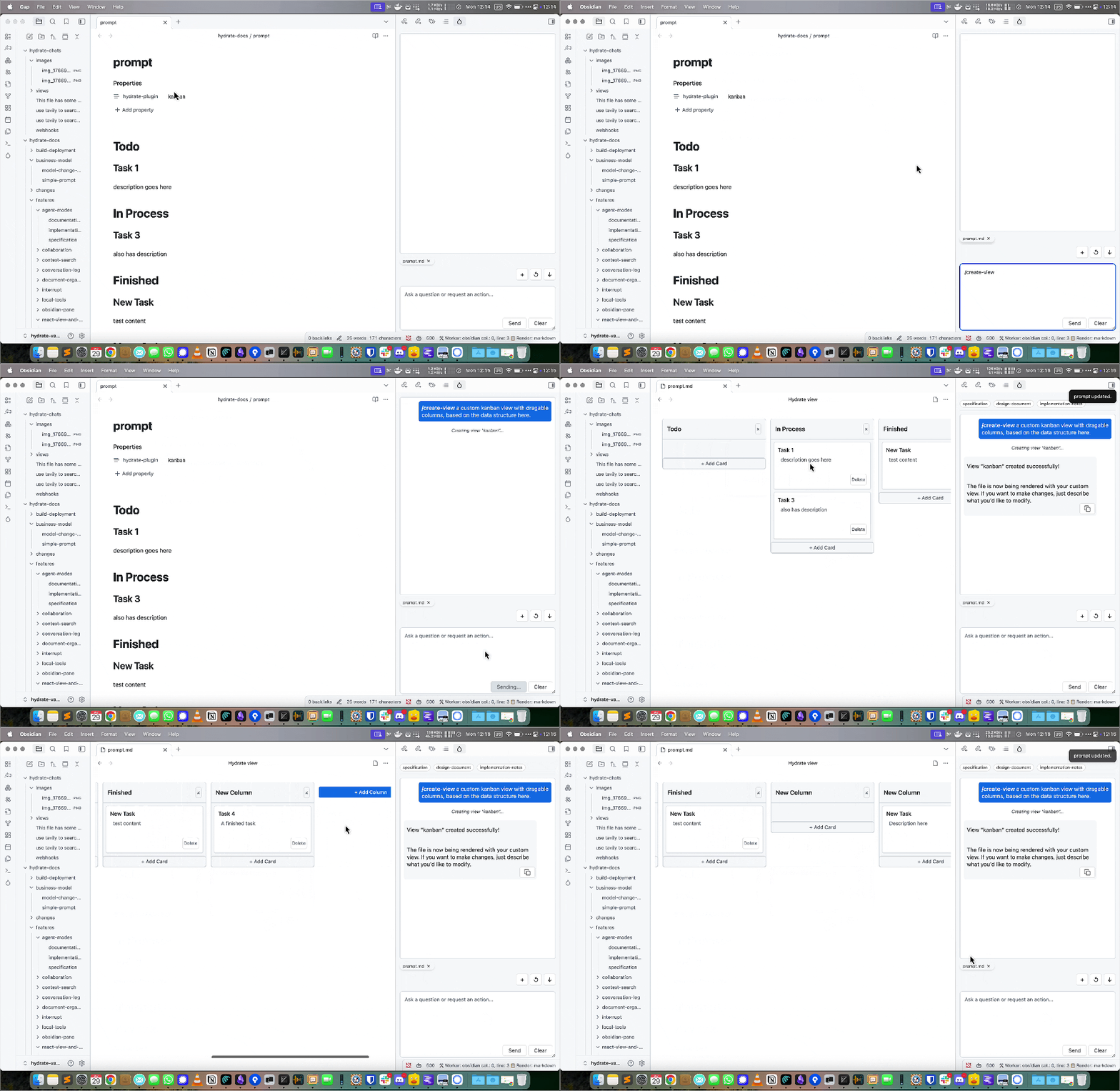
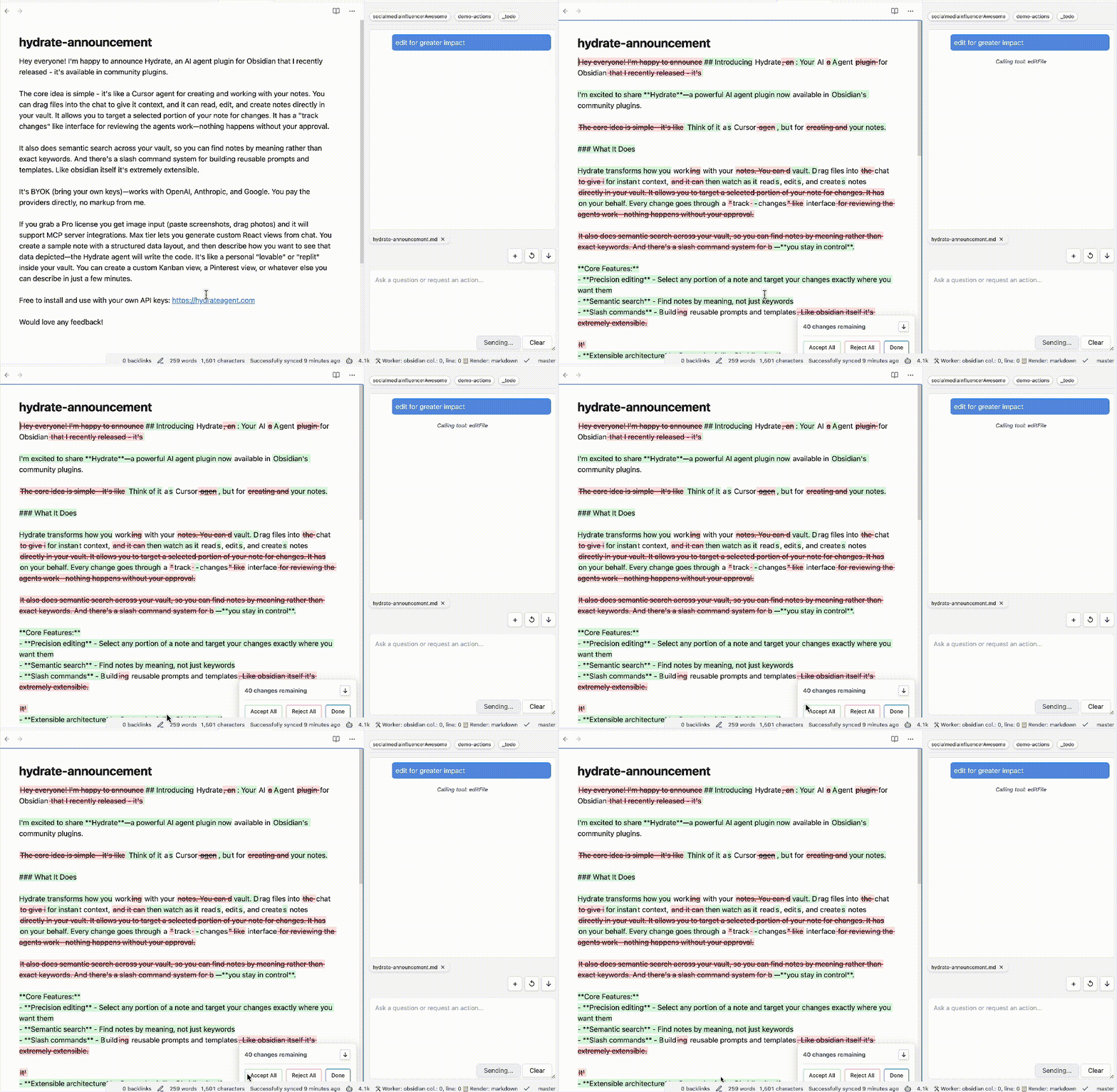
⚠️ Important Disclosures
Please read these important requirements before installing:
- 💳 Payment Required: Full access to Hydrate requires a paid subscription
- 👤 Account Required: You must create an account to use all features
- 🌐 Network Use: This plugin connects to remote AI services to provide intelligent features
- 📊 Telemetry: Anonymous usage analytics are collected server-side when you use the Hydrate backend. The plugin itself contains no client-side telemetry.
- 🔒 Closed Source: This plugin is Apache 2 licensed, but relies on proprietary server side code for functionality.
Remote Services Used
Hydrate connects to the following remote services to provide AI-powered features:
- Hydrate AI Backend: Processes your queries and provides intelligent responses
- Third-party AI APIs: For advanced language processing and content generation
- Analytics Services: For anonymous usage tracking and service improvement
These connections are necessary to deliver the core AI functionality that makes Hydrate intelligent and responsive to your needs.
Privacy & Data Handling
Your privacy is important to us. Please review our Privacy Policy to understand how your data is collected, used, and protected when using Hydrate.
✨ What is Hydrate?
Hydrate transforms your Obsidian vault into an intelligent knowledge companion. Designed for writers, researchers, students, and anyone who thinks deeply, Hydrate helps you:
- Chat naturally with your notes and get contextual answers
- Discover hidden connections between ideas
- Search by meaning, not just keywords
- Generate new content, outlines, and summaries
- Expand and refine your thoughts
- Accelerate research and synthesize information
- Overcome creative blocks and enhance your writing
🚀 Installation
- In Obsidian, go to Settings → Community plugins → Browse
- Search for
Hydrate - Click Install and then Enable
Or visit hydrateagent.com/install for detailed instructions.
🛠 Key Features
- Conversational AI: Chat with your notes, ask questions, and get contextual answers
- Smart Connections: Discover relationships between ideas and notes you might have missed
- Semantic Search: Find information by meaning, not just keywords
- Content Generation: Create outlines, summaries, and new content from your notes
- Idea Development: Brainstorm, expand, and refine your thoughts
- Research Assistant: Synthesize information, generate literature reviews, and identify knowledge gaps
- Writing Assistant: Get suggestions, expand on ideas, and create structured documents
- Privacy First: Your notes stay local unless you explicitly use cloud AI services with your own API keys
🧑💻 Quick Start
- Open the Hydrate panel from the ribbon to chat with your notes
- Select text and use "Expand with AI" to generate ideas or summaries
- Use semantic search to find related notes and concepts
- Explore plugin settings for more options
🔍 Setting Up Semantic Search with LM Studio
Hydrate supports semantic search using local embeddings via LM Studio. This lets you search your vault by meaning, not just keywords.
Setup Steps
- Install LM Studio from lmstudio.ai
- Download an embedding model - search for
nomic-embed-textin LM Studio and download it - Start the local server in LM Studio (Developer tab → Start Server)
- Configure Hydrate:
- Open Hydrate settings in Obsidian
- Enable "Remote Embeddings"
- Set the embedding URL to:
http://localhost:1234/v1/embeddings - Set the model name to match your downloaded model (e.g.,
nomic-embed-text)
- Index your vault - use the "Reindex Vault" button in settings
Once indexed, Hydrate will suggest relevant notes during chat and you can search by meaning across your entire vault.
🧩 Troubleshooting
- If Hydrate does not appear after installation, try restarting Obsidian
- Ensure you have the latest version of Obsidian
- For issues, open an issue on GitHub
📝 License
Apache 2
For plugin developers
Search results and similarity scores are powered by semantic analysis of your plugin's README. If your plugin isn't appearing for searches you'd expect, try updating your README to clearly describe your plugin's purpose, features, and use cases.