Atomic
approvedby kenforthewin
Connect your vault to an Atomic knowledge base for semantic search, live sync, and AI-generated wiki articles. - This plugin has not been manually reviewed by Obsidian staff.
Atomic for Obsidian
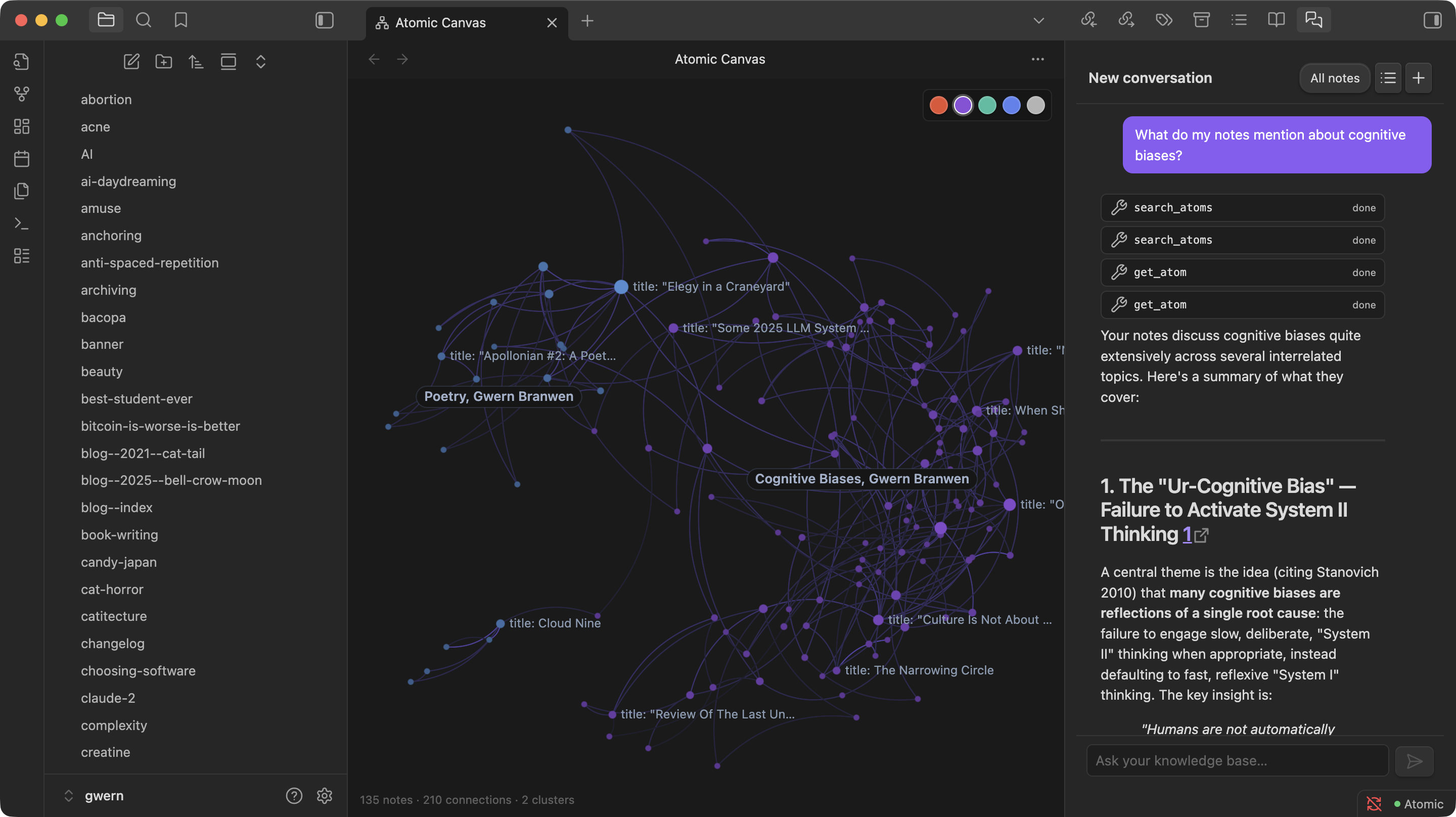
Turn your vault into a semantically-connected, AI-augmented knowledge graph. Atomic syncs your notes to an Atomic server and gives you semantic search, similar-note discovery, AI-generated wiki articles, an agentic chat over your notes, and a spatial knowledge-graph canvas — all from inside Obsidian.
What you get
- Semantic search — find notes by meaning, not keywords. Hybrid keyword + vector search with snippet previews.
- Live sync — notes sync to Atomic in the background as you write, with content hashing to skip unchanged files.
- Similar notes — a sidebar that surfaces the most semantically related notes to whatever you're editing.
- Wiki articles — LLM-synthesized summaries organized by your tag hierarchy, with inline citations back to source notes.
- Chat — an agentic RAG assistant that searches your vault mid-conversation. Scope to a tag or go vault-wide.
- Knowledge-graph canvas — a spatial, force-directed view of your notes and how they connect.
Requirements
You need a running Atomic server that your vault can reach. You have two options:
- Atomic desktop app — install Atomic on the same machine. It runs a local server automatically; copy an API token from its settings.
- Self-hosted server — run
atomic-serveron your machine or a server you control. See the main repo for setup.
Atomic needs an LLM provider (OpenRouter or a local Ollama) configured on the server side for embedding, tagging, wiki generation, and chat.
Install
From Community Plugins (recommended once published):
- Open Obsidian → Settings → Community plugins → Browse
- Search for "Atomic" and install
- Enable the plugin
Manual install:
- Download
manifest.json,main.js, andstyles.cssfrom the latest release - Copy them to
<vault>/.obsidian/plugins/atomic/ - Reload Obsidian and enable Atomic in Community plugins
First-run setup
When you enable the plugin, a setup wizard walks you through three steps:
- Connect — paste your server URL (e.g.
http://localhost:8080) and API token, then press Test Connection. - Index — upload your existing notes. Progress bars show upload, embedding, and auto-tagging. You can continue in the background at any time.
- Done — shortcuts for the main features are shown. Close the wizard and you're ready.
You can re-open the wizard any time via the command palette: Atomic: Setup Wizard.
Commands
| Command | What it does |
|---|---|
| Atomic: Semantic Search | Hybrid semantic + keyword search over your vault |
| Atomic: Sync Current Note | Upload the active note immediately |
| Atomic: Sync Entire Vault | Batch-upload every note, skipping unchanged files |
| Atomic: Toggle Auto Sync | Turn background sync on/off |
| Atomic: Open Similar Notes | Show the similar-notes sidebar |
| Atomic: Open Wiki | Browse AI-generated wiki articles by tag |
| Atomic: Open Chat | Agentic chat grounded in your notes |
| Atomic: Open Knowledge Graph Canvas | Spatial graph of your notes |
| Atomic: Setup Wizard | Re-run first-run onboarding |
Settings
Open Settings → Atomic to configure:
| Setting | Default | Notes |
|---|---|---|
| Server URL | http://localhost:8080 | Where your Atomic server is reachable |
| API Token | — | Create via the Atomic app or atomic-server token create |
| Database | default | For multi-database setups; leave empty for the default |
| Vault Name | your vault folder | Used in source URLs (obsidian://VaultName/path.md) |
| Auto Sync | off | Sync on create/modify/delete/rename |
| Sync Debounce | 2000ms | Delay after the last edit before syncing |
| Folder Tags | off | Convert folder structure into hierarchical tags |
| Delete on Remove | off | Delete remote atoms when files are removed locally |
| Exclude Patterns | .obsidian/**, .trash/**, .git/**, node_modules/** | Glob patterns to skip |
Privacy & data handling
- Notes you sync leave your vault. They are sent to the Atomic server you configure, which in turn sends them to the LLM/embedding provider configured on that server (OpenRouter or a local Ollama).
- The API token is stored in plaintext in
<vault>/.obsidian/plugins/atomic/data.json, per Obsidian's plugin-data model. Treat the token like a password and avoid committing your.obsidian/folder to public repos. - Your data stays under your control when you self-host Atomic and pair it with a local Ollama — nothing leaves your machine.
- Excluded paths (
.obsidian/,.trash/,.git/,node_modules/, plus anything you add) are never uploaded.
Troubleshooting
- "Connection failed" — confirm the server is running and reachable at the configured URL, and that the token is valid.
- Notes aren't syncing — check that Auto Sync is on, or run Atomic: Sync Current Note manually. Files matching an exclude pattern won't sync.
- Similar notes / wiki is empty — embedding and tagging run asynchronously after upload. Give large vaults a few minutes to finish the pipeline.
- Mobile — the plugin is marked desktop-friendly; mobile support depends on your server being reachable from the device.
Development
cd plugins/obsidian-plugin
npm install
npm run dev      # Watch mode
npm run build    # Type-check + production bundle
For live testing, symlink the plugin into a test vault:
ln -s "$(pwd)" /path/to/vault/.obsidian/plugins/atomic
Source files (all in src/):
main.ts— plugin entry, command registration, view registrationatomic-client.ts— HTTP client foratomic-serverws-client.ts— WebSocket subscriber for pipeline eventssync-engine.ts/sync-state.ts— file-watching, hashing, uploadonboarding-modal.ts— setup wizardsettings.ts— settings tabsearch-modal.ts,similar-view.ts,wiki-view.ts,chat-view.ts,canvas-view.ts— feature UI
Issues & contributions
Report bugs and feature requests at github.com/kenforthewin/atomic/issues. PRs welcome.
License
MIT.
For plugin developers
Search results and similarity scores are powered by semantic analysis of your plugin's README. If your plugin isn't appearing for searches you'd expect, try updating your README to clearly describe your plugin's purpose, features, and use cases.