Image Cluster
approvedby lucas
Image Cluster helps you easily combine multiple images together in your notes, making your note interface more beautiful and organized. - This plugin has not been manually reviewed by Obsidian staff.





Image Cluster
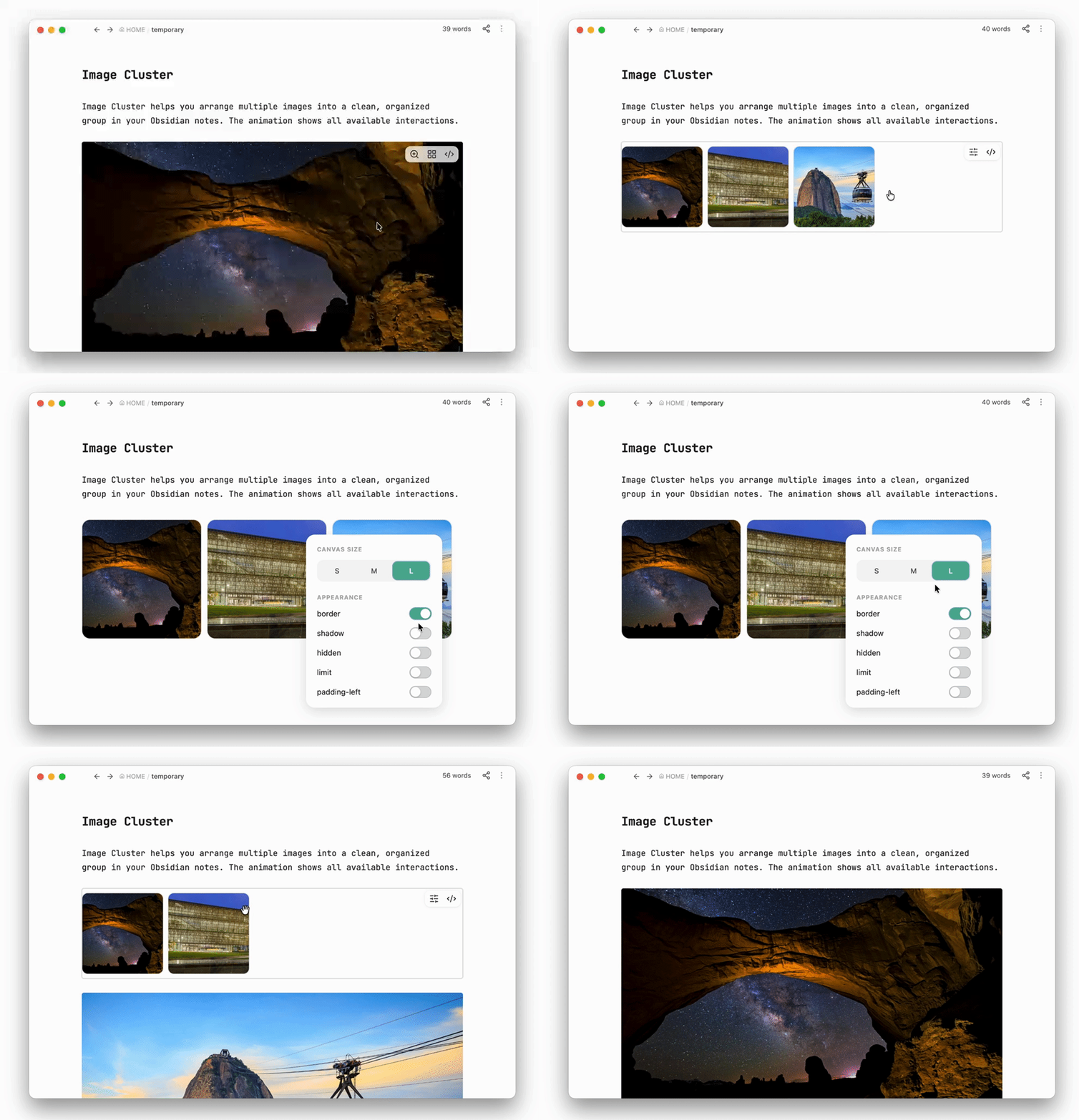
Image Cluster helps you arrange multiple images into a clean, organized group in your Obsidian notes. The animation shows all available interactions.
Installation
Install from Obsidian
- Open Settings → Community plugins in Obsidian.
- Select Browse and search for Image Cluster.
- Select Install, then enable the plugin.
Install manually
- Open the Image Cluster download page.
- Download the plugin and follow the installation instructions on the page.
- Open Settings → Community plugins in Obsidian and enable Image Cluster.
Advanced options
These options are saved automatically in the first line of an imgs block. You can also edit their values manually when you need more precise control.
| Option | What it changes | Initial value | Available values |
|---|---|---|---|
size | Image width and height | 150 | 50–500 px |
gap | Space between images | 8 | 0–50 px |
radius | Image corner roundness | 10 | 0–50 px |
shadow | Shows an image shadow | false | true or false |
border | Shows an image border | false | true or false |
hidden | Blurs the images and prevents them from being opened | false | true or false |
limit | Shows no more than three rows until expanded | false | true or false |
padding-left | Moves the image group to the right | 0 | Any number from 0 px |
For plugin developers
Search results and similarity scores are powered by semantic analysis of your plugin's README. If your plugin isn't appearing for searches you'd expect, try updating your README to clearly describe your plugin's purpose, features, and use cases.