by alamion
Story graph for ink: browse knots, stitches, diverts and variables on a canvas, and edit the story by drawing links.
Ink Graph
See and edit the structure of your ink story inside Obsidian.
Ink Graph draws knots, stitches, choices, diverts, tunnels and threads as a map, shows where every variable is
read and written, warns about loops that would hang the story, and lets you change the story by working on the map.
Every action is written back to your .ink text, so nothing else stores your story.
Features
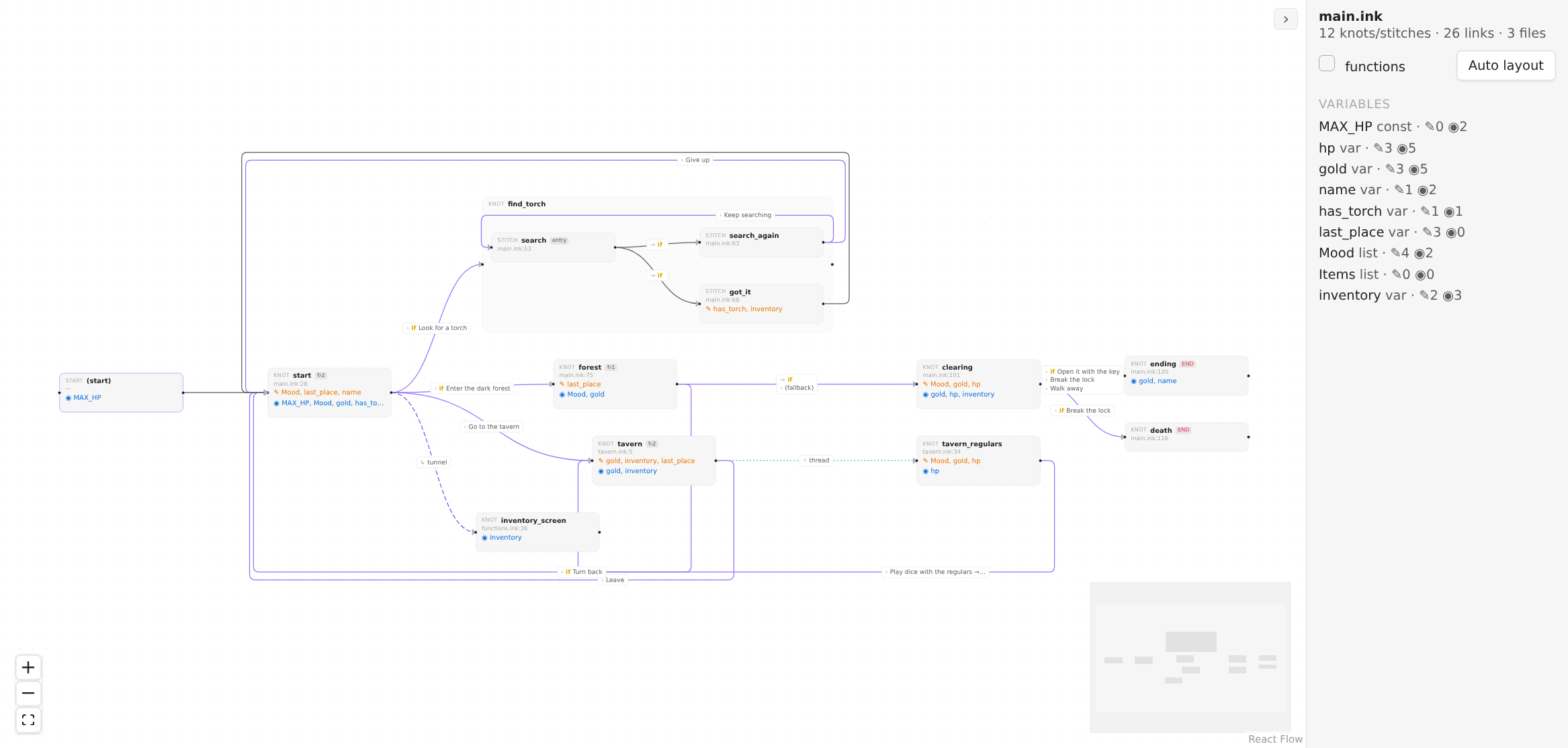
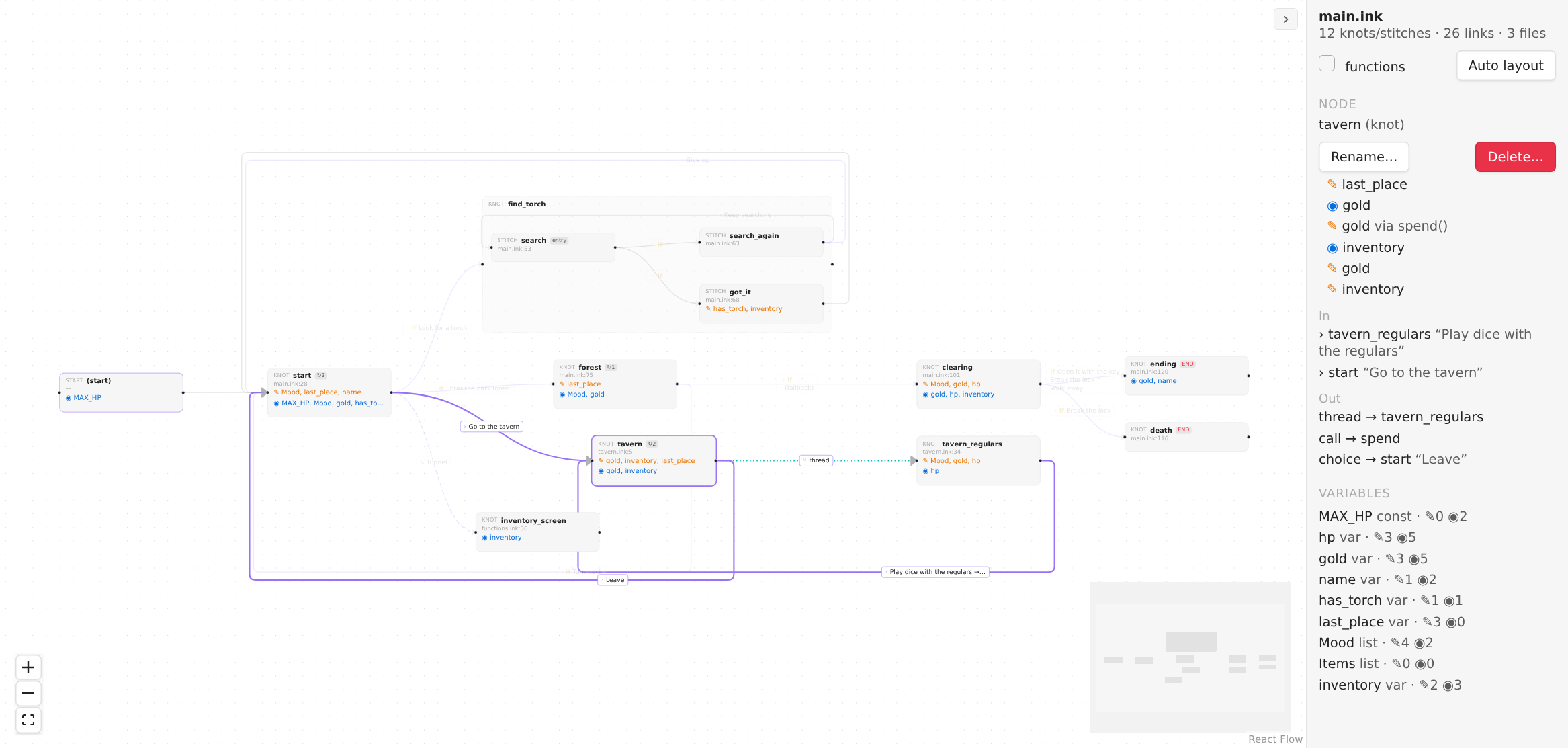
- A map of the story. Knots with their stitches grouped inside, and every link between them: choices, diverts, tunnels, threads and function calls. Several choices between the same two knots share one line.
- Variables at a glance. Click a variable to light up the places that write it (orange) and read it (blue).
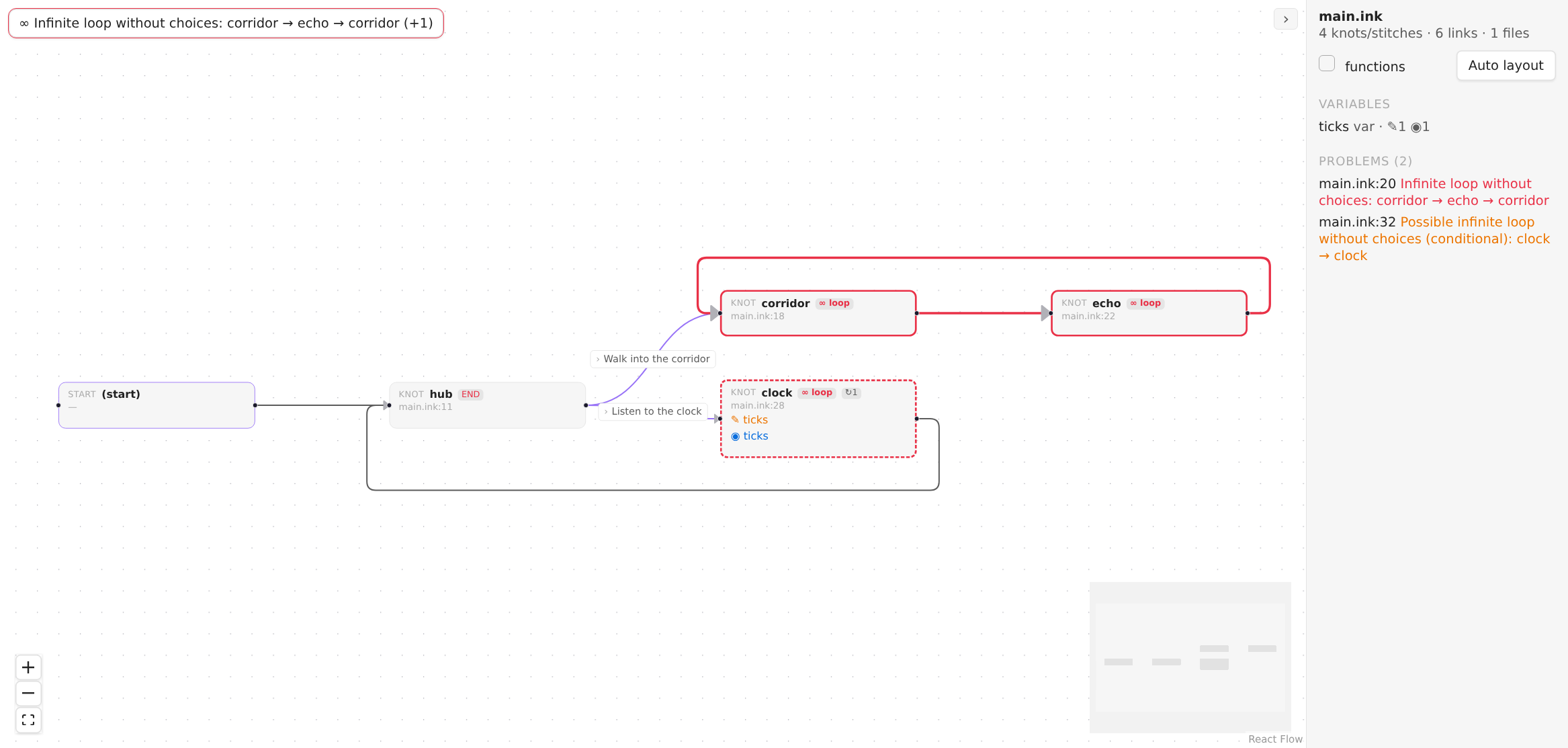
- Loop warnings. A cycle with no choice in it hangs the player. Ink Graph marks such cycles in red; a dashed outline means the loop is conditional and may be fine (a counter, for example).
- Edit on the map. Create knots and stitches, drag a link between two nodes (or out to empty space to create the node it leads to), rename, delete. Every edit is checked by recompiling the story first and is refused if it would add an error.
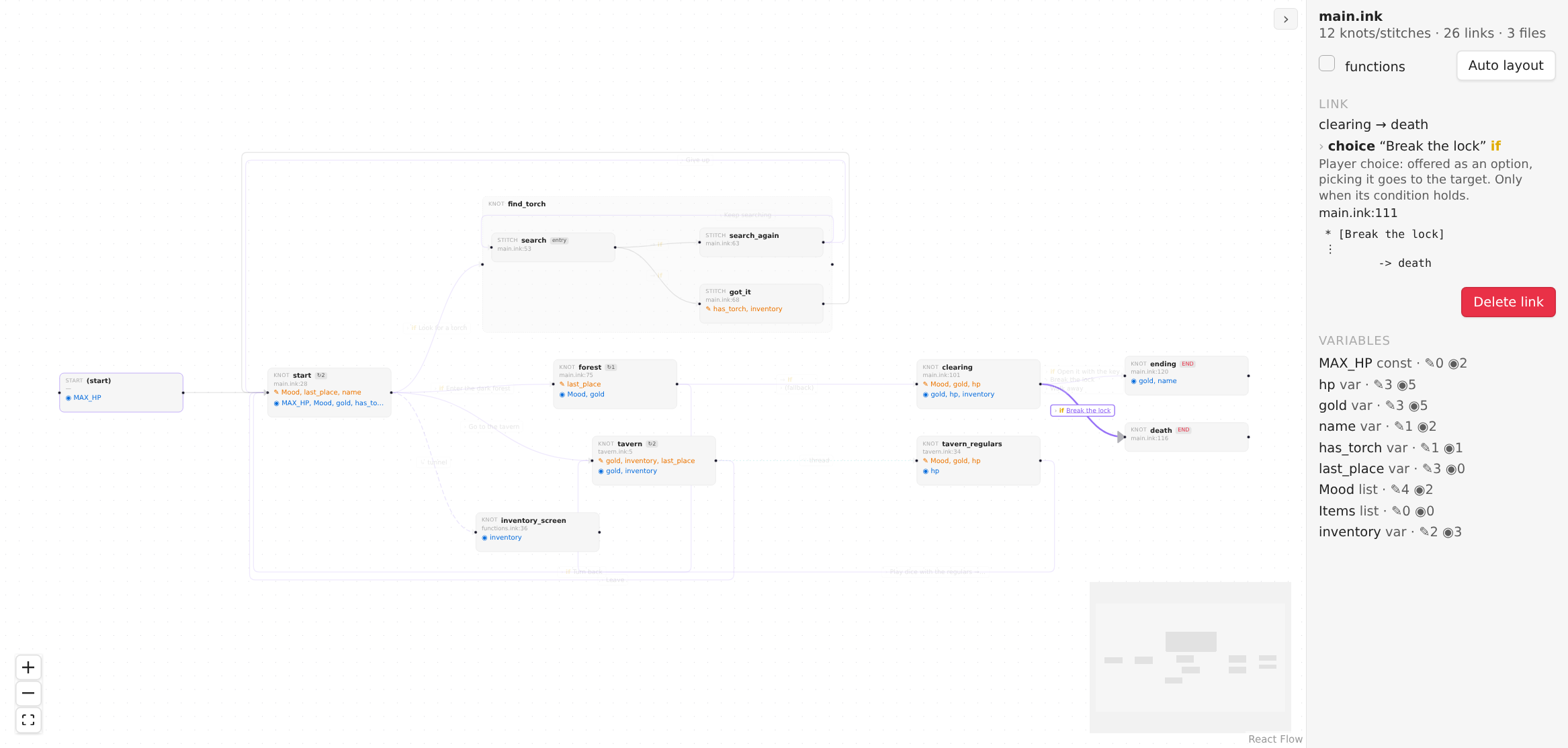
- Details on demand. Select a link to see its kind, its condition and every place it is written, with the source line.
- Your layout is yours. Positions are saved next to the story (
main.graph.json), so they travel with it in git.
Works alongside Ink Player and Ink Language. Ink Graph does not
register the .ink extension itself.
Getting started
Open any .ink file and run the command Open story graph (or click the network icon in the left ribbon, "Open ink graph"). The story root is found by
following INCLUDEs upwards, so the graph covers every file the story includes.
| Do this | To get this |
|---|---|
| Double-click a node | Jump to its source line |
| Click a node or a link | Details in the side panel |
| Drag nodes | Move them (saved) |
| Right-click the canvas | New knot |
| Right-click a knot | Add stitch, rename, delete |
| Drag from a node's right handle to another node | Link: choice, sticky choice, divert or tunnel |
| Drag from a handle and let go on empty canvas | A new knot, linked from the node you started at (the (start) block works too: an empty story grows its first knot this way) |
| Drag from a handle and let go inside a knot's group | A new stitch in that knot, linked the same way |
| Delete or Backspace | Delete the selected node or link |
| Ctrl/Cmd+Z in the graph | Undo the last graph edit |
Editing safely
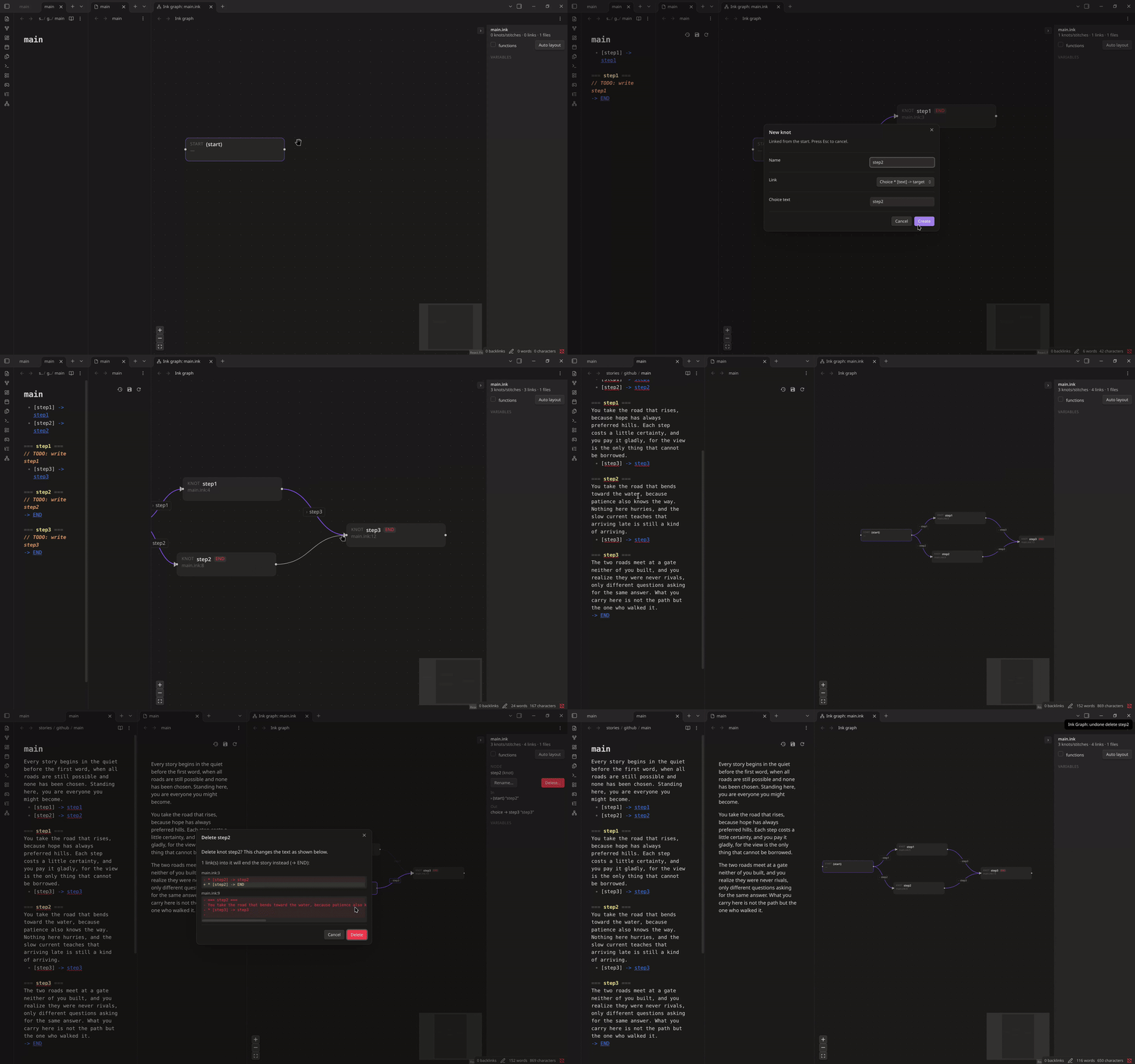
- Dropping a link on empty canvas opens one small dialog for the new node's name and the kind of link. Esc, a click outside, the X or Cancel closes it without changing anything, and nothing opens if you let go outside the graph view. The node and its link are one change: a single undo takes back both.
- Rename updates every reference ink resolves to the node, across files: diverts,
knot.stitchpaths and read counts like{knot > 1}. Prose and comments are left alone. - The placeholder
-> ENDthat a new knot or stitch starts with gives way to the first link you draw from it: a divert or a choice takes its place (a tunnel goes before it, since the story still ends there). Later links just add lines. An-> ENDthat belongs to a choice's branch, or is not the node's last line, is never touched. - From the
(start)block a link becomes a line above the first knot. If the story already starts with a divert, that divert is named in the message: anything added after it would never run, so change that line instead. - Delete a node removes its lines up to the next header (a knot goes with its stitches). Diverts and choices that led
to it are redirected to
-> END. Tunnels, threads, function calls, read counts and divert variables cannot be redirected, so the delete is refused and lists those places; click one to open it. - Delete a link removes a choice as a whole when the link is its only exit. A divert among other content goes alone,
together with an
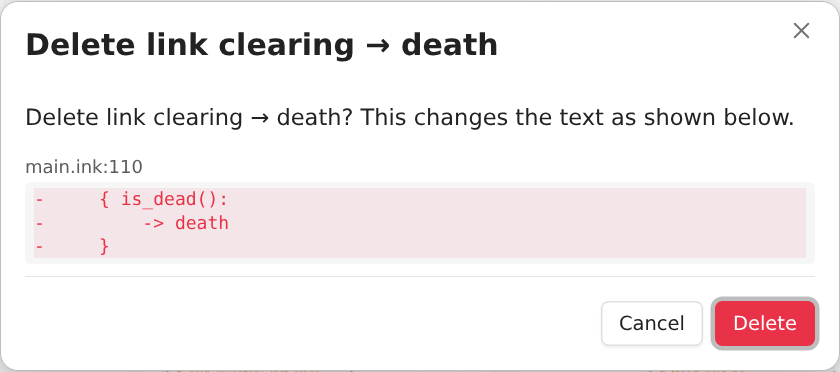
{ condition: }or- else:wrapper that would be left empty. - Anything bigger than one line is shown as a diff first. A one-line delete happens at once and can be undone.
Loops without choices
Settings
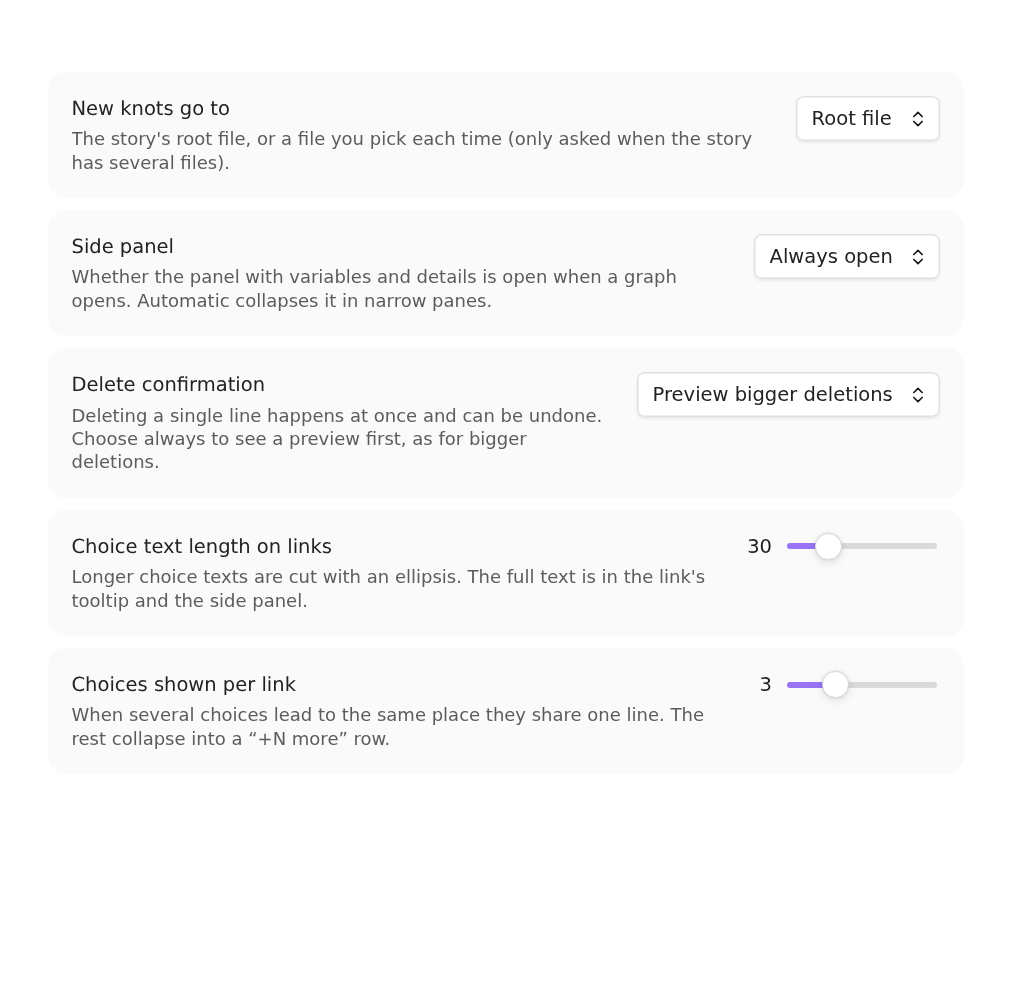
| Setting | What it does |
|---|---|
| New knots go to | The story's root file, or a file you pick each time |
| Side panel | Open, closed, or automatic (collapsed in narrow panes) |
| Delete confirmation | Preview only bigger deletions, or always |
| Choice text length on links | Where long choice texts are cut |
| Choices shown per link | How many choices a link label lists before "+N more" |
Installation
From the community plugin list (once it is accepted): Settings → Community plugins → Browse → search for Ink Graph.
Manually: download main.js, manifest.json and styles.css from the
latest release into
<your vault>/.obsidian/plugins/ink-graph/, then enable the plugin.
Known limits
- The graph is rebuilt on the main thread (debounced), so very large stories may feel slow while you type.
- An unclosed
{can swallow the lines after it while you are typing, so parts of the graph briefly disappear. - Function calls and diverts through a variable (
-> x) are shown but cannot be deleted from the graph. - Delete and Backspace have no touch equivalent; use the menu or the panel buttons on a phone.
Development
This repository is a monorepo (the plugin lives in apps/obsidian-ink-graph, the story parser and editor core in
packages/ink-core). See docs/DEVELOPMENT.md.
License
For plugin developers
Search results and similarity scores are powered by semantic analysis of your plugin's README. If your plugin isn't appearing for searches you'd expect, try updating your README to clearly describe your plugin's purpose, features, and use cases.