InkSlash
approvedby jeff niu
Insert content and run available commands with a Chinese slash menu, fuzzy search, pinned commands, and callout icons. - This plugin has not been manually reviewed by Obsidian staff.
InkSlash · 墨令
Start with a slash. Give your ideas structure.
简体中文 · Community directory · Download · Report an issue
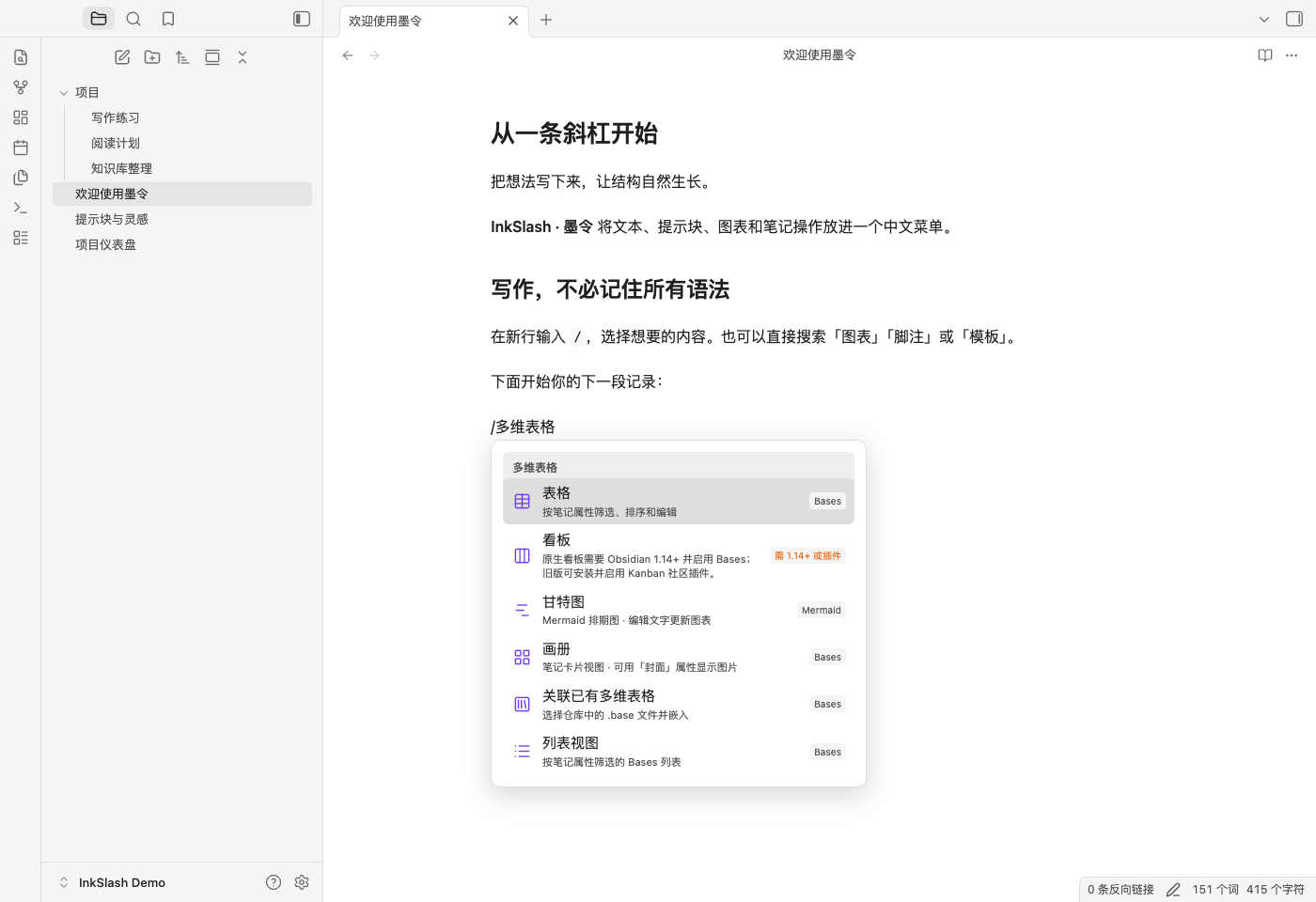
InkSlash is a bilingual, Chinese-first insertion menu for Obsidian. Write / to insert text, choose a callout icon, create a diagram, work with note properties, or open a note action. Search reaches items inside submenus, too.
墨令 combines ink and a command: a small action that gives a thought its next shape. Its interface supports English and Simplified Chinese, while inserted examples retain their established text and structure for compatibility.
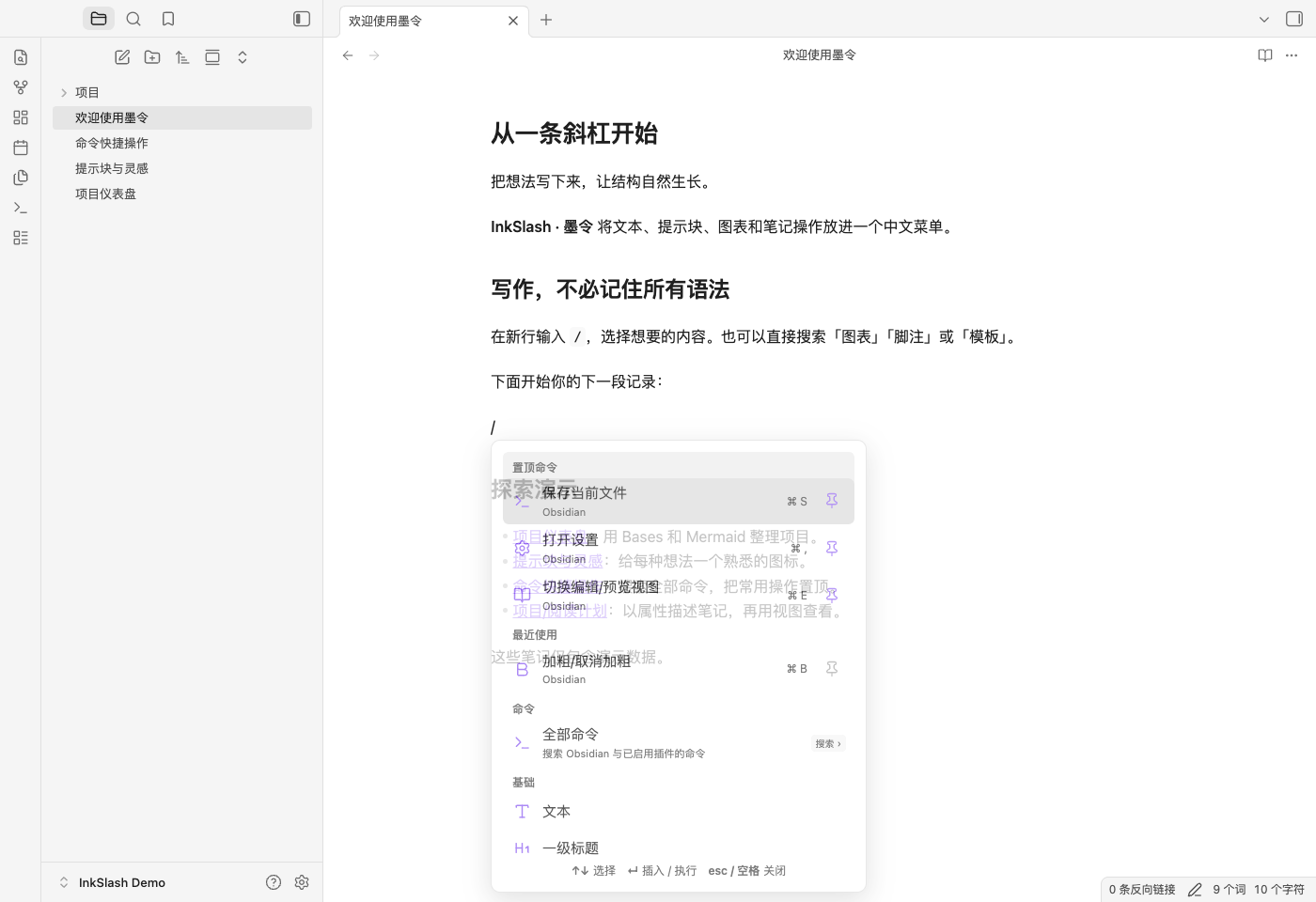
Quick start
- In an editable Markdown note, type
/,/,、, or\at line start or after whitespace. - Browse or type a keyword in either language:
/heading,/callout,/流程图, or/属性. - Use arrow keys and Enter to insert content or run a command. Complete its picker or form when offered. Escape or Space dismisses the inline slash menu.
- To format existing text, select it first, then run InkSlash: Open insert menu (supports selected text) from the command palette. You can assign this command a hotkey. Command names follow the selected interface language.
New installations support line start and whitespace triggers. Upgrades preserve your existing line-start-only preference; change it in Settings → InkSlash. Use Live Preview or Reading view to see rendered diagrams and embeds.
Interface language
Choose a language in Settings → InkSlash → Language:
| Setting | Behavior |
|---|---|
| Follow Obsidian (default) | Uses Simplified Chinese when Obsidian is set to a Chinese locale; otherwise uses English |
| 简体中文 | Always displays the InkSlash interface in Simplified Chinese |
| English | Always displays the InkSlash interface in English |
The settings page updates immediately after a language change, and newly opened slash menus and dialogs use the new language. Search accepts both Chinese and English command names and keywords in either interface language, so /标题, /heading, and /h1 all find heading commands.
Known Obsidian command names also follow this setting in All commands, Pinned commands, Recent commands, and the pinned-command settings list. Their original names remain searchable. Community plugins and unrecognized commands keep their provider's names.
Language selection changes interface text only. Existing settings, / / / / 、 / \ triggers, command behavior, icon IDs, stored data, and generated Markdown remain compatible. Inserted examples and default property names keep their established Chinese content. See the i18n implementation and verification notes for technical details.
Features
| Area | What you can insert |
|---|---|
| All commands | Currently available Obsidian and enabled community-plugin commands, fuzzy search, pins, recent commands and hotkey hints |
| Writing | Headings 1–6, lists, tasks, Markdown tables, quotes, dividers, links, code, math, bold, italic, strikethrough, highlights, comments and tags |
| Callouts | Preset Lucide icons, icon IDs with preview, pasted SVG icons and collapsible callouts |
| Content and references | Core templates, date/time, footnotes, embedded search, heading links, block links, section and block embeds |
| Data | Bases table, cards and list views; existing .base embeds; version-aware kanban; spreadsheet integrations |
| Visual thinking | Canvas; Mermaid flowchart, mind map, Gantt, class, sequence, state, pie, bar, line, timeline and entity relationship diagrams |
| Media and properties | Attachments, images, audio, video, PDF pages; text, list, number, checkbox, date, datetime and tag properties |
| Note actions | Daily notes, recording commands, slides, extract text into a note, outline, local graph and bookmarks |
| Optional integrations | Tasks, Dataview, Meta Bind, Maps, Templater, Tracker, Excalidraw, Kanban, Workbooks and Sheet Plus |
Keep useful commands close
Try /保存, /settings, or /scf to find an available command. Choose All commands (or 全部命令 in Chinese) to open a dedicated picker that also accepts queries containing spaces. Results show the command source and assigned hotkey.
Pin commands with the pin button. Up to six pinned or recent commands appear above the complete insertion menu. On first upgrade, InkSlash inherits the core command palette's pins and recent history; subsequent changes stay in InkSlash. Manage pins and recent-command visibility in its settings.
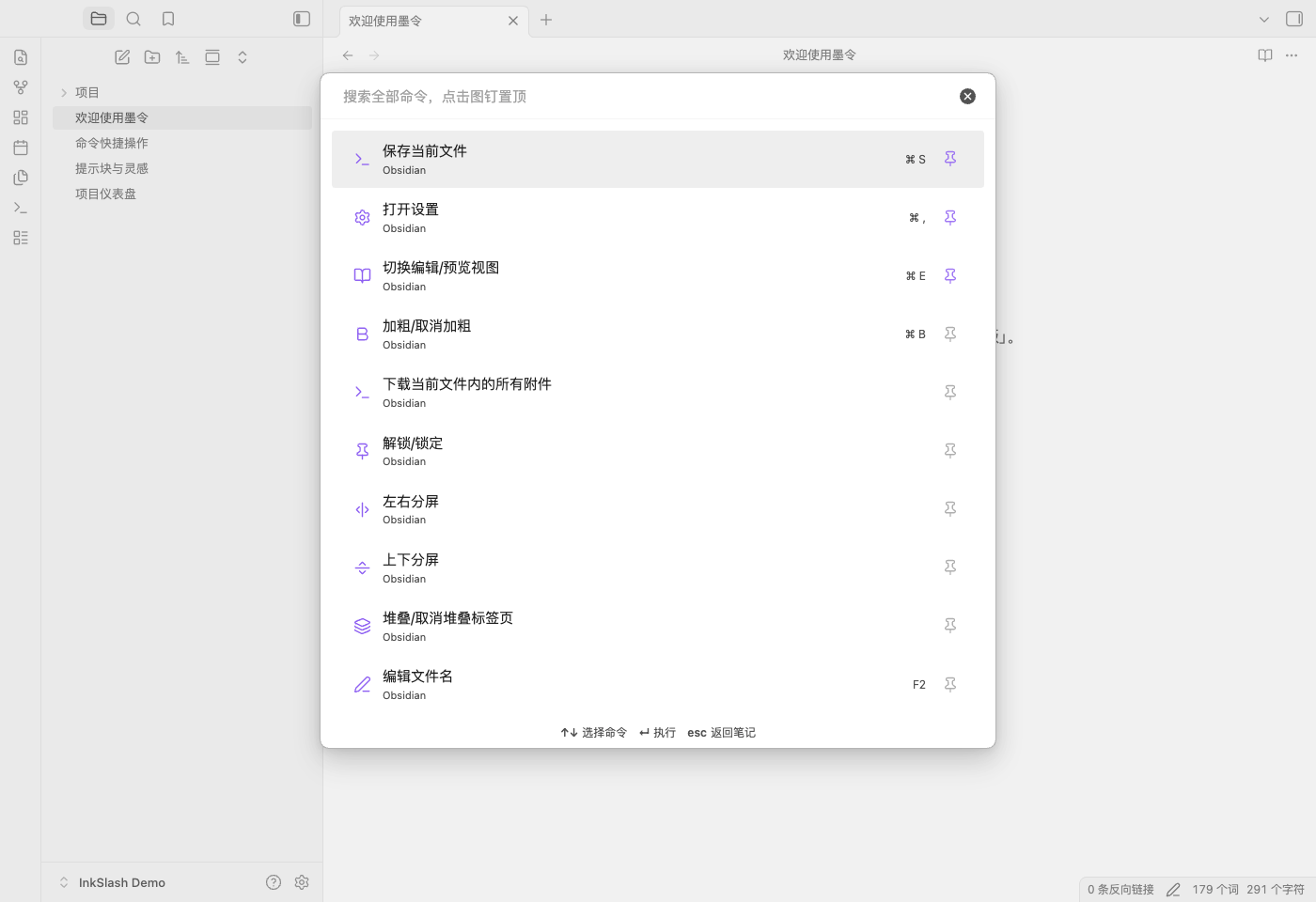
For commands that operate on selected text, use InkSlash: Search all commands (keep selected text) from the command palette. Cancelling a picker preserves the original text; unavailable commands preserve the query. The core Slash commands plugin may remain enabled. Its menu resumes when InkSlash is disabled.
Give callouts a familiar icon
Choose a preset or enter a Lucide icon ID. The picker adapts to window width and scrolls vertically when needed.
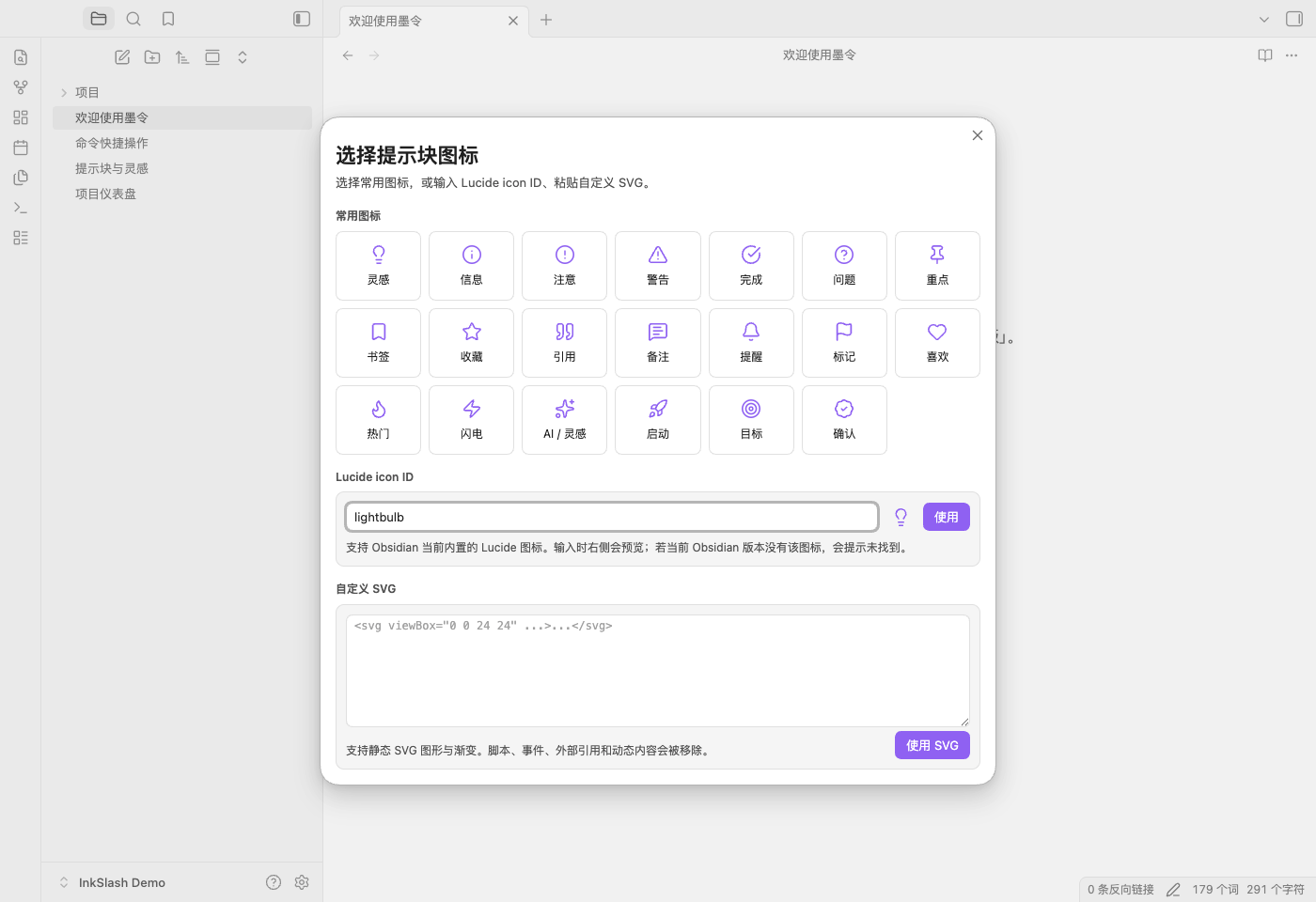
Custom icon mappings live in local plugin settings. Pasted SVG supports static shapes, gradients and internal references; scripts, events, external resources and animation are removed. Icons render in Reading view, Live Preview and popout windows. The fscn- callout IDs remain compatible with early local versions. Notes remain readable without InkSlash, but custom icons may fall back to Obsidian's default.
Turn notes into a project view
Bases displays note properties; Mermaid renders a text-defined workflow. The notes in this screenshot are included in the repository.
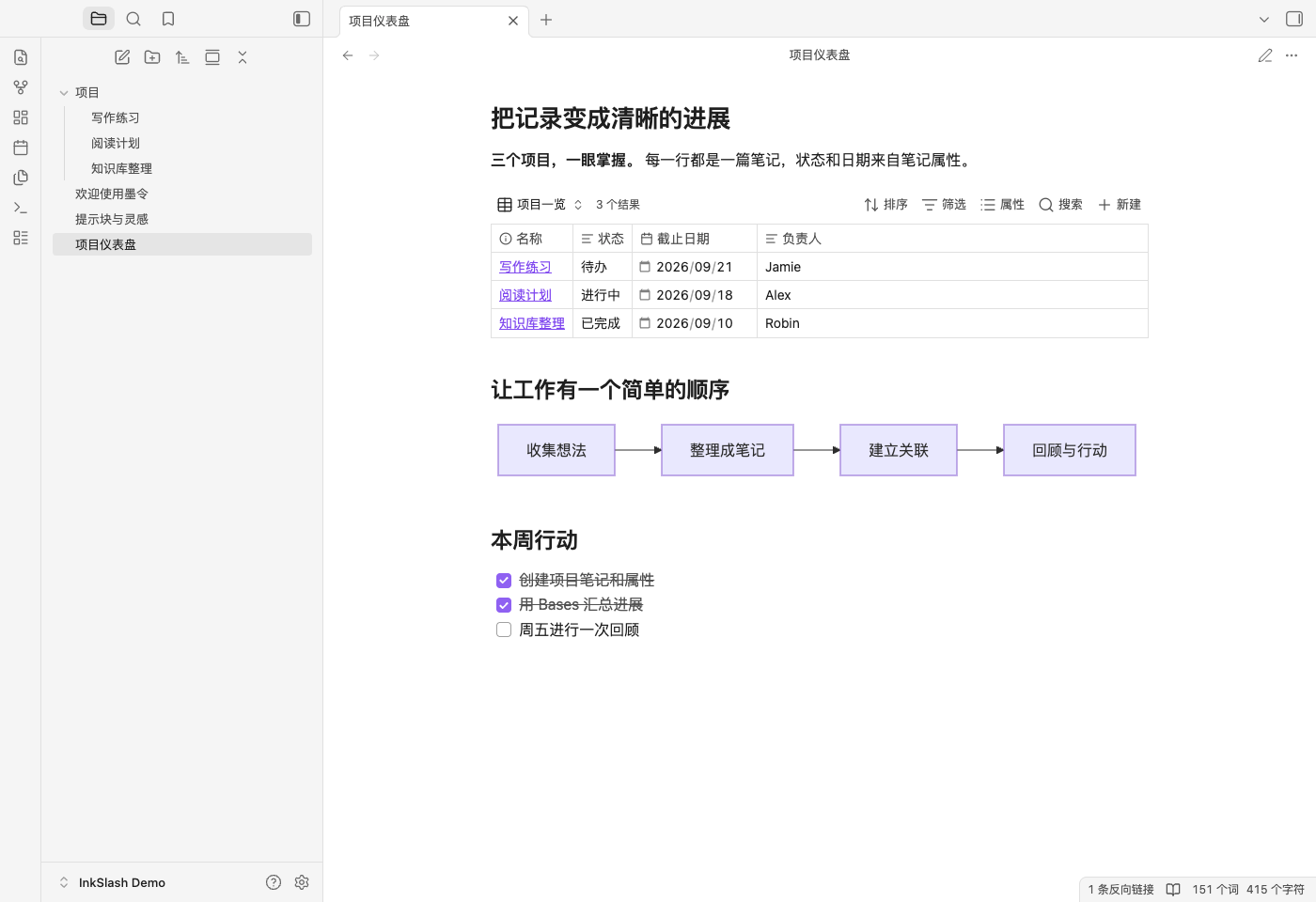
A Bases row represents a file, rather than an arbitrary spreadsheet cell. New views include Markdown notes in the current note's folder and its subfolders; a root-level note includes the whole vault. Edit filters and displayed properties in Bases. Gantt diagrams use independent Mermaid data and do not automatically synchronize with tasks or Bases.
Requirements
Obsidian 1.13.7+. Desktop screenshots and UI checks use macOS and Obsidian 1.13.7. The runtime uses Obsidian and Web APIs and permits mobile installation; physical-device testing is still pending. Media codec support and third-party features vary by platform.
| Feature | Dependency |
|---|---|
| Text, callouts, Markdown tables, Mermaid | No additional community plugin. Obsidian may ask you to allow Mermaid for the vault |
| Bases table, cards, list and embeds | Enable the Bases core plugin |
| Native kanban / colored highlights | Obsidian 1.14.0+; native kanban also needs Bases |
| Kanban on earlier versions | Kanban; creates a linked Markdown board |
| Canvas / templates / daily notes / recording / slides / outline / graph / bookmarks | Enable the corresponding core plugin. Templates also need a configured template folder |
| Hand drawing | Excalidraw |
| Spreadsheets | Workbooks or Sheet Plus, or a configured command ID from an installed plugin |
| Due dates, priorities, recurring tasks and task queries | Tasks |
| Lists, tables, tasks, calendars and note counts | Dataview |
| Property-bound inputs and command buttons | Meta Bind |
| Map view | Maps and Bases. Adding coordinates alone requires neither |
| Advanced template picker | Templater |
| Habit calendars and tracking charts | Tracker |
Missing dependencies and version requirements appear in the menu. InkSlash does not install plugins or upgrade Obsidian. The compact Tasks form uses Tasks Emoji format and its configured global filter; use the full Tasks editor for other formats. Dialogs opened by third-party commands follow that plugin's behavior.
Installation
Open InkSlash in the Community directory, choose Add to Obsidian, then install and enable the plugin. The directory displays the version currently available after review; a newly published GitHub release may still be processing.
For manual installation:
- Download
main.js,manifest.json, andstyles.cssfrom the latest release. - Create
<your-vault>/.obsidian/plugins/inkslash/and put those three files directly inside it. - Reload Obsidian. In Settings → Community plugins, enable community plugins if needed, then enable InkSlash.
Update those three files while keeping data.json to preserve settings and icons. The core Slash commands plugin can stay enabled; compatibility with other community slash menus depends on those plugins. Coming from the local feishu-slash-cn version? Follow the migration guide.
Data and privacy
- InkSlash makes no network requests, collects no telemetry, and requires no account, API key or payment. This release has no AI writing service.
- Content stays in your vault. Language preference, other settings, custom icons, pins and up to twelve recent command IDs are stored in the plugin's local
data.json. Initial history import does not change core-plugin settings. - Note, media and Bases pickers enumerate vault file paths to offer existing files for selection. These lists stay local and are not transmitted.
- The attachment/image picker reads the file you explicitly choose, which may be outside the vault, and copies it into the vault. It does not scan outside folders.
- Remote image URLs and third-party plugins may access the network under Obsidian's or that plugin's settings. Their accounts and terms are separate.
- Templates add missing properties and retain existing values. New typed properties do not overwrite existing properties. Multi-step content forms check for edits to the source note while open.
- Extracting a note creates a separate file and replaces selected text with a link. Undoing the source edit does not delete the created file.
Examples and development
Try examples/demo-vault in a test vault with Bases and InkSlash enabled. All screenshot names and projects are fictional demo data.
npm ci --ignore-scripts
npm run lint
npm test
npm run check:release
Requires Node.js 22.13+ for tooling. main.js is generated from plugin.js, features.js, command-menu.js, callout-icons.js and the locale files in i18n/; no additional runtime packages are bundled. Official Obsidian ESLint rules run in CI and before releases. See development, i18n notes, release instructions and the changelog.
Author and license
Created by jeff niu · GitHub · MIT License
Obsidian and the optional integrations are independent projects; InkSlash is not affiliated with them.
For plugin developers
Search results and similarity scores are powered by semantic analysis of your plugin's README. If your plugin isn't appearing for searches you'd expect, try updating your README to clearly describe your plugin's purpose, features, and use cases.