Awesome Format Bar
approvedby awesomedog
Word-style Markdown formatting toolbar for Obsidian — bold, underline, highlight, color, headings, tables, callouts, emoji picker and 100+ one-click commands. - This plugin has not been manually reviewed by Obsidian staff.
Awesome Format Bar — a Word-style Markdown formatting toolbar for Obsidian
Bold, italic, underline, highlight, font, headings, lists, tables, callouts and emoji — by clicking buttons instead of typing Markdown syntax.
No AI. No network. No telemetry. No accounts.








🌍 English · 简体中文 · 繁體中文 · 日本語 · 한국어 · Deutsch · Français · Español · Русский — the plugin UI matches your Obsidian language.
Awesome Format Bar is a formatting toolbar (ribbon) plugin for Obsidian. It overlays a familiar, Word-like editor toolbar on top of your notes, so everyday formatting is one click away — while your vault stays 100% plain text.
Everything the toolbar writes is standard Markdown, Obsidian-flavoured Markdown, or — where Markdown simply has no syntax (underline, superscript, subscript, text alignment, text color, font family, font size) — a small amount of inline HTML that Obsidian renders natively.
Looking for an Obsidian toolbar plugin, format bar, editor toolbar, rich-text / WYSIWYG-style editing bar, Markdown formatting buttons, emoji picker, table editor, or a Microsoft Word-like ribbon for Obsidian? That's this plugin.
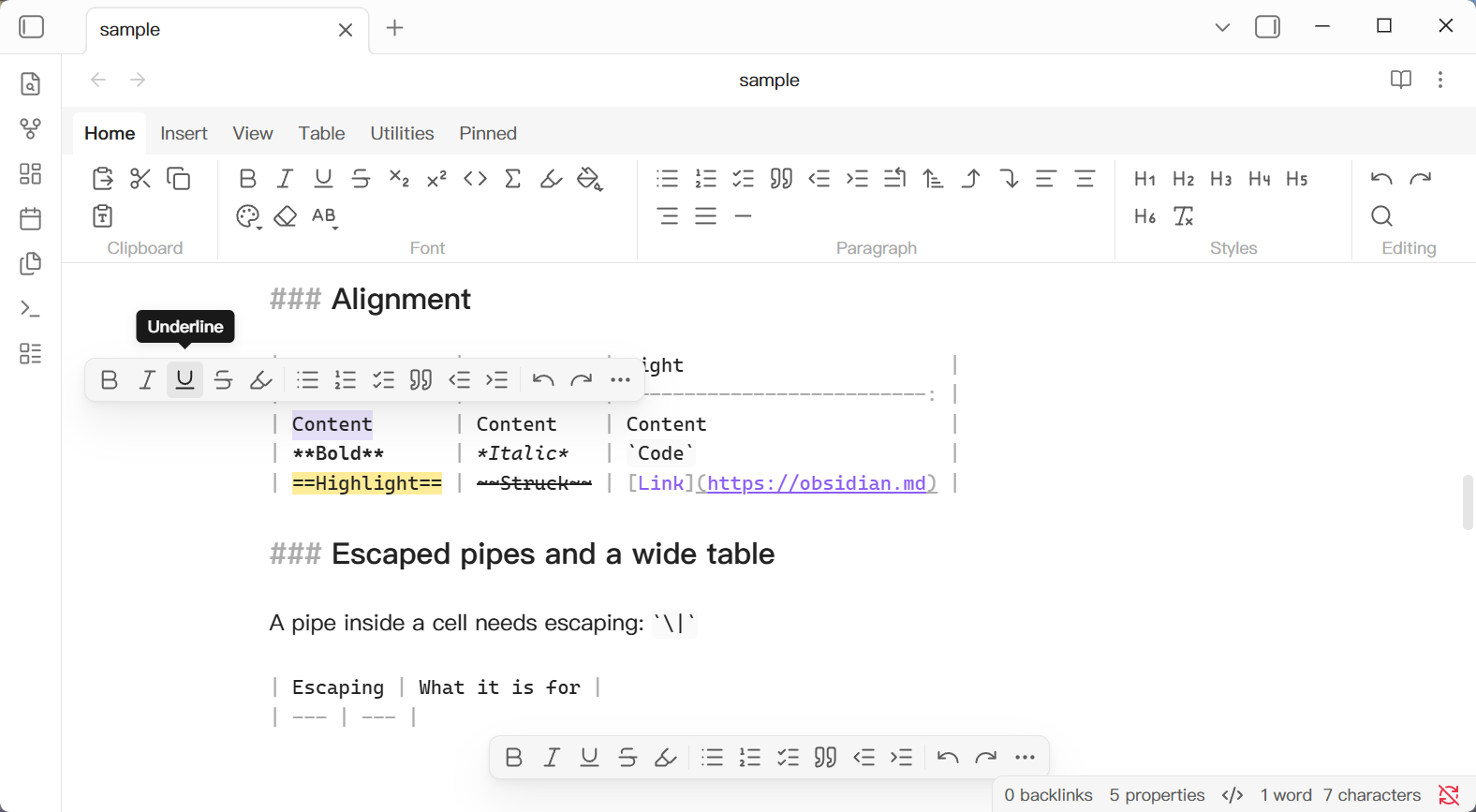
Table of contents
- Why a formatting toolbar in Obsidian?
- At a glance
- Features
- Full command reference
- Installation
- Getting started
- Settings
- Compatibility
- FAQ
- Development
- Release
- Keywords
Why a formatting toolbar in Obsidian?
Obsidian is fast if you already speak Markdown. For everyone else — students, writers coming from Word or Google Docs, teams onboarding new note-takers — the syntax is a wall.
- No syntax to memorise. Select text, click Bold. That's it.
- Word terminology you already know. Home / Insert / View / Table tabs, "Clear Formatting", "Change Case", "Navigation Pane".
- Discover what Obsidian can do. Callouts, block references, embeds, math blocks and tags all get a button — features many users never find in the syntax.
- Do what Markdown can't. Underline, superscript, subscript, paragraph alignment, text/highlight colors and font family/size, written as clean inline HTML.
- Plain text forever. No proprietary format, no database, no lock-in — your notes are still just
.mdfiles. - Offline & private. No network calls, no accounts, no telemetry. The ~2,150-entry emoji library ships inside the plugin.
- Your own launcher, if you want one. The Pinned tab holds any command you pick — core, this plugin's, or another plugin's — so the toolbar bends to you without turning into a settings project.
- Keyboard-friendly too. Switch every toolbar position off and the interface disappears completely — all 130 palette-registered commands stay available and can be bound to your own hotkeys.
At a glance
| Toolbar positions | Top ribbon, floating bar above the selection, fixed bottom bar — combine freely |
| Commands | 143 built-in, 130 available in the command palette for custom hotkeys |
| Tabs | Home · Insert · View · Table · Utilities · Pinned |
| Callouts | All 12 Obsidian callout types in one drop-down |
| Emoji & symbols | ~2,150 emoji, kaomoji and symbols, fully offline |
| Table editing | Insert/delete/move rows & columns, align, sort, remove duplicate rows, transpose, re-format, convert to text, paste as table, copy as CSV |
| Image editing | align, size, caption |
| Custom buttons | Pinned tab — pin any command (core, this plugin's, or another plugin's) with your own icons and groups |
| Setup required | None. Theme-aware, zero configuration |
| Requires | Obsidian 1.13.7+ |
Features
🧭 Three toolbar positions, freely combined
- Ribbon (Top) — the full, tabbed toolbar pinned above the editor. Default.
- Following — a compact bar that floats above your current selection, like the selection toolbar in Word or Google Docs. The Following bar never covers what you are editing.
- Fixed — a compact bar pinned to the bottom of the editor.
Each position is toggled independently, so you can run just the floating bar, just the ribbon, or all three.
🅰️ 143 formatting commands in a familiar layout
Bold, italic, underline, strikethrough, inline code, inline math, highlight (with color), font color, font family, font size, clear formatting, change case, headings 1–6, bullet / numbered / task lists, quotes, indentation, horizontal rules, undo/redo, find & replace, paragraph alignment — grouped exactly where a Word user expects them.
Pictures get their own group on Insert: Image Size ▼ sets a width of 100–600 px — or restores the file's own size — and Caption writes a caption line under the picture and selects it, ready to type over.
💬 Callout picker — all 12 Obsidian callout types
One Callout button opens a drop-down with note, abstract, info, tip, success, question, warning, failure, danger, bug, example and quote. No more looking up > [!tip] syntax.
😀 Offline emoji, kaomoji & symbol picker (~2,150 entries)
A searchable Emoji & Symbols panel with three sources — emoji, kaomoji and typographic symbols — bundled with the plugin. Inserts at the caret or over the selection as a single undo step, keeps a Frequently used group per source, and stays open for inserting several characters in a row.
📊 Markdown table editor
Insert and delete rows/columns, move rows and columns, align columns left/center/right, sort rows A to Z or Z to A, remove duplicate rows, transpose tables, re-format (pretty-print) the current table or every table in the note, and convert a table back to delimited text — plus Paste as Table, which turns tab- or comma-separated clipboard text (straight out of Excel, Numbers or Google Sheets) into an aligned Markdown table, and Copy as ▼ for the way back out — as TSV, CSV, JSON or Markdown.
Put the caret inside a table and the ribbon switches to the Table tab by itself; pick another tab and it stays where you put it. In Source mode, Enter moves to the row below (adding one at the end) and Tab / Shift+Tab walk the cells, adding a column past the right edge.
📌 Pin any command — including other plugins' commands
Pinned is the one part of the toolbar you arrange yourself. It turns the toolbar into your own launcher: pick any command from the command palette (Obsidian core, another community plugin, or this plugin), choose an icon, give it a group, and drag to reorder. If the source plugin is disabled, the button simply greys out — your pin is kept.
The five built-in tabs cover what most people use often. The one or two commands you can't live without usually fall outside that set — so rather than making you rebuild five tabs to reach them, the toolbar gives you a sixth one that is entirely yours, and never overwrites it on update.
👁️ Reading, focus and outlining tools
Live Preview/Source (flip the pane between rendered and raw Markdown), Show Whitespace (dots for spaces, arrows for tabs, orange markers for NBSP / ideographic / EN & EM spaces), Show Line Numbers, Readable Line Length, Navigation Pane (Obsidian's Outline), Zoom In / Out / 100%, Split Right / Down, Collapse / Expand (All), Focus Mode (collapse both sidebars), Zen Mode (true fullscreen) and Typewriter Mode (caret line parked mid-editor, highlighted, with the rest dimmed).
📑 Table of contents in one click
Table of Contents writes your note's outline after the paragraph at the caret: a bold **Table of Contents** title, then one nested - [[#Heading|Heading]] link per heading. Headings inside a code fence or quoted into a callout are ignored. It's a snapshot, not a live field — re-run it after editing and delete the old one.
🧹 Line & list utilities
Merge Lines, Split Lines (at the punctuation the selection uses most), Reverse Lines — none of which cross a blank line or a code fence — and Duplicate (a copy of the caret's line below it, or of the selection right after it — VS Code's Duplicate Selection). Plus Sort List (level by level, children and bodies preserved, ordered items renumbered) and Sort Headings (reorders the outline and carries every section's body along).
Clean Up gathers the tidy-ups people otherwise do by hand into one menu: Remove Trailing Spaces, Collapse Blank Lines, Convert Bare URLs, Normalize Emphasis & Strong and Normalize Bullet Style.
🎨 Zero configuration, theme-aware
The built-in layout is fixed and inherits your active Obsidian theme in light and dark mode, so it looks native on install and keeps looking that way. The one thing you arrange is your Pinned tab.
That is a deliberate trade-off, not a missing feature. A toolbar that lets you rebuild every button also has to ship a drag-and-drop editor, an icon browser, an import/export format and a settings page to hold it all — and that machinery is where toolbar bugs actually come from: buttons that won't reorder, layouts reset by an update, settings panels that hang. A fixed layout has none of it. You get a toolbar that works immediately and keeps working, and the escape hatch for the commands that are genuinely yours is Pinned.
Full command reference
130 of the 143 commands are registered in the command palette, so you can assign your own keyboard shortcuts. (Drop-down containers and the Emoji & Symbols panel are toolbar-only.)
Home
- Clipboard — Paste, Cut, Copy, Paste as Plain Text
- Font — Font Family, Font Size, Bold, Italic, Underline, Strikethrough, Subscript, Superscript, Inline Code, Inline Math, Highlight, Highlight Color, Font Color, Clear Formatting, Change Case
- Paragraph — Bullet / Numbered / Task List, Quote, Decrease / Increase Indent, Renumber List, Sort Lines, Move List Item Up / Down, Swap Line Up / Down, Align Left / Center / Right / Justify, Horizontal Rule
- Styles — Heading 1–6, Remove Heading
- Editing — Undo, Redo, Find and Replace
Insert
- Links — Internal Link, External Link, Embed, Tag, Block Reference
- Blocks — Callout ▼ (Note, Abstract, Info, Tip, Success, Question, Warning, Failure, Danger, Bug, Example, Quote), Code Block, Math Block, Table, Convert Text to Table, Comment
- Picture — Image Size ▼ (100 px, 200 px, 300 px, 400 px, 600 px, Original Size), Caption
- Media & Symbols — Attach File, Emoji & Symbols, Date and Time
- Reference — Table of Contents, Footnote
View
- Views — Live Preview/Source (toggle the pane between Live Preview and raw Markdown)
- Immersive — Focus Mode, Zen Mode, Typewriter Mode
- Show — Show Whitespace, Show Line Numbers, Readable Line Length, Navigation Pane (Obsidian's Outline)
- Zoom — Zoom In, Zoom Out, 100%
- Window — Split Right, Split Down
- Outlining — Collapse, Expand, Collapse All, Expand All
Table
Available whenever the cursor is inside a table:
- Rows & Columns — Delete Rows or Columns ▼ (Delete Rows, Delete Columns), Insert Rows Above / Below, Insert Columns to the Left / Right, Move Row Up / Down, Move Column Left / Right
- Format — Format Tables ▼ (Format Table, Format All Tables)
- Alignment — Align Column Left / Center / Right
- Data — Sort Rows ▼ (Sort Rows A to Z, Sort Rows Z to A), Remove Duplicate Rows, Transpose Table, Convert Table to Text
- Clipboard — Paste as Table, Copy as ▼ (TSV, CSV, JSON, Markdown)
Utilities
- Lines — Merge Lines, Split Lines, Reverse Lines, Duplicate. Merge Lines joins a run of lines into one; Split Lines breaks them at the punctuation the selection uses most; Reverse Lines flips the order of each run; Duplicate copies the caret's line below it, or the selection right after it. None of the four crosses a blank line or a code fence.
- Sort — Sort List, Sort Headings. Sort List sorts a list level by level — an item keeps its own body and its own children, and ordered items come out renumbered. Sort Headings reorders each level of the note's outline and carries every section's body along with it.
- Links — Paste URI as Link, which wraps selected text with the URI currently on the clipboard.
- Normalize — Smart Punctuation, CJK Spacing, Clean Up ▼ (Remove Trailing Spaces, Collapse Blank Lines, Convert Bare URLs, Normalize Emphasis & Strong, Normalize Bullet Style).
Pinned
Your own commands, with your own icons. See Getting started.
Emoji & Symbols panel
| Source | Entries (approx.) | Example groups |
|---|---|---|
| Emoji | ~1,870 | Smileys & People, Animals & Nature, Food & Drink, Objects, Flags |
| Kaomoji | ~70 | Emotion, Animal, Behavior, People, Holiday |
| Symbols | ~200 | Arrows, Math, Typographic, Currency, Enclosed, Dingbats |
All data ships inside the plugin, so the picker works completely offline.
Installation
From Community Plugins (recommended)
Settings → Community plugins → Browse → search for "Awesome Format Bar" → Install → Enable.
Getting started
- Open Settings → Awesome Format Bar and toggle the positions you want: Top, Following, Fixed.
- The Ribbon (Top) has six tabs; the last one, Pinned, holds the commands you pin yourself. While it is empty it shows an add hint; use the edit button to manage commands and groups.
- The compact bars (Following / Fixed) carry a fixed subset of commands; buttons that don't fit the available width collapse into the
⋯overflow menu, which also lists every other command grouped by tab, and your pinned ones. - Open the Pinned edit button to add commands, choose icons, create or rename groups, drag to reorder, move commands, or delete them. Settings keeps a fallback entry for the same manager. Pinned commands behave exactly like their command-palette counterparts.
- Prefer the keyboard? Turn all three position toggles off and the toolbar disappears from the interface entirely — the plugin then adds nothing to your screen, while all 130 palette-registered commands keep working and can be bound to your own hotkeys in Settings → Hotkeys. In other words: you can use it as a pure command/hotkey pack and never click a button.
Settings
| Section | Contents |
|---|---|
| Toolbar | Independent toggles for Top / Following / Fixed |
| Pinned | Open the Pinned manager to add commands, choose icons, manage groups, reorder, and delete |
| Table | Keyboard navigation: Enter moves down a cell, Tab / Shift+Tab move between cells, Tab at the right edge adds a column and Enter on the last row adds a row; pad cell width with spaces; sort on header click in Reading view (never modifies the file) |
Compatibility
- Obsidian 1.13.7+
- Works with the Markdown editor and adapts to your active theme in both light and dark mode.
- No AI, no network access, no accounts, no telemetry — everything runs locally.
- The release is exactly three files:
main.js,manifest.json,styles.css.
FAQ
Does this turn Obsidian into a WYSIWYG or rich-text editor?
No — and that's the point. It's a toolbar on top of Obsidian's own editor. Your files remain plain Markdown.
Do I have to learn Markdown syntax to use Obsidian now?
No. Bold, headings, lists, links, tables, callouts, code blocks and math are all buttons.
What exactly gets written into my notes?
Standard Markdown and Obsidian-flavoured Markdown. Only where Markdown has no syntax — underline, superscript, subscript, paragraph alignment, text and highlight colors, font family and font size — does the plugin emit small, standard inline HTML tags, which Obsidian renders natively.
Can I keep using my keyboard shortcuts?
Yes. 130 of the 143 commands appear in the command palette and can be bound to any hotkey.
I'm a keyboard person — can I hide the toolbar completely?
Yes, and nothing is lost by doing it. Switch off all three positions (Top / Following / Fixed) in Settings → Awesome Format Bar and the plugin leaves zero footprint on the screen: no ribbon, no floating bar, no bottom bar. Every one of the 130 palette-registered commands still runs, from the command palette or from a hotkey you assign in Settings → Hotkeys — including commands Obsidian has no built-in shortcut for, such as font color, highlight color, change case, callouts, table sorting and the line utilities. Think of it as an optional keyboard-only layer you can switch on whenever the mouse starts feeling slow.
Can I add buttons for commands from other plugins?
Yes — that's the Pinned tab. Pin any command from the palette and choose an icon. If the owning plugin is disabled, the button greys out and the pin is preserved.
Does the emoji picker need an internet connection?
No. All ~2,150 emoji, kaomoji and symbols are bundled with the plugin.
Does the plugin use AI, or phone home in any way?
No. There is no AI feature, no API key, no network request, no analytics and no telemetry anywhere in the code — the plugin reads and writes your local .md files and nothing else. The emoji library is bundled, so it works on a plane.
Does sorting a table in Reading view change my file?
No. Reading-view header-click sorting is display-only and never modifies the note.
How do I center a picture, or change its size?
Put the caret on the picture's own line. Align Center (Home · Paragraph) centres it — a picture alone on a line is a paragraph, so no separate command is needed — and Image Size ▼ (Insert · Picture) sets its width to 100–600 px, or Original Size to give the file's own size back. Caption writes a caption line underneath and selects it, ready to type over. Everything is written as plain Obsidian syntax (a |300 segment after the file name), so the note reads the same without the plugin.
Can I hide the toolbar when I want a clean screen?
Yes — toggle any position off in settings, or all three to hide it entirely (see the keyboard question above for what still works).
Is it configurable?
Deliberately minimal — and that's the point. The built-in layout is fixed and theme-aware so it always looks native, never needs re-arranging, and never resets itself on update. Everything you'd actually want to change lives in one place: the Pinned tab, where you add any command, pick its icon, group it and drag it into order. The reasoning is in Features → Zero configuration, theme-aware.
Development
npm install        # install dependencies
npm run build      # typecheck + test + production build
npm run deploy -- /path/to/vault   # copy main.js, manifest.json, styles.css into a vault
The release consists of exactly three files: main.js, manifest.json and styles.css.
Release
npm version patch                    # bump package.json, manifest.json, versions.json; commit and tag
git push origin main --follow-tags   # push the commit and the tag
npm version requires a clean working tree. The tag carries no v prefix — it has to equal the version in manifest.json, or the release workflow rejects it.
Pushing the tag runs .github/workflows/release.yml, which builds the plugin and opens a draft release with main.js, manifest.json and styles.css attached. Publish the draft to make the version available.
Keywords
Obsidian toolbar plugin · Obsidian formatting toolbar · Obsidian format bar · Markdown toolbar · Markdown formatting buttons · Word-like ribbon for Obsidian · rich text toolbar · WYSIWYG-style editing bar · editor toolbar · floating selection toolbar · text color and highlight in Obsidian · underline / superscript / subscript in Markdown · text alignment · callout picker · emoji picker · kaomoji · symbol picker · Markdown table editor · sort table · paste as table · table of contents generator · pin commands · beginner-friendly Obsidian · no-syntax Markdown editing
其他语言 / Other languages:
- Obsidian 工具栏插件、格式栏、富文本工具栏、Markdown 快捷按钮、表情符号选择器、表格编辑
- Obsidian 工具列外掛、格式列
- Obsidian ツールバー・書式設定バー・絵文字ピッカー
- Obsidian 툴바 · 서식 도구 모음
- Obsidian Symbolleiste / Formatierungsleiste
- Barre d'outils / barre de mise en forme pour Obsidian
- Barra de herramientas / barra de formato para Obsidian
- Панель инструментов / панель форматирования для Obsidian
For plugin developers
Search results and similarity scores are powered by semantic analysis of your plugin's README. If your plugin isn't appearing for searches you'd expect, try updating your README to clearly describe your plugin's purpose, features, and use cases.