by virkiin
Handwrite and annotate PDF pages with pressure, layers and a boolean eraser. Your PDF is never modified.
Inkstone PDF
English | 中文
Handwrite, sketch and annotate directly on PDF pages inside Obsidian — with pressure, layers, undo/redo, and annotations stored separately so your PDF is never modified.
Inkstone PDF (id
inkstone-pdf) · desktop only · Obsidian 1.8.0+
⚠️ Early preview
0.1.3is an early preview, not a finished product. The code is written by DSH (DeepSeek Harness). I test it, use it and pass the problems back. Expect rough edges.If something crashes, draws wrong, or simply does not do what you expect, email
1315675831@qq.comwith what you did and what happened instead. No template needed; a screenshot helps.Back up
附件/Ink 标注/before you keep anything important in it.

Why another PDF annotator?
Most PDF readers only highlight; handwriting lives on a tablet; and then you export screenshots and retype your notes. Inkstone PDF closes that seam: the PDF view inside Obsidian becomes a page you can write on, and the ink lives in your vault next to your notes.
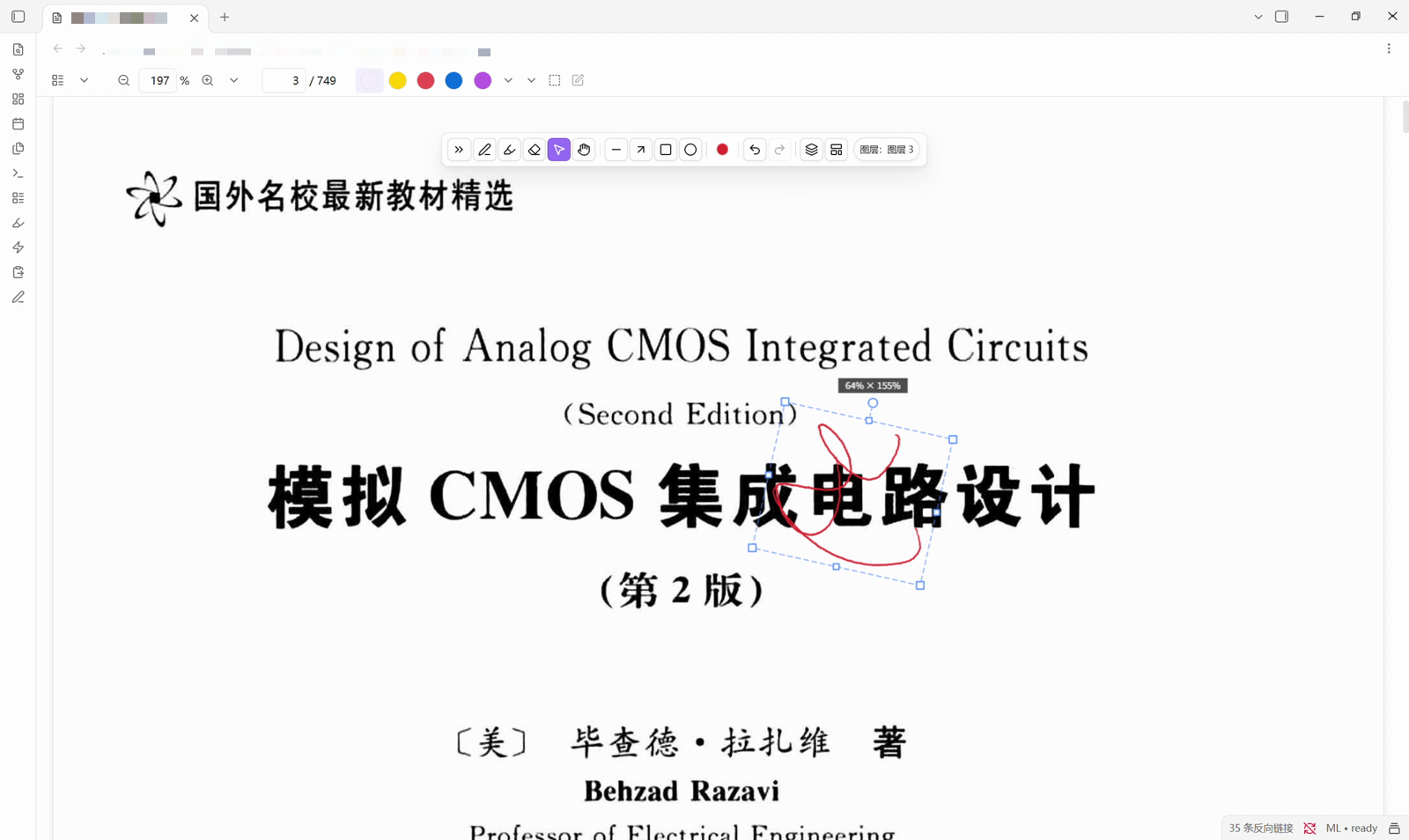
- Pen down, ink down. No mode switch. Pressure is per point.
- Boolean eraser. Erasing carves ink away instead of painting over it, so erased parts never come back when you move the stroke.
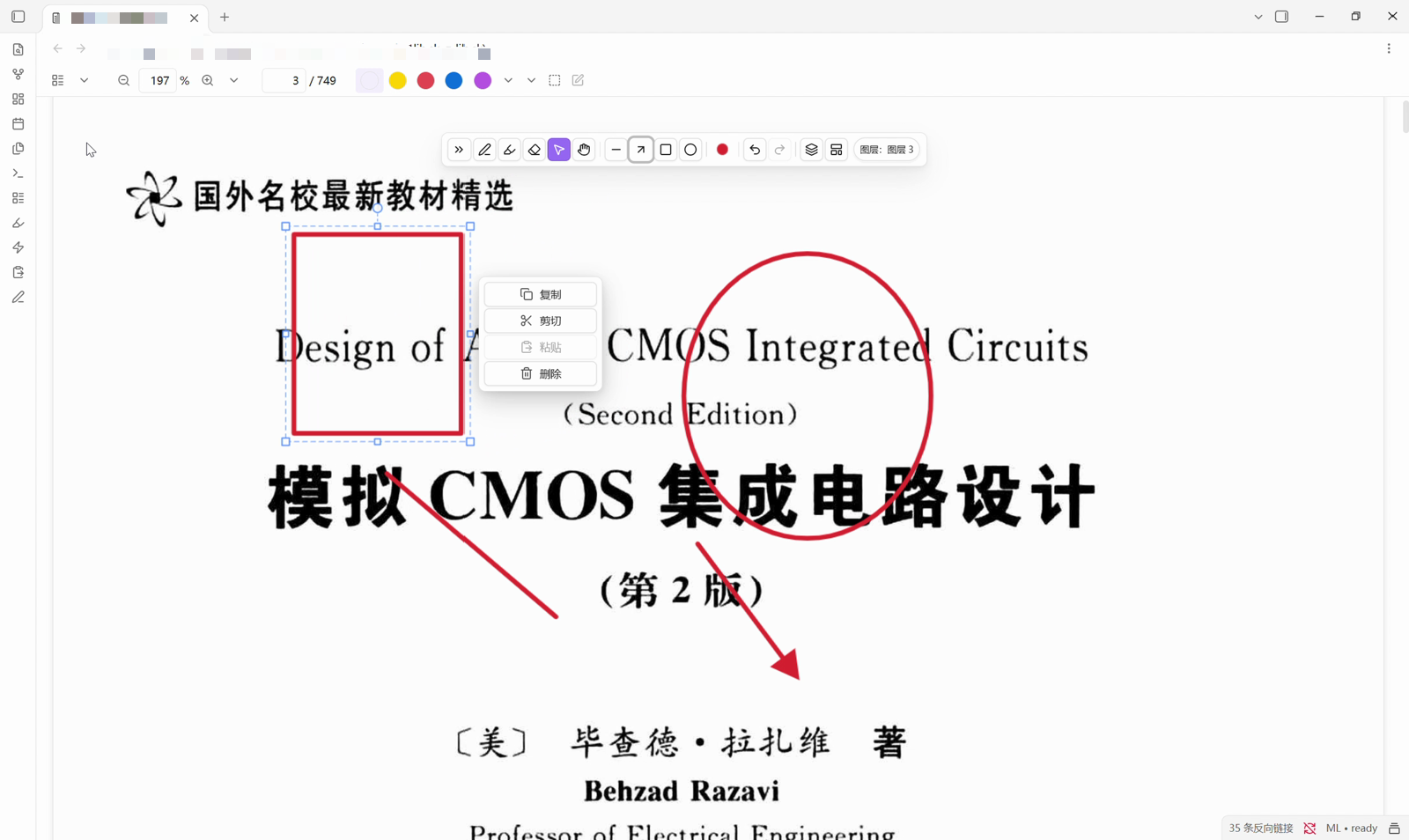
- Real selection. Free X/Y scaling, single-axis handles, rotation with 15° snapping, arrow-key nudging, copy / cut / paste.
- Document layers. Annotate on one layer, answers on another, hide one to test yourself.
- Shapes you can still fix. A recognised line or arrow keeps draggable ends, selections can be mirrored, and the interface switches between Chinese and English.
- Screenless tablet support. Hold a key for a temporary eraser, hold Shift and drag to resize the brush, rebindable keyboard shortcuts for every tool.
- Your PDF stays untouched. Strokes are stored in a sidecar JSON inside your vault, so they sync with it and undo still works.
Install
Preview build: back up
附件/Ink 标注/before you annotate anything you care about.
From the community directory
Settings → Community plugins → Browse → search Inkstone PDF → Install → Enable.
Manually
- Download
main.js,manifest.jsonandstyles.cssfrom the latest release. - Put them in
<your vault>/.obsidian/plugins/inkstone-pdf/. - Restart Obsidian (or press
Ctrl/Cmd+R), then enable Inkstone PDF in Settings → Community plugins.
Usage (the short version)
| Action | How |
|---|---|
| Write | Pick the pen and write on any PDF page |
| Tools | P pen · H highlighter · E eraser · S select · L line · A arrow · R rect · O ellipse · G pan |
| Brush panel | Double-click (or right-click / long-press) a brush button |
| Temporary eraser | Hold F, release to get the previous pen back |
| Resize the brush | Hold Shift and drag the pen on the page: left/right = size, up/down = opacity |
| Select ink | Select tool, drag a box; then drag, scale, rotate, or nudge with arrow keys |
| Text selection | Select tool + Alt (gives the page back to the PDF text layer) |
| Undo / redo | Ctrl/Cmd+Z · Ctrl/Cmd+Shift+Z |
Every shortcut above is rebindable in Settings → Inkstone PDF → Key map.
Privacy & permissions
- No network requests. The plugin never phones home and has no telemetry.
- Vault access goes through the Obsidian API: it reads the PDF you opened and reads/writes its
annotation file (
附件/Ink 标注/<path>.json). - System clipboard: write-only, once. The
Show performance summarycommand copies the summary text to the clipboard so you can paste it into a bug report. The plugin never reads the clipboard.
Feedback
A preview build lives or dies on bug reports, so they are the most useful thing you can send.
- Email:
1315675831@qq.com - Please include: your Obsidian version, the plugin version (Settings → Community plugins), what you did, and what happened instead.
- Useful extras: whether the PDF is a scan, how many pages it has, and whether it reproduces.
- Number to attach: command palette →
导出诊断信息(export diagnostics) writesdebug.jsonnext to the plugin. It holds performance counters, the plugin list and the paths of open files — skim it before you attach it.
Data
- Annotations:
<vault>/附件/Ink 标注/<path of the PDF>.json(folder configurable). - The PDF itself is never written to.
- Legacy eraser masks from very old builds are deleted on load (one
.bakis written first); the ink those masks covered becomes visible again.
Known limitations
- Desktop only; not tested on mobile.
- Rotated rectangles/ellipses are baked into polygons (visually identical, no longer a "shape").
- Mirroring is off while the selection contains a line, an arrow or a polygon (a flipped arrow would swap its head, a polygon would reverse its vertex order).
- Annotations of a PDF live in the vault that contains that PDF.
- The annotation file only ever gains fields, so old data stays readable — but behaviour can still change between preview builds.
What is still being built
Roughly the order it will be worked on. None of it is a promise; any item can move, shrink or disappear.
In progress
- More rebindable actions. Eraser region/mode, brush presets 1–3, brush size ±, layer up/down, page next/previous. The key-map structure already exists; the actions are not wired up yet.
- Brush panel finish. Reorder presets, restore defaults, and keep the panel in step when the tool changes.
Planned, shape not fixed
- Selection on big pages. Dragging a selection repaints the whole page every frame; on a viewport-sized page that can drop frames.
- Annotation file size. A 749-page book with ~500 strokes comes to about 650 KB. Per-page files and stronger point quantisation are the candidates.
- Wanted but undecided. A highlighter that sits over existing ink, ink that works as an internal link between pages, stickers and pasted images.
Not planned
- Page-level layers, a zoom-in writing mode, a separate brush box, writing real PDF annotations back into the file, rich text.
Development
npm install
npm run build          # tsc --noEmit + esbuild
npm test               # node --import tsx --test tests/*.test.ts
If the environment forbids spawning child processes (some sandboxes), bundle each test with esbuild
and run it with plain node; see docs/handoff-*.md for the exact commands used in this project.
src/                 TypeScript sources
tests/               unit tests + jsdom end-to-end
scripts/deploy.mjs   copy the build into <vault>/.obsidian/plugins/inkstone-pdf
main.js styles.css   build output (committed so any tag is installable)
License
MIT — see LICENSE. Bundled dependencies and their notices: THIRD_PARTY_NOTICES.md.
中文说明
在 Obsidian 里直接手写批注 PDF:压感、图层、布尔裁剪橡皮、撤销/重做;笔迹存在库内的独立文件里,原 PDF 一个字节都不改。
插件名 Inkstone PDF(id
inkstone-pdf),仅桌面端,Obsidian 1.8.0+。
⚠️ 先行测试版
0.1.3是先行测试版,不是成品。 代码由 DSH(DeepSeek Harness)开发,测试、实测和问题反馈由我来做,小毛病在所难免。崩溃、笔迹画错、操作不符合预期——发邮件到
1315675831@qq.com,写清"做了什么 / 出现了什么现象"就行,不需要任何模板,有截图更好。重要批注请先备份
附件/Ink 标注/。
解决什么问题
PDF 阅读器只能高亮,手写要去 iPad,写完还得导出、截图、手动誊回笔记——批注和笔记永远是两套东西。Inkstone PDF 把 Obsidian 的 PDF 视图变成一张可以直接写的纸,笔迹和你的笔记待在同一个库里。
- 落笔即写,压感逐点生效,不需要先切"绘制模式";
- 布尔裁剪橡皮:擦过的地方是真的被挖掉,移动笔迹也不会重新冒出来;
- 有向选区:四角自由缩放、边中点单轴缩放、圆点旋转(15° 吸附)、方向键微移、复制/剪切/粘贴;
- 文档级图层:批注写一层、答案写一层,隐藏一层就能自己考自己;
- 画完还能改:直线、箭头两端可拖,选中可镜像,界面中英双语;
- 数位板适配:按住键临时橡皮、Shift 贴页面拖动改粗细、所有工具键位可重绑;
- 原 PDF 不动:笔迹存在库内的侧车 JSON,跟随库同步,可撤销。
安装
先行测试版:正式拿来记东西之前,先备份
附件/Ink 标注/。
社区目录:设置 → 第三方插件 → 浏览 → 搜索 Inkstone PDF → 安装 → 启用。
手动:下载最新 Release 里的 main.js、manifest.json、styles.css,放到 <你的库>/.obsidian/plugins/inkstone-pdf/,重启 Obsidian(或 Ctrl/Cmd+R),再到 设置 → 第三方插件 启用。
用法速查
| 操作 | 方式 |
|---|---|
| 书写 | 选钢笔,直接在 PDF 页面上写 |
| 工具 | P 钢笔 · H 荧光笔 · E 橡皮 · S 选择 · L 直线 · A 箭头 · R 矩形 · O 椭圆 · G 拖拽页面 |
| 笔刷面板 | 双击(或右键/长按)笔刷按钮 |
| 临时橡皮 | 按住 F,松手回到原来那支笔 |
| 调笔刷 | 按住 Shift,让笔贴着页面移动:左右改粗细、上下改不透明度 |
| 选中笔迹 | 选择工具拖框;之后拖动、缩放、旋转、方向键微移 |
| 文本选择 | 选择工具 + Alt(把页面交还给 PDF 文本层) |
| 撤销/重做 | Ctrl/Cmd+Z · Ctrl/Cmd+Shift+Z |
以上键位都能在 设置 → Inkstone PDF → 键位映射 里改。
隐私与权限
- 不联网:没有任何网络请求,也没有遥测。
- 库内读写:通过 Obsidian API 读取你打开的 PDF,读写它的批注文件(
附件/Ink 标注/<路径>.json)。 - 系统剪贴板:只写不读,且只在一个地方写——「显示性能摘要」命令会把摘要文本复制到剪贴板,方便你贴进反馈里。插件从不读取剪贴板内容。
反馈
先行测试版最缺的就是问题报告,所以那是你能给出的最有用的东西。
- 邮箱:
1315675831@qq.com - 请写上:Obsidian 版本、插件版本(设置 → 第三方插件)、你做了什么、实际发生了什么。
- 加分信息:PDF 是不是扫描件、多少页、能不能稳定复现。
- 想带上数据:命令面板 →「导出诊断信息」会在插件目录生成
debug.json,里面是性能计数、插件列表和打开文件的路径,发之前自己扫一眼。
数据
- 批注:
<库>/附件/Ink 标注/<PDF 路径>.json(文件夹可改)。 - 不写入原 PDF。
- 更早版本的橡皮蒙版会在加载时被删除(先写一份
.bak),被它们盖住的墨迹会重新显示。
已知限制
- 仅桌面端,未在移动端测试。
- 旋转过的矩形/椭圆会被烘焙成多边形(外观一致,但不再是"形状")。
- 选区里只要有直线、箭头或多边形,镜像按钮就不可用(箭头翻面等于换头,多边形会反顶点顺序)。
- 同一个 PDF 的批注只存在于该 PDF 所在的那个库里。
- 批注文件只会增量加字段,旧数据始终可读——但测试版之间的行为仍可能变化。
后续在做什么
大致按动手顺序排,都不是承诺,任何一项都可能提前、推迟或砍掉。
正在做
- 更多可重绑动作:橡皮区域/方式、笔刷预设 1–3、笔宽 ±、图层上/下、翻页。键位表结构已就绪,动作还没接上。
- 笔刷面板收尾:预设排序、恢复默认预设、切工具时面板跟着换。
计划中,形态未定
- 大页面上的选区变换:拖动选区时每帧整页重绘,页面大时会掉帧。
- 批注文件体积:749 页的书、约 500 笔就到 650KB 左右;候选方案是按页拆分 + 更强的点量化。
- 想加但没定:能盖住已有墨迹的荧光笔、笔迹当页内链接跳转、贴纸与图片插入。
明确不做
页面级图层、放大书写模式、独立笔盒、写回 PDF 注释、富文本。
许可
MIT,见 LICENSE;打包的第三方代码与声明见 THIRD_PARTY_NOTICES.md。
For plugin developers
Search results and similarity scores are powered by semantic analysis of your plugin's README. If your plugin isn't appearing for searches you'd expect, try updating your README to clearly describe your plugin's purpose, features, and use cases.