Full Document View for iOS TTS
approvedby tigger developer
Lets iOS/macOS Accessibility Reader see the whole document for on-device Text-to-Speech (TTS) - This plugin has not been manually reviewed by Obsidian staff.
Full Document View for iOS TTS
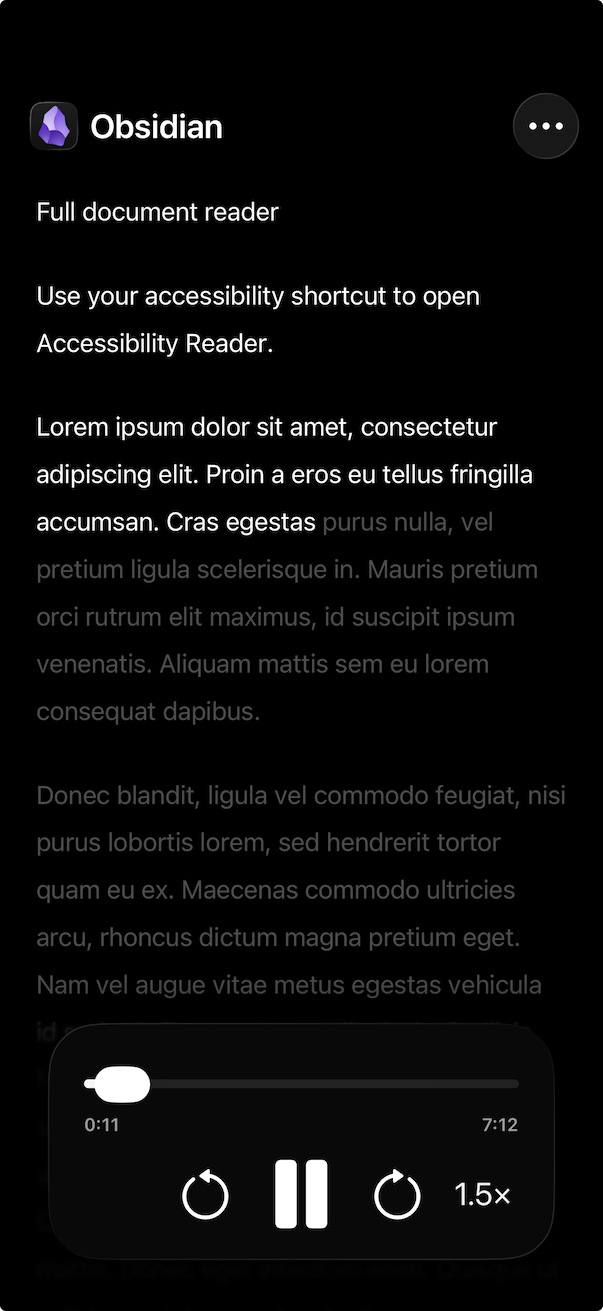
The purpose of this plugin is to unlock native Apple Text-to-Speech (TTS) on Obsidian notes. Normally the Accessibility Reader in iOS only sees a portion of the note, as Obsidian's preview is optimized to load only the visible portion of the note give or take some caching. This plugin presents a special preview mode that Accessibility Reader can use to read the entire document
If you are using an iOS device and are using a TTS plugin with an API key, you are spending money for something your device is already capable of doing for free. Modern iOS/macOS TTS has improved substantially and is on a quality par with the best TTS API services. However, accessing it is not straightforward.
By enabling a shortcut to the Accessibility Reader (instructions), you can activate TTS on your notes on-device, even if you have no wifi or data connection. The one remaining limitation is that Accessibility Reader only sees a portion of the document - per Obsidian's preview optimization. This plugin enables a full-document preview for use with the Accessibility Reader.
Instructions for how to use it and how to invoke it are in the help text and the setup and usage guide.
No speech service account or API key is needed.
Requires Obsidian 1.13+ and iOS 26+ or macOS 26+.
How to use
Install and enable Full Document View for iOS TTS from its Obsidian Community listing. Then set up Apple's Accessibility Reader once for each device.
Set up iPhone (iOS)
Open Settings > Accessibility > Read & Speak.
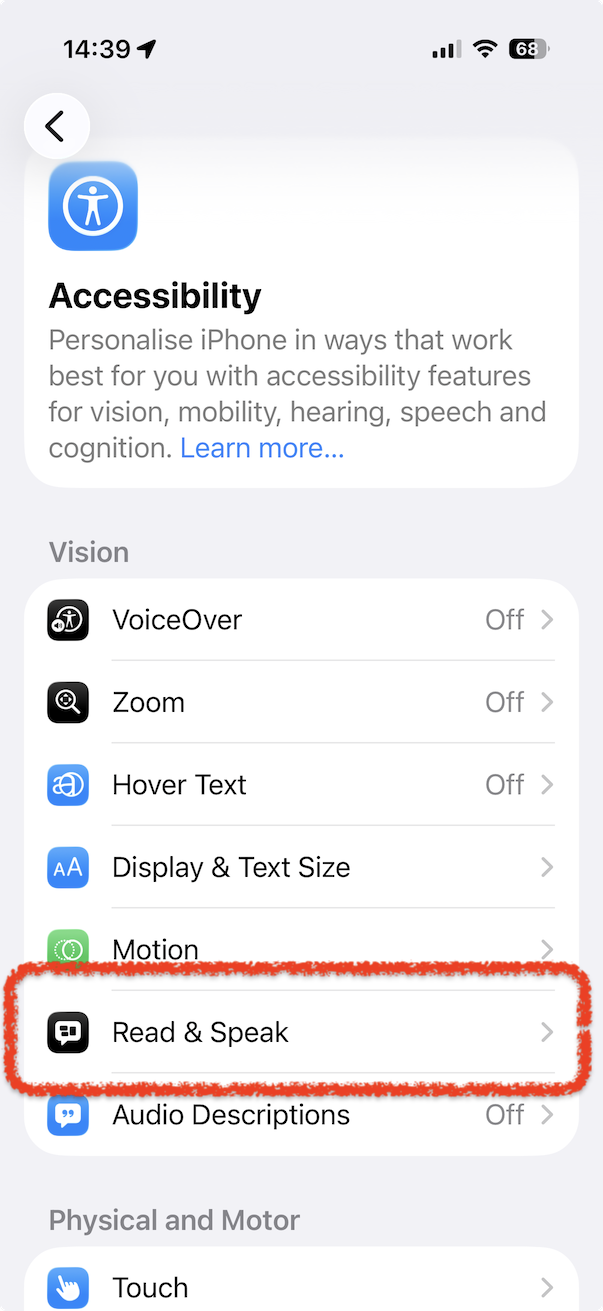
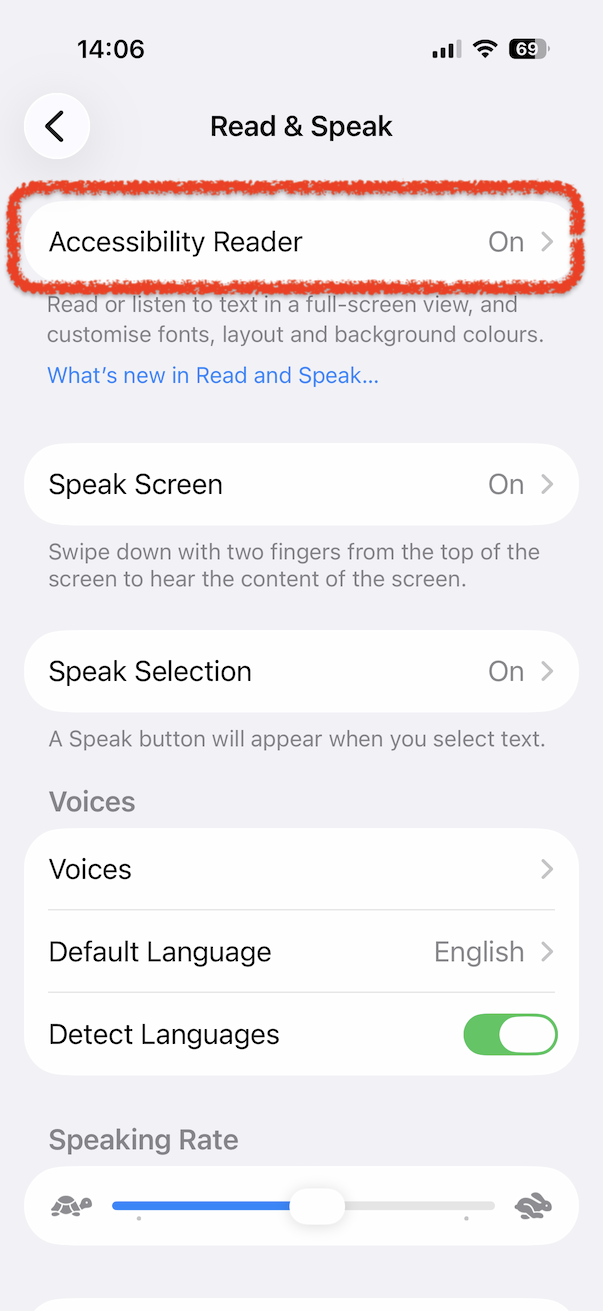
Open Accessibility Reader and turn it on.
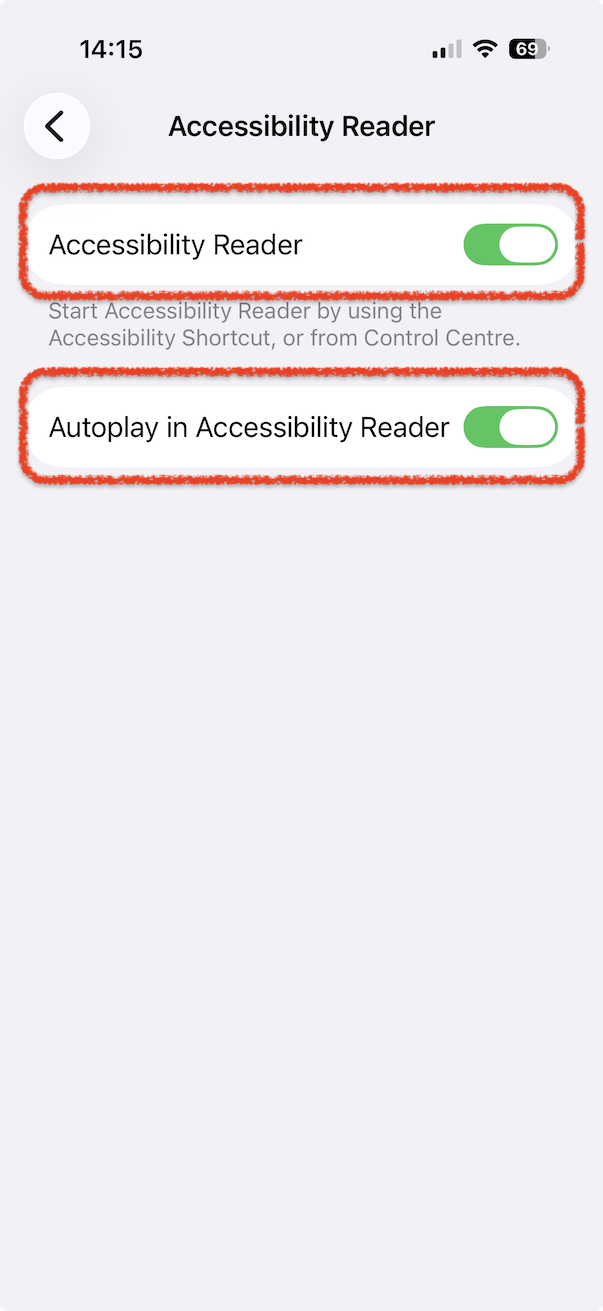
Turn on Autoplay in Accessibility Reader if you want speech to start when Accessibility Reader opens.
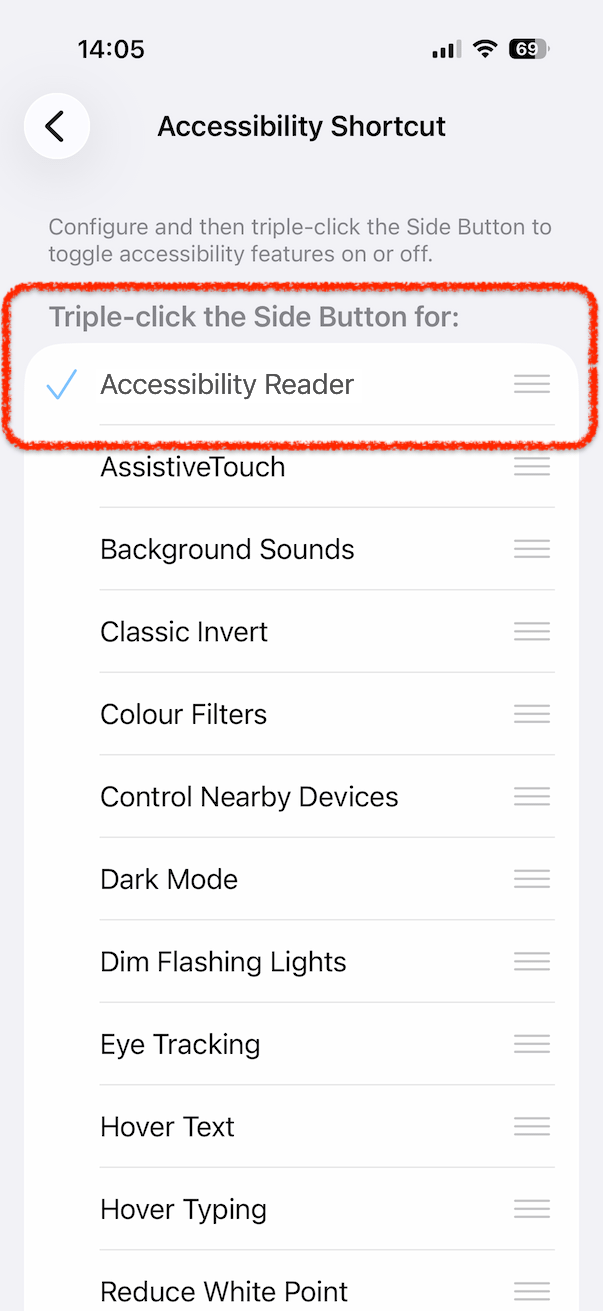
Return to Settings > Accessibility and check Accessibility Shortcut.
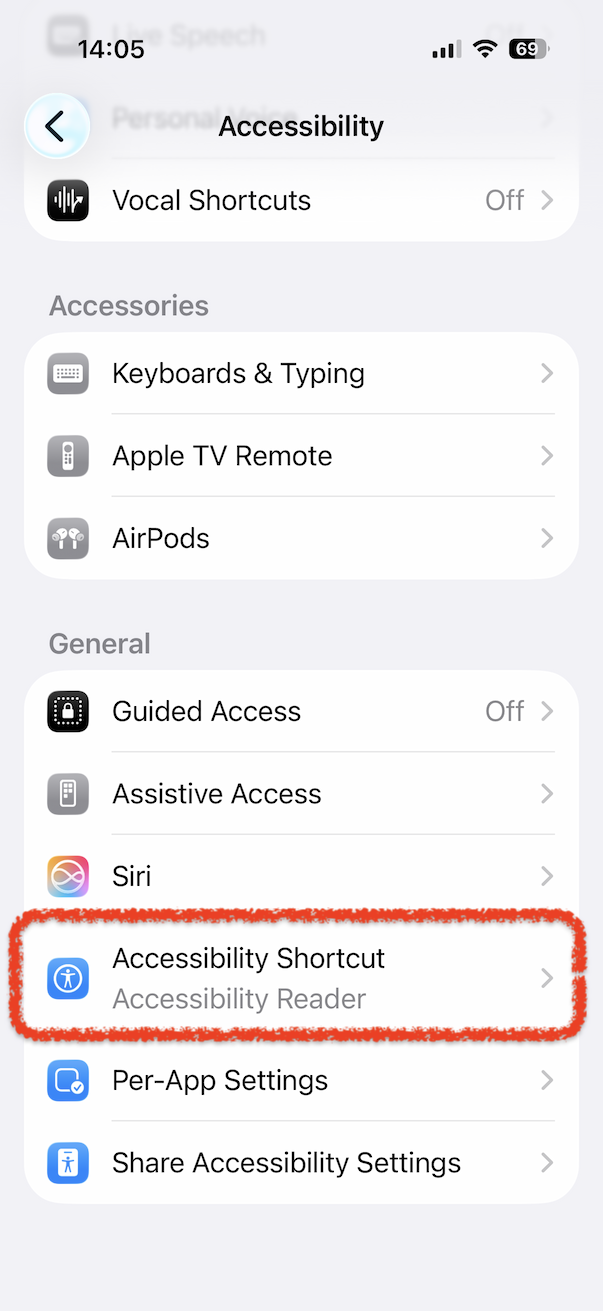
Check that Accessibility Reader is selected. The default shortcut is a triple-click of the lock button.
Set up Mac (macOS)
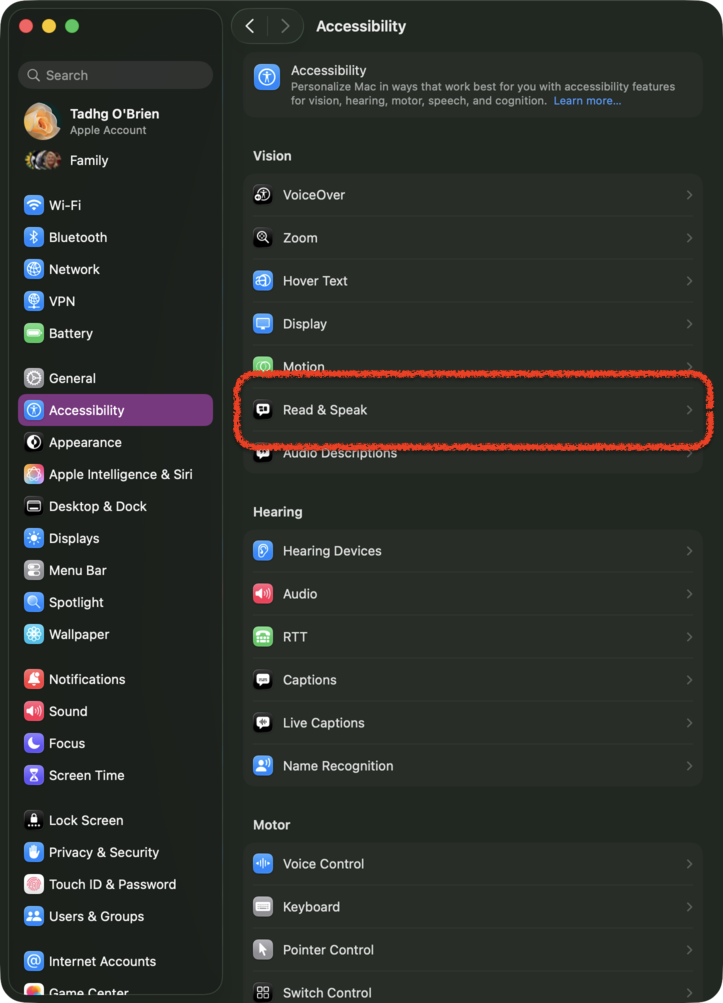
Open System Settings > Accessibility > Read & Speak.
Turn on Accessibility Reader.
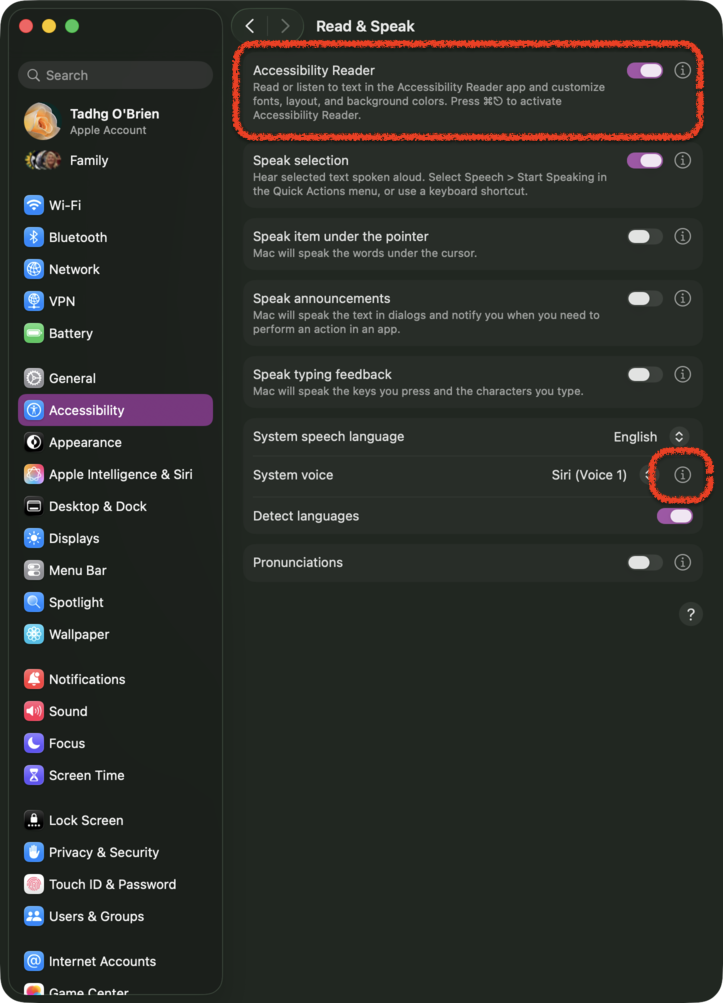
Important: for high-quality TTS, click the info button (i) beside System voice and select a Siri voice. The default selector alone does not expose the Siri voices; the info button opens the voice selection options. The standard voice has much lower fidelity. Download the Siri voice if prompted before using it offline.
The default Accessibility Reader shortcut is Command-Escape.
Listen to a note
Open a note in Obsidian. The plugin's icon appears beside the normal edit/preview buttons in the document pane.
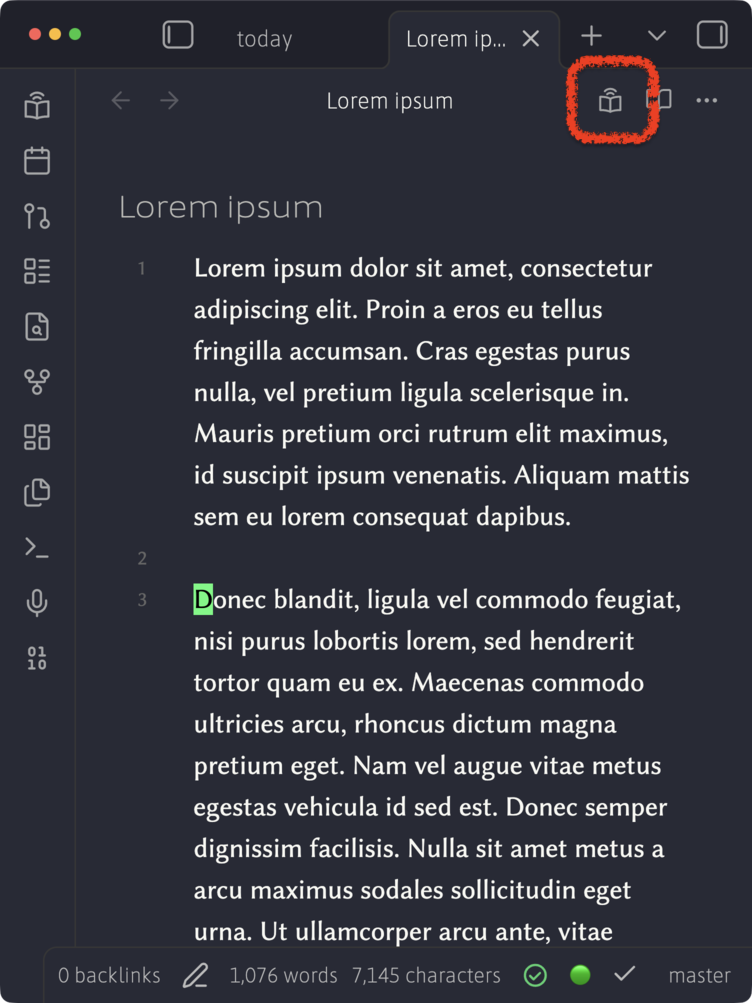
Click this icon:

This opens the full-document preview. You can also use Preview for Accessibility View (TTS on iOS/macOS) in Obsidian's command palette. On Mac, you can assign a hotkey to this command in Obsidian Settings > Hotkeys to open the preview from the keyboard.
Invoke Apple's Accessibility Reader. The defaults are triple-click the lock button on iPhone and Command-Escape on Mac.
Speech starts automatically if Autoplay is enabled. Otherwise, press Play. Accessibility Reader's controls manage the voice and playback.
Apple's iPhone instructions · Apple's Mac instructions · Choosing a Mac voice
The default limit is 100,000 words, adjustable in plugin settings.
Shortcut setup and further help · Manual installation · Development · Releases and provenance
Licensed under Apache License 2.0.
For plugin developers
Search results and similarity scores are powered by semantic analysis of your plugin's README. If your plugin isn't appearing for searches you'd expect, try updating your README to clearly describe your plugin's purpose, features, and use cases.