Local TTS - Read Your Notes
unlistedby applefavorite
High-quality offline text-to-speech for your notes. No API key needed. Powered by Kokoro-82M neural TTS running locally via WebAssembly.
🌐 English | 中文 | Deutsch | 日本語 | Español | Français | 한국어 | Português
Local TTS — Read Your Notes Aloud
High-quality offline neural text-to-speech for Obsidian. No API key, no internet (after first run), no subscriptions.
Features
- 🔇 100% offline — runs entirely on your machine after the first model download
- 🧠 Neural quality — powered by Kokoro-82M, a state-of-the-art 82M-parameter TTS model
- 📝 Smart Markdown parsing — skips code blocks, frontmatter, URLs, tags, math blocks, comments
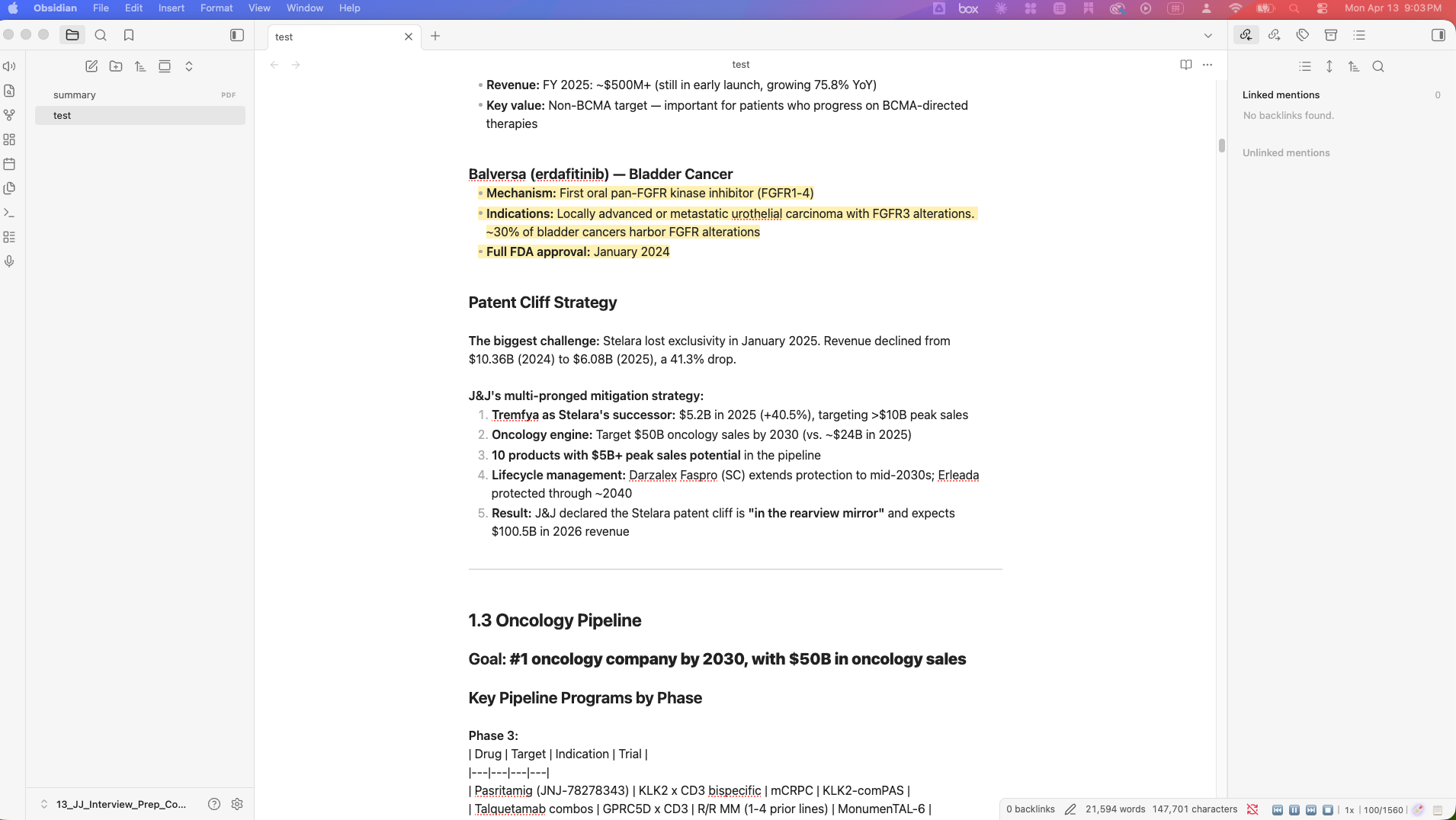
- ✨ Sentence highlighting — editor highlights the sentence currently being read
- 📍 Auto-scroll — editor scrolls to keep the current sentence in view
- 🔖 Bookmark & resume — automatically saves your position when you pause or stop; resume anytime
- ⚡ Streaming playback — audio starts immediately while the next sentences are pre-generated
- 🎛️ Playback controls — play/pause, skip sentence, variable speed (0.5×–2.0×)
- 🗣️ 7 voices — American & British, male & female
- 🖥️ Desktop only — macOS, Windows, Linux (requires Electron / Node.js)
Screenshots
Reading with sentence highlighting
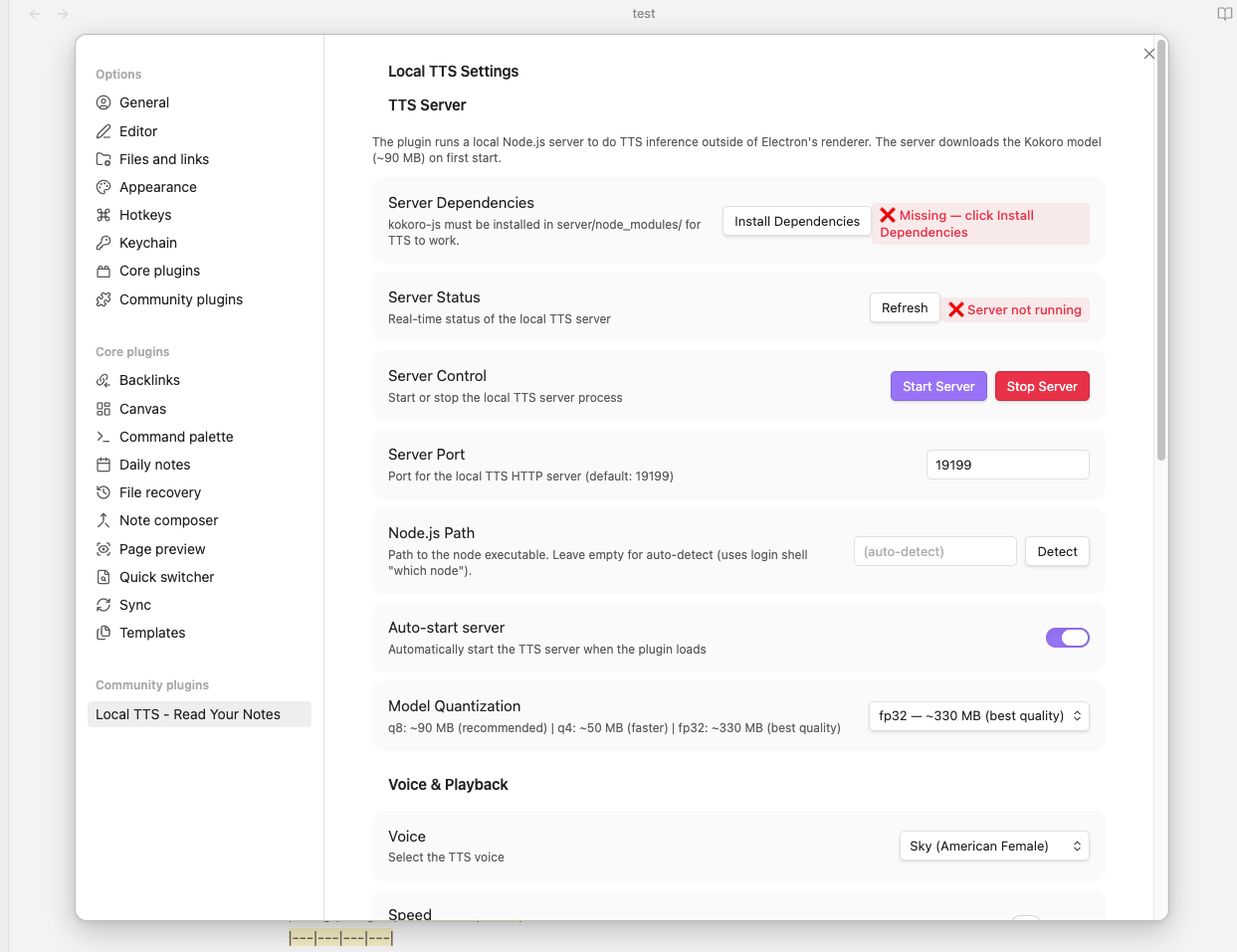
Settings
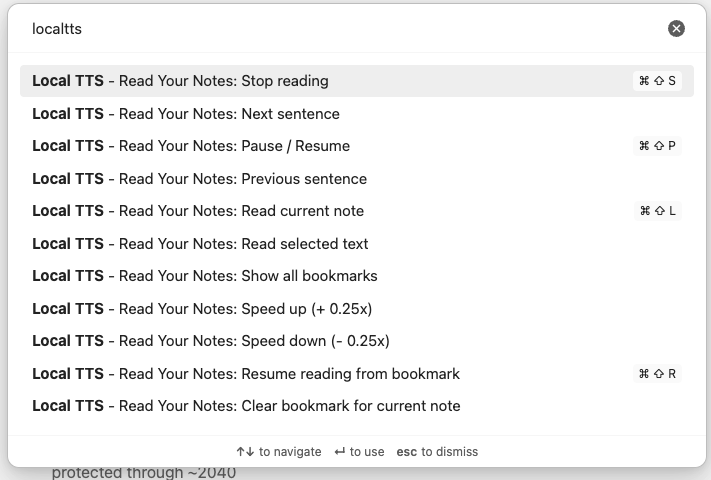
Commands
Playback controls

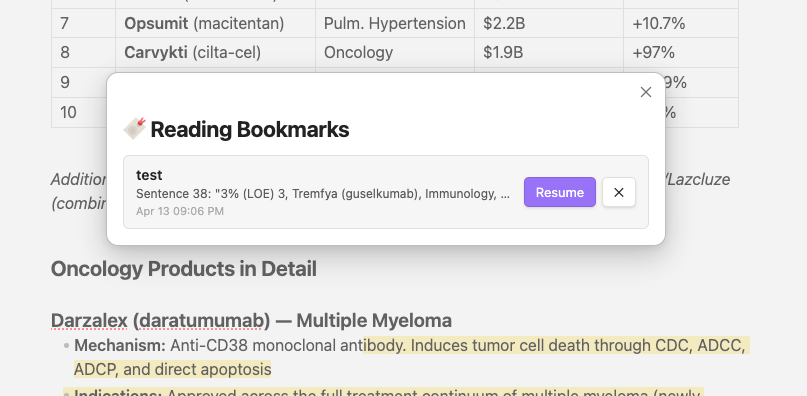
Bookmarks
Requirements
- Obsidian Desktop (not supported on mobile)
- Node.js ≥ 18 installed on your system
- macOS / Linux: install via nvm or Homebrew
- Windows: download from nodejs.org
- ~90 MB disk space for the default model
- Internet access only for the first model download (cached locally after that)
Installation
Method 1: BRAT (Recommended)
- Install the BRAT plugin from Obsidian Community Plugins
- Open Settings → BRAT → Add Beta Plugin
- Enter
applefavorite/obsidian-local-tts - Enable the plugin in Community Plugins settings
- BRAT will handle updates automatically
Method 2: Manual Installation
- Download
main.js,styles.css,manifest.json, and theserver/folder from the latest release. - Copy everything to
<vault>/.obsidian/plugins/obsidian-local-tts/. - Enable Local TTS in Settings → Community Plugins.
The plugin will automatically install its server dependencies (kokoro-js) on first load.
Method 3: Community Plugins (Coming Soon)
Search "Local TTS" in Settings → Community Plugins (pending review).
First-run checklist
- Open Settings → Local TTS.
- Confirm Server Dependencies shows ✅. If not, click Install Dependencies.
- The TTS server starts automatically (look for ✅ Running in Server Status).
- On first start the Kokoro model (~90 MB) downloads from HuggingFace — this takes 1–3 minutes depending on your connection.
- Once the status shows model ready, open any note and press
Cmd/Ctrl + Shift + L.
Usage
- Click the 🔊 speaker icon in the left sidebar, or press
Cmd/Ctrl + Shift + L. - Choose where to start: beginning, cursor position, or last bookmark.
- Control playback from the status bar at the bottom of the window.
| Action | How |
|---|---|
| Read current note | Cmd/Ctrl + Shift + L or click 🔊 in the ribbon |
| Read selected text | Select text → right-click → Read selection aloud |
| Pause / Resume | Cmd/Ctrl + Shift + P or click ⏸ in the status bar |
| Stop | Cmd/Ctrl + Shift + S or click ⏹ in the status bar |
| Resume from bookmark | Cmd/Ctrl + Shift + R or click "🔖 Resume" in the status bar |
Keyboard Shortcuts
| Command | Default Hotkey |
|---|---|
| Read current note | Cmd/Ctrl + Shift + L |
| Pause / Resume | Cmd/Ctrl + Shift + P |
| Stop reading | Cmd/Ctrl + Shift + S |
| Resume from bookmark | Cmd/Ctrl + Shift + R |
| Next sentence | — (assignable in Hotkeys) |
| Previous sentence | — |
| Speed up (+0.25×) | — |
| Speed down (−0.25×) | — |
| Show all bookmarks | — |
| Clear bookmark for current note | — |
Reading Start Options
When you press Cmd/Ctrl + Shift + L, a picker appears with:
- From beginning — start at sentence 1
- From cursor — start at whichever sentence the cursor is in
- From bookmark (if one exists) — resume from where you last stopped
Bookmark System
- A bookmark is automatically saved whenever you pause or stop reading.
- The bookmark stores the sentence index and a preview snippet.
- The 🔖 Resume pill in the status bar appears when you are not playing and the active note has a bookmark.
- Click 🔖 in the playback bar to jump to the bookmark while reading.
- Right-click 🔖 to clear the bookmark.
- Click 📋 to see all bookmarks across your vault.
Voices
| Voice | Description |
|---|---|
| af_sky (default) | American Female — Sky |
| af_bella | American Female — Bella |
| af_nicole | American Female — Nicole |
| am_adam | American Male — Adam |
| am_michael | American Male — Michael |
| bf_emma | British Female — Emma |
| bm_george | British Male — George |
Settings Reference
TTS Server
| Setting | Default | Notes |
|---|---|---|
| Server Dependencies | — | Shows install status; button to install |
| Server Status | — | Live poll; shows model loading progress |
| Auto-start server | On | Starts server when plugin loads |
| Server Port | 19199 | Change if port conflicts |
| Node.js Path | auto-detect | Override if auto-detect fails |
| Model Quantization | q8 (~90 MB) | q4 = faster/smaller; fp32 = best quality |
Voice & Playback
| Setting | Default |
|---|---|
| Voice | af_sky |
| Speed | 1.0× |
| Auto-scroll | On |
| Highlight current sentence | On |
| Highlight color | yellow 30% |
Content Filtering (all on by default)
Skip code blocks · Skip frontmatter · Skip comments · Skip footnotes · Skip URLs · Skip hashtags · Skip math blocks
Known Limitations
- Desktop only — ONNX Runtime requires Node.js native binaries not available in Obsidian mobile.
- Node.js required — the inference server runs as a separate Node.js process.
- First-run internet — the Kokoro model is downloaded from HuggingFace on first use only.
- macOS Gatekeeper — if Node.js was installed via nvm, the plugin auto-detects it via login shell; set the path manually in settings if detection fails.
- Source view only — sentence highlighting works in the Markdown source editor, not in Reading View.
FAQ
The status bar shows nothing. The playback bar only appears while reading. The 🔖 Resume pill appears when the active note has a bookmark.
Server keeps showing "not running". Go to Settings → Local TTS → Start Server. Check the Node.js Path setting — click Detect to auto-find your Node.js installation.
"Could not find node" error.
Install Node.js (≥ 18), then open settings and click Detect next to Node.js Path, or paste the path manually (e.g. /Users/you/.nvm/versions/node/v20.20.2/bin/node).
Model download is slow / fails. The ~90 MB model is downloaded from HuggingFace. If it times out, restart the server — it will resume automatically.
Audio sounds choppy. Lower the number of concurrent pre-generations in Settings → Advanced (default 3). Or try a faster quantization (q4).
Highlight is stuck on the first sentence. Make sure you are in the source editor (not Reading View). If the problem persists, try disabling and re-enabling the plugin.
Like offline TTS? Check out PaperVoice on the App Store — AI-powered PDF reader for academic papers.
Support
If you find this plugin useful, consider buying me a coffee ☕

License
MIT © 2025 applefavorite
For plugin developers
Search results and similarity scores are powered by semantic analysis of your plugin's README. If your plugin isn't appearing for searches you'd expect, try updating your README to clearly describe your plugin's purpose, features, and use cases.