Kanbase
approvedby Lucio Paiva
Organize notes into Kanban boards using Bases and frontmatter properties. - This plugin has not been manually reviewed by Obsidian staff.
Kanbase
Kanbase is yet another Kanban board view for Obsidian Bases. It lets you organize your notes into visual columns based on any property in their frontmatter, providing a seamless drag-and-drop experience for managing tasks and structured data.
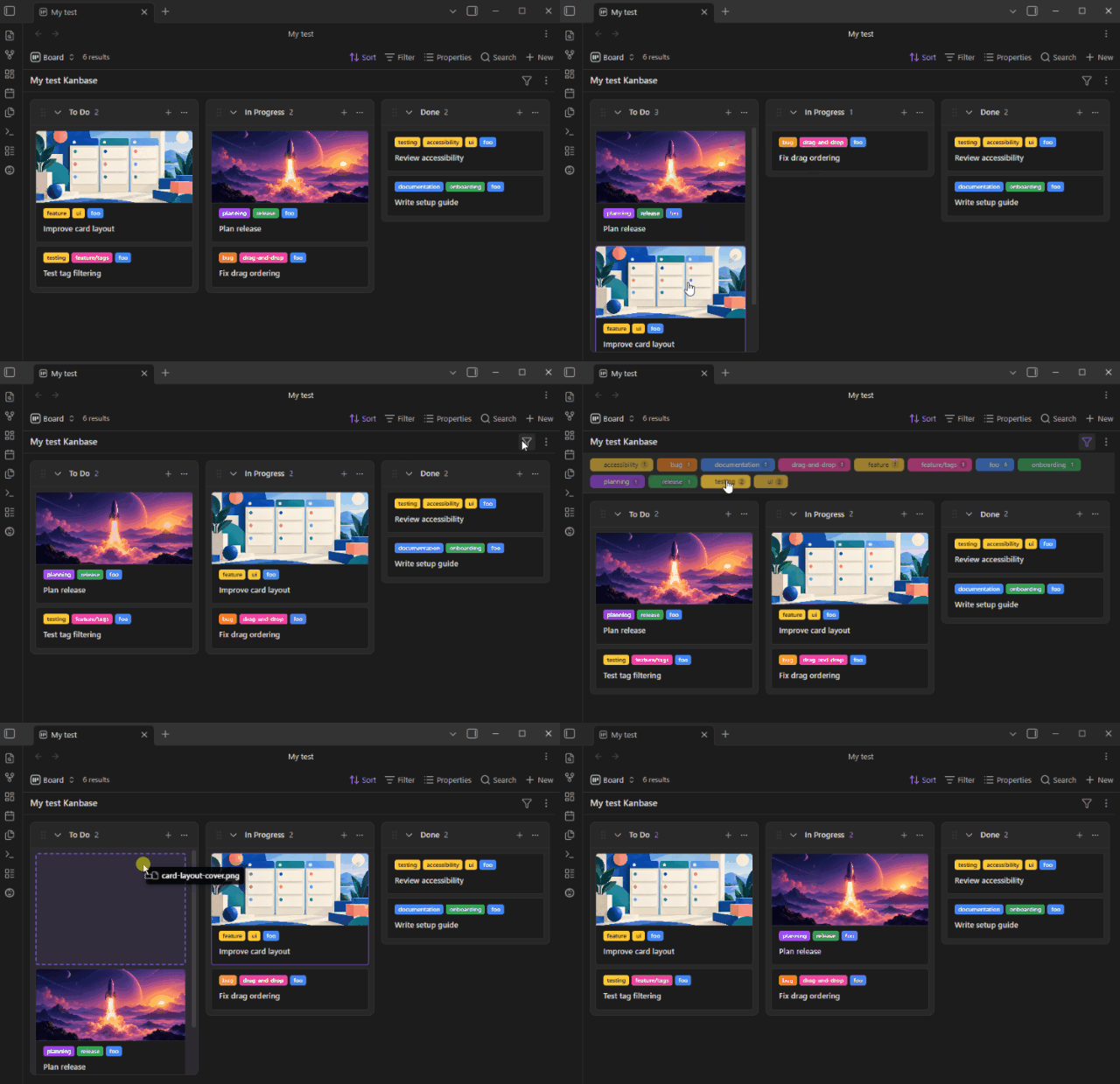
Key Features
- Property-Based Columns: Group notes into columns using any frontmatter property.
- Drag, Drop & Bulk Move: Reorder cards, move them between columns, or select and move multiple cards together.
- Column Management: Add, rename, reorder, color, collapse, and remove columns directly from the board, with optional work-in-progress limits.
- Rich, Customizable Cards: Display selected properties, cover images, configurable titles, adjustable title size, and tags above or below the title.
- Advanced Tag Filtering: See per-tag card counts and filter directly with clicks on desktop, or cycle between included, excluded, and inactive states on touch. The filter bar can be hidden per board.
- Base-Aware Tag Display: Optionally hide tags already required by the underlying Base filters.
- Flexible Card Opening: Open notes in the active pane, a new tab, a split, or a floating editing modal.
- Optional Hover Previews: Enable native Obsidian previews for cards using the Page preview core plugin.
- Inline Editing: Rename cards and columns and edit card tags without leaving the board.
- Quick Card Creation: Create notes in a column using the configured folder, template, default properties, and top or bottom placement.
- Markdown-Native Data: Card moves and edits update ordinary Markdown files and frontmatter; Kanbase does not maintain a separate task database.
Usage
Open the Command palette (Ctrl/Cmd + P) and run "Kanbase: Create new board". Enter a name, choose a folder, and the plugin will scaffold everything for you — a .base file, a tasks folder, and sample task notes. The board opens automatically.
Card Navigation & Selection
By default, card interaction respects native Obsidian conventions:
- Click: Open the card's note in the active tab / pane.
- Ctrl/Cmd + Click: Open the note in a new tab.
- Ctrl/Cmd + Alt + Click (or Cmd + Option + Click on macOS): Open the note to the side in a split pane.
- Alt / Option + Click: Toggle selection of a card (for bulk actions or dragging).
- Shift + Click: Select a range of cards.
You can customize the default click behavior (e.g. to always open in a floating modal, split pane, or new tab) via the board toolbar under the view options menu.
Tag Filtering
On desktop, click an inactive tag to include it and click an active tag to clear it. Shift-click includes the tag in the exclusion filter instead, or clears it when it is already excluded. On touch devices, tap a tag repeatedly to cycle through included, excluded, and inactive states.
Card Ordering
Kanbase uses manual drag order so cards remain exactly where you place them. This order is stored in each note's kanban_order property and overrides the native Bases Sort by setting.
Default Card Properties (newItemProperties)
You can set board-specific default frontmatter properties for new cards created from "+ Add card" using newItemProperties in your .base file:
views:
  - type: kanbase
    name: Frontend Board
    newItemFolder: Tasks
    newItemTemplate: Templates/task.md
    newItemProperties:
      team: frontend
      category: alpha
This ensures new cards automatically receive required frontmatter fields, keeping them visible on filtered boards.
Installation
From Obsidian Community Plugins
Search for Kanbase in the Obsidian Community Plugins browser and click Install, or view the plugin directly in the Obsidian Community Plugins directory.
Using BRAT
Kanbase can also be installed manually through BRAT:
- Install and enable BRAT from Obsidian's Community Plugins browser.
- Open Settings → BRAT → Add Beta Plugin.
- Enter
luciopaiva/obsidian-kanbaseand select Add Plugin. - Enable Kanbase under Settings → Community plugins.
Development
See the development guide for setup, validation, and E2E test instructions.
Attribution
Kanbase is derived from Base Board, originally created by Michael DeRazon. It has since diverged considerably from Michael's version, enough to justify creating a separate plugin.
License
This plugin is licensed under the MIT License.
For plugin developers
Search results and similarity scores are powered by semantic analysis of your plugin's README. If your plugin isn't appearing for searches you'd expect, try updating your README to clearly describe your plugin's purpose, features, and use cases.