Kanux
approvedby Jason Quesada Gomez
Trello-style task boards with cards, labels, dates, and highly customizable Markdown-formatted checklists. - This plugin has not been manually reviewed by Obsidian staff.
Kanux


Kanux is a focused kanban and table view for Obsidian. Every card stays a real Markdown note in your vault, so your tasks remain searchable, linkable, portable, and editable outside the board.
Use it locally with as many boards as you need, or pair it with Sync Deck for cross-device sync, shared vaults, member assignment, and live presence.
Screenshots
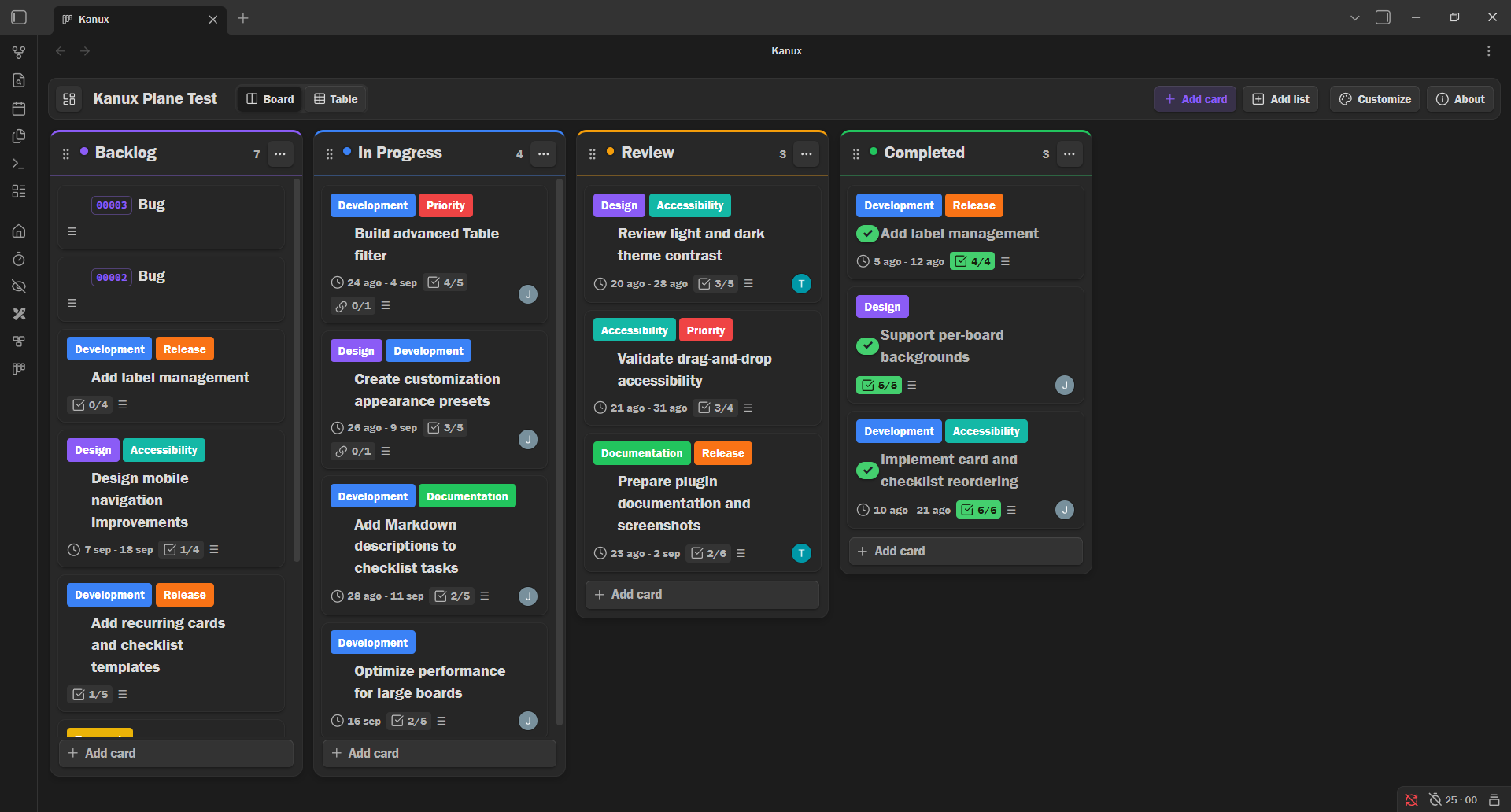
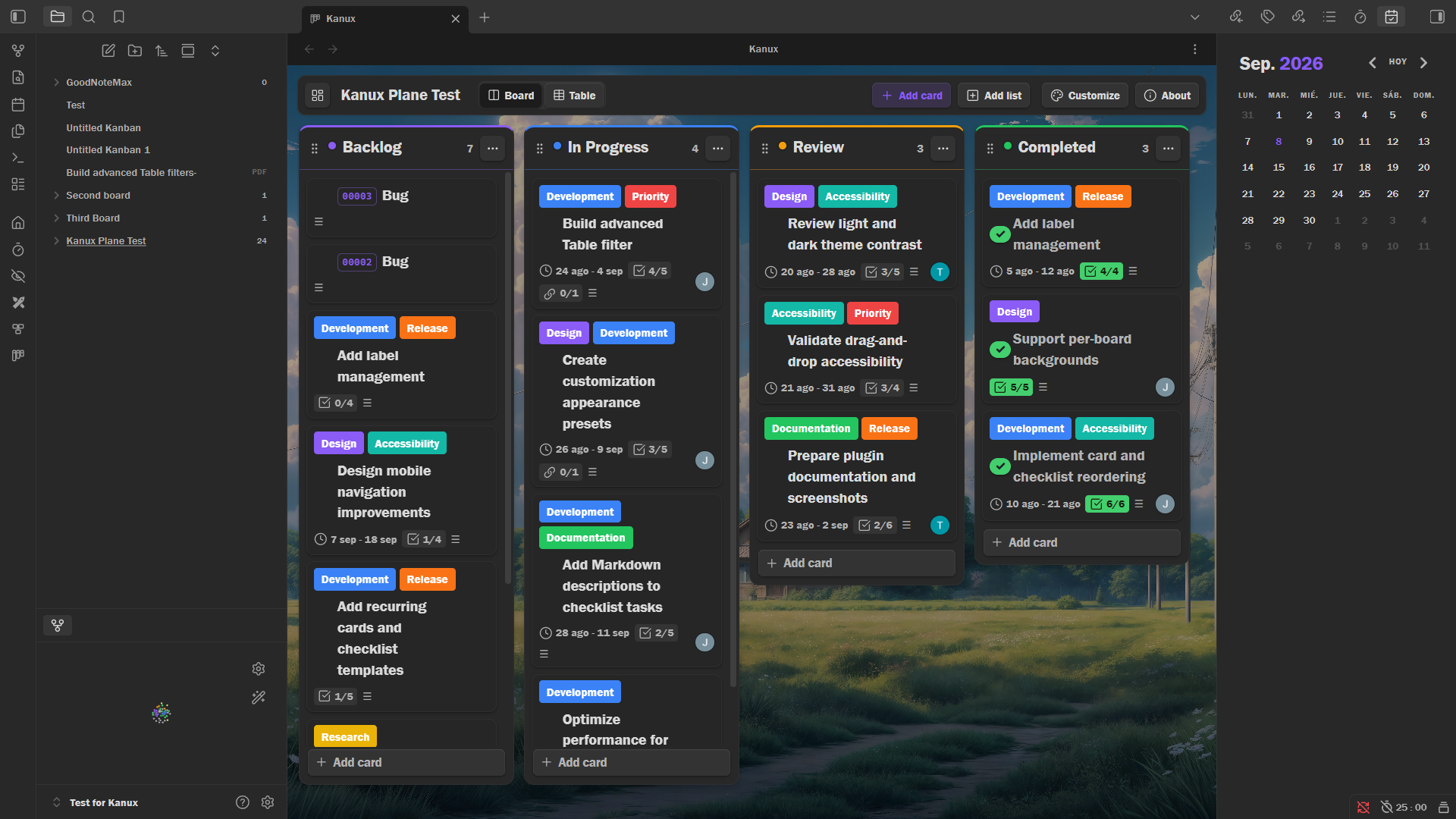
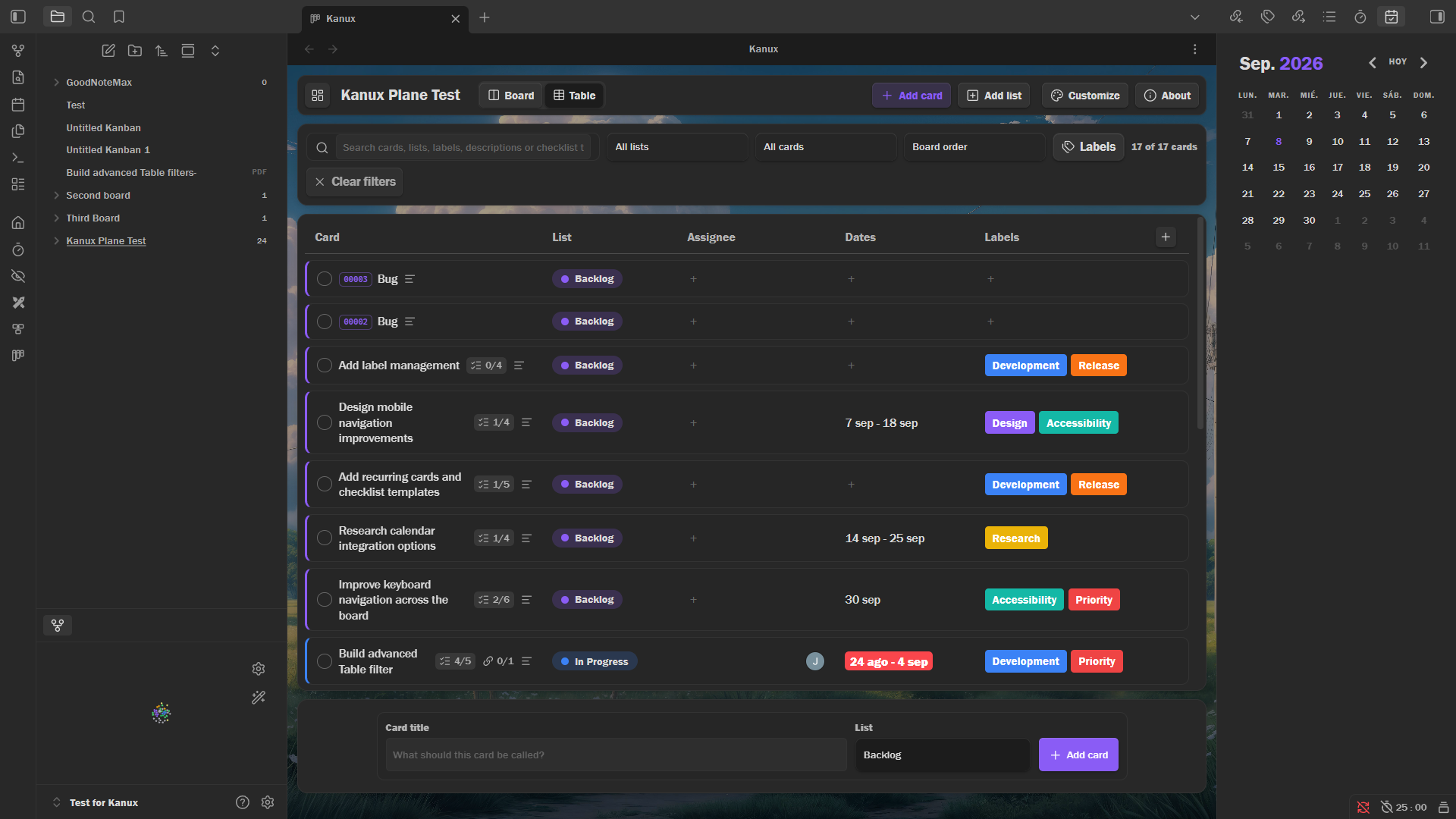
Board and Table views
Organize Markdown-backed cards visually on the Board, then switch to Table for searching, filtering, sorting, and editing the same data in a structured overview.
Cards and Markdown workflow
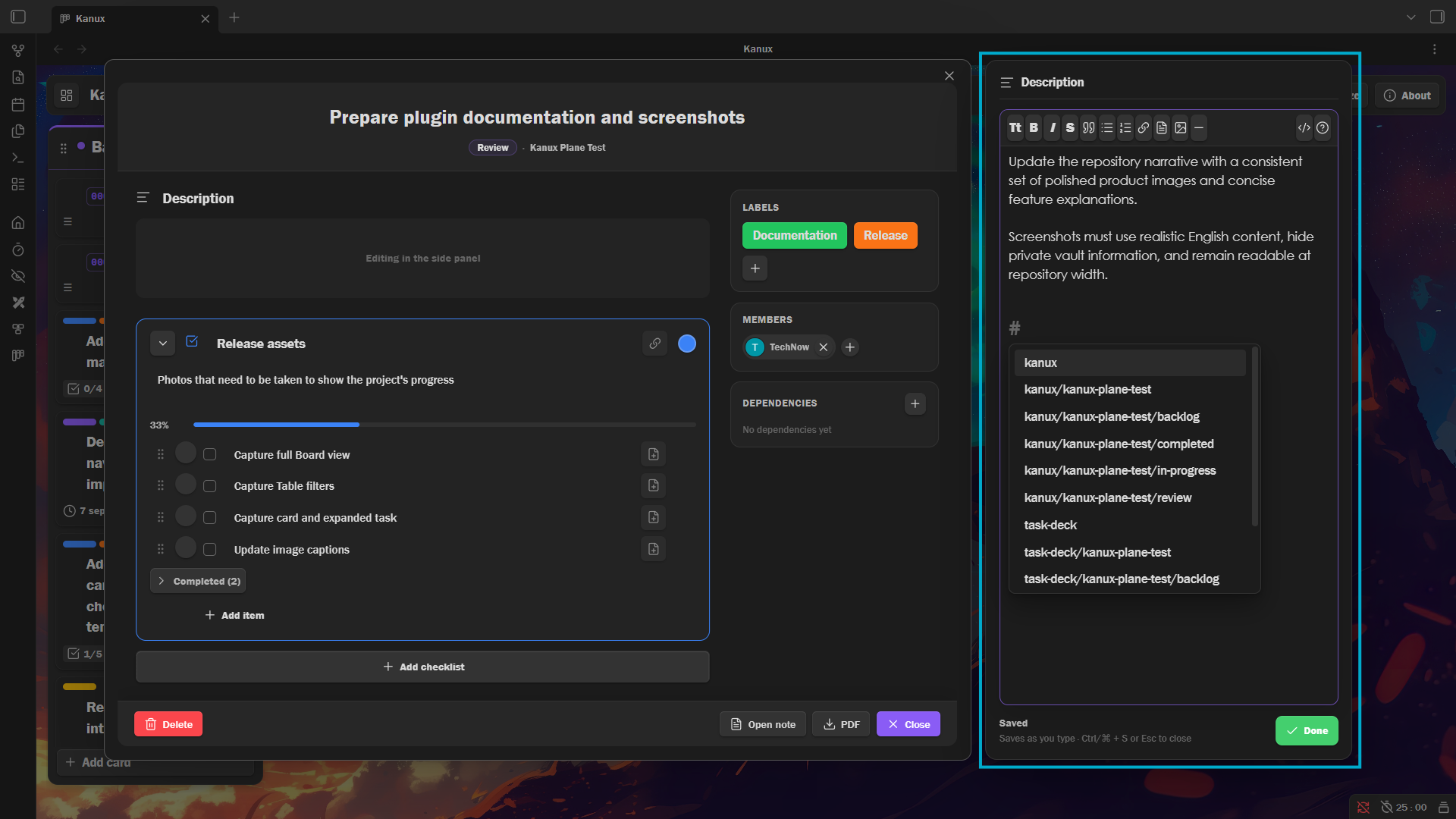
Open a card to manage its labels, dates, Markdown description, checklists, and progress without losing access to the underlying notes.
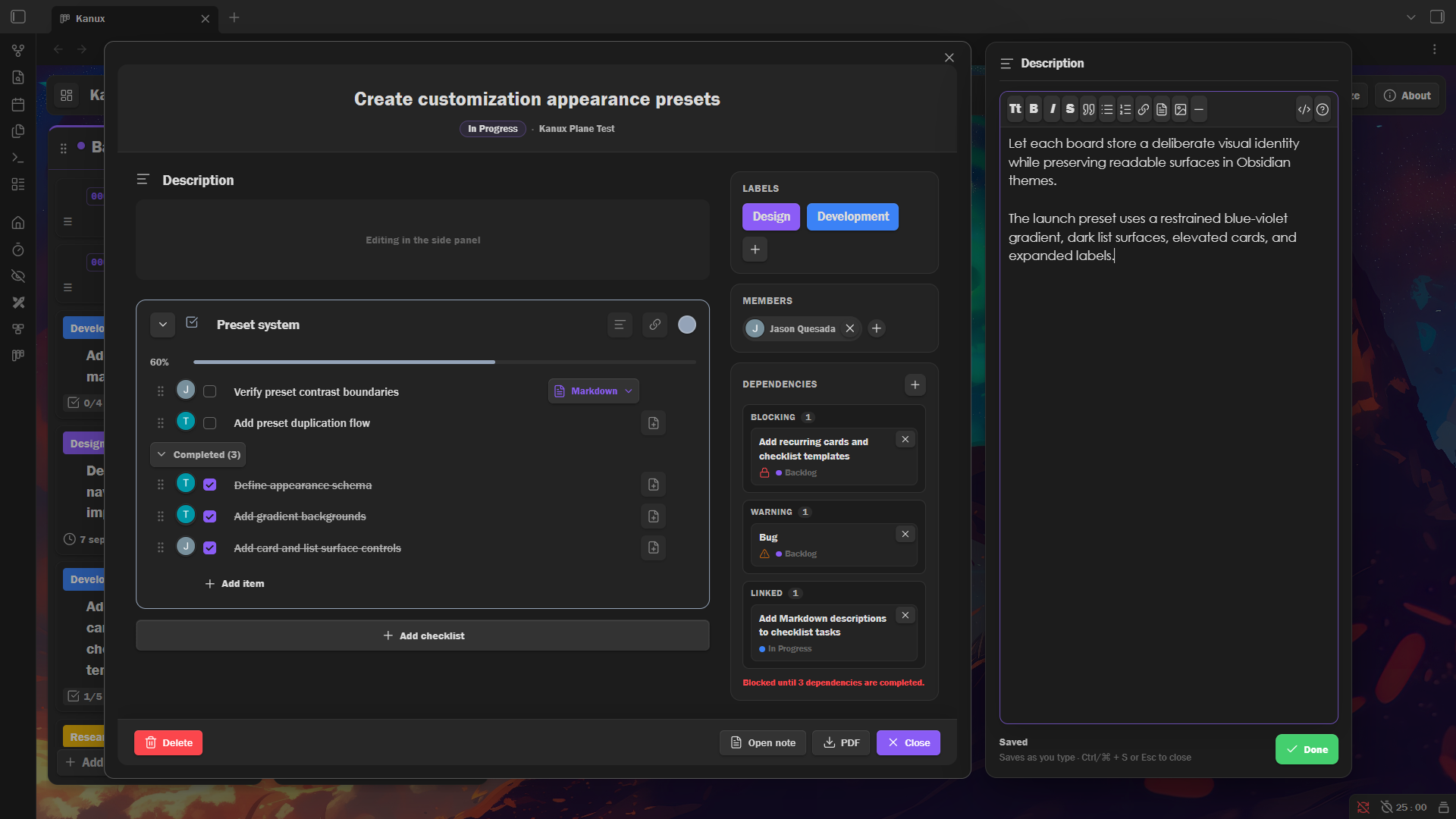
Descriptions are written in an embedded Obsidian editor with Live Preview, a formatting toolbar, and note and tag autocompletion. On wide screens it opens as a side panel beside the card, and everything saves as you type.
More card details
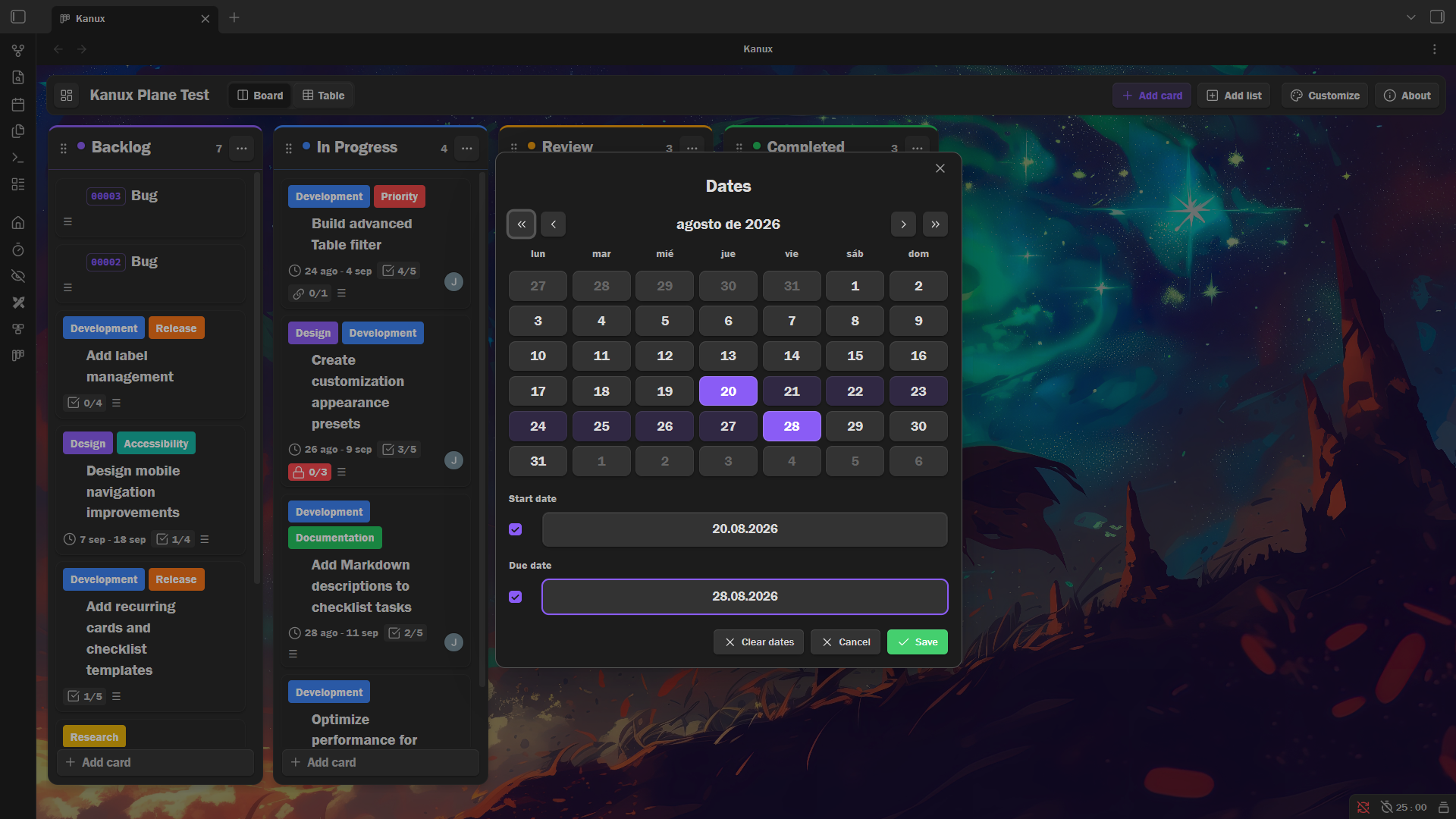
Dates
Checklist descriptions
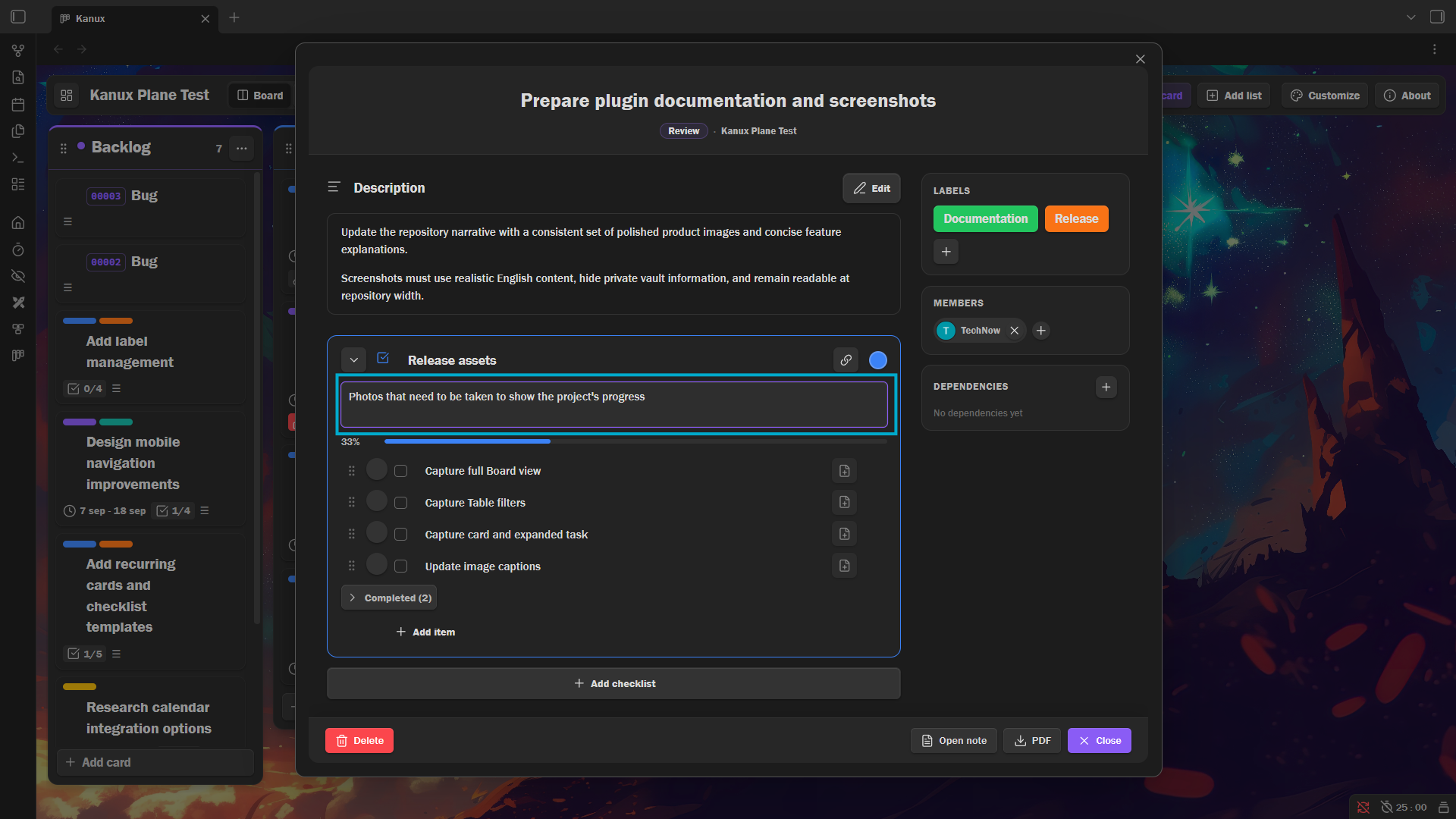
Each checklist can carry its own line of context above its items.
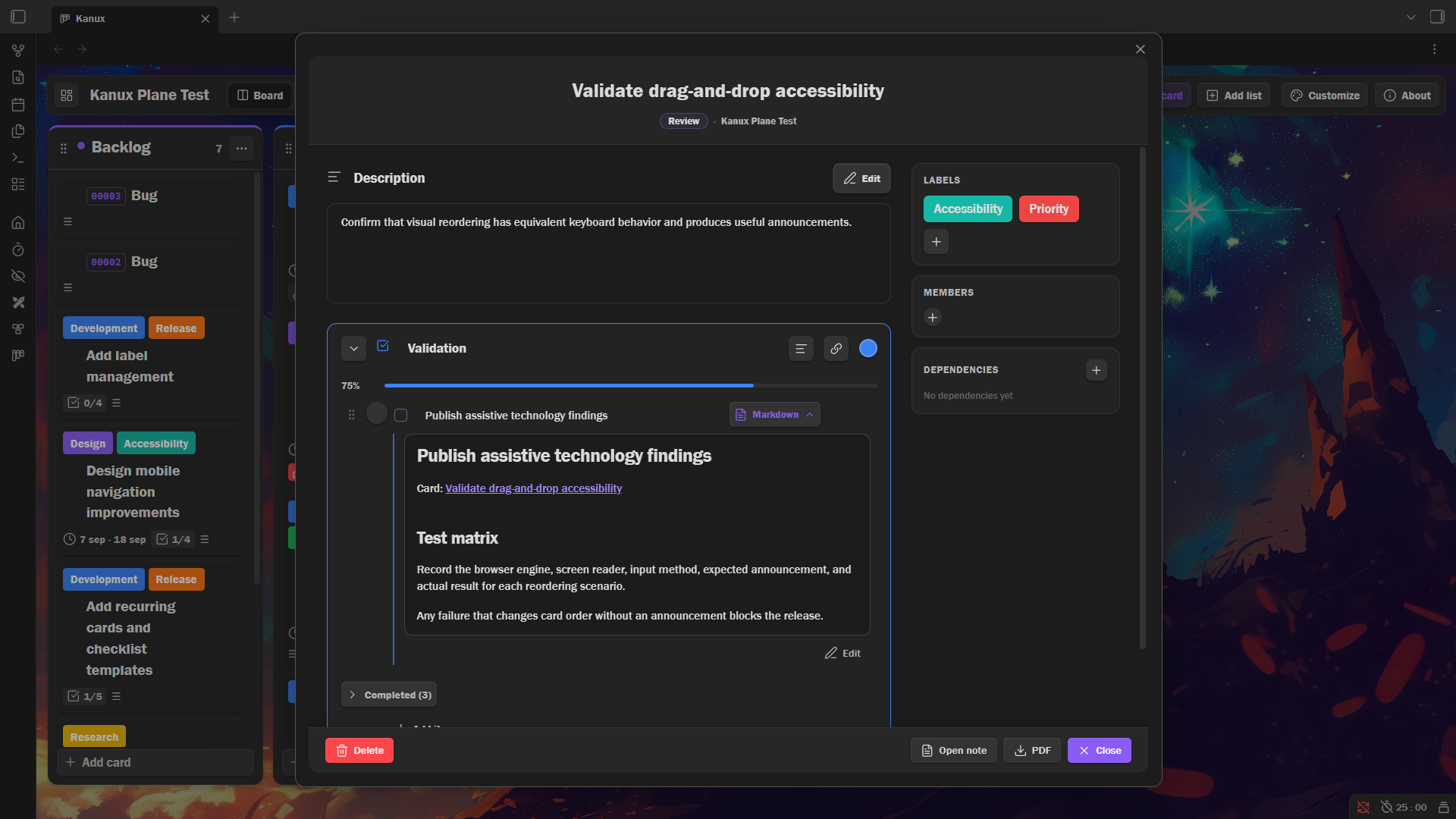
Markdown linked to a checklist task
Card templates and running codes
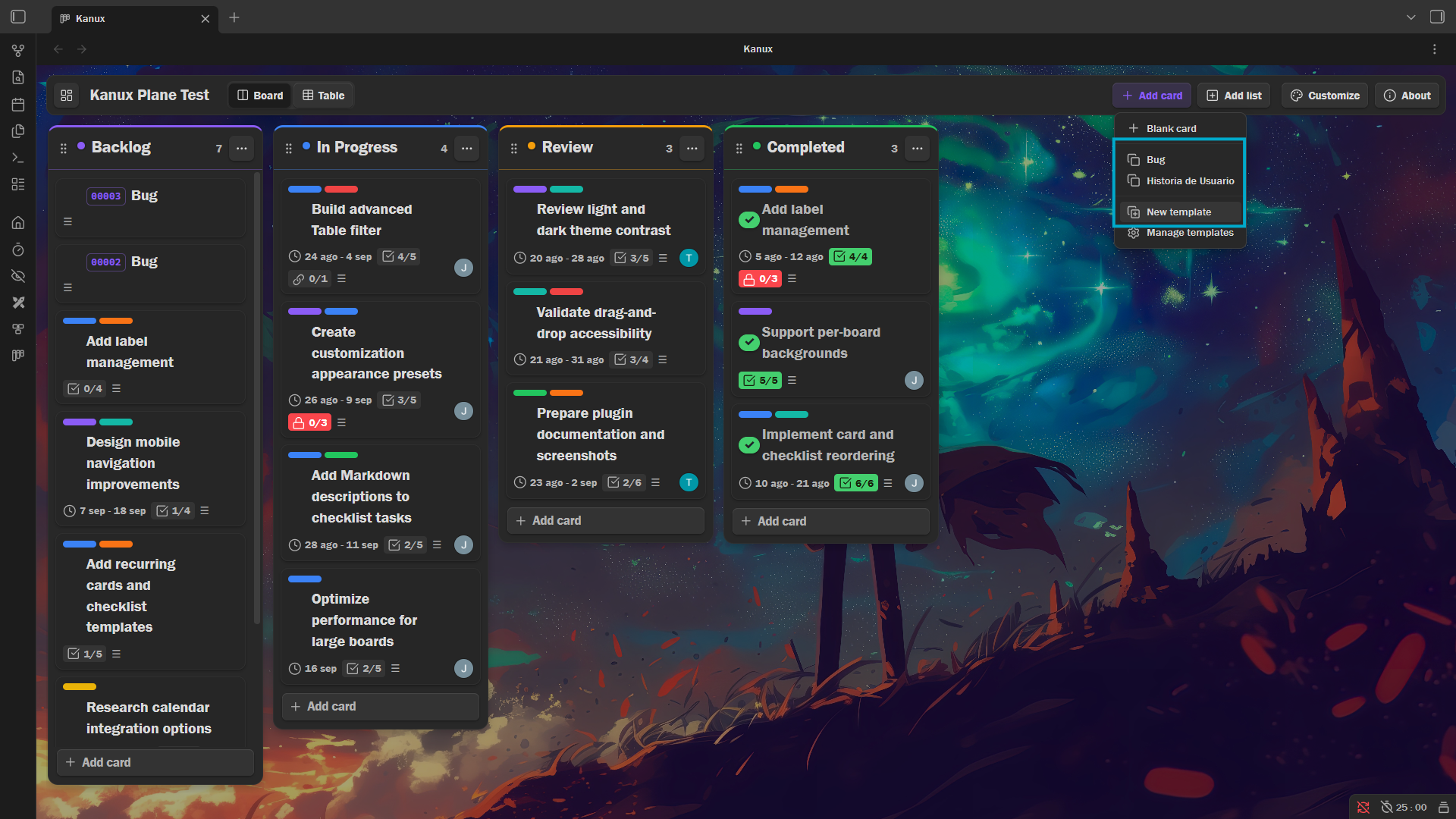
Save any card as a template, or build one from scratch, and start a new card from it in any list. Templates live as ordinary notes inside the board folder and never appear on the board itself.
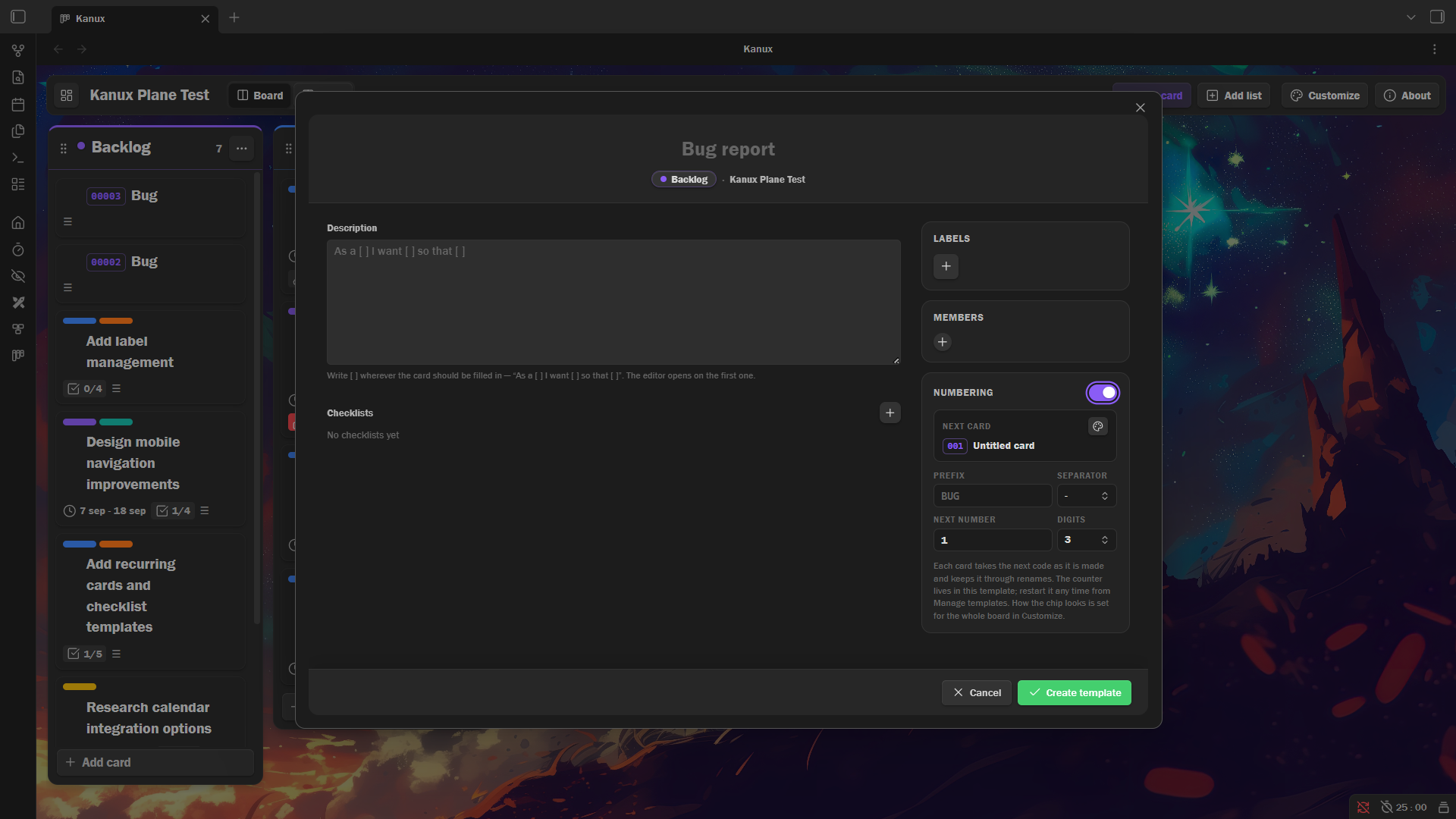
A template can also number the cards it makes: pick a prefix, the separator between prefix and number, the next number, and how many digits it pads to. The code is stored on the card instead of in its title, so renaming a card keeps its identifier and Table search still finds it.
Dependencies and blocking
A card, and each of its checklists, can depend on other cards. Every dependency picks how hard an unmet one gates the work: linked for information only, warning to ask before continuing, or blocking to stop the action outright.
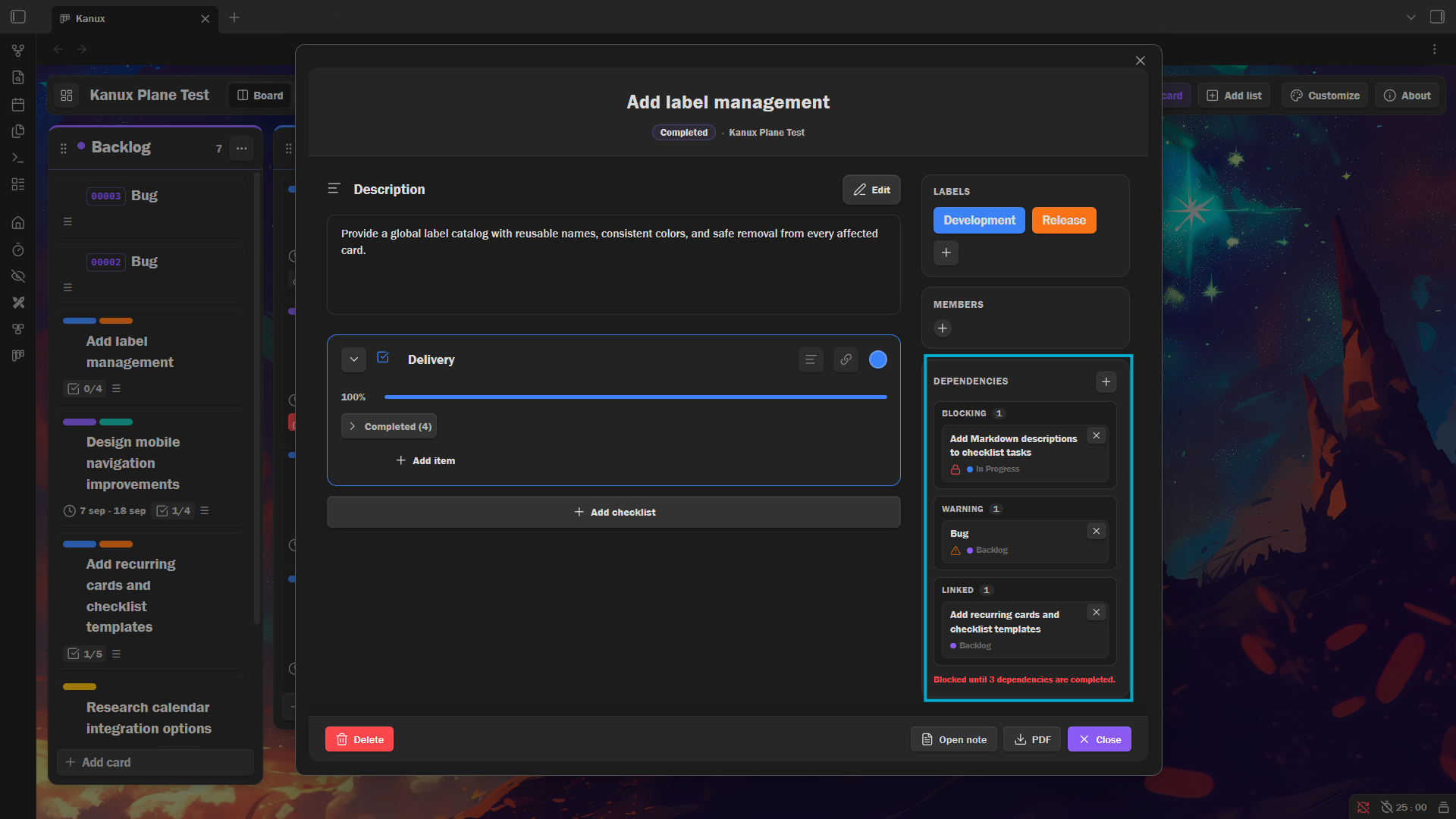
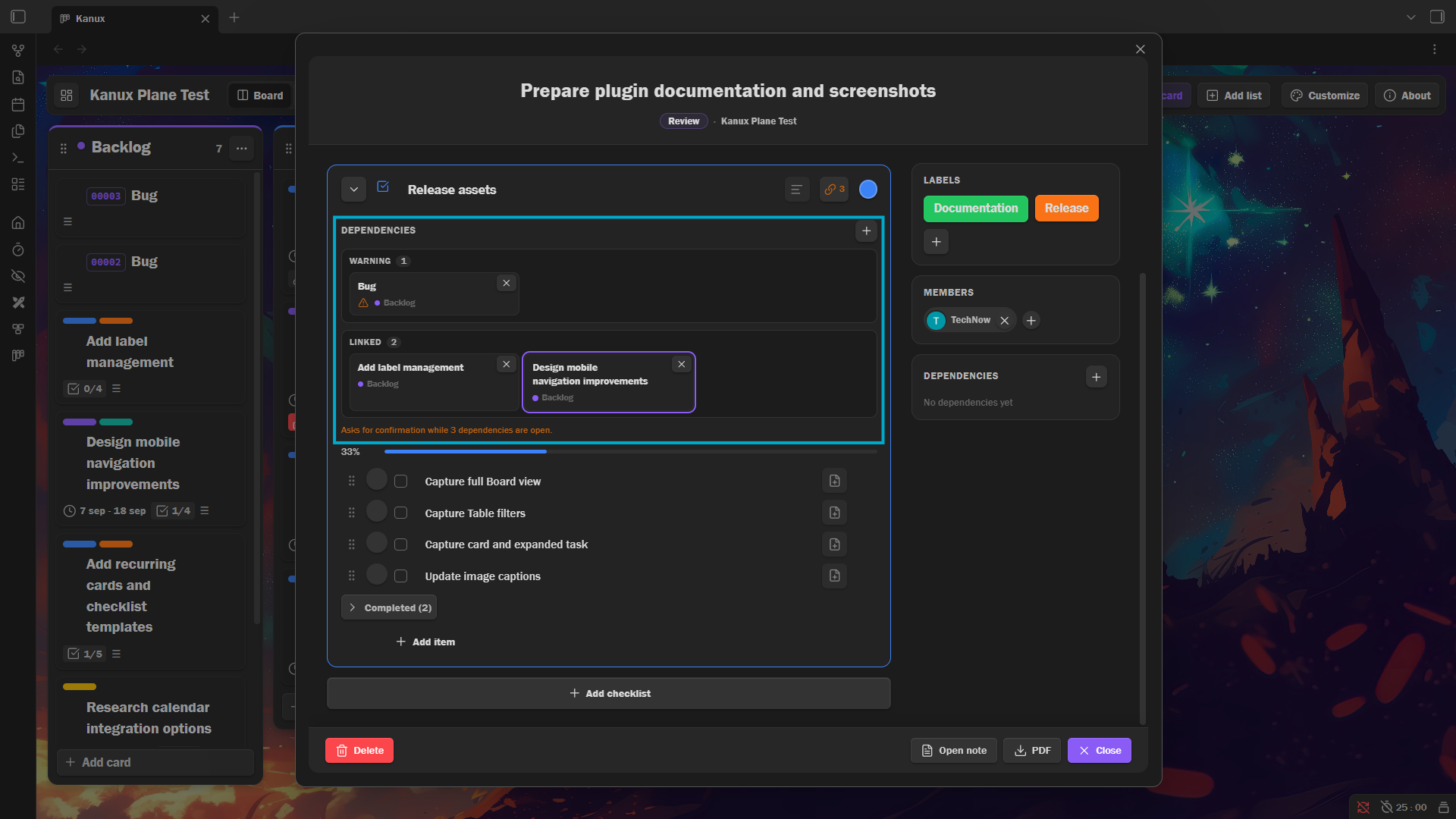
Card dependencies gate moving the card to another list, while checklist dependencies gate ticking that checklist's items. The strongest unmet level wins, and a dependency whose card was deleted never blocks.
Filters and multiple boards
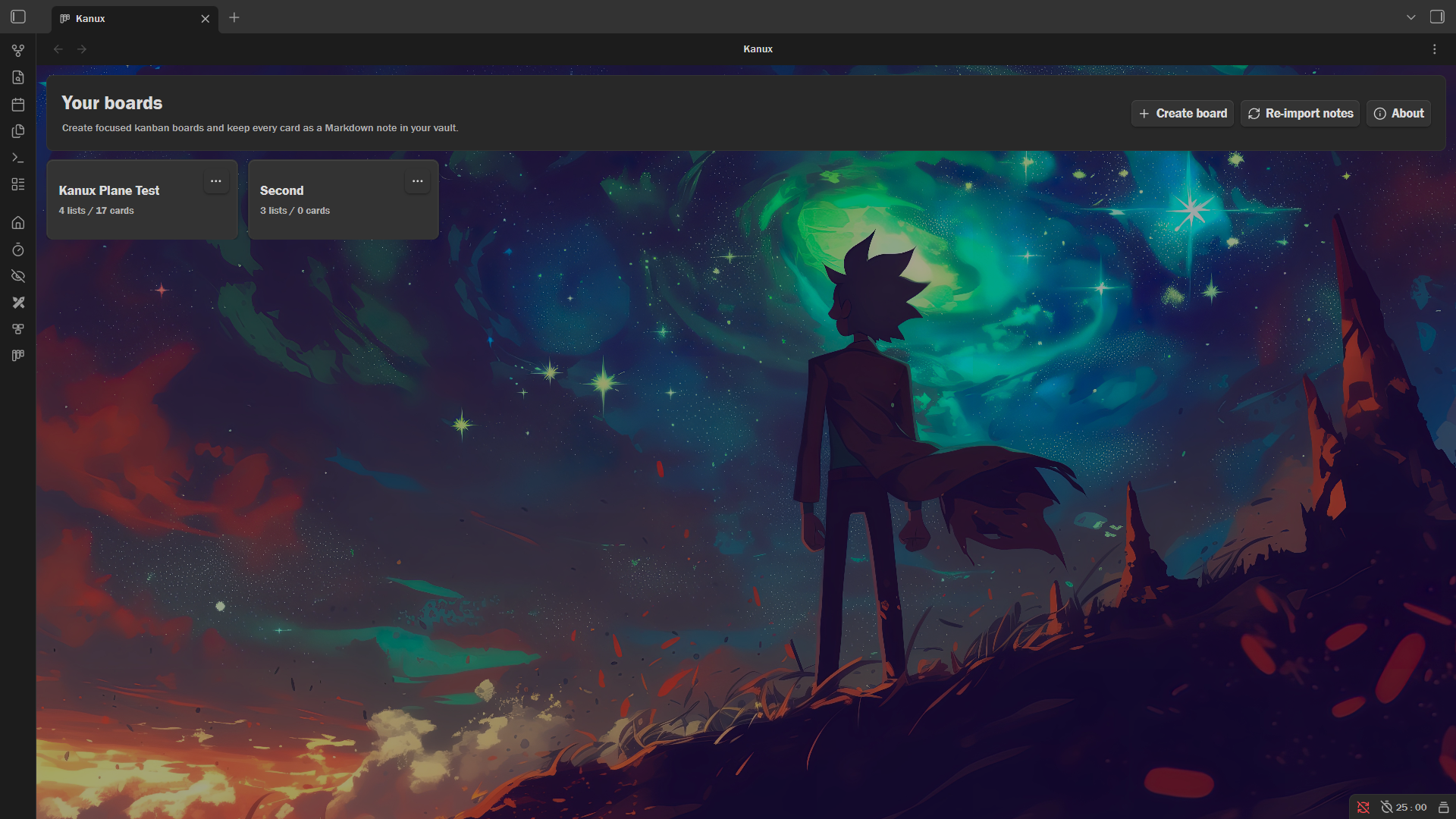
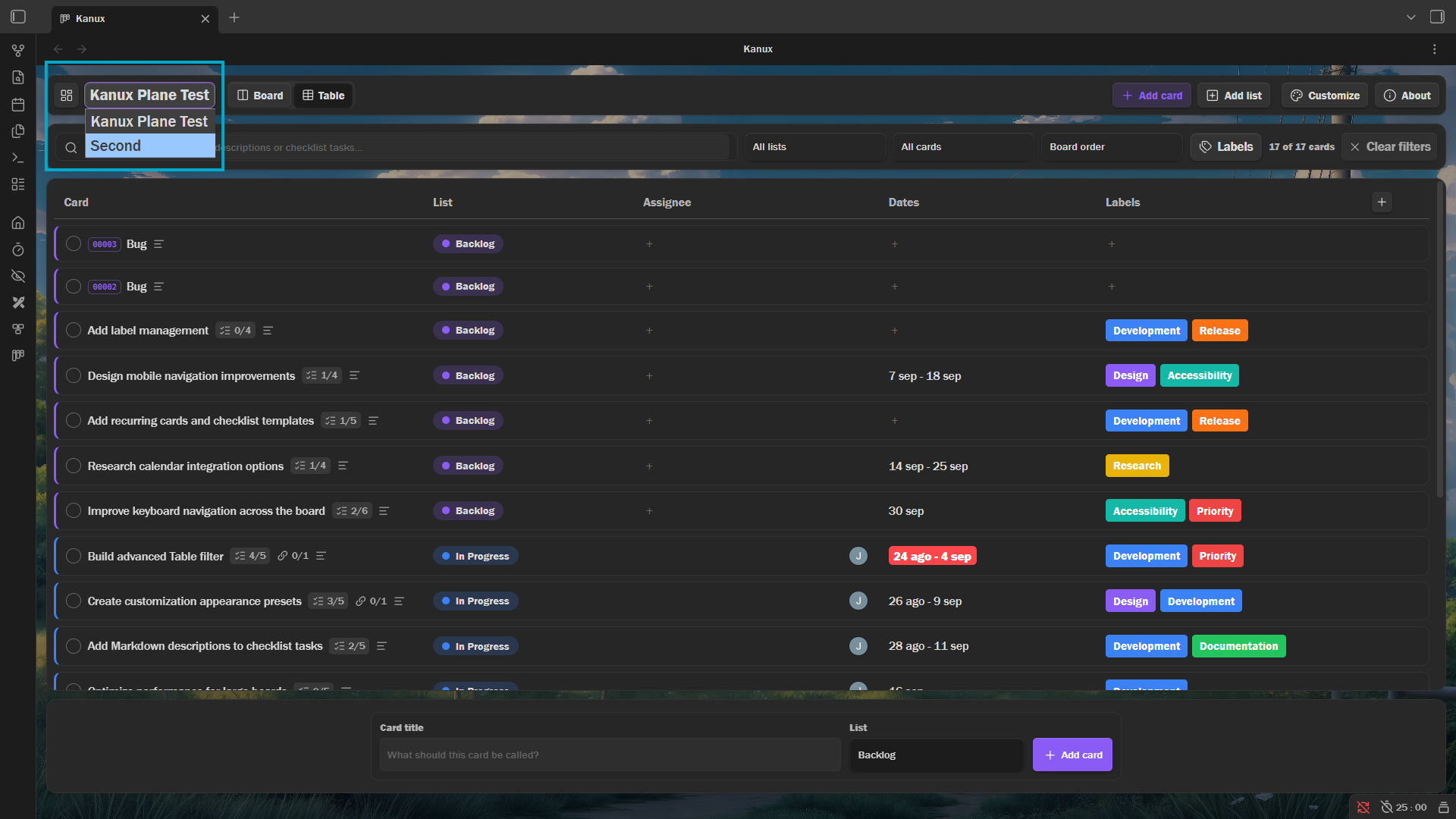
Use searchable label filters on large boards and move between independent boards directly from the Kanux interface.

Board navigation
Per-board customization
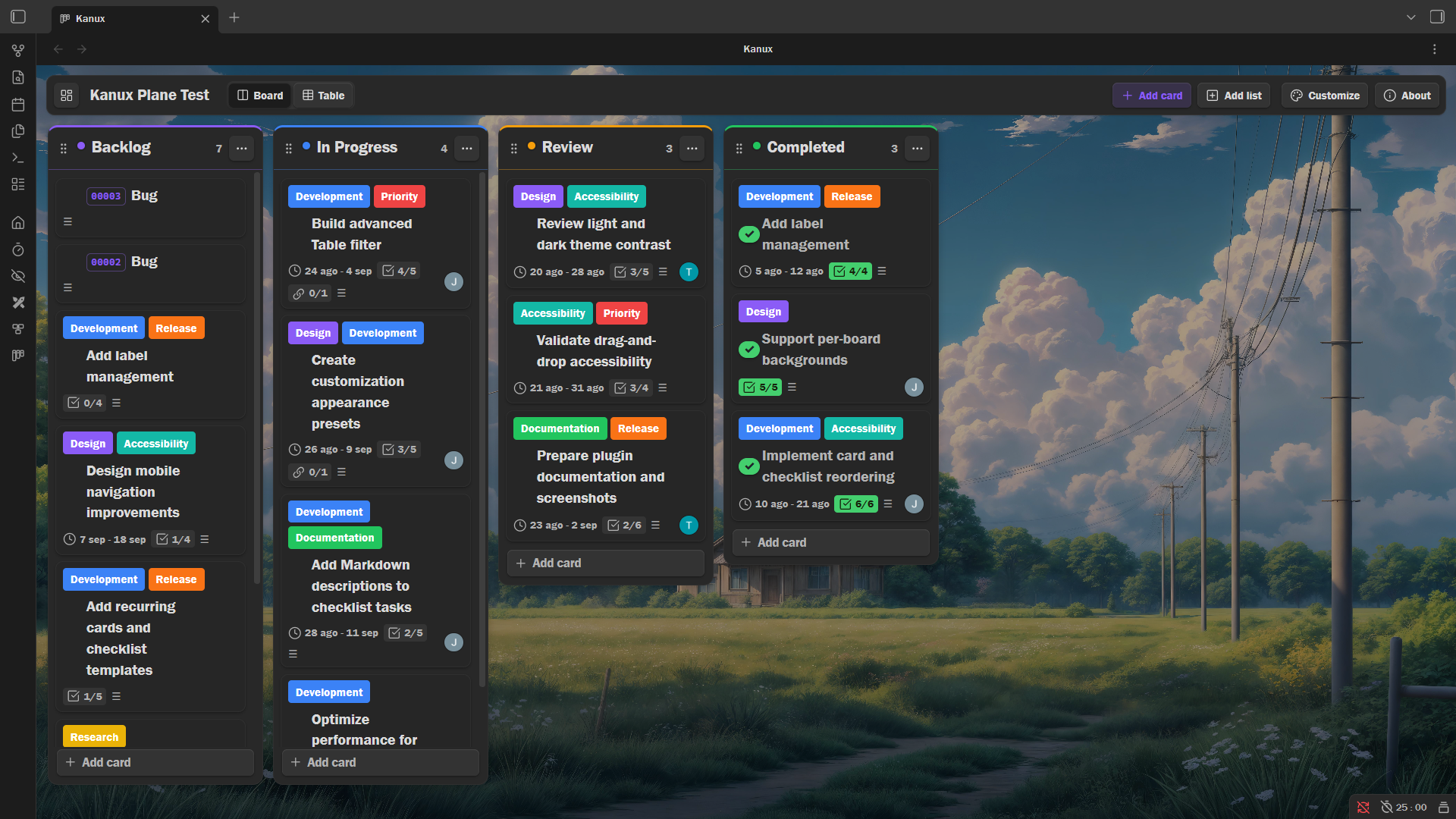
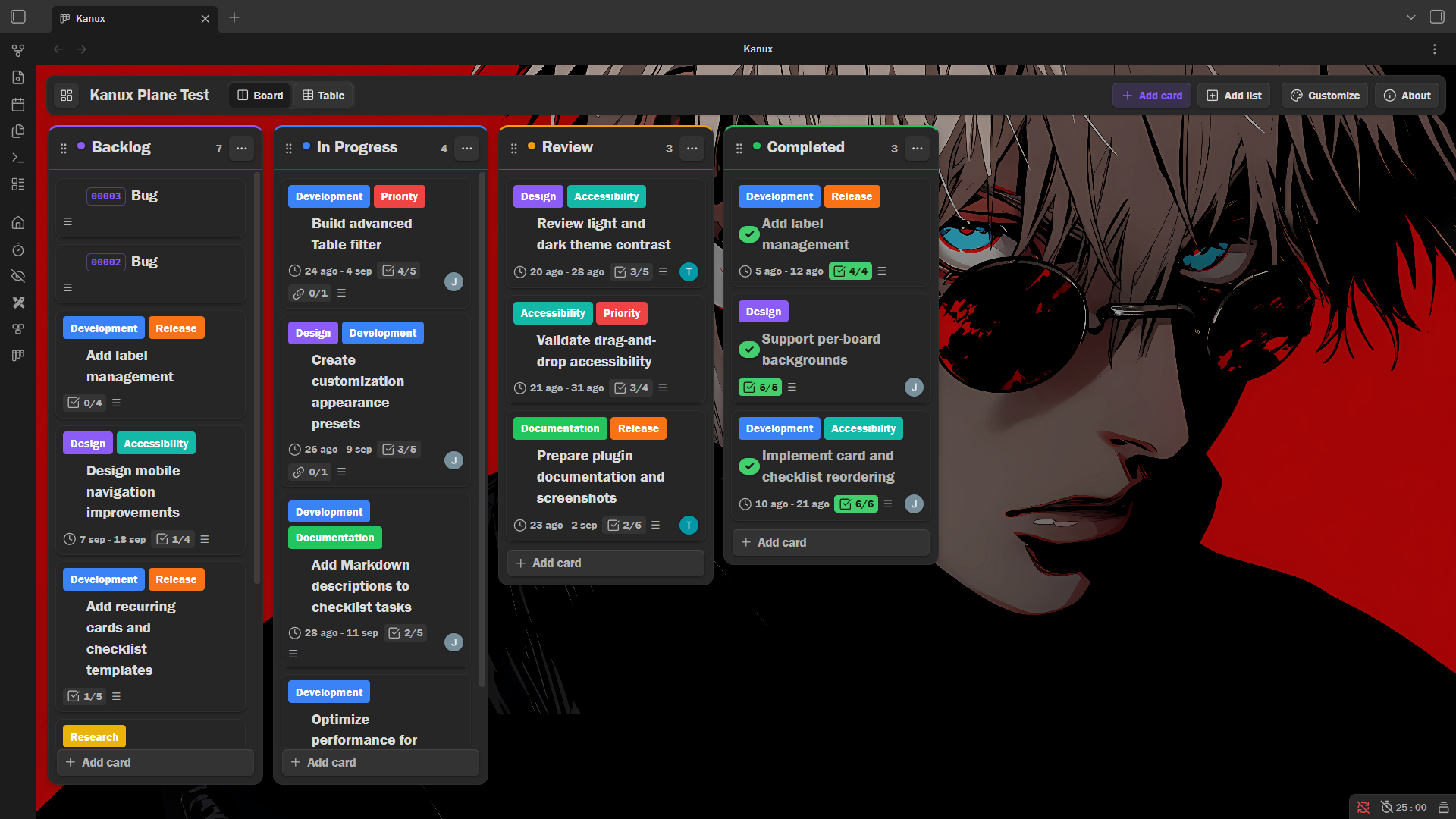
Customize each board independently without changing the active Obsidian theme. Backgrounds support solid colors, gradients, and local images with adjustable fitting and darkening, and a preview strip at the top shows what the board will get — including how card codes are drawn — as you change it.
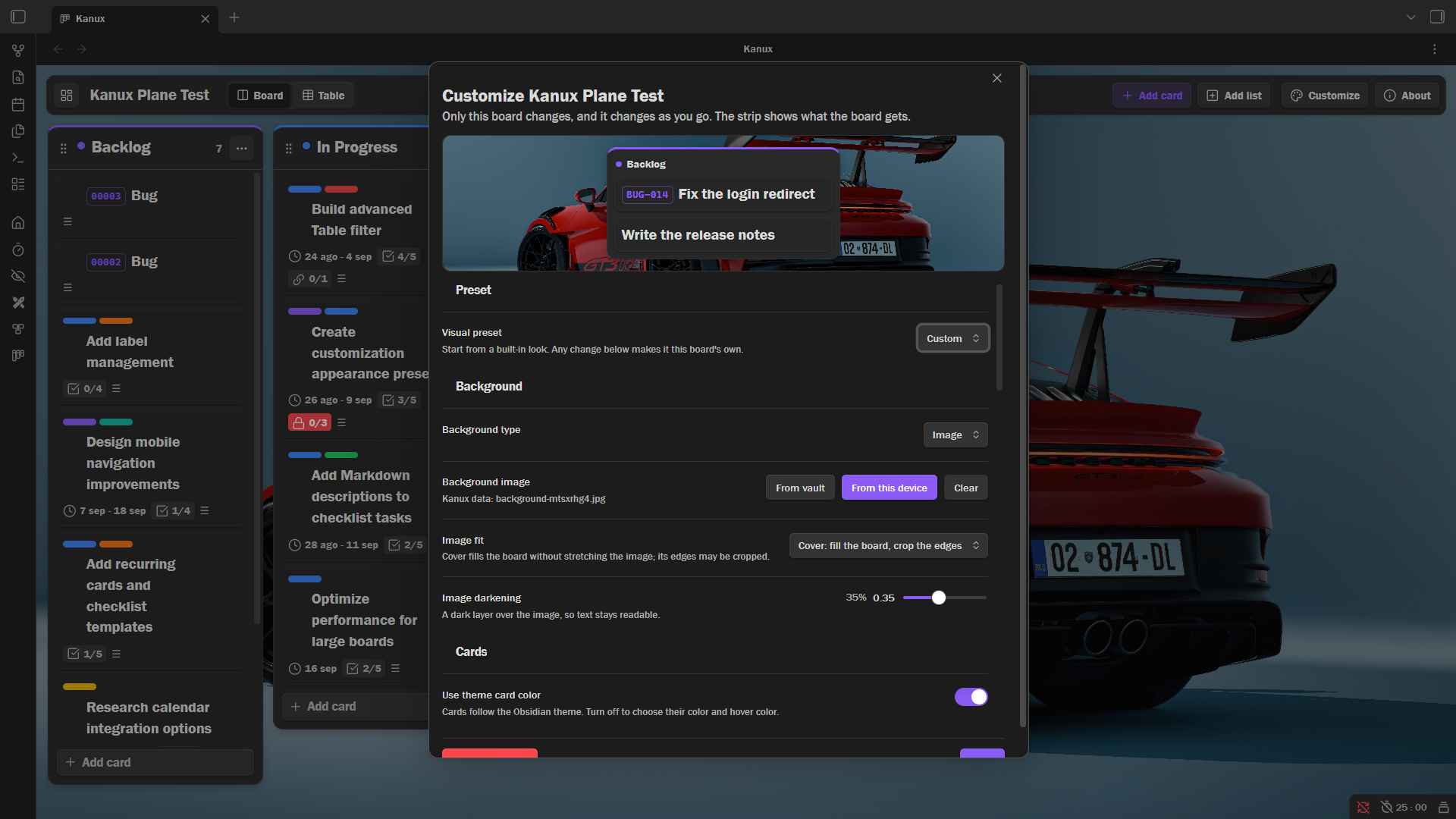
Background customization examples
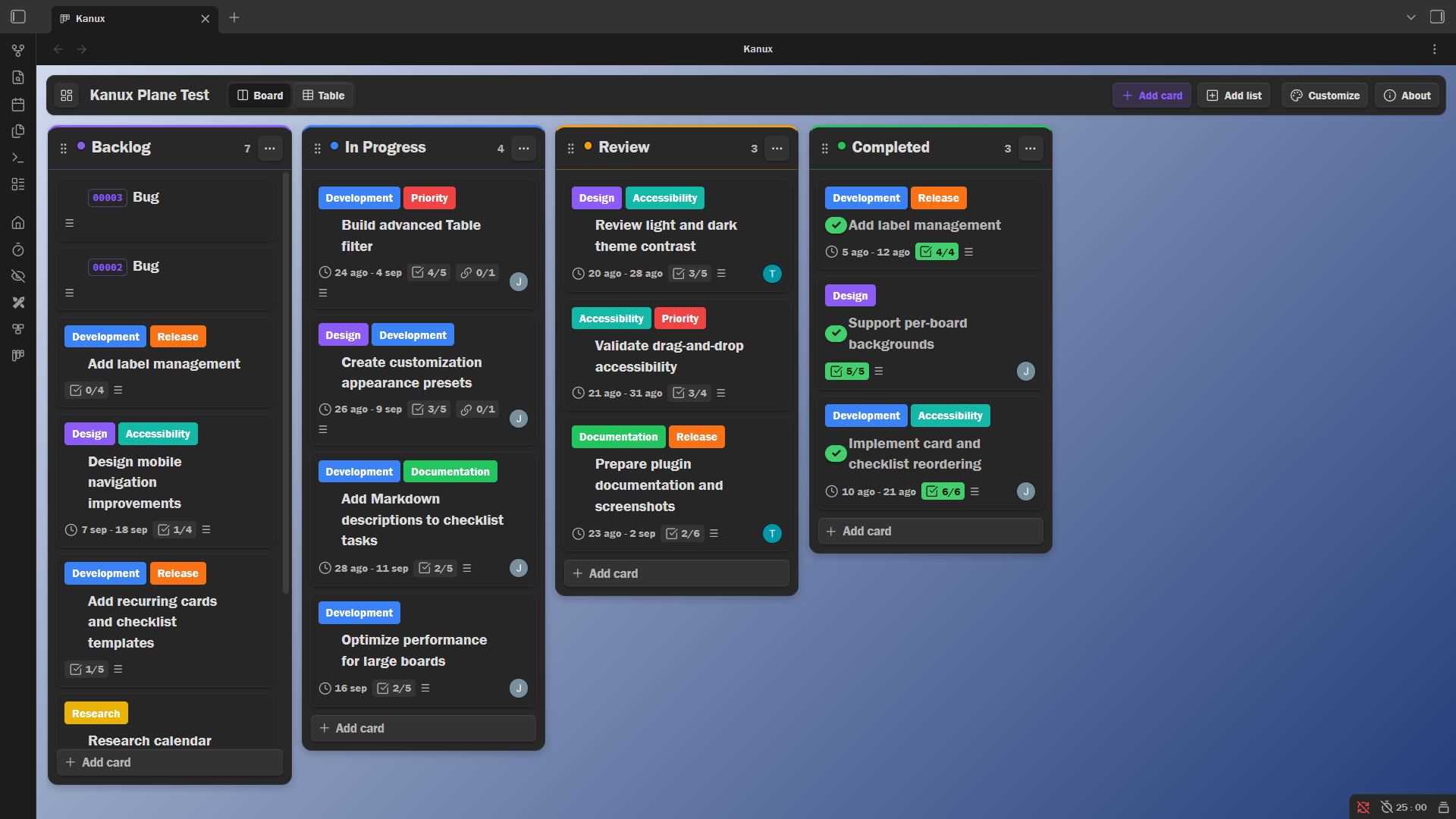
Team collaboration with Sync Deck
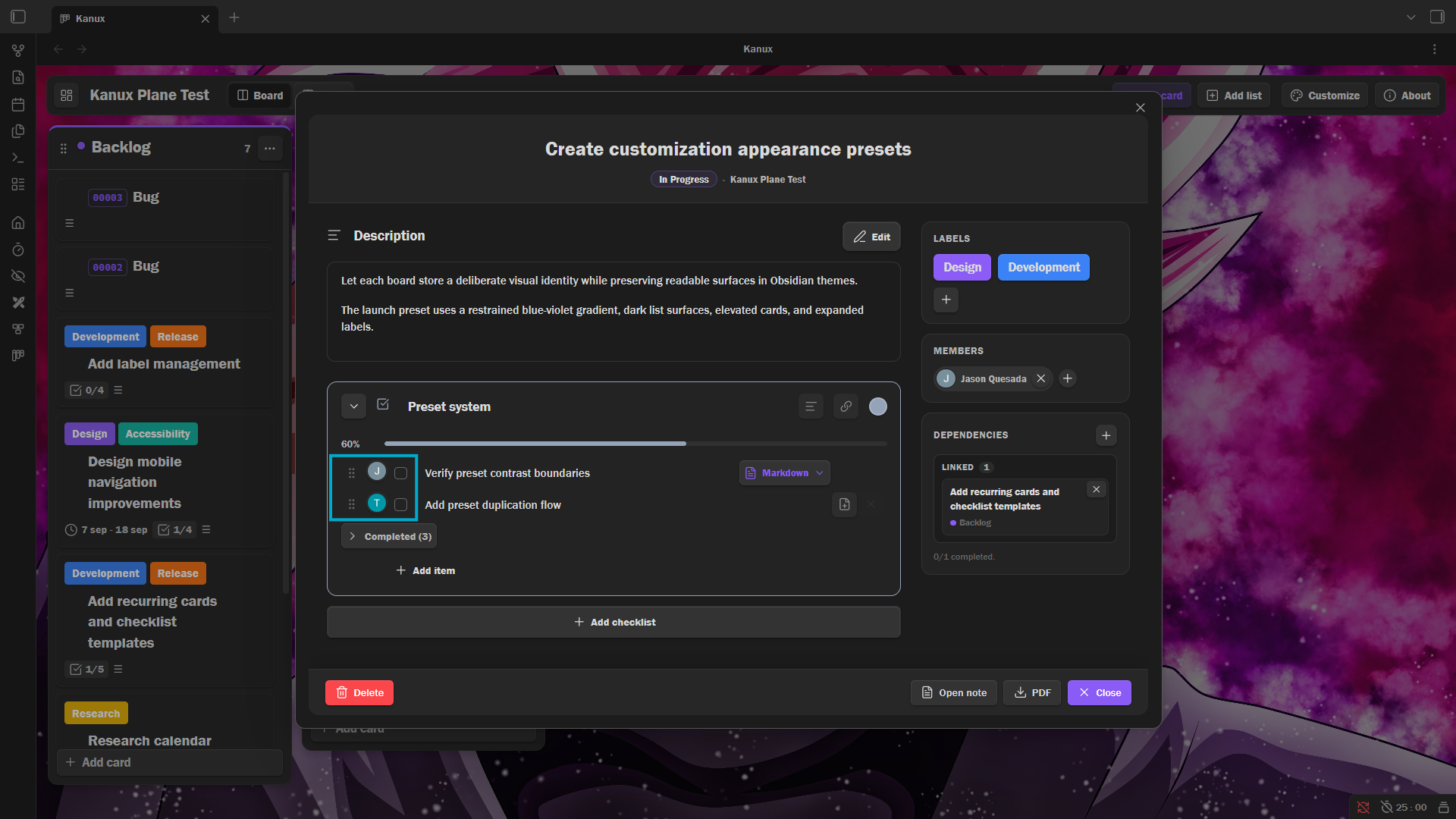
Sync Deck adds shared vaults, member assignment, card locks, and live presence while keeping local-only Kanux usage independent.
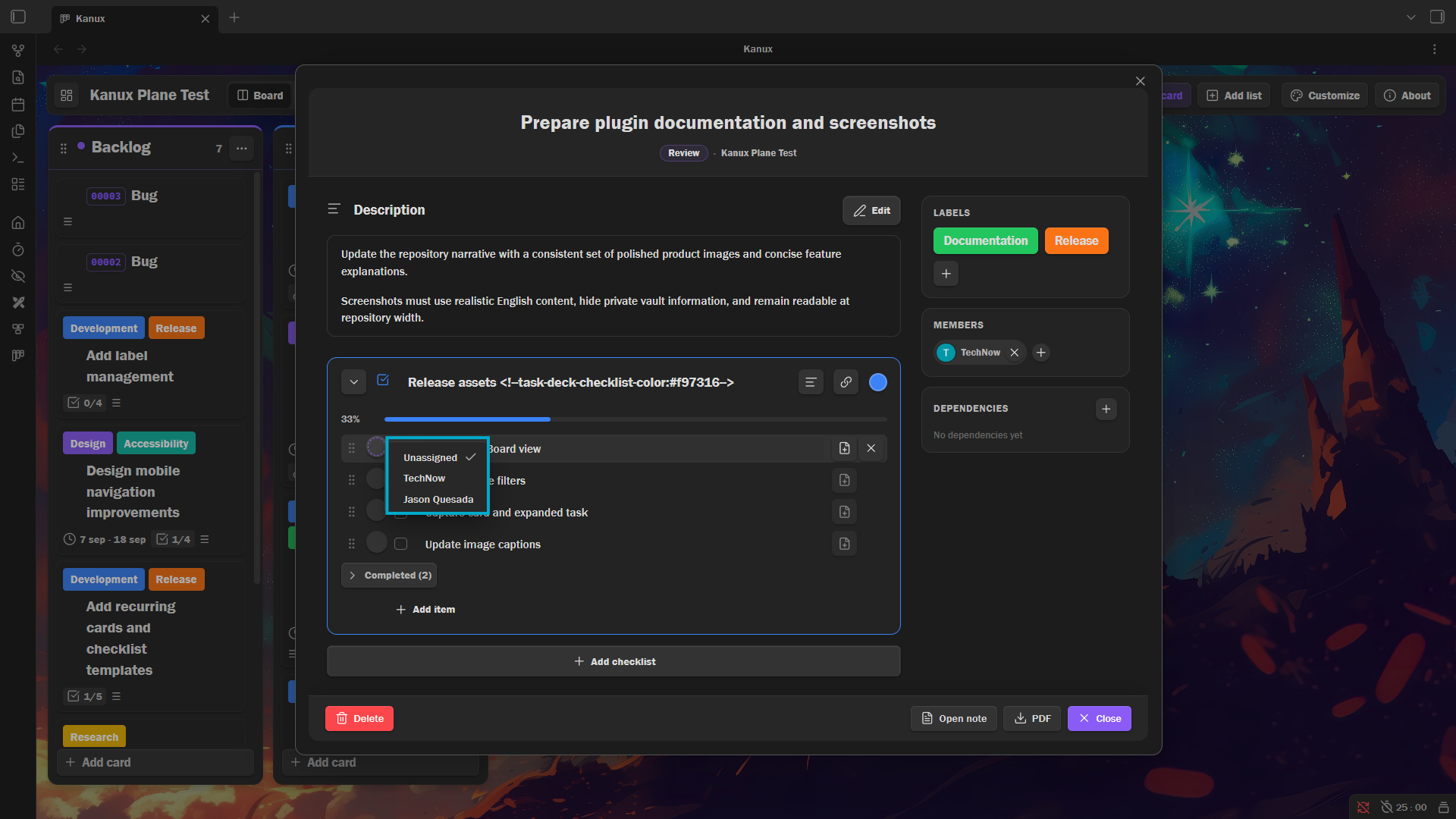
Member assignment and live collaboration
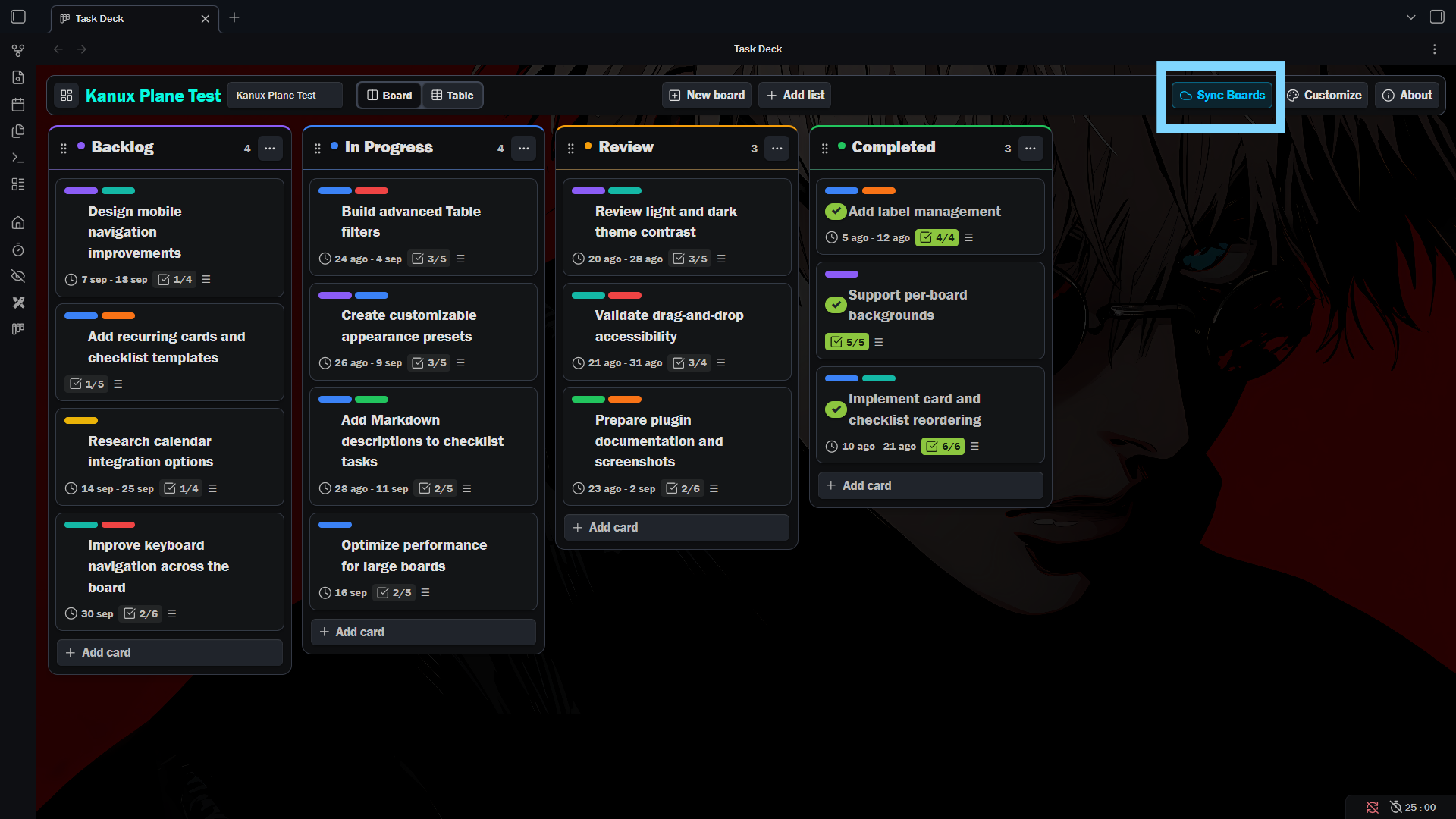
Screenshots were captured from a clean demo vault.
Features
- Flexible boards and lists: Create multiple independent boards, organize colored lists, and reorder cards or complete lists with drag and drop.
- Board and Table views: Manage the same cards visually or through a searchable, sortable, and configurable table.
- Complete card management: Create, edit, complete, move, export, or delete cards with titles, dates, labels, members, descriptions, images, and progress information.
- Labels and dates: Use reusable colored labels, flexible display modes, start dates, due dates, ranges, and overdue indicators.
- Rich Markdown descriptions: Write and render formatted descriptions with links, lists, quotes, code, Obsidian note references, and collapsible long content. Typing is saved as you go, so a closed modal never costs you a paragraph.
- Embedded Obsidian editor: Write descriptions and checklist notes in a real Live Preview editor, with a formatting toolbar for headings, emphasis, lists, quotes, links, vault links, dividers and inline code, plus note and tag autocompletion. On wide screens it opens as a side panel beside the card, and
Mod+SorEsccloses the field instead of escaping to Obsidian. - Images and attachments: Add, paste, resize, arrange, reorder, copy, and manage images while keeping attachments organized inside the vault.
- Checklists and tasks: Build multiple colored checklists, reorder tasks or whole checklists with drag and drop — every checklist collapses to its header while one is on the move — track independent progress, assign members, and associate individual tasks with their own Markdown notes. Every checklist can carry its own description above its items. Completed tasks fold into a per-checklist Completed section you can show or hide, and a whole checklist can be folded down to its header and progress bar; the fold travels with the note, so it stays folded the next time the card opens.
- Card templates: Save any card as a template — title, labels, members, description and colored checklists — and start new cards from it in one click, with the caret waiting in the first blank. Give a template a running code (BUG-014) and every card it makes carries its own identifier, kept through renames and searchable. Review, edit and delete them from one place.
- Dependencies and blocking: Make a card — or a single checklist — depend on other cards, and pick per dependency whether an unfinished one blocks nothing, asks for confirmation, or blocks the action completely.
- Per-board appearance: Customize backgrounds, colors, spacing, typography, density, borders, shadows, animations, labels, image fitting and the look of card codes, with a live preview strip that shows the result as you change it; save presets or copy an appearance from another board.
- Native Obsidian storage: Keep cards as normal Markdown notes with frontmatter, graph connections, automatic file discovery, external-change synchronization, and migration support.
- Productivity and accessibility: Use commands, undo supported changes, keyboard navigation, responsive layouts, visible focus states, and reduced-motion support.
- Offline-first operation: Use local boards without an account, permanent connection, or dependency on Sync Deck.
- Optional Sync Deck collaboration: Synchronize encrypted board content across devices, share vaults, assign members, display live presence, and prevent conflicting edits with card locks.
Quick start
- Open Kanux from the ribbon or run
Kanux: Open boardfrom the command palette. - Create a board. New boards start with To do, Doing, and Done lists.
- Add cards inline, then drag them between lists as work moves forward.
- Open a card to add labels, dates, a Markdown description, images, and named checklists.
- Switch to Table when you want a compact overview across every list.
Use Open note in the card editor whenever you want to work directly in the underlying Markdown file.
Markdown storage
Each board lives in its own readable folder:
Product Launch/
├── Product Launch.md          board index: list order and graph links
├── cards/
│   ├── Prepare onboarding checklist.md
│   └── Write launch announcement.md
├── templates/                 card templates, ignored by the board
│   └── Bug report.md
├── checklist-items/           notes opened from a checklist task
│   └── Draft the welcome email.md
└── attachments/               images pasted into a description
The board index keeps list order and graph links connected. Card metadata lives in frontmatter, while the description and checklist remain ordinary Markdown. The plugin folder stores the local UI state; your task content stays in the vault.
What a card note carries
| Key | Holds |
|---|---|
kanban-card-id, kanban-board-id, kanban-list-id | Identity and placement, so a card survives a rename or a move on another device |
kanux-card-code | The running code a template gave it (BUG-014), shown as a chip beside the name |
position | Order inside its list — the only place card order is persisted to a synced file |
tags | The kanux/board/list hierarchy, for Obsidian search and the graph |
kanux-board, kanux-list, kanux-list-color | Readable names and the list color, so the note makes sense on its own |
labels, assignees | Colored labels and assigned members |
depends-on | Dependencies as card-id|none|warn|block |
completed, start, due | Progress and dates |
A checklist keeps its own metadata in hidden comments on its heading (kanux-checklist-id, kanux-checklist-color, kanux-checklist-depends, kanux-checklist-collapsed) and one per item (kanux-item-id), so groups, colors, dependencies and folded state all survive a sync to another device.
The other two note types
Two more kinds of note live in a board folder, and both are marked so the board's sync never mistakes them for cards:
- Templates carry
kanux-template: trueand no card id. A template that numbers its cards also keepskanux-id-prefix,kanux-id-separator,kanux-id-nextandkanux-id-pad. - Checklist-item notes carry
kanux-checklist-item: trueandkanux-card-idpointing back at their card, plus aCard:wikilink so the graph connects both ways. One is created the first time you open a checklist task as a note.
Card templates
The Add card menu ends with New template, which opens an editor for the shape a repeated kind of card starts from: its title, labels, destination list, members, a Markdown description and named checklists with their own colors. A card you already built can become one too, with Save as template from its menu.
Either way the template is written to <board>/templates/ as an ordinary Markdown note, with nothing ticked and nothing linked to a particular card.
A list's menu offers New card from template, with the same two actions at the bottom. The card is created in the list you opened the menu from, and if the template's description has fill-in blanks — As a [ ] I want [ ] so that [ ] — the editor opens with the caret already in the first one.
Incremental codes
Turn on Numbering and the template stamps a running code on every card it makes — BUG-001, then BUG-002, and so on. Set the prefix, the separator between them (BUG-001, BUG.001, BUG/001, BUG#001, BUG_001 or none at all), the next number and how many digits it pads to. The editor previews the next card the way the board will draw it.
How the chip looks is a decision of the board, not the template, so every code on a board reads the same way. The Card codes section of Customize chooses the style — outlined, filled, soft or plain text — the color, in the theme's accent or one of eight palette colors, and whether the chip sits in front of the title or on its own line above it. The template editor's preview draws the next card with that look and opens Customize, where the Card codes section holds the setting.
The code is stored on the card as kanux-card-code and shown on the board, in the table and in the card itself. It is not part of the title, so renaming a card keeps its code, and the table's search box finds a card by typing its code.
The counter lives in the template note as kanux-id-next, so it survives a reload and travels with the vault. Manage templates shows each template's next code and restarts the counter from there — the confirmation tells you how many cards already carry codes from that point on, because a restart is what hands the same number out twice.
Two devices creating cards from one template while offline can both take the same number: the counter is a note, and notes merge after the fact.
Managing templates
Manage templates, in the same two menus, lists what the board has. Click a template to open its note and edit it by hand; the trash icon deletes it, and cards already made from it are untouched.
Templates are plain notes, so you can also rename or delete one straight from the file explorer. They live inside the board folder and never appear on the board itself.
Dependencies and blocking
A dependency points at another card and is met once that card is completed:
- A card dependency guards moving the card to a different list. Reordering inside the same list is never blocked.
- A checklist dependency guards ticking the items of that checklist. Unticking an item is always allowed.
Each dependency chooses its own blocking level: no blocking (the default, informational only), warn before continuing (a dialog names the unfinished cards and asks whether to go on), or block completely (a dialog explains that the action cannot be performed and which cards block it). Change a level from the dependency's own menu or by dragging it onto another level. When several dependencies apply, the strongest unmet level wins. A dependency whose card was deleted is shown as missing and never blocks.
A checklist keeps its dependencies behind a link button in its header, collapsed every time the card is opened. The button counts what is behind it and takes the colour of the strongest unmet level, so a gated checklist is recognisable without opening the panel.
Sync across devices and teams
Kanux works fully offline and does not require an account. To sync boards, install Sync Deck, sign in, and open or create a synced vault.
Sync Deck carries the board index, cards, and attachments across your devices. New and upgraded Sync Deck vaults end-to-end encrypt those files, their paths, and the board/card identifiers used for presence and locks; account and activity metadata still remain visible to the service. In shared vaults it also provides member assignment and live presence, so teammates can see who is viewing or editing a card. Local-only Kanux usage remains unlimited.
Network, accounts, and payment
- Kanux's local board features work offline, require no account, and contain no client-side telemetry or dynamically loaded advertising. Its interface includes a link to the optional Sync Deck companion.
- Network access occurs only through the optional Sync Deck integration when Sync Deck is installed, enabled, and signed in. It is used for file synchronization, member assignment, live presence, and edit locks.
- A Sync Deck account is required for those optional online features. Its free plan may limit the number of synchronized boards; its paid plan removes that limit. Disabling cloud synchronization leaves local Kanux boards unlimited.
Local data access
- Kanux enumerates vault file paths to discover its board and card notes and to populate note and image pickers. It reads or changes file contents only when required by a board operation or an explicit user action.
- Clipboard access occurs only when the user pastes content into a card or explicitly copies an image from a card.
- PDF exports are created through Obsidian's vault API and saved inside the vault. Kanux does not use Node.js filesystem APIs to write outside the vault.
Custom CSS
Customize covers backgrounds, colors, spacing, typography and the card-code look per board. Backgrounds, colors, spacing and typography are written as CSS variables on the board root; the code look rides on each chip as is-* classes and --ot-code-color. Those are Kanux's own to set — overriding them by hand fights the picker.
Six variables are never set by Kanux, only read. They exist for a CSS snippet to override, and they are the supported way to recolor the parts the appearance panel does not reach:
| Variable | Controls | Falls back to |
|---|---|---|
--ot-save-color | Save buttons and confirmed-state accents | --color-green, else #22c55e |
--ot-done-color | Completed cards and finished checklists | --color-green, else #8cc63f |
--ot-warn-color | Warning-level dependencies | #c2620f |
--ot-danger-color | Delete buttons, blocking dependencies, overdue dates | --color-red, else #c9372c |
--ot-board-background | The board surface behind the lists | --background-primary |
--ot-list-shadow | The shadow under a list column | 0 2px 8px rgb(0 0 0 / 14%) |
Put a snippet in .obsidian/snippets/ and scope it to .ot-board-root so it cannot reach the rest of Obsidian:
.ot-board-root {
  --ot-danger-color: #b4232a;
  --ot-warn-color: #9a5b00;
}
Install
Until Kanux is available in the Obsidian community plugin directory:
- Download
main.js,manifest.json, andstyles.cssfrom the latest release of this repository. - Put the files in:
Your Vault/.obsidian/plugins/kanux/
- Enable Kanux in Obsidian under Settings → Community plugins.
Development
Source files live in src/; main.js is generated and must never be edited by hand. After changing anything under src/, run:
node build.js
Obsidian loads the generated main.js. Then run the four test suites — helpers covers the pure utilities, modals the card field lifecycles, plugin the data operations, and board-view the drag-and-drop geometry:
node tests/helpers.test.js && node tests/modals.test.js && node tests/plugin.test.js && node tests/board-view.test.js
AGENTS.md has the full checklist, including the syntax pass over every file in src/ and the CSS rules the project does not allow. docs/ARCHITECTURE.md maps the modules, and docs/HELPERS-CATALOG.md lists the shared utilities — check it before writing a new helper.
To try a build in a real vault, copy main.js and styles.css into Your Vault/.obsidian/plugins/kanux/ and reload Obsidian.
Credits
This project originally used ismailivanov/task-deck as its base. It has since evolved into a substantially expanded implementation with a broader product direction, independent customization, and new workflows beyond the original plugin.
Credit and thanks to Ismail Ivanov for releasing the original project under the MIT License. You can support his work through Buy Me a Coffee.
License
Kanux is distributed under the GNU Affero General Public License version 3, with an additional linking exception for Obsidian and the Obsidian Plugin API.
Portions derived from the original ismailivanov/task-deck project retain their original MIT copyright and permission notice in LICENSES/MIT-upstream.txt. See NOTICE for attribution details.
For plugin developers
Search results and similarity scores are powered by semantic analysis of your plugin's README. If your plugin isn't appearing for searches you'd expect, try updating your README to clearly describe your plugin's purpose, features, and use cases.