Folia Kanban
approvedby Rafael Stavarengo
A real Kanban board with drag-and-drop, nested subcards, comments, and history — every card is a plain Markdown file. - This plugin has not been manually reviewed by Obsidian staff.
Folia Kanban
Kanban from plain Markdown.


An interactive Kanban board for Obsidian where every card is a plain Markdown file — drag-and-drop, nested subcards, comments, and history, with no database and no lock-in.
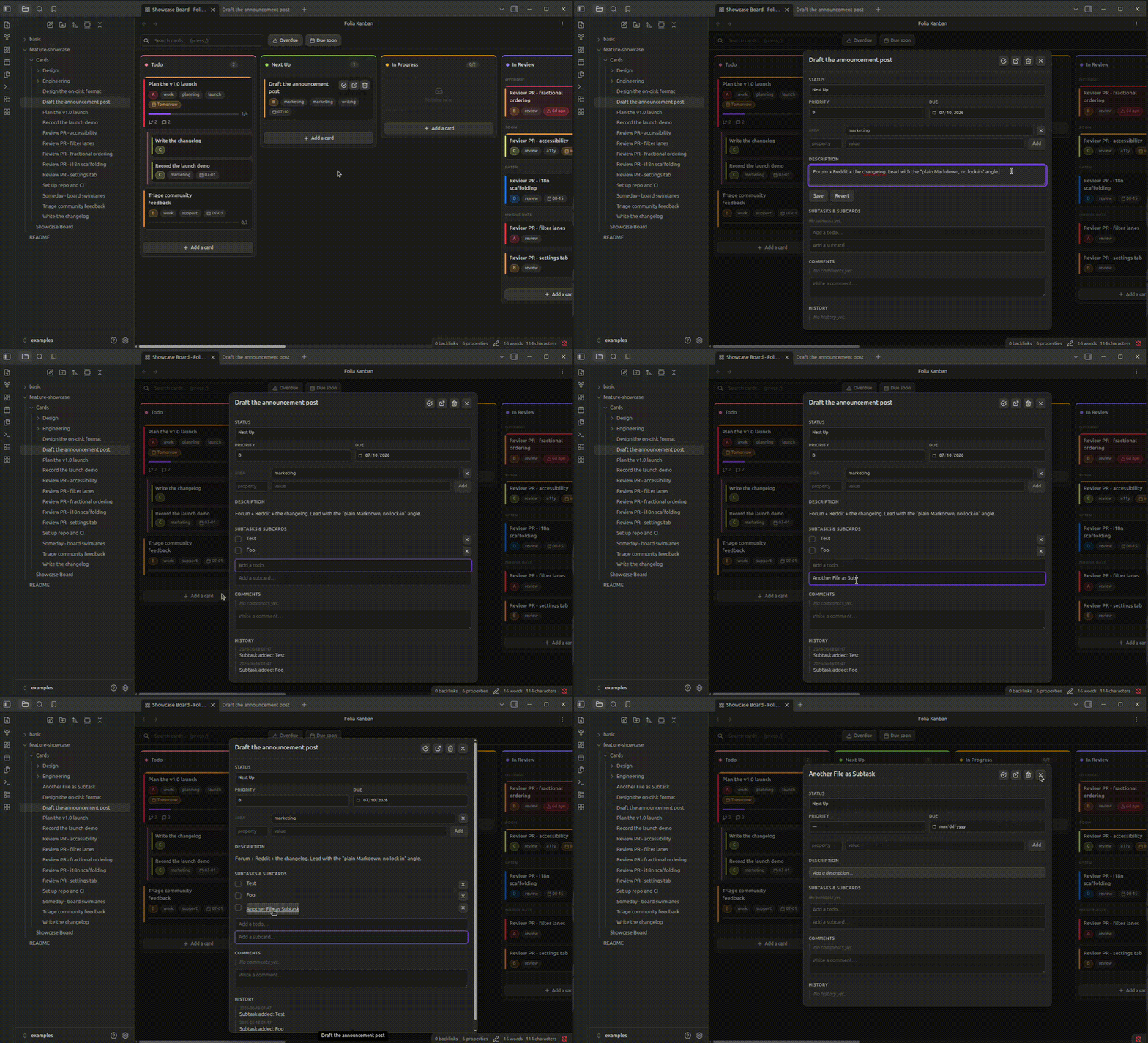
Columns, drag-and-drop, nested subcards, comments and an automatic history — backed entirely by plain .md files. Everything about a card (description, subtasks, subcards, comments, history) lives inside that one file as ordinary Obsidian-flavoured Markdown. No database, no proprietary blob, no weird syntax buried in your notes: your board is your notes.
Contents
- Your board is just Markdown
- Features
- Unread comments
- Columns that fill themselves
- Who is working on this
- Set up a board
- Settings
- Agent access (MCP)
- Keyboard & mouse
- Your data stays yours
- Install
- Develop
- Support · Feedback · License
Your board is just Markdown
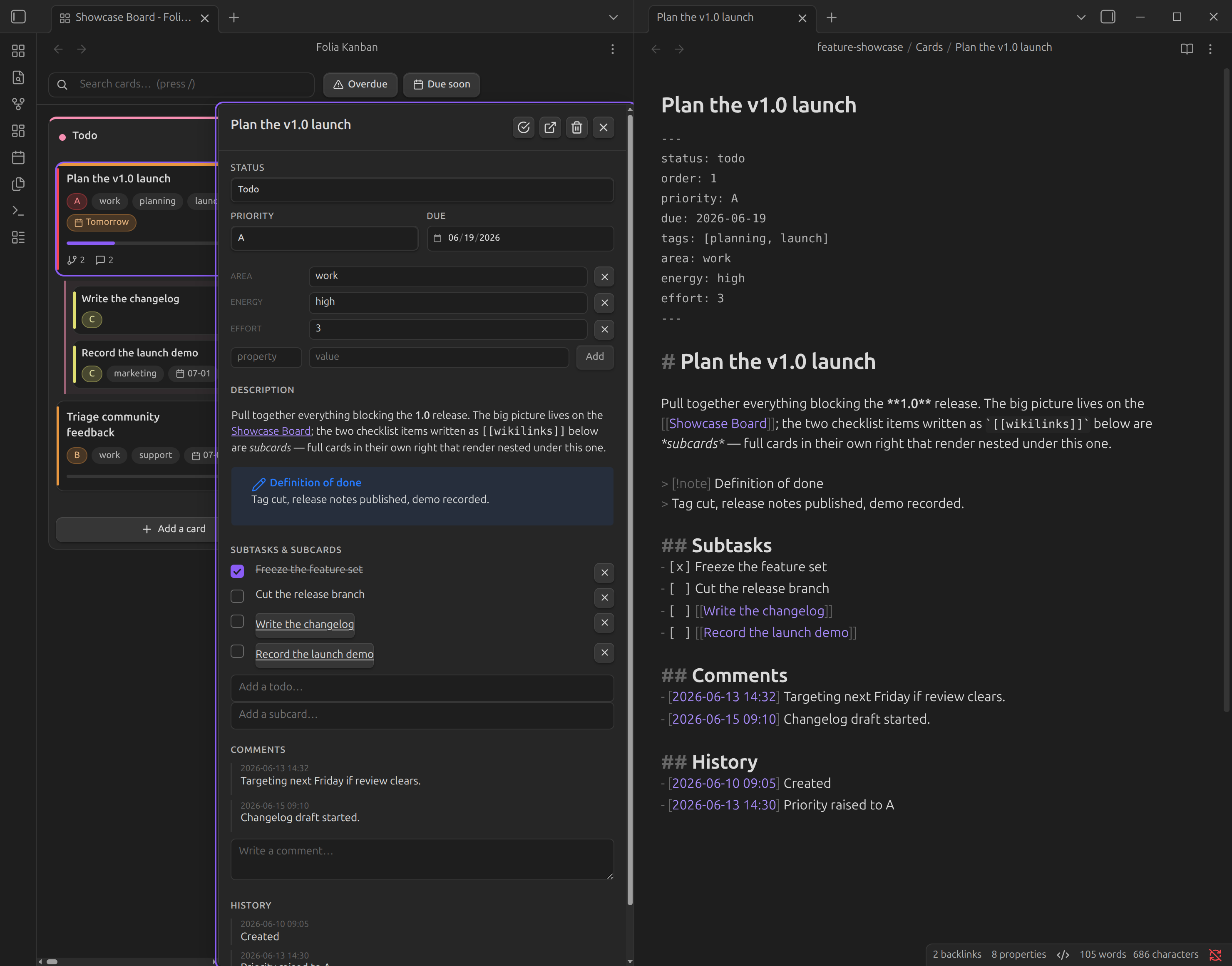
There's no hidden state. Open any card in your editor and this is the whole thing:
---
status: doing        # which column
order: 2.5           # position within the column (fractional)
priority: A
due: 2026-06-15
assignee: alex       # who is working on it
blocks:               # cards this one holds up (the inverse is derived, never written)
  - "[[Another Card]]"
a-result-of:          # any other relationship type the board note declares (see below)
  - "[[A Spike]]"
---

# Card title

Description text…

## Subtasks
- [ ] Book the demo room
- [x] Pick the release date
- [ ] Rehearse the walkthrough [status:: doing]   ← a checklist item that claims a column of its own
- [ ] [[A Subcard]]      ← a child card (its own file; its own `status` places it)

## Comments
- _2026-06-13 14:32:_ looks good
- _2026-06-13 15:01 @alex:_ signed, so the board knows whose it is

## History
- _2026-06-13 14:30:_ Moved from Todo to Doing
The description is everything between the title heading and the first section the plugin owns (## Subtasks, ## Comments, ## History). Headings of your own — ## Question, ## Answer, anything the note needs — sit inside it and are shown and saved verbatim, so a note written under its own structure keeps that structure when you edit it from the panel. Two limits are worth knowing: those three names belong to the plugin, so the Description box refuses to save a draft that contains one of them as a heading and tells you which line it was — rename it, or put it inside a code fence (a fence you leave open is refused too, since it would run to the end of the note and swallow the sections after it); and anything you wrote after a section the plugin owns stays safely on disk but is not part of the description. The flip side of the box owning that whole region is that emptying the box empties your own sections with it.
Quoting the plugin's own format is fine anywhere: a ## Comments or a - [ ] todo inside a fenced code block is text, never structure, whether it sits in the description or under one of the plugin's sections. A fence you never close runs to the end of the note, as Obsidian renders it, so a comment added from the panel closes it first.
Comments and history do not have to be bullets. A paragraph written by hand under ## Comments — **2026-08-21** — applied and checked, say — shows in the panel as a comment with no timestamp or author; each paragraph is one comment, and a bullet wrapped over several lines is one comment too. Both can be edited and deleted from the panel like any other. Editing writes the comment back as a single line (a paragraph edited into something that would read as a heading or a fence is written as a bullet, so it stays a comment), and deleting removes the whole paragraph. What stays invisible is a fenced code block inside the section, and anything after the next # or ## heading.
Relationships work the same way — one end declares it. blocks lists the cards this one holds up; the card on the other end shows a read-only Blocked by entry the board derives when it loads. Every link the plugin writes therefore lives in exactly one note, so there is no second copy to fall out of step with. A blocked-by list written by hand is read as the same relationship stated from the other side and is left exactly as you wrote it — and where both notes happen to state the same link, the panel says so instead of offering a remove button that one note could not honour.
blocks is the one type every board has. The board note adds its own under relations — each entry a frontmatter key and, optionally, the key that states the same link from the other end:
relations:
  - key: a-result-of
    inverse: results-in
  - depends-on           # no inverse key: the other end is only ever derived, headed "Depends on (reverse)"
Every type gets the same treatment as blocking: an editable list in the panel headed by its key (a-result-of → A result of), a derived read-only list for the other end (Results in), a quiet marker on both tiles, and a history line under the type's own words. The key is the only thing the plugin gives a meaning to: a results-in written by hand is read exactly as a blocked-by is, and a key the board note does not declare stays an ordinary property. The reverse holds too — declare a key your cards already use for something else and its values are read as links from then on, so pick a fresh one. The keys the plugin itself owns (status, priority, due, tags, type, created, …) are refused outright.
Blocking is the one type that means something beyond "linked": its marker fades once either end is done, and the search grammar reads it (is:blocked, is:unblocked, is:blocking, and the Blocked chip). That is the whole of what it does. A blocked card can still be dragged anywhere — into Done included — with no refusal, no confirmation, no warning. This is a decision, not an omission: the board's rule is to nudge and never block (soft WIP limits work the same way), and which columns a card may enter is a workflow question that stays yours. The marker and the filter are there so you can see the dependency and ask the board about it; what you do with it is up to you.
Parentage has a single source of truth: a card is a subcard of P iff P's ## Subtasks links to it. Body edits splice only the touched section; frontmatter is written via Obsidian's processFrontMatter, so unrelated bytes in your notes are never rewritten.
The card's displayed title usually is the file name, but that # Card title heading can take over when the file name is a slug — see Where card titles come from.
Subitems in their own column
A card's ## Subtasks checklist holds two kinds of line, and both are subitems: a plain checklist item, and a [[wikilink]] to a child card that is a file of its own. By default a subitem lives wherever its card lives — nested in the bordered group under it, or listed inside the tile. That is unchanged, and it stays the default forever.
But work does not always sit still with its ticket. A subitem can claim a column of its own, and then it leaves the group and stands in that column like any card: same tile, same drag, same place in the column's sort, group, filter and WIP count. In place of the nesting it carries a small ↳ parent reference, so you can always see whose work it is (and click through to it).
Search and the quick filters judge a nested subcard FILE on its own merits, at any depth, rather than only showing it while its parent matches: one that matches the search box or a token, but whose immediate parent does not, is lifted to the top level of the column it would otherwise inherit — with the same ↳ parent reference, though not draggable while the filter is the only reason it is standing there. A subcard whose parent also matches keeps its usual nested spot, which means it is behind that parent's Subitems toggle as always: collapse the parent and the match is hidden with everything else nested under it, and a parent that is not on screen shows no children either. One column does not take part: a subcard is never lifted into an auto-populated lane (a column carrying its own filter: rule), because the lane's rule was never run against it. A subcard that matches nothing is hidden, wherever it sits. (A plain checklist item never needs any of this: it is either still inline on its card — reachable by whatever matches that card — or already standing in a column of its own, the case above.)
Where the claim is written is the only difference between the two kinds, and it is the natural place for each:
| Kind of subitem | Its column is | Written as |
|---|---|---|
Subcard file (- [ ] [[Child]]) | the child note's own status | status: doing in that file's frontmatter — the same key every card uses |
Plain checklist item (- [ ] text) | an inline field on its checklist line | - [ ] Cut the release branch [status:: doing] |
The inline field is Obsidian's own inline-field syntax, hand-editable and invisible in reading view, so a note stays a note. Leave it out and the item lives with its card, exactly as before. A checked line (- [x]) reads as done wherever its field points, so a finished subitem shows up in the Done column instead of hiding inside a card in Todo.
Three ways to move one, all writing the same thing:
- Drag its tile to another column, once it has one.
- Right-click a checklist item — on its tile, or on a next-todo row surfaced on its card — and pick a column from the menu.
- The detail panel — every row under Subtasks & subcards has a column picker, for both kinds.
Whichever you use, the card keeps counting the subitem in its progress bar: moving the work somewhere visible does not take it off its ticket. Landing in the Done column checks the item's box; moving it to any other column unchecks it, so the checkbox and the column never disagree. It works the other way too: a line you write by hand as - [ ] Ship it [status:: done] is finished, because sitting in Done and being finished are the same statement — the card counts it as done rather than showing it outstanding under a tile in Done.
A subcard follows the same rule, across its two notes. When a child card changes column — dragged, Mark done, or its status set from a detail panel — the plugin writes the - [ ] [[Child]] line in every card on the board that lists it under ## Subtasks: ticked on landing in Done, unticked on landing anywhere else, exactly as a todo's own box. For that write the line is found by its link, never by its position in the list, so a parent you were editing at the same moment can at worst receive no write, never a tick on some other todo. The same rule read backwards: ticking a [[Child]] box in the detail panel sends a child that stands in a column of its own to Done, unticking one that sits in Done drops its status so it rejoins its card, and a child that claims nothing is left where it is — what ticking an inline todo does to its [status:: …] field. Two things say nothing about finishing and so leave the box alone, as they do for an inline todo: With its card, and a column being deleted from under the child. Editing the child's status by hand in its note also writes nothing to the parent: the board never rewrites a note you did not touch through it. The parent's progress bar still counts that child as done while its own status names the Done column, and its checkbox catches up the next time the child moves through the board.
Sending a checklist item to the column its own card is in means the same thing as With its card, and is written the same way: the field goes, rather than being left pinning the item to a column its card might leave tomorrow. The difference between the two is only the checkbox — naming a column says whether the work is finished (Todo reopens it, Done closes it), while With its card says nothing about that and leaves the box exactly as it is.
One deliberate limit: a plain checklist item carries no order, so dragging it within a column does not stick (it sorts after the ordered cards, alphabetically). Moving it between columns — the thing this is for — always does.
Collapse/expand subitems
Every card tile that has nested subitems — a next-todos preview, a group of subcards, or both — gets a small toggle under its title: a chevron plus Subitems while expanded, or a count summary like 3 subitems, 1 done once collapsed. One control for both kinds, because a collapsed card hides everything nested under it at once: the inline todos preview and the SubcardGroup of subcard files together. The count is the same one the progress bar above it already shows — every ## Subtasks line on the card, wherever it renders — not just what this toggle happens to hide, so it stays consistent with that bar rather than becoming a second, differently-scoped number. A subitem that has claimed a column of its own therefore still counts towards it, even though it isn't nested under anything and the toggle has nothing of its own to hide.
The toggle is per card, and it nests: collapsing a card also hides its subcards' own toggles (and their children), and a subcard keeps its own collapsed/expanded state when its parent is expanded again — so a big subtree can be folded down to just its top level. A column's ⋯ menu adds Collapse all subitems / Expand all subitems, which reaches every card currently shown in that column and its full nested subtree, not just the top level.
Whether a card starts expanded or collapsed, before anyone has touched its toggle, is Settings → Subitems default state. Once you toggle a card (directly, or via collapse/expand-all), that card remembers its own state from then on — it survives closing and reopening the board — until you toggle it again.
Unread comments
Set Settings → Your name and the board can tell your comments from everyone else's. A comment you add from the panel is then written with your name inside its timestamp prefix:
## Comments
- _2026-06-13 14:32 @alex:_ Targeting next Friday if review clears.
- _2026-06-16 08:05 @agent:_ Review is clear on my side. Friday works.
That signature is ordinary Markdown, so anyone — a colleague, a script, an agent writing straight into the file — signs a comment by typing @name the same way. A line without one is read as "author unknown", which is what every comment written before this existed is, and what yours stay if you leave the name empty.
From there the board tracks what you have already read:
- The comment badge on a card tile turns blue with a dot while the card holds comments you have not read, and its label says so ("3 comments, 2 unread comments").
- It turns purple with an arrow — "a reply to yours" — when one of those unread comments landed after a comment of your own (or inside the same minute — timestamps carry no seconds, and an agent answering straight away shares yours). There is no threading in a flat list of comments, so that ordering is all there is to go on: once you have commented on a card, anything new on it reads as a reply. Dot versus arrow, not only blue versus purple, so the two states stay apart without relying on colour, and the tile's own accessible name carries the words for a screen reader.
- Inside the detail panel, the unread ones are tinted and tagged new — and the one that actually followed a comment of yours is tagged reply — under a New rule marking where what you had already read ends.
- Opening a card marks its comments as read. The markers stay put for that visit, so you can actually read what was new before it goes quiet.
- The Unread chip in the toolbar (or
unread:commentsin the search box) narrows the board to the cards with something you have not read;unread:replieskeeps only the ones that read as answers to you,unread:nonethe rest. Opening a card marks it read, but it stays on the filtered board (and in a lane built onunread:) until you close its panel, so it does not vanish from under you mid-visit.
Read-state is per install, stored in the plugin's own data — never in your notes. "Alex has read this" is not a fact the vault should carry to everyone who has the file, so it does not travel with the note and says nothing about what a collaborator has read. (Whether it follows you between your own machines depends on whether your sync carries plugin data; the plugin itself does not spread it.) The unread: token is therefore the one part of the filter grammar that answers differently for each reader. It is still allowed in a column's filter: — an Inbox lane with filter: "unread:comments" is a useful thing to build — but a board note that uses it is describing your install: someone else opening the same note sees that lane filled with what they have not read, and a fresh install sees it empty until something new arrives. Tracking starts the first time this version of the plugin loads: everything commented before that moment counts as already read, so an upgrade does not light up every card you ever discussed. A card you have never opened since then is judged against that starting point; one visit gives it a mark of its own.
Four limits are worth knowing. Only comments carrying a timestamp can be tracked — a ## Comments bullet or paragraph typed by hand without one is still shown, but nothing can order it against "what I had already read", so it never lights up. What the board remembers is a high-water mark, one per card, so a comment that reaches you out of order — written earlier by a collaborator, delivered later by sync or by git — arrives already below the mark and stays quiet; your own signed comments are kept out of that mark so they can never cause it (with no name set, yours are unsigned and cannot be told apart, so they count like anyone else's). An author is one word: @alex_smith is fine, @Ana Maria is not, so a name you set with spaces in it is written with those spaces turned into dashes. And every timestamp is read as being on your clock: a comment carries 2026-08-25 12:30 and nothing that says which timezone that is. Comments written on the same machine, or by people in the same timezone, are therefore ordered correctly — but a writer on another clock is not, and the case that actually bites is an agent or script on a UTC server writing straight into the note: its stamps are systematically offset from yours by however far your clock is from its own. Which way that goes decides the symptom — if you are ahead of it, a comment it just wrote sorts below your read marker and never lights the card up; if you are behind, comments you have already read resurface as unread. If something automated writes comments into your vault, have it stamp them in your local time, exactly as the plugin does.
Columns that fill themselves
A column can carry its own rule instead of waiting for cards to be dropped on it: give it a filter: in the board note — { id: "research", title: "Research", filter: "area:research" } — and it becomes a lane, drawing every card on the board that matches, wherever that card actually lives. One card can show up in several lanes at once, and in its own status column too; the rule decides, not the card.
Which is why a lane will not take a card you drag into it. A plain column owns the cards dropped on it, so a drop rewrites the card's status and there it stays. A lane owns nothing — it is a view of its rule — so a card that does not match the rule would land in a column that then refuses to draw it, and disappear off the board entirely. The drop is refused instead: the card snaps back, and a short message names the rule it does not match. Give the card what the rule asks for (set its area, its priority, whatever the rule reads) and it appears in the lane by itself, with nothing to drag. The same goes for every other way a card can be given a column: adding one straight into a lane, giving a checklist line a lane's column, deleting the column next door (its cards go to the nearest ordinary column, never into a lane), and an agent calling move_card or create_card through Agent access.
If a note already carries a status naming a lane it does not match — typed by hand, or written before this was refused — the board draws it in your first ordinary column rather than losing it.
Two rules read something that is not on the card: unread: is per reader, and assignee:me needs a name in Your name. A lane built on either keeps the cards whose status names it, rather than deciding against them on an answer nobody gave — so an assignee:me lane on an install with no name set still shows what was put there, and nothing is refused on that rule.
Who is working on this
A card carries an assignee in its frontmatter, and that is the whole mechanism — a plain key in a plain note, so a colleague, a script or an agent sets it by writing the name, exactly as you do:
assignee: alex
You set it from three places, whichever is nearest to hand. The detail panel has an Assignee field that suggests the names your board's cards already use and takes any other one you type; emptying it removes the key, so an unassigned card reads as one in its own note too. Beside the field, and in a card's right-click menu, sits the one-click case: Assign to me, which becomes Unassign me once the card is yours. And the assigned name shows on the card's tile, next to its priority and due chips.
"Me" is Settings → Your name, the same name the board signs your comments with. The plugin never guesses it, so until you have typed one there is nobody to assign a card to in one click: the field still takes a name typed by hand, and it says where the one-click version comes from. Once the name is set, the toolbar offers a Mine filter, which is the search token assignee:me — and assignee:alex narrows the board to one person, assignee:none to everything nobody has picked up. A name with a space in it goes in quotes: assignee:"ana maria". Case, surrounding space and a leading @ are all read as the same person; anything past that is a different name, since the plugin holds no list of who your people are. Typing a name straight into the search box, with no token, finds their cards too.
A card can name several people — assignee: [alex, ana], written by hand or by another tool — and that is read everywhere: a chip each on the tile, either name matching a filter, the panel listing them. The two controls then differ on purpose. Assign to me and Unassign me only ever add or remove your own name, leaving anyone else on the card alone — the one gesture the board makes about somebody else's assignment is none. The field beside them is a text box showing the names joined by commas, so typing over it writes exactly what you typed, as the one name it is: use the buttons to join or leave a shared card, and the note itself to write a list. (Which also means a name containing a comma — Doe, Jane — reads back from that field as two people. It is safe on the tile, in a filter and through the buttons; it is the field that cannot tell one from two.)
One thing to watch if something automated writes into your vault. A comment's @name prefix cannot hold spaces, so a name set as Ana Maria is signed @Ana-Maria — while assignee is ordinary frontmatter and keeps the spaces. Both are correct for where they are written, but they are two spellings, so a script that reuses the comment signature as an assignee writes Ana-Maria, which is a different person as far as the board is concerned. Assign with the name as the setting holds it.
Two limits worth knowing. There is no roster: the names on offer are whoever the board's cards currently name, so a name appears when someone is assigned and is gone again when the last card carrying it is. And me and none are words the filter spends: a person actually called none is found by their cards, their chip and plain search, but assignee:none reads as "nobody" rather than as them, and assignee:me is always you. The same trade the grammar already makes for due:none and unread:none.
Features
- Drag-and-drop that persists — by pointer or keyboard. Dropping a card writes its
statusand a fractionalorder(one card rewritten per move, never a mass reindex) and appends a## Historyline. - Quick actions on every card — mark done, open the note, or delete (with confirm) straight from the board, or right-click for the full context menu (change priority, move up/down, copy the card file's path, add subcard, and more). Opening a note is a normal Obsidian navigation, so the modifier keys mean what they mean everywhere else: Ctrl or Cmd click (or a middle click) opens it in a new tab, add Alt for a split and Alt+Shift for a new window. A plain click behaves as it always has — the board's own tab is never navigated away from, so the note lands in whichever other tab Obsidian would use.
- Next actions on the card — optionally surface the next N unchecked todos inline, so the board shows the next step without opening anything.
- Card detail panel — present it as a docked side panel (split or floating) or a centred modal, your choice. It renders the description and comments with Obsidian's own Markdown engine — including the page preview that pops up when you hover an internal link there, the same as anywhere else in Obsidian, and governed by the same Page preview setting — and lets you edit description, status, priority, due date, assignee, your custom properties (area, energy, …), the card's file name and its title override — with the resulting title previewed and explained, see Where card titles come from — manage subtasks/subcards, and add/edit/delete comments. Resizable, closes on click-outside, and never clips behind the status bar. A title of any length behaves: the header clamps it to two lines with the whole of it on hover, its buttons stay where they are, and the full title — even one long unbroken word — wraps and expands in the panel's own title row. Priority is a free-text combobox that suggests your board's own scale, never one the plugin picked for you. The property-name box suggests names the way Obsidian's own frontmatter editor does — it is Obsidian's type-ahead, keyboard and all — offering the keys Folia Kanban itself understands first, then the ones the notes in this board's card folder already use, then everything else your vault uses, so
Prioritytyped next to an existingpriorityis caught before it becomes a second property the board silently ignores. A name that already has a field of its own in the panel says so instead of being added twice. An open panel follows its note: an edit that lands from elsewhere — another pane, an agent, sync — shows up in the panel, and anything you are in the middle of typing stays where it is: a description in the editor (with a notice when the note's version moved on, so Save overwrites it knowingly and Revert takes it), a comment in the box, a property value in its field. A comment you are editing inline stays too, unless that very comment was rewritten or removed from elsewhere: then its editor closes, rather than write your wording over a line that no longer says what you started from. The same care decides which line every subtask and comment edit lands on, wherever it comes from: the write names the line by what it said as well as where it sat, so a note edited underneath — by hand, by sync, by an agent — gets a notice naming the line it could not find instead of a tick landing on the neighbouring todo. A comment that lands while the panel is open is tagged new in the panel and counts as read from then on, exactly as if it had been there when you opened the card. A rename of the note underneath the panel — from the file explorer, another plugin, or a sync pull — keeps the panel open on the same card with the drafts intact. What you are half-way through typing belongs to the card you typed it on: open another card and every field of the panel starts empty, so an unsent comment, todo, subcard or link can never land on the wrong note. - Subcards grouped Jira-style —
- [ ] [[Child]]is a full child card; children render nested in a bordered group under their parent, in the parent's column. - Subitems can hold a column of their own — drag a subtask into any column and it stands there like a card, carrying a
↳ parentreference. Works the same for a plain checklist item and for a subcard file (see Subitems in their own column). - Collapse/expand subitems — one toggle per card tile hides or shows everything nested under it, todos preview and subcard group alike, with a count summary while collapsed. A board-wide default plus a per-column collapse-all/expand-all (see Collapse/expand subitems).
- Relationships — say that one card blocks another with a
blocks: ["[[Other card]]"]list, or declare your own types in the board note (a-result-of/results-in, say). The detail panel adds and removes them with suggestions from the board's own cards and shows the derived other end; the tiles get a marker — Blocked / Blocks n while both ends are unfinished, the type's own words for everything else. It marks, it never refuses a move. - Configurable — a real settings tab: detail presentation, add-card flow, how many next-todos to show, and what History records (see Settings).
- Assignment — say who is working on a card, in one click for yourself, from the panel or the card's right-click menu. It is an
assigneekey in the note's frontmatter, shown on the tile and filterable (assignee:me,assignee:none, a name); see Who is working on this. - Search & quick filters — press
/in the focused board (the shortcut belongs to one board, not to the window) to search by title, file name, tag, priority or assignee, or by token (due:,priority:,assignee:,is:blocked,unread:comments, …); one-click Mine / Overdue / Due soon / Blocked / Unread filters. - Soft WIP limits — set a per-column limit; the board nudges (never refuses) when you go over.
- In-app column management — add, rename, recolour, set limits, reorder and delete columns; changes are written back to the board note's
columnsfrontmatter. - Relative due dates — Today, Tomorrow, in 3d, Yesterday, with overdue cards flagged.
- Comments and auto-generated history, appended to the card file with timestamps. Comments can carry an author, and the board marks the ones you have not read yet — with a louder cue when someone answered you (see Unread comments).
- Live reload when files change outside the board, with a self-write echo guard.
- Accessible & themed — keyboard-navigable, ARIA roles and focus management throughout; styled with Obsidian's own CSS variables (light + dark) for a clean, shadcn-grade look.
Set up a board
The quickest way is to let the plugin write the note for you. Create board in the command palette makes a new note that is already a board — properties in place, at the top of the file, with its own Cards folder beside it, ready for the first card. Right-clicking a folder in the file explorer offers Create Folia board here, which does the same thing inside that folder.
Already have a note you want to run as a board? Convert this note into a board in the command palette adds the properties to the note you are on, and Convert to Folia board does the same from a note's own menu — the file explorer, the tab header, or the right-click menu inside the editor. The body of the note is untouched and your own properties keep their values: only folia-board, a card-folder and a columns list are added, and only where the note does not already have one, so converting a note twice changes nothing the second time. Obsidian writes the properties block itself, the same as when you edit a property in its own properties editor, so that block — and only that block — comes back in Obsidian's formatting rather than character-for-character as you typed it. Either way the board opens as soon as it is made.
Each board gets a card folder of its own, named Cards beside the note (Cards 1, Cards 2… when that name is taken, so two boards in one folder never end up sharing one pile of cards). Move the board's folder and the cards come with it; point card-folder somewhere else at any time.
Each of those three places — the command palette, file and folder menus, the editor menu — has its own switch in Settings, so you can keep the commands and drop the menu entries, or the other way round.
Doing it by hand still works, and it is worth knowing what the guided path writes.
-
Make a board note — any note with this frontmatter (see
examples/basic/for a minimal board, orexamples/feature-showcase/for one that exercises every feature):folia-board: true card-folder: Cards # folder holding the card notes (or ./Cards, beside this note) card-title: auto # where card titles come from: auto (default) | filename | heading folia-view: board # optional — this note's own view: board | markdown priorities: [A, B, C] # optional — the board's own priority vocabulary; it learns as you go relations: # optional — relationship types beyond the built-in blocks / blocked-by - key: a-result-of inverse: results-in columns: - todo - doing - done -
Put card notes (each with a
statusmatching a column) in that folder. -
Open the board note the way you open any note — click it in the file explorer, follow a link, find it in search. It comes up as the board. (The command “Open Folia Kanban board” and the layout-grid ribbon icon still work, and are how you reach a board without going looking for its note.)
The properties must be the first thing in the file — that is Obsidian's rule for a properties block, not ours, and a block that starts a few lines down is read as ordinary text, which is why a hand-written board can end up reporting “no board note found”. The commands above use Obsidian's own properties API and cannot get that wrong, which is the main reason to prefer them.
The board and the Markdown editor are the same tab
A board note is still a note, and sometimes you want to see the raw Markdown — to fix a columns entry by hand, say. The tab header carries one button for that: on the board it says Edit as markdown, in the editor it says Open as Folia Kanban board. It swaps the tab in place, keeping the same file and the same tab; unsaved edits are written out before the editor goes away. Neither direction is recorded in the navigation history, so Back still means the note you were on before, not the other rendering of this one.
Which view a board note starts in is Settings → Open board notes as. Any single note overrides it with folia-view: board or folia-view: markdown in its own frontmatter, so a vault-wide preference can coexist with one board you always want to hand-edit. Notes without folia-board: true are never touched by any of this: no button, no swap.
A board wants width, so the sidebars are left out of all of this: a board note opened in the left or right dock stays Markdown there, and its button opens the board in a real tab rather than squeezing columns into a dock. Opening the board from the command or the ribbon skips sidebar tabs for the same reason.
A link that names a spot in the text is honoured as one. Following [[Some Board#Setup]], or clicking a search result inside a board note, opens the Markdown editor at that heading or match, because a board has nowhere to put a line number. A plain [[Some Board]] link opens the board.
Three edge behaviours worth knowing. A note that gains or loses folia-board while it is open gains or loses the button in the Markdown editor, but the tab itself is left as it is rather than swapped out from under you — and a board that is already open keeps its Edit as markdown button either way, since that button is the way back to the text. A tab you send to the Markdown editor stays there until you send it back — following a link out and pressing Back returns you to the editor, not to the board. It is a decision about that one tab and that one note, so opening a different board in it still gives you a board. Anything that means "give me the board" ends it: the tab's own button, and the Open board command or ribbon icon when they land on that tab. So does closing the tab, restarting Obsidian, or reloading the plugin — it is a convenience for the session, not a property saved with the note. folia-view: markdown in the note's frontmatter is the durable way to say "this board always opens as text". And on the very first open of a session Obsidian may not have read the note's frontmatter yet; in that case the note opens as plain Markdown, and the button is right there to take you to the board.
card-folder is read from the vault root, the way it always was for a plain folder name, and falls back to the same path read relative to the board note when a folder actually exists there and none does at the root — so a board sitting in Projects/Acme/ finds an existing Projects/Acme/Cards from a bare card-folder: Cards. When neither exists, the vault-root reading still wins, so a brand-new board creates its folder exactly where it always did. Writing the path with a leading ./ or ../ (./Cards, ../shared/Cards) skips the vault-root reading entirely and always means "relative to this note", whether that folder exists yet or not — which keeps a project folder portable: move the whole folder and the board still finds its cards. A .. segment may climb inside the vault but never out of it, and the vault root itself isn't a valid card folder; either one is refused with a message rather than silently reinterpreted. Two spellings therefore behave differently than before: a card-folder of / (or an explicitly empty one) used to open as a permanently empty board and is now refused outright, and a path containing . or .. used to be matched as literal text and is now resolved. If both readings exist, the board loads from the vault-root one and says so, so the ambiguity is visible instead of silently switching the day someone creates a same-named folder at the root.
If card-folder (or its Tasks default, when the property is omitted) points at a folder that doesn't exist yet, the board still opens, but shows a notice naming the folder instead of looking like a genuinely empty board — a typo is now visible instead of silent. Adding a card still creates that folder, same as before, so a brand-new board works exactly as it did. If the reading the board settles on resolves to something that isn't a folder at all (a note already has that exact name), there's no folder to create, so the board refuses to open until the property or the conflicting note is fixed. A note occupying only the other reading's path is simply not the folder being looked for, and is passed over.
Columns can be edited by hand in the board note's columns property, or managed in-app from each
column's ⋯ menu (rename, recolour, WIP limit, reorder, delete) and the Add column button — the
plugin reads and writes that frontmatter list either way. A column entry may be a plain string
(- todo) or an object ({ id, title, color, limit }).
Priorities are your scale, not ours
A card's priority is any word you like. The board never imposes a vocabulary: the priority field and the right-click priority chips suggest the values your own board uses — what its cards carry right now, plus everything the board note remembers. Type something new and it becomes part of that vocabulary; there is no fixed list to fight.
A board that has never seen a priority starts from the todo.txt convention — A, B, C — purely as a first suggestion. Nothing stops you from typing urgent, p1 or blocker instead, and once you do, that is what the board suggests from then on.
Whenever you set a priority from the board, the board note learns it:
priorities:
  - A
  - B
  - blocker
Each edit adds exactly the word you picked, at the end of the list, and nothing else — a word that only sits on a card is offered as a suggestion, but it joins this list the first time you actually choose it, not the first time the board notices it. That is deliberate: the order of this list is a ranking (see below), so only words you chose ever get ranked. It is also why a value outlives the last card that used it: pick blocker once, delete every blocker card, and blocker is still offered tomorrow. The flip side is worth knowing: a word that was only ever typed into a note by hand is dropped from the board's suggestions once the last card spelling it moves to something else — the board never wrote it down, and the edit that would have taught it is the same edit that took it off the board. Set it once from the board and it is kept for good. The list is a plain property — reorder it, prune it, or write it yourself, and since it grows in the order you first use each value rather than in the order you would rank them, giving it one look after a few edits is worth it.
Its order is the ranking, strongest first, and it is what makes your own words read as a scale. Priority badges are drawn on a four-step colour ramp, and a value the plugin has no opinion about takes its colour from where you put it in this list: blocker / steady / whenever comes out hot-to-calm rather than as three identical grey chips. Two things stay deliberately conservative. The words the plugin does know keep their own colour wherever you list them — A stays red and D stays blue — and a value that only exists on a card, which the note has not learned yet, stays neutral rather than being ranked by a position you never chose. A column with sort: priority reads the same colours: strongest tone first, and the list order only decides between cards that share a tone. So reordering the list moves your own words, both in colour and in sort, while a word the plugin knows keeps its built-in severity wherever you put it — list D above A and A still leads.
examples/custom-scale/ is a small board built entirely on its own words, if you want to see it before committing to one.
Where card titles come from
Plenty of people name card files as numbered slugs — 01-fix-the-export-path.md — because the number carries the order and the slug keeps the folder readable. That slug is not what the card is called; the note's own first heading usually is. So the board decides per card, and the board note's card-title property sets the policy:
auto(the default) — if the file name looks like a slug (it opens with a number used as a prefix —01-fix-the-export-path,2026-08-24 notes— or its words are glued together with dashes/underscores and no spaces), the card takes its title from the first heading in the note that looks like a real title. Any level counts,#through######, since there's no telling which line it lands on. "Looks like a real title" means three or more words, or two words spanning at least twelve characters, so section labels likeNotesorTo Doare skipped and the search continues. If nothing qualifies, the file name is used. This is shape-based on purpose — there is no list of forbidden words, because the plugin should cope with your naming convention rather than impose one.filename— always the file name, no guessing.heading— always the first heading in the note, whatever its shape, with the file name as fallback when the note has none.
Any card can override all of that with a non-blank title: key in its own frontmatter, which wins in every mode. The detail panel opens with the two inputs a title is made of — File name (editing it renames the note, link-aware) and Override card title, which sets and clears that key and whose placeholder shows what the card is called without it — and, under them, the Resulting display title the two would produce, updating as you type and before anything is saved (a file name is read there exactly as it will be written, with the characters a file name cannot hold dropped; only a name already taken in the folder is beyond it — the vault settles that when you save, by adding a number). Beside it, one sentence says which source won, and Why this title? unfolds the whole decision, source by source, straight from the rules themselves. The right-click menu's Override card title opens the panel on that field. The examples/title-modes/ folder holds three boards over the same three cards, one per mode, to compare them side by side.
A heading only ever becomes a title if it is your heading: ## Subtasks, ## Comments and ## History are the sections the plugin itself parses, so they are skipped in every mode and no rename can overwrite them. Headings inside fenced code blocks are skipped too.
Renaming a card from the board writes back to whichever source produced the title: the title: frontmatter key, the heading line, or the file name via Obsidian's link-aware rename. So renaming a slug-named card whose title comes from its heading rewrites that heading and leaves the .md file where it is. A heading rename replaces only that one line's text, keeping its # level and any closing hashes; the rest of the file is untouched, byte for byte.
A heading that becomes the title stays part of the note's body, so it is also description text: renaming the card from the board rewrites that one line, and the description shows the new wording from then on.
The file name is still the card's identity: [[wikilinks]] between cards, and therefore subcard parentage, always match the file name, never the displayed title. Two cards can safely show the same title.
Two cards can share a file name too. A [[wikilink]] between cards binds to the note Obsidian itself would open with it: a name a card's own folder holds wins over the same name elsewhere, and a link carrying a folder path names that exact note. Links the board writes for you — the checklist line for a new subcard, a relationship you add from the detail panel — are written the way this vault writes links, so a name two folders share comes out as the full path rather than as a bare name that could reach either note. Links already in your notes are never rewritten.
Settings
Under Settings → Folia Kanban (changes apply live, no reload). The tab is a handful of headed sections, and a row that only applies under another setting says so in its own description and greys out until that setting says otherwise.
- Boards and board notes
- Open board notes as —
boardormarkdown: which view a note carryingfolia-board: trueopens in. Overridden per note byfolia-view. - Horizontal drag —
shift(Shift+drag pans from anywhere, including over cards) orempty(plain drag pans, but only from empty board space). Middle-button drag always pans. - Board setup in the command palette — whether Create board and Convert this note into a board are offered in the command palette.
- Board setup in the file menu — whether a folder's menu offers Create Folia board here, and a note's menu offers Convert to Folia board (the file explorer, a tab header, "More options").
- Board setup in the editor menu — whether the right-click menu inside a note offers Convert to Folia board.
- Open board notes as —
- Card details
- Show details in —
side(docked beside the board) ormodal(centred dialog). - Side panel layout —
split(shrinks the columns to the left) orfloat(overlays the columns); used when details open in the side panel. - Side panel width — the docked panel's width, whenever a card's details open in a panel; you can also drag its left border.
- Show details in —
- Cards on the board
- Next todos shown — how many upcoming unchecked todos to surface on each card (0 = none).
- Subitems default state —
expandedorcollapsed: whether a card's nested subitems start open before it (or a column's collapse/expand-all) has been toggled at least once (see Collapse/expand subitems).
- Adding cards
- Add-card flow —
inline(add in the column),inline-edit(add, then open the new card's details), ordetail(open a details form to create). - Open the new card's details in — which presentation the two detail-opening add flows use.
- Add-card flow —
- Comments and history
- Your name — signs the comments you write from the board, tells the board which comments are yours for unread marking, and is who "me" means when you assign a card to yourself. Empty (the default) writes comments unsigned and leaves the one-click assign out.
- What history records —
moves(card moves/reorders only),structural(also priority/status/due changes), orall(also comments, subtasks and blocking links).
- Agent access (MCP) — Enable agent access, Server port, Bind address, Agent token and Replace the token; see Agent access (MCP).
The version the vault is running is the last row, under an About heading of its own.
Agent access (MCP)
Off by default. Switch it on and the plugin hosts a Model Context Protocol server on 127.0.0.1, so an AI agent can read and change your boards through the board's own rules rather than by editing the card files behind its back — which is the difference between a card that gets its history line and one that quietly does not. Desktop only, bearer-token authenticated, one server per vault, and the tools address boards by note path. A bind-address setting can move it off loopback when the client is not on this computer — docs/mcp.md says what you are agreeing to when you do.
claude mcp add --transport http folia-kanban http://127.0.0.1:27125/mcp \
  --header "Authorization: Bearer PASTE_YOUR_TOKEN_HERE"
The tools, their arguments and the rest of the setup are in docs/mcp.md.
Keyboard & mouse
| Action | How |
|---|---|
| Search by title, file name, tag, priority or assignee | Press / |
| Filter your own, overdue / due-soon, blocked or unread cards | One-click Mine / Overdue / Due soon / Blocked / Unread buttons |
| Move or reorder a card | Drag with the pointer, or pick it up with the keyboard |
| Scroll horizontally across columns | Hold Shift and drag the board background |
| Card menu (open, mark done, assign it to yourself, priority, move up/down, copy the card's path, add subcard, delete) | Right-click a card |
| Toggle or remove a surfaced checklist item | Right-click it on the card |
| Column menu (rename, recolour, WIP limit, reorder, delete) | The column's ⋯ button |
| Swap the tab between the board and the Markdown editor | The button in the tab header |
Copying a card's path
A card's right-click menu has a Copy group with four ways of naming the same file, because what you paste it into decides which one is useful. Copy path gives the full path on this device (/home/you/Vault/Tasks/Ship it.md) — a terminal, another app, a script. Copy path relative to vault gives the path Obsidian itself speaks in (Tasks/Ship it.md). Copy path relative to board folder gives the path as seen from the folder the board note lives in (../Tasks/Ship it.md for a board in a subfolder), which is what a link or a relative reference written next to the board wants. Copy base name gives the file name alone (Ship it.md).
Only the first one needs the vault to be a folder on disk; where it is not, that item says so in a toast rather than copying something else. All four need the clipboard, which a browser or device may withhold; when it does, the action says that instead of failing quietly.
Your data stays yours
Folia Kanban runs entirely on the files in your vault. There is no database, no account, no sync service, and no telemetry — the plugin makes no network requests at all. Every card is a .md file you can read, edit, grep, version-control, or open in any other editor. Switch to a different app tomorrow and your board comes with you, because it was never anything but Markdown.
Edits are surgical: body changes splice only the section they touch, and frontmatter is written through Obsidian's processFrontMatter, so unrelated bytes are never rewritten. A byte-stability round-trip over the fixtures in test/fixtures/ proves it.
Install
Requirements: Obsidian 1.11.4+, desktop only. Phones and tablets are not supported — see Decisions for why, and what would change it.
From Community Plugins
- Open Settings → Community plugins and turn off restricted mode.
- Click Browse, search for Folia Kanban, and install it.
- Enable it under Settings → Community plugins.
Manual
Download a release from the Releases page (or build it yourself — see Develop; the bundle lands in dist/), then copy main.js, manifest.json and styles.css into <your-vault>/.obsidian/plugins/folia-kanban/ and enable it under Settings → Community plugins.
Develop
pnpm install
pnpm build       # production bundle -> dist/ (main.js, manifest.json, styles.css)
pnpm dev         # watch build
pnpm test        # vitest: model, board graph, drag, and UI flows
pnpm typecheck   # tsc --noEmit
The pure model (src/model), board graph + drag reducer, and UI logic are unit-tested, including a byte-stability round-trip over the fixtures in test/fixtures/ that proves edits never corrupt untouched bytes of a card file. The dist/ build output, node_modules and the pnpm store are git-ignored; releases ship the built dist/main.js.
Cutting a release, and what the community directory's scanner checks, are written up in docs/releasing.md.
Support
If Folia Kanban makes your week a little easier, a ⭐ on GitHub genuinely helps other people find it.
Feedback & issues
Found a bug or have an idea? Open an issue on GitHub Issues.
License
AGPL-3.0 © Rafael Stavarengo
For plugin developers
Search results and similarity scores are powered by semantic analysis of your plugin's README. If your plugin isn't appearing for searches you'd expect, try updating your README to clearly describe your plugin's purpose, features, and use cases.