Latex OCR
approvedby lucasvanmol
Generate LaTeX equations from images in your vault or clipboard.
Latex OCR for Obsidian



⚠️ Inference API issues ⚠️
The HuggingFace Inference API is not working as Hugging Face is currently not supporting image-to-text models. Check the issue here for updates. Running locally is still supported & working.
Generate Latex equations from images and screenshots inside your vault.
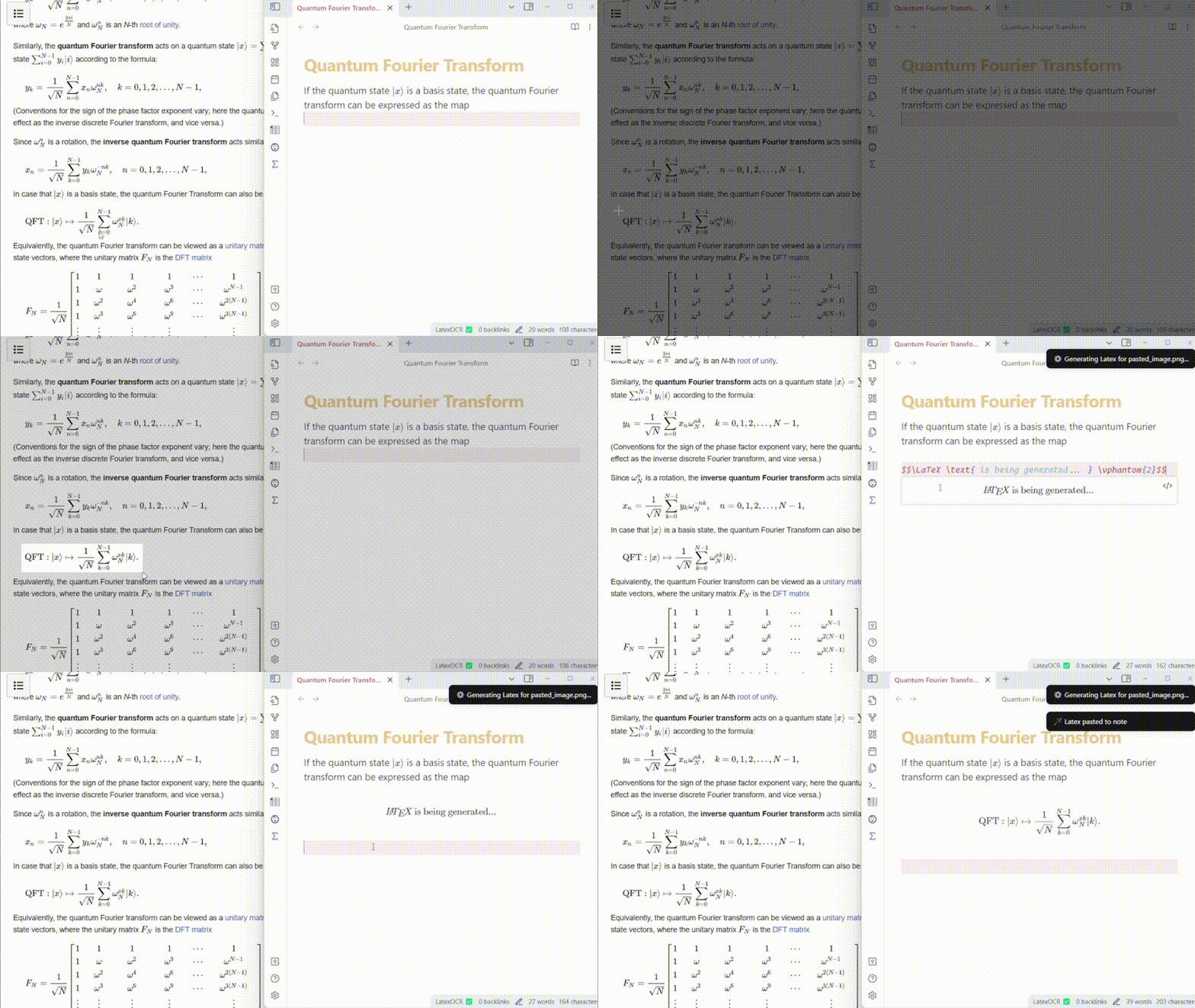
Features
- Paste LaTeX equations directly into your notes using an image from your clipboard with a custom command (bind it to a hotkey like
Ctrl+Alt+Vif you use it often!). - Transform images in your vault to LaTeX equations by choosing a new "Generate Latex" option in their context menu.
- Use either the HuggingFace inference API or run locally
Using Inference API
By default, this plugin uses the HuggingFace inference API. Here's how you get your API key:
- Create an account or login at https://huggingface.co
- Create a
readaccess token in your Hugging Face profile settings. If you already have other access tokens I recommend creating one specifically for this plugin. - After enabling the plugin in Obsidian, head to the Latex OCR settings tab, and input the API key you generated.
Limitations
- The inference API is a free service by huggingface, and as such it requires some time to be provisioned. Subsequent requests should be a lot faster.
- If you would be interested in a low-cost subscription-based service that would get rid of this annoying waiting period, please react to the related issue here. I will consider building it if there is enough demand to pay for the server costs.
Run Locally
Alternatively, you can run the model locally. This requires installing an accompanying python package. Install it using pip (or, preferably pipx):
pip install latex-ocr-server
You can check if it is installed by running
python -m latex_ocr_server --version
Configuration
Open Obsidian and navigate to the Community Plugins section and enable the plugin. Then head to the LatexOCR settings tab, enable "Use local model" and configure it.
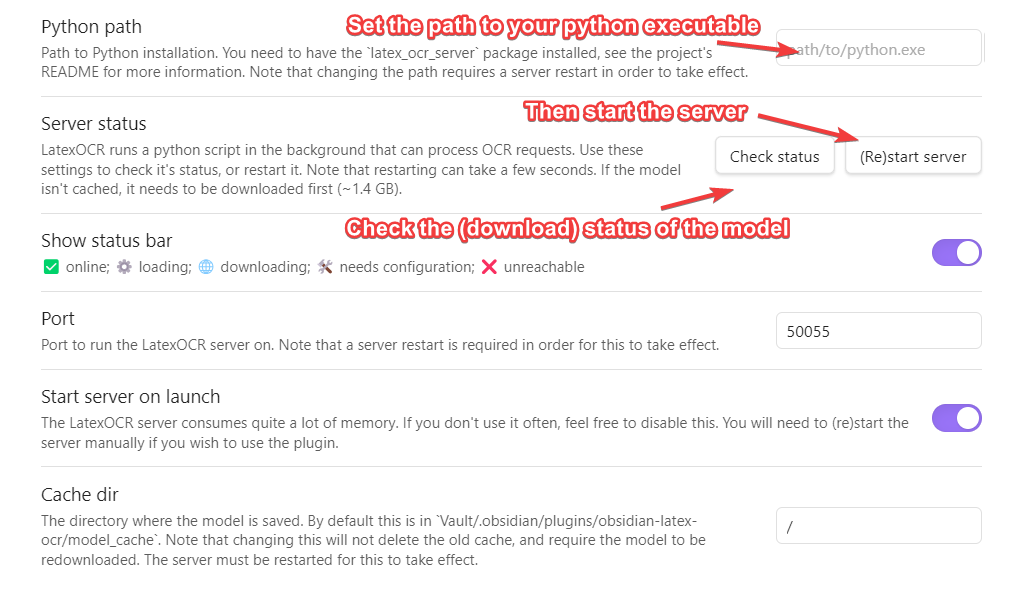
You will first need to set the python path that the plugin will use to run the model in the LatexOCR settings. You can then check if it's working using the button below it. Once this is done, press "(Re)start Server".
Note that the first time you do this, the model needs to be downloaded from huggingface, and is around ~1.4 GB. You can check the status of this download in the LatexOCR settings tab by pressing "Check Status".
The status bar at the bottom will indicate the status of the server.
| Status | Meaning |
|---|---|
| LatexOCR ✅ | server online |
| LatexOCR ⚙️ | server loading |
| LatexOCR 🌐 | downloading model |
| LatexOCR ❌ | server unreachable |
If the server is online but you encounter an error getting a response from the server, ensure that the Cache dir filepath from the plugin settings is pointing to a valid folder and that the model has successfully been saved there.
GPU support
You can check if GPU support is working by running:
python -m latex_ocr_server info --gpu-available
If you want GPU support, follow the instructions at https://pytorch.org/get-started/locally/ to install pytorch with CUDA. Note you may need to uninstall torch first. torchvision and torchaudio is not required.
Attribution
Massive thanks to NormXU for training and releasing the model.
For plugin developers
Search results and similarity scores are powered by semantic analysis of your plugin's README. If your plugin isn't appearing for searches you'd expect, try updating your README to clearly describe your plugin's purpose, features, and use cases.