MathLive
approvedby danzilberdan
Faster and more intuitive MathJax editing using MathLive.
MathLive Plugin for Obsidian
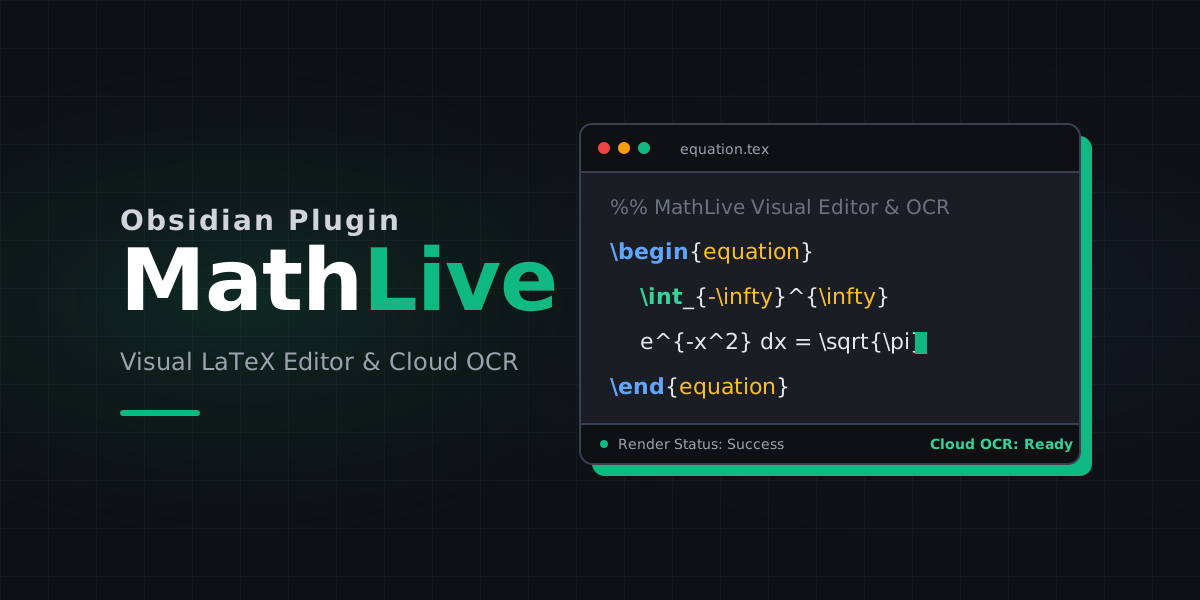
MathLive helps you write math in Obsidian faster. Instead of manually typing every LaTeX command, you can open a visual math editor, build the expression you want, and insert it directly into your note.
It can also turn a copied formula image into LaTeX, either through a hosted OCR service or your own local OCR server.
Why Use It
- Write inline math and display math without leaving your note.
- Edit existing formulas in a visual math field instead of raw LaTeX only.
- Convert pasted formula images into LaTeX when you do not want to retype them.
- Stay inside Obsidian for everyday note-taking, class notes, and problem solving.
What You Can Do
Visual math editing
Use MathLive when you want to:
- insert new inline math like
$x^2 + y^2$ - insert display math blocks like
$$\int_0^1 x^2 dx$$ - tweak an existing expression in a friendlier editor
Formula OCR
If you copy an image of a formula to your clipboard, MathLive can try to convert it into LaTeX and add it to the editor for you.
This is useful for:
- screenshots from PDFs or slides
- handwritten or typeset formulas you want to reuse
- getting a draft expression quickly before cleaning it up
Installation
- Open Obsidian.
- Go to Settings -> Community plugins.
- Click Browse and search for
MathLive. - Click Install.
- Click Enable.
Getting Started
Insert or edit math
- Open any note.
- Open the command palette with
Ctrl/Cmd + P. - Run
Add inline mathorAdd full-line math. - Type in the MathLive editor and click
Insert.
If you already selected text first, MathLive uses that selection as the starting content, which makes editing existing formulas quicker.
Set a hotkey
If you use math often, assign a hotkey to the MathLive commands in Settings -> Hotkeys. That makes the plugin much faster to use during note-taking.
OCR Setup
MathLive supports two OCR modes.
Cloud OCR
Best for most users. No local setup required.
- Create an API key at mathlive.danz.blog.
- Open Settings -> MathLive.
- Paste the key into
API key. - Make sure
Self hostedis turned off.
Self-hosted OCR
Best if you want to run OCR on your own machine.
- Set up a compatible OCR server such as LaTeX-OCR so it is available at
http://localhost:8502. - Open Settings -> MathLive.
- Turn on
Self hosted. - Enter any non-empty value in
API keyif your local server does not require one. The scan button is only enabled when that field has a value.
Self-hosting is more technical and usually only makes sense if you are already comfortable running local services.
How To Scan A Formula Image
- Copy a formula image to your clipboard.
- Open MathLive with
Add inline mathorAdd full-line math. - Click
Scan MathJax from Clipboard. - Wait for the recognized LaTeX to appear in the editor.
- Clean up anything that needs correction, then click
Insert.
Notes
MathLiveis desktop-only.- OCR results are a starting point, not a guarantee. You may still want to fix symbols or spacing.
- Cloud OCR is usually the simplest option if you just want the feature to work.
Support
Issues and feature requests: github.com/danzilberdan/obsidian-mathlive
Acknowledgements
For plugin developers
Search results and similarity scores are powered by semantic analysis of your plugin's README. If your plugin isn't appearing for searches you'd expect, try updating your README to clearly describe your plugin's purpose, features, and use cases.