Leaflet bases
approvedby Sara Lilith Slootmaker
Interactive fantasy map view inside your bases. - This plugin has not been manually reviewed by Obsidian staff.
Leaflet Bases
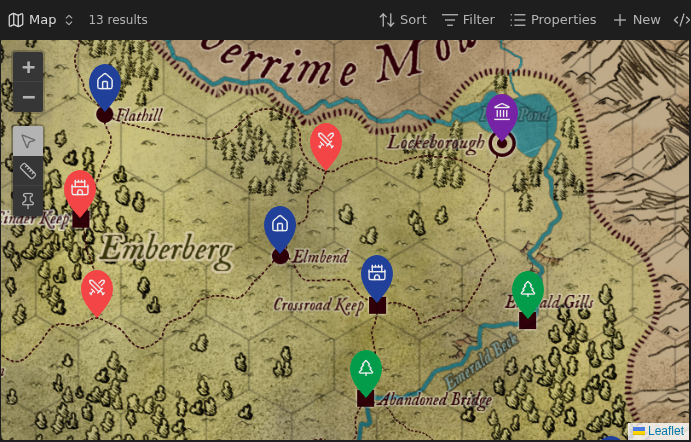
This plugin for Obsidian adds a new bases view: 'Leaflet Map' and a new type of property: 'marker'
Please report any issues you encounter here.
Leaflet bases was developed for three reasons:
- To leverage the versatility of Obsidian bases
- Marker data is part of the note it belongs to, not of the map it is shown on
- To have your maps be available in your online garden using Quartz, there is a separate Quartz plugin for that.
For use with Quartz you'll need the appropiate Quartz plugin. Quartz v5 supports bases but is still in open beta, there is also a Quartz plugin version that supports Quartz v4.
Usage
You can find an example vault here.
Adding a map
Using configurations
- First you need a base and add a 'Leaflet Map' view.
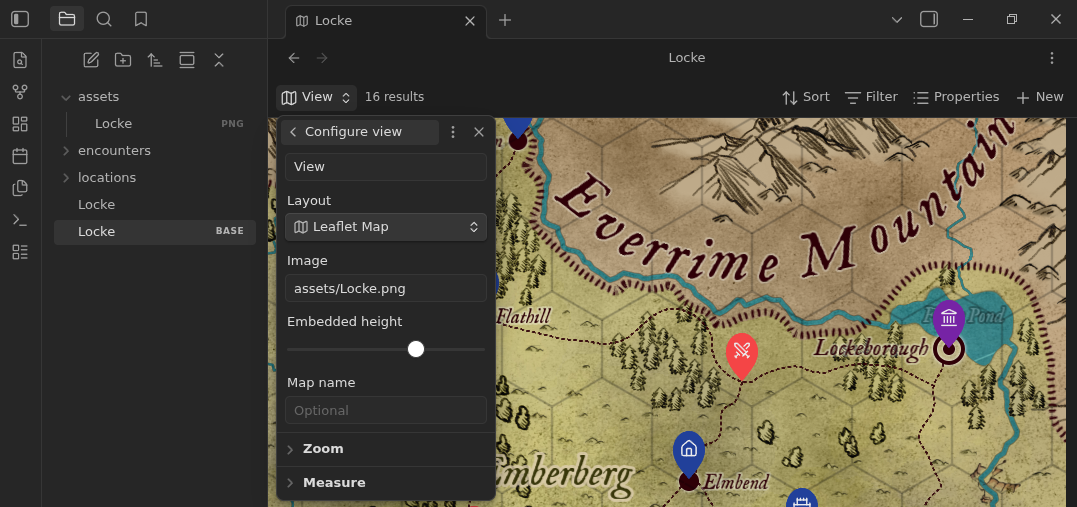
- Change the settings as you wish.
Using a code block
You can also embed the base:
```base
views:
  - type: leaflet-map
    name: Map
    mapName: test
    image: assets/Locke.png
    height: 400
    minZoom: -1.5
    maxZoom: 2
    defaultZoom: -1.5
    zoomDelta: 0.25
    scale: "0.2"
    unit: km
```
| Setting | What it does | |
|---|---|---|
| Layout | type | The type of base, don't change this (from Obsidian bases) |
| - | name | What the view is called (from Obsidian bases) |
| Image | image | The image the map should show. It also accepts wiki links. |
| Map name | mapName | Optional identifier for the map. Useful if you want to reuse a note across several maps |
| Default zoom | defaultZoom | The zoom value the map opens with |
| Minimum zoom | minZoom | How far you can zoom out |
| maximum zoom | maxZoom | How far you can zoom in |
| Zoom stepsize | zoomDelta | How much you zoom |
| Scale | scale | How much to scale the result of the measure tool |
| Unit | unit | The unit the measure tool uses (think km, mi, hours) |
Technically only 'type', 'name', and 'image' are required for the map view to work. However you'll likely end up using most of the other settings.
Instead of setting
mapNamein the base, you can also use a bases filter;views: - type: leaflet-map name: Map image: assets/Locke.png filters: and: - '!marker.filter(value.mapName == "MAP_NAME").isEmpty()'
Adding a marker
Using UI
- Add a new marker property to the note you want to have a marker.
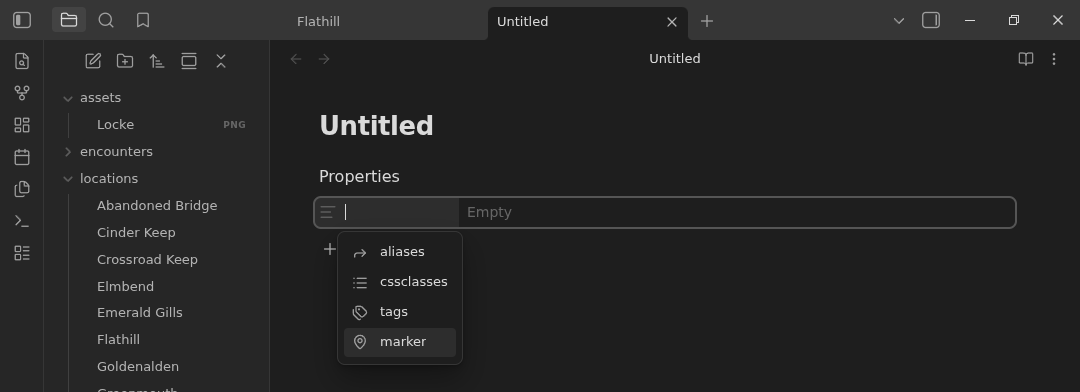
Ensure the property is of the 'Marker' type!
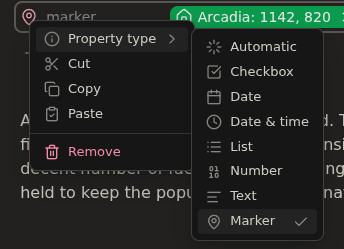
- Add a marker using the '+' button that appeared. If the vault has more than one Leaflet map view, pick which one the marker belongs to, then click on that map to set the marker's coordinates. Fill in the form in the modal and click 'Create marker'.
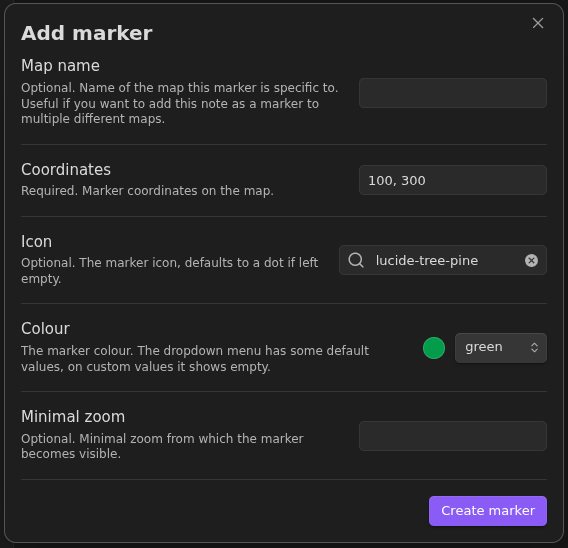
- You can add more markers using the '+' button, edit markers by clicking the tags, or remove them using the 'x' buttons.

The first time you use the plugin, Obsidian might not recognise the marker property and you will not see the '+' button
Using the map
- Enable the "create note" tool in the plugin settings (
Settings→Leaflet bases→Enable create note tool). - Select the "Create note here" tool in the map's toolbar and click a spot on the map.
- Fill in the form. In the note name field, either type a name to create a new note there, or pick an existing note shown in the base to add the marker to that note instead.
- New notes are created at your vault's default location for new notes. Be aware that if Obsidian is unable to deserialise your formula this can fail.
You can drag markers using the drag tool. Be sure to enable it first (
Settings→Leaflet bases→Enable drag tool).
Using the context menu
- Right a spot on the map.
- Select
Add marker to note. - Fill in the form. In the note name field, either type a name to create a new note there, or pick an existing note shown in the base to add the marker to that note instead.
- New notes are created at your vault's default location for new notes. Be aware that if Obsidian is unable to deserialise your formula this can fail.
You can edit and delete markers from the context menu by right clicking the marker and choosing the option you want.
Using source code frontmatter
Ensure that the frontmatter block is the first thing in your note.
---
marker:
  - coordinates: 100, 300
    icon: lucide-tree-pine
    colour: "#039c4b"
    minZoom: 1
  - coordinates: 5, 5
    mapName: mapName
    colour: "#bdf123"
---
Keep in mind that markers are arrays, many code editors automatically add an
-when you start a new line. Ensure you only have the dashes where a new marker entry starts.
| Setting | What it does | |
|---|---|---|
| Map name | mapName | If you want this marker to only show for a certain map, set this to the mapname of that map |
| Coordinates | coordinates | Where the marker is placed on the map |
| Icon | icon | Which icon to use for the marker. Can be any lucide icon. |
| Colour | colour | Which colour the marker will be |
| Minimal zoom | minZoom | How far zoomed in the map should be before the marker becomes visible |
Technically only 'coordinates' is required for the marker to be valid. However you'll likely end up using most of the other settings.
Coordinates can easily be obtained using the 'copy' (📌) tool in the map. Clicking a spot on the map automatically copies the coordinates to your clipboard.
Adding icons to Obsidian
Any icons added to Obsidian using another plugin should work just fine as long as their icons stick to Obsidian's design limitations. However, these icons likely won't work with Quartz.
- Go to the Iconify website and find the iconset you want.
- Select any icon and find the set prefix. In the image this is
game-icons
- Now go to the Iconify Github and find the json file that corresponds to your chosen set. Open it.

- Download the raw file
- Open Obsidian. The open your vault settings. Under community plugins, go to
Leaflet bases - Under
Additional icon sets, find the option to add iconsets and click the button. It will open a prompt where you can select the file you just downloaded. Pressopenand the iconset has been added!
Installation
This plugin currently requires Obsidian v1.11.4 or later to work.
Install via Community Plugins
You can find the plugin here.
Install via BRAT
- Install the BRAT plugin under Community Plugins.
- Open BRAT settings and click "Add beta plugin".
- Enter the URL of this repository:
https://github.com/Requiae/obsidian-leaflet-bases-plugin. - Under "Select a version", choose the Latest version.
- Click "Add plugin".
Alternatives
Leaflet (link)
The OG for Obsidian fantasy maps has to be mentioned. It is no longer under active development and has been in maintenance mode for years.
Zoom map (link)
This plugin is awesome, comprehensive, and feature rich. If you do not wish to use Obsidian bases, your markers to be saved in your notes, nor to host your garden using Quartz then I highly recommend you to take a look at this plugin!
Map view (link)
My inspiration and my frustration, for it does not allow images to be used for your maps, and the workarounds are difficult, not accessible, and tend to break GitHub ToS.
For plugin developers
Search results and similarity scores are powered by semantic analysis of your plugin's README. If your plugin isn't appearing for searches you'd expect, try updating your README to clearly describe your plugin's purpose, features, and use cases.