by daniel-fiuk
Upload your own maps and plant pins on important locations, each linking back to your notes.
Simple Map: interactive maps for Obsidian
Are you a writer, a world builder, or a really dedicated Dungeon Master or note taker? Do you want to manage and locate your notes on a map of your choosing? Introducing Simple Map for Obsidian! Upload any image to your Obsidian vault and create an interactive map where you can link to notes that call back to a specific location.
Features
- Locally create interactive maps from images in your vault
- Pan and zoom around your map
- Supports infinitely panning maps on both axes
- Pin notes to your maps
- Limit which notes appear on which maps by defining unique map IDs
- Customize pin icons and sizes, including per-note sizes
- Overlapping pins spread apart when you select one
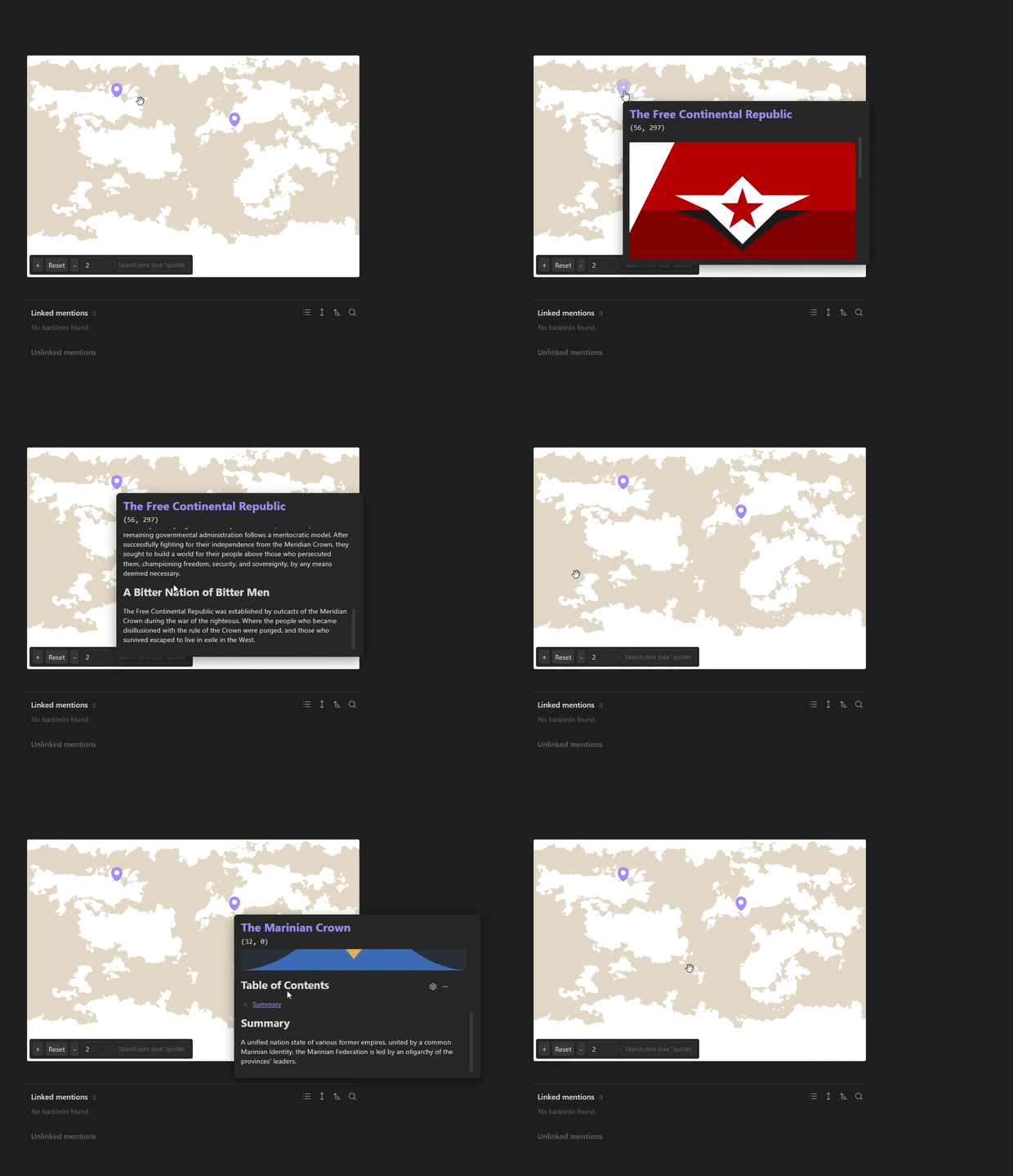
- Click pins to preview your notes, double-click to open them
- Drag previews anywhere and keep several open at once
- Filter pins on your map using the search bar
- Switch between several maps in one block (terrain, political, regional maps…)
- Show note-linked overlays such as borders while a pin is selected
How to create your own map
Add the 'simple-map' code block to your note and give it an image for your desired map.
simple-map code block
```simple-map
map: world map.svg
```
This plugin is explicitly designed for use with SVG files for the best image quality and sharpness at higher zoom levels, but is also compatible with the file types PNG, JPG, JPEG, WEBP, and GIF.
Panning and zooming
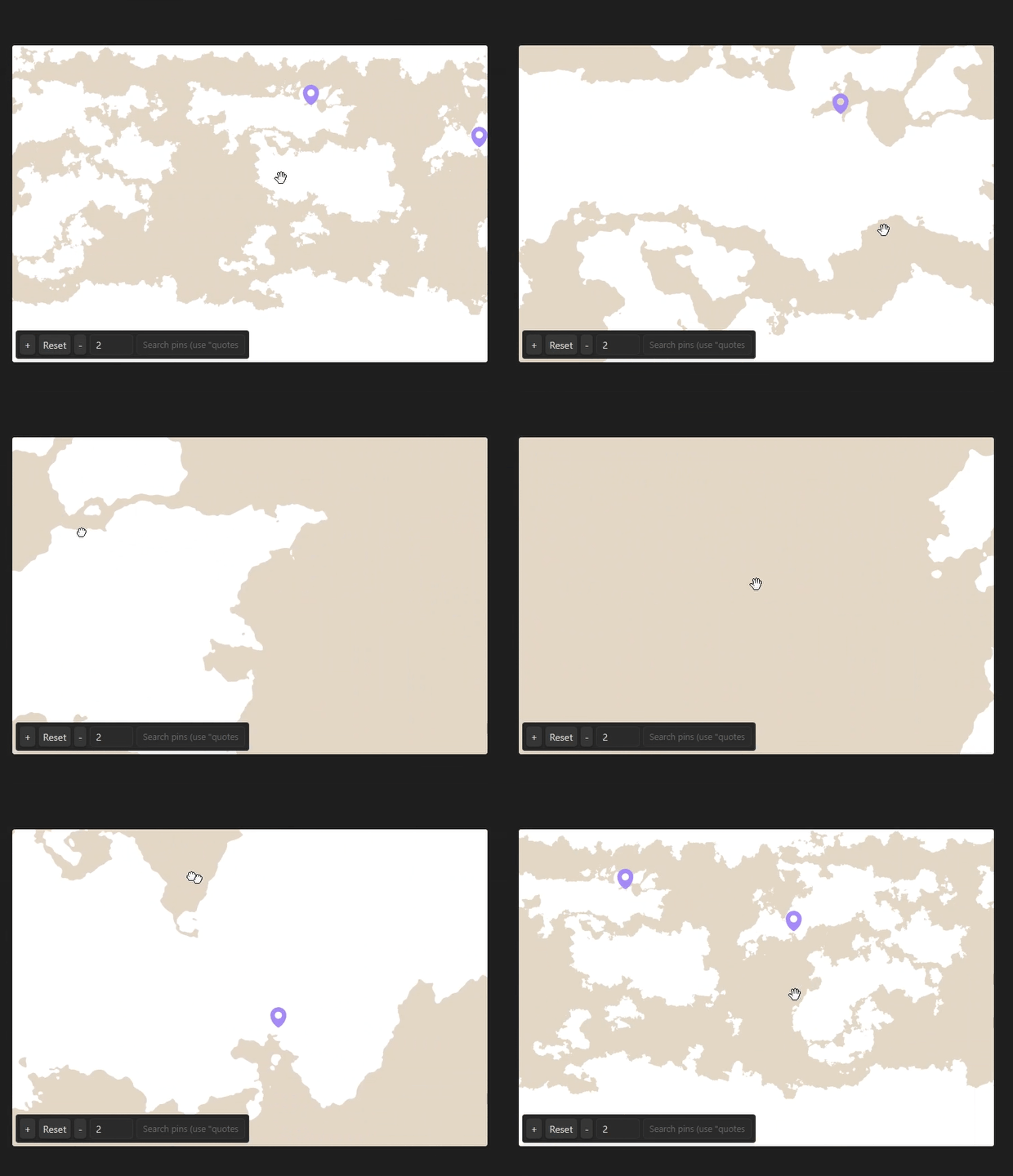
Using the mouse, you can click and drag to pan around your map. By scrolling with the mouse wheel, you can zoom in and out of your map. The toolbar gives you the ability to define how fast you zoom by updating the zoom step increment. Using the toolbar, you can also zoom in and out of the center of your current view and reset your zoom back to its initial position and zoom level.
You can set a default pan and zoom for your map, as well as the zoom range for how far in and out you can zoom by defining these parameters.
simple-map code block
```simple-map
map: world map.svg
zoom range: (1, 100)
default zoom increment: 2
default zoom level: 2
default location: (0, 316)
```
Infinite wrapping maps
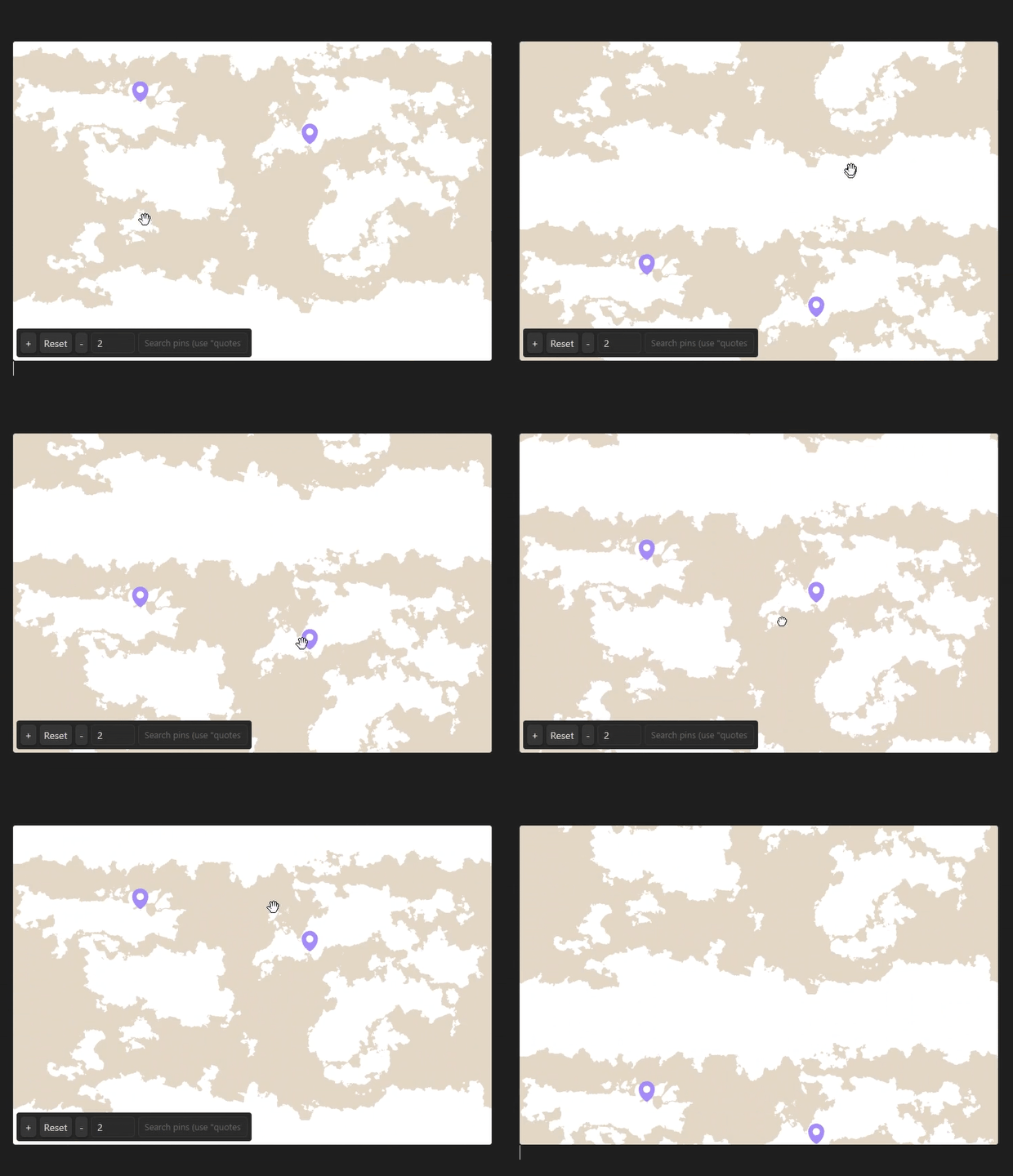
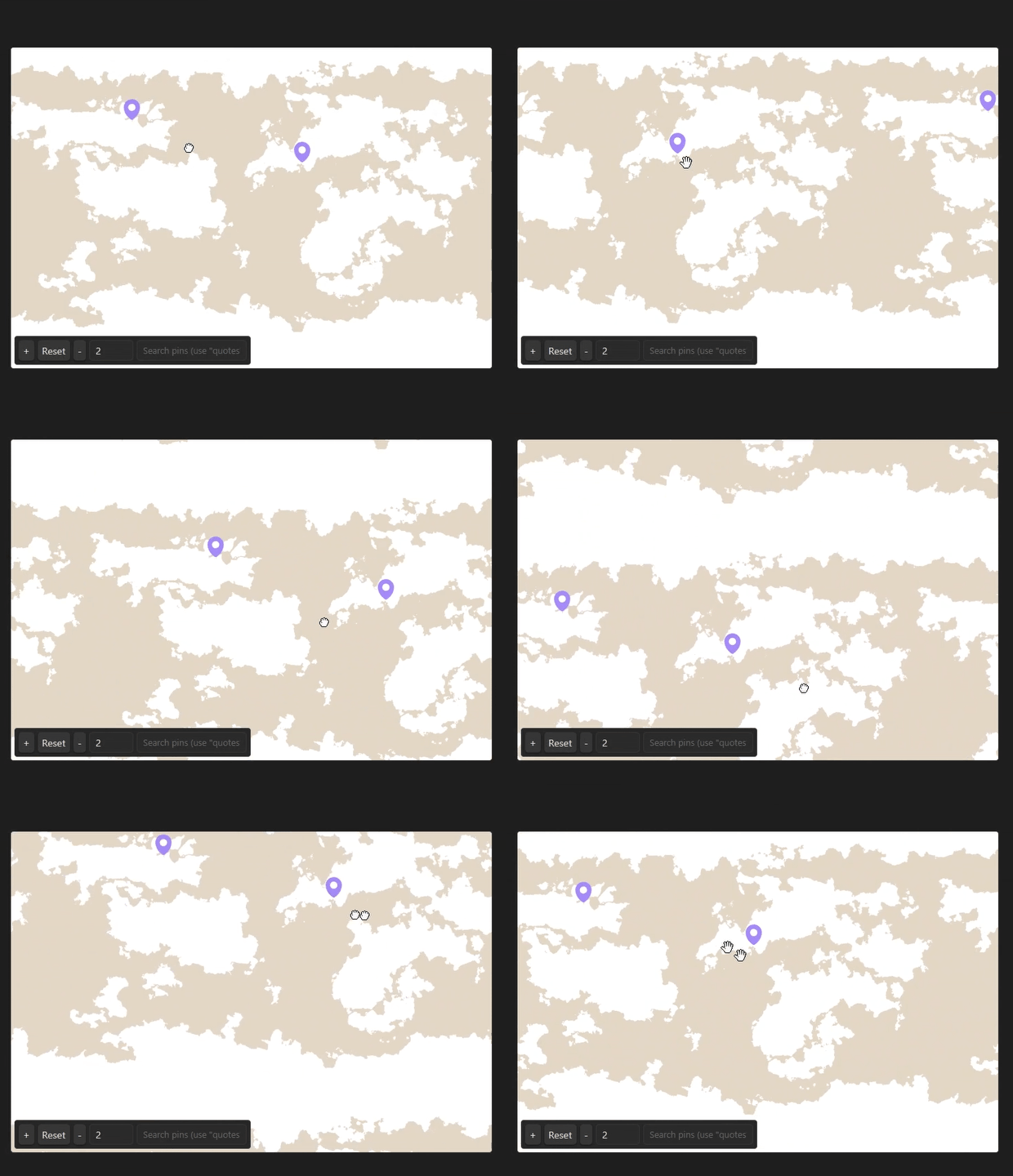
You can set up a repeating map by simply defining a repeat parameter for horizontal, vertical, or even both axes wrapping.
simple-map code block
```simple-map
map: world map.svg
repeat: x
```
Coordinate Customization
By default the map assumes a default latitude and longitude for your map. (-90, 90) latitude and (0, 360) longitude. This scales with the aspect ratio of your map by default so that a coordinate of (90, 0) would correspond to the very top left corner of your map, and (-90, 360) would map to the very bottom right. You can customize your coordinate space by defining the latitude and longitude ranges, as well as define a custom prime meridian for your worlds.
simple-map code block
```simple-map
map: world map.svg
latitude range: (-90, 90)
longitude range: (0, 360)
prime meridian offset: (0, 222.75)
```
Pins
To add a pin to your map, simply add sm-location to your frontmatter.
pin note front matter
---
sm-location: (lat, lng)
---
Pin Filters
You can filter for which pins are rendered to a map by defining a map ID. Think of this like a lock and key. A pin will only appear on maps where it has a matching ID.
simple-map code block
```simple-map
map: world map.svg
id: My Map ID
```
pin note front matter
---
sm-location: (lat, lng)
sm-id: My Map ID
---
Pin Icon Customization
You can change the pin icons by uploading your own from the vault, same as you would your map.
pin note front matter
---
sm-location: (lat, lng)
sm-pin-icon: my pin icon.svg
---
You can also change the size of the pins that appear on your map by setting the pin size parameter on your map. This parameter utilizes standard css to define the width of your pins, and auto adjusts the height to maintain the aspect ratio.
simple-map code block
```simple-map
map: world map.svg
pin size: 24px
```
Individual notes can override the map's pin size with sm-pin-size. Use any CSS size, a percentage of the map window width, or a multiplier of the map's pin size. This is handy for flags or other icons that need to be larger to stay readable.
pin note front matter
---
sm-location: (lat, lng)
sm-pin-icon: my nation flag.svg
sm-pin-size: 2x
---
Selecting and moving pins
- Click a pin to open its preview. Click it again to close it (configurable).
- Double-click a pin to open its note. Hold Ctrl/Cmd to open it in a new tab.
- Drag a pin to move it; its
sm-locationis updated when you let go. - Click the map (without panning) or press Esc to close previews.
When a pin is selected, pins overlapping or stacked on it are pushed outward so each one can be reached. Their saved locations don't change.
Preview Notes
You can preview your notes directly from your map with images and functioning links. Drag a preview by its title bar to move it out of the way, and close it with the × button. By default several previews can be open at once; previews follow their pin while you pan until you move them.
Filter using Search
You can search through your pins by simply typing in the search bar. Names, tags, aliases, and all other frontmatter properties you create can be used as filters to find specific pins on your map. Using quotation marks and "and / &&" or "or / ||" key words, you can search for multiple filters/queries. (i.e. "faction" or "building", "landmark" and "battle", etc.)
Multiple maps in one block
Each map: line starts a new map. Parameters above the first map: line are shared by every map; parameters after a map: line apply only to that map. When a block has more than one map, a dropdown appears in the toolbar to switch between them.
simple-map code block
```simple-map
zoom range: (1, 15)
default map: Terrain

map: World Terrain.png
name: Terrain

map: World Political.svg
name: Political
filter: "nation" || "capital"

map: Kestrel Isles.png
name: Kestrel Isles
world: Kestrel
latitude range: (-10, 10)
longitude range: (0, 40)
```
- name: label in the dropdown (defaults to the file name).
- filter: the map's default search, placed in the search bar so you can refine it. The reset button next to the search bar restores it.
- world: maps in the same world share coordinates, so switching between them keeps your view. Maps with identical latitude range, longitude range and prime meridian offset share a world automatically.
- default map: which map is shown first, by name or number.
Overlays
Overlays are images authored at the same dimensions as your map, such as borders or regions. They appear while the pin's preview is open (for the most recently selected pin) and pan, zoom and repeat with the map.
pin note front matter
---
sm-location: (lat, lng)
sm-overlay:
  - "[[Valdoria Borders.svg]]"
  - "Political: [[Valdoria Borders Flat.svg]]"
sm-overlay-opacity: 0.8
---
A plain link shows on every map; MapName: [[file]] shows only on the map with that name.
Settings
| Setting | Default | Description |
|---|---|---|
| Default pin size | 24px | Pin width when a map or note doesn't set one |
| Default zoom increment | 1 | Zoom step for buttons and the mouse wheel |
| Allow multiple previews | On | Keep existing previews open when selecting another pin |
| Clicking a pin with an open preview | Close preview | Or keep it open |
| Moved preview on new pin | Jump to new pin | Single-preview mode: or stay where you moved it |
| Spread nearby pins | On | Push overlapping pins away from the selected pin |
| Hover previews | Off | Show a preview while hovering a pin |
For plugin developers
Search results and similarity scores are powered by semantic analysis of your plugin's README. If your plugin isn't appearing for searches you'd expect, try updating your README to clearly describe your plugin's purpose, features, and use cases.