Dictionary Lexicon
approvedby st-vin
Look up words and improve vocabulary by using flash card style cards.
Dictionary Lexicon Plugin for Obsidian
A powerful dictionary plugin for Obsidian that provides Lexicon dictionary definitions, vocabulary management, and spaced repetition flashcards to help improve your vocabulary.
Features
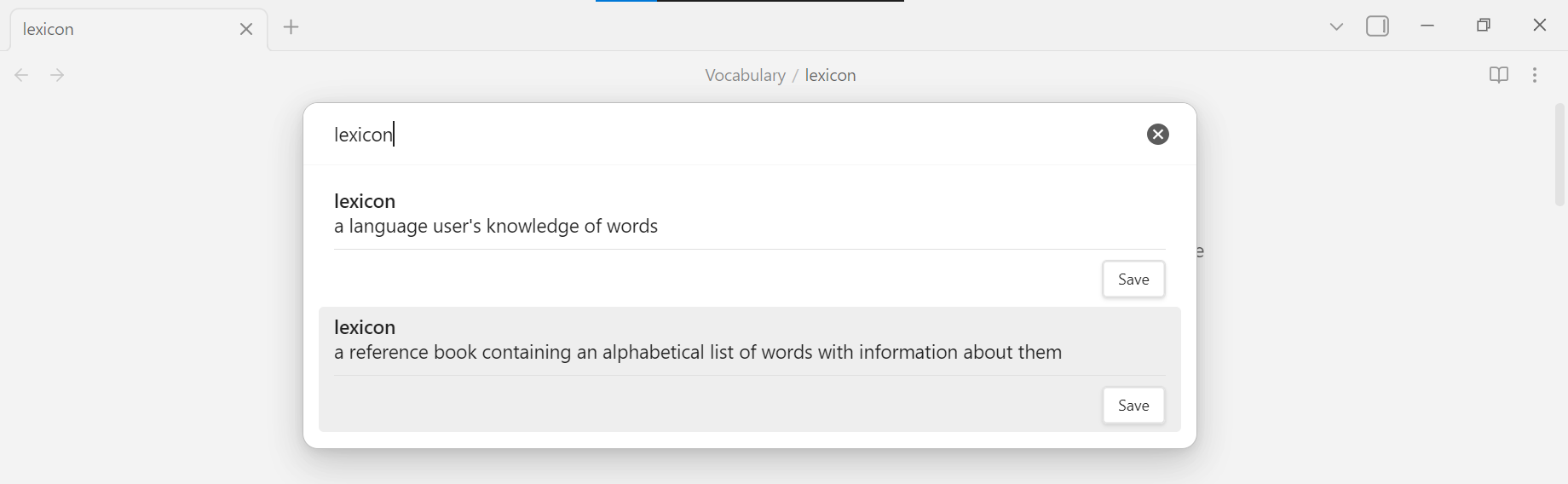
- Wordnet Dictionary Lookup: Search and insert definitions from the comprehensive Wordnet dictionary
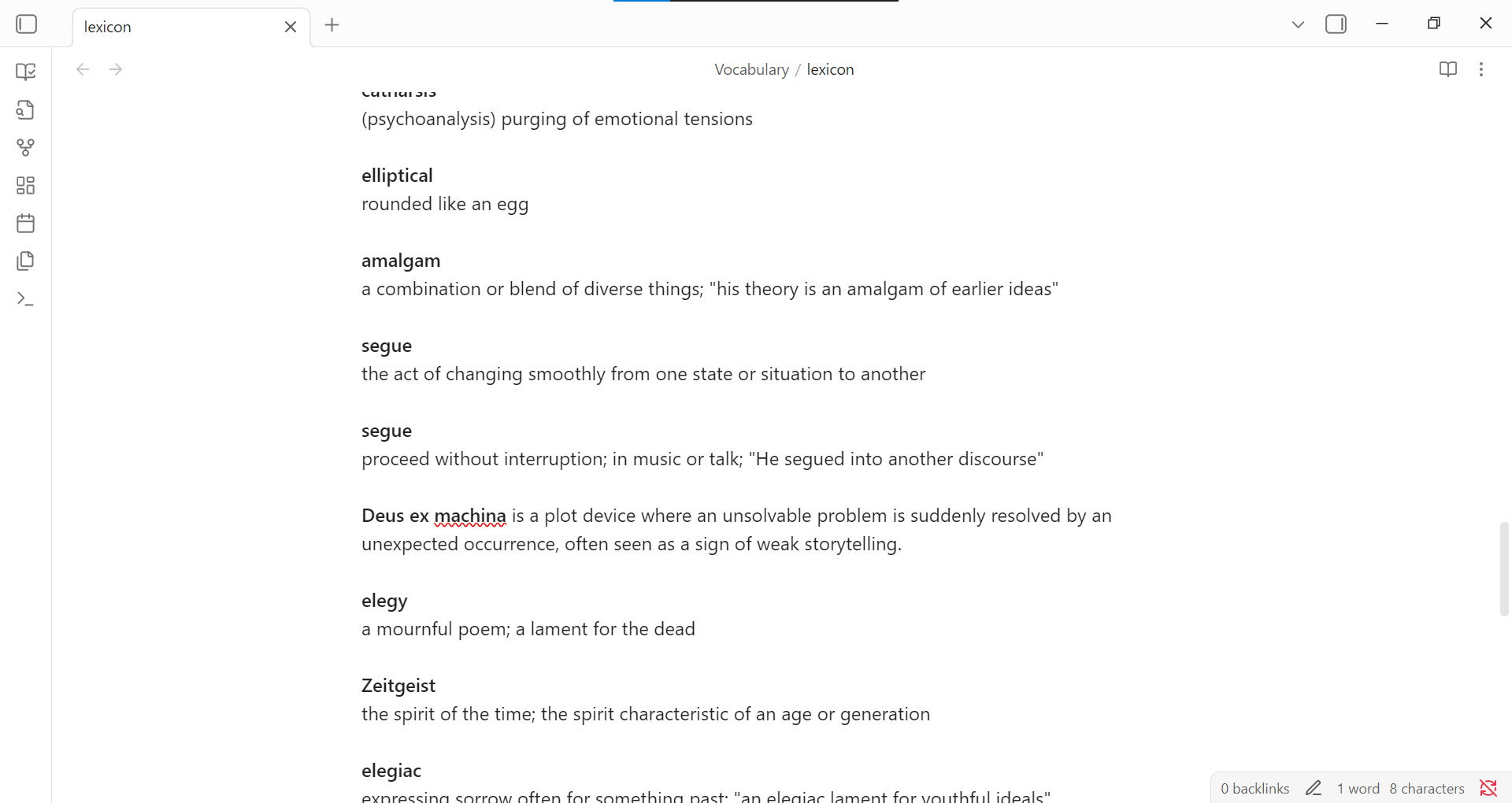
- Vocabulary Management: Save words and definitions to a dedicated vocabulary file
- Save to Footer (Glossary): Insert looked-up words directly into a glossary section at the end of your current note
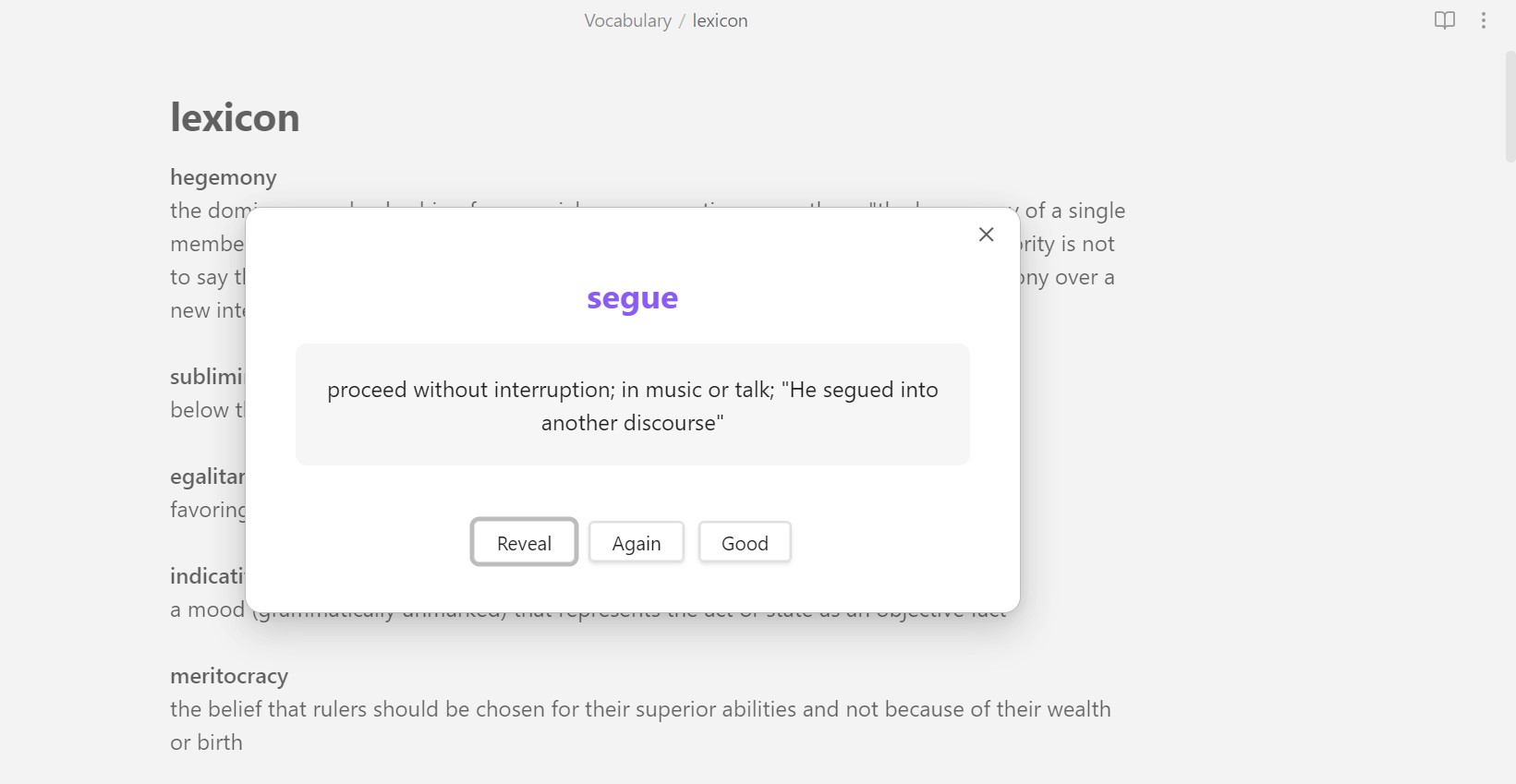
- Flashcard System: Review your vocabulary with periodic flashcard popups
- Context Menu Integration: Right-click to look up or save selected text
- Customizable Templates: Define how definitions are inserted into your notes
Screenshots
-
Overview
-
Lookup modal (searching and inserting definitions)
-
Vocabulary file (saved words and definitions)
-
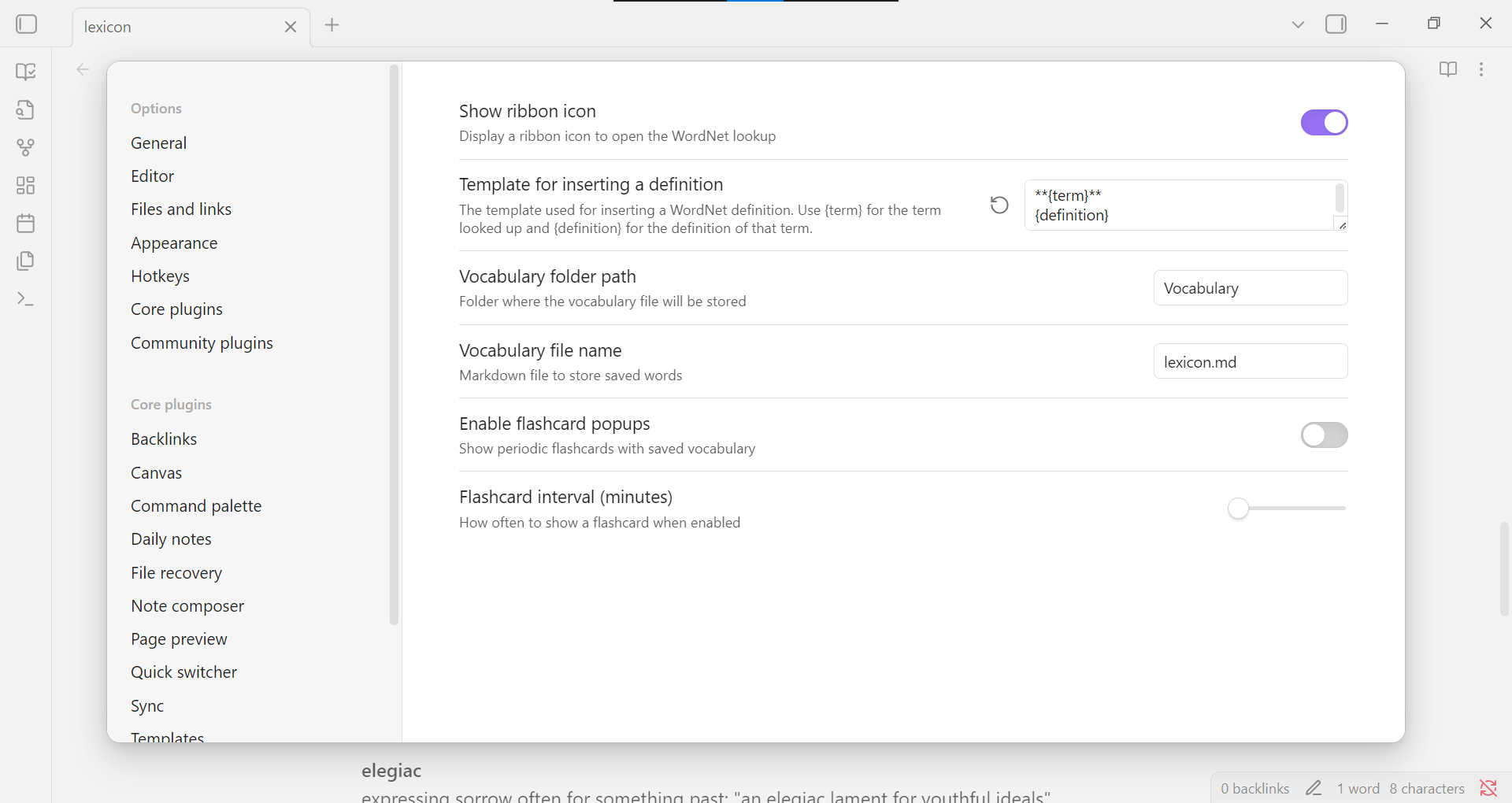
Settings (display, templates, vocabulary, flashcards)
-
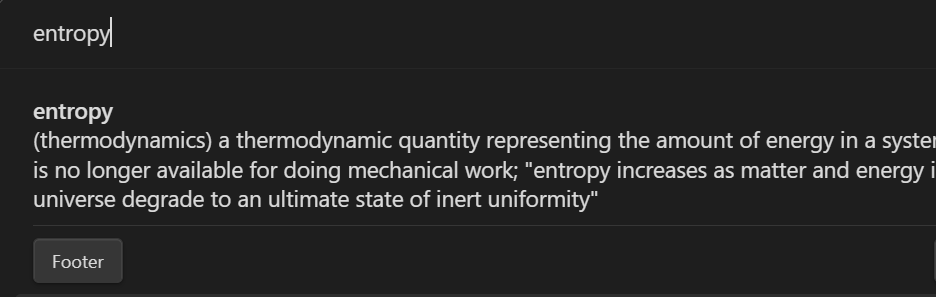
Footer Button
-
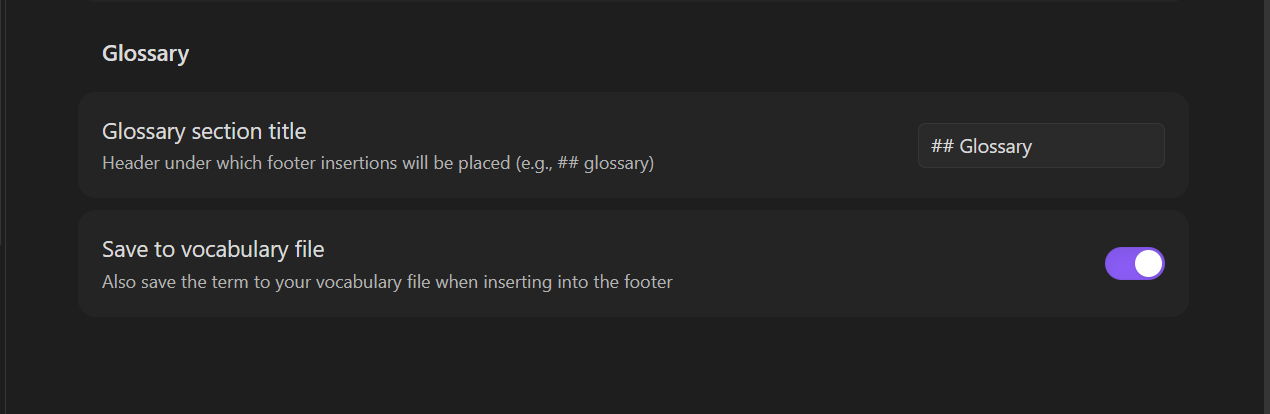
Glossary Settings
Installation
From Obsidian Community Plugins
- Open Settings → Community Plugins
- Search for "Dictionary Lexicon"
- Click Install and then Enable
Manual Installation
- Download the latest release from GitHub
- Extract the files into your vault's
.obsidian/plugins/obsidian-lexicon-dictionary-plugin/folder - Reload Obsidian
- Enable the plugin in Settings → Community Plugins
Important Note
This plugin downloads a dictionary JSON file (>5MB) from an external source when first initialized. The dictionary file is downloaded to your plugin directory and cached locally. This download only occurs once when the plugin is first enabled, or if the dictionary file is missing. An internet connection is required for the initial download.
Usage
Looking Up Words
- Ribbon Icon: Click the book icon in the left ribbon
- Command Palette: Use "Dictionary Lexicon: Look up a word"
- Context Menu: Right-click on any word and select "Look up selection"
- Auto-detect: Open the lookup with no selection to detect the word under cursor
Saving Vocabulary
- Click "Save" button in the lookup results
- Right-click and select "Add selection to vocabulary"
- Use command "Dictionary Lexicon: Add selection to vocabulary"
Flashcards
- Enable automatic flashcards in settings
- Or manually trigger with "Dictionary Lexicon: Open vocabulary flashcard"
- Review saved vocabulary with spaced repetition
Glossary (Save to Footer)
- Click the Footer button in the lookup results to append the definition to the end of your current note.
- Customize the glossary header (e.g.,
## Glossary) in the plugin settings.
Settings
Templates
- Definition template: Customize how definitions are inserted
- Use
{term}for the word - Use
{definition}for the definition - Default:
**{term}**\n{definition}\n
- Use
Vocabulary
- Folder path: Where to store vocabulary file (default:
Vocabulary) - File name: Name of vocabulary file (default:
lexicon.md)
Flashcards
- Enable automatic popups: Show periodic flashcards
- Interval: How often to show flashcards (5-240 minutes)
Glossary
- Glossary section title: The header used for footer insertions (default:
## Glossary) - Save to vocabulary file: Automatically save terms to your main vocabulary list when inserting into the footer
Development
Project Structure
obsidian-lexicon-dictionary-plugin/
  main.ts                    # Plugin entry point
  types.ts                   # TypeScript interfaces
  constant.ts                # Constants and configuration
  DictionaryService.ts        # Lexicon dictionary service
  VocabularyManager.ts       # Vocabulary management
  DictionarySuggester.ts     # Search suggestions UI
  FlashCardModal.ts          # Flashcard modal component
  SettingsTab.ts             # Settings interface
  styles.css                 # Plugin styles
  manifest.json              # Plugin manifest
Building from Source
# Install dependencies
npm install

# Development build with watch mode
npm run dev

# Production build
npm run build
Contributing
Contributions are welcome! Please:
- Fork the repository
- Create a feature branch
- Make your changes
- Submit a pull request
License
MIT License - see LICENSE file for details
Credits
- Wordnet Dictionary Data: This plugin uses the Wordnet dictionary dataset.
- Author: Alvin (GitHub)
- Built for the Obsidian community
Wordnet Dictionary Citation
This plugin uses the Wordnet dictionary dataset.
For online references:
- Wordnet Dictionary Project. 2010.
Support
If you find this plugin useful, consider supporting its development:

If you encounter issues or have suggestions:
- Open an issue on GitHub
- Contact the developer
For plugin developers
Search results and similarity scores are powered by semantic analysis of your plugin's README. If your plugin isn't appearing for searches you'd expect, try updating your README to clearly describe your plugin's purpose, features, and use cases.