Lighthouse
approvedby benjamincassidy
Project-based writing. Manage multiple writing projects with word counts, filtered views, and distraction-free writing. - This plugin has not been manually reviewed by Obsidian staff.

Lighthouse
Project-based writing for Obsidian


"It was done; it was finished. Yes, she thought, laying down her brush in extreme fatigue, I have had my vision." — Virginia Woolf, To the Lighthouse
Lighthouse brings the focus of a dedicated writing app to Obsidian, inspired by Ulysses but without giving up Obsidian's power and flexibility. One command opens a dedicated Library and Inspector for a project — groups, goals, pacing, and focus, all built on plain markdown files in your vault. No lock-in, no proprietary format.
Screenshots
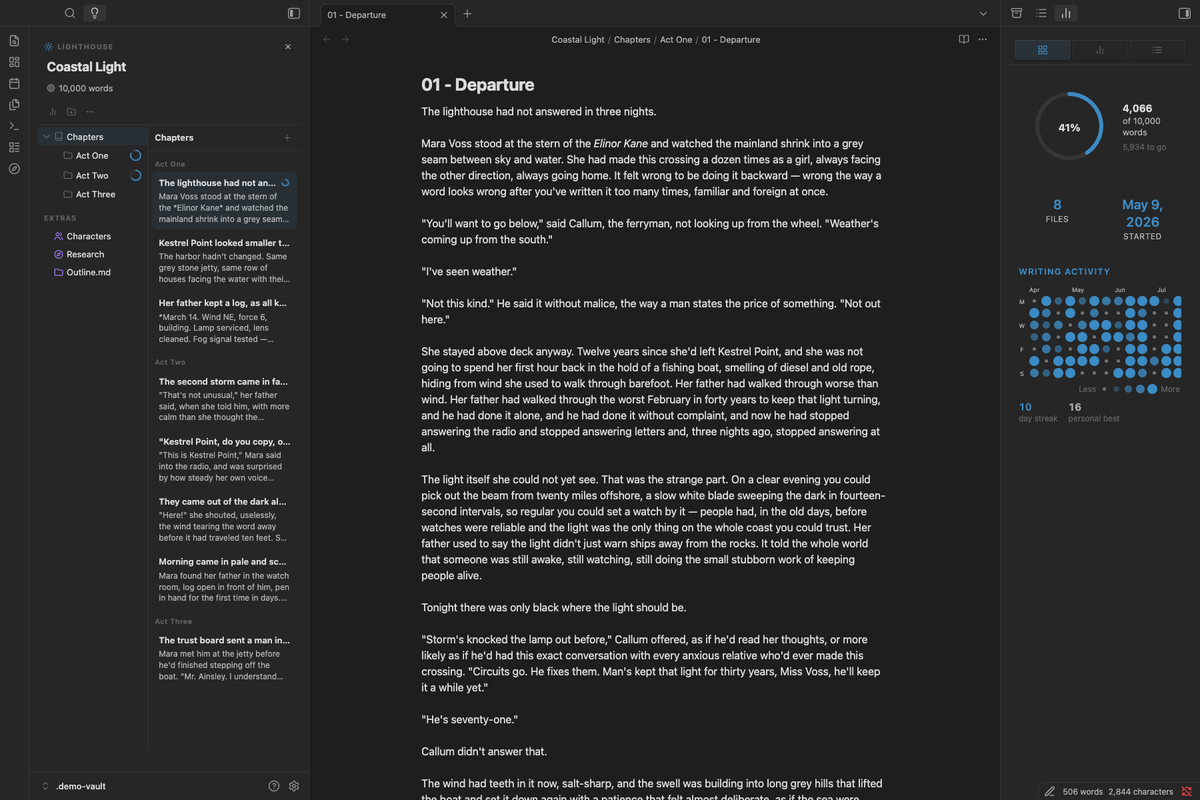 The Writing Workspace — Library, editor, and Inspector side by side | 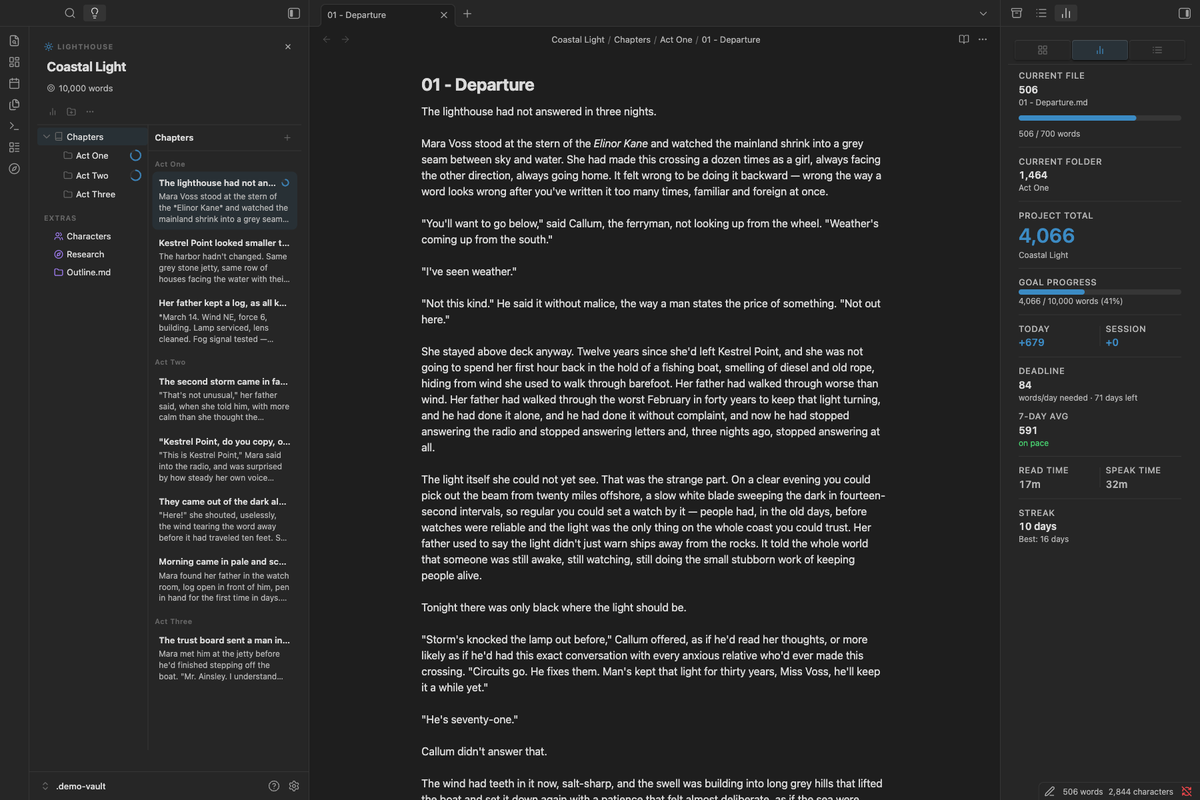 The Inspector — live word counts, deadline pacing, and streak |
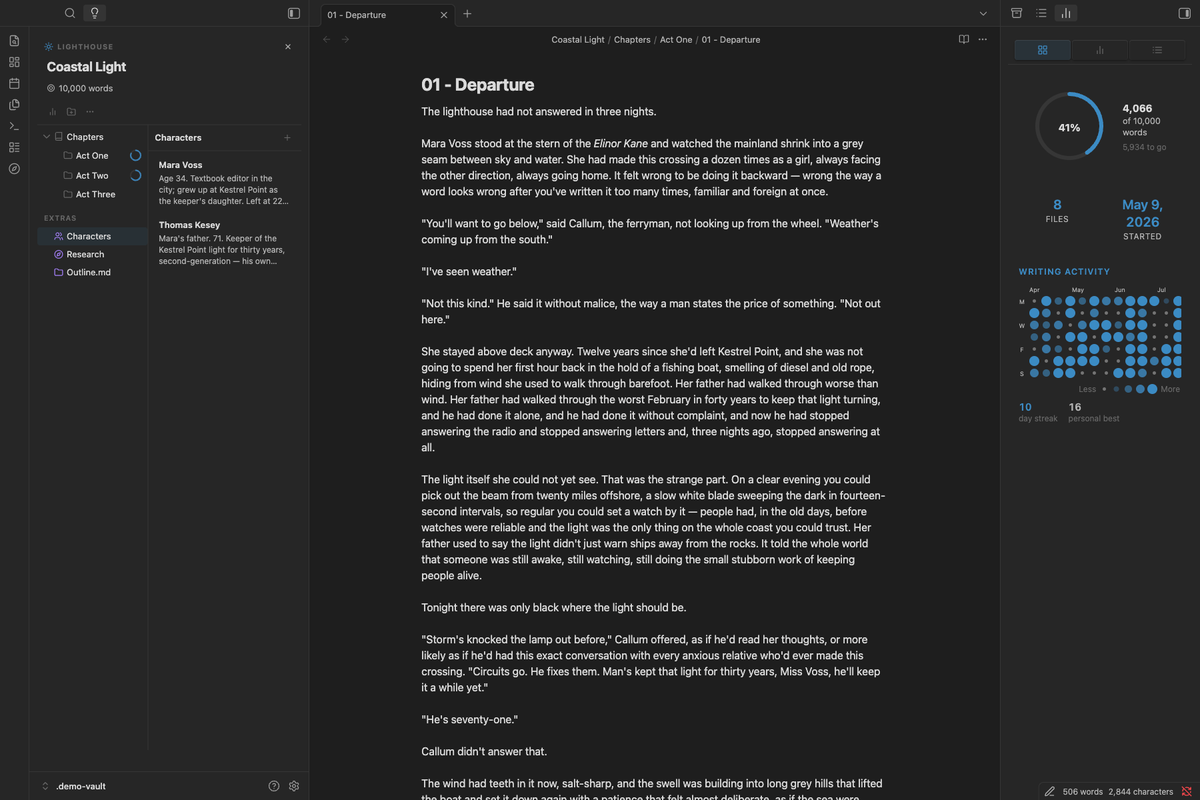 Groups & Extras — nested groups, tinted icons for research notes | 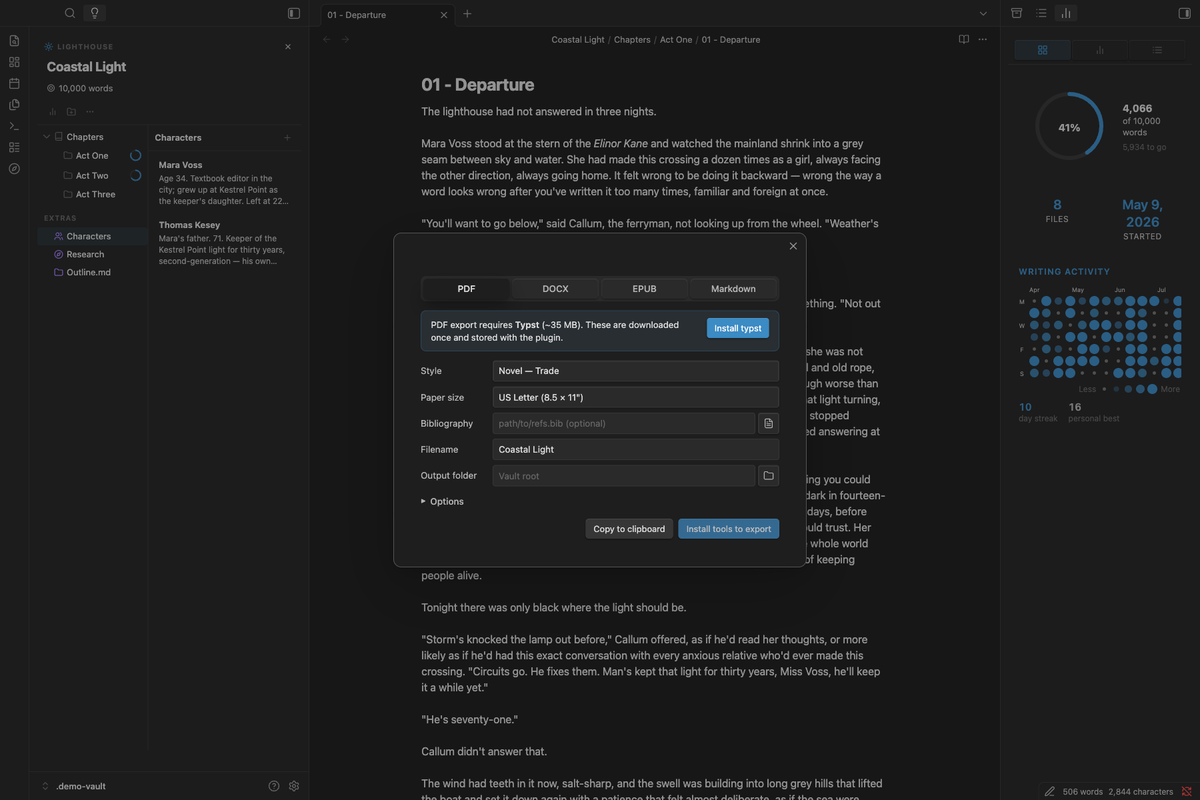 Export — compile to PDF, DOCX, or EPUB with style presets |
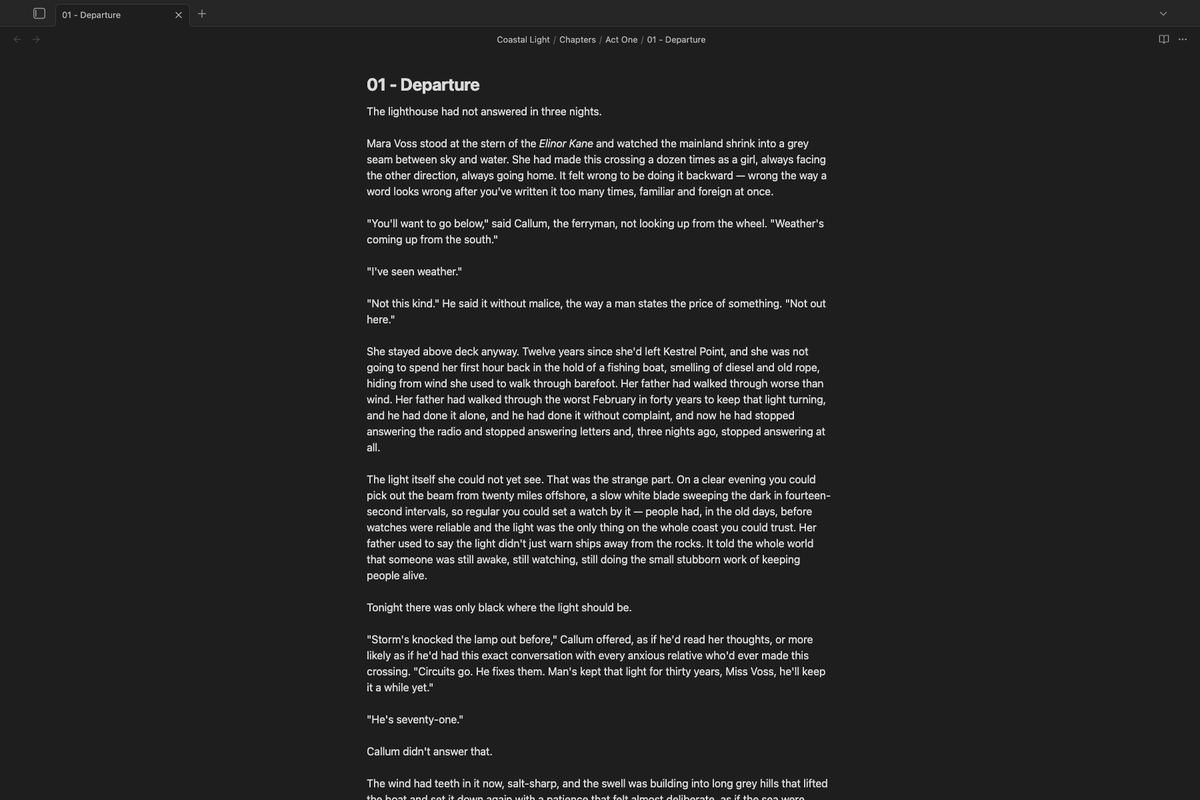 Flow Mode — distraction-free writing |
Features
Writing Workspace
- The Library — a Ulysses-style Groups & Sheets browser in the left sidebar, replacing Obsidian's file explorer for the duration; drag-and-drop to reorder groups and sheets
- The Inspector — right-sidebar panel with Overview (goal ring, writing heatmap, streak), Stats (live counts, pacing), and Outline tabs
- One-command layout — toggle the whole workspace on/off from the ribbon; the native file explorer is restored automatically on exit
Project Management
- Multiple projects — create and manage independent writing projects, each with its own configuration
- Groups & Extras — organize a project into nestable Groups with custom icons; a built-in Extras group holds research and notes excluded from word counts
- Project switcher — fuzzy-search modal to jump between projects instantly
Word Counting
- Smart hierarchical counts — real-time word counts at file, group, and project levels
- Per-file and per-group goals — set individual targets on files or groups with inline progress rings
- Word count goal directions — at least (minimum target) or at most (word limit / trim mode)
- Status bar count — live word count visible at the bottom of every window
- Per-file exclusion — tag any note
lighthouse-uncounted: trueto exclude it from totals without moving it into Extras
Progress & Pacing
- Deadline tracking — set a target finish date; see words/day needed and days remaining
- Adaptive daily pace — required daily target recalculates automatically as you write over or under the target
- Writing activity heatmap — a 13-week calendar of daily output with variable-size circles
- Writing streak — current streak and personal best; rest days keep the chain alive
- 7-day rolling average — on-pace / behind-pace indicator against your required daily target
- Read/speak time — estimated reading time (250 wpm) and speaking time (130 wpm) for the project total
Export & Editing
- Compile & export — PDF (via Typst), DOCX and EPUB (via Pandoc), or plain Markdown, with built-in style presets and paper sizes
- Citations — per-project bibliography and CSL citation style, with 10 bundled styles and the ability to download thousands more
- Split & merge — split a note at the cursor into a new sibling file; merge one note into another from its context menu
Flow Mode
- Hides sidebars, ribbon, status bar, tabs, breadcrumbs, and navigation
- Optional typewriter scroll, custom font, line height, and line width settings
Roadmap
- Manuscript Mode — continuous read-only multi-file view for reading your whole draft as one document
- Project-wide Outline — cross-file heading tree for navigation, beyond the current per-file Outline tab
- Dataview integration — enhanced Inspector queries
- Templater integration — project-aware template variables
Quick Start
- Create a project — Command Palette →
Lighthouse: Create new project - Open the Writing Workspace — click the compass icon in the ribbon
- Add Groups — organize your writing into Groups in the Library; research and notes go in the built-in Extras group
- Set a goal (optional) — edit the project and add a word count goal and deadline
- Start writing — Lighthouse tracks everything automatically, with live stats in the Inspector
See the Getting Started guide for the full walkthrough.
Installation
Open the Lighthouse listing on the Obsidian Community Plugins website and click Add to Obsidian — this opens Obsidian directly to the install page. See the installation guide for the in-app browse method and manual installation.
Contributing
Contributions are welcome — bug reports, feature suggestions, and pull requests. Open an issue to start a discussion before larger changes.
Support
If you find Lighthouse helpful, consider:
- Starring the repository
- Sponsoring on GitHub
- Reporting bugs and suggesting features
- Improving documentation
License
MIT License — see LICENSE for details.
Acknowledgments
Built for the Obsidian community.
For plugin developers
Search results and similarity scores are powered by semantic analysis of your plugin's README. If your plugin isn't appearing for searches you'd expect, try updating your README to clearly describe your plugin's purpose, features, and use cases.