Linked Note Exporter
approvedby the-c0d3r
Export note with all its attachments and linked notes.
Linked Note Exporter


This Obsidian plugin helps you share your notes with others.
When you share a simple markdown file, any attachments like images, PDFs, or links to other notes usually break because the files are missing. This plugin solves that by collecting your note and everything connected to it — any attachments or linked notes — into a single folder or ZIP file.
It's great for sharing a complete topic, project, or idea without losing the context.
How to Use
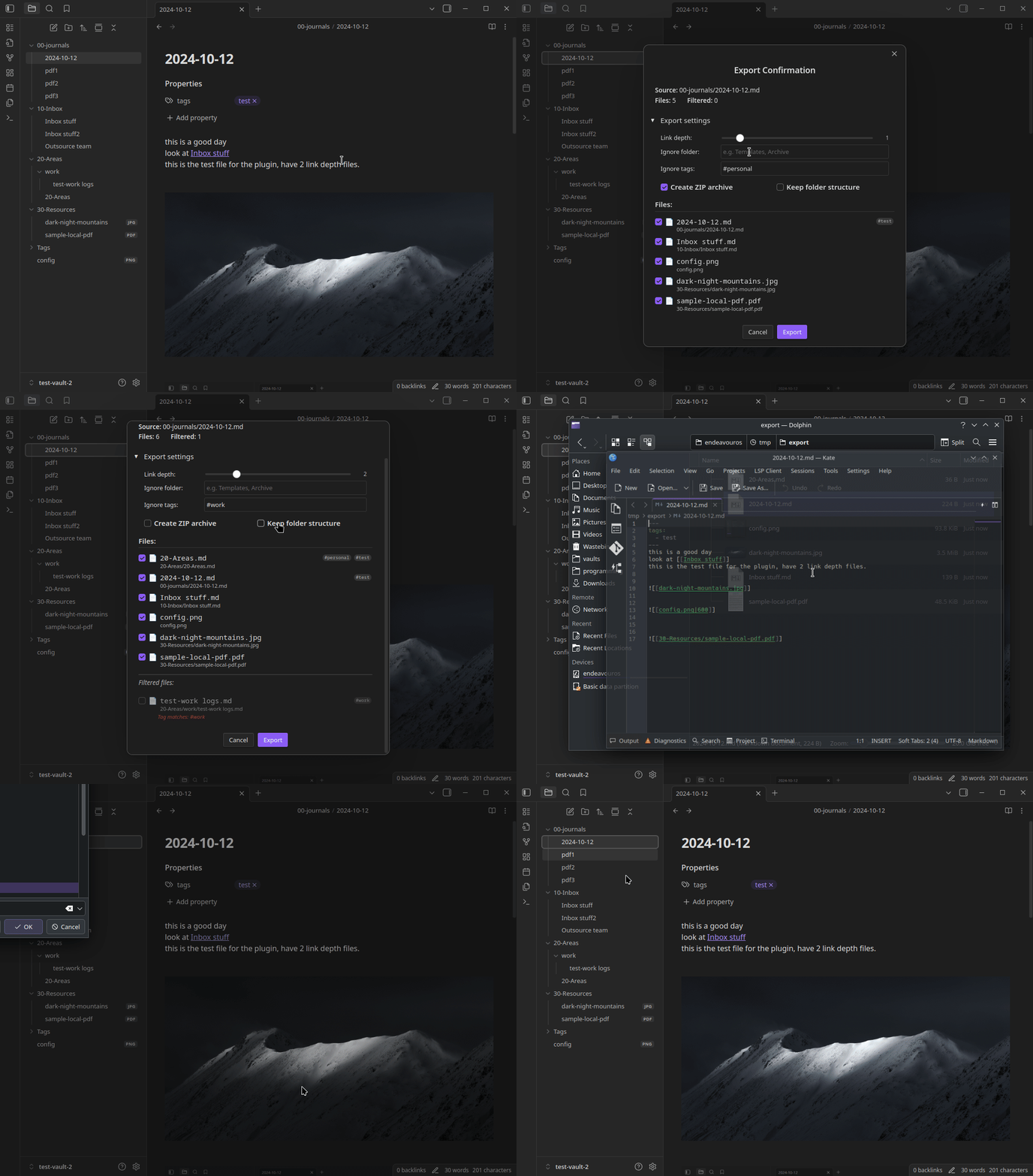
- Right-click any note in your file list.
- Choose Export note & related files.
- Click Export.
You can also use the Command Palette: search for "Export note & related files".
Features
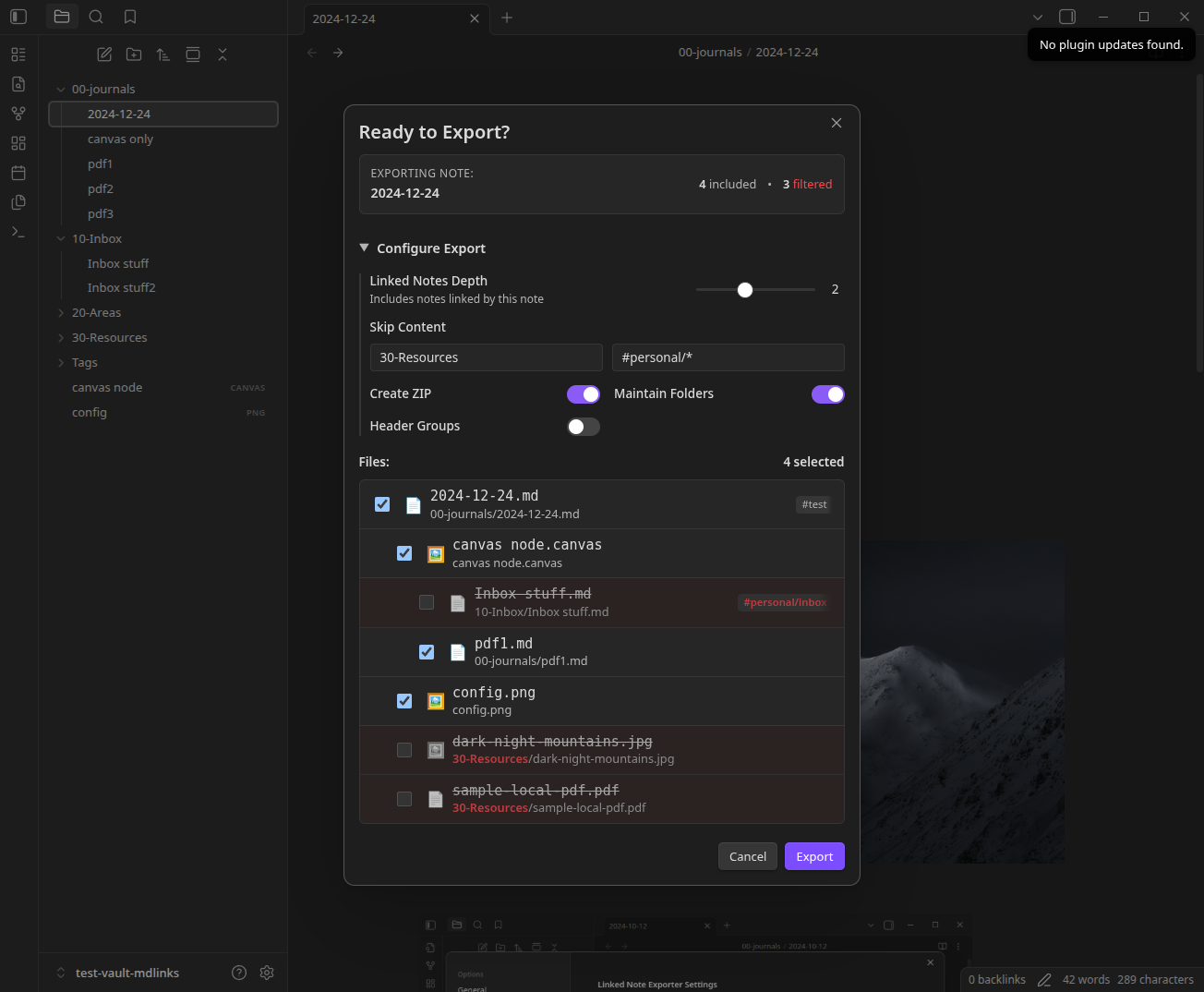
- Complete Package: Automatically finds and includes every attachment or linked note you've added to your note.
- Follows Connections: If your note links to other notes, it can include those too, so the reader gets the full picture.
- Easy Sharing: Can save everything as a single
.zipfile that you can easily email or send. - Organized: Keeps your files tidy. You can choose to keep your original folder structure or organize files based on the headers in your document.
- Flexible: Works with both
[[WikiLinks]]and standard[Markdown Links](path.md)links.
Settings Explained
Here is what the different options do:
- Linked Notes Depth: How far should we look for connections?
0: Just export this specific note, nothing else, no attachments.1: Export this note plus any note it links to directly, and any attachments.2: Also include notes linked by those notes (and so on).
- Create ZIP Archive: Wraps everything into a single file (a ZIP). Best for emailing.
- Maintain Vault Folders: Keeps the files in the same folders they are in your Vault.
- Organize by Headers: Moves linked notes into folders named after the section they appear in. For example, if you have a section called "## Research", notes linked there will go into a "Research" folder.
- Include Backlinks: Also export notes that link to this note (the "What links here" notes).
- Ignore Folders/Tags: Tell the exporter to skip certain files, like your daily journal or private templates.
Installation
- Open Obsidian Settings.
- Go to Community Plugins and turn off "Restricted mode".
- Click Browse and search for
Linked Note Exporter. - Click Install and then Enable.
Or you can click here to install.
License & Support
MIT License
If this plugin saved you time (or sanity), consider buying me a coffee. Your support keeps the updates coming!
Development
Install dependencies
npm install --include=dev
Testing
Run end to end test using wdio.
npm run test:e2e
Expected output:
...
Linked Note Exporter - Comprehensive Tests
   ✓ Scenario 1: Default Export (Depth 0) - Only Source.md
   ✓ Scenario 2: Depth 1 + Subfolders - Linked files included
   ✓ Scenario 3: Depth 2 - Includes deep links
   ✓ Scenario 4: Ignore Tag - Excludes matching files
   ✓ Scenario 5: Header Hierarchy - Files grouped by headers
   ✓ Scenario 6: ZIP Export - Creates export.zip
   ✓ Scenario 7: Backlinks Toggle - Includes files that link TO source
   ✓ Scenario 8: Ignore Folders - Excludes files in ignored folders
   ✓ Scenario 9: File Deselection - Unchecked files excluded
   ✓ Scenario 10: Canvas File Export - Canvas links followed
   ✓ Scenario 11: Maintain Folders - Subdirectory paths preserved
   ✓ Scenario 12: Embedded Images - Binary attachments exported
   ✓ Scenario 13: Export Cancellation - No files exported
   ✓ Scenario 14: No File Open - Notice shown, no modal
14 passing (2m 59.5s)
Run unit test
npm run test:unit
For plugin developers
Search results and similarity scores are powered by semantic analysis of your plugin's README. If your plugin isn't appearing for searches you'd expect, try updating your README to clearly describe your plugin's purpose, features, and use cases.