Linkhaven
approvedby Real-Fruit-Snacks
Navigate web bookmarks as vault notes with a collection tree, cover-card grid, and automatic metadata capture. - This plugin has not been manually reviewed by Obsidian staff.
Linkhaven
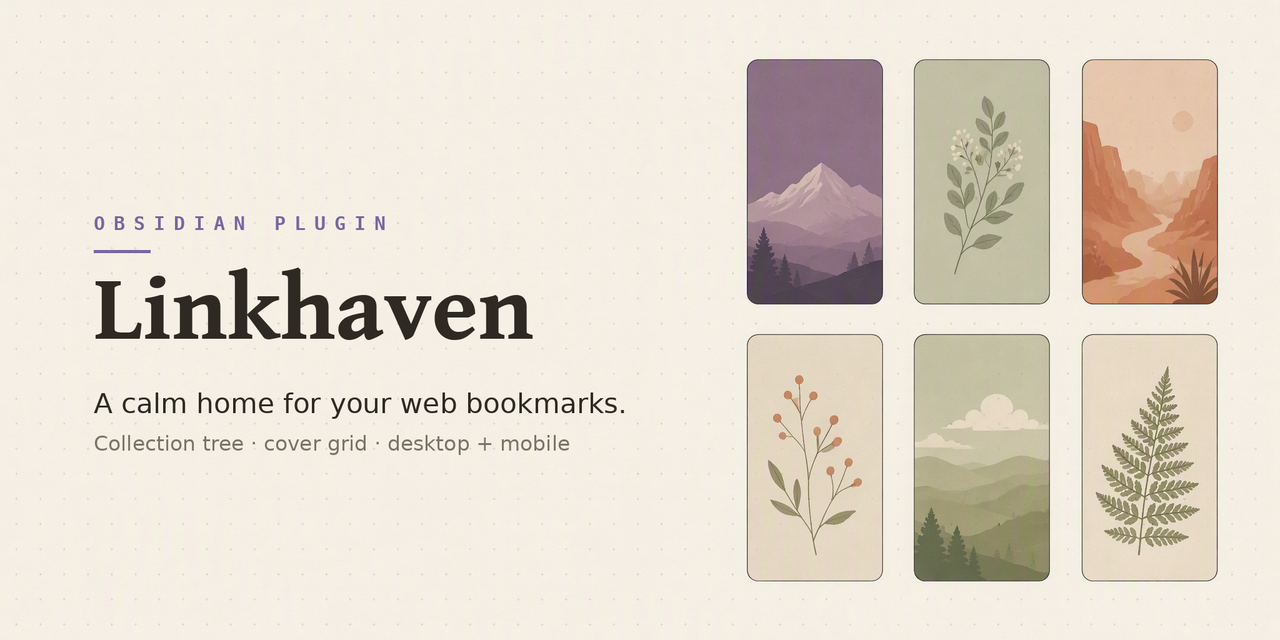
A calm home for your web bookmarks — inside Obsidian.



Every bookmark is one plain Markdown note with YAML frontmatter. Linkhaven adds a collection tree (left dock) and a cover-card grid (main area) on top of those notes, with automatic metadata capture — title, description, cover image, favicon, and an optional readable-text copy. It works identically on desktop and mobile: no Electron or Node APIs, so nothing is "desktop only".
📖 Docs & demo: https://Real-Fruit-Snacks.github.io/obsidian-linkhaven/
Features
- Collection tree with nested collections (
Dev/Tools), live filter, and smart views: All, Inbox, Pinned, Unread, Recent, Archived. - Cover-card grid with
og:imagecovers, favicon and letter-tile fallbacks, grid/list toggle, "+ add / tree" toolbar buttons, a sort dropdown (newest, oldest, title, or domain — applied after filtering and search, with pinned bookmarks always floating to the top regardless of the selected order), live fuzzy search across title, URL, tags, description, and collection, per-card actions (open, read/unread, pin, move to collection, trash), and a right-click or long-press context menu on every card with Copy link one tap away. With zero bookmarks, the grid shows an "Add your first bookmark" button to get you started. - Automatic enrichment — saves are zero-prompt; title, description, cover and
favicon are fetched in the background at a polite rate, with retry on failure
(the
Retry failed enrichmentscommand re-queues them manually). Notes saved with a domain file name are renamed to the page title once it is known, and favicons are shared per domain instead of duplicated per bookmark. - Optional readable-text archive per bookmark (Readability + Turndown, pure JS).
- Manage collections and tags (rename, delete, merge-safe moves) from the tree.
- Collection icons — pick a Lucide icon per collection from the tree's context menu.
- Drag cards onto collections to file them, or onto a tag to add it (desktop).
- Bulk select + actions — Ctrl/Cmd-click and Shift-click (or the selection-mode toggle on mobile) select multiple cards; a bulk bar offers Move to…, Add tag…, Mark read/unread and Delete, and dragging a selected card drops the whole selection onto a collection, Inbox, or tag. Bulk Refetch/Wayback runs show live progress in the bar (with a per-card spinner) and can be canceled.
- Linkwarden import — collections, tags, dates and pinned links map across; existing URLs are skipped.
- Cascade delete — deleting a bookmark also removes its cover, favicon, and archive copy (only files inside the plugin's covers/archive folders are touched).
- Refetch page — a card's context menu (or the bulk bar) can refetch page metadata and re-download a missing or stale cover.
- Wayback Machine integration — optionally auto-archive every saved link to the
Internet Archive (anonymous Save Page Now; off by default). The card context menu
offers Open archived version and Save to Wayback Machine, and the bulk bar
can archive a whole selection. Snapshots are stored in the note's
wayback:frontmatter; an ignored-domains list keeps private URLs out of the archive. Captures are anonymous — authenticated captures may come later if rate limits bite. Archived bookmarks show an archive badge on their card, collect under the Archived smart view, and get an Open archived version card button that opens the stored snapshot. - Configurable card buttons — the Card buttons settings group toggles each card action button (Open note, Open readable copy, Open archived version, Mark read or unread, Pin, Edit tags, Move to collection, Delete); the card's context menu always keeps every action.
- Bookmark launcher — fuzzy-find any bookmark from the palette; insert links into notes without leaving the editor.
- Dead-link watchdog — optional startup checks, dead cards get a badge, and the Dead links smart view collects them (Wayback snapshot one click away).
- More ways to save — right-click a URL in any note, or drag a link straight onto the grid.
- Local-first — plain Markdown files, no account, no telemetry.
Install
Community plugins (once accepted)
Settings → Community plugins → Browse → search Linkhaven.
BRAT (beta)
- Install the BRAT plugin.
- Add beta plugin →
Real-Fruit-Snacks/obsidian-linkhaven.
Manual
- Download
main.js,manifest.json, andstyles.cssfrom the latest release. - Copy them into
<your-vault>/.obsidian/plugins/linkhaven/. - Reload Obsidian, then enable Linkhaven under Settings → Community plugins.
Usage
Saving bookmarks
Saving is zero-prompt: any note with a url frontmatter key that appears in the
bookmarks folder is picked up and enriched automatically.
-
Command:
Add bookmark from URL— paste a URL (clipboard prefill when available), optionally set title, collection, and tags. -
Ribbon / commands:
Open bookmark grid,Open collection tree. -
obsidian:// URI (works from other apps, e.g. iOS Shortcuts):
obsidian://bookmark-add?vault=YourVault&url=https%3A%2F%2Fexample.com&collection=Dev%2FTools&tags=js,toolsiOS Shortcut example: a "URL" action with
obsidian://bookmark-add?vault=YourVault&url=[Shortcut Input]followed by "Open URLs". The Mobile save link row in settings copies a ready-made version of this link for your vault — replace the placeholder with your shortcut's input. Note: Obsidian shows a confirmation dialog for URI actions until you allowlist thebookmark-addaction for this plugin. -
Web Clipper: point the official Obsidian Web Clipper at your bookmarks folder; Linkhaven watches the folder and enriches new notes. Template JSON snippet:
{
  "name": "Bookmark",
  "path": "Bookmarks",
  "properties": [
    { "name": "url", "value": "{{url}}" },
    { "name": "title", "value": "{{title}}" },
    { "name": "status", "value": "unread" },
    { "name": "pinned", "value": false },
    { "name": "created", "value": "{{date}}" }
  ]
}
Filing vs. saving
Filing is separate from saving. Notes without a collection key land in the Inbox
smart view; move them later with the card's Move to collection button (or by editing
frontmatter). Tags are editable per bookmark via the card's context menu (Edit tags…)
or its tag button — the field autocompletes from existing tags and normalizes them to the
established (canonical) casing, and you can drag a card onto a tag row in the tree to add
it. Global rename/remove stays in the tree.
Re-saving an already-saved URL (add modal or obsidian://bookmark-add) opens a dialog
that offers to refetch the page (overwrite title/description and re-download cover,
favicon, and readable copy) or open the existing bookmark. URLs are compared in
normalized form, so http vs https, a leading www., host casing, and a trailing
slash all count as the same bookmark.
Sane names and shared favicons
Notes saved before anything is known about the page get a domain file name
(github.com.md, github.com-2.md, …). After enrichment fetches the real page title,
Linkhaven renames the note to that title — along with its cover and readable copy, so
names stay in correspondence. Only auto-named notes are renamed: notes that already have
a real title (e.g. from the Web Clipper) are never touched. Turn this off with the
Rename notes to page title setting.
Favicons are cached once per domain under Bookmarks/covers/favicons/ and reused by
every bookmark of that domain (covers stay per-bookmark, since og:image differs per
page). When a bookmark is deleted, a favicon still used by other bookmarks is kept.
Deleting bookmarks
Trashing a bookmark from the grid card also moves its cached cover, favicon, and archive copy to the trash — but only when those files live inside the plugin's covers/archive folders. Deleting the note yourself in the file explorer does not cascade: the artifacts stay behind.
Linkwarden import
- In Linkwarden, export your data as JSON and copy the file into your vault.
- Run the command
Import bookmarks from Linkwarden export. - Pick the export file (root-level JSON files are listed; you can also browse the whole vault or type a path).
- Collections are recreated as
Parent/Childpaths, pinned links stay pinned, and all new notes are queued for enrichment. Existing URLs are skipped.
Settings
| Setting | Default | Purpose |
|---|---|---|
| Bookmarks folder | Bookmarks | One note per bookmark |
| Covers folder | Bookmarks/covers | Cached covers and favicons |
| Archive folder | Bookmarks/archives | Readable copies |
| Capture readable copy | off | Save a readable Markdown copy during enrichment |
| Show save chooser | off | Collection/tag pickers in the add modal |
| Rename notes to page title | on | Rename domain-named notes to the fetched page title after enrichment |
| Grid sort | Newest first | Order of bookmarks in the grid: newest, oldest, title, or domain; pinned bookmarks always float to the top regardless of the selected order |
| Mark as read on open | off | Silently mark a bookmark as read when its link or readable copy is opened |
| Card buttons | all on | Choose which action buttons appear on bookmark cards; all actions stay available in the card's context menu |
| Archive saved links to the Wayback Machine | off | Submit each saved link to the Wayback Machine after enrichment; captures are public |
| Wayback ignored domains | — | Domains (subdomains included) that are never archived; one per line or comma-separated |
| Mobile save link | — | Copy an obsidian:// save link for share-sheet shortcuts on your phone |
Tree collapse state and the last grid filter are persisted automatically.
Data schema
url: https://example.com        # required; dedupe key
title: Example
collection: Dev/Tools           # absent/empty = Inbox
tags: [js, tools]
status: unread                  # unread|read
pinned: false
created: 2026-01-01
cover: Bookmarks/covers/example-cover.png
favicon: Bookmarks/covers/favicons/example.com.png   # shared per domain
readable: Bookmarks/archives/example.md
description: Optional summary
wayback: https://web.archive.org/web/20260101000000/https://example.com   # Wayback snapshot (optional)
Network use disclosure
When a bookmark is enriched, the plugin fetches the saved page itself (to read its title,
description, and Open Graph metadata) and the page's og:image and favicon from their
origins only. All requests go through Obsidian's requestUrl API.
Wayback Machine: with the "Archive saved links" setting enabled — or when you use the
manual or bulk Wayback actions — the saved URLs are sent to the Internet Archive
(web.archive.org / archive.org) so a snapshot can be taken, and those captures are
public. Domains on the "Wayback ignored domains" list are never sent. No account or
API keys are used; captures are anonymous. Apart from the Wayback Machine, there are no
third-party services, proxies, or CDNs involved.
Privacy
No telemetry, no analytics, no external accounts. All data lives in your vault as plain Markdown files and image attachments.
Development
npm install
npm run dev    # esbuild watch mode
npm run build  # tsc typecheck + production bundle
Recommended: the hot-reload plugin during development.
Releasing
Tags trigger the GitHub Actions release workflow, which builds and attaches main.js,
manifest.json, and styles.css to a new release:
npm version patch   # bumps manifest.json + versions.json via version-bump.mjs
git push && git push --tags
Roadmap
- Community-store submission
- Optional desktop-only capture module (screenshots / PDF) as a separate companion
- Palette-style quick launcher as an alternate view over the same notes
License
MIT · Not affiliated with Obsidian or Linkwarden.
For plugin developers
Search results and similarity scores are powered by semantic analysis of your plugin's README. If your plugin isn't appearing for searches you'd expect, try updating your README to clearly describe your plugin's purpose, features, and use cases.