Linkwarden
approvedby heiss
Search and link your Linkwarden bookmarks, archive URLs, show their highlights beside your notes, and insert highlights as quotes. - This plugin has not been manually reviewed by Obsidian staff.
The plugin is not officially from the Linkwarden project and has nothing to do with its development.
Linkwarden for Obsidian
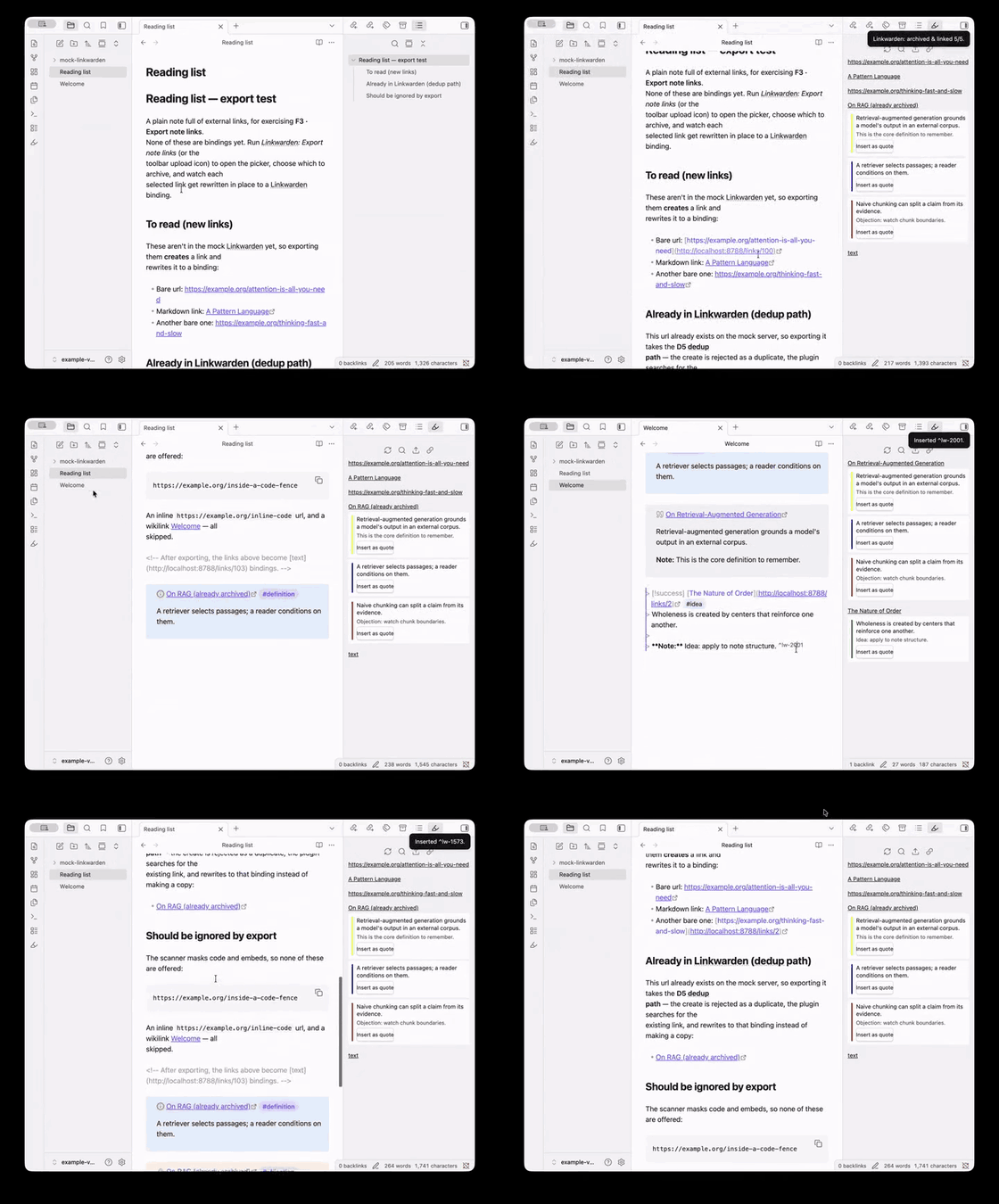
The Linkwarden plugin for Obsidian. Search and link your saved links, archive URLs to Linkwarden, and show their highlights as a living reading aid next to the active note — without materializing them as files. Guiding principle: read in Linkwarden, write in Obsidian.
No sync engine, no merge/clobber problem. A link is bound to Linkwarden by a
single Markdown link whose target is the instance deep URL (<base>/links/<id>);
the id in the href is the binding (single source of truth).
Usage
Once the token and base URL are set (see Setup):
- Open the highlight panel. Click the highlighter icon in the left ribbon (tooltip "Linkwarden highlights"), or run Linkwarden: Open highlight panel from the command palette. The panel docks on the right and tracks whichever note is active — that's where highlights show up, so keep an eye on it.
- Link a note to a Linkwarden entry. With the cursor where you want the link, run Linkwarden: Link a source (search) (also the 🔍 button in the panel toolbar). Search your library and pick a result; a Markdown link bound to that entry's stable id is inserted. If you search a URL that isn't saved yet, the picker offers to archive it on the spot.
- Read its highlights. The panel scans the active note for Linkwarden links and lists each source's highlights (text, comment, color) in reading order. Use the ↻ button to refresh; it works offline from a cache.
- Insert a highlight as a quote. Each highlight has an Insert as
quote button that drops it into the note at the cursor as a callout with a
referenceable block id (
^lw-<id>). Highlight colors map to callout types and tags (configurable in settings). - Archive a note's URLs. Run Linkwarden: Export note links (⬆ in the toolbar) to list the note's external URLs as a checklist; selected ones are archived to Linkwarden and rewritten in place to their binding links. You can also scan the whole vault from that modal.
- Re-link a moved source. If a link's Linkwarden id changed, put the cursor on it and run Linkwarden: Re-link source under cursor (🔗 in the toolbar) to re-bind it without touching the visible text.
All commands appear in the palette prefixed with Linkwarden:. The interface follows Obsidian's display language — English and German ship today, with English as the fallback for any other language.
Features
- Link picker — a command opens a search box over your Linkwarden
library (
/api/v1/search); picking a result inserts a Markdown link bound to that link's stable id. The visible link text stays as a readable fallback. - Highlight panel — a right-sidebar view that scans the active note for Linkwarden links and shows their highlights (text, comment, color), grouped per source, sorted in reading order. Works offline from a TTL cache.
- Export / archive — a command lists the note's external URLs as a
checkbox list; selected URLs are
POSTed to Linkwarden and the body link is rewritten to the binding deep URL. Server-side de-duplication is respected (enablepreventDuplicateLinksin Linkwarden). - Insert highlight as a quote — each highlight in the panel has an
"insert" action that materializes it at the cursor as a callout with a
referenceable block id (
^lw-<id>). A configurable color→callout/tag map turns your highlight colors into searchable vault semantics. - Re-link — re-bind a source whose Linkwarden id changed.
Setup
- In Linkwarden, create an access token under Settings → Access Tokens.
- In Obsidian, open Settings → Linkwarden and paste the token. The base URL
defaults to Linkwarden Cloud (
https://cloud.linkwarden.app) — change it if you self-host. The token is stored via Obsidian's SecretStorage (device-local, OS-backed) — it never enters the synced vault. Requires Obsidian ≥ 1.12.7; on Linux an OS secret backend (kwallet/libsecret) must be available. - (Optional) Set a default target collection, the deep-link target
(
/linksvs/preserved), the color map, and the cache TTL.
Network use & privacy
This plugin communicates with exactly one remote service: your Linkwarden instance (Linkwarden Cloud by default, or your self-hosted URL).
- No request is made until you enter an access token — without a token the plugin performs no network activity.
- Sent only to your Linkwarden instance: your access token (as a
Bearerheader), the search queries you type in the picker, the URLs you choose to archive, and the ids of links whose highlights the panel loads. All requests go through Obsidian'srequestUrl. - The plugin collects no telemetry and contacts no other servers. Using it requires an account on a Linkwarden instance.
Development
npm install
npm run dev        # esbuild watch → main.js
npm run build      # typecheck + production bundle
npm test           # vitest (unit tests for all pure logic)
npm run gen:api    # regenerate src/api/schema.ts from openapi/linkwarden.yaml
API types are generated
The typed API layer is generated from Linkwarden's official OpenAPI spec
(vendored at openapi/linkwarden.yaml) via
openapi-typescript into
src/api/schema.ts. A unit test (tests/openapi-drift.test.ts) fetches the
upstream spec and fails if it has drifted from the vendored copy — the signal to
run npm run gen:api and re-vendor. The runtime client (src/api/client.ts) is
a thin, dependency-injected wrapper over Obsidian's requestUrl (which bypasses
CORS at the Electron level), so it stays unit-testable with a fake HTTP client.
License
For plugin developers
Search results and similarity scores are powered by semantic analysis of your plugin's README. If your plugin isn't appearing for searches you'd expect, try updating your README to clearly describe your plugin's purpose, features, and use cases.