Live PDF Preview
approvedby kimsunin
Real-time PDF preview and export plugin. - This plugin has not been manually reviewed by Obsidian staff.
Obsidian Live PDF Preview


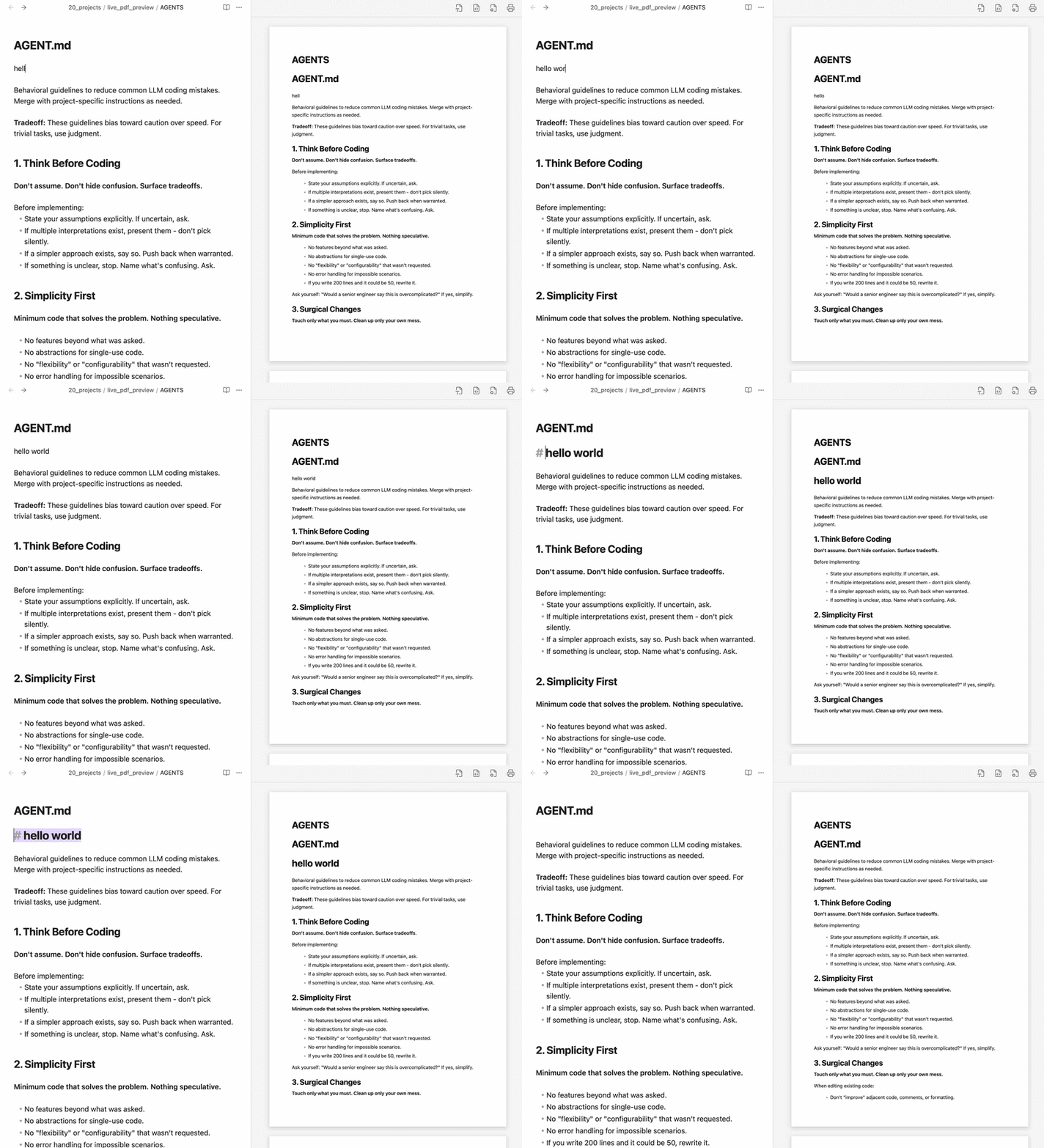
An Obsidian plugin that lets you edit Markdown documents while viewing a real-time, print-formatted A4 preview in the sidebar, and exports them into high-quality PDFs with interactive navigation bookmarks in one click.
It streamlines your writing workflow by combining document editing and publication layout design into one seamless process.
Who is this for?
- Writers composing print-ready documents like reports, resumes, proposals, and essays directly in Obsidian.
- Publishers who want to verify line wraps, margins, and page breaks in real-time before exporting.
- Readers who want exported PDFs to automatically feature click-navigable outlines/bookmarks for easy reading.
Key Features
1. Real-Time Print Preview
- Live Page Rendering: Renders your edits instantly on a virtual print page (supporting A4, Letter, A3, etc.).
- Responsive Scaling: The preview automatically scales to fit when you resize the sidebar panel.
2. Cursor Scroll Sync
- Auto-Scrolling: Automatically scrolls the preview page to match your active cursor position in the editor, keeping your edits in view.
3. Smart Pagination & Formatting
- Clean Transitions: Paragraphs, lists, tables, and code blocks that overflow the page boundary split cleanly onto the next page instead of cutting off mid-line.
- Continuous Lists: List items split across pages preserve continuous numbering and omit duplicate bullet points.
4. Print Layout Commands (// Commands)
The plugin provides native layout commands written on their own lines:
-
//page(Page Break): Forces content onto a new page. Inside a column, it splits only that column.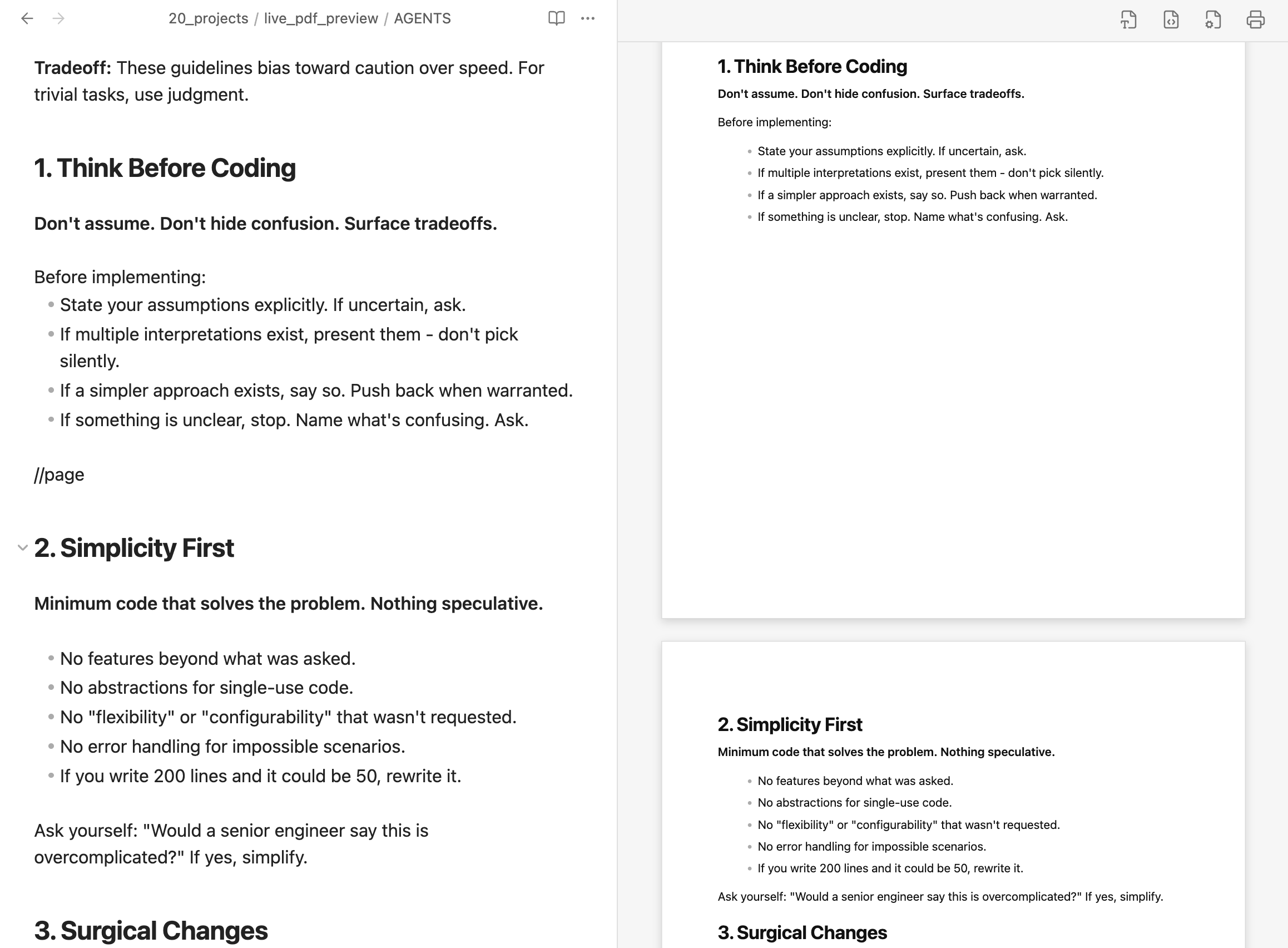
-
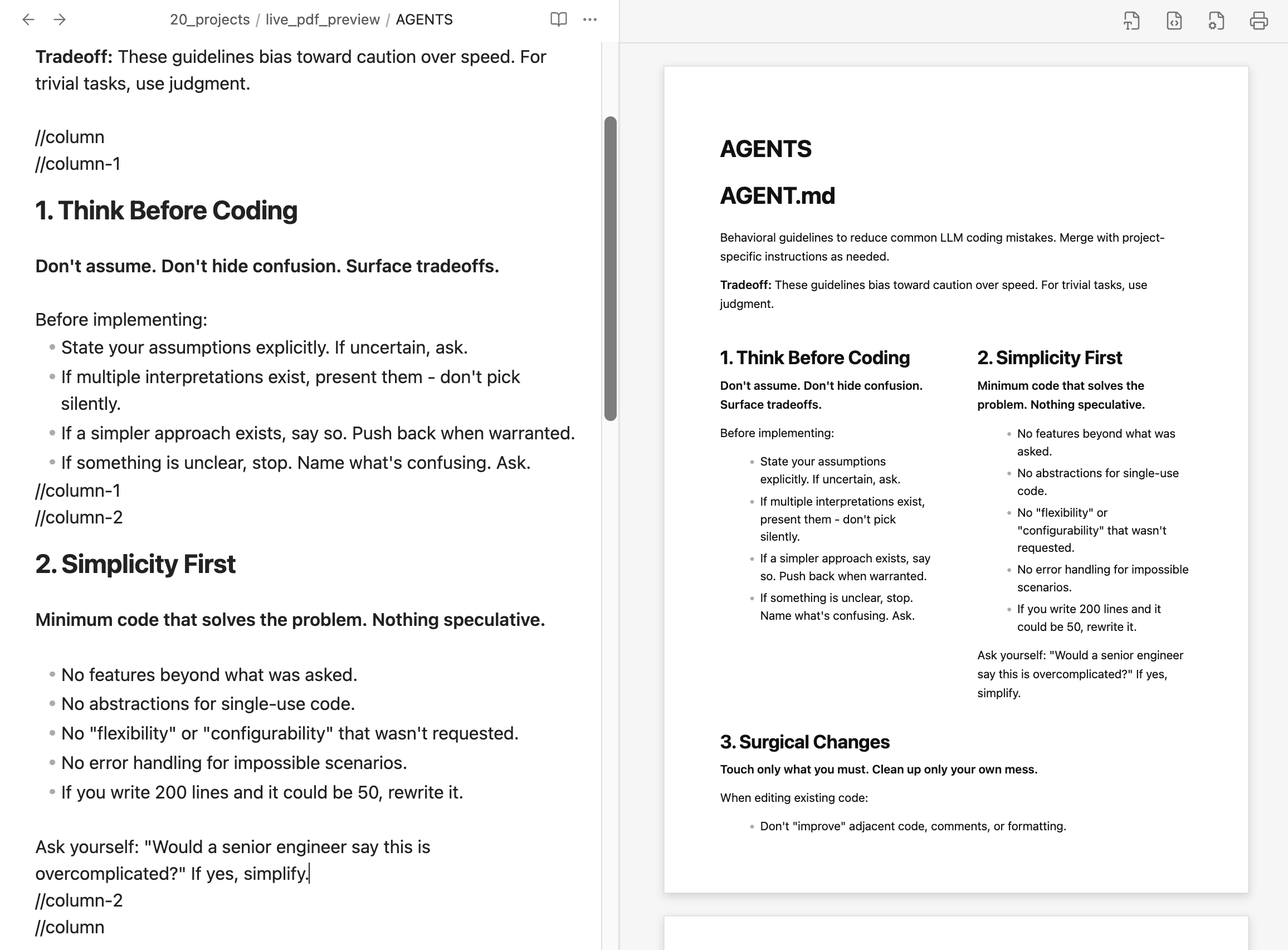
//column(Multi-Column Layout): Creates side-by-side columns (up to 3 columns using//column-1,//column-2,//column-3). Includes smart autocomplete for closing tags.- Custom Widths: Specify ratios in brackets, e.g.,
//column[30, 70]to set custom column width ratios.
- Custom Widths: Specify ratios in brackets, e.g.,
-
//center(Center Alignment): Centers text, lists, tables, code blocks, and images, while keeping list items left-aligned for readability. Includes smart autocomplete.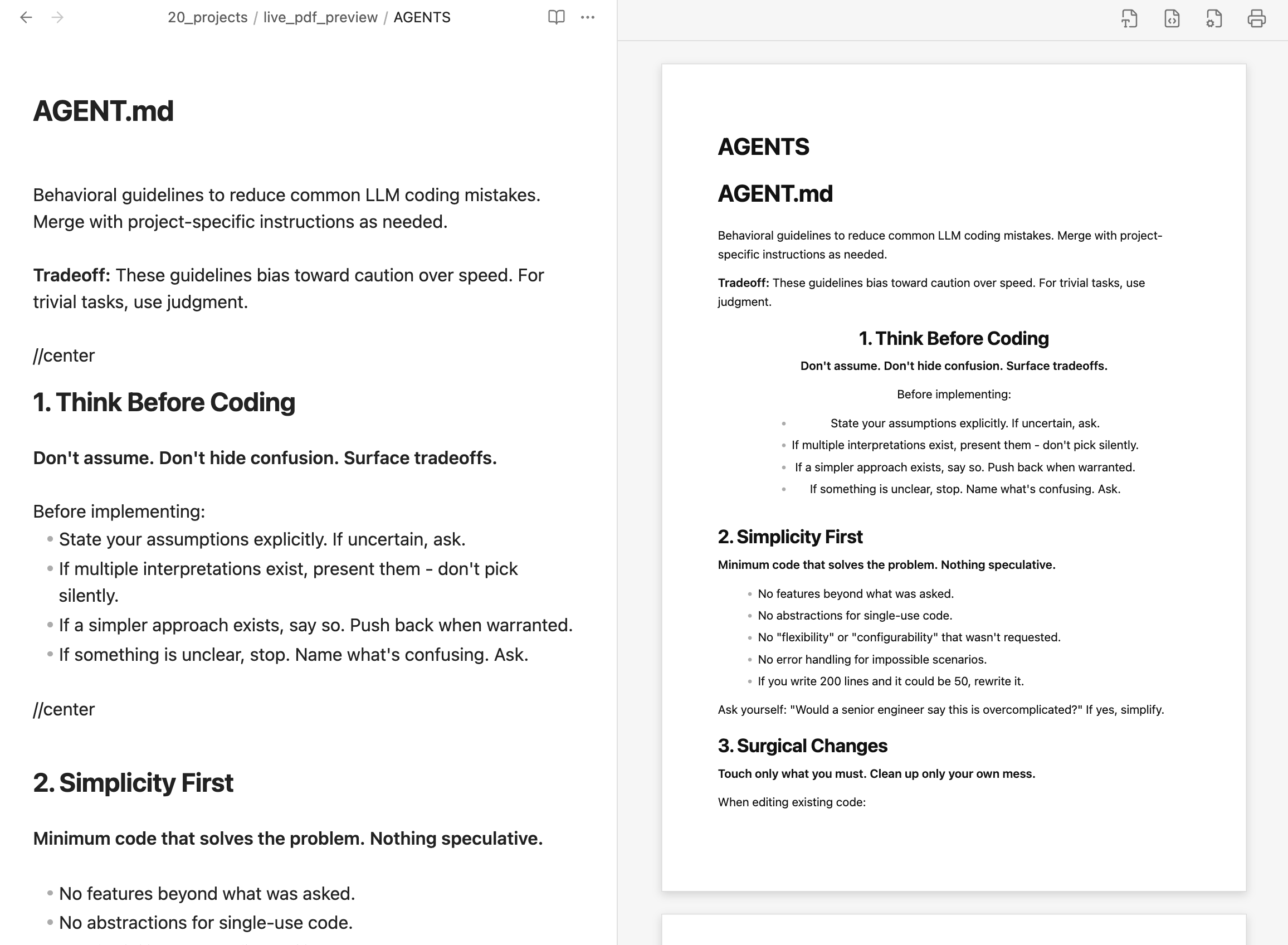
5. PDF Export with Bookmarks
- One-Click Export: Click the printer icon (🖨️) to save your document as a print-ready PDF.
- Interactive Outlines: Document headings (
# H1to###### H6) automatically become interactive PDF outlines/bookmarks with full Unicode (Korean, CJK, etc.) support. - Polished Output: Automatically hides temporary interface items like code copy buttons in the exported document.
How to Use
1. Launching the Preview
- Open the Obsidian Command Palette (
Cmd/Ctrl + P). - Search for and select the
Open Live PDF Previewcommand. - The print preview tab will open in the right sidebar.
2. Customizing the Page Layout
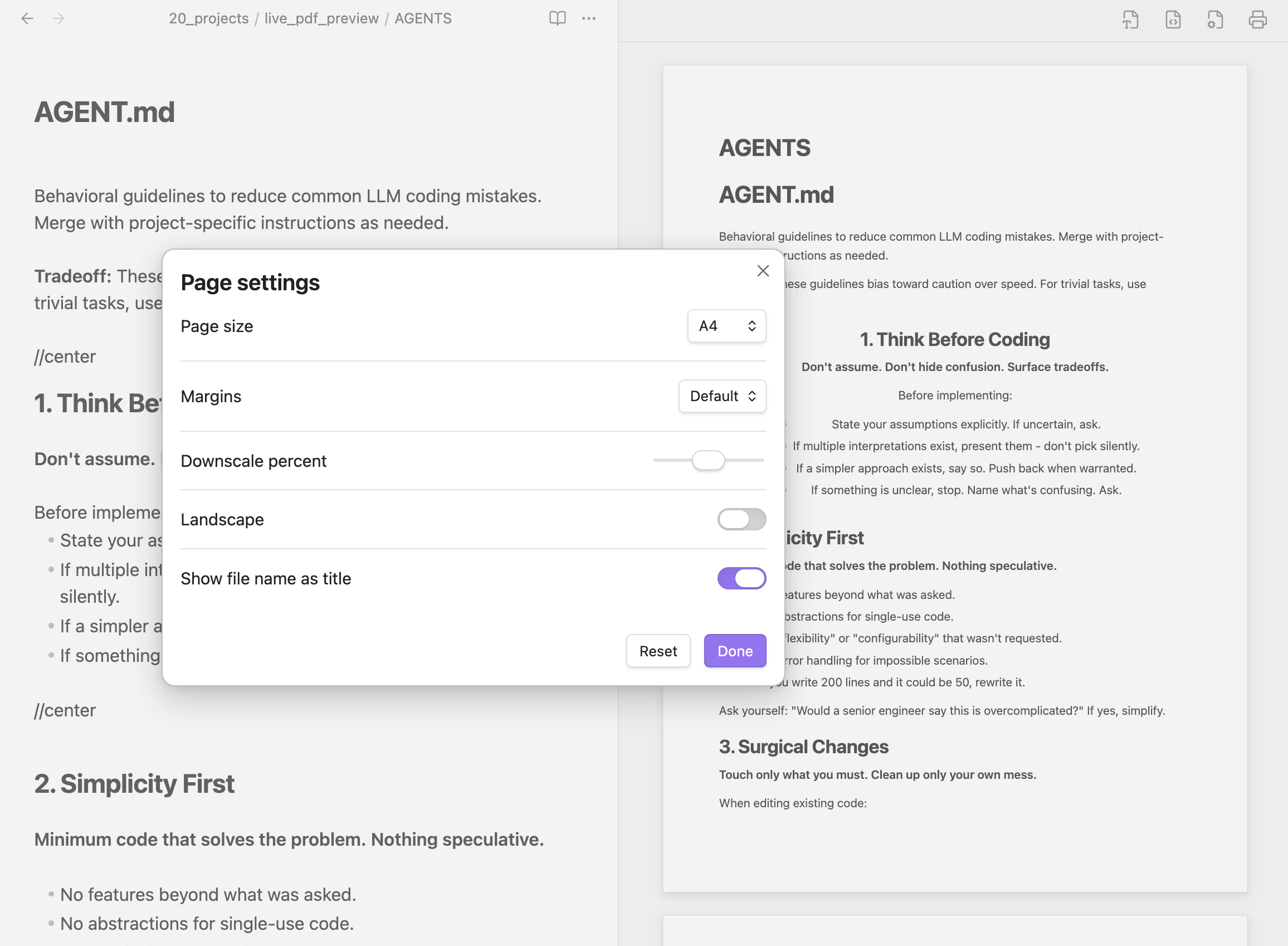
Click the gear icon (⚙️) on the top right of the preview header to open the page settings:
| Setting | Description | Options |
|---|---|---|
| Page size | Set the physical dimensions of the virtual page. | A4, Letter, A3, A5, Legal, Custom |
| Margins | Choose the outer padding margins for the A4 sheet. | Default (20mm), None (0mm), Small (10mm) |
| Downscale percent | Adjust the zoom/scale factor of the preview text and layout. | 50% to 150% (Default: 100%) |
| Landscape | Toggle between Portrait (vertical) and Landscape (horizontal). | Toggle ON/OFF |
| Show file name as title | Render the file name as the document's main heading. | Toggle ON/OFF |
3. Custom CSS Stylesheet
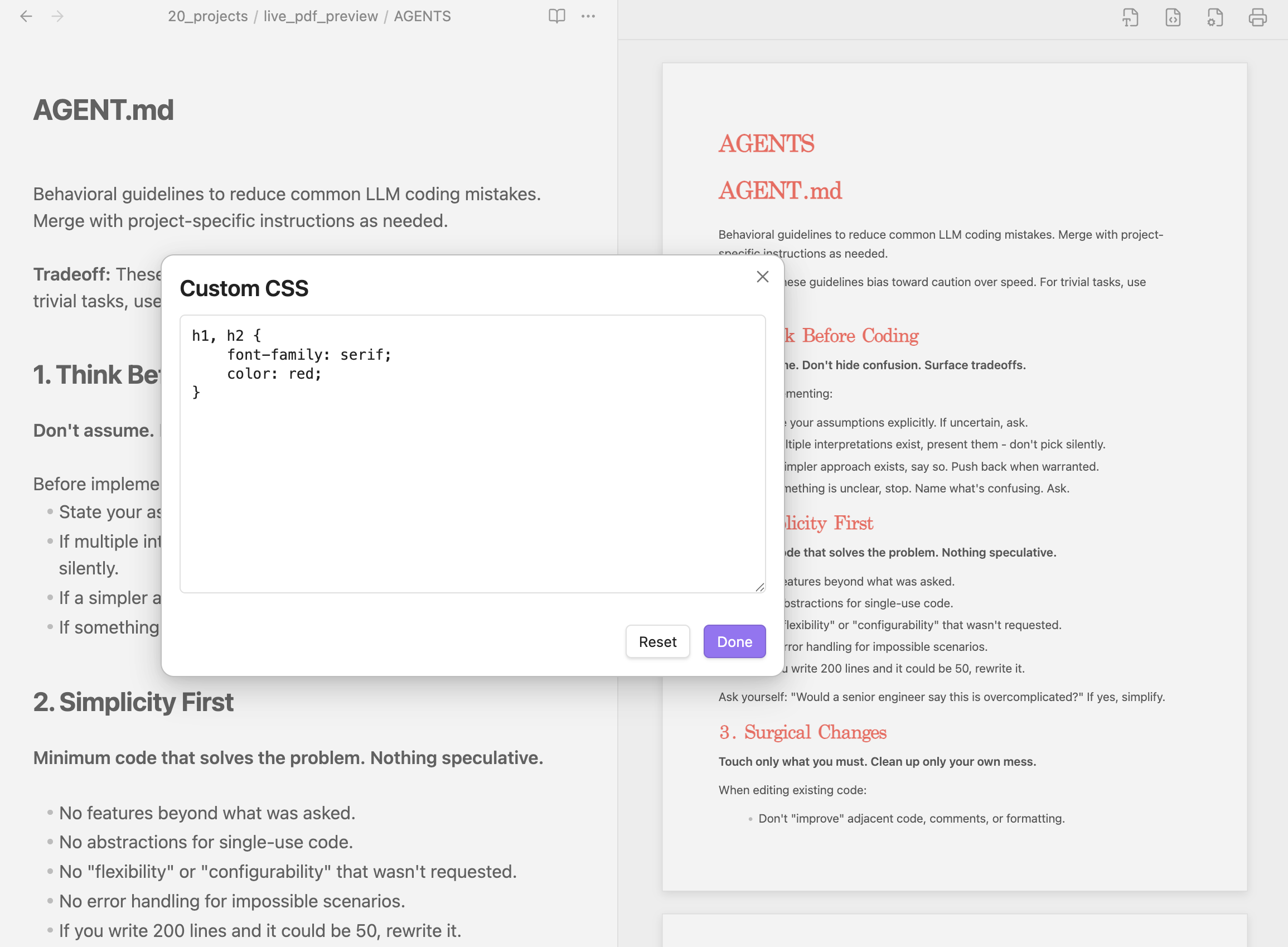
Click the palette icon (🎨) next to the settings gear on the preview header to apply custom CSS
License
This project is licensed under the MIT License.
Contributing
Contributions, issues, and pull requests are welcome!
For plugin developers
Search results and similarity scores are powered by semantic analysis of your plugin's README. If your plugin isn't appearing for searches you'd expect, try updating your README to clearly describe your plugin's purpose, features, and use cases.