by 5krus
Turn your markdown notes into customised, polished PDFs and printed pages.
Print Studio
Turn your Obsidian notes into polished PDFs and printed pages. Add a letterhead, keep your study highlights, and reuse your favourite layouts.
Open in Obsidian · Quick guide · What’s new
Free · Obsidian 1.13.0+ · Desktop and mobile · No account required
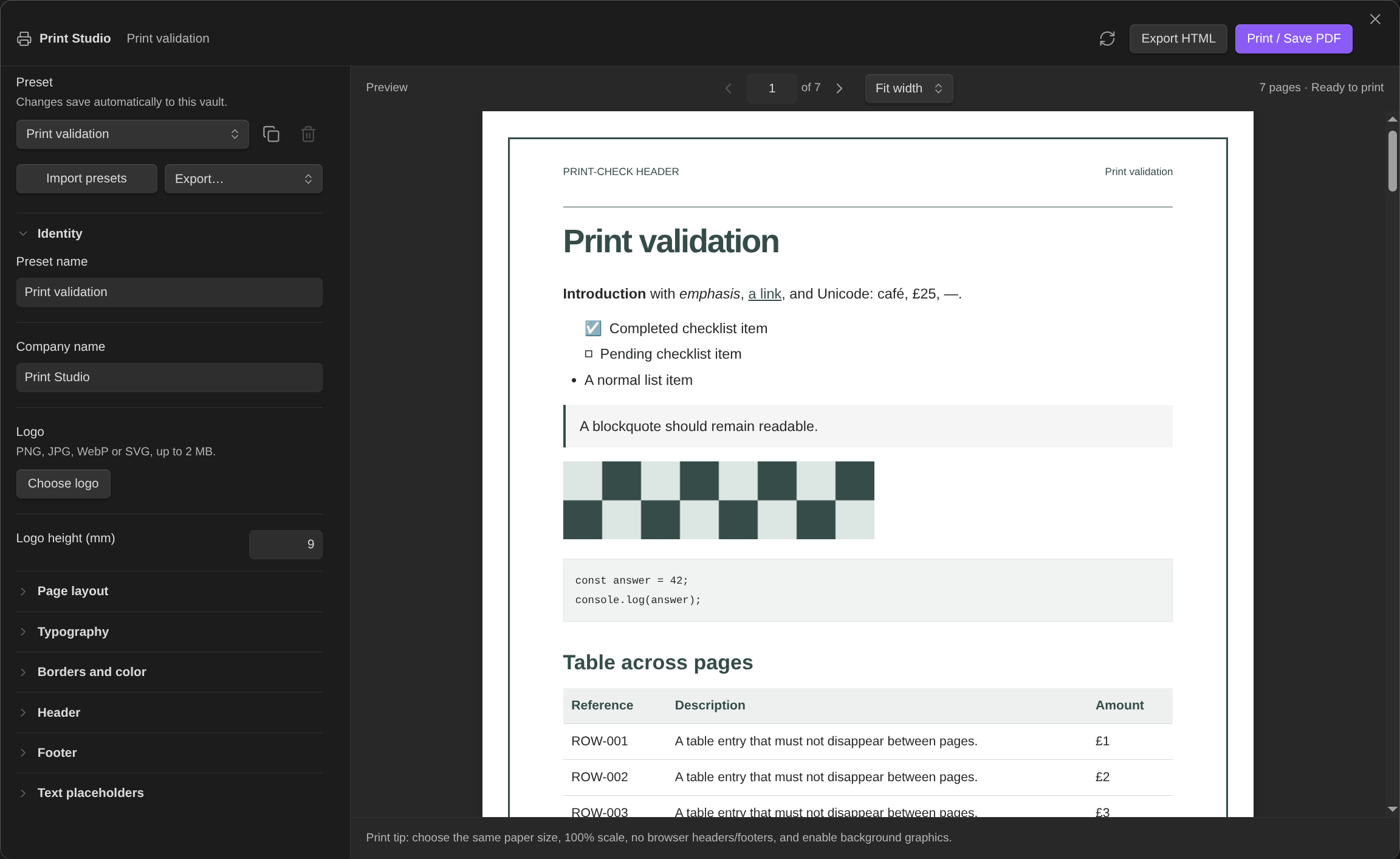
Start in Obsidian
- Open Settings → Community plugins → Browse, search for Print Studio, then Install and Enable.
- Open a note and click the printer icon in Obsidian’s ribbon. You can also right-click a note → Open in Print Studio.
- Choose a preset, check the preview, then Save PDF or Print.
For updates, use Settings → Community plugins → Check for updates.
Make it yours
Choose A4 or Letter, adjust margins and type, or add a logo, page border, headers and footers. Your changes save automatically to the selected preset in this vault.
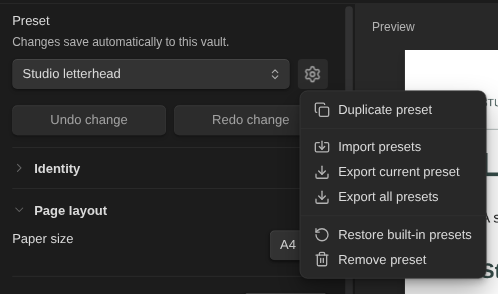
Use the gear beside the preset selector to duplicate, import, export, remove, or restore presets. Undo change and Redo change stay close at hand.
Keep your colours and highlights
Choose Content → Note appearance → Preserve text formatting to keep supported styling from your note, CSS snippets and plugins such as Fast Text Color. Studio styles remains the default. Reading appearance (experimental) also keeps the note’s base font and background.
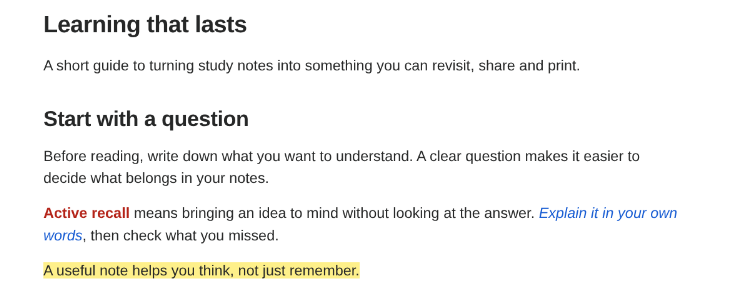
See the appearance options and custom CSS examples →
Save, print or share
| Action | What you get |
|---|---|
| Save PDF | A PDF using your selected paper size and orientation. |
| Send the pages to a printer. | |
| Export HTML | A self-contained document you can open in a browser. |
On mobile, including Obsidian on Apple Vision Pro, Save PDF saves into Print Studio Exports in your vault. Open PDF saves and opens the file so you can share it or print from a supported app. Mobile PDFs contain page images, so text is not selectable; check complex styling before sharing. HTML and preset exports also save into that vault folder. Desktop output keeps selectable text and native printing.
Use Refresh note after editing the note, changing its theme or updating a snippet. Preview zoom does not change the output size.
A few useful details
Print Studio works locally, with no accounts, telemetry or cloud service. Presets stay in your vault. External file access is limited to files you choose to import or export and temporary print files. Print Studio makes no network requests; Obsidian or other plugins may load resources while rendering your note.
On Linux, printing uses the system’s lpstat and lp programs to list printers and submit your job, without a command shell. Details for reviewers →
To keep something in your note but out of the printout, give it the print-hide class — for example <span class="print-hide">internal note</span>.
Complex embeds and plugin layouts may look different; check the preview before exporting. Help with layout and printing →
Report a problem · Contribute · Developer docs · MIT license
For plugin developers
Search results and similarity scores are powered by semantic analysis of your plugin's README. If your plugin isn't appearing for searches you'd expect, try updating your README to clearly describe your plugin's purpose, features, and use cases.