PDF Annotator
approvedby Alexander Tian
Read PDFs, highlight passages, place page notes, and manage searchable margin annotations stored as local Markdown sidecars. - This plugin has not been manually reviewed by Obsidian staff.
PDF Annotator
Read a PDF, mark the parts that matter, and keep your own thoughts beside the words — all inside Obsidian.
Open any PDF and click Annotate. You can highlight a sentence, write a note, and carry on reading without changing apps or opening a second document.
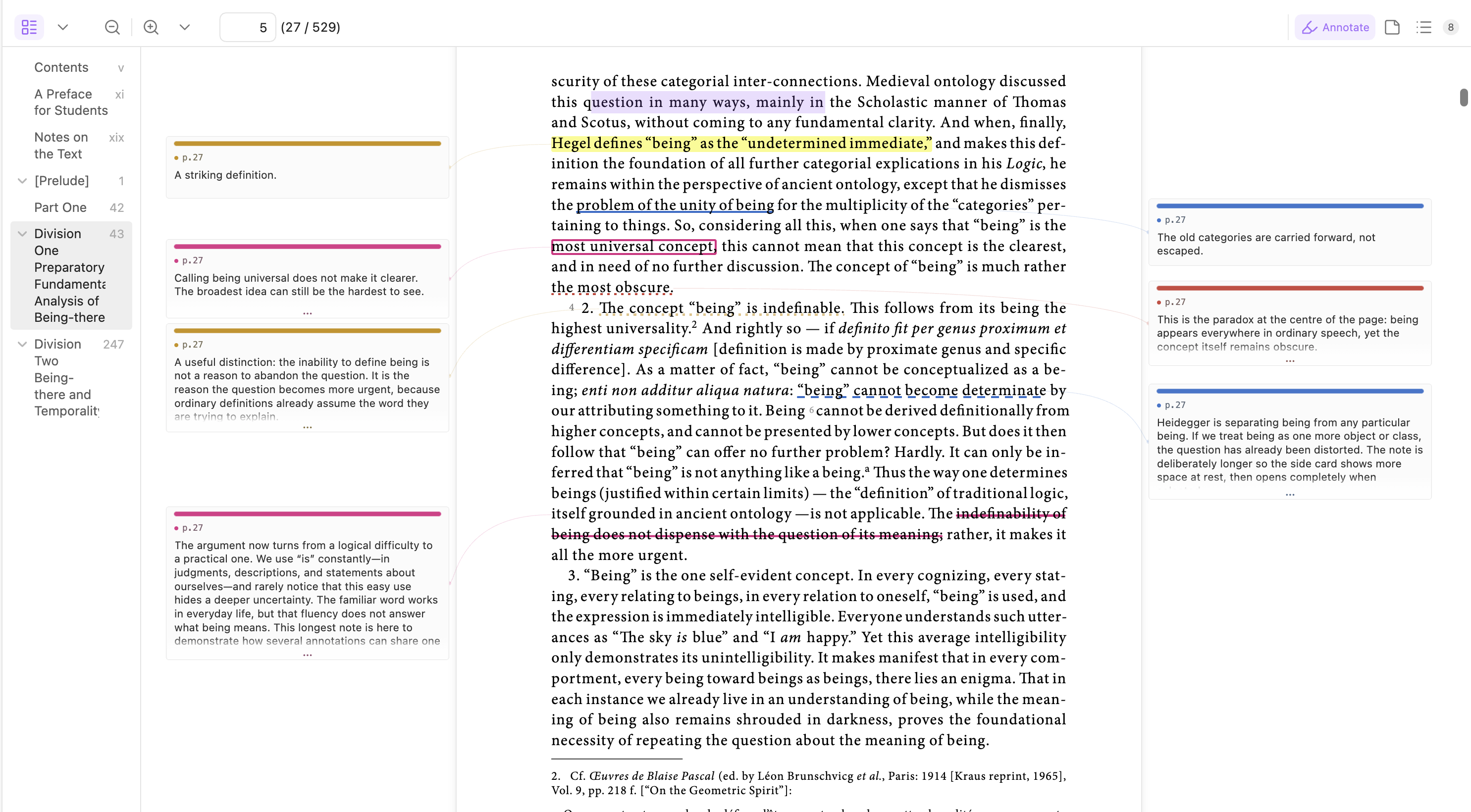
Your notes stay close to the words they belong to.
See every note beside the page
Notes appear on the left or right of the page. A short note stays small. A long note is taller, so you can tell how much you wrote before opening it.
When one page has many long notes, the cards fold just enough to share the space. A soft fade and … show that more words are waiting. Point to a card or click it to see the whole note.
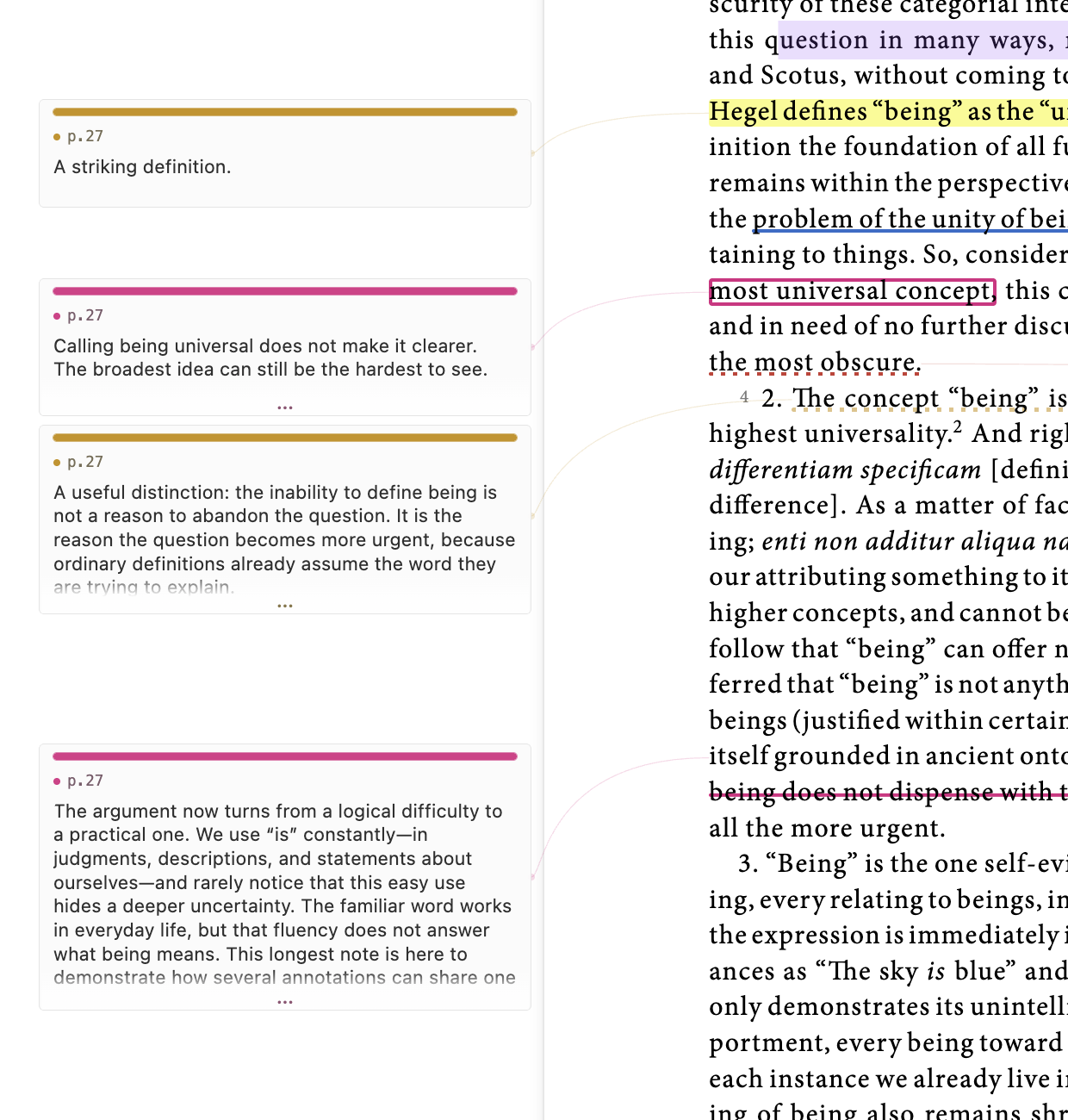
Different note lengths are easy to spot, and folded notes clearly show that there is more to read.
You do not need to guess how to make room for the cards. After you make a note, or choose one from the note list, the PDF moves back just enough to show its card. It stops as soon as the card has enough space.
Mark what matters
Select some words and choose what you want to do:
- Highlight marks the words.
- Annotate marks the words and opens a place to write.
- Copy copies the selected words.
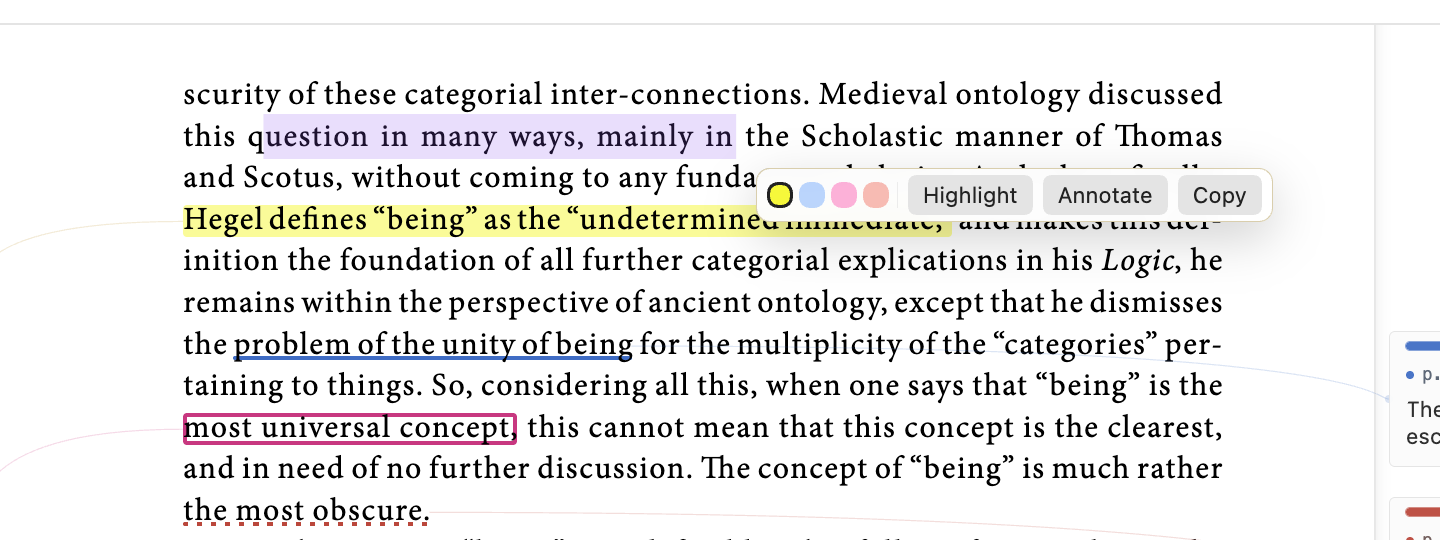
You can use a plain highlight, underline, dotted underline, dashed underline, box, or strike-through. Four colours help different kinds of thought stand apart.
Open one note fully
Point to a note or click it and the card opens to show everything you wrote. A long note is not cut off. Click the pin when you want a card to stay open.
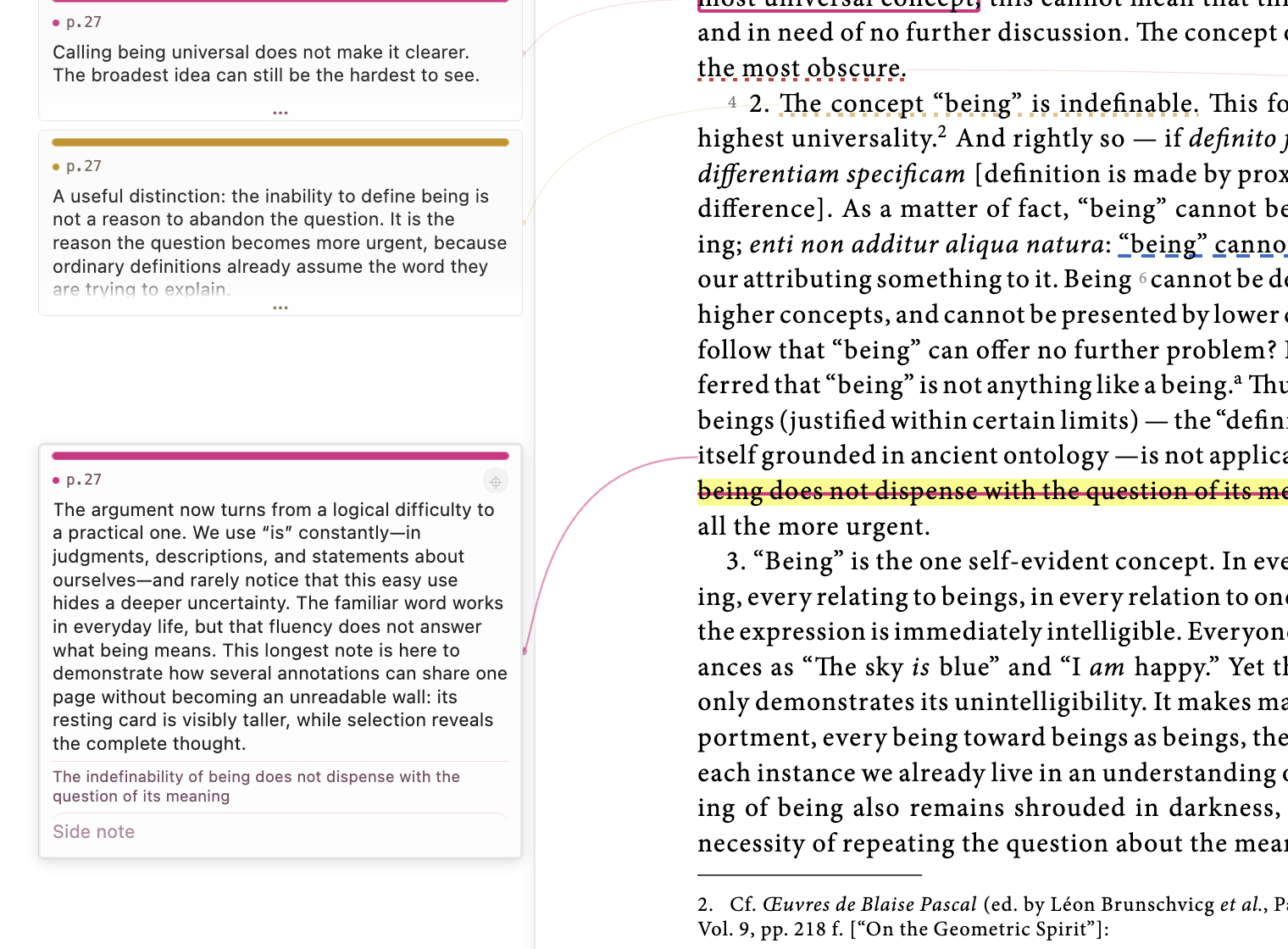
The selected note opens fully while the other cards stay out of the way.
Find a note again
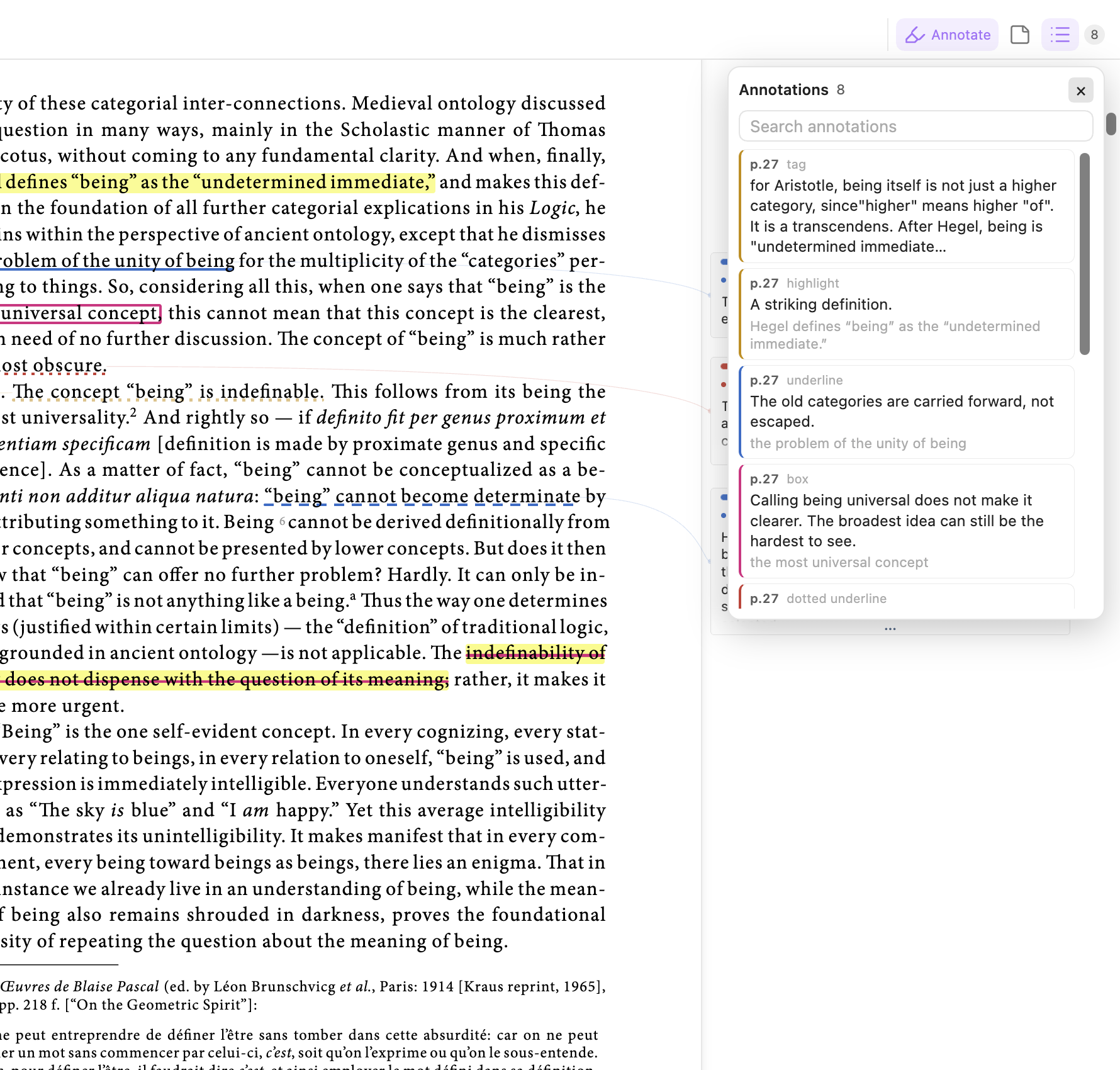
Click the list button beside Annotate to see every mark and note in the PDF. Search for a word, a page, or something you wrote. Click any result to go back to its page and show its card.
Put notes where you want them
Page-note tags can be moved after you finish writing: drag the tag to another spot on its page. Drag its bottom-right corner to resize width and height independently into any rectangle. Larger tags show more of your note. Click to edit as usual, or press Escape during a move or resize to cancel. Position and size are saved when you release and stay proportional when you zoom or reopen the PDF. This works in both the native PDF viewer and the separate reader.
Right-click any card to keep it open, move it to the left, move it to the right, let PDF Annotator choose a side, or delete it.
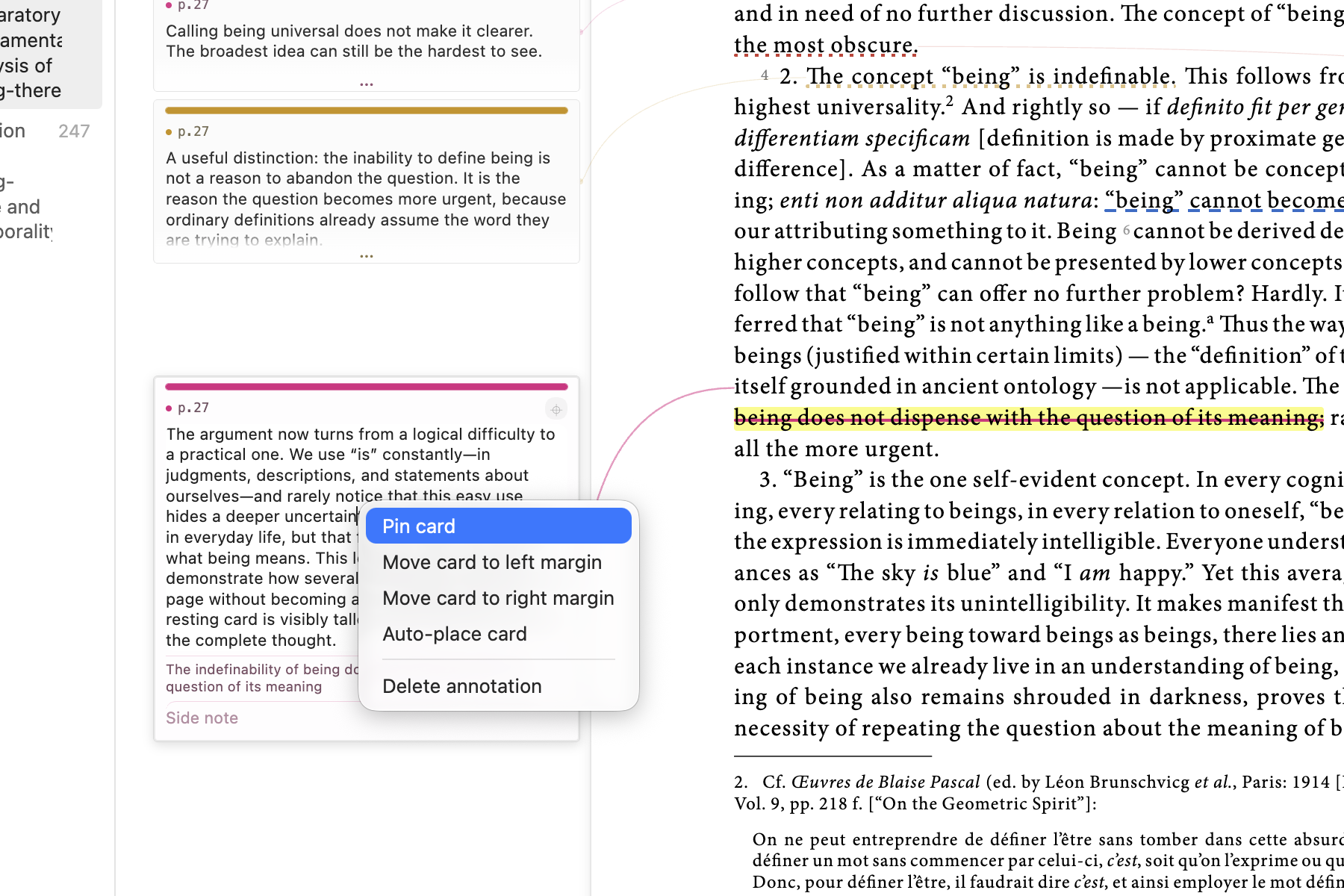
Moving a card never moves or changes the words you marked.
A simple reading routine
- Open a PDF and click Annotate.
- Select a useful sentence.
- Choose Highlight or Annotate.
- Write your thought.
- Keep reading; your note stays beside the page.
- Use the list when you want to find it again.
Take your quotes and notes with you
Run Export annotations for current PDF from Obsidian's command palette. The exported Markdown keeps the full highlighted passage, its colour, and your note underneath it. Each non-archived set gets its own heading—even sets you have hidden while reading. No extra export options to configure.
Keep different kinds of notes separate
Think of annotation sets as separate notebooks laid over the same PDF. Keep your own thoughts in My notes, translations in another set, and explanations in a Reading partner set. Show them together, or hide the ones you do not need right now. Nothing is erased when you hide a set.
Click the set name at the top right to open the dropdown:
- A purple eye means that set is visible. Click it to hide the set; click a grey eye to show it again.
- Write here chooses where your next manual notes will go. That set then says Active. Other sets can still be visible at the same time.
- New set gives you another space for a different purpose.
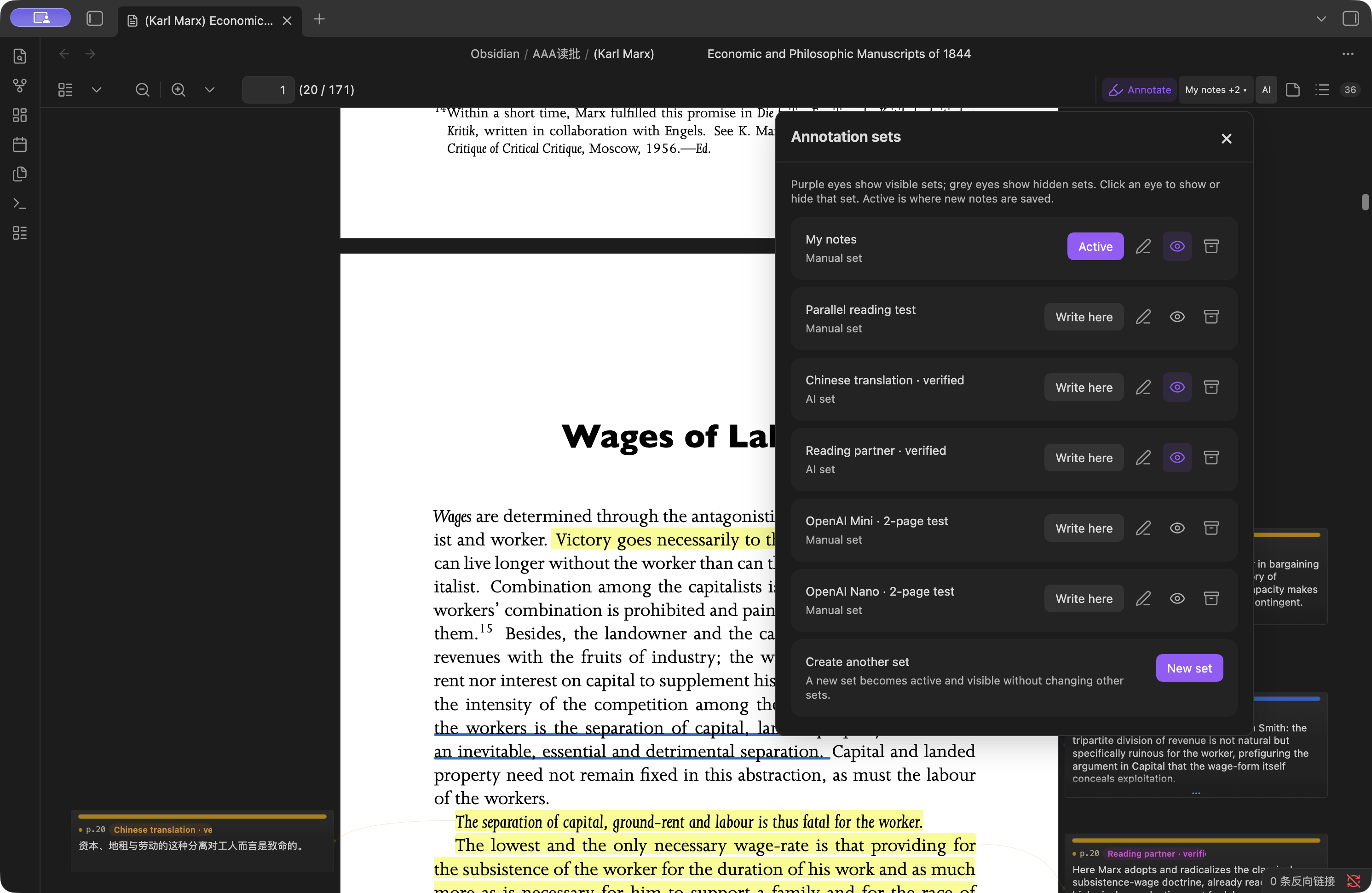
Choose what you see independently from where you write.
Invite AI to read alongside you
You can do your own thinking and still ask for a little help. For example, keep your notes untouched while AI adds a translation or explains an unfamiliar idea in a separate set.
- Create a set in the set dropdown, such as Translation or Reading partner.
- Click AI at the top right and choose that existing set.
- Choose your provider, paste its API key, and choose a model.
- Pick a few pages and describe the help you want. For example: “Translate key passages into Chinese” or “Explain unfamiliar ideas and useful connections.”
- Start the job and keep reading. Progress appears on the toolbar, and closing the dropdown does not stop the work.
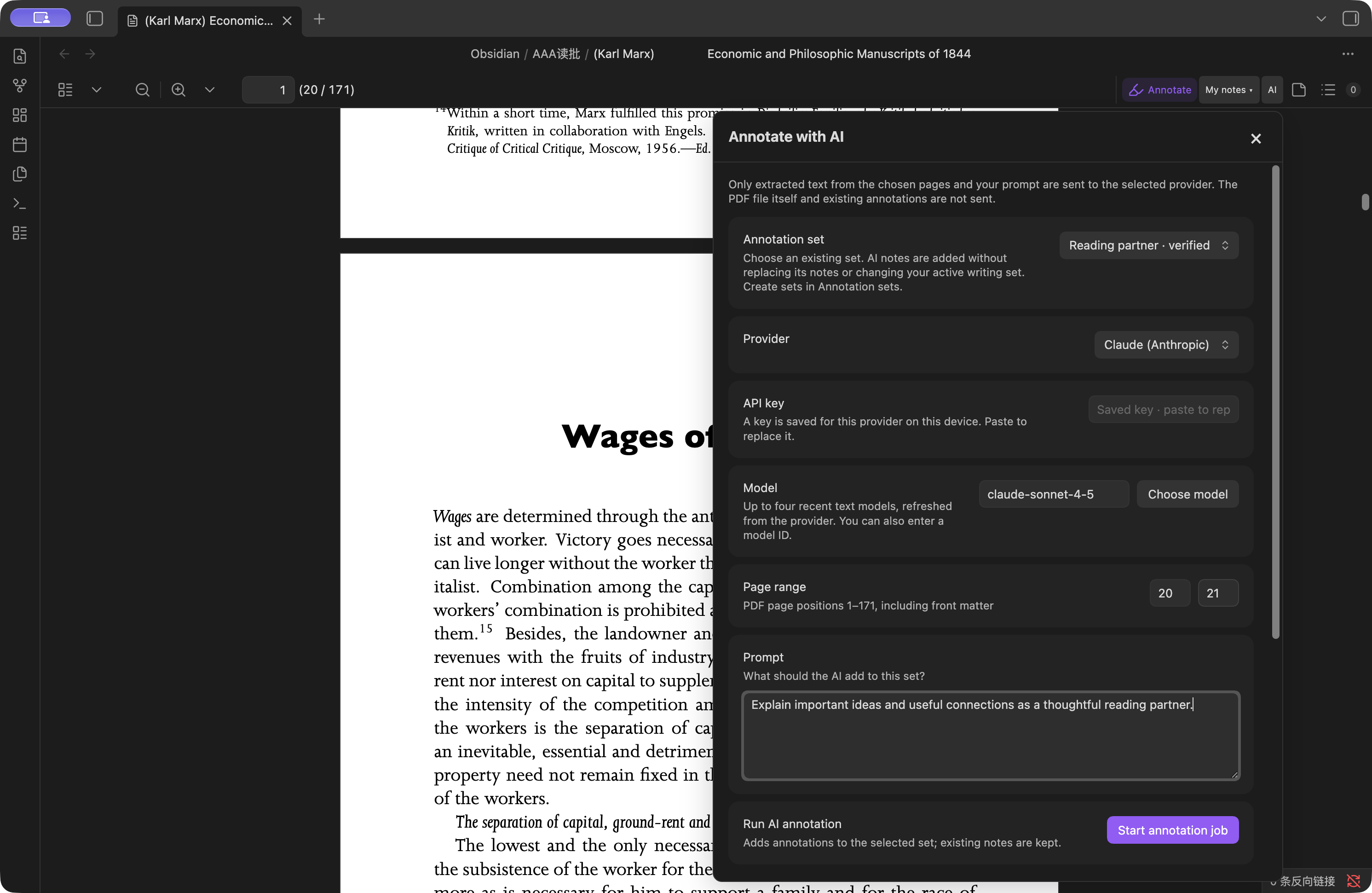
Tell AI what kind of help you want and where its notes should go.
AI adds notes to the set you choose; it does not replace your existing notes or change where your manual notes are saved. Page numbers are positions in the PDF, including any cover or introduction. Start with two pages to see whether the result suits you. AI explanations can be wrong, so treat them as suggestions.
The model picker stays short: up to four recent text models from your provider. You can refresh the choices or enter a model ID yourself when a new one appears. There is no request format or code to configure.
AI is optional and uses your own provider account, which may charge for requests. Only text from your chosen pages and your prompt are sent—not the whole PDF or your existing annotations. The API key stays outside your vault on this device; that storage is not encrypted. See Privacy for the details.
Technical Notes
PDF Annotator is a desktop-only Obsidian community plugin. It adds annotation layers, controls, margin rails, and an annotation list to Obsidian's native PDF viewer. Obsidian's existing toolbar, outline/sidebar, zoom controls, and page navigation remain in place.
Selection alone does not create an annotation. The selection popover commits a highlight or annotated mark only after the user chooses an action. Highlight geometry is stored in PDF user-space coordinates, so marks stay anchored across zoom and resize changes.
Automatic rail space
Creating an annotation or selecting one from the annotation list activates its card. If the native PDF page leaves too little readable margin, the plugin uses the native zoom-out control until that card's rail is wide enough. It stops as soon as the target rail is readable and has a bounded retry limit.
Resting card height is weighted mainly by user-written content. On a dense page, the available rail height is shared proportionally: longer cards remain visibly longer, while all resting cards fold enough to fit. Hovered, active, and pinned cards expand to their full content height, with an internal scrollbar only when the entire card is taller than the available viewport.
Native PDF workflow
- Open a PDF normally in Obsidian.
- Click Annotate in the native PDF toolbar.
- Select text and choose Highlight, Annotate, or Copy.
- Click an existing mark to edit its style, colour, note, or side note.
- Use a side card for in-place editing, or the annotation list for search and navigation.
The card context menu supports pin/unpin, left placement, right placement, automatic placement, and deletion. Drag-and-drop between rails is not currently implemented.
Fallback Annotator View
The original bundled pdf.js annotator view remains available as a stable
fallback. Use the command palette action:
Open current PDF in annotator
You can also make the fallback annotator the default PDF viewer from plugin
settings. This redirects ordinary .pdf clicks into PDF Annotator. The setting
is opt-in for fresh installs.
Storage and Recovery
The visible PDF path is not the document identity. Identity comes from a SHA-256 hash of the PDF bytes, and the canonical vault-local bundle is stored at:
.pdf-annotator/bundles/sha256/<hash>/
  document.pdf
  annotations.md
  annotations.previous.md
  annotation-sets/
    index.json
    index.previous.json
    default.md
    <set-id>.md
    <set-id>.previous.md
  ai-jobs/
    <job-id>.json
    <job-id>.previous.json
  manifest.json
document.pdf is a verified byte-for-byte recovery copy. Existing
annotations.md data is preserved and migrated into the default annotation
set. Each set then has its own readable Markdown sidecar and rolling
last-known-good copy. annotation-sets/index.json records set names, kinds,
visibility, and the active write target. AI job checkpoints record progress and
provider/model provenance, but never the API key.
Open tabs share the same workspace, and saves are serialized. A damaged set
registry is preserved for inspection, recovered from its backup, and reconciled
with surviving annotation sidecars so newer sets remain accessible.
manifest.json records the current working path, previous path aliases,
checksum, original filename, timestamps, and PDF fingerprint. The working PDF
is never modified.
The bundle is created the first time annotation mode opens for that PDF. This uses roughly one additional PDF's worth of vault storage in exchange for deletion recovery.
Moving or renaming a working PDF does not move the bundle and cannot disconnect
its annotations. Replacing a PDF with different bytes at the same path creates a
different bundle, so annotations cannot silently attach to the wrong document.
Deleting the working copy leaves the bundle intact. Use Restore a PDF from
annotation backup in the command palette to verify the checksum and restore a
copy into Recovered PDFs/.
Existing central or same-folder <pdf-name>.annotations.md sidecars are
imported on first open. A unique PDF-fingerprint match can also recover a
sidecar that was already orphaned by a rename. Legacy files are retained as
recovery snapshots.
The canonical sidecar contains a readable Markdown summary and a fenced JSON
block that is used as the machine-readable source of truth. Use Export
annotations for current PDF to create a user-visible snapshot under
PDF annotations/Exports/ (or the configured legacy annotation folder).
Exports include every non-archived annotation set under its own heading, even
when its eye is off while reading. Full quoted passages and notes appear
separately, with highlight colours and spacing preserved. Archived sets remain
in the managed library but are excluded from the export.
Use Verify all PDF annotation backups to checksum every managed recovery
copy. Backups are also verified when created and periodically when their PDFs
are opened. The managed library protects against moving, renaming, replacing,
or deleting a working copy; it is still part of the same vault, so the vault
itself should remain covered by iCloud, Obsidian Sync, or another backup system.
If your sync tool excludes hidden folders, explicitly include
.pdf-annotator/.
Privacy
PDF Annotator does not use telemetry. Manual annotations, annotation sets, job checkpoints, and recovery copies are stored locally in your vault.
AI annotation is opt-in. When you start an AI job, the plugin extracts text from only the selected page range and sends that text plus your prompt to the provider shown in the job dialog. It does not upload the PDF file or send other annotation sets. Returned quotes are matched back to the named page locally; unmatched quotes are rejected instead of being placed approximately. AI grounding normalizes whitespace only, requires the complete source quote, and rejects repeated passages unless the supplied context identifies one match.
The API key is saved in Obsidian's device-local application storage, outside
the vault, and is used only in request authentication. It is not copied into
plugin data.json, annotation files, or job checkpoints. This avoids syncing
the key with the vault, but the local application storage is not an encrypted
credential vault, so access to the local Obsidian profile should be protected
like access to the API key itself.
Keys are kept separately for each provider and endpoint. Running jobs use a
private snapshot of their original connection. Resuming a job with a different
provider selected is blocked before any request is sent.
Parallel Annotation Sets and AI
Use the set button beside Annotate to create, rename, show, hide, archive, or change the active annotation set. Purple eyes mean visible; grey eyes mean hidden. Both the set manager and AI controls open as non-modal dropdown panels beneath their toolbar buttons. Click outside, press Escape, or click the same button again to close them; dismissing AI controls does not stop a running job. The AI panel selects an existing set and adds annotations from a page range and prompt without replacing notes or changing your active writing set. Create sets in the set manager, not in the AI dialog. Provider, device-local API key, and model controls are also available directly in the AI dialog. Long jobs are checkpointed in small page batches and can be paused, resumed, or cancelled. Interrupted jobs reopen as paused and can continue from their last saved page batch. Progress updates inside the job dialog as well as on the toolbar; cancelling keeps annotations from completed batches.
Provider settings include OpenAI, Anthropic, Gemini, xAI, DeepSeek, GLM, Qwen, Kimi, and custom OpenAI-compatible endpoints. Known key formats are detected automatically. The Choose current model action asks the selected provider for its live model list and shows at most four distinct recent text models. Dated snapshots and aliases share a slot; reasoning effort does not create a separate model. Media and other specialized models are omitted from this picker. Recency uses provider timestamps, Claude's documented newest-first order, or version-number ordering when release dates are unavailable. The model field remains editable for newly released IDs. Refreshing never changes the selected model automatically. Protocol and authentication behavior remain provider presets so ordinary users do not need to configure request JSON or headers. Requests omit optional sampling parameters that newer reasoning models may reject. Live model discovery supplies model names; a breaking provider API change can still require a plugin update.
Legacy Import
If you previously used obsidian-annotator, open the target PDF in this plugin
and run:
Import legacy obsidian-annotator highlights for this PDF
The importer searches notes with annotation-target: frontmatter, re-anchors
quoted text in the PDF, and creates PDF Annotator highlights. Legacy notes are
left untouched.
Development
npm install
npm run typecheck
npm test
npm run build
npm run build type-checks the plugin and produces main.js, manifest.json,
and styles.css in dist/.
Set LOCAL_PDF_ANNOTATOR_PLUGIN_DIR explicitly to install a build into a local
vault's .obsidian/plugins/local-pdf-annotator directory. The default build does
not modify an installed plugin.
For the optional ten-page book test, set LPA_BOOK_FIXTURE to a non-vault copy
of Economic and Philosophic Manuscripts of 1844, then run
npm run test:book-two-sets. The test uses temporary annotation files, not your
vault. npm run test:live-book-ai additionally requires LPA_LIVE_API_KEY for
its GLM integration test and makes paid provider calls; ordinary tests do not.
Release Files
Obsidian installs community plugin releases from GitHub release assets. A release must include:
main.jsmanifest.jsonstyles.css
The release tag must match the version field in manifest.json.
For plugin developers
Search results and similarity scores are powered by semantic analysis of your plugin's README. If your plugin isn't appearing for searches you'd expect, try updating your README to clearly describe your plugin's purpose, features, and use cases.