Study PDF
approvedby João Gris
Highlight and take notes in PDFs, stored in the file itself, then study them as spaced-repetition flashcards. - This plugin has not been manually reviewed by Obsidian staff.
Study PDF
Highlight text and take notes in PDFs from inside Obsidian. Everything is written as
standard PDF annotations directly into the .pdf file, so it's portable — highlights
and notes show up in Obsidian's built-in PDF viewer (including inline
![[file.pdf#page=3]] embeds) as well as in Adobe Acrobat, Apple Preview, and any
other PDF reader. The file itself is the source of truth; nothing is stored on the
side.
Screenshots
| Click a highlight | Add a note | Browse everything |
|---|---|---|
 |  |  |
Features
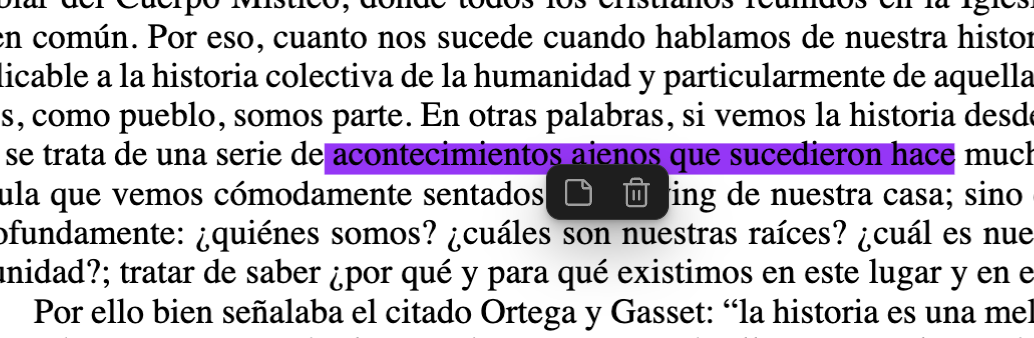
- Highlight: select text in an open PDF and pick a color from the popup that
appears (or use the Highlight selection command). One quad per line, standard
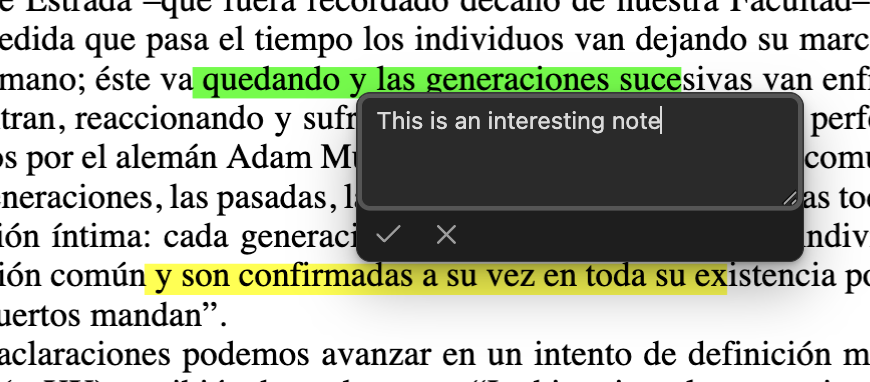
/Highlightannotations with a real appearance stream, so every reader renders them. Size and colors are calibrated to match desktop marker tools. - Notes: click a highlight and use the note button in the popup. The note is
stored in the annotation's
/Contents— the standard field — so it appears as the highlight's comment in Adobe/Preview too. Unicode-safe. - Remove: click a highlight, hit the trash button (or the Remove highlight at selection command).
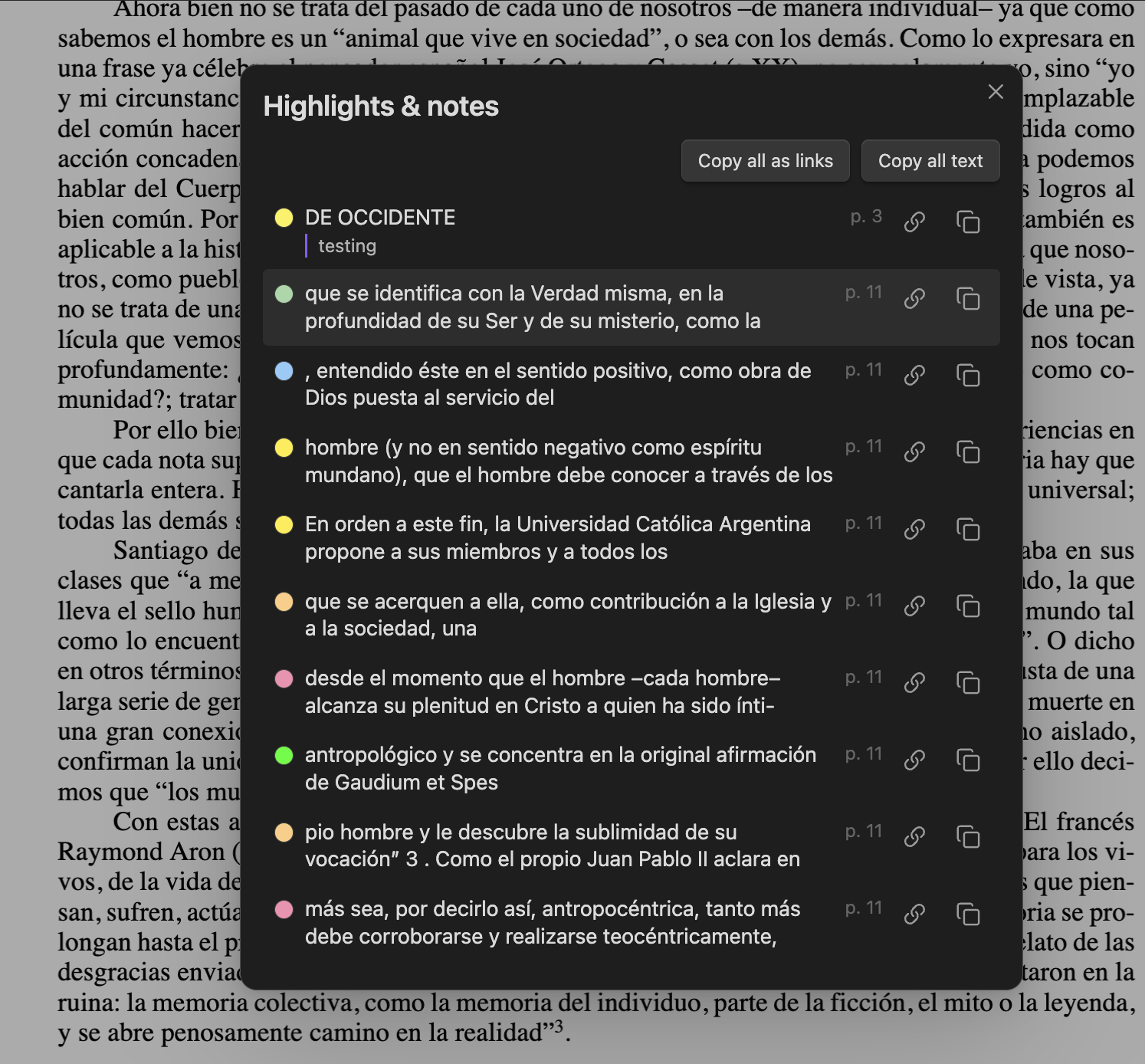
- Overview: Show all highlights and notes — from the command palette or the
list button the plugin adds to the PDF view's own toolbar — lists every highlight
in the document (color, recovered quoted text, note, page), with click-to-jump and
copy buttons — as Obsidian annotation deep links (
#page=N&annotation=ID) or as plain Markdown. - Export to a note: Export highlights to note writes every highlight into
<PDF name> (highlights).mdbeside the PDF — grouped by page, colour-swatched, each quote a deep link back to its annotation, with your note beneath it. It's a sync, not a dump: only the block between the%%study-pdf:begin%%/%%study-pdf:end%%markers is rewritten, so anything you add around it survives. - Flashcards: Sync flashcards from notes writes spaced-repetition cards into
<PDF name> (flashcards).md— your note is the question, the highlighted text and a deep link back are the answer. Only highlights that carry a note become cards. The sync converges: run it again and the file only changes if your highlights did. Edit a note in the PDF and its card is rewritten in place; delete a highlight and its card moves to an## Orphanedsection rather than disappearing (put the highlight back and the card returns to its page). Either way the card's review schedule travels with it — obsidian-spaced-repetition stores that inline, on the line after the card, so nothing you've already studied is reset. Anything you wrote in the file yourself is left where it is. - Settings: the palette is fixed, but you pick which color is the default (the one the Highlight selection command uses, and the first dot in the popup) by starring it in the plugin's settings tab.
- Mobile: works on phones and tablets too. Extending a touch selection by dragging the native handles keeps the color popup in sync, and popups are positioned against the visual viewport so the on-screen keyboard doesn't cover the note editor.
- Encrypted PDFs: permission-restricted files (owner password, no open password — the common "protected" textbook/scan) are decrypted transparently. Note the saved file comes out decrypted. Files that genuinely require a password to open are rejected with a clear message.
- No flicker: Obsidian fully reloads a PDF view whenever the file changes on disk; a snapshot "curtain" (with the new highlight pre-painted) masks the reload, so feedback is instant.
Safety
The PDF is fully re-serialized on every save (that's how pdf-lib works), so every write is verified before it touches your file: the output is re-parsed and checked (page count, annotation counts) and the write is aborted loudly if anything looks wrong. Non-highlight annotations — links, form fields, XFA — are covered by round-trip tests against real-world PDFs.
Still: this plugin modifies your PDF files in place. Keep backups of documents you care about, especially the first time you use it on a new kind of PDF.
To keep its popup UI from colliding with Obsidian's built-in annotation popup, the plugin patches one internal viewer method (restored on unload) and reads the viewer's internal PDF.js objects. An Obsidian update can break these integration points; the plugin fails loudly with a clear message rather than misbehaving silently.
Development
Bug-fix PRs are welcome; please open an issue before building a feature — see CONTRIBUTING.md.
npm install
npm run dev     # esbuild watch mode
npm run build   # typecheck + production build -> main.js
npm test        # vitest — unit tests for the pure modules + PDF round-trip tests
npm run lint    # eslint-plugin-obsidianmd -- same checks the community-plugin review does
To try it in a vault: build, then symlink main.js, manifest.json, and styles.css
into <vault>/.obsidian/plugins/study-pdf/, then reload Obsidian and enable the
plugin under Community Plugins.
The unit tests only cover the pure modules; anything touching the viewer, popups, or
selection has to be exercised in a running Obsidian. With the symlink in place, the
obsidian CLI makes that loop quick:
npm run build && obsidian plugin:reload id=study-pdf
then obsidian dev:errors, obsidian dev:console, obsidian dev:dom selector=...,
and obsidian dev:screenshot path=... to inspect the result.
Releases
Releases are built and published entirely by GitHub Actions
from a pushed version tag (e.g. 0.1.0, no v prefix) — never uploaded from a local
machine. Each release asset (main.js, manifest.json, styles.css) carries a
build provenance attestation,
so anyone can verify it was built from this repository's source:
gh attestation verify <(curl -sL https://github.com/gris/study-pdf/releases/download/<version>/main.js) --repo gris/study-pdf
npm run lint should exit clean. The two intentional exceptions (a version-gated
settings-tab call the linter can't statically verify as safe) are downgraded to
warnings in eslint.config.mjs, with the reasoning next to each call site in
src/settings.ts.
Code map
src/annotate.ts— all PDF mutation (add/remove/note/inspect), pure, no Obsidian imports. Uses@cantoo/pdf-lib(pdf-lib fork with decryption support).src/geometry.ts— pure coordinate mapping: selection rects → PDFQuadPoints, calibrated against reference marker software.src/pdf-text-extraction.ts— pure text recovery: maps a highlight's quads back onto a page's text items to reconstruct the quoted text when a highlight has no quote stored (highlights made in other readers, or by older plugin versions).src/pdf-highlights.ts— reads every highlight out of the viewer's live PDF.js document (no file re-parse); shared by the list modal and the note export.src/highlight-export.ts— pure Markdown formatting for the exported note and the modal's copy buttons, including the managed-block merge.src/flashcards.ts— pure card formatting and the converging merge (update in place, orphan rather than delete) that keeps spaced-repetition schedules intact.src/obsidian-pdf-internals.ts— the ONLY module touching undocumented Obsidian/PDF.js internals (viewer access, native popup suppression).src/ui/— icon popup, note editor, reload curtain, highlights list modal.src/settings.ts,src/main.ts— settings tab and plugin wiring.
Known limitations
- Password-protected PDFs (real open password) can't be modified.
- Scanned PDFs without a text layer can't be text-highlighted.
- Annotation deep links (and the flashcard cards keyed on them) depend on the annotation's object number. This plugin's own writes preserve them — measured across adding, removing, and note-editing highlights on a real document — but another tool re-saving the file may renumber, and then only the page part of the link keeps working.
- On iOS, pinch-zooming a PDF flickers each page and occasionally lands on a different page. This is Obsidian's PDF viewer, not this plugin — it happens with the plugin disabled too.
- On iOS, the text you are selecting looks fainter than elsewhere in Obsidian: the system draws its own selection tint over the PDF text layer and ignores any colour a plugin or theme sets. The saved highlight is unaffected.
For plugin developers
Search results and similarity scores are powered by semantic analysis of your plugin's README. If your plugin isn't appearing for searches you'd expect, try updating your README to clearly describe your plugin's purpose, features, and use cases.