by Jorrit van der Heide
Write notes now and tag them later, with an inbox of the notes still waiting for tags.
Loose Ends
Write notes now and tag them later, with an inbox of the notes still waiting for tags.
Works well with Tag Along, which shows your tags as a folder tree. See Works well with.





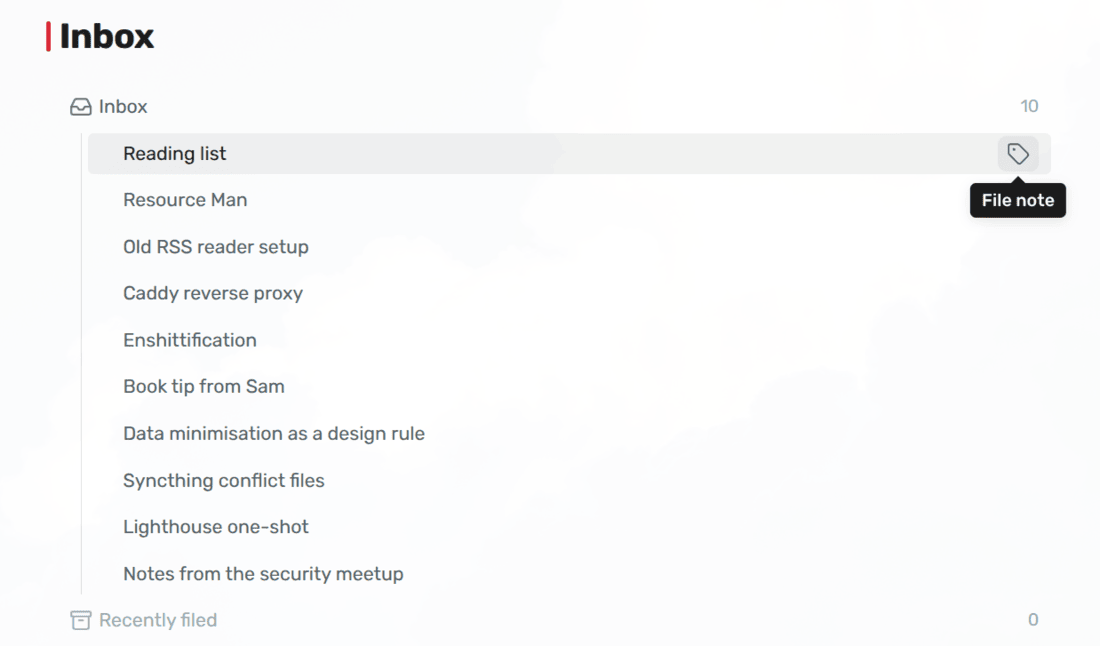
You're in a meeting, or halfway through an article, and a thought comes up. Before you can write it down, you have to decide where it goes: which folder, which tags. That's the worst possible moment to decide, while the thought is still only in your head. So either you stop to sort it and lose the thread, or you don't, and the note ends up in a pile that nobody will ever sort.
Loose Ends splits the two. You write the note now, and sort it later. Until you've sorted it, the note carries one tag saying so, and that tag keeps it in front of you. The moment you've given it every tag it needs, the extra tag goes away by itself.
1 Installation
In Obsidian, go to Settings → Community plugins → Browse, search for "Loose Ends", and install and enable it. You can also find it on its page in the plugin directory.
Loose Ends needs Obsidian 1.13.1 or later, and works on desktop and mobile.
2 Getting started
Loose Ends won't do anything until you tell it what a note needs. Here's how to set it up and file your first note:
-
Say what every note needs. In Settings → Loose Ends → Axes, click Add axis. Type
domainin the first field andwork, personalin the second. Add a second axis:source, witharticle, book, meeting. Every note now needs adomain/…tag and asource/…tag. -
Name the unfiled tag. Set Unfiled tag to
inbox. That's the tag a note carries while it's missing something. -
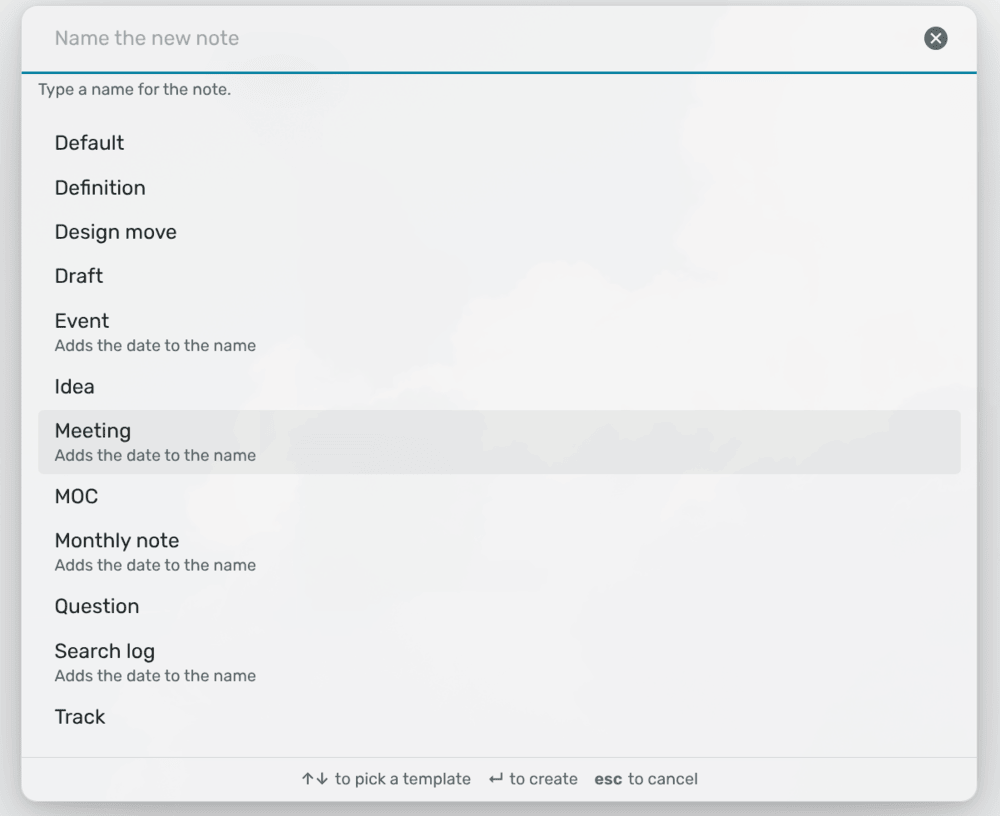
Write a note. Run Add note, type a name, and press Enter. The note opens with the cursor ready, and gets the
inboxtag, because it doesn't have adomainorsourceyet. -
See what's waiting. Put this block on a note of your own, like a dashboard:
```loose-ends
```
It lists every note that's still missing something, newest first.
-
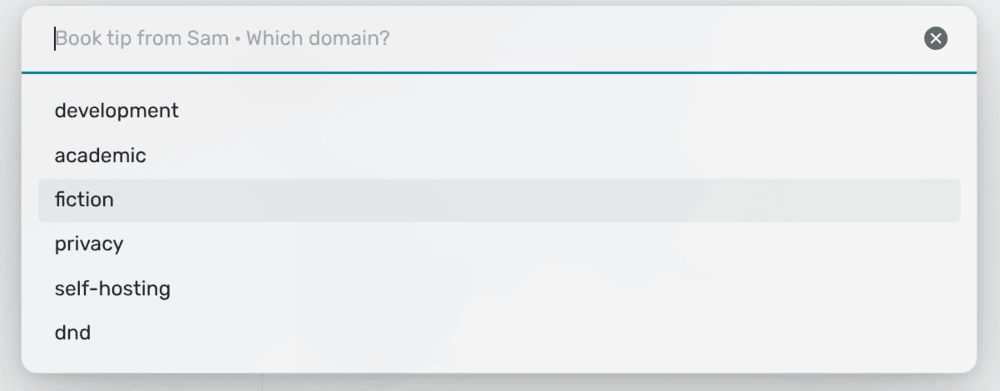
File it. Click the tag button on a row, or run File note in the note itself. Loose Ends asks Which domain? and Which source?, and once you've answered both, the
inboxtag is gone and the note moves to Recently filed.
3 Safety and quality
Loose Ends only writes two things in a note: the tag you pick when it asks you a question, and the unfiled tag. Every other tag, every other property and every word you wrote stay as they are. It only ever writes in your notes folder, so notes that belong to something else, like a literature folder, are left alone. So are your templates, even when they're inside the notes folder. Section 11 lists exactly what it writes and when.
It doesn't connect to the internet and doesn't run any programs.
Every change is tested. Every release is built in public on GitHub, and you can check that the file you installed is the one GitHub built. Section 11.4 shows how.
Table of contents
- 4 Documentation
- 5 Features
- 6 How it works
- 7 Templates
- 8 Commands
- 9 Settings
- 10 Works well with
- 11 Network and file disclosure
- 12 Questions or issues?
- 13 Support
- 14 License
4 Documentation
If you want to work on the plugin:
- Architecture - How the code is layered, and how the unfiled tag is kept up to date without the plugin triggering itself.
- Filing model - What "filed" means, why values are compared exactly, and what the notes folder is for.
- Templates - Placeholders, dates in names, prompts, and how a note is matched to its template.
- Settings - How settings are stored and checked, and what to do when one changes.
- Compatibility - What a release may and may not change, so notes, templates and settings keep working across updates.
- Development - Setup, tests, checks and releases.
5 Features
5.1 Writing
- Add note - One prompt for the name and the template, and nothing else.
- Or any other way - A note made with Obsidian's new note button, as a daily note, or with Templater or QuickAdd gets the unfiled tag too, as long as it's in your notes folder.
- Templates - Any note in your template folder, with
{{title}},{{date}}and{{cursor}}. - Dates in names - A template can put today's date in the note's name, or the date you type.
- Prompts that stay out of your note - A question under a template's heading is shown faintly in the note, but never saved to the file.
5.2 Filing
- File note - Asks only what a note is still missing, one question at a time, with your most recent answers first.
- Set an answer later - One Set command per axis, to change an answer at any time.
- Right-click - File a note from its menu, in the file explorer or anywhere else Obsidian offers one.
- Stop halfway - Close a question, and the answers you already gave are kept.
5.3 The inbox
- Inbox block - A list of every note still missing something, on any note you like, with what each one is missing on hover.
- One-click filing - File a note straight from its row.
- Recently filed - The notes you filed in the last seven days.
5.4 Staying honest
- A tag that's never out of date - Loose Ends checks the note's own tags every time it changes. Delete the unfiled tag by hand and it comes back. Answer the last question and it's gone.
- Exact answers - Only the values you listed count, so a typo or an old tag never quietly passes as filed.
- Only your notes - Nothing outside your notes folder is ever tagged, and neither is anything in your template folder.
6 How it works
6.1 Axes
An axis is a question every note has to answer, and the answer is a tag.
domain asks what a note is about, and accepts domain/work or
domain/personal. source asks where it came from, and accepts
source/article, source/book or source/meeting. You choose the axes and
the answers they accept:
domain   work, personal
source   article, book, meeting
A note that has an answer for every axis is filed. A note that's missing
one is unfiled, and gets the tag you named for that, such as inbox.
Only the tags in a note's tags property count as answers. Loose Ends writes
them there too.
6.2 The unfiled tag looks after itself
You never have to add or remove the unfiled tag yourself. Every time a note changes, Loose Ends looks at its tags and adds or takes off the unfiled tag to match. The tag is only there so you can see what's waiting, for example as a folder in Tag Along. If it ever disagrees with your answers, your answers win.
That's also why it's never out of date. If you delete the tag by hand, it comes back, and once you answer the last question, it goes. After you change the axes, a folder or the unfiled tag, every note in the notes folder is checked again when you close the settings. With Obsidian Sync, your other devices take the new settings as soon as they arrive, along with the tags this check wrote.
6.3 Only the exact values count
domain/work/project-x doesn't answer the domain axis, and neither does a
bare domain. Only domain/work and domain/personal do, because those are
the values you listed. If you want work/project-x as an answer, add it to the
list. A value with a slash in it works like any other.
When Loose Ends asks about an axis, the question names any tag under it that isn't one of the values you listed, and the value you pick replaces it. Loose Ends never removes that tag any other way.
This is on purpose, and it's the bug that made me write Loose Ends. My old
setup accepted anything that started with domain/. A nested tag counted as
an answer, even though no picker ever offered one. The only way to make one was
to type it by hand, and sooner or later that meant a typo. Nobody noticed until
the tag tree was a mess.
6.4 The notes folder
The Notes folder has two jobs. Add note makes new notes there, and it's the only place Loose Ends ever adds the unfiled tag. If some of your notes belong to another plugin, like a folder of literature notes, pick a Notes folder that leaves them out. Those notes will never answer your axes, so they'd stay unfiled forever.
Your template folder is always left out, even when it's inside the notes folder. A template isn't a note waiting to be filed, and a tag added to it would end up in every note you make from it.
7 Templates
Add note offers every Markdown file directly in your template folder. On a
fresh install, Loose Ends puts a Default template there to start with.
| Placeholder | Becomes |
|---|---|
{{title}} | The name you typed |
{{date}} | Today's date, as YYYY-MM-DD |
{{date:YYYY-MM}}, {{date:YYYY}} | The same date, cut short, so it still sorts |
{{cursor}} | Where the cursor starts |
Case and spaces inside the braces don't matter.
Dates in names. When the title heading has a date in it, like
# {{title}} {{date}}, the note's name gets the date too: typing Hanna makes
Hanna 2026-09-30. If you type a date yourself, that date is used instead of
today's, so Hanna 2026-10-07 stays Hanna 2026-10-07, for a meeting you
prepare before the day. A heading dated to the month also takes a typed month:
# {{title}} {{date:YYYY-MM}} and Budget 2026-10 make Budget 2026-10.
Prompts. Put an HTML comment right under a heading, and it becomes that heading's prompt:
## Decisions

<!-- What did we agree on, and who does what? -->
Add note leaves the comment out of the note. Instead, the question is shown faintly on the empty line under the heading, until you write something there. Because it only lives in the template, rewording it rewords it in every note, and nothing stays behind under what you wrote.
Loose Ends tells which template a note came from by its headings. If a template has no heading besides its title, there's nothing to tell it by, and its prompts won't show.
8 Commands
None of the commands come with a hotkey, so they won't clash with the ones you already use. You can set your own in Settings → Hotkeys.
Loose Ends: Add note- Asks for a name and a template, and makes the note in your notes folder.Loose Ends: File note- Asks for each answer the open note is still missing.Loose Ends: Set <axis>- Changes one answer on the open note, whether or not it already had one. There's one for each axis, named after it.Loose Ends: Refresh tags- Checks every note in your notes folder against the axes. This also runs by itself when the axes, a folder or the unfiled tag change.
File note and Set are also on the right-click menu of every note in the notes folder: File note while the note is still missing something, and Set always.
9 Settings
| Setting | Default | |
|---|---|---|
| Notes folder | Whole vault | Where Add note makes new notes, and the only folder where Loose Ends adds tags. See The notes folder. |
| Template folder | Templates | The templates Add note offers. See Templates. |
| Remember the last template | On | Put the template you picked last at the top of the list. When this is off, Default comes first and the rest follow by name. Turn it off if one template is nearly always the right one. |
| Unfiled tag | Empty | Loose Ends adds this tag to a note that's still missing an answer, and takes it off once every answer is in. In Tag Along, or another plugin that shows your tags as folders, it becomes a folder of every note still waiting. The inbox block names its first group after it too. Leave it empty if you don't want the tag. |
| Axes | None | The questions a note has to answer before it counts as filed. Each axis is a top-level tag, like domain, with the values it accepts, like work and personal. Only those exact values count as answers. A tag like domain/work/project-x doesn't, unless you add work/project-x to the list. The pickers offer your most recent answers first, then the rest in the order you listed them. |
Refresh tags is at the bottom of the settings too.
10 Works well with
I made these too. Each one does one thing and works on its own, but they fit together nicely.
10.1 Tag Along
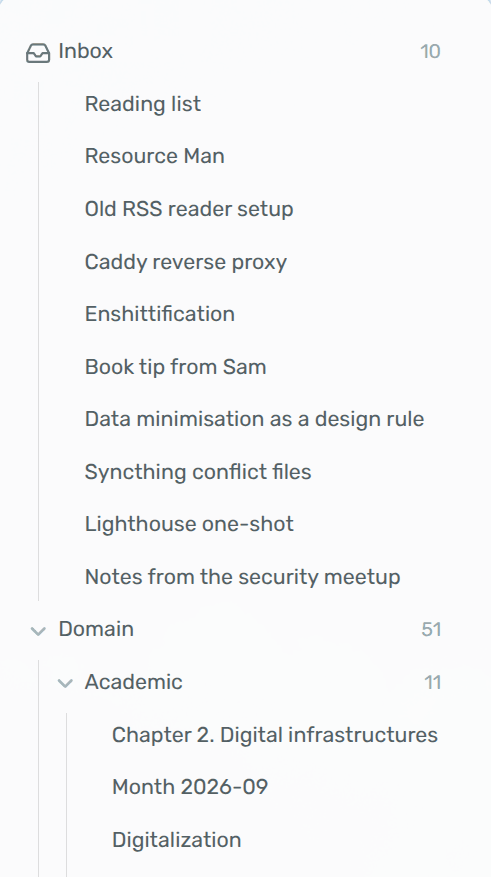
Tag Along shows your vault
as a folder tree built from your tags. Each axis becomes a tree, like domain
and source, and the unfiled tag becomes a folder of everything still waiting.
Set Unfiled tag to inbox, and make inbox an exclusive folder in Tag
Along. A new note then only shows up in inbox, and moves to its proper
folders the moment you've finished filing it.
11 Network and file disclosure
Loose Ends runs entirely on your device. It never connects to the internet and doesn't send anything anywhere.
11.1 What it reads
- Notes: The
tagsproperty of the notes in your notes folder, which it gets from Obsidian's own index of your notes, and the headings of the note you're editing, to show its prompts. - Templates: The Markdown files in your template folder, for Add note and the prompts.
11.2 What it changes in your notes
Only in notes in your notes folder, never in your template folder, and only these:
- Answers: The tag you pick when it asks about an axis, in the note's
tagsproperty. Any other tag under that axis is replaced. - The unfiled tag: Added when a note is missing an answer, and taken off when it isn't.
- New notes: Add note makes the note you ask for.
When it adds a tag, it keeps the tags list sorted, the way the Linter plugin
does. That way, if you use Linter, it has nothing to reorder the next time you
save. Your tags themselves stay as they are, but the property is written back
as a plain list. A comma or space separated string becomes a list, a leading
# is dropped, and a tag that was there twice is kept once. A number like
2024 is kept, written as text.
If the tags property holds something that isn't a tag, like a nested list,
writing it back would lose that entry, so Loose Ends leaves the property as it
is. The unfiled tag isn't added or taken off there, and File note and
Set say why instead of writing your answer.
11.3 What it stores
- Starter template: On a fresh install,
Default.mdin the template folder, unless a file with that name is already there. If you delete it, it isn't written again. - Folders: The notes folder when you add a note, and the template folder for the starter template, when the folder isn't there yet.
- Settings: Its own
data.jsonin the plugin folder. - Recent picks: The order you last picked templates in, and the answers for each axis, so your usual choice comes first.
- Filing dates: When each note was filed, for Recently filed.
Recent picks and filing dates are kept in Obsidian's local storage for this vault, on this device. They don't sync to your other devices.
11.4 How releases are built
Every change I push is built, checked with ESLint and the official Obsidian ESLint plugin, and tested with Vitest. Nix builds it a second time, on its own.
Releases are built by GitHub Actions from the tagged code, after the same
checks. A release only goes out when its tag matches the version in
manifest.json, and every action it uses is pinned to an exact version. Each
release comes with a signed attestation from GitHub, which records what it
was built from. To check that the main.js you installed is the one GitHub
built:
gh attestation verify main.js --repo jorritvanderheide/obsidian-loose-ends
12 Questions or issues?
Have a look at the FAQ first. It covers the things people run into most, like an unfiled tag that keeps coming back. If something still doesn't work, or you have an idea, please open an issue. Found a security problem? Please report it privately, the way the security policy explains.
The code lives on Codeberg, with a copy on GitHub.
13 Support
Loose Ends is free. If it's useful to you and you'd like to give something back, you can do that on Liberapay:

14 License
Copyright © 2026 Jorrit van der Heide. Licensed under the EUPL-1.2.
For plugin developers
Search results and similarity scores are powered by semantic analysis of your plugin's README. If your plugin isn't appearing for searches you'd expect, try updating your README to clearly describe your plugin's purpose, features, and use cases.