Slightly Better Tab Commands
approvedby jimmycushnie
Adds commands to manage the note tabs that are slightly better than stock. - This plugin has not been manually reviewed by Obsidian staff.
Slightly Better Tab Commands
Has this ever happened to you?
- You're using Obsidian
- You have a bunch of tabs open with different notes
- You press ctrl+W to close the current note
- But instead it closes a sidebar widget!! What the heck!!!
If you answered yes, then this plugin is for you! It adds commands for tab management (close current tab, go to next/previous tab, etc) that only apply to your note tabs, not to sidebar widget tabs.
Obsidian's built-in tab management commands will apply to the tab group you most recently interacted with. So, most of the time they will affect your note tabs. But if you've just clicked on a sidebar widget, they will affect your sidebar widget tabs instead. I personally hate this behavior and so I made this plugin to make the shortcuts reliably apply to your note tabs.
Bonus feature!
This plugin also has a setting to control which tab is focused after you close the current tab.
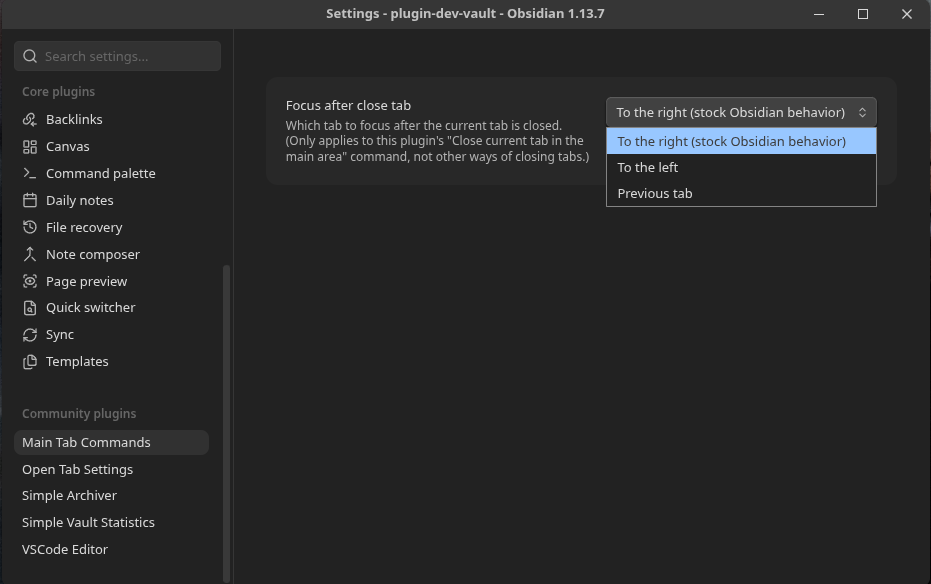
Note that this setting unfortunately only applies when closing the current tab through its "Close current tab in the main area" command. You will still get stock Obsidian behavior if you close a tab with its X button, by middle clicking on it, etc.
Extra bonus feature!
Since version 2.0.0 there's an option to prevent closing pinned tabs. This is complementary to the Pin Enhancer plugin, since you can't use that plugin's "close current tab" command at the same time as this plugin's.
Setup
After installing and enabling the plugin, go to settings -> hotkeys and update your hotkeys to use the commands from this plugin instead of the built-in commands.
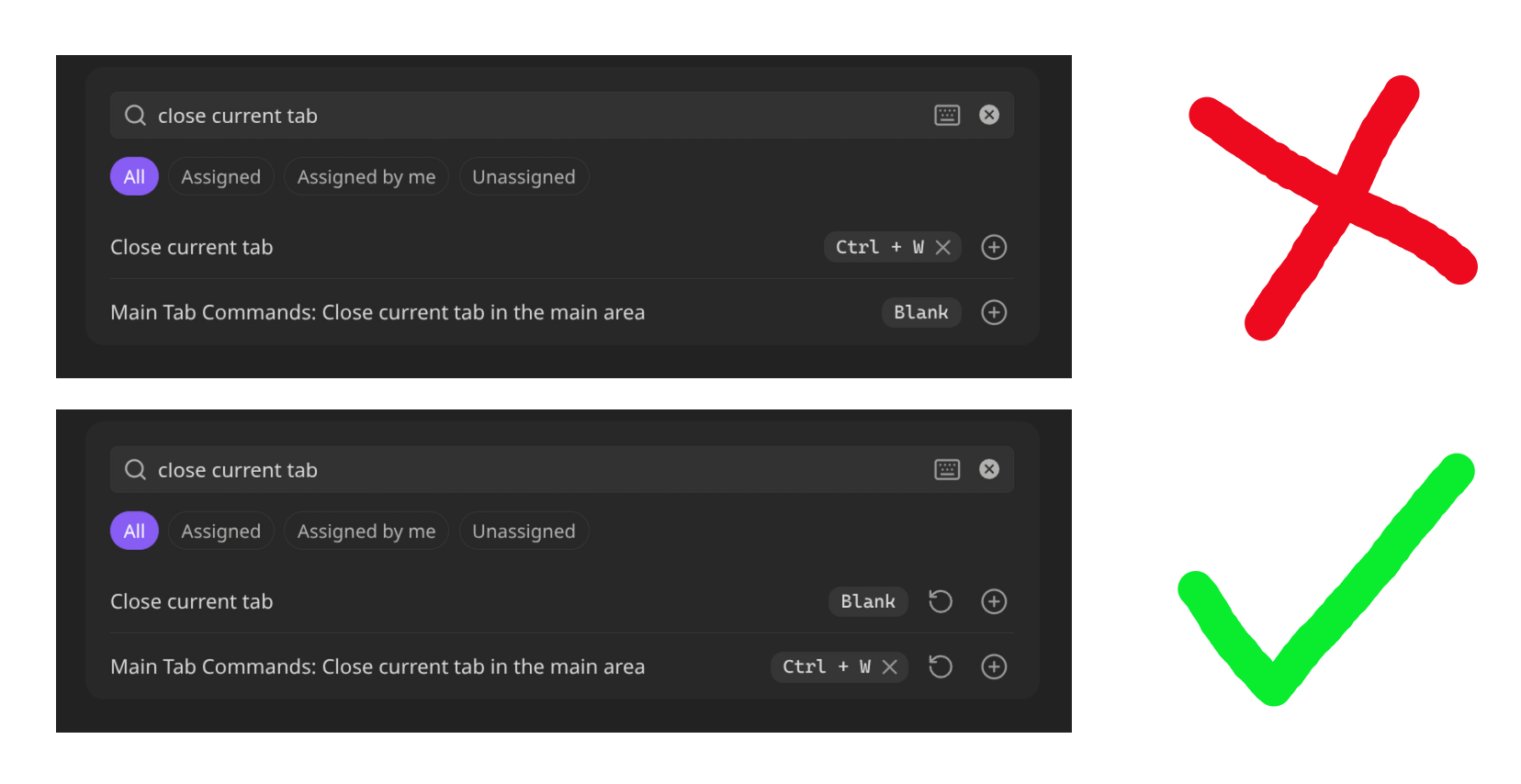
List of commands
This plugin adds the following commands:
- Close current tab in the main area
- Go to next tab in the main area
- Go to previous tab in the main area
- Go to tab #1 in the main area
- Go to tab #2 in the main area
- Go to tab #3 in the main area
- Go to tab #4 in the main area
- Go to tab #5 in the main area
- Go to tab #6 in the main area
- Go to tab #7 in the main area
- Go to tab #8 in the main area
- Go to last tab in the main area
For plugin developers
Search results and similarity scores are powered by semantic analysis of your plugin's README. If your plugin isn't appearing for searches you'd expect, try updating your README to clearly describe your plugin's purpose, features, and use cases.