Tab Selector
approvedby namikaze-40p
Quickly switch tabs in various ways.
★ 24 stars↓ 9,018 downloadsUpdated 28d agoMIT
Obsidian Tab Selector
This is an Obsidian plugin which can quickly switch tabs in various ways.
Switch tabs in the following ways:
Go to previous/next tab: Move between tabs like in most appsBrowse tabs: Use a modal to switch tabs with keeping the keyboard home positionShow tab shortcuts: Switch tabs with simple keyboard shortcuts, no modal neededSearch tabs: Find and open tabs by name
How to use
Go to previous/next tab: Move between tabs like in most apps
- Set up the
Go to previous/next tabcommand in the plugin's settings.- In the default configuration, each command are as follows.
- Tab Selector: Go to previous tab:
^TaborCtrl + Tab - Tab Selector: Go to next tab:
^⇧TaborCtrl + Shift + Tab
- Tab Selector: Go to previous tab:
- Don't use shortcut keys reserved by the OS. OS shortcut keys take precedence and don't work properly.
- In case MacOS,
⌘Taband⌥Tabetc… can't use.
- In case MacOS,
- In the default configuration, each command are as follows.
- Set hotkeys to match the command settings implemented above.
- From then on you can switch tabs using hotkeys.
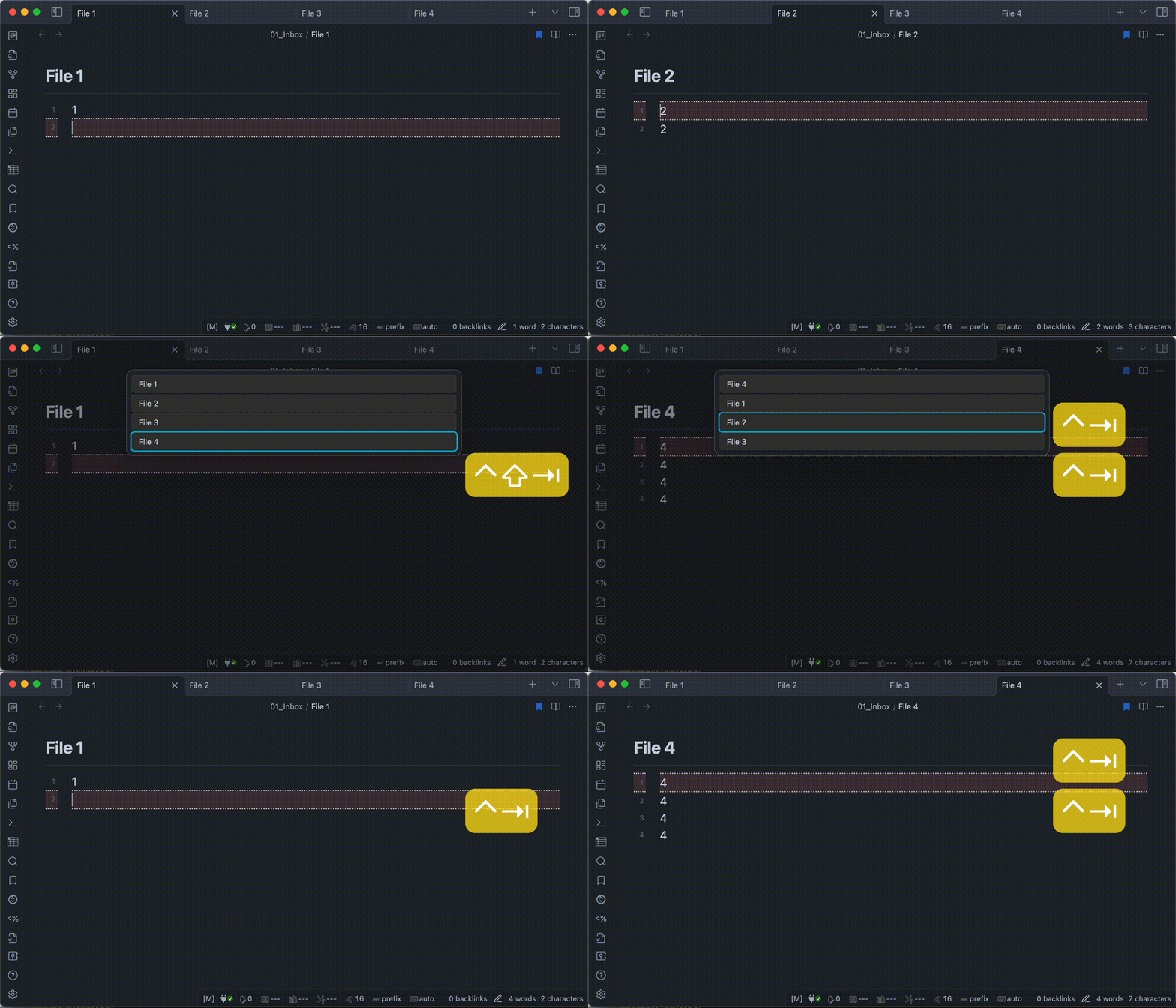
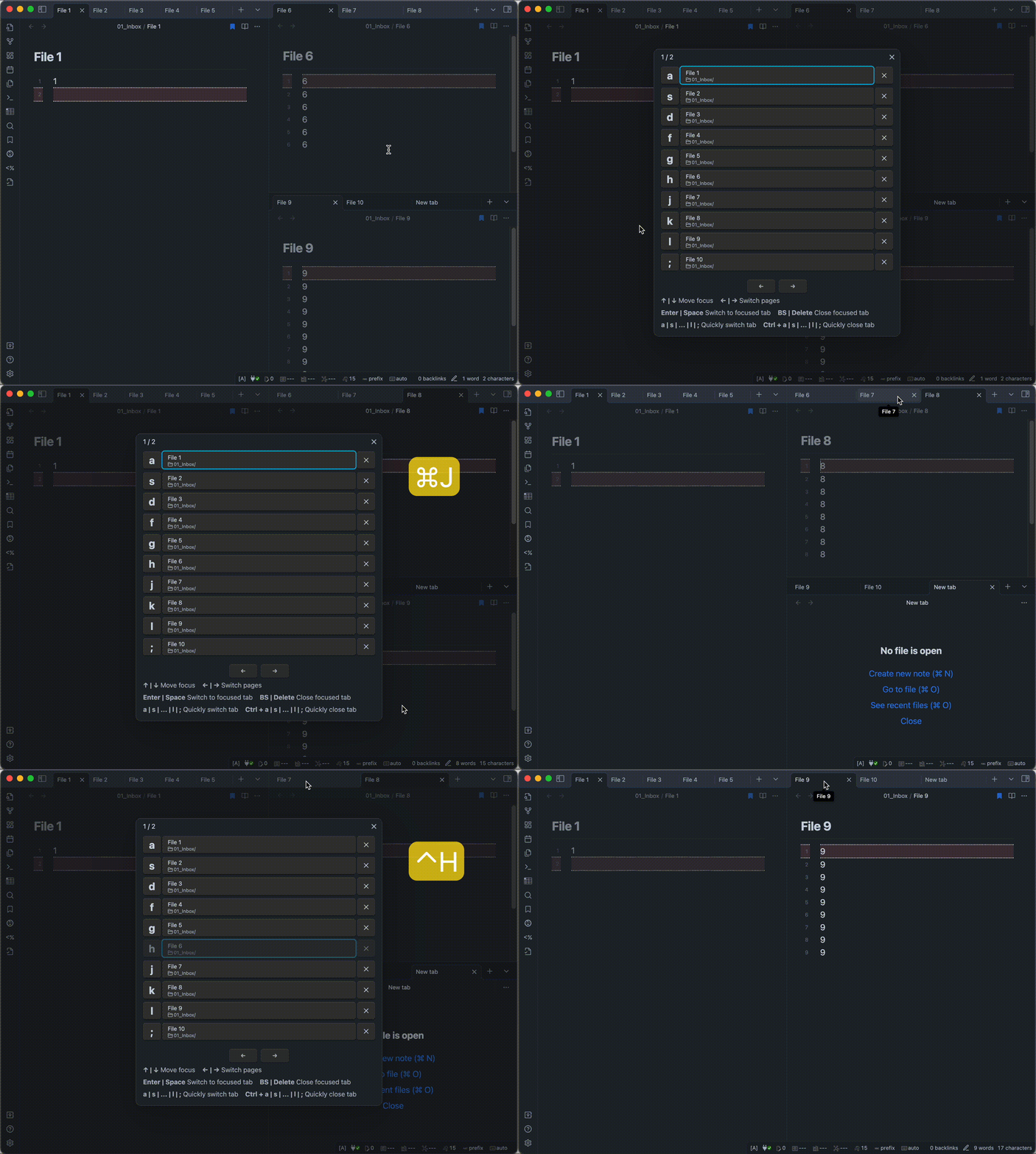
Browse tabs: Use a modal to switch tabs with keeping the keyboard home position
- Call the modal in one of the following ways.
- Using hotkey. (recommend)
- Click the icon(
Browse tabs) from the Ribbon. - Selecting
Tab Selector: Browse tabsfrom the command palette.
- Select the tab you want to switch to in one of the following ways.
- Press the one-letter key displayed to the left of the tab name. (recommend)
- Move the cursor with arrow keys and select the tab.
- Click on the tab name with the mouse cursor.
- If you want to close a tab, you can do in one of the following ways.
- Hold down the
Controlkey, press the one-letter key displayed to the left of the tab name. - Move the cursor with arrow keys and press
BackspaceorDeletekey. - Click on the
Xbutton with the mouse cursor.
- Hold down the
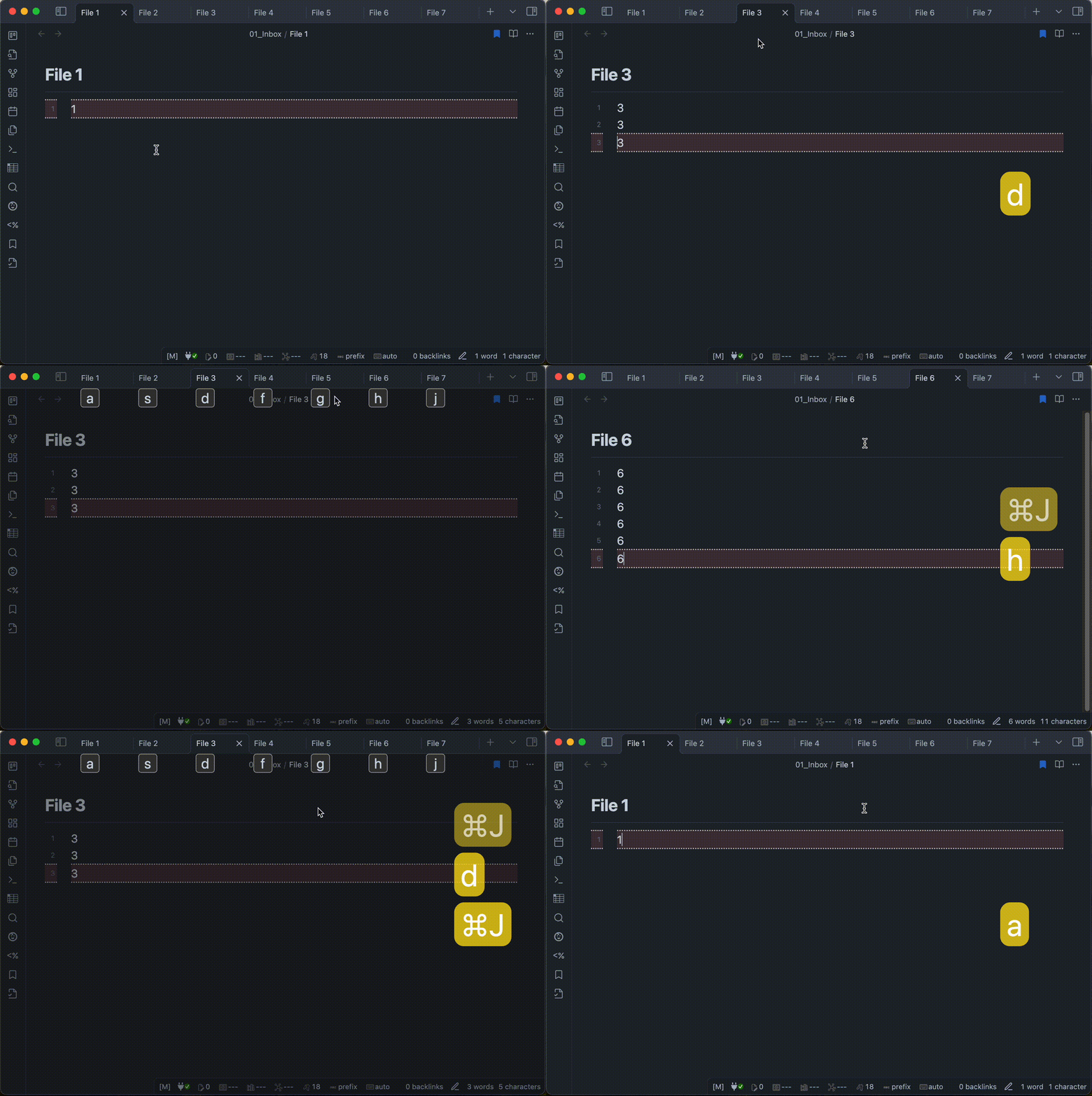
Show tab shortcuts: Switch tabs with simple keyboard shortcuts, no modal needed
[!NOTE]
This command is available on PC or tablet devices. It’s not available on smartphones.
- Call the modal in one of the following ways.
- Using hotkey. (recommend)
- Selecting
Tab Selector: Show tab shortcutsfrom the command palette.
- Press the one-letter key displayed under the tab name.
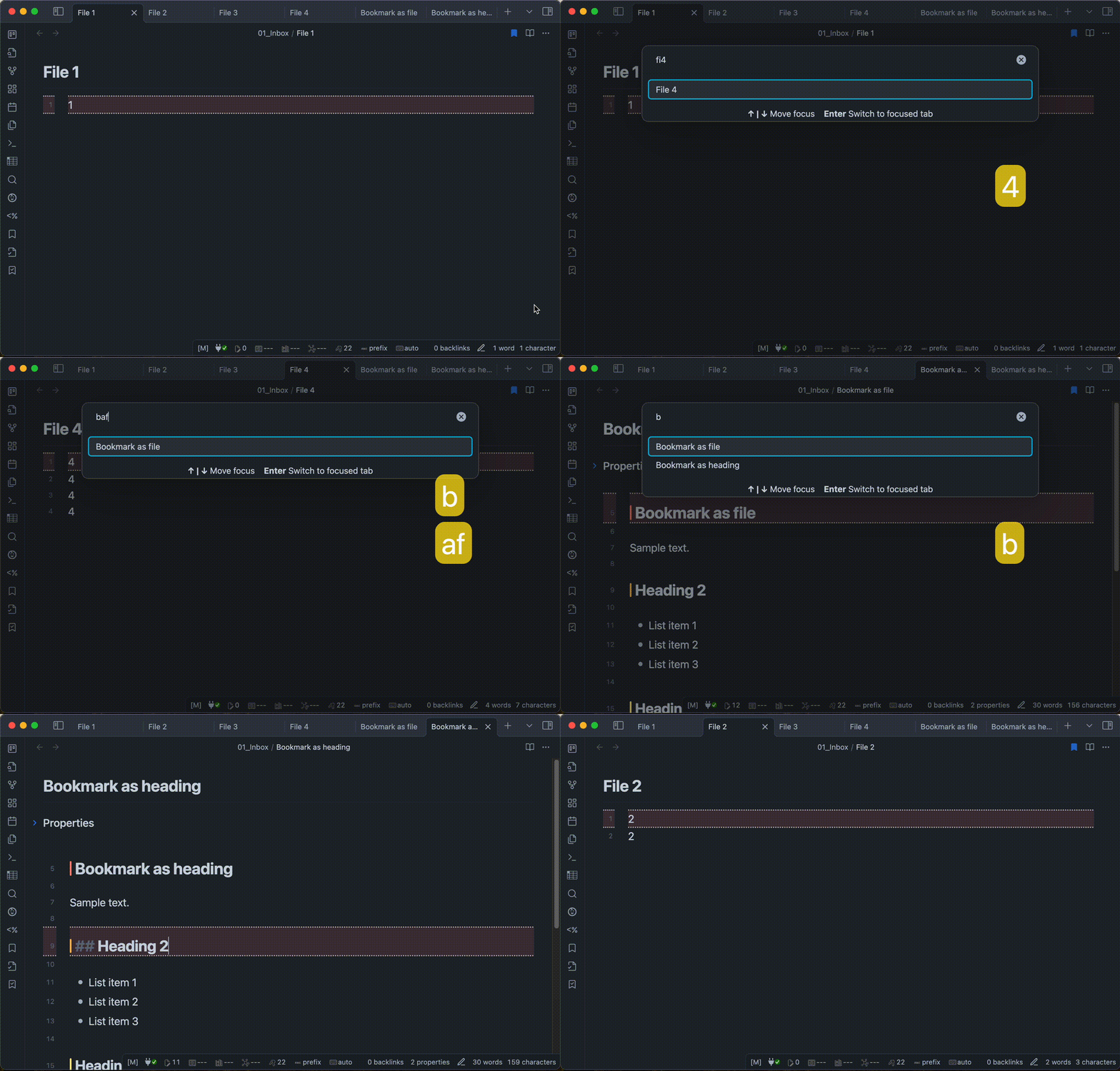
Search tabs: Find and open tabs by name
- Call the modal in one of the following ways.
- Using hotkey. (recommend)
- Selecting
Tab Selector: Search tabsfrom the command palette.
- Enter keywords to find a tab.
- Select the tab you wish to open in one of the following ways.
- Move the cursor with arrow keys and select the item.
- Click on the item name with the mouse cursor.
Installation
You can find and install this plugin through Obsidian’s Community Plugins Browser.
For detailed steps or alternative installation methods, click here.
For plugin developers
Search results and similarity scores are powered by semantic analysis of your plugin's README. If your plugin isn't appearing for searches you'd expect, try updating your README to clearly describe your plugin's purpose, features, and use cases.