Markdown Easy Editor
approvedby Chizmo
A one-click Markdown toolbar — no need to memorize syntax. Insert Markdown elements instantly and clean up messy AI-pasted text too. - This plugin has not been manually reviewed by Obsidian staff.
Markdown Easy Editor
A lightweight Obsidian plugin that adds a one-click Markdown formatting toolbar and an "Optimize" command for cleaning up messy Markdown — especially text pasted from AI chat tools (ChatGPT, Claude, etc.).
Features
📝 Formatting Toolbar
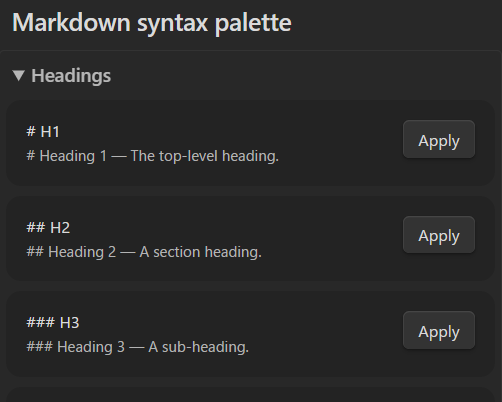
Click the pencil icon in the ribbon to open a side panel with quick-access buttons for common Markdown syntax:
- Headings — H1–H6
- Basic — Bold, italic, list, numbered list, quote, link
- More — Inline code, code block, table, checkbox, horizontal rule
Each button applies formatting to your current selection (or inserts a template at the cursor) in the active note — no need to remember syntax or type symbols manually.
🎨 Callouts
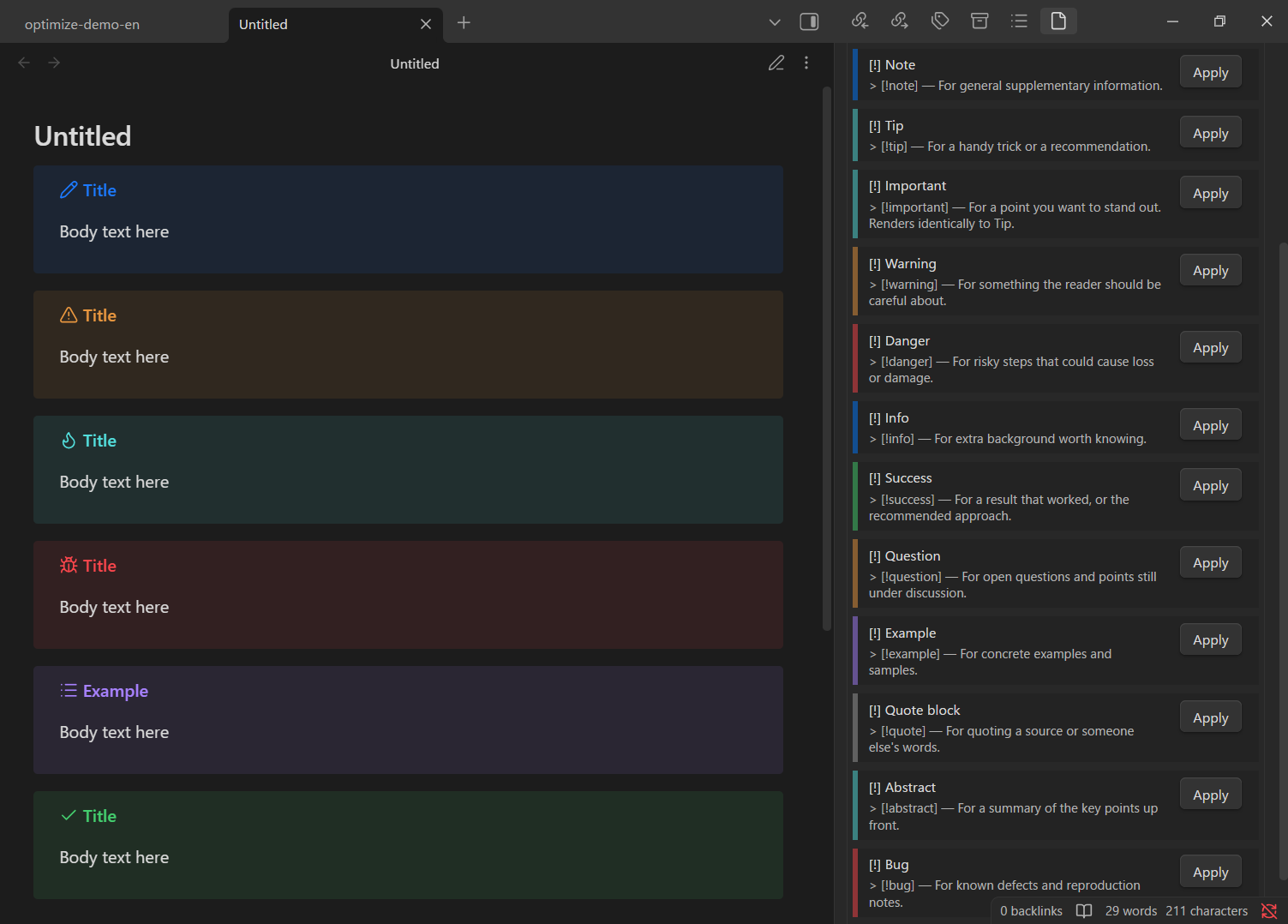
Insert Obsidian's colorful callout boxes (Note, Tip, Important, Warning, Danger, Info, Success, Question, Example, Quote block, Abstract, Bug) with one click. Each button shows a color accent matching how it will actually render, so you know what you're picking even before switching to Reading view.
✨ Optimize Selected Markdown
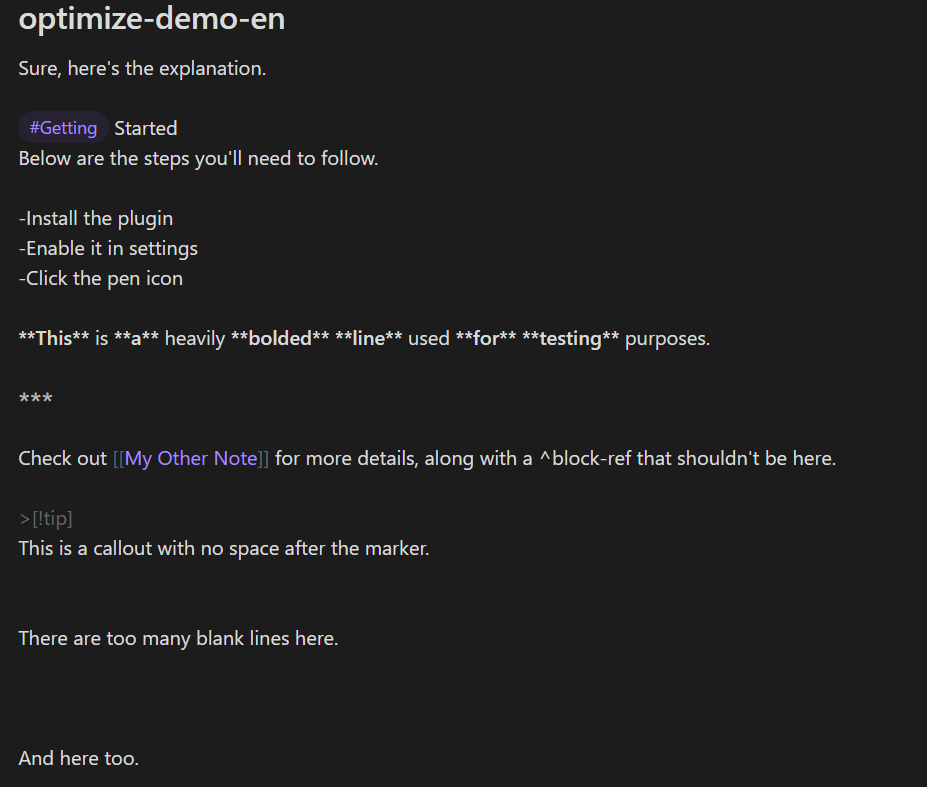
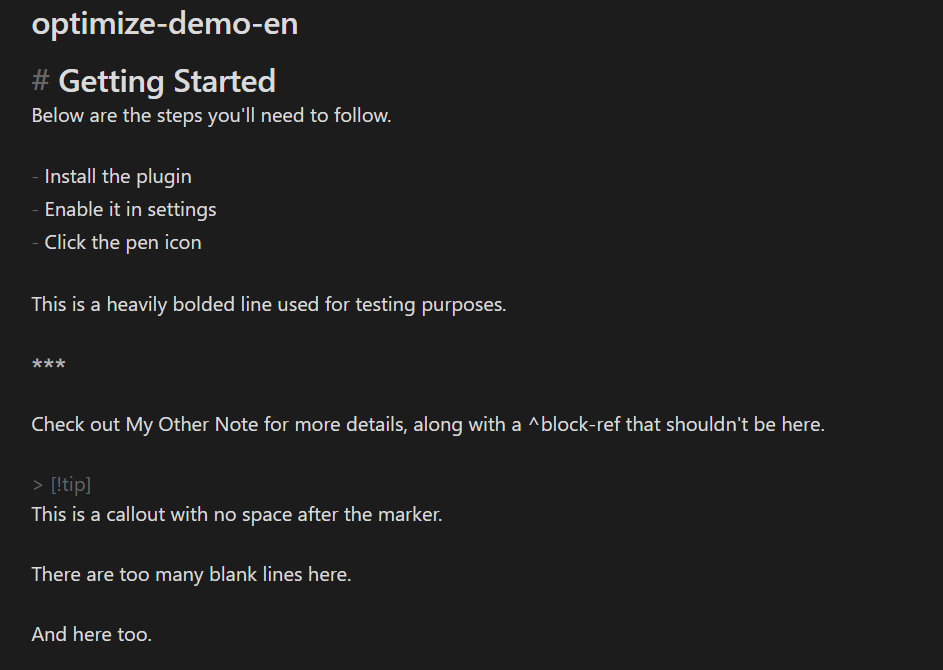
Select any text and run Optimize Selected Markdown from the command palette. This cleans up common issues in Markdown that wasn't originally written for Obsidian — for example, text copied from an AI assistant's response:
-
Removes trailing whitespace and collapses excess blank lines
-
Adds blank lines around headings for consistent spacing
-
Normalizes list marker spacing (
-item→- item) -
Collapses long runs of
---/***/___decoration lines -
Strips AI-generated intro phrases (e.g. "Sure, here's the explanation...")
-
Converts Obsidian-specific syntax (
[[wikilinks]],^block-refs) into plain text/linksAI-generated
[[WikiLinks]]often point to notes that don't exist in your vault. Optimize removes these to keep pasted AI content clean. If you intentionally use WikiLinks, just don't select that part of the text before running Optimize. -
Normalizes callout syntax (
> [!note]) -
Reduces excessive bold formatting when overused in a single line
-
Optionally converts tables to bullet lists for note-taking targets
This is aimed at anyone who regularly pastes AI-generated content, web clippings, or Markdown from other tools into Obsidian and wants it to look native.
Before:
After:
🌐 English and Japanese
The toolbar and notifications automatically switch between English and Japanese based on your Obsidian display language setting. Any language other than Japanese falls back to English.
Usage
- Click the pencil icon in the left ribbon to open the formatting toolbar, or
- Select text in a note and run Optimize Selected Markdown from the Command Palette (
Ctrl/Cmd + P)
Commands
| Command | Description |
|---|---|
| Optimize Selected Markdown | Cleans up the currently selected text |
Tip: Seeing raw Markdown symbols
By default, Obsidian's Live Preview mode converts typed symbols into their formatted appearance right away — for example, typing - turns into a bullet point (•) immediately, and # becomes a styled heading. This is normal Obsidian behavior, not something this plugin controls.
If you'd like to see the raw Markdown syntax as you type (useful if you're learning Markdown syntax, or plan to copy your notes elsewhere), you can switch that note to Source Mode:
- Right-click the note's tab → Open in Source Mode, or
- Settings → Editor → Default editing mode → set to Source mode
This affects how Obsidian displays your notes generally, not just when using this plugin's toolbar.
Installation
From Community Plugins (once approved)
- Open Settings → Community plugins
- Search for "Markdown Easy Editor"
- Click Install, then Enable
Manual installation
- Download
main.js,manifest.json(andstyles.cssif present) from the latest release - Copy them into
<VaultFolder>/.obsidian/plugins/markdown-easy-editor/ - Reload Obsidian and enable the plugin in Settings → Community plugins
License
MIT
For plugin developers
Search results and similarity scores are powered by semantic analysis of your plugin's README. If your plugin isn't appearing for searches you'd expect, try updating your README to clearly describe your plugin's purpose, features, and use cases.