Marp Plus
approvedby Kevin
Build presentations the way you build software: an AI-friendly workflow, a professional authoring experience, and the precision that scientific and engineering presentations demand. - This plugin has not been manually reviewed by Obsidian staff.
Marp Plus
Also available for VS Code: 


Build presentations the way you build software. Marp Plus turns your vault into a workbench for Marp slide decks with an AI-friendly workflow, a professional authoring experience, and the precision that scientific and engineering presentations demand.
- AI-friendly. Every part of a deck — slides, theme, diagrams, speaker notes — is a source file you or an agent can generate, review and diff, wired together with
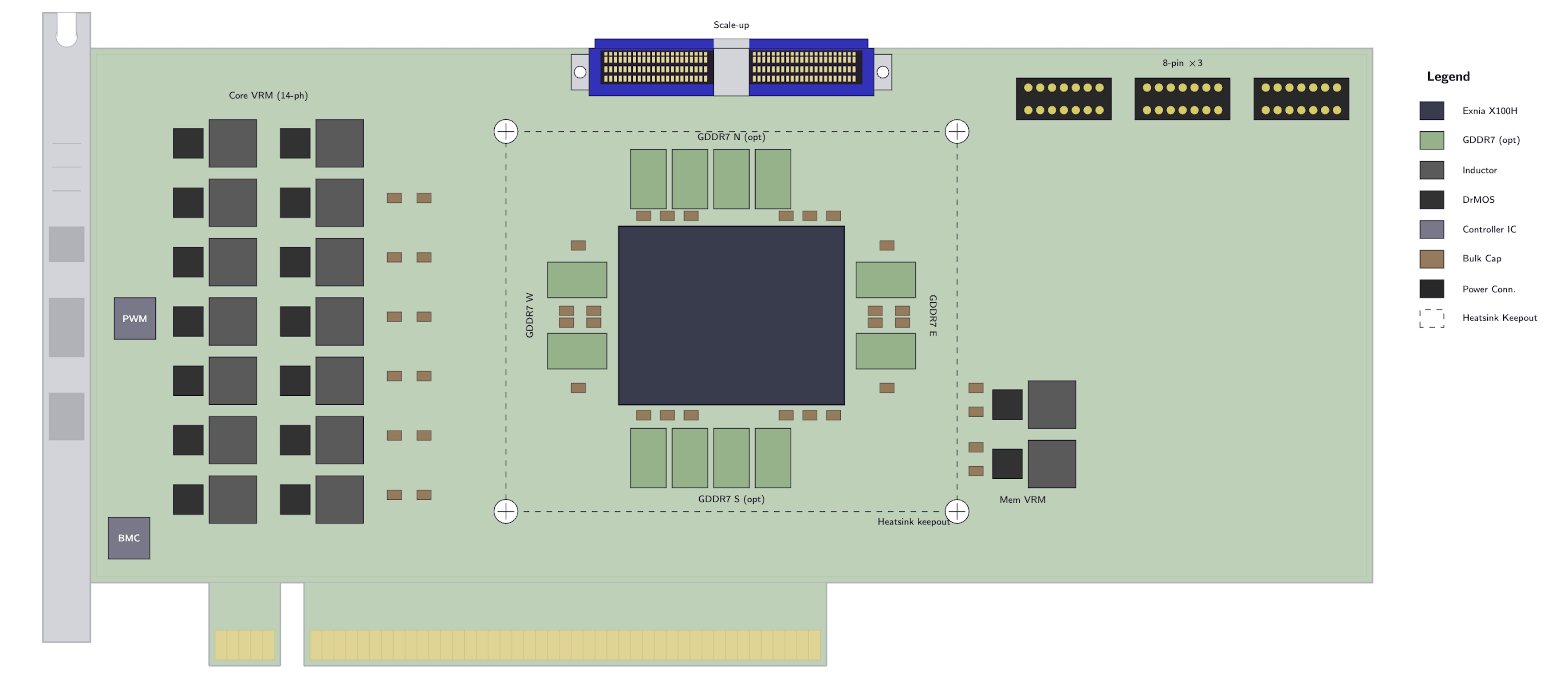
%!include. Whatever writes to disk, the preview is fresh on the next save. - Engineering precision. Circuits, plots, chemical structures, commutative diagrams and any other TikZ/LaTeX figure render as vector graphics, identically in the preview and in the exported file.
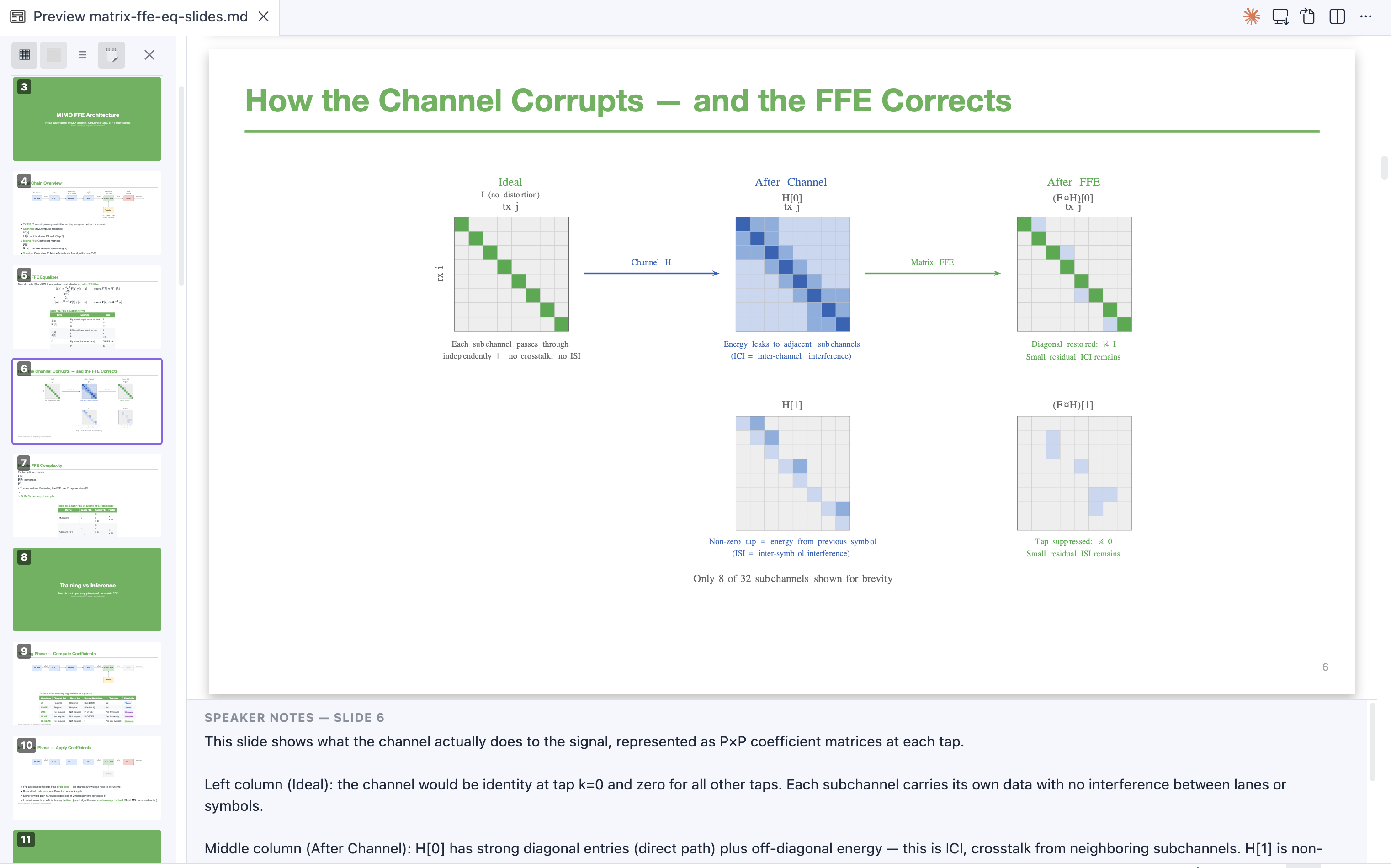
- A professional authoring experience. A slide navigator with thumbnails and outline, a live speaker notes panel, and one-click export to editable PPTX (native text, math and tables) or PDF.
The same diagrams and includes also work in the ordinary Markdown preview, so nothing here is limited to slides.
Desktop only. Rendering runs locally via a WASM-based TeX engine — no internet required.
Marp Plus is an independent third-party plugin. It is not affiliated with, endorsed by, or sponsored by the Marp team.
Gallery
| TikZ diagrams in Marp slides with one-click PPTX export |
 |
| PCIe board layout |
 |
| Log-log trade-off chart | Wafer die layout | Package floorplan |
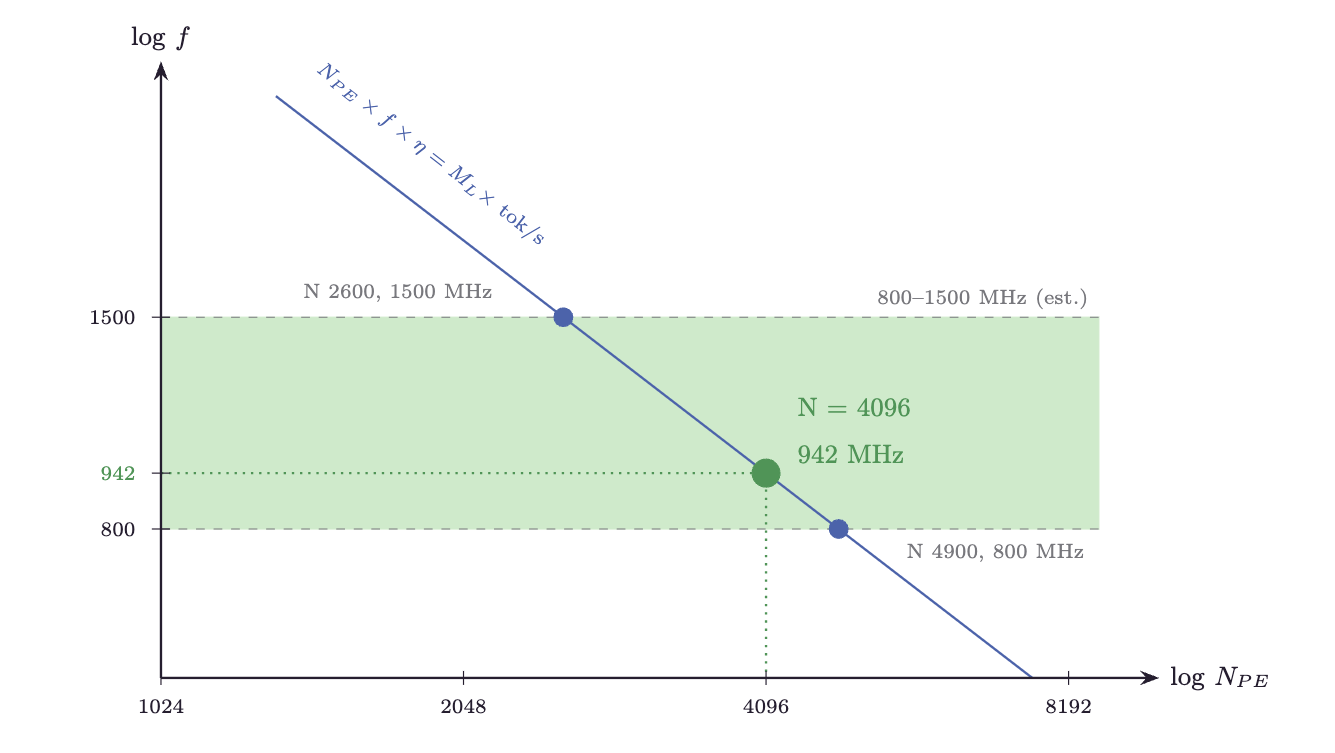 | 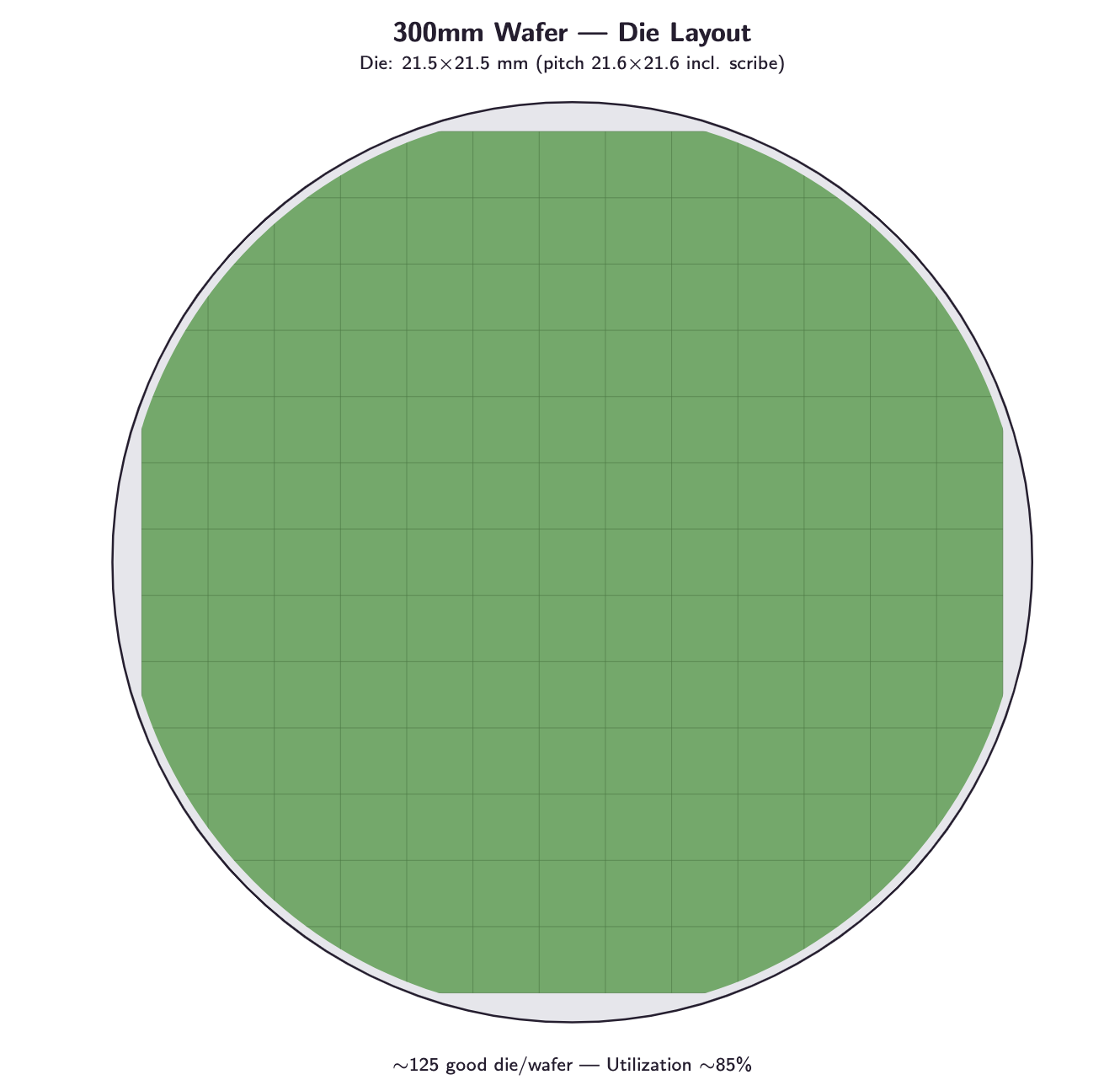 | 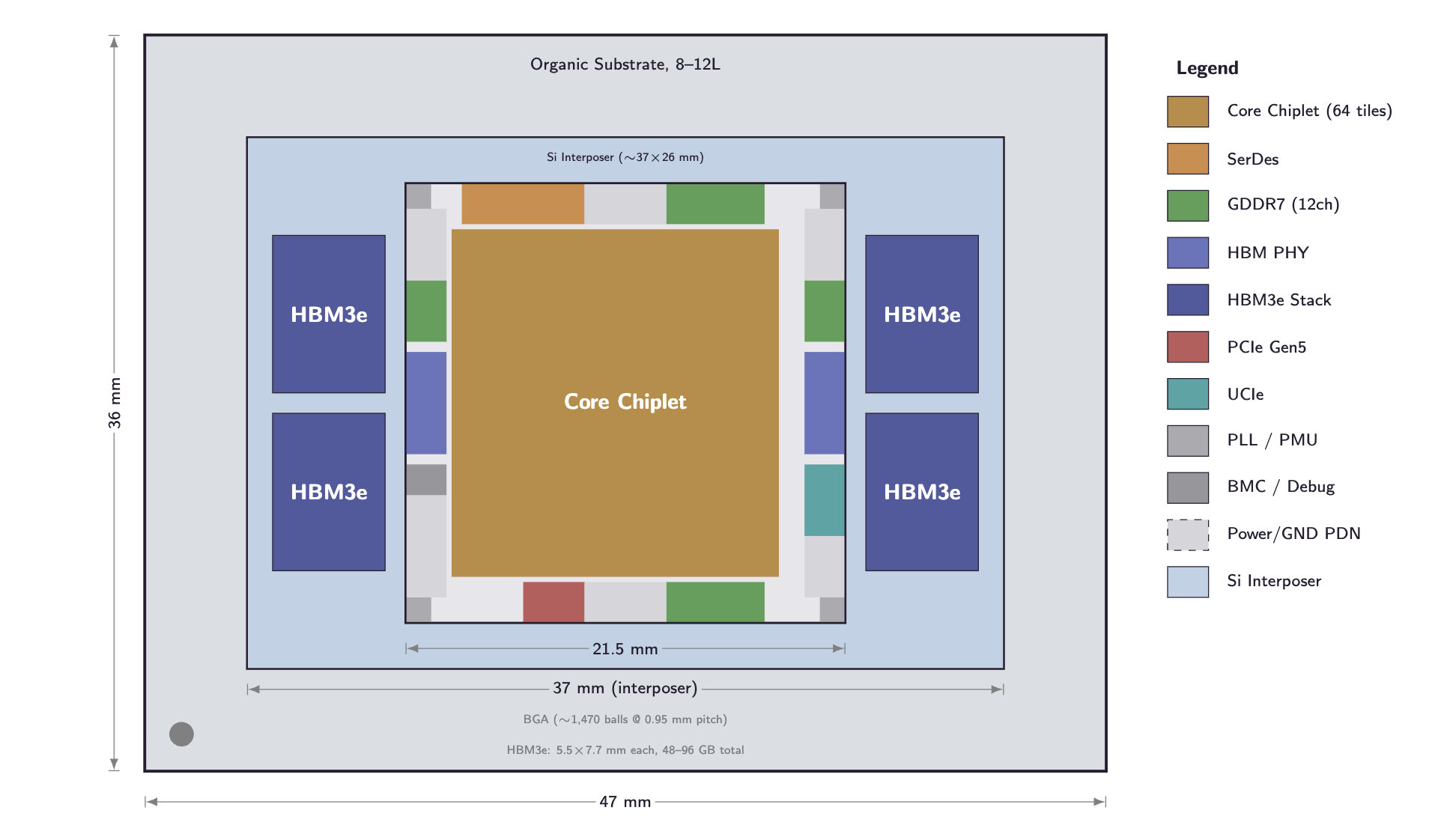 |
More TikZ diagram examples: Decoding the Taalas HC1 — A Quantitative Analysis
Features
- TikZ rendering — Live SVG rendering of
tikzfenced code blocks in Reading view - Rich package support — chemfig, circuitikz, pgfplots, tikz-cd, tikz-3dplot, amsmath, and more
- Dark mode — Automatic color inversion for dark themes
- External file include — Reference
.tikzfiles with%!include; auto-refreshes on save - Smart caching — Two-level cache (memory + persistent); unchanged diagrams load instantly
- Marp preview — Full slide rendering via
@marp-team/marp-core(no other plugins required) - Slide Navigator — Thumbnail sidebar; click any slide to jump to it in the editor
- Speaker Notes panel — Live notes extracted from Marp HTML comments, rendered as full Markdown
- PPTX / PDF export — Export Marp decks via marp-cli with native PowerPoint math (OMML), not images
- CJK font injection — Automatically injects Noto Sans SC so Chinese/Japanese/Korean text renders correctly in exported files
Quick Start
TikZ diagrams
Add a tikz fenced code block in any Markdown file:
```tikz
\begin{document}
\begin{tikzpicture}
  \draw[thick, ->] (0,0) -- (2,0) node[right] {$x$};
  \draw[thick, ->] (0,0) -- (0,2) node[above] {$y$};
  \draw[blue, thick] (0,0) circle (1);
\end{tikzpicture}
\end{document}
```
Switch to Reading view — the diagram renders inline.
Marp presentations
Add marp: true to the frontmatter:
---
marp: true
---

# My Presentation

```tikz
\begin{document}
\begin{tikzpicture}
  \node[circle, draw] (a) at (0,0) {A};
  \node[circle, draw] (b) at (3,0) {B};
  \draw[->] (a) -- (b);
\end{tikzpicture}
\end{document}
```
Then open the Marp preview, Slide Navigator, or Speaker Notes via the command palette (Cmd+P / Ctrl+P).
Marp Slide Decks
TikZ diagrams work inside Marp slide decks. Add marp: true to your frontmatter and use tikz code blocks as usual.
Diagram sizing in Marp
Marp renders slides at a fixed 1280×720 resolution. TikZ diagrams may appear smaller than in standard Reading view. Use TikZ's scale option to compensate:
```tikz
\begin{document}
\begin{tikzpicture}[scale=2]
  \draw (0,0) rectangle (3,2);
  \node at (1.5,1) {\Large Hello!};
\end{tikzpicture}
\end{document}
```
A scale=2 factor generally produces a similar visual size to standard Reading view.
External File Include
Store diagrams in separate .tikz files and reference them with %!include:
```tikz
%!include diagrams/circuit.tikz
```
The included file should contain complete TikZ code:
\usepackage{circuitikz}
\begin{document}
\begin{circuitikz}
  \draw (0,0) to[battery1, l=$V$] (0,3)
        to[R=$R_1$] (3,3)
        to[R=$R_2$] (3,0)
        -- (0,0);
\end{circuitikz}
\end{document}
- Paths are relative to the Markdown file's directory
- The preview auto-refreshes when you save the included file
- Per-file caching — unchanged files are not re-read or re-rendered
Frontmatter & Speaker Notes Include
Use %!include to share YAML theme configuration and speaker notes across multiple Marp files.
Shared frontmatter
Place %!include filename.yaml inside the frontmatter block:
---
marp: true
%!include _theme.yaml
author: Alice
---
_theme.yaml contains the YAML keys to merge:
theme: default
paginate: true
backgroundColor: white
Shared speaker notes
Add %!notes filename.md anywhere inside a slide body:
# My Slide

%!notes notes/slide1.md
notes/slide1.md can contain any Markdown:
## Key points

- Remember to mention the benchmark results
- Audience question likely: *why not use approach X?*
Both include types resolve relative paths from the Markdown file's directory and auto-refresh when the included file is saved.
Marp Slide Navigator
Open Slide Navigator via the command palette to see slide thumbnails in a sidebar. Click any thumbnail to move the editor cursor to that slide.
- Keyboard navigation — Press ↑/↓ in the slide preview to switch pages with smooth animation
- Speaker notes — Toggle the notes panel to see per-slide notes rendered as full Markdown
Speaker Notes
Notes are extracted from HTML comments in your Markdown:
<!-- This appears as a speaker note for the current slide -->
Use Open Speaker Notes to open the panel. Notes render as full Markdown — bold, italic, code, lists, tables, headings, and links.
PPTX Export
Prerequisites (for PPTX / PDF export only):
- marp-cli v4.1.0+:
npm install -g @marp-team/marp-cli - LibreOffice (required by marp-cli for editable PPTX)
A ribbon icon (file-down) provides quick access to export. Export pipeline:
- Render all TikZ diagrams to SVG
- Run
marp-cli --pptx-editableto produce a.pptx - Post-process: fix LibreOffice overlay shapes, inject native math (OMML), inject speaker notes
- Save output next to the source file (timestamped)
Math in PPTX
LaTeX math in slides is converted to native PowerPoint math objects (OMML), not images. Formulas are fully editable in PowerPoint and render crisply at any zoom level.
- Display math (
$$...$$) is centered with automatic vertical space - Inline math preserves
\quad/\qquadspacing \mathbf,\mathit,\hat,\sum,\prod,\intand other accents/nary operators render natively
Commands
Open the command palette (Cmd+P / Ctrl+P) and search for Marp Plus:
| Command | Description |
|---|---|
| Open Marp preview | Render the active file as Marp slides |
| Open Slide Navigator | Thumbnail sidebar for the active Marp deck |
| Open Speaker Notes | Notes panel extracted from HTML comments |
| Export Marp slides to PPTX | Export to editable .pptx |
| Export Marp slides to PDF | Export to .pdf |
| Refresh TikZ diagrams | Force re-render all diagrams in the active file |
| Clear TikZ cache | Wipe cache and force fresh rendering |
| Reset TikZJax engine | Reset the WASM TeX engine |
Settings
Open Settings → Community Plugins → Marp Plus:
| Setting | Default | Description |
|---|---|---|
| Invert colors in dark mode | true | Invert diagram colors when Obsidian uses a dark theme |
| Render timeout (ms) | 60000 | Max time to wait per diagram; increase for complex diagrams |
| Include notes in PPTX | true | Embed speaker notes in the PowerPoint notes pane |
| Export format | pptx | Default export format (pptx or pdf) |
Supported Packages
| Package | Purpose |
|---|---|
| chemfig | Chemical structures |
| circuitikz | Electronic circuits |
| pgfplots | Function plots and data charts |
| tikz-cd | Commutative diagrams |
| tikz-3dplot | 3D figures |
| amsmath, amssymb, amsfonts | Mathematical notation |
| array | Array and table structures |
Troubleshooting
Diagrams not rendering — Switch to Reading view (not Live Preview). Check that the code block uses the tikz language identifier.
Slow rendering — First render compiles WASM; subsequent renders use the cache. Increase the render timeout in settings for complex diagrams.
Preview not updating — Use Refresh TikZ diagrams. If that doesn't help, try Reset TikZJax engine.
CJK text in exported files — CJK font injection is automatic. If Chromium still can't resolve the font, ensure you have internet access during export (the font is fetched from Google Fonts at export time).
PPTX export fails — Confirm marp-cli and LibreOffice are installed and accessible from your PATH.
Acknowledgments
- Marp by the Marp team — the slide ecosystem this plugin builds on
- node-tikzjax by @drgrice1 — WASM-based TeX rendering engine
- obsidian-tikzjax by @artisticat1 — original Obsidian TikZ plugin
- TikZJax by @kisonecat — original browser-based TikZ compiler
License
MIT — see LICENSE for details.
Enjoy building your next deck! If you encounter issues or have suggestions, please file an issue on GitHub.
For plugin developers
Search results and similarity scores are powered by semantic analysis of your plugin's README. If your plugin isn't appearing for searches you'd expect, try updating your README to clearly describe your plugin's purpose, features, and use cases.