by Isaac Friedenson
Multiple choice quiz and exam practice from your notes and PDFs: timed tests, confidence ratings, mistake tags and spaced repetition review. MCQ, FRQ and flashcards. Works offline; AI is optional.
MCQ Tracker
Practise multiple-choice questions in your notes, see why you miss them, and review on a schedule. Timed tests, a confidence rating and mistake tags on every answer, and spaced review — with every attempt saved on the question note it came from.
Website · Source · Give feedback
Try it in 2 minutes: install, press Ctrl/Cmd+P, run Open welcome guide, then choose Try the example question.
No AI needed: run Quick add questions from pasted text and paste questions you already have; it works offline.
Tell me what confused you: 2-minute form — I read every answer.
MCQ Tracker is the question-first study plugin for Obsidian. Turn notes and PDFs into exam-style practice across seven question formats, review notes and cards with spaced repetition, sit timed tests, and keep every attempt on the note it came from. It is free, local-first, and works on desktop and mobile. No MCQ Tracker account is required; AI is optional and uses your own provider key or the OpenCode desktop agent.
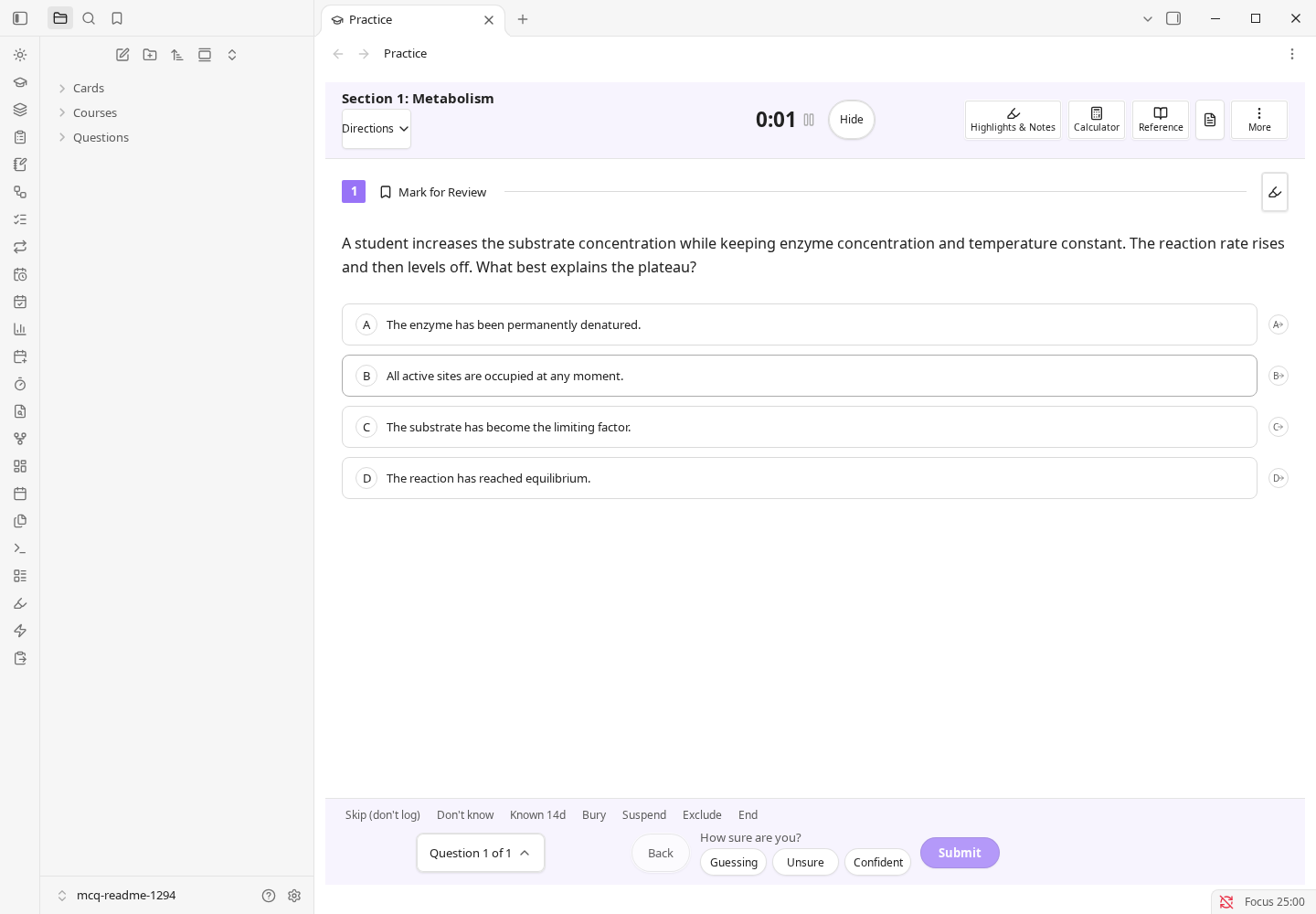
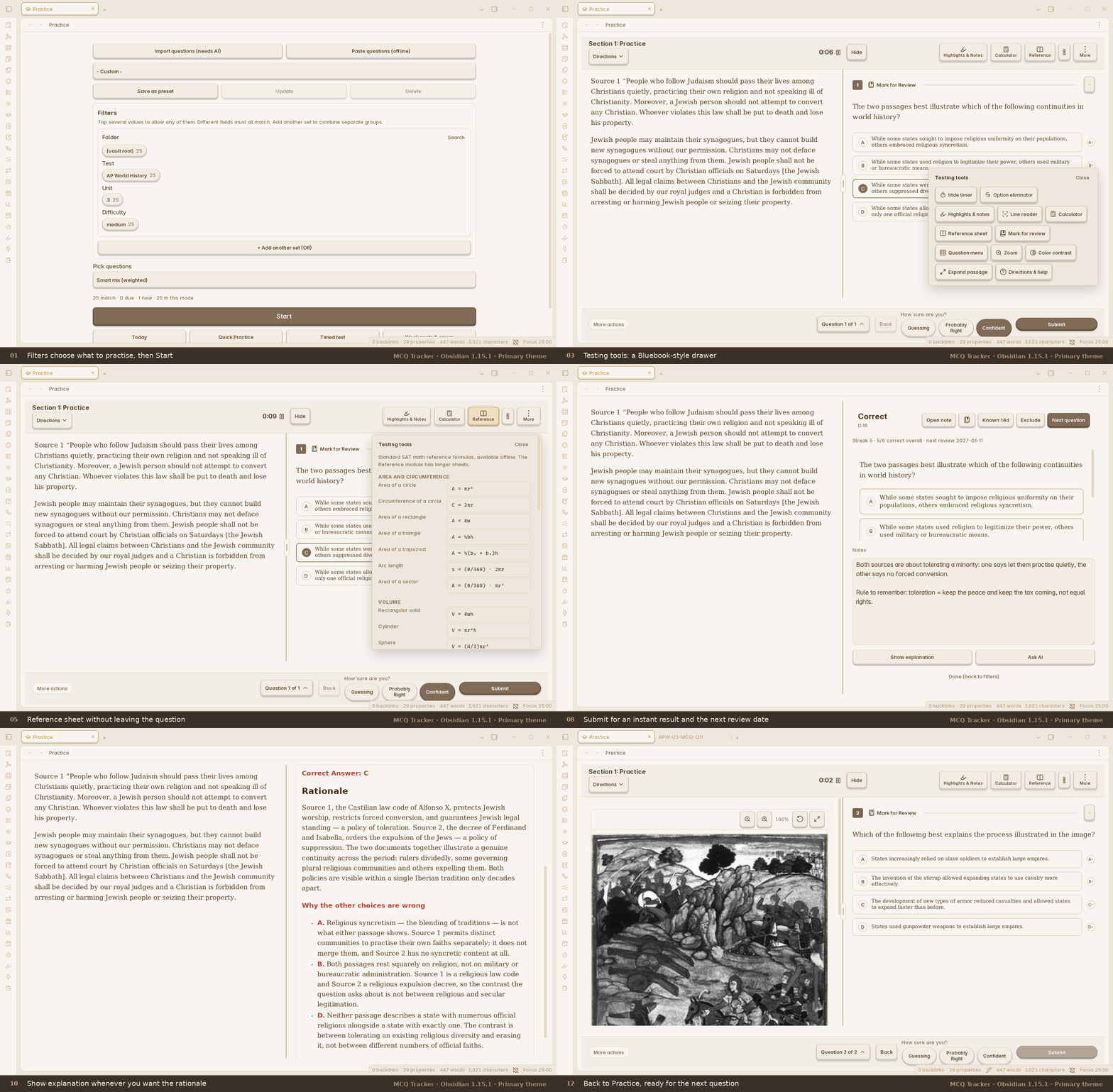
Practice demo, in twelve real Obsidian screenshots (app 1.15.1, 1440×900, the Primary community theme, both sidebars hidden): pick filters, answer a two-source AP World History question, use the testing tools (calculator, reference sheet, question menu, option eliminator), submit, read the result, write a note, open the explanation, and see that note land in ## My Notes in the question's own file. The passage sits on the left and the question on the right, as it does in the plugin. Full-size PNGs are in docs/images/practice-run/.
Where to start
| You are... | Start here |
|---|---|
| Already using Obsidian | For Obsidian users |
| A student who has never heard of Obsidian | For students new to Obsidian |
Both paths end at the same place: your first practice question. Settings and Troubleshooting appear once below, and the deeper feature reference is in Reference.
What it does
- Practise exam-style questions. Multiple-choice, student-produced response, fill-in, matching, true/false, select-all and free-response (FRQ) questions. Filter by course, skill, difficulty, folder or a saved preset, or build a timed test.
- Check every answer. See your pick, the correct answer, the explanation, your confidence and the next review date. Add a reason for a miss and write a note on the result.
- Review on a schedule. By default a correct answer returns after 1, 3, 7, 21 and 60 days; a miss returns tomorrow. Flashcards and whole notes can use the same default ladder, or FSRS/SM-2. The Flashcards module (on by default) adds flashcards, vocabulary and cloze flashcards.
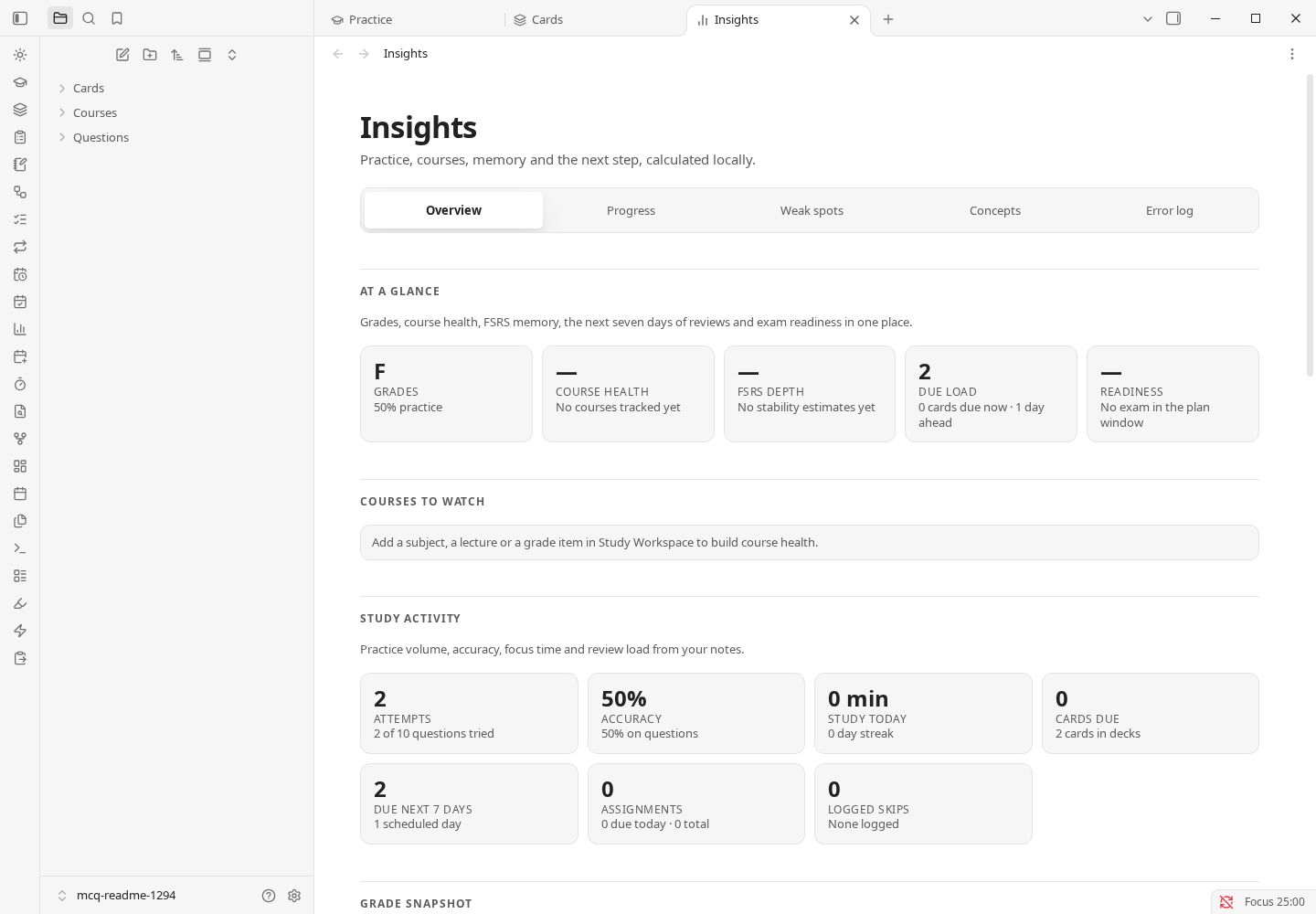
- Plan and measure. Calendar (optional) holds classes and exams; Assignments (on by default) holds deadlines and grades. Insights shows attempts, accuracy, due counts and weak spots from your local notes.
- Import your own material. Document import turns PDF, PowerPoint, Word/OpenDocument, HTML, RTF, Markdown, CSV or text into question notes, but it requires AI features plus either a provider key or the OpenCode desktop agent. There is no offline converter. Ready-made card imports are separate and work locally.
- Ask for help when you want it. The optional Study agent is a note-grounded tutor with tutor roles, local cited vault search, PDF context and review-before-write file changes.
| Flashcards and vocabulary | Insights |
|---|---|
 |  |
What needs AI, and what does not
Most of MCQ Tracker works with AI turned off. One everyday workflow does not: turning a PDF or another document into question notes. There is no offline converter.
Document import needs AI. Import questions from a file (PDF, PowerPoint, Word) needs AI features turned on, plus either a Direct API provider key or the OpenCode agent on desktop. The file's text is sent to that provider, which may charge for long files. Without AI set up, the import checks the file first, then asks you to connect a provider.
| Works with AI off | Needs AI turned on and a provider or the OpenCode agent |
|---|---|
| Writing question notes by hand, the example question, practice, timed tests, review and Today | Turning a PDF, PowerPoint, Word/OpenDocument, HTML, RTF, Markdown, CSV or text file into question notes |
Making flashcards by hand, flashcard review, cram, .apkg import/export and AnkiConnect | Tutor chat and the Study agent; AI grading of free response and the optional AI second opinion on typed answers |
| Calendar, classes, exams, assignments, grades and GPA | Generating questions, quizzes or flashcards from a document, photo or handwritten page |
| Reference tools, AP resources and the unofficial AP score calculator | Summarising a course note, and turning PDF pages into a LaTeX note |
Ready-made flashcard imports: Quizlet, Kahoot, Moodle XML, QTI, GIFT, CSV, Markdown, .apkg, CrowdAnki JSON, Mochi Markdown and Anki text | AI-assisted import with the OpenCode agent |
If you do not have AI: run Quick add questions from pasted text and paste questions you already have; it works offline. You can also import ready-made flashcards, write question notes by hand, and use practice, review, flashcards, the calendar and the reference tools normally.
For Obsidian users
Install
Desktop: open Settings → Community plugins → Browse, search for MCQ Tracker, then Install → Enable.
From the website: open https://community.obsidian.md/plugins/mcq-tracker and choose Add to Obsidian. If Obsidian does not open the listing, use the Browse path above.
Mobile: open the sidebar, go to Settings → Community plugins, turn off Restricted mode, then Browse → MCQ Tracker → Install → Enable. Close Settings when you are done.
Here is the whole desktop install, start to finish (real Obsidian 1.15.1, Primary theme):
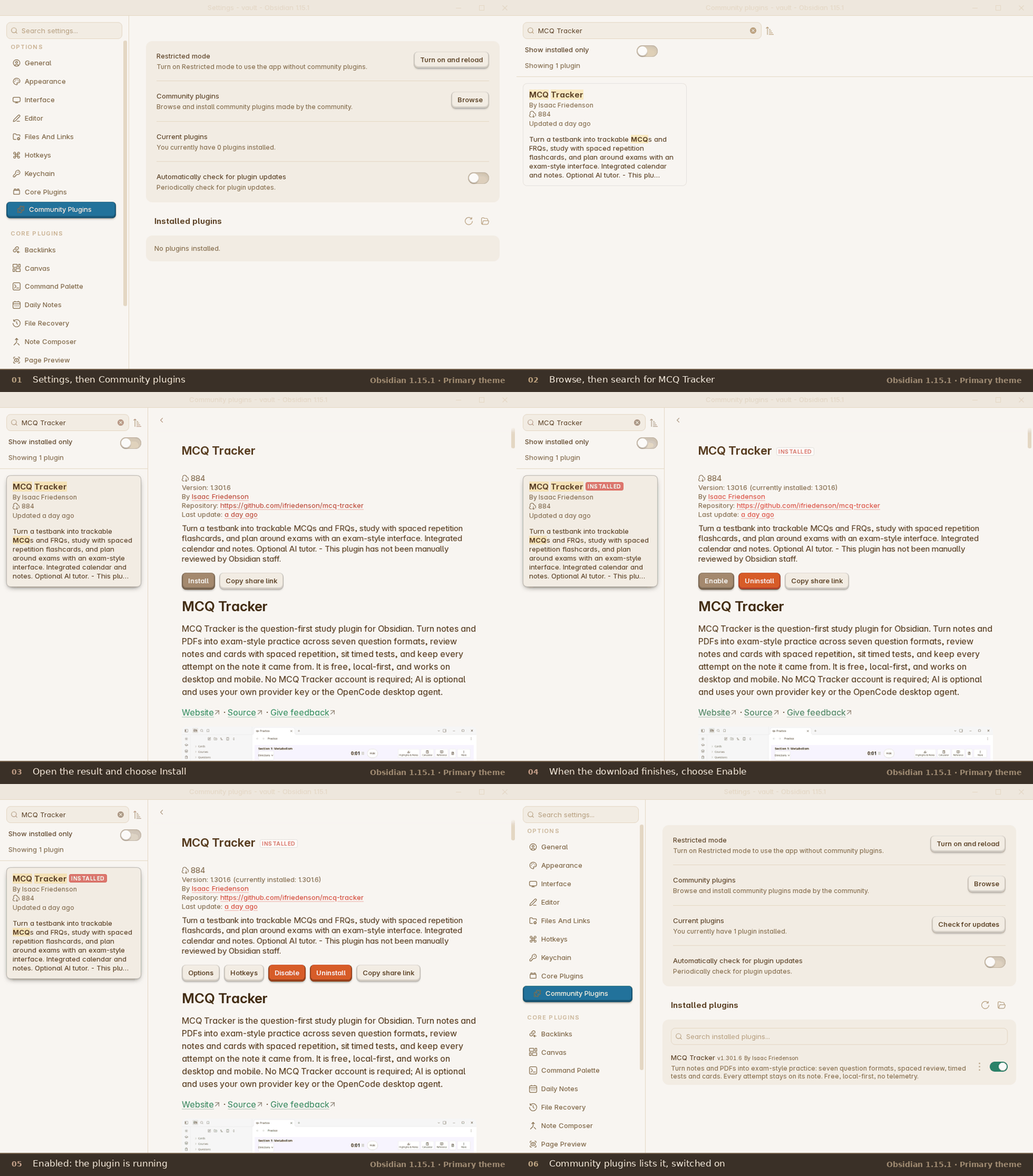
On a phone the same pages open full screen, with Settings in the sidebar. The six frames are also saved full size in docs/images/install-run/.
Manual install or offline
Download main.js, manifest.json and styles.css from the latest release and put them in <your vault>/.obsidian/plugins/mcq-tracker/. Then enable MCQ Tracker under Community plugins.
Update later
Use Check for updates on the Community plugins page. If you installed manually, download the three files from the latest release and replace the copies in <your vault>/.obsidian/plugins/mcq-tracker/.
Finding it useful? A one-line review on the community listing helps other students find it — for a plugin like this, that page is the whole discovery mechanism.
How it fits your vault
- Questions are ordinary notes. Any note with a
question_idproperty can be a question. There is no database and no proprietary format. - Your results live in your notes. Attempts, dates, flags and review dates are written to the question note's properties, so you can query them with Bases or Dataview.
- The plugin's
data.jsonstores settings, presets, the running timer, local events, chat history and other plugin state. Your other notes stay ordinary Markdown. - Main modules have clear defaults. MCQ Tracker, Assignments, Flashcards and vocabulary, Calendar and Reference are on by default; only AI features stay opt-in. Turn modules on or off under Settings → App & documents → Modules and global options → Modules.
- Optional integrations stay optional. AI, AnkiConnect, CouchDB sync and calendar feeds do nothing until you turn them on and configure them.
Question note format
A small question note looks like this:
---
question_id: BIO-001
course: Biology
skill: Cells
question_type: mcq
answer: B
---

## Question
Which organelle produces most of the cell's ATP?

## Answer Choices
- A. Nucleus
- B. Mitochondrion
- C. Ribosome

## Answer
> [!answer]- Reveal answer
> **Correct Answer: B**
>
> Mitochondria produce ATP by oxidative phosphorylation.
## Stimulus is optional. You can also add difficulty, unit and test properties, and use ## My Notes for your own notes. See the sample vault for working notes.
Quick start
- After you install and enable the plugin, close the Community plugins window. On the first run, the MCQ Tracker Start here note opens in the main Obsidian window automatically. If it does not, press
Ctrl/Cmd+P, type Open Start here note, and press Enter. - Follow the note's path for you. It has a five-minute Obsidian primer, an AP student path, a shortest route for Obsidian users, and power-user shortcuts.
- To use the clickable example, press
Ctrl/Cmd+P, type Open welcome guide, and press Enter. Click Try the example question. It writes one ordinary note underQuestions/and opens Practice on that question. Open Start here note opens the Markdown guide; Open welcome guide opens this modal. - Choose an answer, pick how sure you are, and click Submit.
- Read the result. The note keeps your answer, the correct answer, the explanation and the next review date.
- Open Today to see what is due next, or Open practice to start another question.
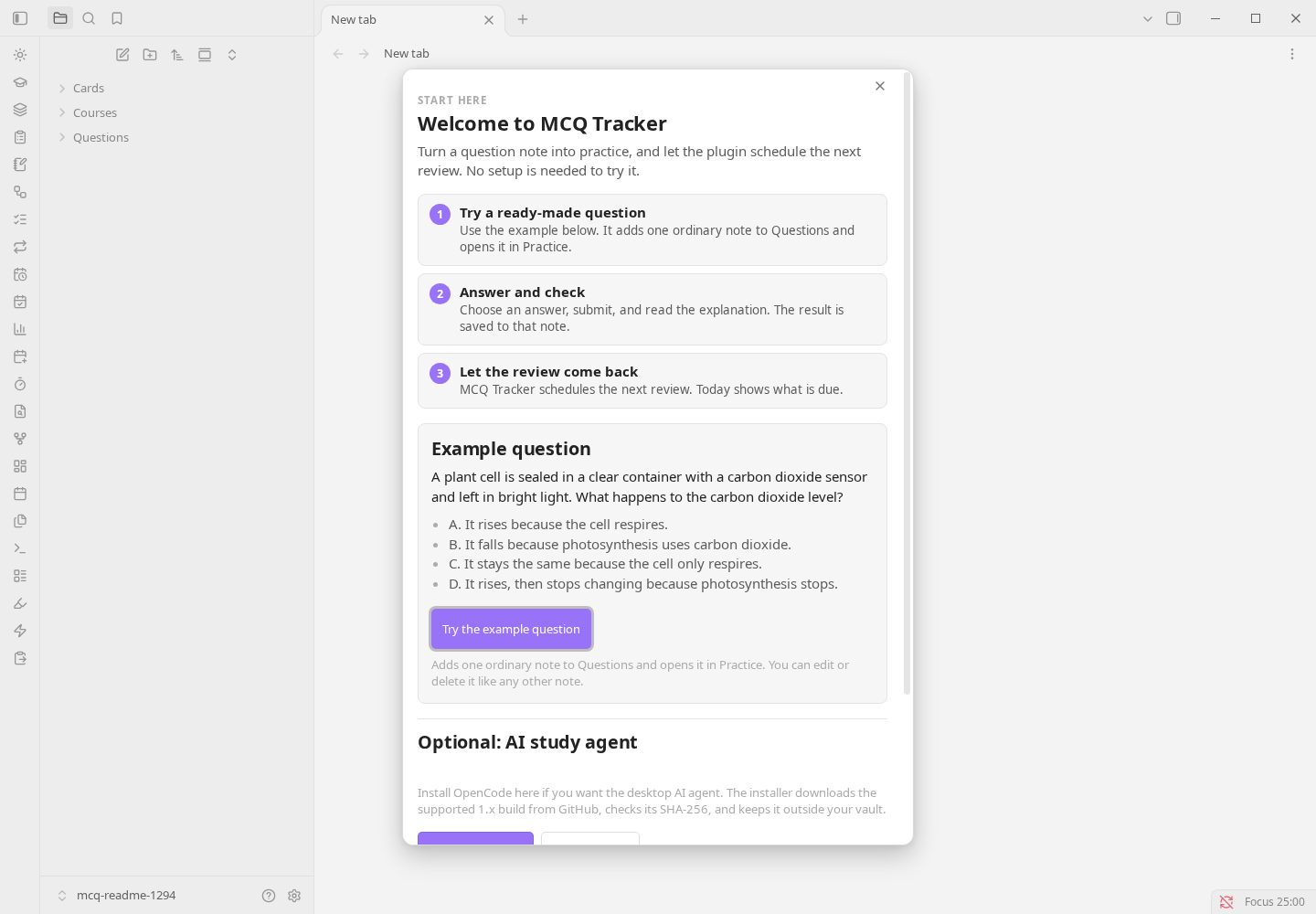
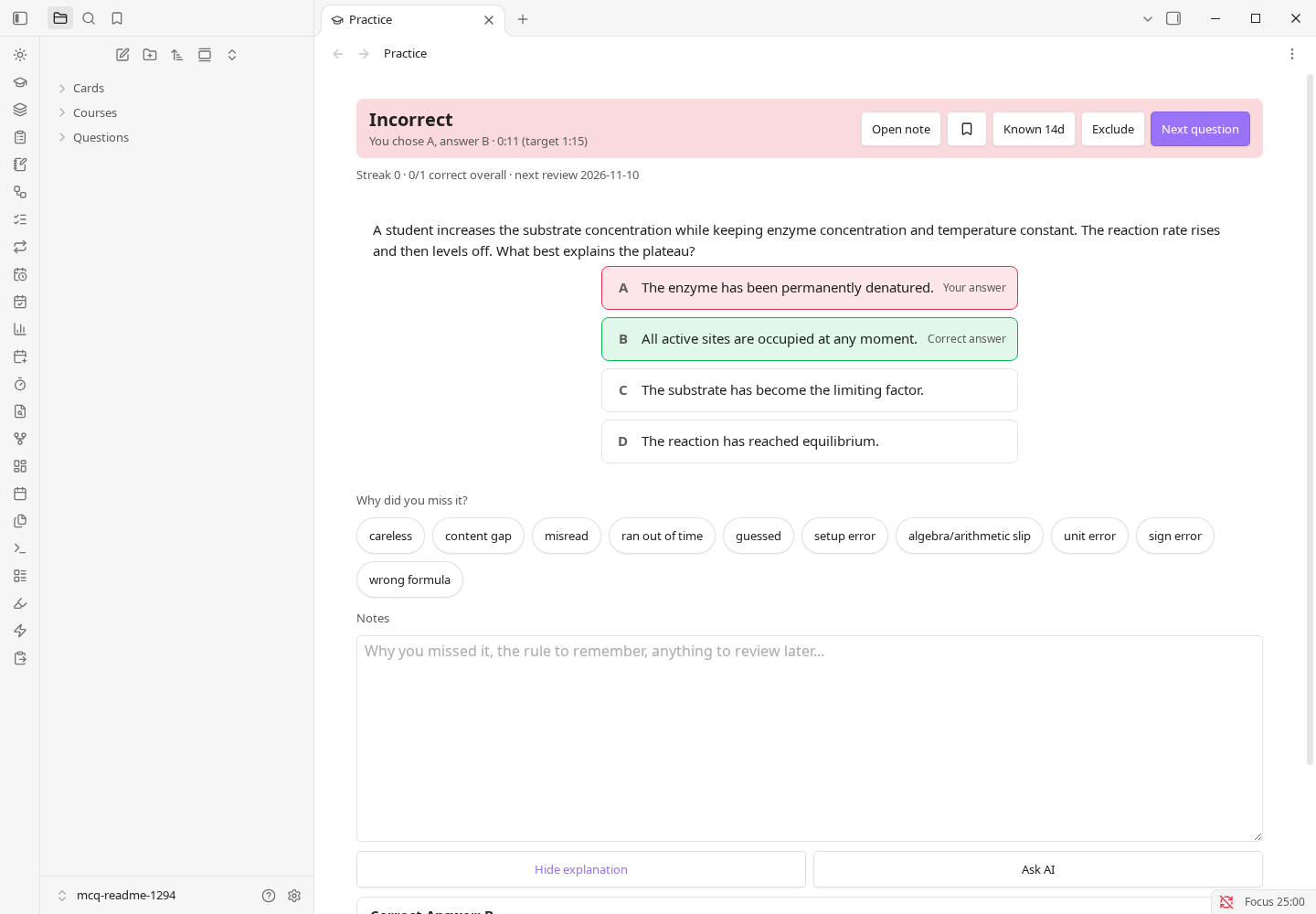
Reopen the note any time with Open Start here note. The interactive guide is still available as Open welcome guide. After an update, a short What's new note lists that version's changes once; reopen it with Show what's new.
Privacy and network use
The plugin sends no telemetry. The optional AI and CouchDB sync features use the network only after you turn them on and configure them. AnkiConnect talks only to a local Anki desktop. Full details are in Data, privacy and network use.
For students new to Obsidian
You do not need to know anything about Obsidian, programming or note-taking apps. This section goes from nothing to your first practised question and takes about 10 minutes.
What are Obsidian and MCQ Tracker?
- Obsidian is a free note-taking app. It keeps your notes as plain files in a folder on your device. That folder is called a vault.
- MCQ Tracker is an add-on (Obsidian calls these community plugins) that turns your notes into a practice tool. You answer practice questions, and it tells you when to review each one again.
- Spaced repetition means reviewing something just before you would forget it, with the gaps getting longer each time. Get a question right and it comes back after 1, 3, 7, 21, then 60 days by default. Get it wrong and it comes back tomorrow.
- You do not need an MCQ Tracker account, and Obsidian does not need one either.
Step 1: Get Obsidian
- Go to obsidian.md/download and install Obsidian. On a phone or tablet, install it from your app store.
- Open it. You should see the vault picker.
- Create a vault: choose Create new vault, give it a name (for example
Study), pick a folder, and open it. You should see an empty file list on the left and a blank note area.
Step 2: Install MCQ Tracker
- Click the gear at the bottom-left to open Settings. On mobile, open the sidebar and tap Settings.
- Choose Community plugins. You should see Restricted mode turned on. This is Obsidian's safety setting.
- Click Exit Restricted mode and confirm. You should now see Browse and No plugins installed.
- Click Browse, search for
MCQ Tracker, and open the result. You should see a page with an Install button. - Click Install, then Enable. Close Settings to return to the main Obsidian window.
The same five clicks are recorded in the install demo above.
Once enabled, Settings → Community plugins lists the installed plugin and version:
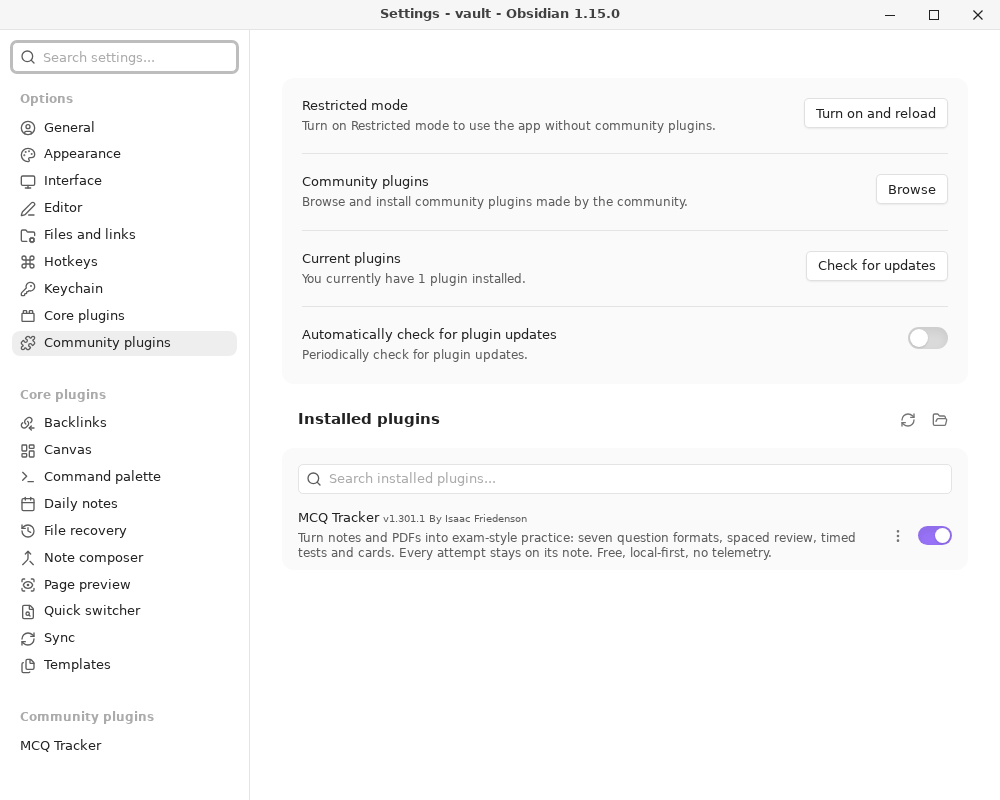
On desktop you can also open https://community.obsidian.md/plugins/mcq-tracker and choose Add to Obsidian. The manual install route is under Install.
Step 3: Answer your first question
- On the first run, the MCQ Tracker Start here note opens in the main Obsidian window automatically. If it does not, press
Ctrl/Cmd+P(Windows/Linux) orCmd+P(Mac), type Open Start here note, and press Enter. On mobile, use the command palette the same way. - The Start here note is a Markdown guide with four paths. For the clickable example, press
Ctrl/Cmd+P, type Open welcome guide, and press Enter, then click Try the example question. This is the welcome modal, not the note. - Pick an answer, choose how sure you are, and click Submit.
- Read the result. It shows your answer, the correct one, the explanation and the date the question will come back.
Step 4: Come back tomorrow
Open Obsidian and click Today. It lists the questions that are due for review. Do those first, then practise something new. That daily habit is the whole method.
Getting your own questions in
The no-AI route, start to finish: Practice, then Paste questions (offline), then paste one question per block.
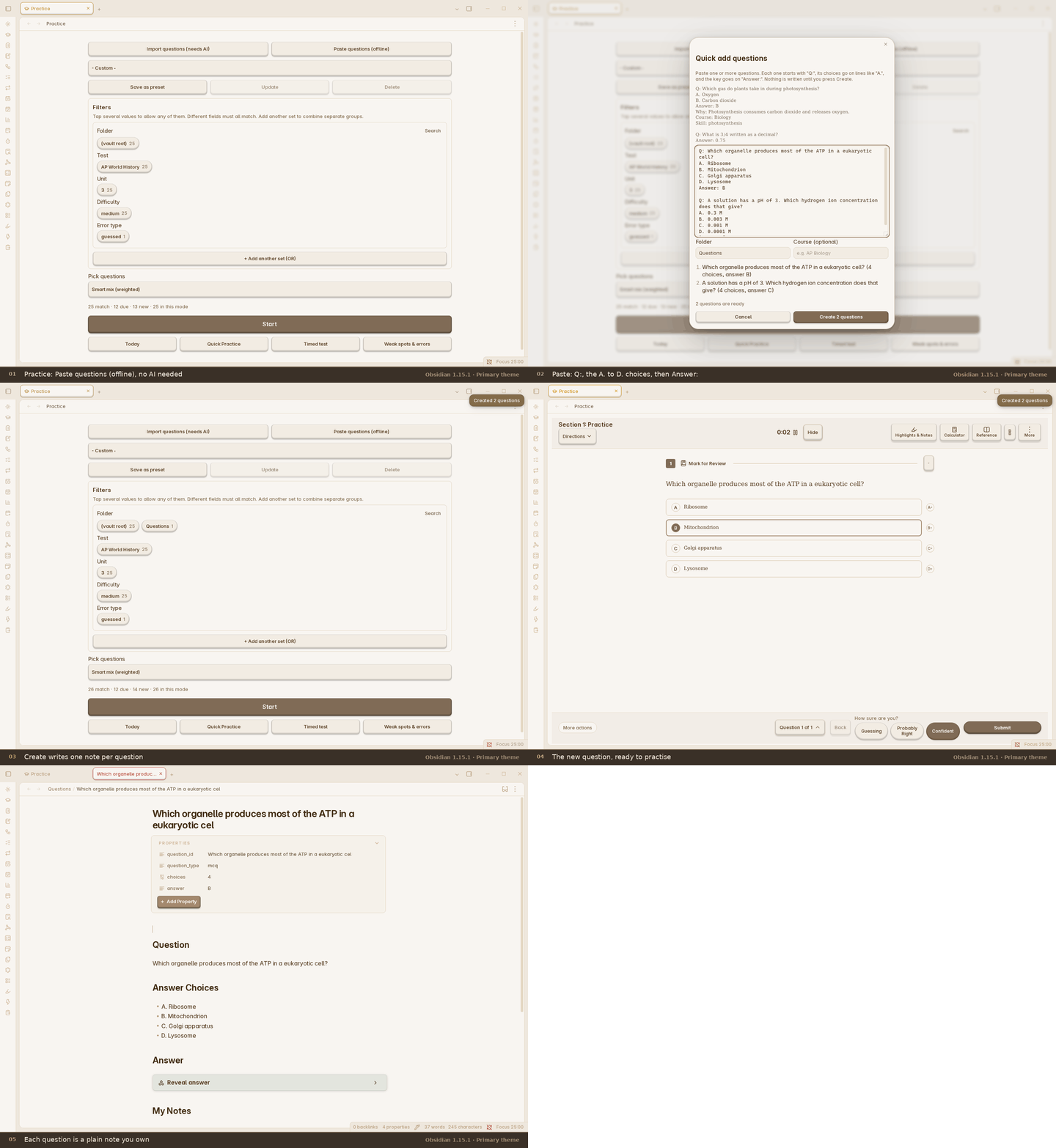
The five frames are also saved full size in docs/images/quick-add-run/.
- Import a document. This turns a PDF, PowerPoint, Word/OpenDocument, HTML, RTF, Markdown, CSV or text file into question notes, but it needs AI features plus either a provider key or the OpenCode desktop agent, and there is no offline converter. The file's text is sent to that provider, which may charge for long files.
- Import ready-made cards. This route is local and separate from document import: Quizlet, Kahoot, Moodle XML, QTI, GIFT, CSV, Markdown,
.apkg, CrowdAnki JSON, Mochi Markdown and Anki text. - Write your own. Each question is a short note. The sample vault has working examples to copy.
- No AI? Run Quick add questions from pasted text, import ready-made flashcards, or use the example question. Practice, review, flashcards, the calendar and the reference tools all keep working.
Beyond multiple choice (optional)
These are off until you switch them on under Settings → App & documents → Modules and global options → Modules, except Assignments, which is already on:
- Flashcards and vocabulary (on) adds flashcards, vocabulary, cloze and other flashcard types, using the default ladder or FSRS/SM-2.
- Calendar adds your classes and exams, and plans study around them.
- Assignments keeps deadlines and grades.
- AI features adds the tutor, grading and AI-assisted import. It needs your own provider key or the OpenCode desktop agent, so skip it unless you want it.
Words you will see
| Word | Meaning |
|---|---|
| Vault | The folder where Obsidian keeps all your notes. |
| Note | One file in your vault. Each question is one note. |
| Community plugin | An add-on you install inside Obsidian. MCQ Tracker is one. |
| Properties | Small labelled fields at the top of a note, such as course or answer. |
| MCQ | Multiple-choice question. |
| FRQ | Free-response question, where you write your own answer. |
| Cloze card | A flashcard with a blank for you to fill in. |
| Spaced repetition | Reviewing at growing intervals so you remember for longer. |
Your notes stay yours
Everything is stored as normal files in your vault folder on your own device. The plugin sends no telemetry, and AI and sync features do nothing on the network until you turn them on. The full explanation is in Data, privacy and network use.
Settings
Settings are grouped by category, with a page list beside the selected category. The most useful starting switches are under Settings → App & documents → Modules and global options → Modules. MCQ Tracker, Assignments, Flashcards and vocabulary, Calendar and Reference are all on by default; only AI features stay opt-in.
Finding features: Today and the left sidebar
You do not need the left sidebar to study. The fastest routes are the command palette (Ctrl/Cmd+P): Open practice view, Open Today, Open flashcards, Open calendar, Open assignments and grades.
If you use the ribbon (the vertical icon strip on the far left): Today is the calendar-check icon near the top (→). Practice is the target icon, Flashcards is the layered-cards icon, Calendar is the calendar icon. If the top bar disappears during practice on mobile, that is Distraction-free practice; answer or press Esc and it comes back. Turn it off under Settings → MCQ Tracker → Practice if you dislike it.
| Setting | What it does | Default |
|---|---|---|
| MCQ Tracker | Turns practice, tests, filters and import on or off. Notes stay. | On |
| Flashcards and vocabulary | Adds flashcards, vocabulary and flashcard review. | On |
| Calendar | Adds classes, exams and exam-aware study planning. | On |
| Assignments | Adds the gradebook and task list. | On |
| AI features | Adds tutor, grading and AI-assisted import. Needs your key or the OpenCode desktop agent. | Off |
| Review intervals (days) | Days before a correct answer returns. Misses return tomorrow. | 1, 3, 7, 21, 60 |
| Explanation after answering | When to show the answer explanation. | Only after a miss |
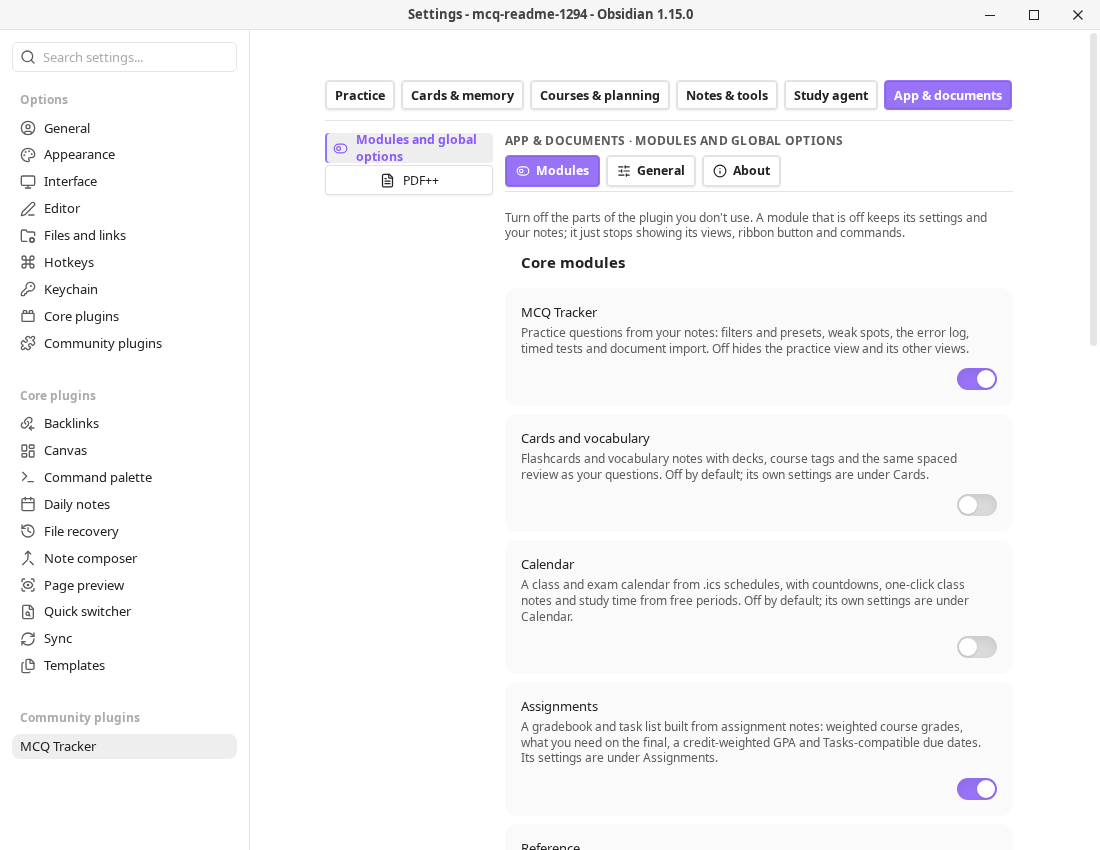
Advanced settings and modules
The optional Study Workspace adds twenty-one independent modules and twenty-one local workflows, including Feynman, Recall, Time blocks, Reading library and Quiz index. Its settings are on their own pages.
Other settings pages include Whole-note review, Spaced Everything, Daily quiz, Simple quiz blocks, Simple note quiz, Decks, AnkiConnect, CouchDB sync, Auto Anki and Text2Anki. Each has its own page or tab.
Troubleshooting
- I cannot find MCQ Tracker in Browse. Check that Restricted mode is off, Obsidian is up to date, and the search is
MCQ Tracker. If it still does not appear, use the manual install above. - Practice says there are no questions. Each question note needs a
question_idproperty, a## Questionheading and ananswerproperty. Check Question folder in the plugin's Practice settings and clear any folder filter. - Flashcards are missing. Turn on Flashcards and vocabulary under Settings → App & documents → Modules and global options → Modules (it is on for new installs).
- AI or OpenCode does not work. AI features are off by default. Turn them on under Settings → App & documents → Modules and global options → Modules, then add a provider key under Settings → Study agent → AI and the assistant. OpenCode is desktop-only; on mobile, use a Direct API provider key.
- A result did not save. Keep Obsidian open, press
Ctrl/Cmd+P, and run Retry saving offline practice results. Check that the vault folder is writable.
Reference
The sections below are the full reference. The two paths above are enough to start.
Why MCQ Tracker
- It starts with questions, not a deck to maintain. Write or import questions, answer them, and let the review schedule follow the result. You can still add whole notes and cards when that is the better unit.
- It tells you why you missed. Confidence ratings, mistake tags, per-skill accuracy, weak-spot practice, answer explanations and a review date all stay on the question note.
- It covers the whole exam week. Timed multi-section tests, AP-style free response, a gradebook, exam-aware study plans and a calendar sit beside the question bank.
- Your notes are the database. Review state lives in each note's properties, so it travels with the vault, survives a plugin reinstall, and remains readable by Dataview or a text editor.
- The optional parts stay optional. AI, AnkiConnect, CouchDB sync and the calendar feeds are off or unused until you turn them on. Nothing is sent anywhere by default.
What you get
| Area | Included |
|---|---|
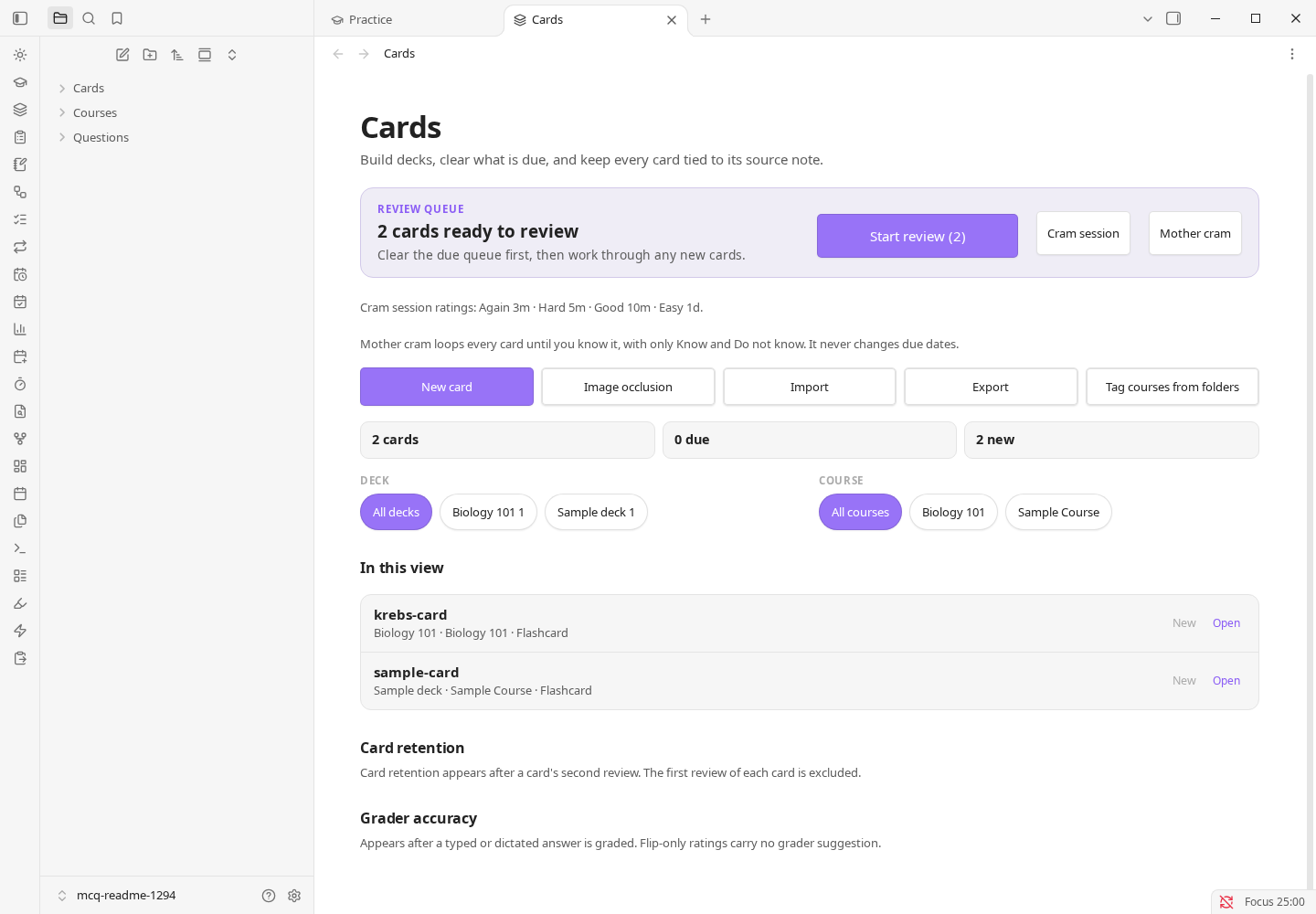
| Practice | Multiple choice, student-produced response, fill-in, matching, true/false, select-all and free response (FRQ); hints, confidence, cross-out, flags and per-question timing. |
| Tests | Timed multi-section tests, resume, a question navigator, mark for review, option shuffle, a pass mark and Bluebook-style tools. |
| Review | Whole-note review in a dock under the note, a review sidebar, a due-date calendar, FSRS, SM-2 and the interval ladder; Again/Hard/Good/Easy previews, keyboard grading, requeue, skip, postpone, undo and lapse checkpoints. |
| Cards | Flashcards, cloze, reversed, multiple-choice, typed and image-occlusion cards; decks, vocabulary, cram, .apkg import/export and optional AnkiConnect sync. |
| Study agent | Optional note-grounded chat with tutor roles, an Objective coach role, local cited vault search, PDF context, plan-then-act, write review, memory and saved conversations. |
| Study tools | Feynman sessions, recall queues, Cornell notes, study flow, reading library, mind maps, study plans, time blocks, citations and reference sheets. |
| Calendar | Classes and exams from .ics or Full Calendar notes, local event CRUD with categories and recurrence, assignment deadlines, grades and study planning. |
| Statistics | Attempts, accuracy, confidence calibration, weak spots, study activity, true retention by maturity, memory-now, distributions, leeches and per-deck summaries. |
| Import/export | Document-to-question import (AI required), local card imports (Quizlet, Kahoot, Moodle, QTI, GIFT, .apkg, CrowdAnki JSON, Mochi Markdown, Anki text), and study-bundle, card-archive, .apkg, ICS, CSV, Markdown or JSON export where supported. |
| Focus | Pomodoro timer with work/short-break/long-break phases, a completion sound, a daily goal and a study log. |
Practice, tests and feedback
Practice is one note per question by default, which keeps each attempt, explanation and review date attached to the material it belongs to. Quick add can turn a pasted block into several notes at once, and the importers can bring in a whole question bank.
A three-question timed test, end to end: the section setup, the test with its own clock and the finished score.
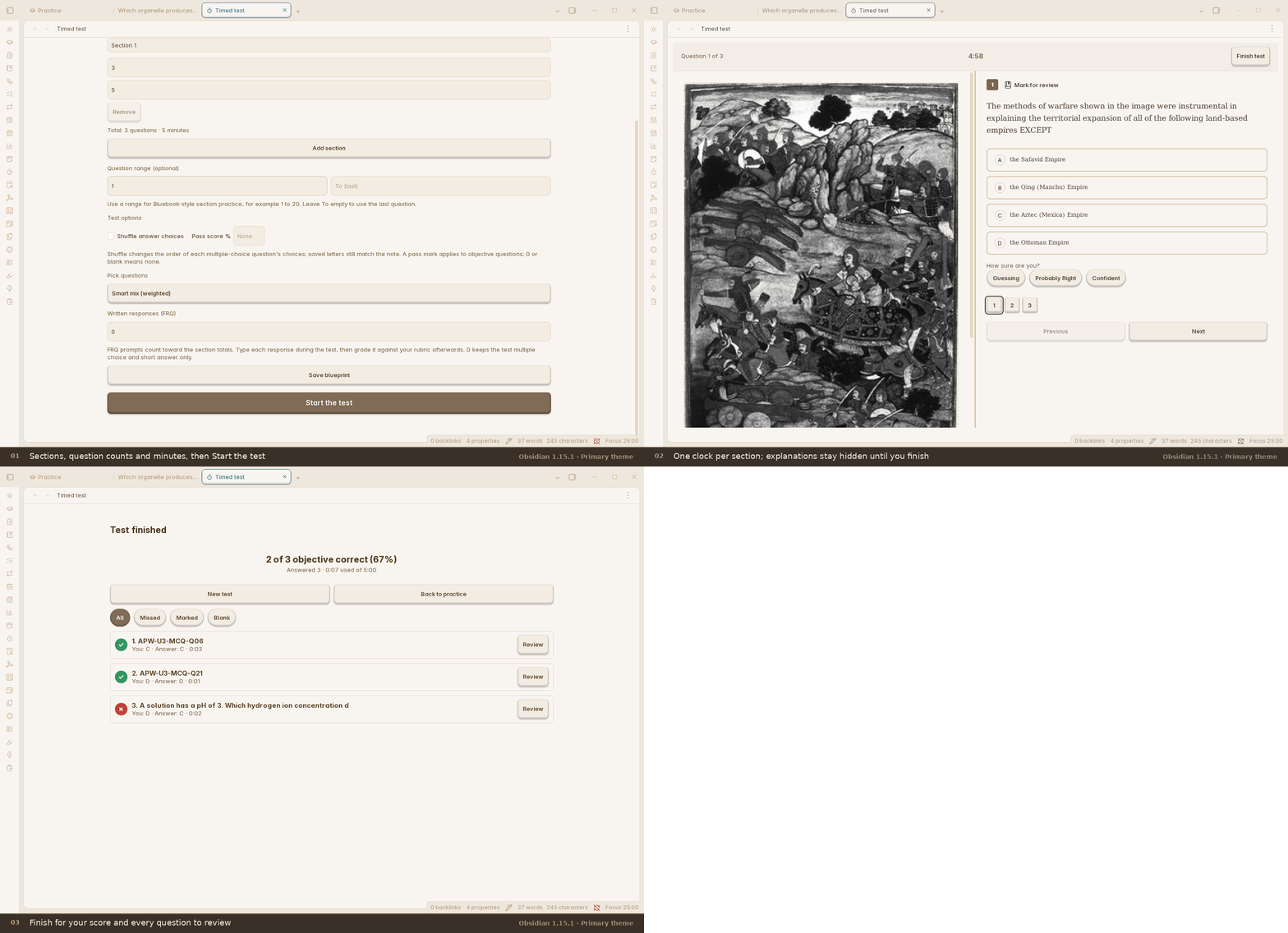
The three frames are also saved full size in docs/images/timed-test-run/.
- Question types: MCQ, SPR, fill-in, matching, true/false, select-all and FRQ.
- Feedback: the correct answer, the explanation, your confidence, an optional reason for a miss, mistake tags and the next review date.
- Tests: choose sections, counts, minutes, written responses, option shuffle and a pass mark; pause or resume a saved test.
- Weak spots: filter by course, skill, difficulty, folder or a saved preset, or use adaptive practice to weight the questions that need work.
- Exam tools: calculator, reference sheet, periodic table, formula sheet, highlighter, cross-out and mark-for-review.
Review and scheduling
The review schedule is shared by questions, cards and whole notes. Nothing is locked behind a second account or a cloud service.
- Whole-note review opens the note in place and docks a grading bar underneath it. Every grade shows the interval it would schedule before you press it. A failed note returns later in the same session; a note that keeps failing stops at a lapse checkpoint and asks whether to reset, rest, remove or carry on.
- The review sidebar lists what is due and upcoming, groups by day, shows an estimate and lets you sort, filter, grade, postpone or remove without leaving the note. It can also show the Pomodoro clock.
- The review calendar shows the due load by day and the next seven days of work.
- FSRS and SM-2 are both available for whole notes and flashcards. The interval ladder remains the default for questions; flashcards and whole notes can use the default ladder or FSRS/SM-2.
- Durable recall is opt-in: a correct recall counts as durable only after it happens on two different days.
Flashcards, decks and Anki
The Flashcards module (on by default) adds flashcards without changing the question workflow.
- Flashcard shapes: flip, reversed pair, multiple choice, cloze, typed answer and image occlusion.
- Decks and vocabulary: deck folders, course tags, a vocabulary tab and an offline WordNet import.
- Anki files: import
.apkg, export.apkg, and keep decks in step with a running Anki desktop through the AnkiConnect add-on. - AnkiWeb finder: Flashcards: find a deck on AnkiWeb opens AnkiWeb's shared-deck search in your browser. Download the
.apkgthere and use Flashcards: import existing decks. The plugin does not ask for or store an AnkiWeb password. - Flashcard review: cram, a practice-only Cram loop (Know / Do not know), grading accuracy, a grade-later queue and a flashcard archive. Each flashcard row has Open and Delete.
Study agent and study tools
AI is off by default and only uses the provider you configure. The Study agent is a normal Obsidian chat with local note grounding and a review window around file writes.
- Tutor roles: Private tutor, Socratic tutor, Objective coach and Language partner, plus
/guide,/quiz,/confuse,/gap,/predict,/feynmanand/mock. - Objective coach: charts a note into learning objectives and teaches one at a time through explain → recall → apply. It tracks understanding, recall and transfer separately, treats recall as durable only after two different days, and can finish with a report you save as study notes and flashcards. The session lives in a saved conversation; there is no separate objective rail.
- Grounded help: local cited vault search, note attachment, PDF page ranges and opt-in memory. The agent is told to cite a real
[[note]]or[[note#L12]]and to say when the vault does not contain the answer. - Study workspace: twenty-one independent modules and twenty-one local workflows, including Feynman, Recall, Time blocks, Reading library and Quiz index. It also includes study maps, mind maps, Cornell notes, study flow, the subject manager, task lists, citations and read-aloud.
- Local transcription (opt-in, desktop): turn it on under Settings → Read aloud, then run Audio: set up local transcription…. It shows the pinned whisper.cpp release, the model, both sizes and their SHA-256, and downloads nothing until you confirm; the program and model go into the plugin's own data folder with a receipt. Audio: transcribe a recording…, or Transcribe the last recording on the voice memo card, writes an editable transcript note (
type: transcriptwithaudio,duration,language,modeland optional[mm:ss]markers) underRecordings/Transcripts. Nothing is uploaded, nothing is graded, and an existing transcript is never overwritten. A WAV recording is decoded directly (no renderer decoder needed), and Compile one study note includes the transcript notes in the transcript folder when the module is on. - Writes stay reviewed: the agent proposes a file change, you approve it, and the existing diff/undo guard applies it.
Calendar, assignments and planning
- Classes and exams: import an
.icsschedule, read Full Calendar notes, see the next class, mark attendance and create a class note. - Local events: create, edit and delete events with seven colour-coded categories, custom colours, all-day or timed events, location, description and daily/weekly/monthly/yearly recurrence with an end date. They live in plugin data and are separate from imported feeds.
- Assignments: due dates, estimates, task checkboxes, a gradebook and GPA.
- Planning: Today, a study plan for the next exam, time blocks, deadlines and a calendar view.
Import and export
Bring material in as notes, not as a locked database.
Document import (needs AI). PDF, PowerPoint (.pptx, .pptm, .ppsx), Word (.docx, .docm), OpenDocument (.odt, .odp), HTML (.html, .htm), RTF, Markdown (.md, .markdown), CSV/TSV and plain text (.txt) can be turned into question notes. This requires AI features plus either a provider key or the OpenCode desktop agent; there is no offline converter. The Direct AI route previews what it found before writing. The desktop OpenCode agent writes the notes itself, then reports what it created.
Importing several files at once
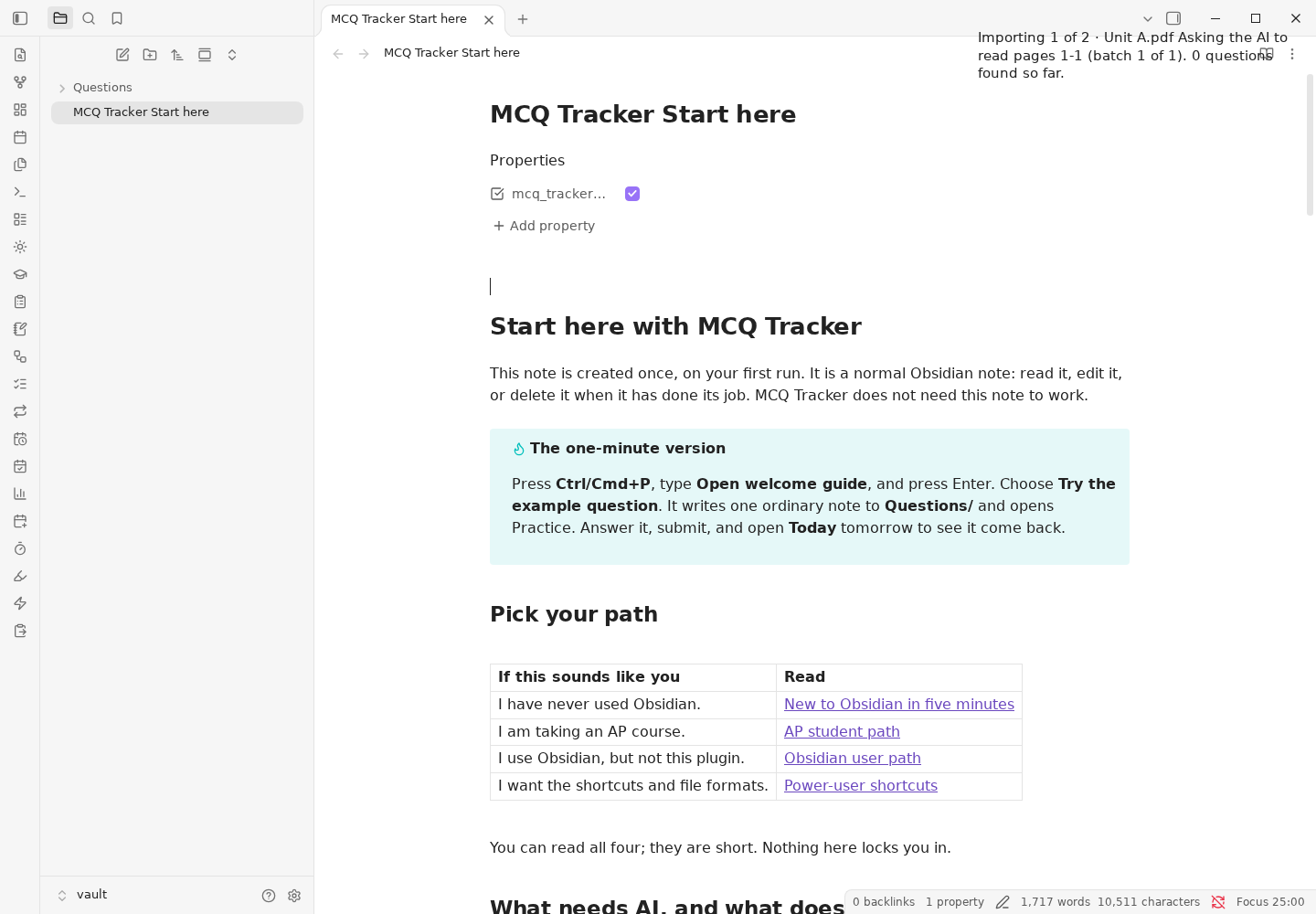
Import questions from a file accepts several PDFs, PowerPoint or Word files in one picker and runs them one after another. Each file keeps its own review, gets its own subfolder under the destination folder, and a failed file does not stop the rest. On desktop the import is a real Obsidian window, so it stays open and keeps working when you return to the main vault. The window shows the queue, a shimmering progress bar with time left, and a collapsed Advanced import controls section (Undo everything, Discard this file, and — only when importing several files — Finish this file, then stop). When it finishes, Delete this import (PDF + questions) removes the source PDF copy, pictures and question notes in one confirm.
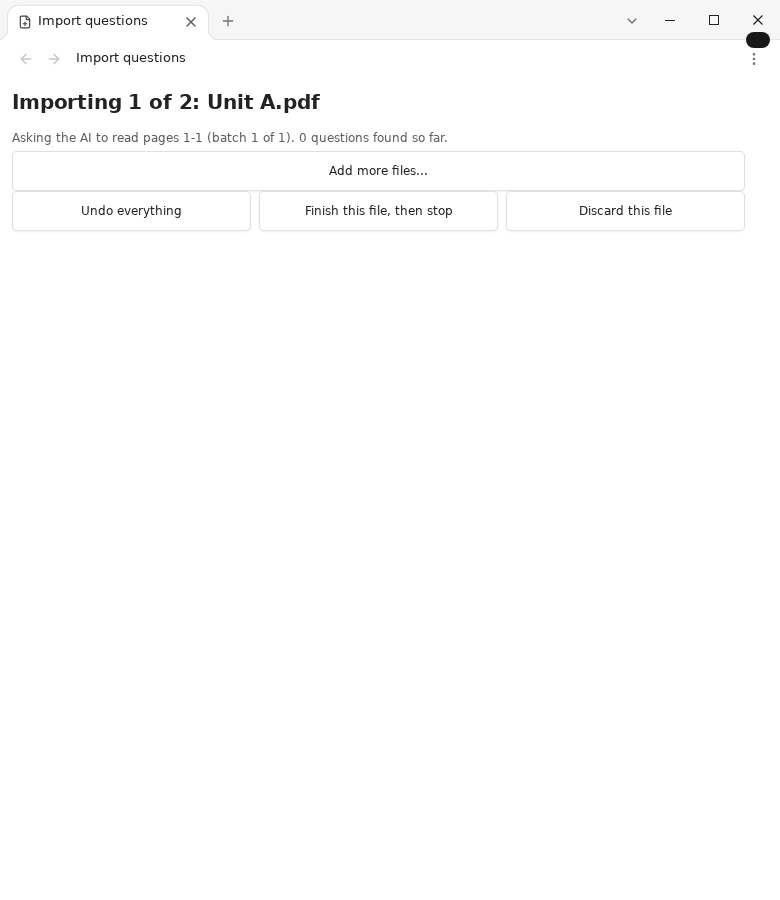
Progress stays in the main window's notice area, so you can keep working while the queue runs:
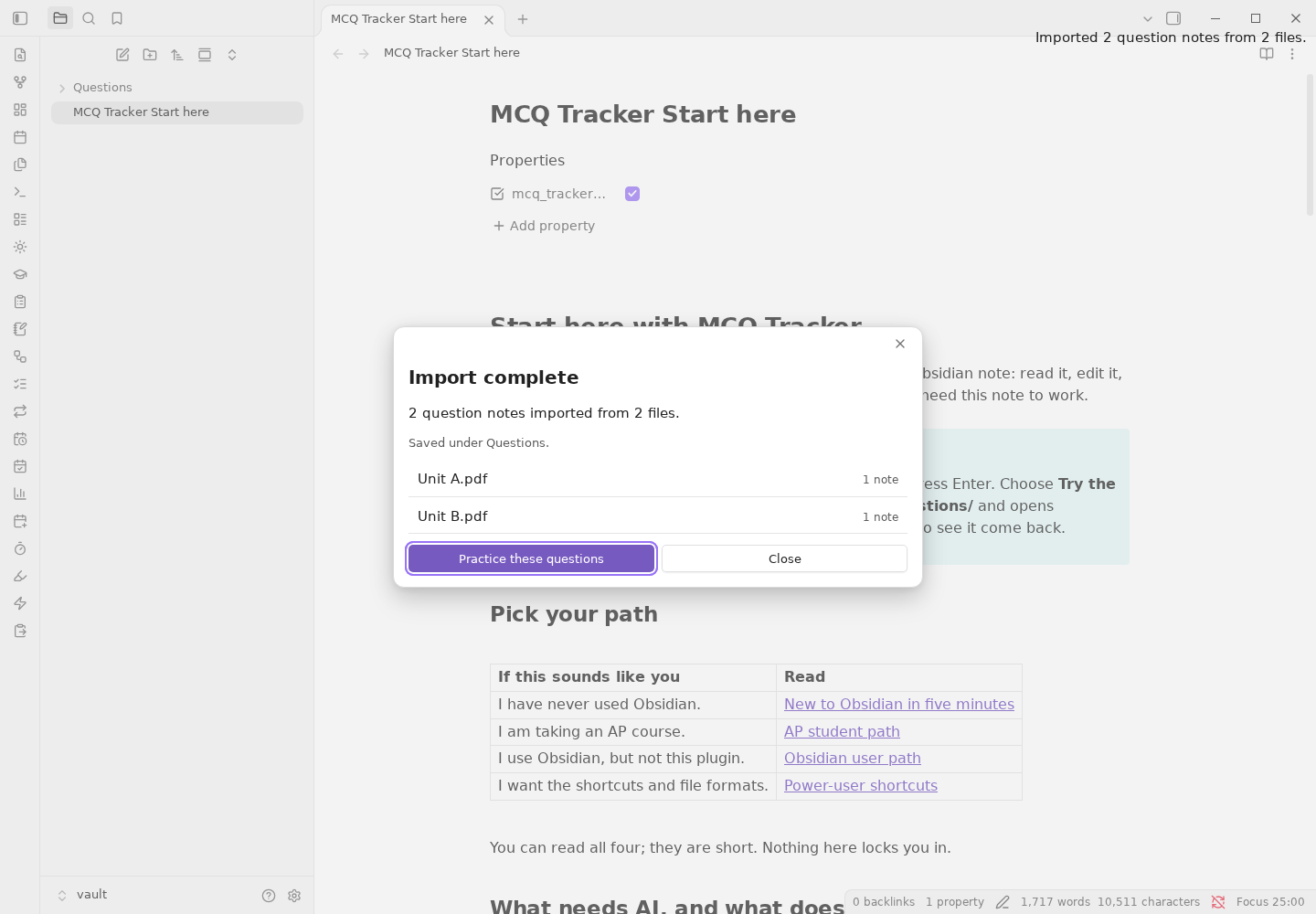
When the batch finishes, the completion popup lists every file and offers Practice these questions, which opens Practice limited to the imported folder:
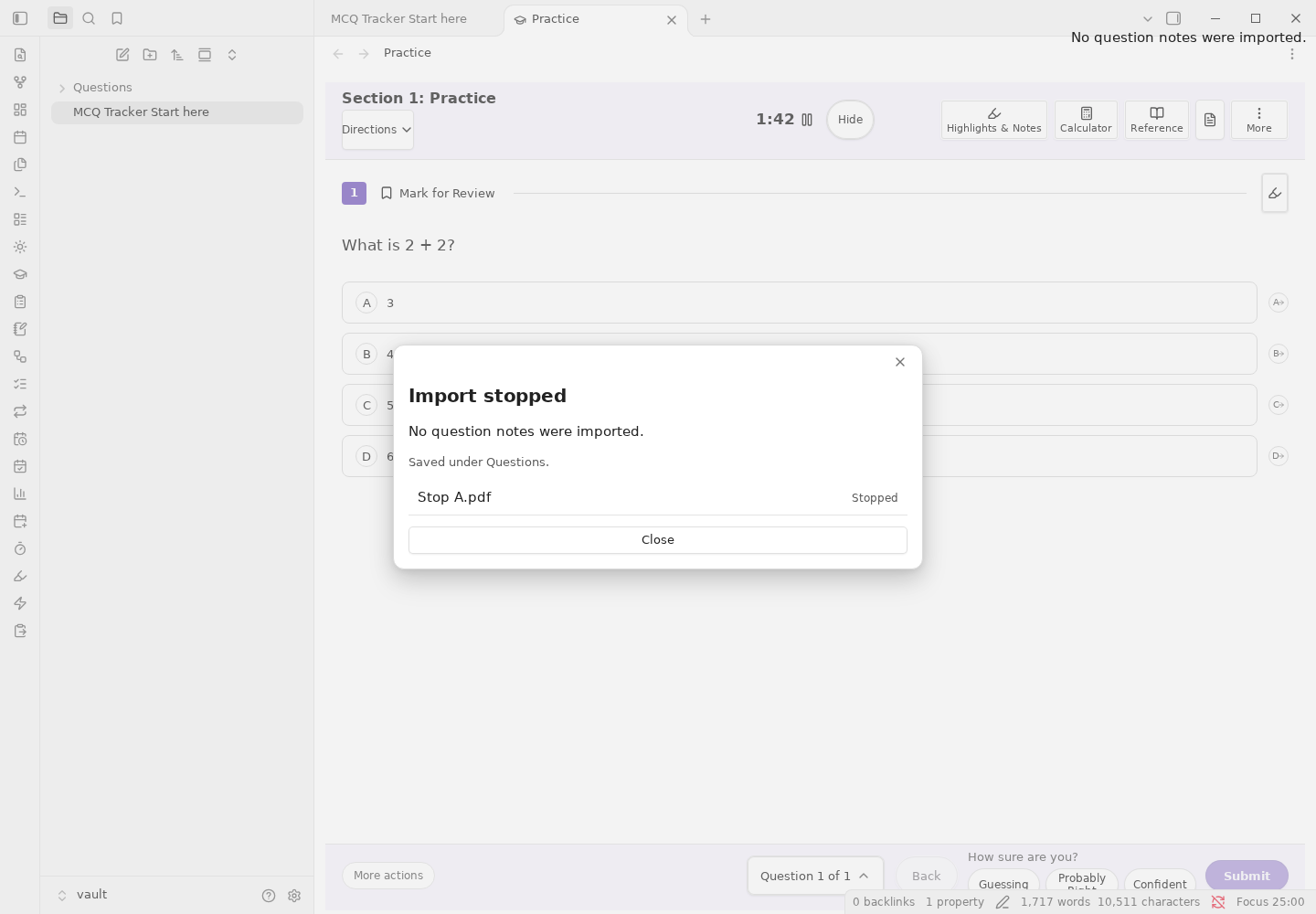
If you stop, the summary reports what was kept and which file was stopped:
A free local model, with Ollama
Document import needs a model, but not a paid one or a cloud one: a 7B model on the same computer reads a few pages of exam text well enough to draft the notes, and nothing leaves the machine.
- Install Ollama and start it (
ollama serve, or the Ollama app). - Pull the model once, while online:
ollama pull qwen2.5:7b(4.7 GB,Q4_K_M). - In Settings → AI and the assistant, choose AI backend: Direct API, then Provider: Ollama, Base URL
http://127.0.0.1:11434/v1and Modelqwen2.5:7b. A local server needs no API key. - Import a file as usual and read the review screen before you create the notes.
Measured on an 8-core CPU with no GPU: about 4–11 tokens per second depending on what else the machine is doing. With the model already loaded, a three-page exam with three questions reached the review screen in under a minute; the first request after starting Ollama took about 3½ minutes, because the 4.7 GB model has to be read into memory before it can answer. One local request is allowed up to 15 minutes, so a slow machine is not mistaken for a dead one. A 3B model is too small for this prompt (it merged two questions into one and lost the rest), and a 14B model answers at about 2 tokens per second here, over ten minutes for the same pages. Ollama's own variables still apply — OLLAMA_MODELS keeps the models on another disk, OLLAMA_HOST moves the port — and the base URL must name the address Ollama is actually listening on.
Local imports. Ready-made flashcards can be imported without AI from Quizlet, Kahoot, Moodle XML, QTI, GIFT, .apkg, CrowdAnki JSON, Mochi Markdown and Anki text, plus CSV and Markdown. Export a study bundle, a flashcard archive, .apkg, ICS, CSV, Markdown or JSON where the format supports it.
Commands
Open the command palette with Ctrl/Cmd+P and search MCQ Tracker, Flashcards, Review, Study agent or Calendar. The palette has more than 200 commands, including:
- Onboarding:
Open Start here note,Open welcome guide,Show what's new. - Practice:
Open practice view,Quick Practice,Start a timed test,Practice this note only,Show weak spots,Find or generate quiz questions. - Review:
Open review sidebar,Next review note,Previous review note,Review current note,Add current note to review schedule,Open review calendar,Open study statistics. - Flashcards:
Open flashcards,Flashcards: import existing decks,Flashcards: export to Quizlet, Anki package, Anki text, Mochi, LearnKit, Kahoot, Blooket or Gimkit,Flashcards: find a deck on AnkiWeb,Flashcards: export a portable archive,Flashcards: import a portable archive. - Study agent:
Study agent: open the sidebar,Study agent: Quick Chat,Study agent: plan a multi-step task,Study agent: attach a PDF,Study agent: export a conversation as Markdown. - Calendar:
Open calendar,Open local events,Local events: create an event,Calendar: add an .ics schedule,Calendar: export the visible schedule to .ics. - Data:
Export a study bundle (backup of questions and flashcards),Import a study bundle (restore questions and flashcards).
How it compares with Spaceforge
Spaceforge is a strong spaced-repetition and study suite. This comparison is based on its public README (reference dralkh/spaceforge at 1.2.92) and on this 1.307.34 build. The point is to show the trade-offs, not to claim that one plugin wins every row.
| Capability | MCQ Tracker | Spaceforge | The practical difference |
|---|---|---|---|
| Whole-note review | Yes: docked bar, review sidebar, due calendar | Yes: docked bar and review sidebar | Both keep the note in view. MCQ Tracker also has question and card lanes that share the same scheduling vocabulary. |
| Spaced repetition | FSRS, SM-2 and a simple ladder | FSRS and SM-2 | MCQ Tracker keeps the ladder for question notes and offers FSRS/SM-2 for whole notes and cards. |
| AI-generated MCQs | Yes, optional, with a blind-verification pass | Yes | Both are BYOK and optional. MCQ Tracker treats generated items as ordinary question notes and can verify the answer key. |
| Adaptive objective tutor | Partial: Study agent Objective coach role and local concept record | Yes: dedicated objective rail and per-objective transcripts | MCQ Tracker's coach runs in a saved conversation; it does not have a separate objective dashboard. |
| Web lookup while studying | Local cited vault search only | Optional cited web search | Deliberate: MCQ Tracker does not send study text to a search provider. |
| Anki decks | .apkg, AnkiConnect and a separate deck lane | .apkg, AnkiConnect and an in-app AnkiWeb browser | MCQ Tracker opens AnkiWeb's search in your browser and imports the downloaded file. |
| AnkiWeb | Finder link; no password stored | Search, inspect and import in the plugin | The download step is outside Obsidian, which keeps the plugin out of AnkiWeb's session. |
| Local calendar events | Yes: categories, recurrence, location, description | Yes, integrated into the main calendar | MCQ Tracker uses a separate Local events view; imported classes and exams stay in the Calendar view. |
| Statistics | Heatmap, streaks, retention by maturity, memory-now, distributions, leeches, per-deck | Similar Anki-style dashboard | Both compute locally. MCQ Tracker also has confidence calibration and weak-spot charts. |
| Pomodoro | Work, short break, long break, sound, sidebar and status bar | Yes | Equivalent. |
| Provider breadth | OpenAI, Anthropic, Gemini, OpenRouter, Together, Qwen, Ollama, LM Studio, llama.cpp, Jan, any OpenAI-compatible endpoint, and the OpenCode local agent | 20+ named providers and several agent CLIs | MCQ Tracker's custom endpoint covers the same broad class; OpenCode is the only bundled local agent CLI. |
| Data storage | Review state in each note; settings in data.json | One central data file | Deliberate: notes are portable, inspectable and survive a plugin reinstall. There is no custom data-path setting because there is no central review database. |
| Progress carried with the vault | Yes, by design: the progress is in the notes | Optional progress.json mirror | A vault sync that excludes .obsidian still carries MCQ Tracker review state. Shared settings do not travel that way. |
| Mobile | Yes | Yes | Both use the same Obsidian app. |
| Data export | Study bundle, card archive, .apkg, ICS, CSV, Markdown | Central JSON backup and recovery | Different export shapes; both avoid a lock-in. |
| Question-first exam tools | Yes: timed tests, confidence, error tags, numeric/units, FRQ, gradebook, AP tools | No | This is where MCQ Tracker leads. |
Why the differences exist. MCQ Tracker deliberately keeps schedules in the notes, keeps web search off the network, and only runs a local agent CLI through OpenCode. Those are product boundaries, not forgotten rows. The full audit, including the Spaceforge rows already closed and the few that remain partial, is in docs/PARITY_AUDIT.md.
Limitations
- The Objective coach is a prompt-driven Study agent role. It does not yet have a separate objective rail, per-objective transcript store or automatic transfer test.
- AnkiWeb opens in your browser; the plugin does not embed the site or store a session.
- Web lookup is deliberately absent. The agent can search your vault, not the web.
- AI output depends on the provider you choose. Generated questions and grades are aids, not an accuracy guarantee.
Screenshots
These are real captures of the shipped views.
 |  |
| |
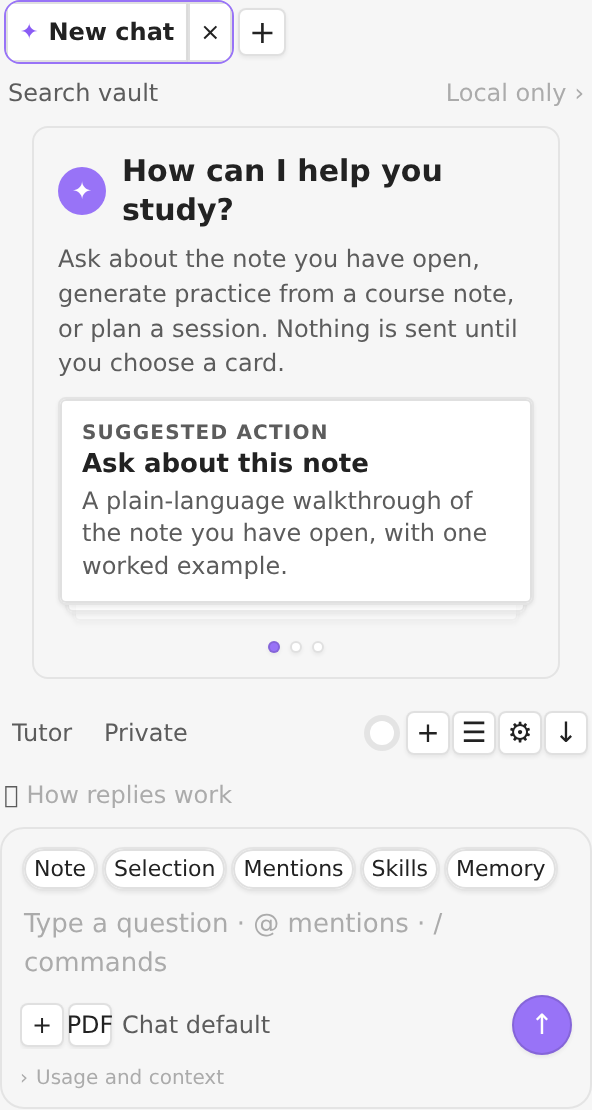
The Study agent at a 296 px sidebar width. A physical-phone screenshot is not included because no device was available for this pass; the mobile layout is covered by the layout tests, and no mockup is presented as a phone capture.
Data, privacy and network use
- Review state is written to each question, card or note in its YAML properties. The plugin's
data.jsonholds settings, presets, local events, chat history, the running timer and other plugin state. There is no central review database. - No telemetry. The plugin has no analytics, crash reporting, ads or self-updater.
- AI is opt-in. When you send a chat, generate questions or grade an answer, the selected provider receives the text needed for that request. The active provider and the feature that sends are listed in Settings → Study agent → AI and the assistant.
- AnkiConnect talks only to the local Anki desktop address you configure. AnkiWeb opens in your browser; the plugin does not store an AnkiWeb password.
- CouchDB sync is optional and only uses the server you configure. Calendar feeds are read only when you add them.
- No web lookup: the Study agent uses local vault search and cites the notes it actually read. It does not browse the web.
- Local transcription is opt-in and local. whisper.cpp runs on your computer and receives only the temporary 16 kHz WAV of the recording you chose. The only request the slice makes is the download you confirm: the pinned program (Windows) or your own
whisper-cli, and one model, each checked against a SHA-256 recorded in the plugin before anything runs.
Trademarks
Not affiliated with or endorsed by the College Board. AP and Bluebook are trademarks of their owners. MCQ Tracker ships no AP questions, rubrics or question banks.
License and links
MIT. The plugin sends no telemetry. Third-party notices are in NOTICES.md.
For plugin developers
Search results and similarity scores are powered by semantic analysis of your plugin's README. If your plugin isn't appearing for searches you'd expect, try updating your README to clearly describe your plugin's purpose, features, and use cases.